If an AI-generated PowerPoint file will not open, you can open a PPTX file and use the Open and Repair command. If that fails, check whether the download is complete, try opening the .pptx as a ZIP archive, or use a dedicated PPTX repair tool. If the file opens but looks wrong, skip corruption repair and go directly to the formatting problem instead. Font substitution, text overflow, shifted objects, and flattened charts usually need different fixes.
If you want more information on repair options for a PowerPoint file, this guide covers three common failure states and fixes for broken or incorrectly formatted PowerPoint files. These include issues such as a PowerPoint file that won’t open, files that open but have broken formatting, and slides that open but the objects are no longer editable.
For this tutorial, we will use the 6 Pieces 3D Tetris Cube PowerPoint Diagram Template to demonstrate results associated with AI-generated slides.
Why AI-Generated PowerPoint Files Break
An AI-generated PowerPoint can break without becoming corrupt. To understand this, let’s take a look at how a .pptx file is actually structured. PowerPoint stores presentations in the .pptx format, which is an OOXML package containing separate XML files for slides, themes, relationships, media, layouts, fonts, and other presentation components. Many AI presentation systems, browser-based slide tools, and code-generation workflows do not build a presentation in exactly the same way as PowerPoint. Instead, they may create or arrange content in another layout system and then translate that structure into PowerPoint-compatible objects at export.
For example, a text block that fits perfectly in a browser may not behave the same way inside a PowerPoint text box. Similarly, a font available to the export service may not exist on the recipient’s computer. An illustration may be reconstructed as several editable objects, a single image, or a mixture of both. In more serious cases, an invalid relationship or missing content-type entry inside the OOXML package can make PowerPoint treat the entire file as damaged.
A documented bug, the Pandoc issue #11492, illustrates how small packaging errors can cause this. This issue occurred when generated PowerPoint files included embedded .fntdata font files without the corresponding content-type registration in [Content_Types].xml, causing PowerPoint to report the presentation as corrupt. The issue has since been addressed. However, it is useful as an example of how malformed OOXML can break a PPTX rather than as a current Pandoc limitation.
Fix 1: When the File Won’t Open at All
1. Try PowerPoint Open and Repair
If your AI-generated PPTX file won’t open, work through the following steps in order.
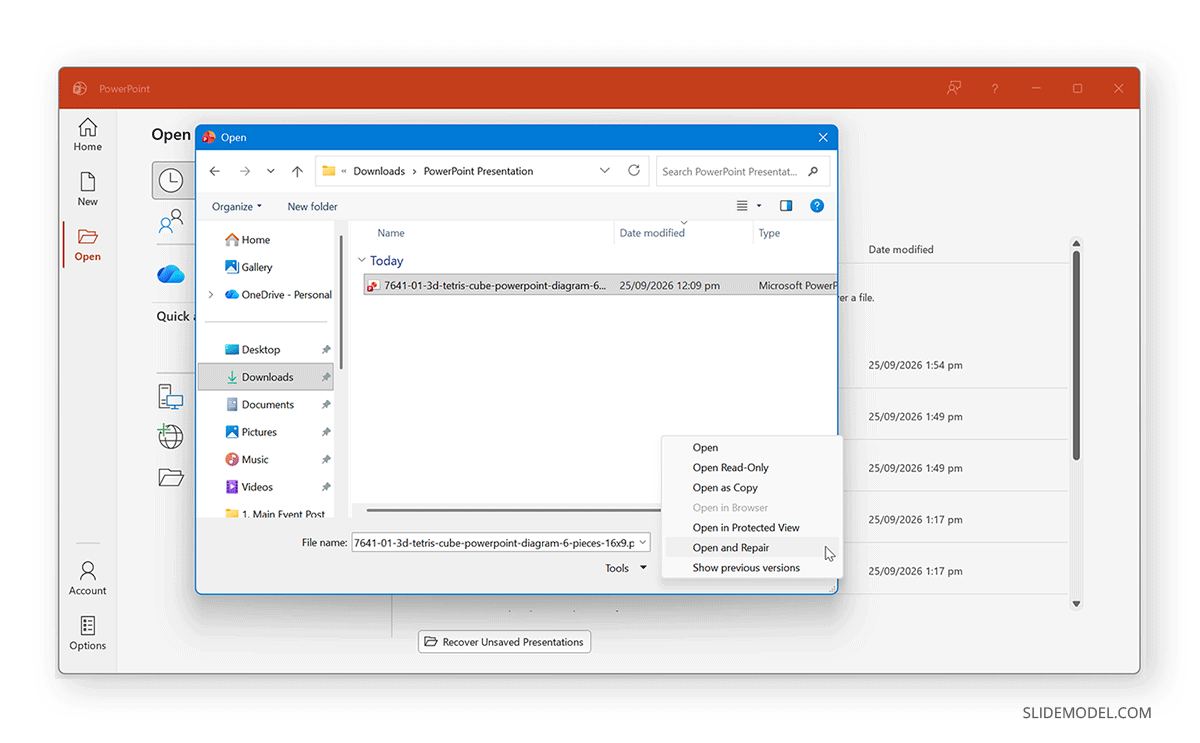
Step 1: Open PowerPoint and go to File -> Open -> Browse.
Step 2: Locate and select the file from your device.
Step 3: Select Open and Repair via the dropdown menu next to Open. If PowerPoint repairs the file successfully, immediately save a new copy before making further edits.
Note: Microsoft specifically recommends opening the file through the Browse dialog because the repair option is not available when opening directly from the Recent list.
2. Check Whether the Download Failed
A .pptx file that is 0 KB or only a few bytes is not a repair problem. It is usually an incomplete or failed download. Check the file size in File Explorer or Finder and download the presentation again from the AI tool. This is particularly worth checking when you face ChatGPT PPTX not opening or similar issues from other AI platforms. This may also be necessary if a browser export finished unusually quickly or the source application showed an interrupted download. This might mean an AI-generated PowerPoint won’t open because it didn’t download properly. Also check whether a browser export finished unusually quickly or appeared interrupted.
3. Rename the PPTX to ZIP
A PowerPoint presentation is essentially a ZIP package containing multiple folders and XML files. To fix the issue, follow these steps:
Step 1: Copy the presentation.
Step 2: Change the file extension (e.g., presentation.pptx to presentation.zip).
Step 3: Try opening or extracting the ZIP. If it extracts successfully, the package still contains recoverable content even if PowerPoint refuses to open the presentation.
This archive can also help you confirm whether the file contains expected folders such as ppt, ppt/media, ppt/slides, and ppt/theme. This is also a useful point to inspect the file’s metadata with a PPTX metadata inspector if the presentation came from an unfamiliar export workflow.
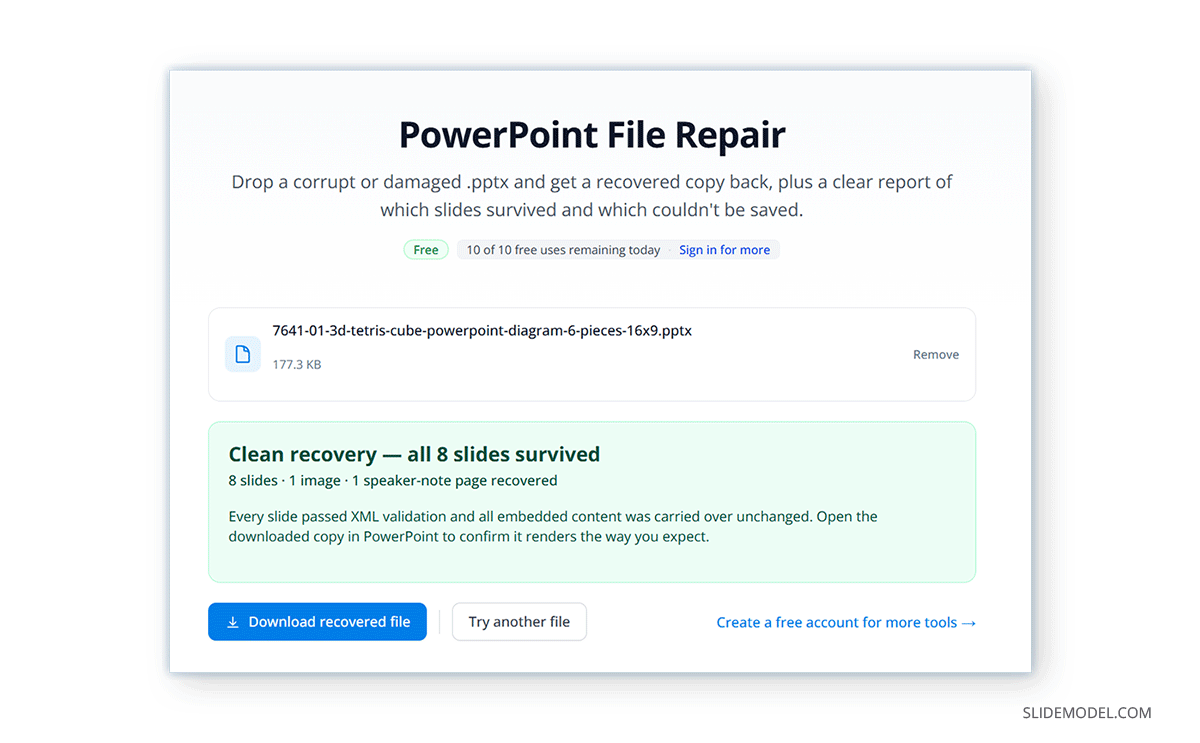
4. Try a Free PPTX Repair Tool
If PowerPoint’s own repair process fails, a dedicated free PPTX repair tool can be the next step before rebuilding the presentation manually. A PPTX repair utility may correct package-level problems such as malformed relationships, invalid XML, or damaged presentation structures. However, a technically repaired deck can still have visual problems, so review every slide. Even when a PPTX is successfully repaired, not everything can necessarily be restored. Flattened vector content may remain uneditable, missing fonts may still trigger substitution warnings, and damaged animations or relationships may already be lost.
5. Try Google Slides or LibreOffice as a Recovery Route
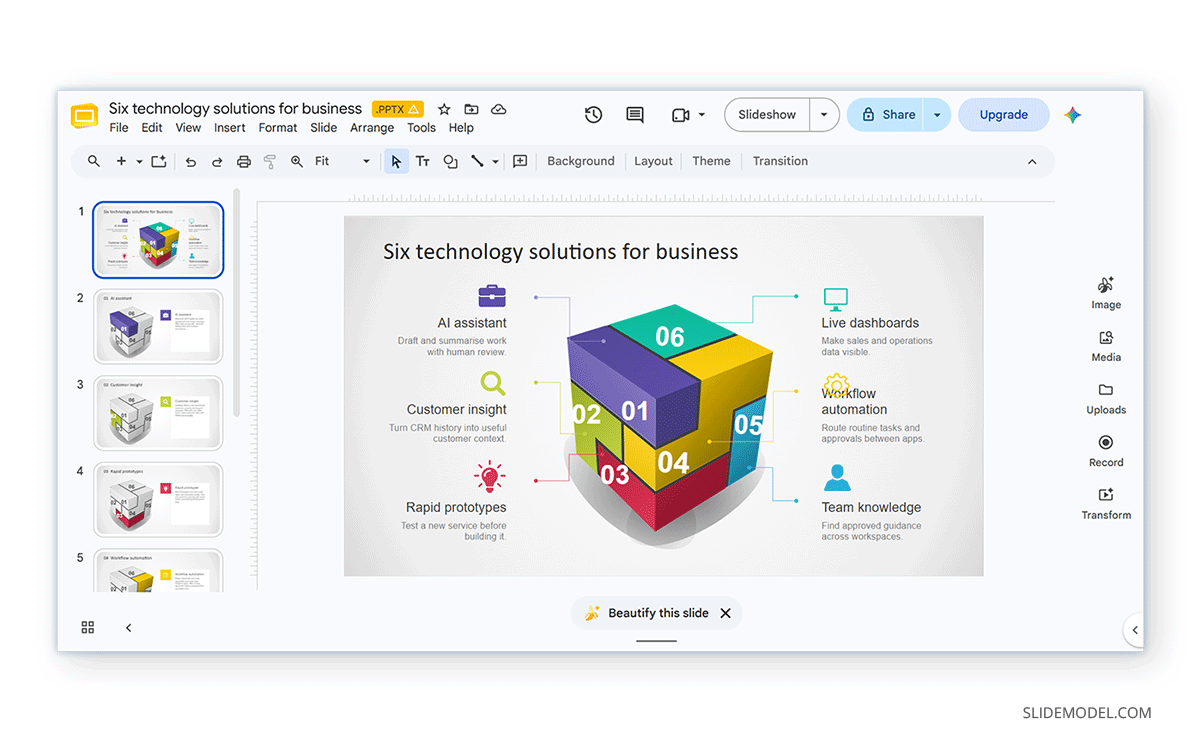
Sometimes another presentation application can open a file that PowerPoint rejects. Upload a copy to Google Slides or try opening it in LibreOffice Impress, then export it back to .pptx. Treat this as a recovery route, not a guaranteed fix. Conversion between presentation formats can alter layouts, fonts, charts, animations, or unsupported features. If you use the Google Slides route for recovery, review the known PowerPoint to Google Slides compatibility issues before treating the recovered deck as final. These may include formatting issues and layout changes, missing animation and transition support, and problems with embedded media. The image below shows a formatting mismatch of a PowerPoint presentation uploaded to Google Slides.
6. Recover the Media as a Last Resort
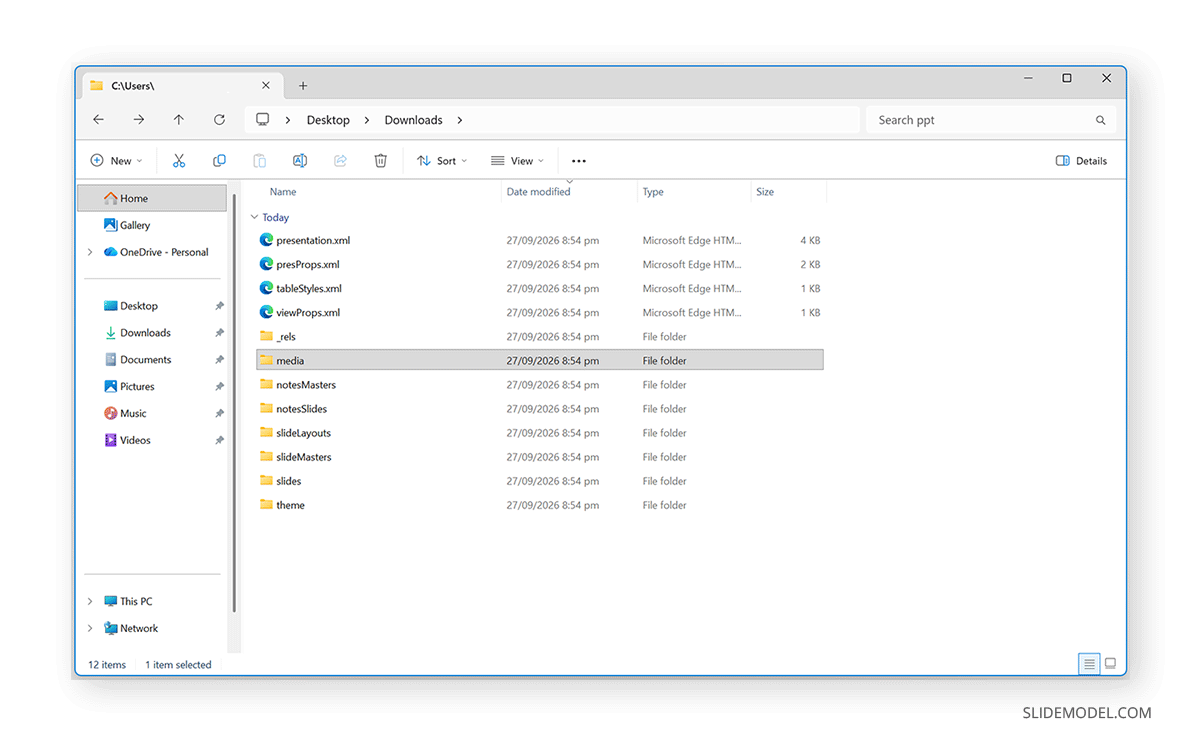
If the presentation cannot be repaired but the .pptx can still be extracted as a ZIP archive, open ppt/media. From there, you may still recover images, videos, and other embedded assets. This will not restore the complete deck, but it can save original graphics and photographs that you’d otherwise need to source again.
Step 1: Make a copy of the PowerPoint file so you do not alter the original.
Step 2: Rename the copy from something like presentation.pptx to presentation.zip.
Step 3: Accept the warning about changing the file extension.
Step 4: Right-click the ZIP and choose Extract All.
Step 5: Open the extracted folder, then go to PPT -> Media.
If the problem occurred while PowerPoint itself was saving the presentation, also check the separate troubleshooting process we explained in another guide for an error occurred while PowerPoint was saving the file and whether an unsaved or AutoRecover version exists. Microsoft notes that PowerPoint automatically maintains recovery copies after crashes or unexpected shutdowns. You can learn more in our tutorial on how to recover an unsaved presentation in PowerPoint.
Fix 2: When Fonts Changed After Export
Font substitution is one of the most common problems in AI-generated presentations. AI tools may generate the deck using a font available in their environment but not installed on your computer. When PowerPoint cannot find the original font, it substitutes another font. That substitution can change more than appearance. Different fonts have different character widths and line heights, so changing the font can also cause new line breaks, text overflow, shifted headings, and inconsistent spacing. This can cause PowerPoint fonts to change after export.
To identify the problem, compare the font shown in the PowerPoint ribbon with the font used in the original template. For a few slides, replace the font manually. For a larger presentation, use PowerPoint’s Replace Fonts feature or a tool that can replace substituted fonts in bulk.
If you’ll share the presentation with other users, consider adding and embedding fonts in PowerPoint where licensing permits. You can learn more about this from our tutorial about how to add and embed fonts in PowerPoint. For presentations that must work reliably across many computers, choosing broadly available fonts can also reduce the risk of substitution. For this purpose, see our list on best fonts for PowerPoint.
Fix 3: When Text Overflows Its Box
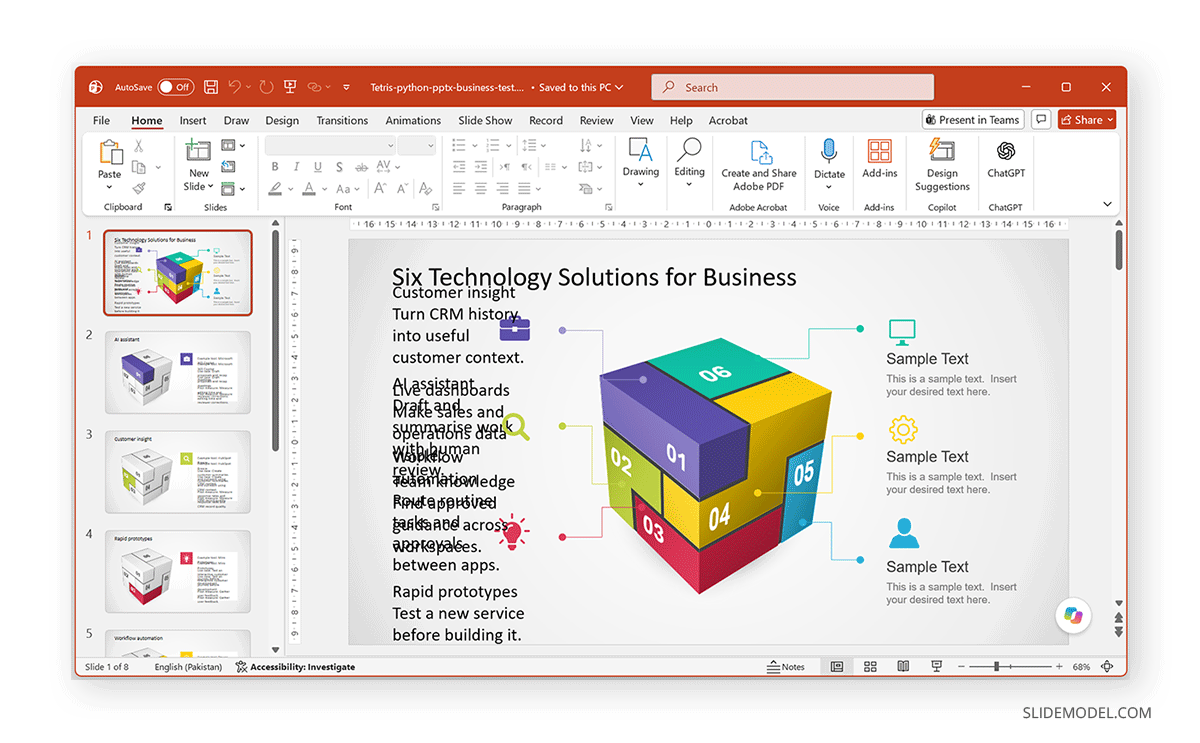
Text overflow deserves its own repair process because it can occur even when the .pptx is structurally valid. We reproduced this clearly in our Python-based presentation generation test. The generated presentation opened normally, but programmatic text replacement produced duplicate content blocks, severe overflow, and remaining placeholder text. The file itself was valid, but the visual result was unusable. The text-overflow AI slides also contained repeated tool, use-case, and pilot-measure blocks, confirming this was not just a PowerPoint rendering glitch.
Start with Autofit
Select the affected text box and open Format Shape -> Text Options -> Text Box. Depending on the layout, try Shrink text on overflow or Resize shape to fit text, adjust margins, reduce paragraph spacing, or shorten the text. Do not immediately solve every overflow problem by reducing the font to a very small size. If the text clearly does not belong in the available space, the better repair is structural.
Move the Content onto a Real Layout
AI-generated slides often contain manually positioned text boxes rather than placeholders tied to the presentation’s layouts. If the slide continues to behave unpredictably, create or reuse the appropriate layout in Slide Master, then move the title and body content into the corresponding placeholders. This is often more reliable than patching an improvised layout. If you are new to Slide Master, see our guide that shows how to work with Slide Master.
Fix 4: When Images or Shapes Sit Off-Slide
Objects can exist in a PowerPoint file without being visible on the slide. Open the Selection Pane to inspect every object on the slide. If an element is listed but cannot be seen, select it from the pane and check its position and dimensions.
Then use Arrange -> Align to bring it back into the slide area. Also check for unusually large width or height values. An AI exporter may preserve an object while assigning coordinates or dimensions that place most of it outside the slide boundary. If the missing content is actually a linked file rather than an embedded object, troubleshoot it separately to fix broken links in PowerPoint.
Fix 5: When Charts and Tables Become Pictures
Some presentation generators preserve a chart or table’s appearance by flattening it into an image. The quickest test is simple: click the object.
If the entire chart selects as one picture instead of exposing chart elements, data series, cells, or table controls, it has probably been flattened. There is usually no reliable way to turn that image back into the original editable chart. The practical fix is to recover the underlying source data (if available), insert a new native PowerPoint chart or table, or rebuild the visual using the original image as a reference. For recurring presentations, placing data into a properly designed editable PowerPoint template is more sustainable than repeatedly repairing flattened exports.
Failures by Tool: What We Found in Testing
To make the comparison consistent, we supplied the same editable 3D Tetris Cube template and the same seven-slide business-content prompt to multiple tools. The instructions required preserving the original 16:9 layout, cube artwork, colors, icons, visual style, editability, and attribution, and asked each tool to check for clipping and overlap before export.
| Tool | What happened in our test | First thing to check |
|---|---|---|
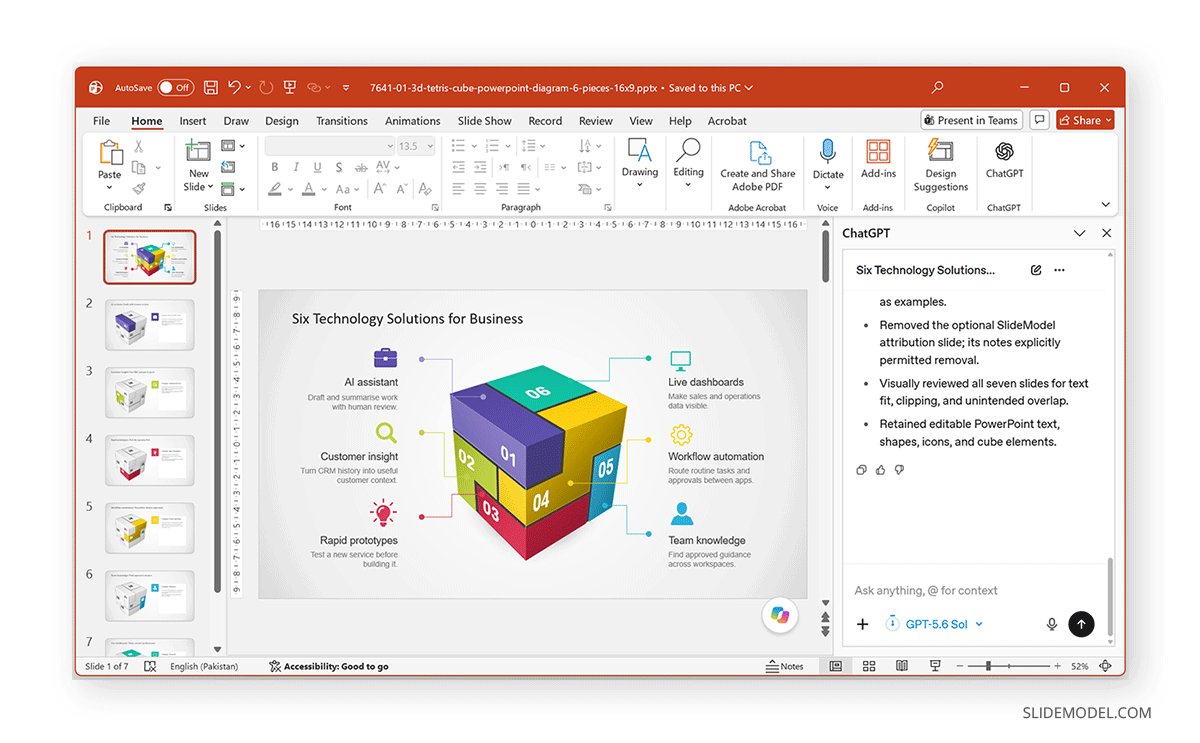
| ChatGPT for PowerPoint | The slide deck remained editable, with minor text alignment and formatting drift | Compare generated text boxes with the original template |
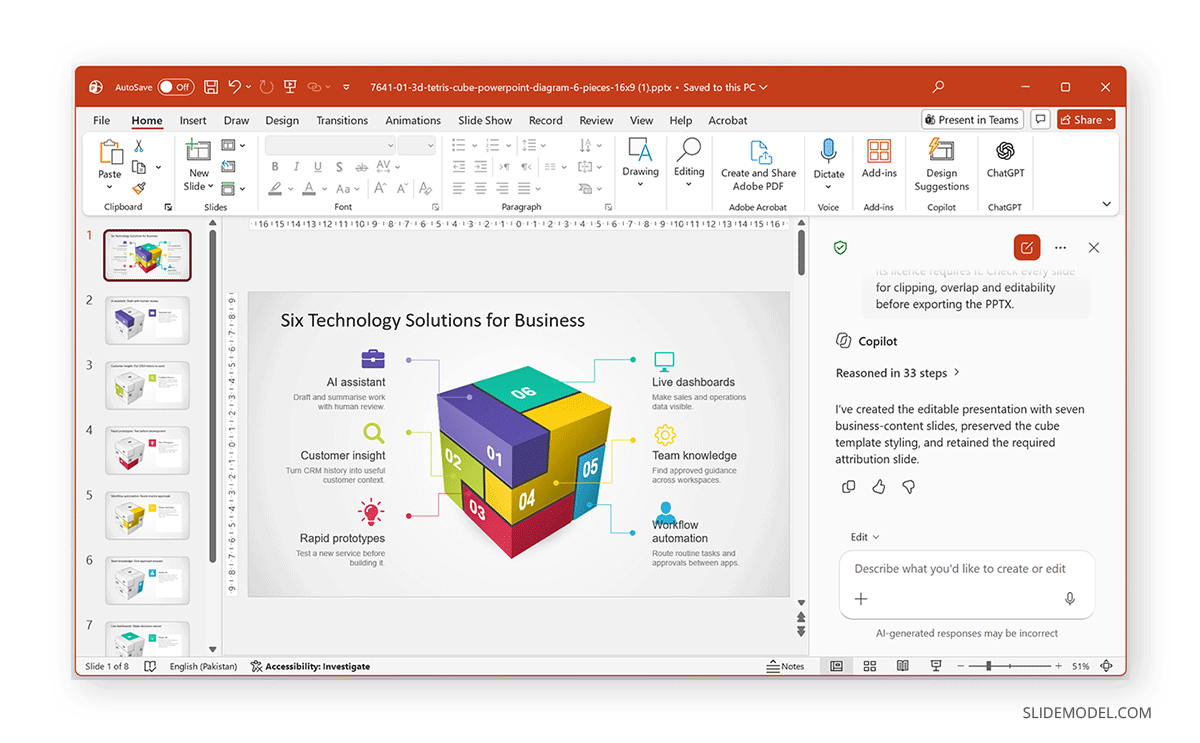
| Microsoft Copilot | General structure survived, but formatting drift was more noticeable | Check spacing, alignment, and text fit |
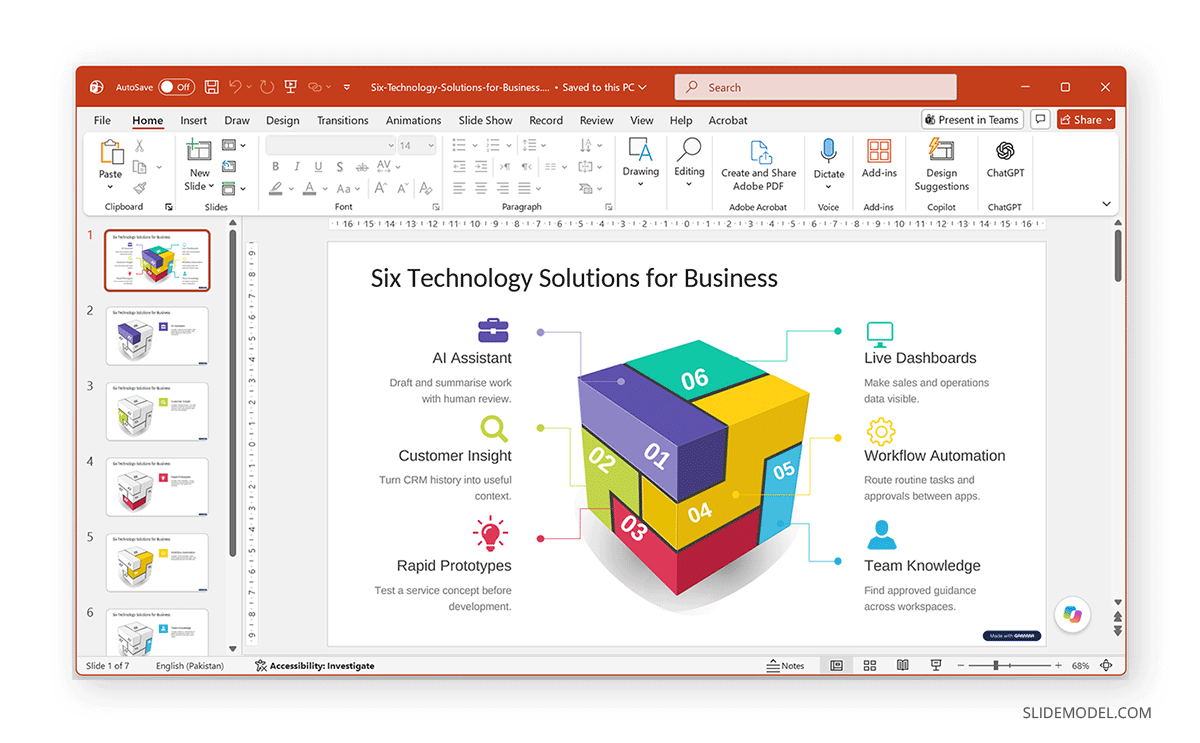
| Gamma | Content exported successfully, but fonts and visual treatment changed, and some illustration text shifted | Check typography and object positioning |
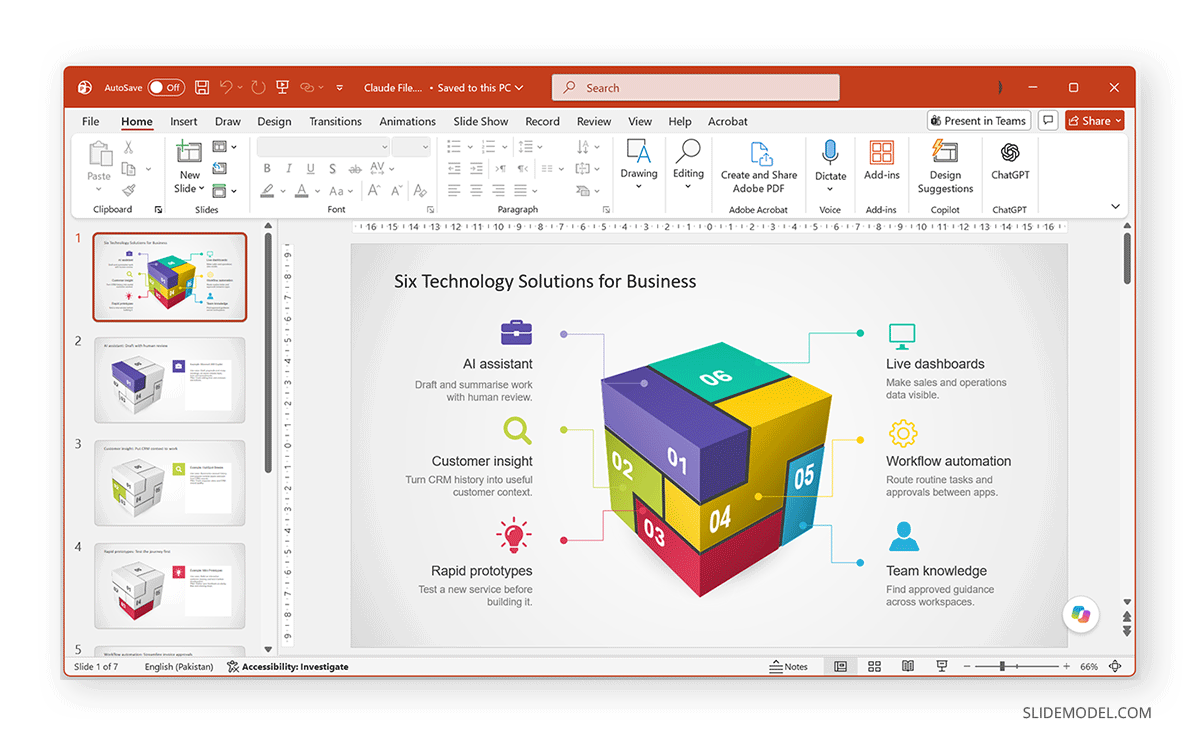
| Claude | Claude preserved the underlying PowerPoint structure and most object positions, but the first slide showed some alignment drift, and the generated wording did not always fit the original template as cleanly as intended. | Compare the exported slide structure with the source template or work with the Slide Master to check the original presentation structure |
| Python / PPTX GenJS | Code-generated output showed serious layout problems in our Python PowerPoint file tested using Google Colab | Inspect repeated placeholders, text fitting, and object coordinates |
ChatGPT for PowerPoint
ChatGPT for PowerPoint became generally available in July 2026. We tested the plugin to create a slide deck from a PowerPoint template. Our ChatGPT output preserved the requested content, the highlighted cube sequence, and the attribution slide. The main issues were relatively small formatting and text-alignment inconsistencies rather than corruption. That result is consistent with OpenAI’s own documentation. OpenAI notes that while the add-in is designed to work within existing presentation templates, generated or edited slides may not always match the preferred style perfectly, and some advanced formatting, chart, shape, and slide-management tasks may still require review.
Microsoft Copilot
Our Copilot deck also retained the underlying presentation concept and requested content, but we observed more noticeable formatting differences than in the ChatGPT output. For a Copilot-generated presentation that opens correctly but looks wrong, start by checking text alignment, font substitution, and whether generated content is still using the original placeholders.
Gamma
Gamma successfully produced the requested seven-slide content, including the correct tool examples and pilot measures. However, in our test, the export behaved more like a redesign than an exact template-preservation workflow. Typography changed for a cleaner visual treatment, and some illustration-related text was slightly misaligned. For a broken Gamma export, first determine whether the issue is actual file damage or simply visual reconstruction.
Claude
The Claude file contained the requested business content, examples, and pilot measures, and largely preserved the original PowerPoint structure and cube illustration. However, some text placement and alignment issues were visible, particularly on the overview slide, where the generated wording did not fit the original layout as cleanly as intended. This is another case where “broken” describes layout fidelity rather than file corruption.
Python
Code-based PowerPoint generation can produce perfectly valid PPTX packages while still creating visually broken slides if the script does not understand the template’s object structure. In our test, we used Google Colab to run a python-pptx script against the 3D Tetris Cube-themed template and saved a new PowerPoint file. The file opened successfully in PowerPoint, but repeated text areas were populated incorrectly, causing duplication and severe text overflow, as shown in the screenshot below. When using python-pptx or PptxGenJS, inspect the text-box dimensions, objects, placeholder identity, repeated template objects, fonts, and text autofit behavior.
How to Stop AI-Generated PowerPoint Problems Before They Happen
Perform a 60-Second Check
The most reliable workflow is to use well-designed editable PowerPoint templates. Start with a known-good template, ask the AI tool to work within its layouts, and treat the exported deck as a draft that still requires inspection.
When the source tool offers export choices, prefer an editable PPTX export over flattened image or PDF-based slides when further editing is required. Keep fonts and media embedded where the tool supports them, and avoid unnecessary format conversions before opening the file in PowerPoint. Before sending the file, perform a 60-second check:
- Open the deck in desktop PowerPoint
- Scan Slide Sorter view for obvious layout drift
- Check title and body fonts
- Inspect slides with the most text
- Click charts and tables to confirm they remain editable
- Look for off-slide objects in Selection Pane
- Run Slide Show briefly to check animations
- Save, close, and reopen the deck once
If you need to apply a different design after generation, use a controlled process to change a PowerPoint template without breaking layouts rather than copying slides blindly between decks. If the AI output is much larger than expected, use image compression or a PowerPoint compressor to compress oversized deck after you have confirmed the file is structurally sound.
FAQs
Why Won’t My .PPTX File Open?
The file may be incomplete, blocked, malformed, or genuinely corrupted. First, confirm that the download has a realistic file size. Then try File -> Open -> Browse -> Open and Repair. If PowerPoint reports that the presentation cannot be read, also check whether Windows has blocked the downloaded file in its Properties dialog.
Can You Repair a Corrupted PowerPoint File for Free?
Yes. Start with PowerPoint’s built-in Open and Repair option because it costs nothing and preserves the native presentation format when successful. If that fails, a free PPTX repair tool can provide another recovery route before you rebuild the deck to repair corrupted PPTX online.
Why Did My Fonts Change When I Exported from an AI Tool?
The original font may not be installed on your computer, may not have been embedded in the PPTX, or the exporting tool may have substituted a different typeface. Replace the substituted font, then embed appropriate fonts where licensing permits so the problem is less likely to recur.
Why Does My AI-Generated Deck Say PowerPoint Needs to Repair It?
A .pptx contains many interconnected XML files and relationships. If one of those relationships, content types, or package components is invalid, PowerPoint may still recognize the presentation but need to repair its internal structure before opening it. The Pandoc .fntdata issue is a documented example of this type of packaging failure.
Can I Recover a Deck That Opens as Images Instead of Editable Slides?
You can recover the visual content, but you may not be able to restore the original editable objects automatically. If the exporter flattened a slide, chart, or table into an image, the reliable solution is usually to rebuild that content using native PowerPoint objects or an editable template.
Final Words
Fixing a broken AI-generated PPTX starts by identifying what “broken” actually means. A file that will not open needs an integrity and recovery check. A file that opens with changed fonts needs a font change. Overflowing text needs layout or Autofit work. Off-slide objects need position correction. Flattened charts often need rebuilding. Our tests also showed why these problems should not be treated as a single type of AI PowerPoint failure. ChatGPT for PowerPoint preserved the deck structure but introduced some text-alignment and formatting drift. Copilot showed more noticeable formatting inconsistencies. Gamma retained the requested content but changed parts of the visual treatment, including typography. Claude largely preserved the original structure and cube illustration, but some text placement and alignment issues remained. Our Python test produced the most severe layout problem, with duplicated text blocks and substantial overflow, even though the file opened successfully in PowerPoint.
The practical takeaway is that AI-generated presentations still need the same quality-control checks as any other PowerPoint file. When the PPTX structure is sound, you can fix most issues through font, layout, object positioning, or Autofit adjustments. When the package itself is damaged, PowerPoint’s built-in repair options and dedicated PPTX recovery tools are the better starting point.
It’s always handy to start with editable PowerPoint templates that are neatly structured and easy to adapt for AI tools, rather than beginning a slide deck design from scratch.