Copilot in PowerPoint used to behave like a chat box with a short memory: every request started from zero. Skills change that. A skill is a saved set of instructions that Copilot loads whenever a task matches it, so your team can write down how it builds an executive summary or structures a budget request once and reuse it in every deck. Microsoft ships a small set of built-in skills, lets every user upload their own, and since late August 2026 has been rolling out one that turns a prompt into clickable, animated slides.
That last feature produced a wave of excited posts, most of them from Microsoft employees and Microsoft MVPs. This guide covers what Copilot PowerPoint skills do in practice, how to write a custom skill Copilot will actually pick up, and the limits the launch coverage mostly skipped, from interactive slides you cannot edit shape by shape to exports that drop the interactivity entirely.
What Copilot Skills in PowerPoint Actually Are
A Copilot skill is a folder holding one required file, SKILL.md. The file opens with a short frontmatter block containing two fields: a name that acts as the skill’s identifier, and a description that tells Copilot when the skill applies. Everything below the frontmatter is plain-language instruction. The format follows the open Agent Skills specification, so anyone who has used Claude for PowerPoint will recognize it.
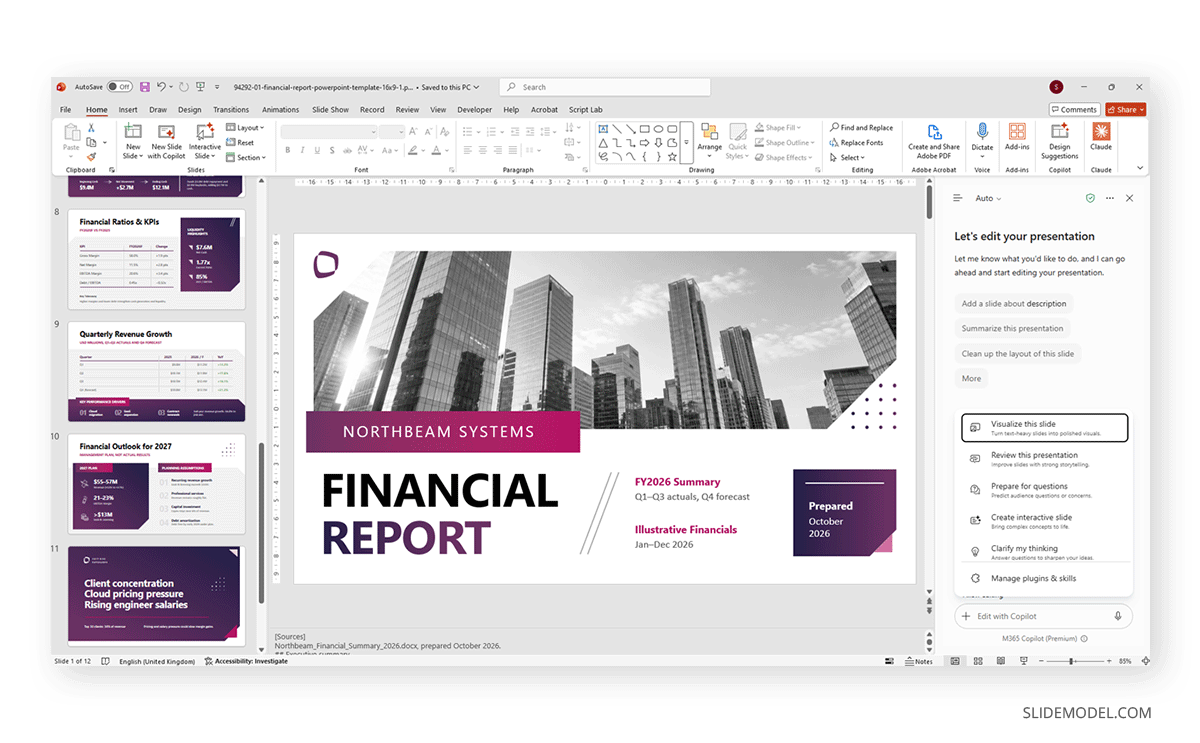
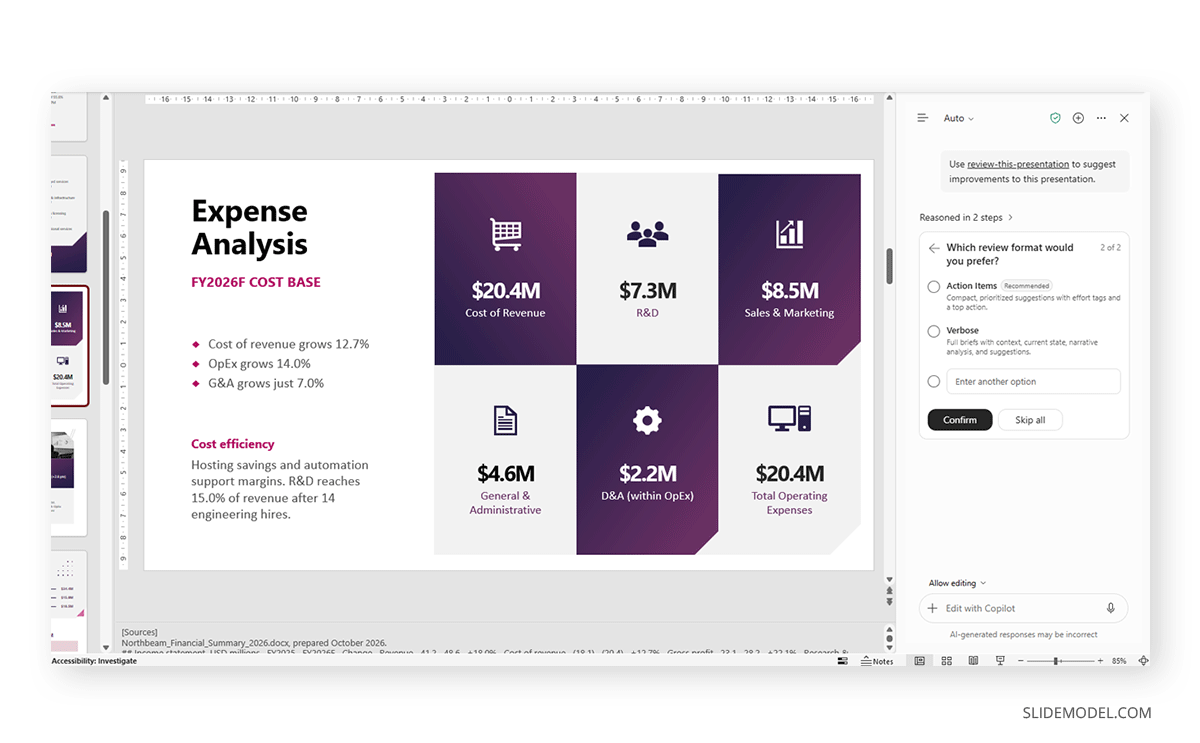
Copilot uses skills in two ways. When a skill is switched on, Copilot reads its description and decides by itself whether your request matches. Ask for “a one-slide summary of this deck” and a skill described as handling executive summaries can activate without being named. You can also call a skill directly by typing @ followed by its name in the prompt field, for example @copyedit-this-presentation, or by opening the + menu in the prompt box and selecting Choose skills.
The practical difference from a long prompt is persistence. A pasted prompt lives in one conversation, while a skill sits in your OneDrive and is available every time you open the Copilot pane. Skills do not give Microsoft Copilot abilities it lacked before. They shape how it approaches tasks it can already perform, a smaller promise than some launch posts implied.
The Built-In Skills Microsoft Ships
Microsoft does not publish a complete list of built-in skills, and the set has grown since the feature appeared. What you see under Choose skills depends on your update channel and on whether your organization belongs to the Microsoft Copilot Frontier program, which receives pre-release features first.
Revise, Copyedit and Prepare for Questions
Revise this presentation works on the storyline. Before it changes anything, Copilot asks about the audience, format, delivery channel, and time available; those answers determine how many slides the reworked deck has and how the argument is ordered. We recommend running it before any design work, since restyling slides that later move is wasted effort.
Copyedit this presentation is narrower. It reviews wording across the deck for grammar and consistency of tone, and Microsoft uses it as the standard example in its support documentation on PowerPoint skills. Because it touches text rather than layout, it is the safest built-in skill to run on a finished deck.
Prepare for questions looks at the deck from the audience’s side. It lists the objections a skeptical listener is likely to raise, ranked by priority, and pairs each one with a suggested response and supporting evidence. For a board update or funding request, it surfaces weak points before a stakeholder raises them in the room.
Visualize this slide converts a text-heavy slide into a graphic. Reviewers report that it returns a single image rather than editable shapes, so treat the result as a finished visual, not something you plan to adjust later.
Most Popular Copilot PowerPoint Skills
We researched the most popular skills available to use in PowerPoint with Copilot. Below is a comparison table that shows the skill shorthand and how each helps your presentation.
| Skill | What it does | Best use | Invoke with @ |
|---|---|---|---|
| Review this presentation | Reviews structure, clarity, storytelling, slide density, and visual consistency. | Improving an existing deck. | @review-this-presentation Review the narrative flow, slide titles, and visual consistency. |
| Visualize this slide | Converts text-heavy content into a diagram, process, comparison, or infographic. | Making complex information clearer. | @visualize-this-slide Turn this slide into a three-step process. |
| Prepare for questions | Predicts audience questions, objections, risks, and evidence requests. | Prepare for meetings, defenses, and pitches. | @prepare-for-questions Identify difficult questions executives may ask about this presentation. |
| Create a presentation | Creates a presentation from a topic or source material. | Starting a new deck. | @create-a-presentation Create a 10-slide presentation about content marketing for small businesses. |
| Create or replace visuals | Creates or suggests images and other visual assets. | Improving slide engagement. | @create-visual Create a professional visual representing the customer journey. |
| Generate speaker notes | Writes presenter notes based on slide content. | Rehearsing and presenting. | @generate-speaker-notes Write 45-second speaker notes for each slide. |
| Summarize a presentation | Extracts the main message and key points. | Briefing stakeholders or reviewing a long deck. | @summarize-presentation Summarize this deck in five key points. |
| Create an individual slide | Creates a specific slide, such as a conclusion, timeline, or comparison. | Filling a gap in an existing deck. | @create-slide Create a conclusion slide with three takeaways and one recommended action. |
| Brand check | Checks wording, terminology, tone, capitalization, and brand consistency. | Applying communication standards. | @brand-check Review this presentation for brand consistency and inconsistent terminology. |
| Executive slide diet | Condenses a long deck into a concise executive presentation. | Preparing a leadership briefing. | @executive-slide-diet Reduce this presentation to eight slides while preserving decisions, risks, and evidence. |
| Academic presentation coach | Reviews research logic, methodology, evidence, findings, and conclusions. | Preparing an academic defense or conference presentation. | @academic-presentation-coach Check whether the research question, method, evidence, and conclusion are logically connected. |
| Custom skill | Applies any reusable workflow you created. | Repeating a specialized process. | @[skill-identifier] [instruction] |
Create Interactive Slides
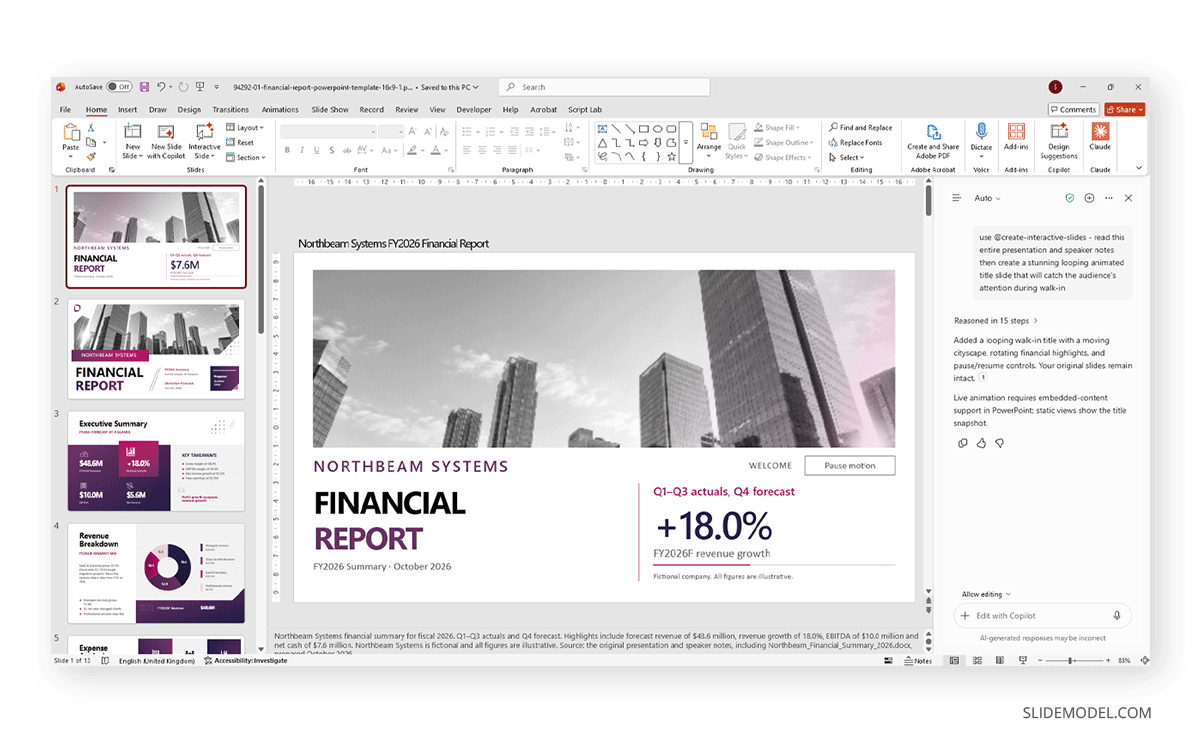
The newest built-in skill, announced in Microsoft 365 message center post MC1461152 on 25 August 2026, generates what Microsoft calls “interactive, full-slide visuals” for concepts, timelines, comparisons, systems and data. The output responds to clicks and hovers. Typical examples include tabs that switch a comparison to a different metric, timelines whose milestones expand when selected, quizzes that keep score, countdown timers, and looping title slides that play while the audience takes their seats.
You call it with @create-interactive-slides or from the skills menu while in editing mode. It can work from a prompt, from an existing slide, or from the whole deck including its speaker notes.
These are not PowerPoint shapes with animations attached. A hands-on teardown on the Flow Alt Delete blog found that each generated slide holds one full-slide object named Copilot Content Block, containing self-contained HTML, CSS, and JavaScript plus a PNG snapshot kept as a fallback. No VBA scripting or ActiveX is involved, and PowerPoint’s native triggers aren’t either. That design explains both the unusual results and most of the limitations covered later.
The skill is currently limited to organizations in the Frontier program. It started on PowerPoint for Windows, with Mac support rolling out from early September 2026, and Microsoft labels it a pre-release experience that may change before general availability.
How to Get Useful Results From Create Interactive Slides
The skill works best when content benefits from exploration rather than narration. A slide comparing three vendors across several criteria is a good candidate. Instead of a dense table, you get an overview where selecting a criterion such as price redraws the comparison for that metric alone, and selecting a vendor opens its full breakdown.
Prompts work better when they describe the interaction, not only the topic. A principal product builder on the PowerPoint team shared this example: “use @create-interactive-slides – read this entire presentation and speaker notes then create a stunning looping animated title slide that will catch the audience’s attention during walk-in.” It names the source material and the moment the slide will be used. For data slides, spell out what each click should do. A prompt such as “Convert slide 6 into a single interactive slide. Show the four regions as tabs. Clicking a region shows its quarterly revenue as a bar chart and its top accounts below” leaves far less to chance than “make this slide interactive.”
Training material, onboarding decks, product explainers, and kiosk-style presentations that people browse on their own get the most from the format. If you already build interactive presentations by hand, the skill is a faster way to prototype the same idea.
How to Build a Custom Copilot Skill in PowerPoint
Custom skills encode your process instead of Microsoft’s, which is where the feature pays off for business teams. Inside the Copilot pane, select +, then Choose skills, scroll to the end of the list, and select Manage skills, then Add skill. From there, you can upload a skill folder or paste SKILL.md content as text. Alternatively, open the settings menu (the … in the upper right of the pane), go to Manage skills, then Custom skills, select Create OneDrive folder, and use Open skills folder to add skills directly in OneDrive.
A minimal skill looks like this:
---
name: create-executive-summary-slide
description: Use when I ask for an executive summary slide of the current deck.
---
Summarise the deck in one slide using the Title and Content layout.
Lead with the recommendation, then add no more than four supporting points of under twelve words each.
Take figures only from existing slides and never round them.
Two rules catch most people out. The folder name must match the name field exactly, or Copilot skips the folder without warning; the name can be up to 64 characters and use lowercase letters, numbers, and hyphens. The second rule is less obvious: the description does more work than the body, because it is what Copilot reads when deciding whether to activate the skill.
After editing files directly in OneDrive, select Refresh in Manage skills, so PowerPoint picks up the change. ZIP uploads accept text-based files such as .md, .csv, .json, and .html, which lets you bundle a reference table with the instructions, but not images or PDFs.
Custom skills are personal. They live in your OneDrive, and only your account can see them, in PowerPoint for Microsoft 365 on Windows and Mac, on the web, and on iPad. There is no documented way for an ordinary user to publish a skill to colleagues. That route runs through Brand Kit.
Brand Kit Skills and Why Your Template Still Sets the Ceiling
For rules that should apply across an organization, Microsoft added Brand Skill support to Brand Kit in late September 2026, starting with PowerPoint for the web (MC1473165). Users with the Brand Manager role can upload guidance as .md or .zip files and publish it for colleagues, and Microsoft’s admin guidance recommends named owners, legal and accessibility review, and periodic audits.
Neither kind of skill can rescue a badly built template. Copilot reads your file’s structure to decide where content goes, and Australian agency Ideaseed puts it well: skills encode process, while the template provides the architecture. Placeholders defined in the Slide Master give Copilot named places for each type of content. Layouts with descriptive names such as “Title and Content” tell it far more than eleven copies of “1_Custom Layout”. Brand colors stored as theme accents are inherited by everything Copilot creates, while hex codes applied slide by slide are not.
Titles deserve their own check. When slide titles sit in free text boxes instead of title placeholders, the Outline View in PowerPoint stays empty even though every slide looks finished, and Copilot loses the thread of your storyline. Any skill that summarises or reviews a deck depends on that outline.
A five-minute audit of these points will improve Copilot’s output more than any skill you write.
Where Copilot PowerPoint Skills Fall Short
Most launch coverage stopped at the demo. Understand these trade-offs before relying on skills for work that matters.
Interactive Slides Behave Like Sealed Objects
Because each interactive slide is a single Copilot Content Block, you cannot click into it and change one button or label the way you would with a normal shape. Changes go back through Copilot as another prompt. One early tester noted in the launch discussions that correcting data by hand was not possible, and prompting was the only route, which is slow when the fix is a single wrong figure.
Exports are the second issue. Image exports use the stored PNG fallback, so interactive layers disappear, and the recipient sees one frozen state; PDF output has the same issue. The fallback also appears when the file is opened offline. Whether the interactivity survives in PowerPoint for the web or for a colleague without Copilot is still unconfirmed. If a deck will be circulated as a PDF or uploaded to a portal that converts files, an interactive slide adds nothing and may hide content a static slide would have shown.
Data connections remain an open question too. Several people asked on launch posts whether the visuals stay linked to Excel, and none received a confirmed answer. Until Microsoft documents the behavior, assume the numbers are a snapshot taken at generation time and correct the slide whenever the source figures change.
Interactive Content Can Work Against the Presenter
Clickable navigation helps when someone explores a deck alone. In a live meeting, it adds to the presenter’s workload. With several layers of drill-down, it is easy to lose track of which view is on screen, and every moment the audience spends exploring is a moment they are not listening to you. Experienced presentation trainers commenting on the launch made this point directly, advising that interactive elements belong at moments when the audience does not need to hear what you are saying.
PowerPoint could also do much of this before Copilot arrived. PowerPoint triggers show and hide objects on click, and action buttons jump between slides. Both build non-linear navigation from native, editable shapes that export and present predictably, and both survive being opened on any machine. For a board deck presented once and then circulated, those older tools are often the better choice. The skill’s advantage lies in prototyping speed and in effects that native animation handles poorly, such as live timers and continuous motion.
Accessibility Needs a Manual Review
None of the launch posts mentioned accessibility, and the architecture gives good reason to check it. Content inside a web-based block may not expose its text to screen readers the way placeholders and alt text do. Hover-only reveals exclude anyone who navigates by keyboard, and looping motion can cause real discomfort for viewers with vestibular disorders. The PNG fallback carries the visible state but none of the hidden ones, so information tucked behind a click is simply missing for anyone who receives the static version.
Until Microsoft documents how these blocks behave with assistive technology, give every interactive slide the review you would give any custom content. Run the Accessibility Checker, put the full information in a static backup slide or the speaker notes, keep essential facts out of hover states, and give viewers a way to pause motion. The guidance on accessibility in PowerPoint applies here at least as much as anywhere else, because the interactive format makes it easy to hide information without noticing. A colleague using a screen reader is a quick and honest test.
Custom Skills Are Instructions, Not Guarantees
A skill makes Copilot more consistent, not infallible. It is still a set of instructions given to a language model, and the model can drift, rewriting text you asked it to keep or overrunning a placeholder whose font size leaves no room for extra words. Generation can be slow on long decks, so skills scoped to a single slide or section tend to behave better than ones that ask for a full rebuild.
The model behind Copilot matters too. The pane’s model selector defaults to Auto, and reviewers who ran the same skill under different models reported clearly different quality. Keep a sample deck and rerun it whenever results start to feel off.
Automatic activation brings its own surprises. When several skills have overlapping descriptions, Copilot may choose one you did not intend, so keep descriptions specific and switch off unused skills in Manage skills. Personal copies kept by different team members also drift apart unless someone owns a shared version in Brand Kit. Access depends on your Copilot license and your organization’s settings, so confirm eligibility before planning a team workflow around skills.
FAQs
What can Copilot skills in PowerPoint do that a normal prompt cannot?
It persists. A skill stays in OneDrive and activates whenever a request matches its description, so it builds the same recurring deck every time.
How do I use the Create Interactive Slides skill?
Open the Copilot pane in editing mode and type @create-interactive-slides followed by your request, or pick it from the + menu under Choose skills. Describe what each click should do.
Who can use Create Interactive Slides right now?
Organizations enrolled in the Microsoft Copilot Frontier program, starting with PowerPoint for Windows and then Mac. Microsoft has not announced a general availability date.
Can I edit an interactive slide after Copilot creates it?
Only through further prompts. The slide is one Copilot Content Block containing web code, so you cannot select an internal button or label and edit it as a normal shape.
Do interactive slides keep working in PDF exports?
No. Static exports use the stored PNG fallback, which shows a single frozen state. Move hidden information into a backup slide first.
Where are custom Copilot skills stored?
In a Skills folder in your OneDrive, created from Manage skills under Custom skills. Each skill needs its own subfolder with a SKILL.md file.
Why is my custom skill not showing up in PowerPoint?
Usually, the folder name does not match the name field in SKILL.md. Check the spelling, confirm the name uses only lowercase letters, numbers, and hyphens, then select Refresh in Manage skills.
Can I share a custom skill with my team?
Personal skills are visible only to your account. To distribute one across an organization, someone with the Brand Manager role can upload it to Brand Kit, which began rolling out for PowerPoint for the web in September 2026.
Which built-in skills come with Copilot in PowerPoint?
Widely documented ones include Revise this presentation, Copyedit this presentation, Prepare for questions, Visualize this slide, and Create Interactive Slides.
Do interactive slides stay linked to Excel data?
Microsoft has not confirmed a live link. Treat the figures as a snapshot and update the slide whenever the source spreadsheet changes.
Are Copilot interactive slides accessible?
Microsoft has not documented screen reader support for Copilot Content Blocks. Run the Accessibility Checker, avoid hover-only information, and keep a static alternative of the slide in the deck.
Do I still need a good PowerPoint template if I use skills?
Yes. Copilot relies on Slide Master placeholders and theme colors to place content correctly. Skills cannot compensate for a template that lacks that structure.
Final Words
Copilot PowerPoint skills are most valuable in their least glamorous form: a short SKILL.md file that writes down how your team builds a recurring slide, so Copilot stops guessing. Create Interactive Slides is the eye-catching part of the release and can turn a dense comparison or training module into something people want to explore. It is also a sealed web object with weak export behavior and unanswered accessibility questions, which suits self-guided material better than decks that get printed or circulated as PDFs.
Start with a clean template and one narrow custom skill for a task you repeat every week. Then check every figure Copilot touches before it reaches an audience.