Broken links in PowerPoint can quickly turn a well-crafted PowerPoint presentation into a frustrating experience. You might click a hyperlink expecting to open a website, an Excel chart, or a supporting document, only to see an error message or a nonresponsive link. This issue is especially common when presentations are shared between computers, stored in different folders, or connected to external data sources.
In this guide, we will discuss the most common causes of broken links and explain how to troubleshoot them. We will also cover different categories of links, such as website hyperlinks, linked images, and Excel charts. Followed by an explanation of how to fix links to external files in PowerPoint, update linked data in PowerPoint, and resolve issues like a PowerPoint hyperlink not working.
Why Links Break in PowerPoint
Before fixing links, it’s helpful to understand why they break in the first place. In most cases, PowerPoint links rely on a specific file path to indicate where the linked resource is stored. If that path changes, PowerPoint can no longer locate the file. Common causes include moved files, sync issues, and replaced or deleted resources.
1. Incorrect Link: Sometimes, a link might be incorrectly copied, such as a partial URL, or an additional character might be accidentally added when inserting the link. Such mistakes can result in broken links.
2. Files Moved or Renamed: If a linked Excel spreadsheet or PDF file is moved to a different folder or renamed, PowerPoint can no longer locate it. This can result in a previously active link becoming broken.
3. Presentations Shared Across Devices: When you send a presentation to someone else, the linked files may not exist on their computer.
4. Cloud Synchronization Changes: Moving files between cloud services (such as OneDrive or Google Drive) can alter file paths.
5. Deleted or Replaced Resources: If a source file is deleted or replaced with a different version, PowerPoint may lose the connection.
How to Identify Broken Links in PowerPoint
Before fixing links, you should identify where the issue exists. Some common signs include hyperlinks that do nothing when clicked, error messages when opening a linked file, charts showing outdated data, missing images or placeholders, and PowerPoint warnings about linked content. For linked Excel data, PowerPoint may also display messages about updating external sources when opening the presentation.
Method 1: Open to Verify PowerPoint Links
Click to Open Link: One of the simplest ways to identify a broken link is to test it directly. In Slide Show mode, hyperlinks usually open with a single click. In Normal editing mode, you may need to hold CTRL/Command while clicking the link to open it.
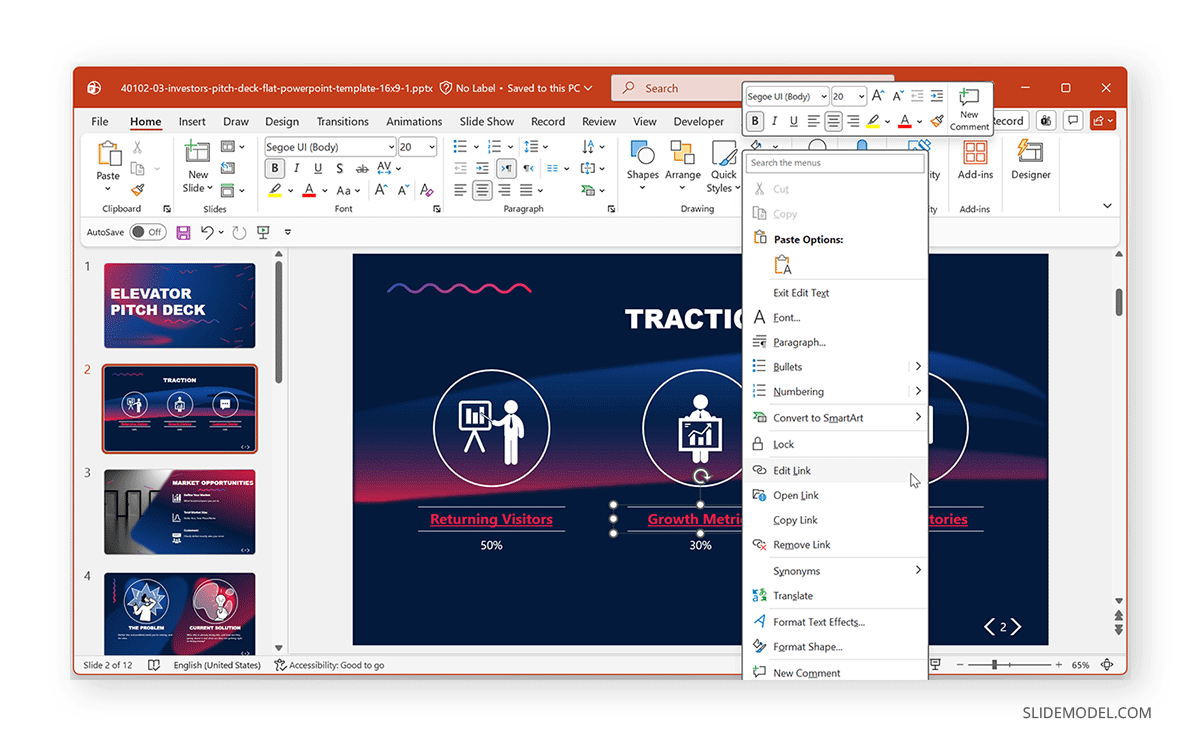
Open link from Right-Click Menu: If the link is attached to a shape, image, or text box, you can also right-click the object and choose the Open Link from the right-click context menu. If the link does not open or produces an error message, the hyperlink may be broken or pointing to an incorrect location.
Copy to Verify Link: Another helpful troubleshooting technique is to copy the hyperlink and paste it into a plain-text editor, such as Notepad. Viewing the link in a text editor removes formatting, allowing you to inspect the URL or file path more clearly. This can help identify common issues such as extra characters, incorrect file paths, or incomplete URLs that may prevent the link from working properly.
Method 2: Edit to Check PowerPoint Links
Step 1: Right-click the linked object or hyperlink.
Step 2: Select Edit Link to open it.
Step 3: Check the path listed in the link settings.
If the location is incorrect or the file cannot be found, the link is broken. Sometimes, the broken link might occur due to the accidental addition of a character or an incorrectly copied file path or URL. For example, you might accidentally add a full stop or a comma when pasting the link, which can introduce an extra character and break the link.
How to Fix PowerPoint Hyperlink Not Working Issue
There are several simple methods to fix broken links in websites, documents, images, and charts. Below is a list of different methods that you can use to fix and update linked data in PowerPoint.
1. Fixing Hyperlinks for Websites or Documents
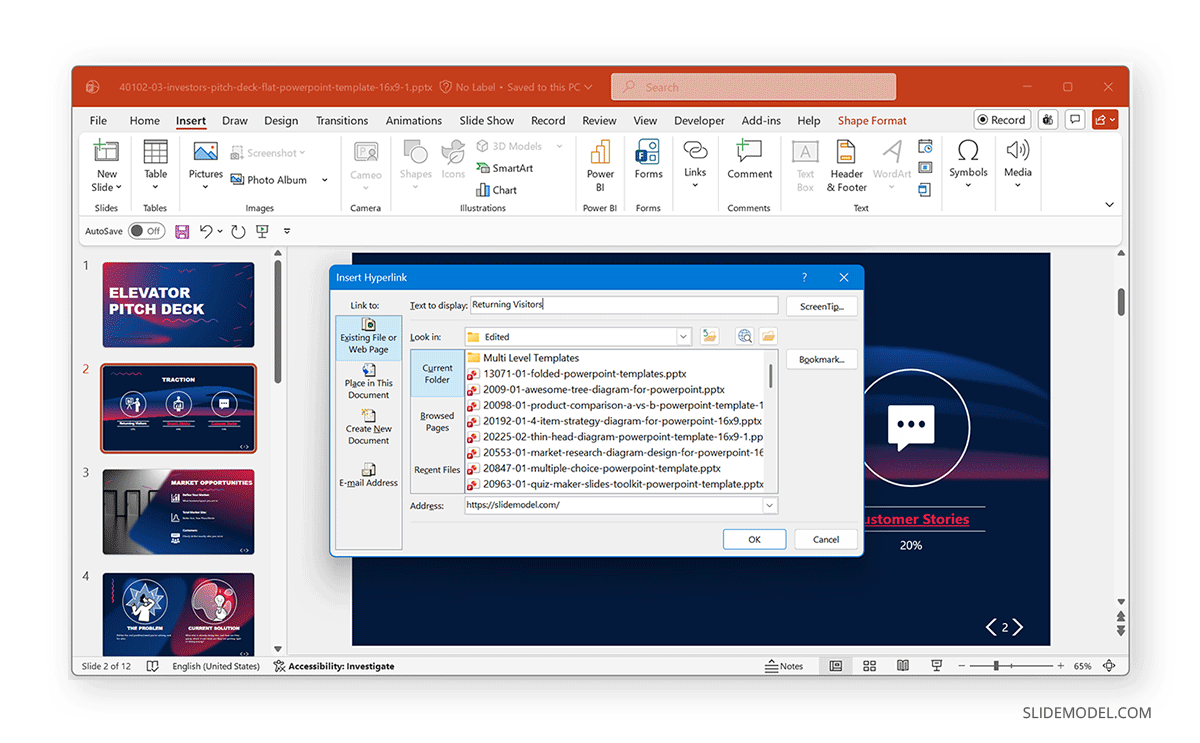
One of the most common issues presenters face with broken links is a PowerPoint hyperlink failing to work. These links often point to websites, PDFs, or documents stored locally. If a hyperlink points to a webpage that has changed or a file that was moved, you can manually update the link. Below is a simple method for updating file paths in PowerPoint.
Step 1: Right-click the linked text, image, or shape.
Step 2: Select Edit Hyperlink.
Step 3: Replace the incorrect URL or file path with the correct one. Test the link by running the presentation and clicking the hyperlink.
2. Fixing Links to External Files in PowerPoint
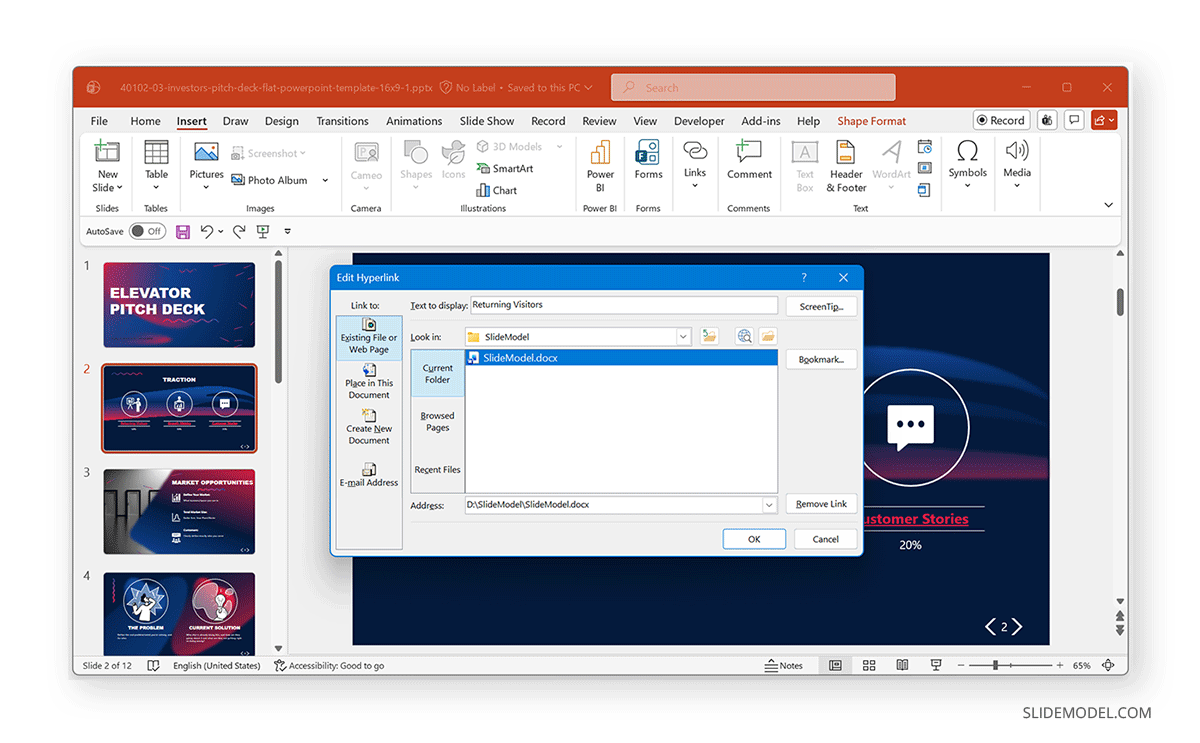
Many presentations rely on external documents such as PDFs, Word documents, Excel spreadsheets, and images stored outside the presentation. When those files are moved or renamed, the connection breaks. To fix links to external files in PowerPoint, locate the original file and update the file path.
Step 1: Right-click the linked object.
Step 2: Select Edit Hyperlink.
Step 3: Browse to the correct file location and select the updated file. Once the path is corrected, the link should work normally.
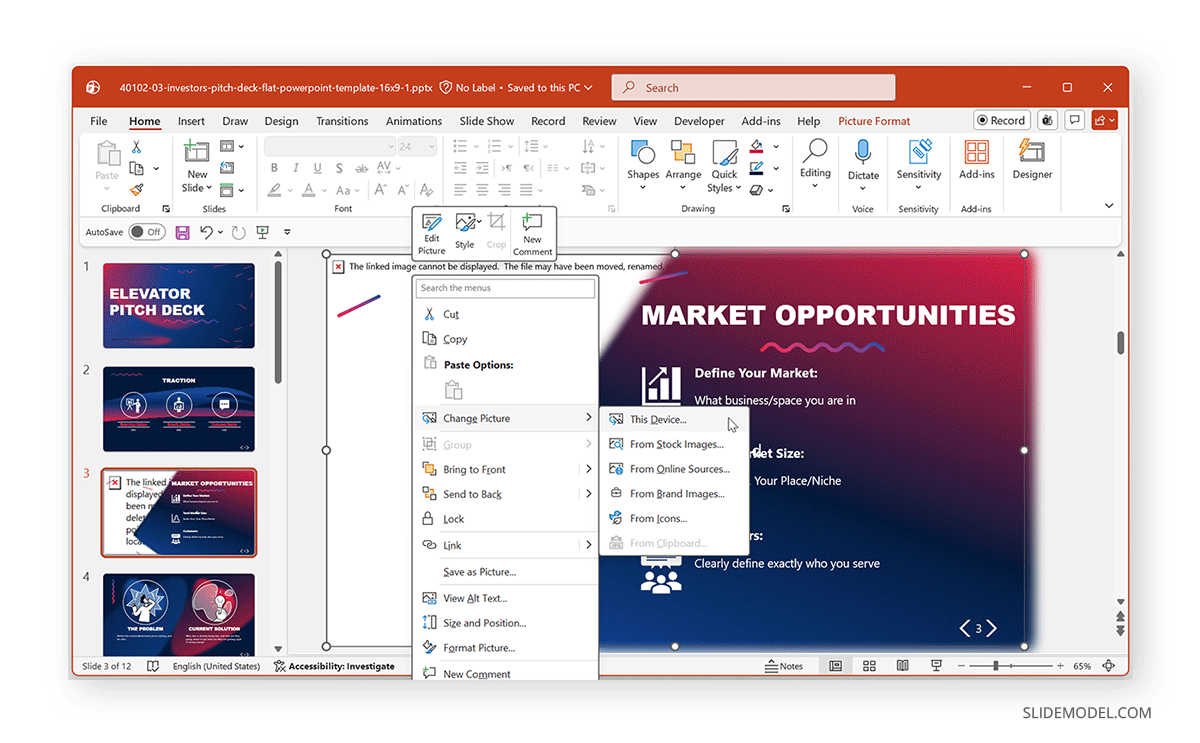
3. Fixing Broken Image Links
Sometimes images in PowerPoint are not embedded but linked to external files. If the image file is moved or deleted, the presentation may display a blank placeholder or an error message.
Step 1: Right-click the image or the blank image frame on the slide.
Step 2: Select Change Picture from the context menu.
Step 3: Browse to the correct image file and select it to replace the missing or broken image. After replacing the image, PowerPoint will display the updated picture on the slide.
To prevent similar issues in the future, consider embedding images instead of linking to external files. Embedded images are stored directly within the PowerPoint presentation, so they remain visible even if the original image files are moved or deleted.
4. Fix Broken Excel Chart Links in PowerPoint
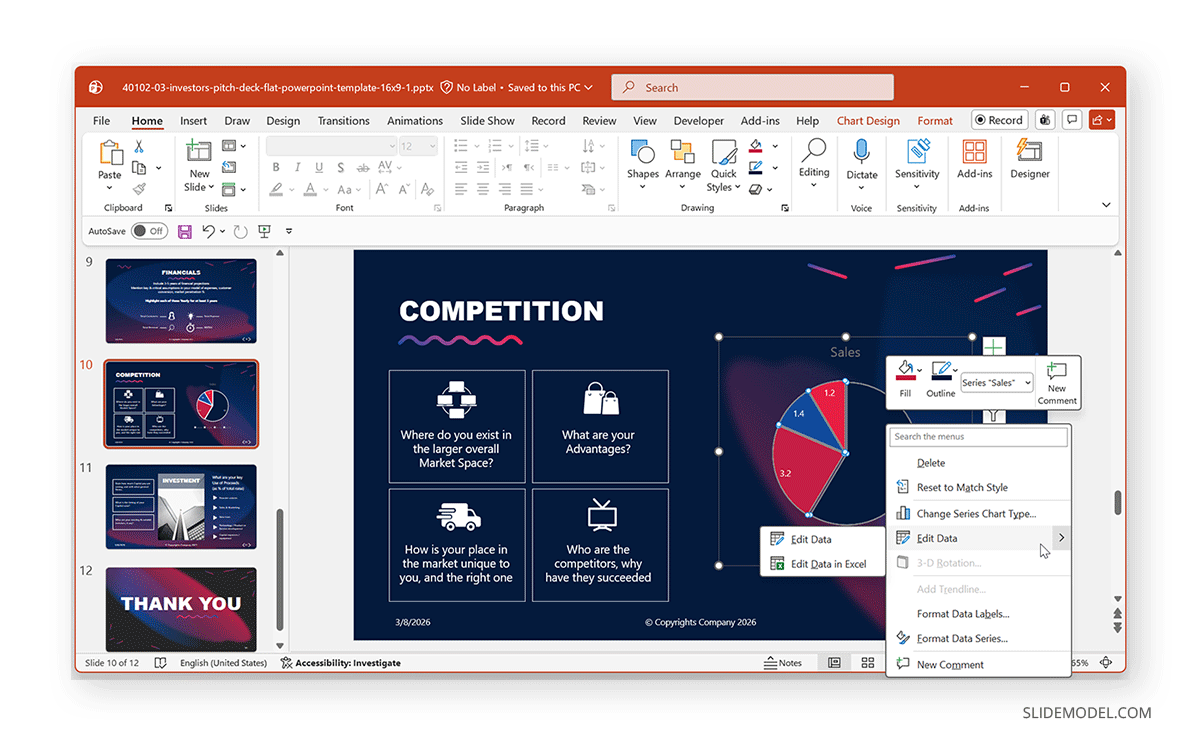
One of the most important scenarios occurs when charts are linked to Excel spreadsheets. These links allow PowerPoint charts to update automatically when the source data changes. However, if the Excel file is moved or renamed, the chart may stop updating. To fix a broken Excel chart link in PowerPoint, you must reconnect the presentation to the correct spreadsheet.
Step 1: Select the chart in PowerPoint.
Step 2: Go to Chart Design in the Ribbon menu or right-click the chart.
Step 3: Click Edit Data to fix broken Excel chart link in PowerPoint and locate the correct Excel workbook. If the Excel file is available, PowerPoint will reconnect to the data.
5. Fix Broken Links for Slides
Sometimes a hyperlink in PowerPoint points to another slide within the presentation. If the slide order changes or the link was created incorrectly, the link may stop working or open the wrong slide.
Step 1: Select the text or object linked to your slide.
Step 2: Go to Edit link via the right-click menu.
Step 3: In the link dialog box, select Place in This Document, then choose the correct slide from the list of available slides.
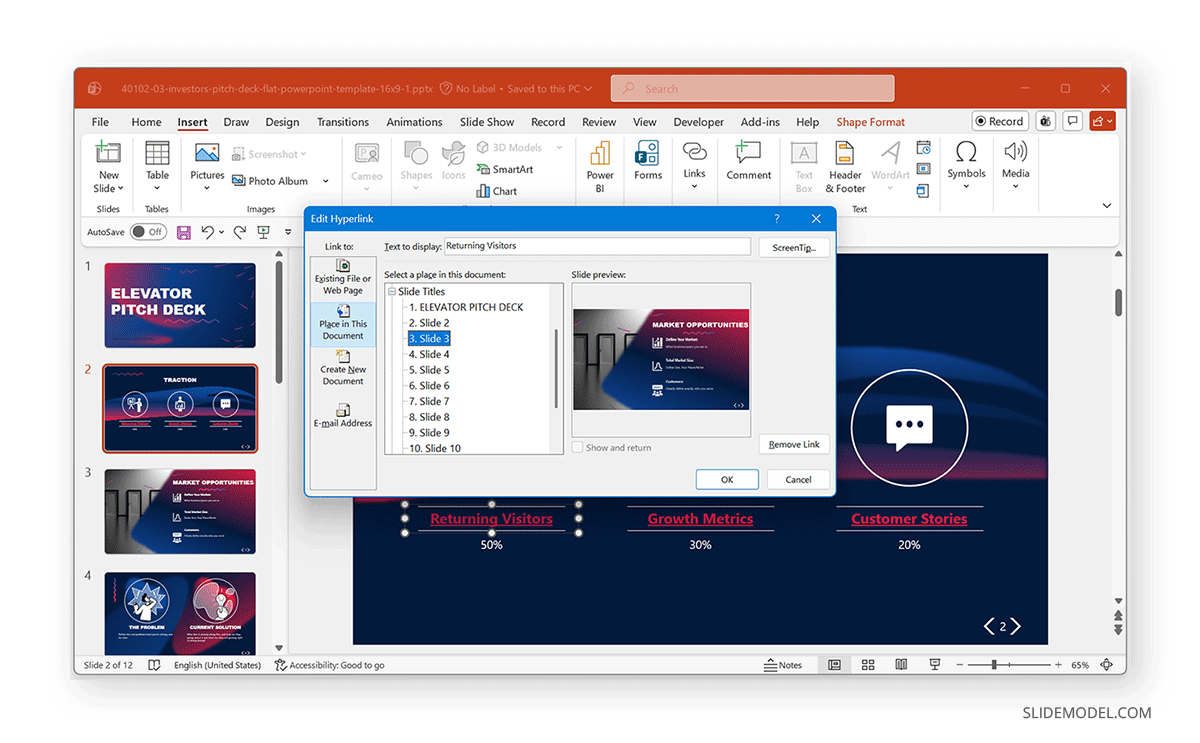
Once updated, the hyperlink should correctly navigate to the selected slide during the presentation.
Automating Link Fixes Using VBA
When presentations contain many broken links, especially in large slide decks, manually fixing each link can take significant time. PowerPoint allows you to automate troubleshooting using VBA (Visual Basic for Applications). With VBA scripts, you can search for broken links, update file paths automatically, refresh linked Excel charts, and replace outdated file locations. For example, a VBA script can scan all slides and update the paths to linked files if they have been moved to a new folder.
VBA Example for Automating Link Fixes
A VBA macro can loop through all shapes in a presentation and update external links to a new directory. Using automation like this is especially useful when managing enterprise presentations with dozens of linked files. The example shows a VBA example for this very purpose.
Sub UpdateLinks()
 Dim sld As Slide
 Dim shp As Shape

 For Each sld In ActivePresentation.Slides
 	For Each shp In sld.Shapes
     	' Update link source here
 	Next ship
 Next sld
 End Sub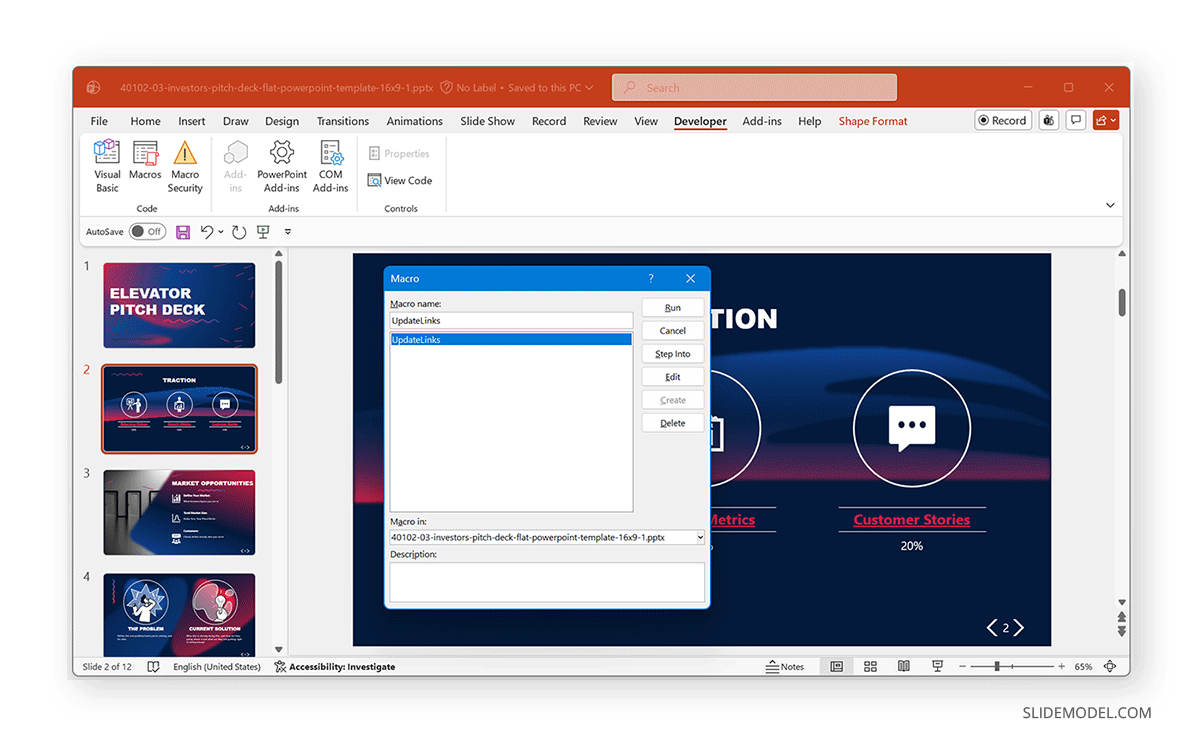
If you want to learn more about automating PowerPoint tasks, you can explore this guide on PowerPoint VBA automation.
Preventing and Managing Broken Links in PowerPoint
Broken links often appear when presentations rely on external files that are moved, renamed, or shared without the necessary resources. While it’s possible to fix these issues after they occur, taking a proactive approach can save time and prevent problems during an important presentation. By organizing your files properly and maintaining good link management practices, you can reduce the chances of encountering broken hyperlinks, missing images, or disconnected Excel charts.
Keep Presentation Files Organized
One of the most effective ways to avoid broken links is to keep all related files in the same project folder. This includes the PowerPoint presentation itself, along with any linked Excel spreadsheets, documents, images, or PDFs. When everything is stored together, PowerPoint can more easily maintain the connections between files.
Keeping a consistent folder structure is also helpful when sharing presentations with colleagues or transferring them between devices. If the entire folder is moved together, PowerPoint is more likely to retain the correct file paths and continue accessing the linked resources without errors.
Embed Critical Content When Necessary
Although linking files can be useful for maintaining dynamic data connections, it isn’t always the best choice. If certain visuals or data are essential for the presentation, embedding them directly into the PowerPoint file can prevent unexpected issues.
Embedded images, charts, or tables become part of the presentation itself, meaning they will remain intact even if the source files are moved or deleted. This approach is especially helpful when sharing presentations with external stakeholders who may not have access to your internal file structure.
Use Packaging Features When Sharing Presentations
When a presentation includes multiple linked resources, packaging the files together can help preserve those connections. PowerPoint provides a feature called Package Presentation for CD, which gathers the presentation and all related files into a single folder.
This method makes it easier to share the presentation with others while ensuring that linked charts, documents, and images remain accessible. Packaging is particularly useful when sending presentations to clients, transferring files to another computer, or preparing slides for conferences and meetings.
Know When to Rebuild Links Instead of Fixing Them
In some situations, repairing a broken link may not be the most practical solution. If the source file has been deleted, heavily modified, or replaced with a different dataset, it may be preferable to recreate the link.
Rebuilding links can also be helpful if the presentation has been redesigned or if the original links were created incorrectly. Recreating the charts or hyperlinks ensures that your presentation uses accurate data and reliable file references rather than relying on outdated connections.
Maintain Good Link Management Practices
Developing consistent file-management habits can go a long way toward keeping your presentations reliable. Using clear file naming conventions helps prevent confusion and reduces the risk of accidentally breaking links when organizing documents. It’s also helpful to avoid renaming or moving files after links have already been created.
Before delivering a presentation, take a few minutes to test all hyperlinks and linked data to ensure they work correctly. Keeping backup copies of important files and periodically updating linked data, especially when working with dashboards or reports, can also help maintain accurate and functional presentations.
Final Words
Broken links can interrupt presentations and undermine the clarity of your message. Fortunately, most issues are easy to resolve once you understand how PowerPoint manages external resources. Learning how to fix broken links in PowerPoint is essential for anyone who regularly builds presentations using external content. Business professionals, consultants, analysts, and educators often rely on links to web pages, Excel files, PDFs, and dashboards. When those connections break, the slides can lose critical context or data updates. By learning how to fix broken links in PowerPoint, update hyperlinks, reconnect external files, and repair linked Excel charts, you can quickly restore functionality to your slides. For large presentations or recurring reports, automation tools such as VBA can further simplify maintaining linked data.