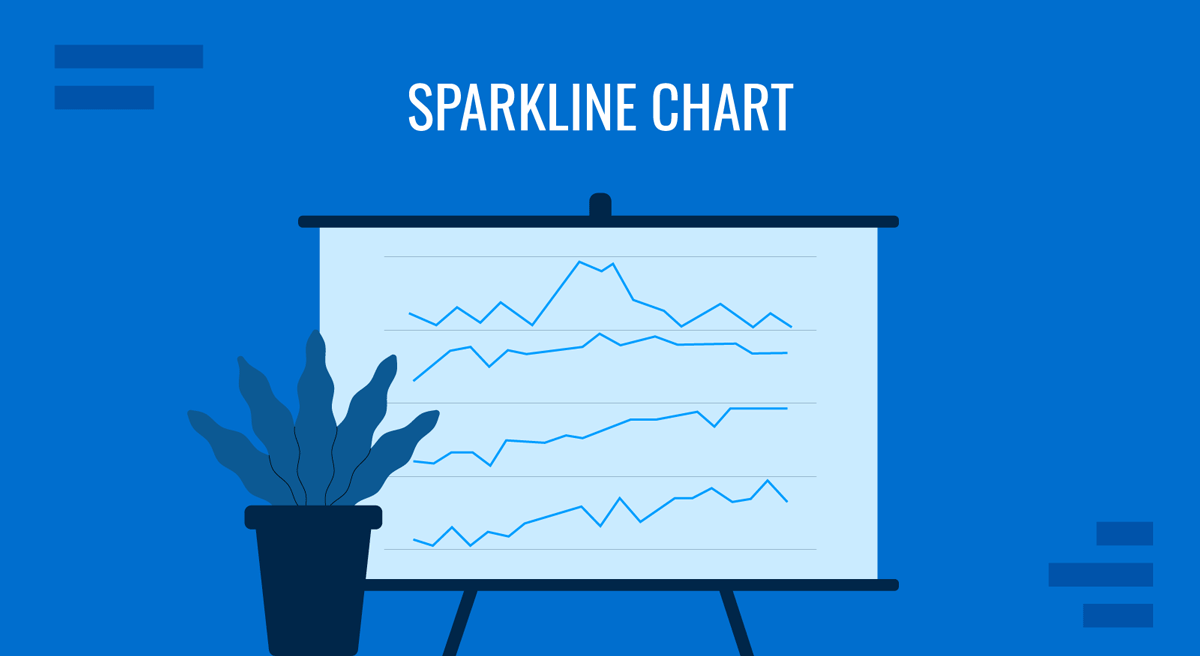
Most charts in a business report demand attention. They occupy a slide, carry a title, and expect the audience to stop and read them. A sparkline chart does the opposite. It is small enough to sit inside a table cell or beside a sentence, and it demands roughly the same attention as a word. That single design constraint, size, explains almost everything about how the format behaves: what it can show, what it cannot show, and why it fails when people treat it like a shrunken version of a normal chart.
For anyone building monthly reporting packs, KPI tables, or executive summaries, the sparkline solves a specific problem. A table of numbers tells the reader what the values are but hides the shape of the movement. A full chart shows the shape but consumes a slide and can only carry a handful of series before it turns into spaghetti. Sparklines let a reader see forty trend lines at once, one per row, without a single axis label. What follows covers the variants worth knowing, where the format works in corporate reporting, how to build it in the three tools most teams have open, how it compares against its near neighbors, and the specific ways it goes wrong.
A Chart Defined by Its Container
Edward Tufte introduced the term in Beautiful Evidence (2006), describing sparklines as “small, high-resolution graphics embedded in a context of words, numbers, images.” His shorthand was blunter: data-intense, design-simple, word-sized graphics. The definition is unusual because it frames the constraint on the container rather than describing the geometry. A sparkline is not a distinct plotting method. It is a line, a set of columns, or a strip of marks drawn small enough to live inside running text, a table cell, or a dashboard tile.
Everything a conventional chart uses to orient the reader gets stripped out. No frame, no gridline, no tick mark, no axis label, no legend, and usually no title beyond the row header sitting to its left. Tufte argued that in a graphic this small, every pixel should be data. That leaves a shape and nothing else, which is the point: the reader is not meant to extract values, only to register direction, volatility, and whether recent movement resembles what came before.
People search for both “sparkline chart” and “sparkline graph,” and the two mean the same thing; in ordinary business usage, the distinction between a chart and a graph is loose. Vendors have added their own labels. Excel calls them sparklines, Google Sheets exposes them through a function of the same name, and some BI tools list them as in-cell charts or micro charts. All describe the same object.
The Four Shapes a Sparkline Takes
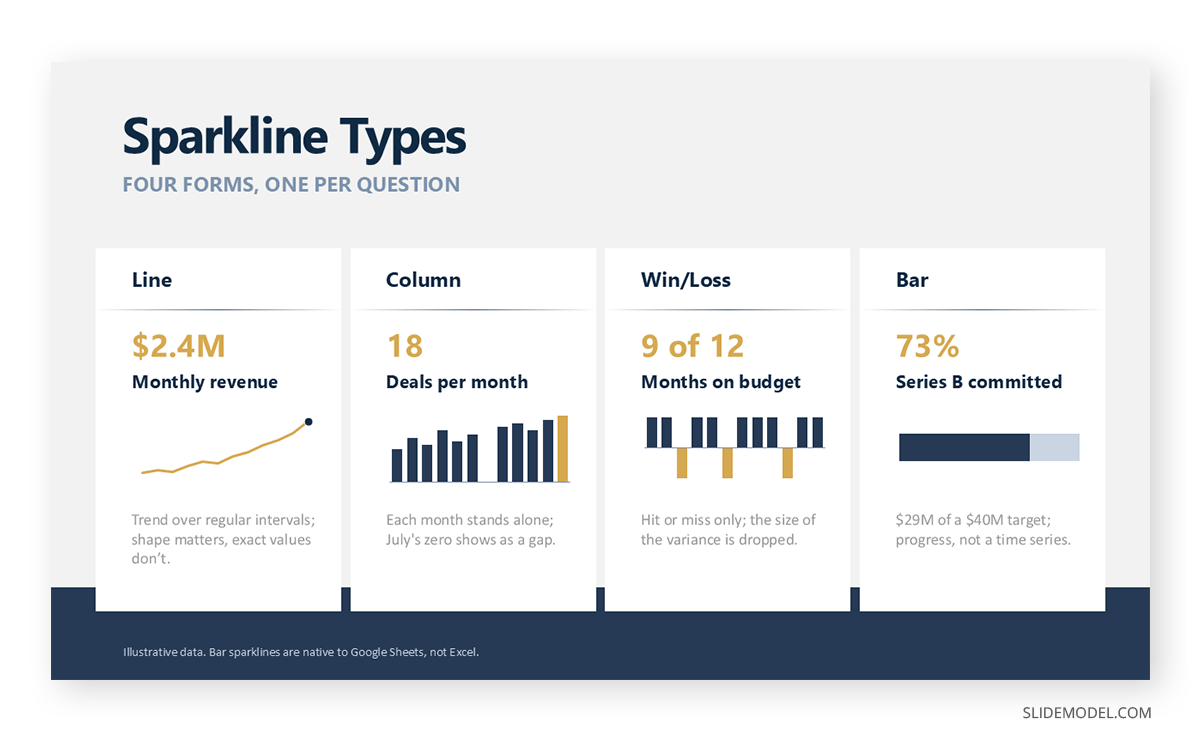
Excel ships three sparkline types and Google Sheets adds a fourth. Each answers a different question, and choosing the wrong one is the most common structural error in the format.
The line sparkline plots a series as a continuous path and is the default for anything measured at regular intervals over time: monthly revenue, weekly active users, daily latency, quarterly headcount. Because the vertical scale is compressed into a row height, small fluctuations flatten out and only meaningful swings survive, which is usually a feature, not a loss. This is the typical representation of a sparkline chart.
The column sparkline draws one bar per data point. It suits discrete periods where each value stands on its own, such as deals closed per month or tickets resolved per week. Columns handle zeros and gaps more honestly than a line, since a missing month shows as an absent bar rather than a straight segment quietly bridging the hole.
The win/loss sparkline discards magnitude entirely. Every positive value becomes an identical upward mark and every negative value an identical downward mark, so the row shows only a pattern of outcomes. This suits variance against budget, month-on-month growth flags, or SLA compliance, where the reader cares whether the period was good or bad rather than by how much.
The bar sparkline, available in Google Sheets but not in Excel’s native set, renders a single horizontal bar or a stacked pair. It is not a time series at all, and works instead as an in-cell progress indicator showing completion against a target.
Four Surfaces Where the Format Earns Its Space
Sparklines are worth using when the reader already has the numbers and needs the shape behind them. That happens on a small number of recognizable surfaces in corporate work.
Beside the number in a table. This is the original use case and still the strongest. A KPI table with columns for current value, prior period, variance, and target gains a great deal from one extra-narrow column holding a twelve-month sparkline. The reader sees that a flat 4% variance followed eight months of decline, or that a metric hitting target this month has oscillated wildly all year. Neither fact is visible in the numbers. Guidance on formatting tables in PowerPoint applies directly, since the sparkline column needs the same row height and alignment discipline as the rest of the grid.
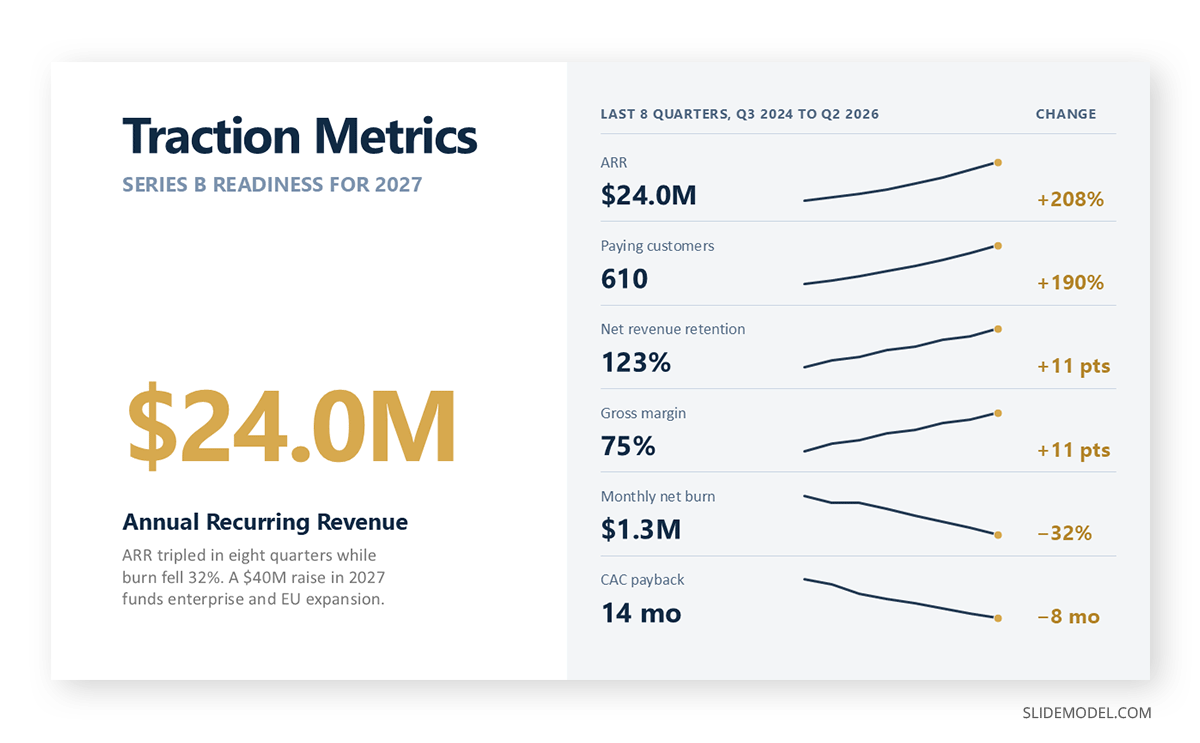
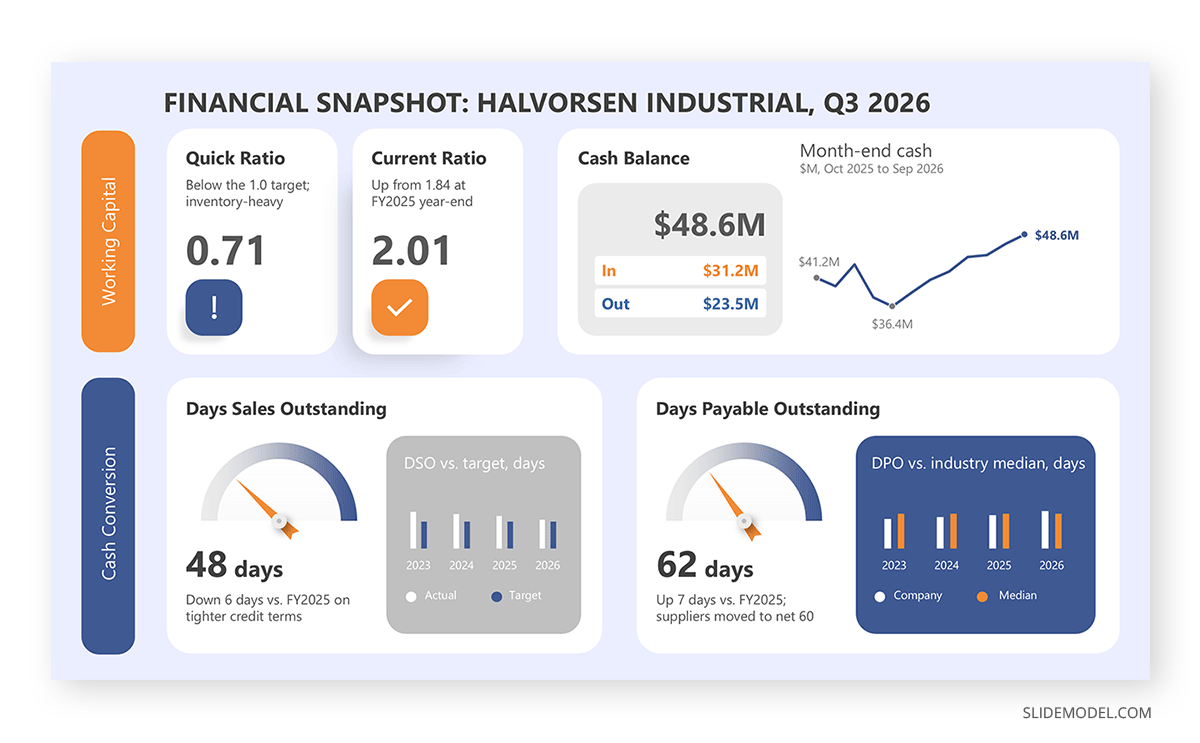
On a dashboard tile. A metric tile typically shows a large number and a delta. Adding a sparkline underneath converts a two-point comparison into a trajectory, which stops the reader from over-reacting to a single bad month. This is standard practice in dashboard slide design, where screen space is fixed, and a full chart per metric is unaffordable.
Inside a slide’s body text or headline. A sentence can carry a sparkline the way it carries a comma. Writing “churn has been climbing since March” with the trend strip sitting after the claim puts the evidence where the argument is, which matters on a quarterly business review slide built around narrative.
In a scorecard or framework grid. Structured measurement layouts benefit from a trend column, including a balanced scorecard carrying several measures inside each perspective. That column turns a static list of measures into something that shows movement, at the cost of one narrow column rather than sixteen small charts.
Building Sparklines in Excel, Google Sheets and PowerPoint
The build process differs sharply across tools, and the differences matter because they determine how the graphic gets onto a slide.
Excel’s Native Sparkline Tools
Excel has had sparklines since the 2010 release, and they are not chart objects. They are drawn into the cell background, which means text can sit on top of them and they resize with the row and column.
Select the empty cells that will hold the graphics, usually a column to the right of your data block, then go to Insert > Sparklines and pick Line, Column, or Win/Loss. Excel asks for the Data Range (the source values) and confirms the Location Range (where the sparklines go). Selecting the whole destination column at once creates a group, which keeps formatting consistent across every row.
Once created, the contextual Sparkline tab appears in the ribbon. Four settings there do most of the work. Show marks the High Point, Low Point, First Point, Last Point, Negative Points, or every Marker; pick at most one or two. Style and the Sparkline Color and Marker Color pickers control weight and hue. Axis changes meaning rather than appearance: under Vertical Axis Minimum Value Options and Vertical Axis Maximum Value Options, switching from “Automatic for Each Sparkline” to Same for All Sparklines forces every row onto one shared scale. Edit Data > Hidden & Empty Cells decides whether blanks show as gaps, as zeros, or get bridged with a connecting line.
Use Group and Ungroup when one row needs different treatment, and Clear rather than Delete to remove a sparkline, since pressing Delete on the cell leaves the graphic behind.
The SPARKLINE Formula in Google Sheets
Google Sheets takes a different route. There is no ribbon command; sparklines are a worksheet function, which makes them scriptable and easy to copy down a column.
The basic form is =SPARKLINE(B2:M2), which returns a line sparkline. Options come as a second argument written as an array of key and value pairs: =SPARKLINE(B2:M2, {“charttype”,”column”; “color”,”#3d6fb4″; “highcolor”,”#c0392b”}). The charttype option accepts line, column, bar, and winloss. Column and line sparklines take ymin and ymax, which serve the same purpose as Excel’s shared axis: hard-coding both across a range of rows makes the rows comparable. Color options include color, lowcolor, highcolor, firstcolor, lastcolor, and negcolor, and axis with axiscolor draws a zero line. Bar sparklines use max, color1, and color2 instead. Win/loss sparklines accept the column options apart from ymin and ymax, since magnitude is discarded by definition.
Because the whole configuration lives in a formula, a shared scale can be tied to a cell reference rather than typed in, so “ymax”, $Z$1 updates every row at once when the range changes. The same logic applies to color: pointing highcolor at a settings cell lets a reporting template change accent color across hundreds of rows without touching a single sparkline. Copying a formula down a column is also faster than re-creating an Excel sparkline group, which is why teams that rebuild their reporting sheet monthly often prefer the Sheets approach even when Excel is the system of record.
Getting Sparklines onto a Slide
Neither Excel nor Sheets sparklines can be inserted into PowerPoint as native chart objects, so there are two workable routes.
The reliable one is to build the table in Excel, select the range including the sparkline column, copy it, then use Paste Special > Picture (Enhanced Metafile) or Paste > Linked Picture in PowerPoint. A linked picture updates when the workbook changes, which is what you want for a recurring pack. The broader mechanics of moving Excel data into slides apply, and the same caveats about broken links after file moves apply too.
The manual route is to draw them. Insert a standard line chart, delete the title, legend, gridlines, both axes, and the plot area border, set the line weight to about 1.5pt, then resize the chart frame to roughly 120 by 24 pixels and drop it into a table cell. It is tedious for one row and unworkable for thirty, but it gives full control over a single hero sparkline in a headline. The same stripping approach works when you build a graph in Google Slides and want to reduce it to a trend strip.
The Settings That Decide Whether a Sparkline Reads
A sparkline has very few adjustable properties, which means each one carries disproportionate weight.
Shared or Independent Scaling
By default, every sparkline is scaled to its own minimum and maximum, so the line always fills the cell, and a metric that moved between 98 and 102 looks as dramatic as one that tripled. If rows are meant to be compared, the axis must be shared. If each row is a separate story and only its internal shape matters, independent scaling is correct. Making this choice consciously is the highest-value decision in the format.
Which Point Gets Marked
A marked last point tells the reader where the series ended; a marked high and low tells them the range. Marking every point turns the line into a caterpillar. One marker is usually right, two at most.
Aspect Ratio and Row Height
Tufte’s rule of thumb is that a sparkline should stand about as tall as the surrounding text, with a width of ten to twenty times that. Squeezing the width makes every series look volatile; stretching the height makes flat series look eventful. Set the row height once for the whole table and leave it alone.
Color Discipline
One neutral color for the line and one accent for the marked point is the whole palette. Assigning a different brand color per row adds a variable the reader must decode. The principles of color theory for presentations still hold, with the added constraint that a one-pixel line carries far less color area than a bar, so low-contrast hues disappear.
Empty and Hidden Cells
A gap in the source data can appear as a break, be plotted as zero, or be bridged with a straight segment. Bridging invents data. Plotting zero invents a crash. Showing the gap is honest but can look like a rendering error unless the table notes it. Decide once, apply to the whole group.
Density
Twelve rows of sparklines read as twelve trends. Sixty rows read as texture, and the reader stops parsing individual lines. Beyond about thirty rows, sorting the table by the shape you care about, or switching to a heat map, does more for comprehension than adding more rows of tiny lines.
Sparklines Against the Charts They Compete With
The useful comparison is not chart versus chart but question versus format. A sparkline answers exactly one question well, and several near neighbors answer the adjacent questions better.
| What the reader wants to know | Better format | Why |
|---|---|---|
| Roughly how has this metric moved over the last several periods? | Sparkline | Shape without cost in space or attention |
| What was the exact figure in March, and by how much did it change? | Data table with a variance column | Sparklines carry no values and no axis |
| How does this metric sit against target and against last year? | Bullet graph | Encodes actual, target, and qualitative bands in one bar |
| Which of the forty regions are heating up or cooling down? | Heat map table | Color intensity scans faster than shape at high row counts |
| How do a dozen series compare in detail, with real axes? | Small multiples grid | Keeps axes and labels while preserving side-by-side reading |
| What drove the movement between two points? | Waterfall chart | Decomposes a change into contributions |
| What is the precise trajectory of two or three series the audience must study? | Full line chart | Axes, labels, and annotations carry the argument |
The line chart deserves the closest look, because a sparkline is technically a line chart with everything removed. The difference is intent. A line chart is a destination: the audience stops, reads the axis, and follows an annotated argument. A sparkline is peripheral, supporting a number already on the page. Putting a sparkline where the audience needs to study the data wastes their time, and putting a full chart where they only need reassurance about direction wastes the slide.
Stephen Few’s bullet graph is the other comparison worth understanding, because it is often the right answer when someone reaches for a sparkline. A sparkline shows history but says nothing about whether the current value is acceptable. A bullet graph shows the current value against a target and qualitative ranges but says nothing about history. In a KPI table with room for two narrow columns, running both beats running either twice.
Which Information to Place Next to a Sparkline Chart
Sparklines are not standalone deliverables, and they work best when the surrounding elements supply what the graphic deliberately omits.
The number itself is non-negotiable. A sparkline without its current value in the adjacent cell is a shape with no anchor, and the reader has no way to calibrate the vertical range. Most well-built KPI tables place the latest value immediately left of the sparkline and the period-on-period delta immediately right.
A period label in the column header solves the format’s most-cited weakness. Analysts have pointed out that a sparkline gives no indication of the timeframe it covers, so a reader cannot tell whether they are looking at twelve weeks or five years. A header reading “Trend, last 12 months” removes the ambiguity at negligible cost.
Bullet graphs handle target comparison. A heat map handles the same table once row count grows past the point where individual shapes register. Small multiples handle the escalation path when a sparkline raises a question worth investigating properly. On the narrative side, a data-driven decision framing gives the table a reason to exist, since a grid of trends with no decision attached is decoration.
Common Mistakes in Sparkline Chart Creation
Reading values off the shape. Someone will ask what the peak was. The graphic offers no answer, and adding data labels to recover one destroys the format. If values are required, the sparkline is the wrong tool.
Leaving independent scaling on a comparison table
This is the most damaging error because it produces confident wrong conclusions. Every row fills its cell, so a rounding-error fluctuation and a genuine collapse look identical. Anyone comparing rows is being actively misled.
Anchoring on the endpoints
The eye jumps to where the line starts and ends, encouraging the exact two-point thinking a trend graphic was meant to replace. Sorting the table by volatility or by slope rather than by final value pushes readers back toward the pattern.
Applying it to unordered categories
A sparkline implies sequence. Plotting revenue by product category, region, or salesperson creates a line that connects things with no natural order, and the slope between adjacent points means nothing.
Shrinking a real chart instead of building a sparkline
Reducing a titled, gridded, axis-labeled chart to 100 pixels wide produces unreadable four-point type and a grey mush of gridlines. Stripping comes first, resizing second.
Ignoring accessibility
A one-pixel line in a mid-tone color fails contrast requirements at projection distances, and a sparkline embedded as a picture carries no alternative text unless someone writes it. The practice of making slides accessible covers both: thicken the line, raise the contrast, and describe the trend in the row header or alt text so the information survives without the graphic.
FAQs
Do sparklines work in a printed report or only on screen?
They print well, often better than they display, because print resolution is higher than typical projection resolution and a thin line survives it. The constraint is reproduction: a photocopied sparkline loses the stroke, and a low-contrast accent color vanishes in greyscale. For print-first documents, use a slightly heavier line weight than the screen version.
How many data points should one sparkline contain?
Between about ten and fifty. Below ten, a column sparkline usually reads more clearly than a line, since individual periods stay distinguishable. Above roughly fifty points at typical widths, adjacent values land on the same pixel column, and the graphic becomes a density plot rather than a trend.
Can a sparkline show more than one series?
Not in Excel’s native implementation, which plots one data row per sparkline, and Google Sheets is likewise single-series per formula. If two series genuinely need comparing, use two stacked sparkline rows or a small chart, because a two-line graphic at that size becomes unreadable wherever the lines cross.
Why do my Excel sparklines disappear when I paste the table into PowerPoint?
Because sparklines are drawn in the cell background rather than being objects, a plain paste of the range brings the values and drops the graphics. Use Paste Special and choose Picture (Enhanced Metafile), or paste as a linked picture if the pack refreshes on a schedule.
Is there a way to make sparklines update automatically each month?
Yes. In Excel, converting the source data to a formal Table (Ctrl+T) and pointing the sparkline group at the table columns means new rows are picked up on refresh. In Google Sheets, the data range inside the formula can reference a dynamic range built with OFFSET, which achieves the same result.
What is the difference between a sparkline and a trendline?
A trendline is a fitted statistical line drawn on top of an existing chart, such as a regression or moving average, and it summarises direction by smoothing away detail. A sparkline shows the actual observed values at full fidelity for its size. One is an analytical overlay; the other is a compact display.
Should a sparkline’s vertical axis start at zero?
Usually not, and this is one of the few places where the zero-baseline convention relaxes. A sparkline shows variation, and forcing a zero baseline on a metric oscillating between 94% and 98% flattens the line into a horizontal stroke that carries no information. The trade-off is that you can’t judge proportional change, which is acceptable because sparklines aren’t read for magnitude.
Can I add sparklines to a PowerPoint table without Excel?
Only by drawing them: insert a line chart, strip the axes, gridlines, legend, and border, resize it to fit the cell, then group it with the cell contents. That is viable for a handful of rows in a hero table. For anything larger, building in a spreadsheet and pasting the range as a picture is faster and stays consistent.
Do sparklines belong in an executive summary or only in the appendix?
They belong in the summary, which is where space pressure is highest. A one-page summary with eight metrics and eight trend strips carries more information than the same page with eight numbers, at no cost in length. Appendix pages have room for full charts, so the compression that justifies a sparkline matters less there.
What is the best chart type for a sparkline when the data has negative values?
Column or win/loss. A line sparkline crossing zero gives no visual cue about where zero sits unless you enable an axis line, and the reader will misjudge which periods were negative. A column sparkline with Negative Points highlighted, or Google Sheets’ negcolor option, makes the sign immediately legible, and win/loss makes it the only thing on display.
Final Words
The sparkline is a format built around restraint. It gives up axes, labels, values, and precision, and in exchange it gets to sit somewhere no other chart can go: inside a sentence, inside a table cell, next to the number it explains. That trade is worth making whenever the reader already has the figure and is missing the context behind it, and it is a bad trade whenever they need to interrogate the data.
The practical test before adding a sparkline column is a single question: will the reader act differently for having seen the shape? If a flat line and a collapsing line lead to the same next step, the column is decoration. If they lead to different conversations, the column is doing more work per square centimeter than anything else on the page.