For years, making a Google Slides deck look polished meant doing everything by hand: picking a palette, aligning objects one at a time, sourcing images that did not look like stock photography, and redrawing the same icon set until it matched. Google has spent the past year closing that gap with Gemini, and specifically with an image model called Nano Banana, now built directly into Slides. The result is a set of tools that can generate a background, clean up a cluttered layout, or turn a text-heavy slide into something closer to what a designer would produce, all without leaving the presentation. PowerPoint users have already had this conversation with Copilot, though the two tools solve the problem differently.
This article walks through what Gemini and Nano Banana actually do inside Google Slides, how to use the “Beautify this slide” feature specifically, and where the design fundamentals still fall on you.
What’s Actually New Inside Google Slides
Google Slides has offered basic design suggestions for a while, and the honest answer to whether Google Slides has design ideas built in has historically been “sort of, but nothing close to what Gemini does now.” The current toolset is built around a menu called “Help me visualize,” reachable from the Insert menu, plus a separate “Edit image” option that appears when you click an existing photo or graphic. Together they cover four distinct jobs: generating a new image from a text prompt, generating an entire slide as an image based on your existing content, generating an infographic the same way, and editing or extending an image that is already on the canvas.
| Beautify this slide | Help me visualize | |
|---|---|---|
| Workflow type | Transformation | Generation |
| Starting point | An existing slide that already has content | An idea, a prompt, or slide context |
| What Gemini does | Redesigns the existing slide into a more polished visual | Creates a new visual asset from scratch |
| Input it relies on | The content of the current slide | Your prompt, plus the active slide and presentation context (in Slide and Infographic modes) |
| Output | A thoughtfully designed version of the same slide | An image, an infographic, or a slide image |
| Output format | A redesigned slide | An image (Google explicitly states this for Slide and Infographic modes) |
| Best suited for | Improving the look of content you’ve already written | Adding visuals that don’t exist yet in the deck |
The model doing the heavy lifting changed in November 2025, when Google rolled out Nano Banana Pro, its Gemini 3 Pro image model, across Slides, Vids, the Gemini app, and NotebookLM. Nano Banana Pro now powers “Help me visualize,” and it also powers a new feature built specifically to polish a slide that already has content. Neither replaces the fundamentals of good layout, covered well by the laws of UX applied to presentation design, but they remove much of the manual image work that used to eat up an afternoon before a deck went out the door.
Beautify This Slide: How It Works
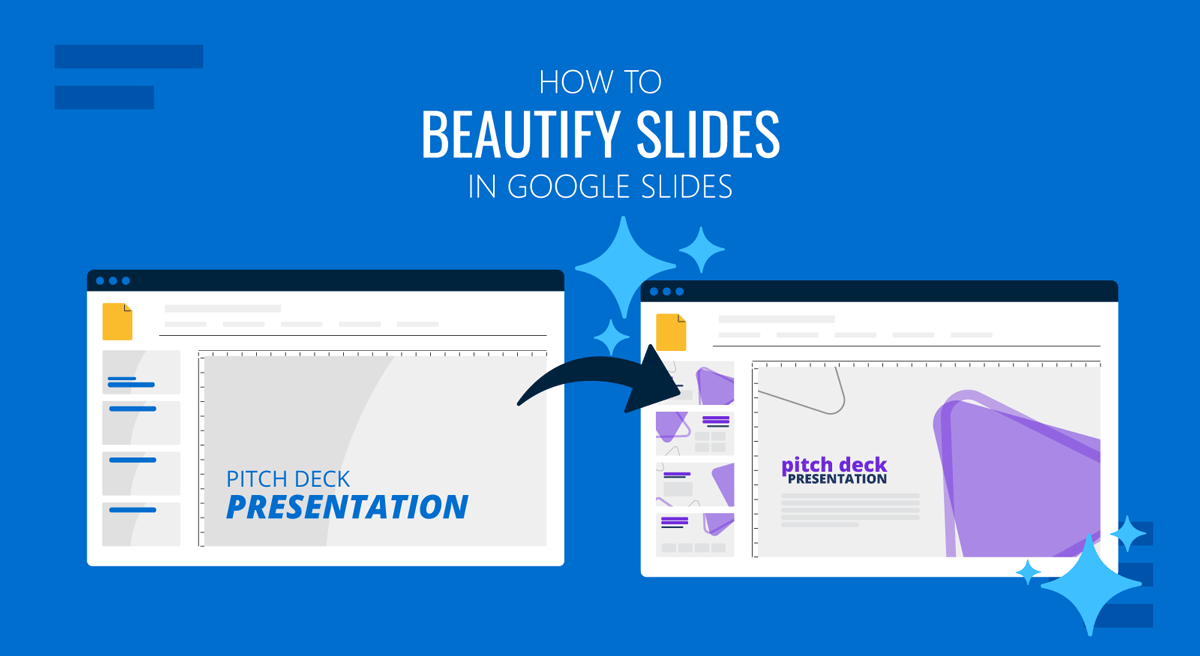
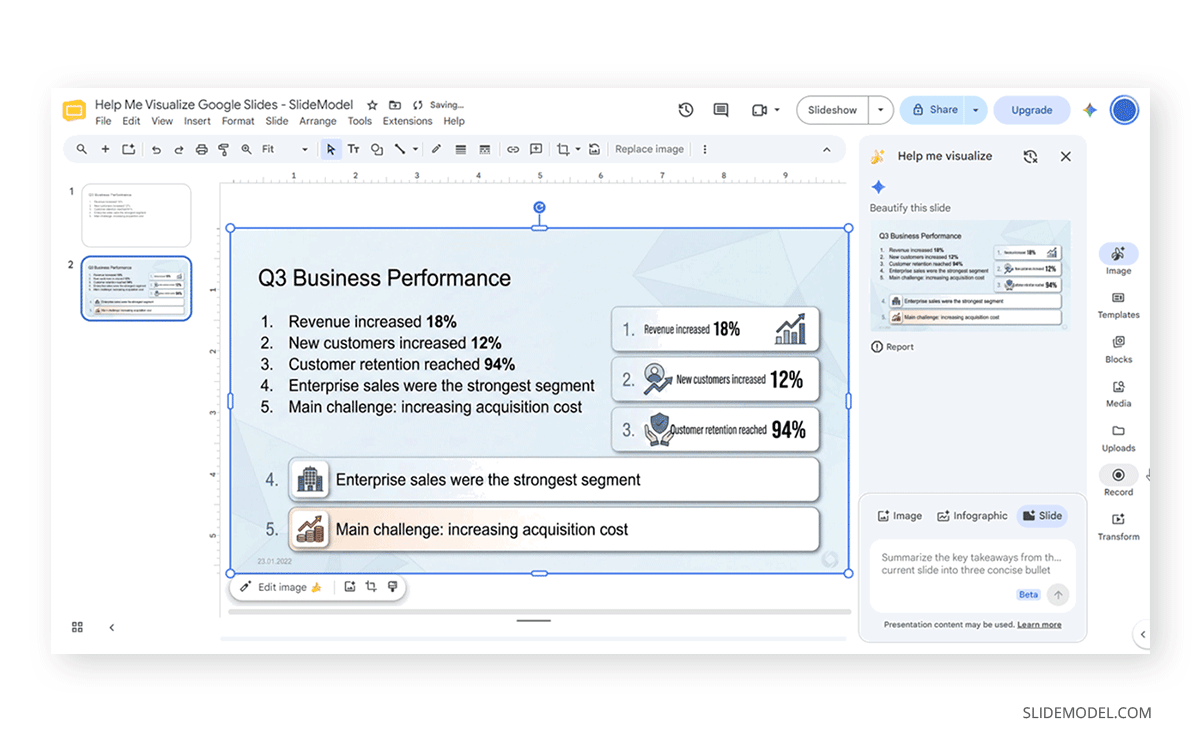
“Beautify this slide” is the feature that maps most directly onto this article’s title, and it is worth understanding on its own terms rather than as a generic image generator. Instead of starting from a blank prompt, it looks at the content already on your active slide, the text, the rough layout, any existing images, and generates a redesigned visual version of that same slide. Google describes the goal as producing “more accurate, legible text while modeling the look and feel of the overall deck,” which in practice means it tries to stay consistent with existing fonts and colors rather than inventing a new style from scratch.
Redesign this slide using a modern gradient style. Preserve all the existing information and exact numbers. Highlight 18%, 12%, and 94% as three prominent Key Points and KPIs, and place the Enterprise Sales insight and Acquisition Cost challenge in two supporting sections below. Use icons and a clean executive presentation style, leaving no margin/borders.
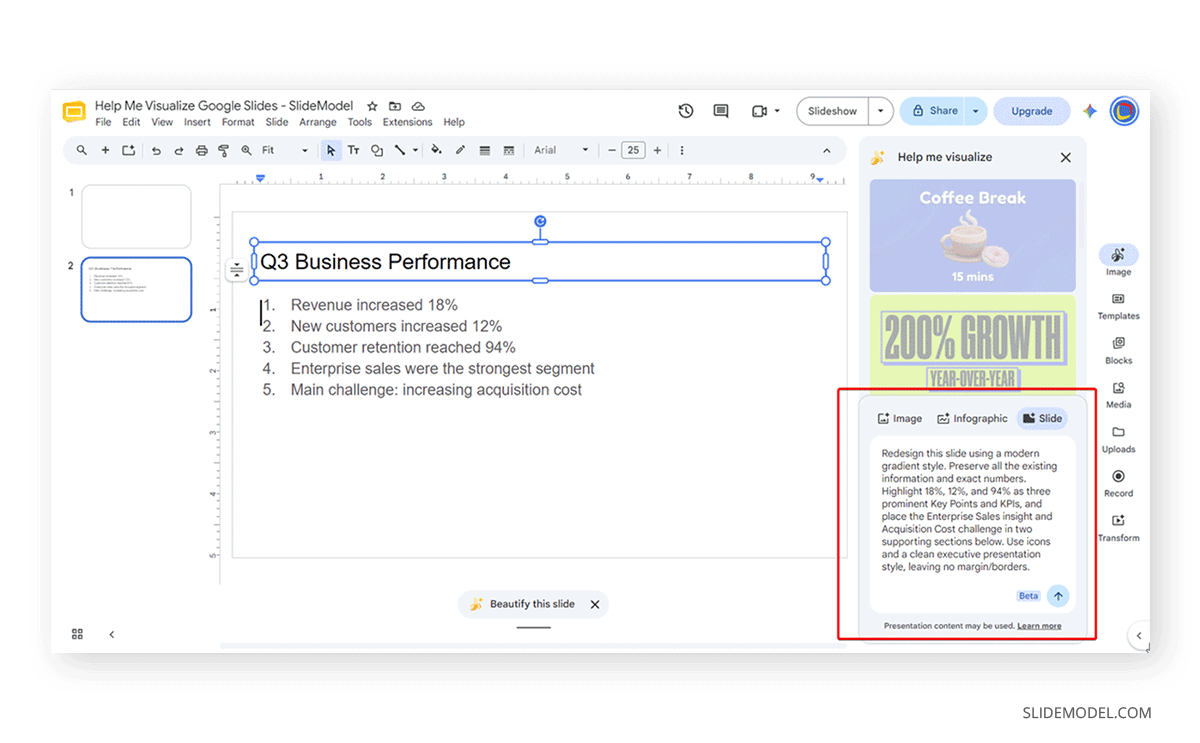
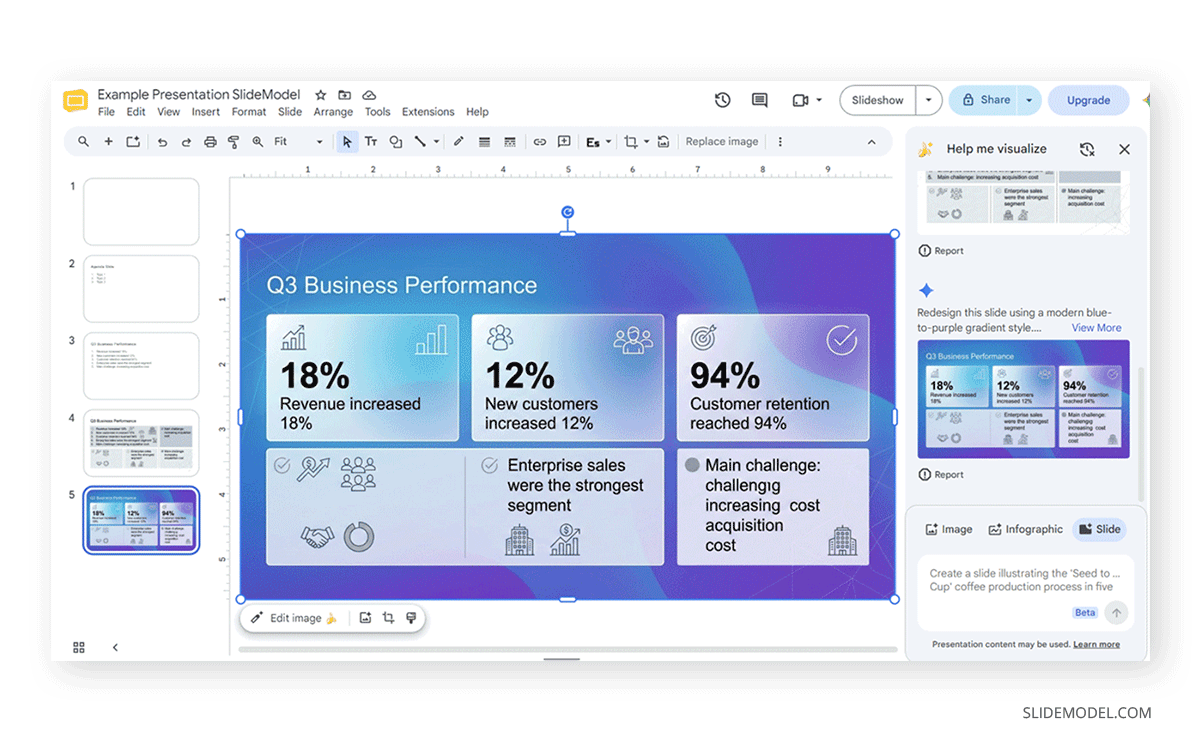
To use it, open a presentation, select the slide you want reworked, and access the feature through the same “Help me visualize” entry point in the Insert menu that also holds the Image and Infographic options. The output arrives as a generated image rather than editable native objects, so once you like a result, you choose “insert as new slide,” and it drops into your deck as its own slide rather than overwriting the original. That distinction matters for editing later: text baked into a beautified slide image cannot be selected and retyped the way a normal Slides text box can, which is worth knowing before you build an entire deck this way. If your goal is fully editable output rather than a polished image, the related “Generate a slide” feature and consistent use of Google Slides theme colors and a readable font pairing will get you further.
Generating New Visuals with Help Me Visualize
The Image and Infographic options under “Help me visualize” work more like a traditional AI image generator, built around a text prompt rather than your existing slide content. For a standalone image, you describe the subject, setting, and style, choose an aspect ratio (square, wide, or tall), and Google’s own guidance recommends being literal rather than figurative in the prompt: describing the subject, distance to subject, materials, and background tends to produce better results than a vague creative brief.
Redesign this slide using a modern blue-to-purple gradient style. Preserve all the existing information and exact numbers. Highlight 18%, 12%, and 94% as three prominent KPI cards, and place the Enterprise Sales insight and Acquisition Cost challenge in two supporting sections below. Use minimal icons and a clean executive presentation style.
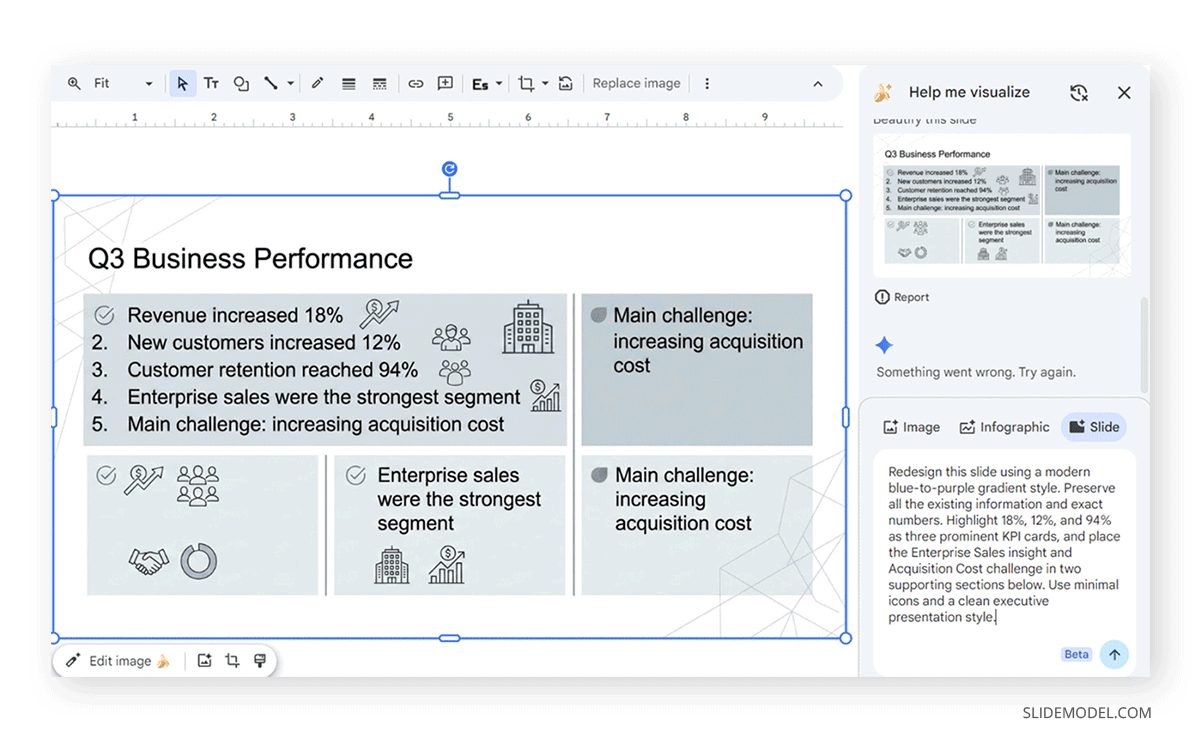
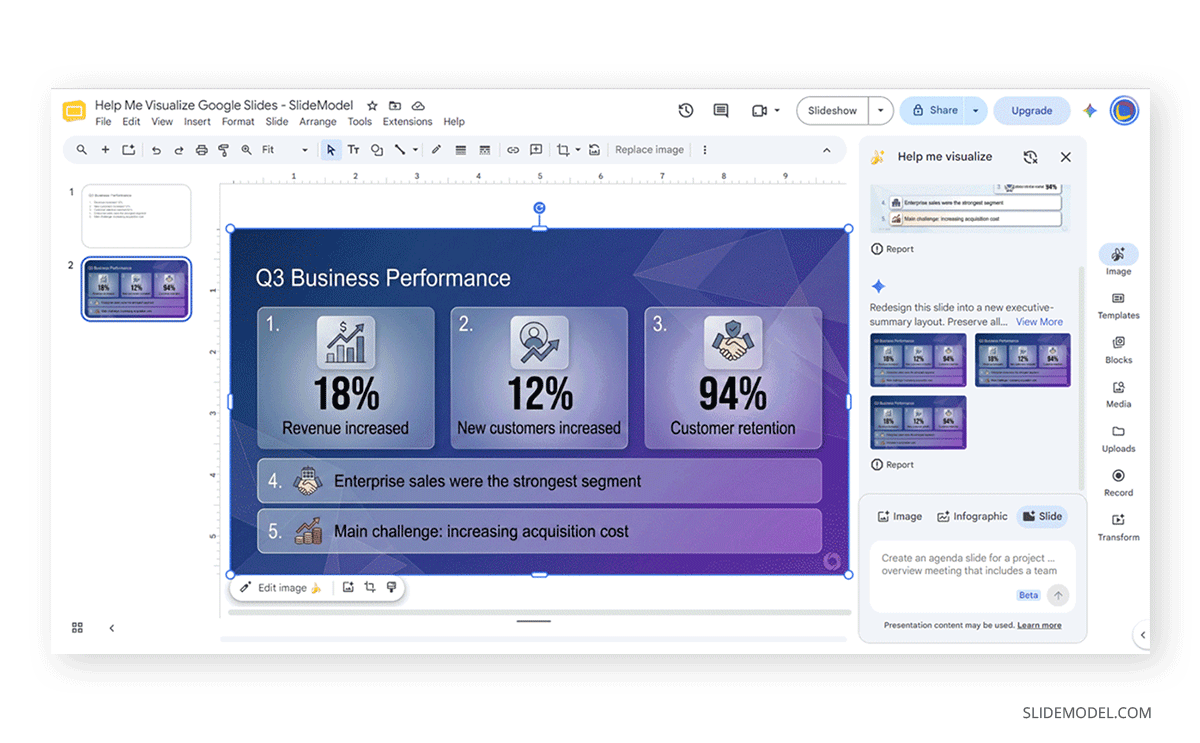
The infographic option is the more interesting addition for business presentations, since it connects to Google Search’s underlying knowledge base and is described as handling real-world objects and places more accurately than a purely generative model would. That still does not make it a substitute for building an infographic in Google Slides with verified numbers pulled from your own data. Treat the generated infographic as a starting layout and a visual style reference, and check every figure it displays against your source material before it goes in front of a client or a board. The same caution applies to any infographic slide you build manually: the tool can suggest a compelling visual structure, but it has no way of knowing whether the numbers inside that structure are correct.
Editing Photos and Removing Backgrounds Without Leaving the Deck
Nano Banana’s original contribution, before the Pro version arrived, was image editing rather than generation. Select an existing image on a slide, click “Edit image,” and describe the change you want in plain language: adding an object, adjusting lighting, or placing the photo inside a different setting. The model holds the rest of the image steady while it applies the requested change, which is a meaningfully different task from generating something new, and one that used to require a separate photo editor entirely.
A related and genuinely useful shortcut is background removal, available directly from the same image menu with no prompt required. It works well for turning a plain product photo or headshot into something that sits cleanly against your slide background, and it pairs naturally with any deck that leans on custom background images rather than a stock template. None of this touches vector shapes or SmartArt-style diagrams, so a slide built around a process flow or org chart still needs to be assembled the traditional way.
How This Compares to Copilot in PowerPoint
Microsoft built its answer to this problem around content first: Copilot in PowerPoint reads a prompt or an uploaded document and drafts slide text and structure, leaning on whatever template or slide master is already loaded to decide where that content should sit. Google took the opposite entry point. Gemini’s tools in Google Slides assume you already have content and focus on the visual layer around it, whether that means generating a supporting image, cleaning up a background, or, with “Beautify this slide,” reimagining the whole slide’s look while trying to preserve what you already wrote.
Neither approach removes the need for a careful review pass. Copilot has a documented tendency to generate layouts that do not fit the placeholders in a given template, and its drafted figures need to be checked against real source data rather than trusted on sight. Gemini’s slide and infographic generation features are still labeled beta by Google, with an explicit warning that they “may make mistakes,” and the resulting output is a flattened image rather than editable text and shapes. Both companies solve adjacent halves of the same problem: one is better at getting words onto a page quickly, the other is better at making an existing page look considered, and most professional workflows will still touch both a template and a design tool by hand somewhere in the process.
Design Fundamentals the AI Still Leaves to You
None of these features understand your brand guidelines, your audience, or the difference between a deck meant to be read on a screen versus one meant to be projected in a boardroom. Color choice is a good example: Nano Banana can generate a visually pleasing image, but it has no concept of your organization’s actual palette unless you specify it in the prompt, and the difference between a palette that reads as intentional and one that reads as random usually comes down to applying color theory deliberately rather than accepting whatever a generator produces. The same is true of choosing a coherent color scheme across an entire deck rather than slide by slide.
Consistency across a full presentation is the other thing that still requires a human pass. “Beautify this slide” works on one slide at a time, so a fifteen-slide deck beautified slide by slide can end up with subtle drift in tone or color from beginning to end unless someone checks the whole sequence together at the end. That kind of review, reading the deck from start to finish rather than slide by slide, catches the inconsistencies that a slide-level AI tool has no way of seeing on its own.
A Practical Workflow and Where the Limits Show Up
A workable sequence looks like this: build the content and rough structure first, either manually or with Gemini’s text-generation features, then use “Beautify this slide” on the individual slides that most need visual help rather than running it across the entire deck by default. Fill in supporting visuals with the Image or Infographic options where a slide genuinely needs one, edit or clean up any photos you already have with Nano Banana’s editing tools, and reach for add-ons built for Google Slides when you need something the built-in AI tools do not cover, like advanced charting or icon libraries.
A few practical limits are worth planning around. These features require an eligible Google Workspace or Google AI plan, so they are not available on every free account. Image generation and editing are restricted to users eighteen and older. If your existing deck lives in Canva rather than native Google Slides, you will need to convert it before any of these tools can touch it. And if the deck needs movement or a Google Slides diagram instead of a static image, pairing generated visuals with native Google Slides animations still requires the same manual timing and sequencing work it always has, since none of these AI features handle motion.
FAQs
What plan do I need to use Beautify This Slide in Google Slides?
Nano Banana Pro features in Slides, including Beautify This Slide, require an eligible Google Workspace plan such as Business Standard or Plus, or a Google AI Pro or Ultra subscription. They aren’t available on a standard free Google account unless you purchase complimentary credits to try them.
Is Nano Banana the same thing as Gemini?
Not exactly. Gemini is the broader AI assistant built into Slides, while Nano Banana and Nano Banana Pro are the specific image generation and editing models that power Gemini’s visual features, including “Help me visualize” and “Beautify this slide.”
Can I edit an AI-generated image after inserting it into my slide?
Yes. Once an image is on the slide, you can select it and click “Edit image” to describe further changes in plain language, or use the background removal option if you only need to isolate the subject.
Does Beautify This Slide change my original slide, or create a new one?
It generates a new visual based on your current slide’s content, and you choose whether to insert it as a new slide or in place of the existing one. The original slide is not automatically overwritten.
What’s the difference between the Image, Slide, and Infographic options under Help Me Visualize?
Image generates a single visual from a text prompt for use anywhere on a slide. Slide and Infographic are both currently in beta and generate an entire slide-sized visual based on your prompt and existing presentation content, styled as either a general slide or a data-focused infographic.
Can Nano Banana remove or change the background of a photo I already have?
Yes. Selecting an image and choosing “Remove background” strips the background with no prompt needed, and the “Edit image” option can also change a background contextually if you describe what you want instead.
Is there an age restriction on generating images with Gemini in Slides?
Yes. Google restricts image generation and editing features to users who are eighteen or older, regardless of Workspace plan.
How is Beautify This Slide different from what Copilot does in PowerPoint?
Copilot focuses primarily on drafting text and structure from a prompt or document, fitting content into an existing template. Beautify This Slide instead takes a slide you have already written and generates a redesigned visual version of it, focused on appearance rather than drafting new content.
Do the beta features like Create a Slide and Create an Infographic always work as expected?
No. Google labels both features as beta and states they may produce mistakes, so results should be reviewed carefully, particularly any data shown in a generated infographic, before they are used in a final presentation.
Can I write prompts in a language other than English?
Yes. Gemini’s image generation and editing features in Slides support many languages, including Spanish, French, German, Japanese, and Portuguese.
Final Words
Gemini and Nano Banana have closed a real gap in Google Slides design features, particularly for anyone who used to open a separate tool just to get one clean background image or fix a cluttered slide before a meeting. “Beautify this slide” is the feature most directly aimed at that afternoon-before-the-deadline scenario, and it works well within its stated limits: one slide at a time, still labeled beta, and producing an image rather than editable objects.
Used alongside the fundamentals, deliberate color choices, consistent fonts, and a full read-through before sending the deck out, it is a genuine time saver rather than a replacement for design judgment.