When designing a presentation, choosing the right text color can improve readability, reinforce your brand identity, and help emphasize important points. If you’re looking for different methods for how to change text color in Google Slides, including changing the color of an entire text box or selected words, there are different methods to do that. You can change text color in Google Slides using the Text Color button and even choose custom colors using HEX or RGB values, making it easy to match company branding or presentation themes.
In this guide, we’ll explain how to change text color in Google Slides, apply different colors within the same text box, use custom colors, understand the difference between text color and highlighting, and share practical tips for choosing colors that improve readability and visual appeal.
Why Change Text Color in Google Slides
Text color does more than look decorative. Used thoughtfully, it helps organize information, direct attention, and create visual consistency in a presentation. For example, a presenter might use one color for headings, another for body text, and an accent color to highlight key figures or action points. Organizations often apply their brand colors to presentation titles and callouts, so slides remain consistent with their corporate identity. Text color can also improve readability by creating stronger contrast between text and the slide background. Rather than using multiple colors throughout a slide, it’s generally more effective to apply color selectively to emphasize the most important information.
How to Change Google Slides Text Color
You can change the color for a complete text box, a single word, or highlight text by following the methods mentioned in the sections below.
How to Change Text Color for a Text Box
The easiest way to change font color in Google Slides is by using the Text Color button in the toolbar.
Step 1: Select the text box containing the text you want to modify.
Step 2: Click the Text Color button (represented by the letter A) in the toolbar.
Step 3: Choose a color from the available palette. The selected color is applied immediately to all text in the selected text box.

How to Change the Color of Individual Words
You don’t have to apply the same color to every word in a text box. Google Slides lets you format individual words, phrases, or even single characters independently. For example, a presentation on quarterly performance might show positive results in green and areas needing attention in red. Likewise, when introducing a product, you could highlight its name in your organization’s primary brand color while keeping the rest of the text in a neutral color.
Step 1: Highlight the portion of text you want to change.
Step 2: Select a new color using the Text Color tool. The rest of the text will retain its original formatting, while the selected part will be changed to the color you picked.
Using multiple text colors can improve readability when applied carefully, but too much variation may make slides look cluttered. Limiting color changes to headings, keywords, or important values generally creates a cleaner, more professional design.

How to Use a Custom Text Color
The preset color palette covers many common needs, but sometimes you’ll need an exact color that matches your organization’s branding or design guidelines. Google Slides’ custom text color option allows you to specify precise color values instead of choosing from the standard palette.
Step 1: Open the Text Color menu.
Step 2: Select Add a custom color option.
Step 3: Enter the required HEX or RGB value. Using the RGB or Google Slides HEX color text is particularly useful when working with brand guidelines that define exact corporate colors for logos, headings, or presentation templates.

How to Highlight Text in Google Slides
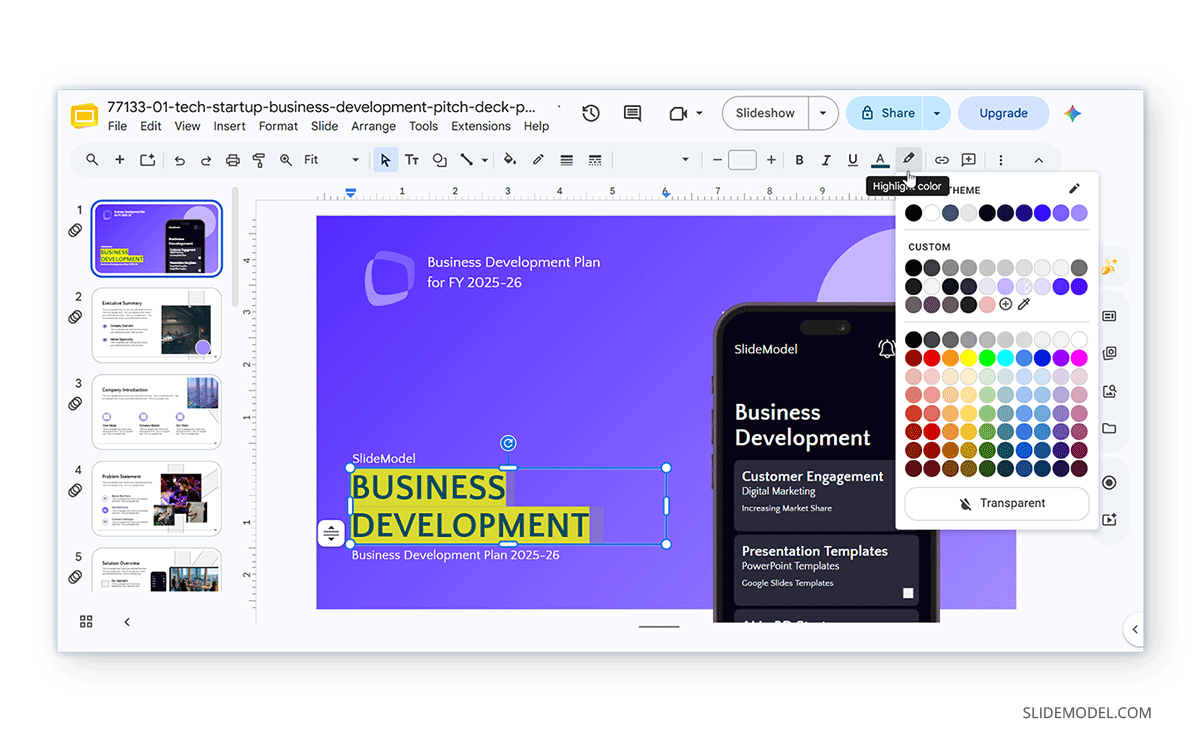
Changing a text’s color and highlighting text are two different formatting options, even though people sometimes confuse them. Changing the text color modifies the appearance of the letters themselves, making it useful for emphasizing headings, keywords, or important figures while maintaining a clean slide design. Highlighting text, on the other hand, places a colored background behind the selected words while leaving the text itself unchanged. Because highlighted text naturally attracts attention, use it selectively rather than throughout an entire presentation.
Step 1: Select the text you want to highlight and open Highlight Color from the top toolbar.
Step 2: Select a color from the menu or go to the Add a custom color option to enter a color, an RGB value, or a HEX code. You can also use the Pick a custom color option to select a color from the slide.
Step 3: Preview the highlighted text for legibility to ensure the selected color doesn’t make the content hard to read.
How to Change Text Color in Google Slides on Mobile
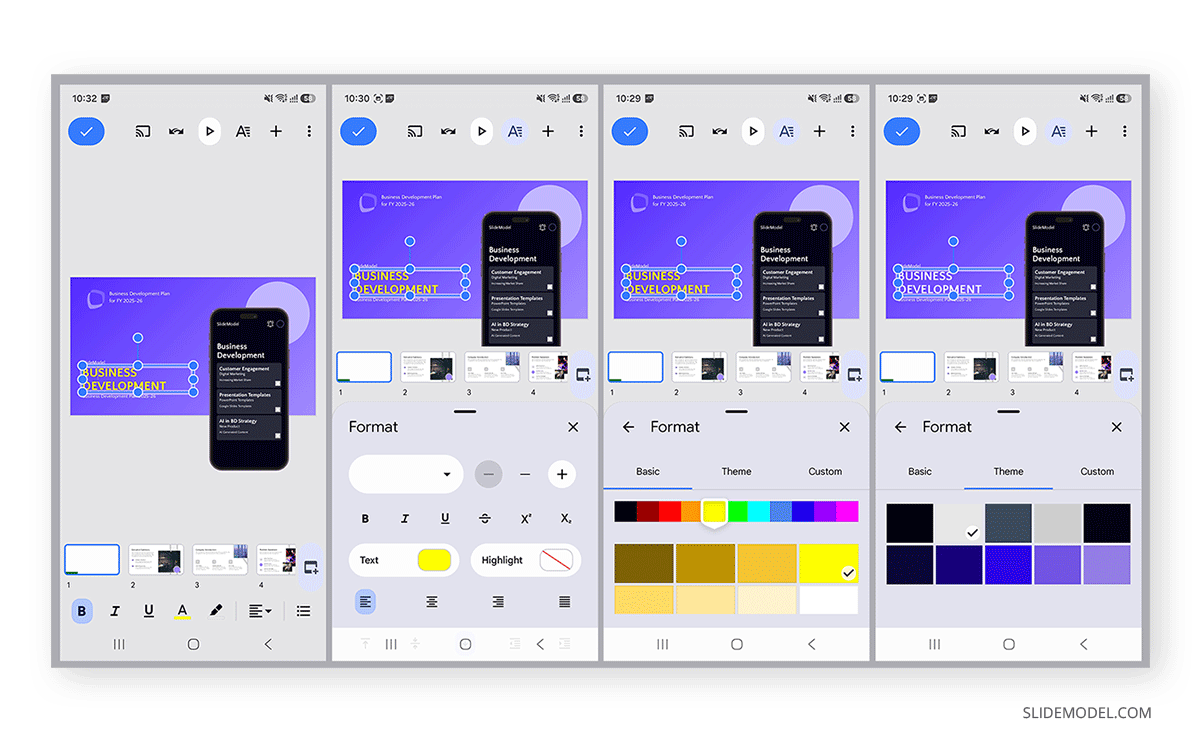
If you’re editing a presentation on a phone or tablet, you can also change the text color using the Google Slides mobile app.
Step 1: Open your presentation and tap the text box you want to edit.
Step 2: From the formatting options at the bottom, tap Text Color (A), or, via Format -> Text Color, choose a color or theme from the menu.
Although the mobile app offers fewer formatting options than the desktop version, it provides a convenient way to make quick edits while working away from your computer.
Common Questions About Google Slides Text Color Issues
Many users wonder whether they can set a permanent default text color so every new text box automatically uses a specific font color, get stuck when they can’t change text color, or need guidance on using custom branding colors. Below are a few answers to common questions, with suggestions and fixes.
How to Fix Google Slides Font Color Not Working
If the text color doesn’t change as expected, the issue is usually related to the selected object or formatting, not Google Slides.
Select Text, Not the Text Box: A common mistake is selecting the text box instead of highlighting the specific text you want to modify. If only part of the text should change color, be sure to highlight the relevant words before choosing a new color.
Check Theme Formatting: Formatting inherited from placeholders or presentation themes can also affect how text appears. If a color change doesn’t apply correctly, try selecting the text again, checking whether you’re editing a placeholder, or choosing another layout to confirm theme formatting isn’t overriding your changes.
Refresh Webpage: If you’re working in a web browser, refreshing the presentation or reopening it can also resolve temporary display issues.
How to Maintain Google Slides Custom Text Color for Branding
Many organizations maintain detailed brand guidelines that specify exactly which colors to use across digital and printed materials. Instead of selecting colors manually, entering the official HEX or RGB values ensures every presentation uses the same visual identity. This is especially helpful when multiple team members create presentations, as it keeps headings, callouts, and highlighted text consistent, no matter who designed the slides. Even for personal projects, saving and reusing custom colors can create a more polished presentation than relying on different shades from the default palette.
Can You Change the Default Text Color in Google Slides
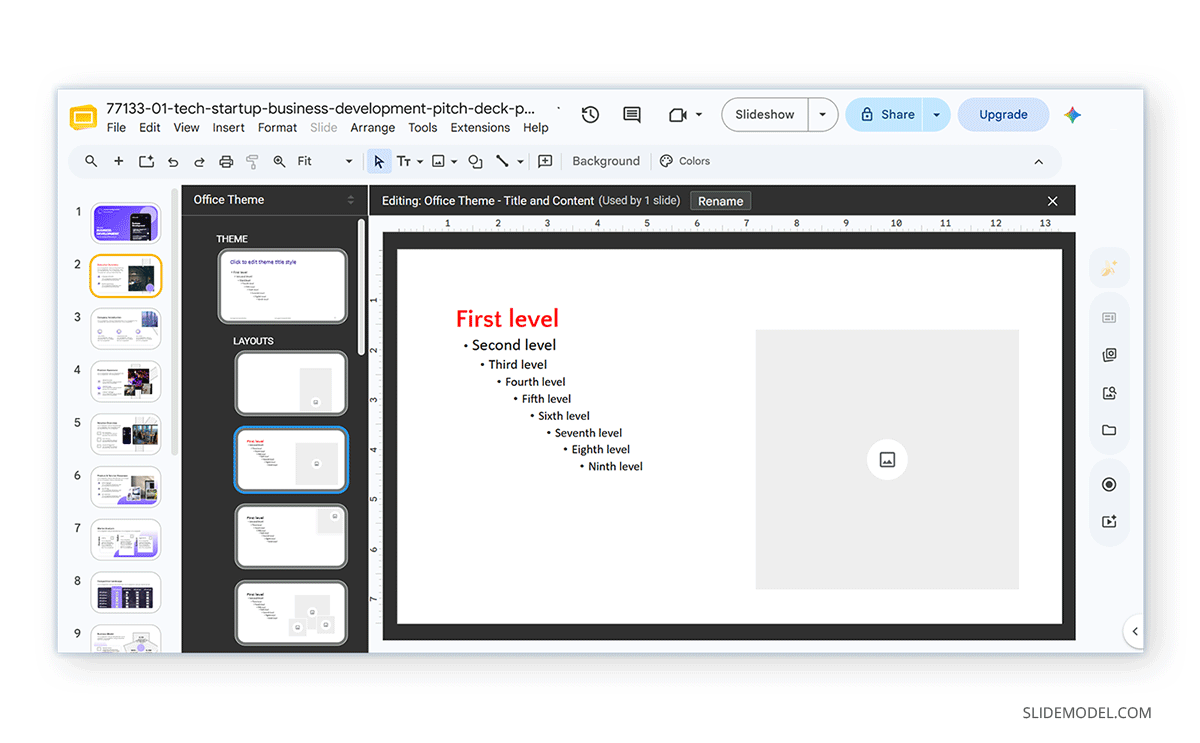
Google Slides doesn’t offer a built-in option to set a persistent default text color for newly inserted text boxes. However, you can achieve a similar result by modifying the presentation’s Theme Builder. This approach is particularly useful for organizations that use branded presentation templates with predefined fonts and colors.
Step 1: Open View -> Theme Builder, and select the layout you want to edit.
Step 2: Change the formatting of the title or body text placeholders.
Step 3: Apply the changes and exit the Theme Builder. Any new slides that use those layouts will inherit the updated text color, helping maintain consistent formatting throughout the presentation.
Best Practices for Using Text Color in Google Slides
Changing text color is simple, but using it effectively requires a thoughtful approach.
Prioritize Readability
Choose text colors that provide sufficient contrast against the slide background. Dark text on a light background or light text on a dark background is generally easier to read than low-contrast combinations.
Use Brand Colors Consistently
If your organization has established brand guidelines, use the official HEX or RGB values instead of selecting similar shades from the default palette. This helps create a consistent appearance across presentations and other marketing materials.
Limit the Number of Colors
Using too many text colors on the same slide can distract your audience and weaken your visual hierarchy. Instead, reserve accent colors for headings, keywords, or key statistics, and keep most text in a consistent primary color.
Use Text Highlighting Selectively
Text highlighting draws attention to important information, but it quickly loses impact if you use it too often. Reserve highlights for definitions, key figures, action items, or other information that deserves immediate attention.
Final Words
Changing text color in Google Slides is a simple way to improve readability, reinforce branding, and emphasize important information throughout a presentation. Whether you apply a preset color, use a custom HEX or RGB value, highlight individual words, or update theme placeholders for consistent formatting, Google Slides offers flexible tools to tailor text to your design needs. Choosing colors thoughtfully matters as much as knowing how to apply them; knowing when and how to change text color in Google Slides can help you create designs that are easy on the eyes and aligned with your branding needs.