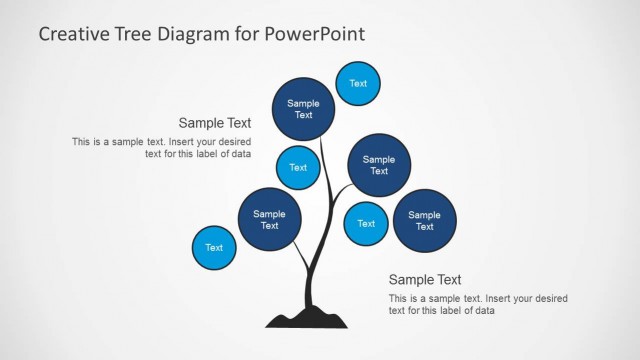
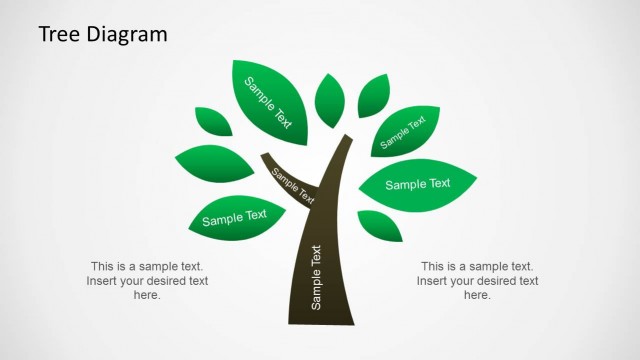
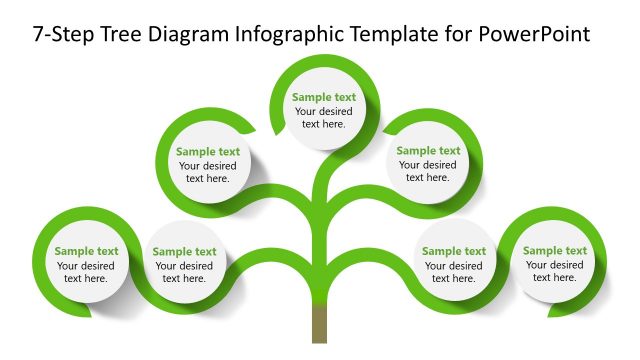
Display the most complex decision trees in easy-to-understand layouts with a Decision Tree Diagram for PowerPoint. While this template is meant for making decision trees, however, you can also use it for making a family tree, organizational chart, and other types of custom diagrams. This is also a great tool for decision making.
The template features multiple slides with attractive layouts, which are highly customizable. You can even adjust the size, shape, color and location of placeholders within each slide to create custom diagrams. Alternatively, you can download other decision tree templates or sales tree templates for PowerPoint presentations and slide designs to enhance your decision-making processes and the visuals of your presentations.
What’s inside this template
Example presentation scenarios
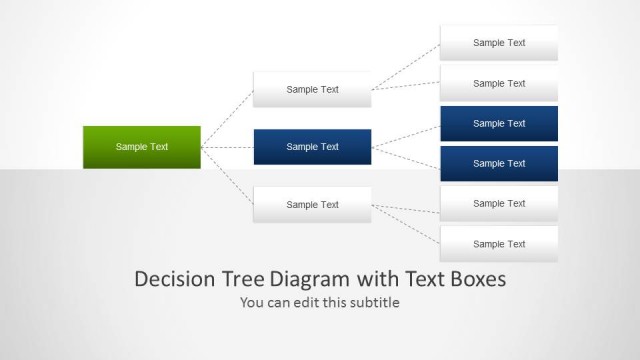
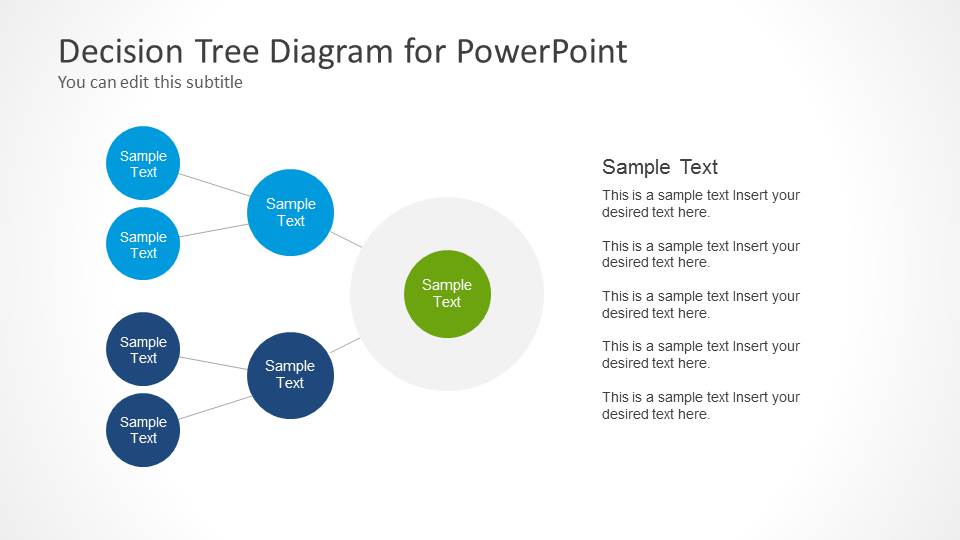
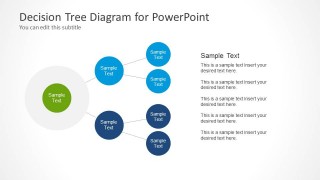
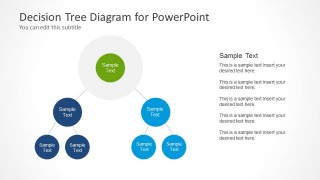
- A business analyst can present a decision review by placing the key choice in the central node and using the right-branching tree to show possible outcomes and follow-up options.
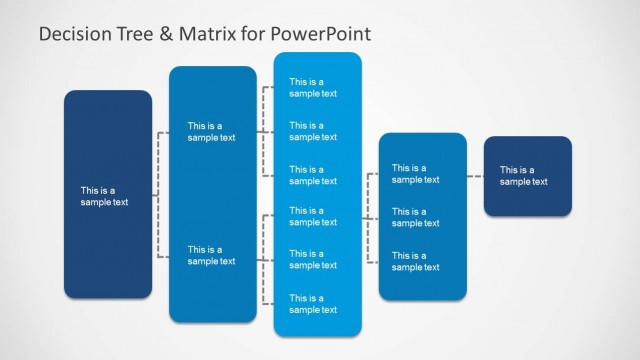
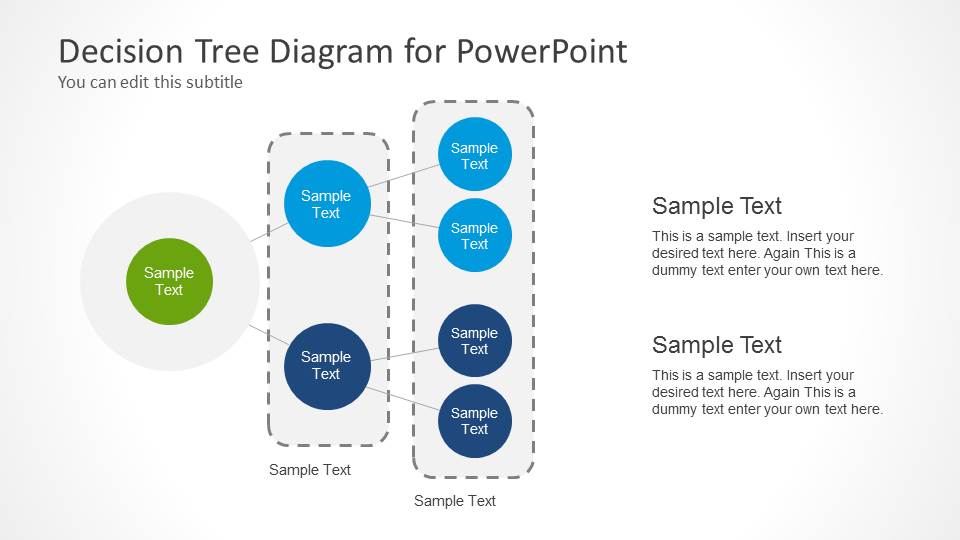
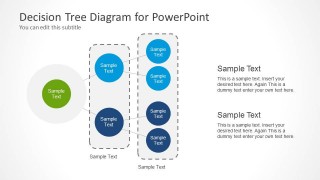
- A sales manager can explain qualification paths by using the grouped dendrogram layout to separate lead stages, branch criteria, and final routing decisions.
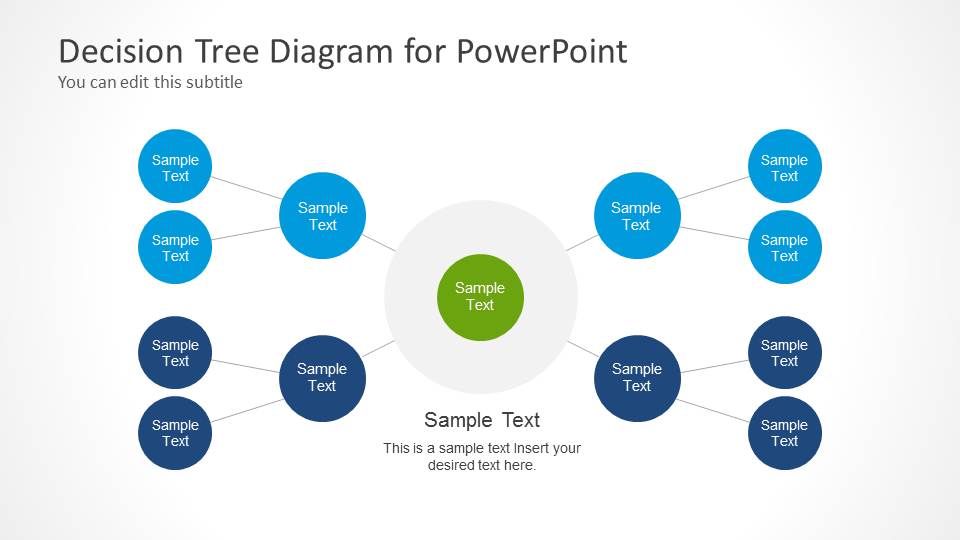
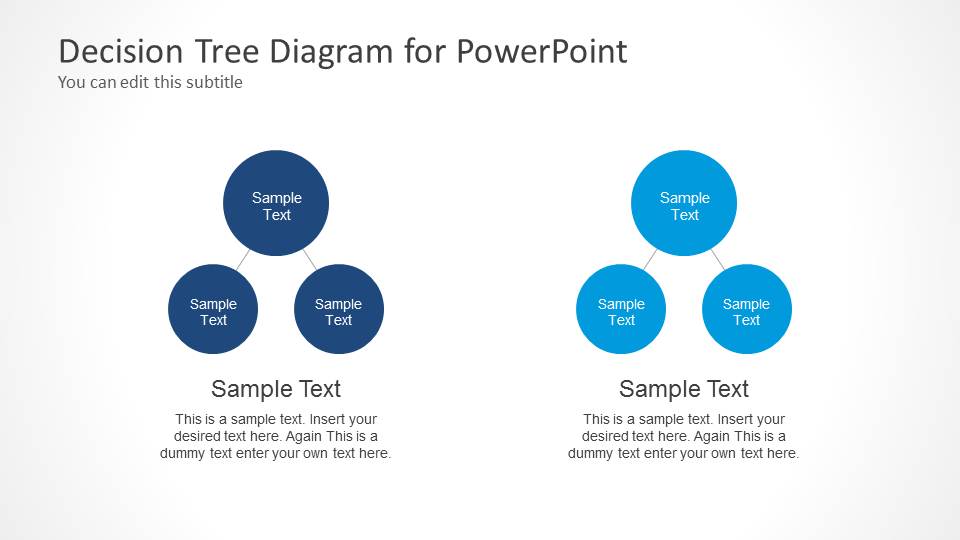
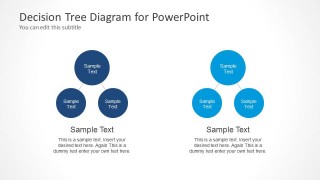
- A consultant can compare two strategic alternatives by using the side-by-side mini tree diagrams to show different paths, assumptions, and consequences.
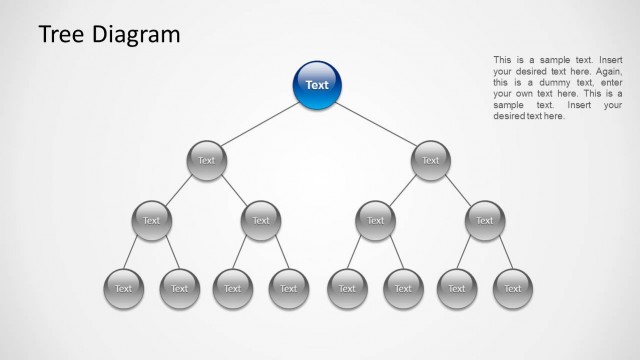
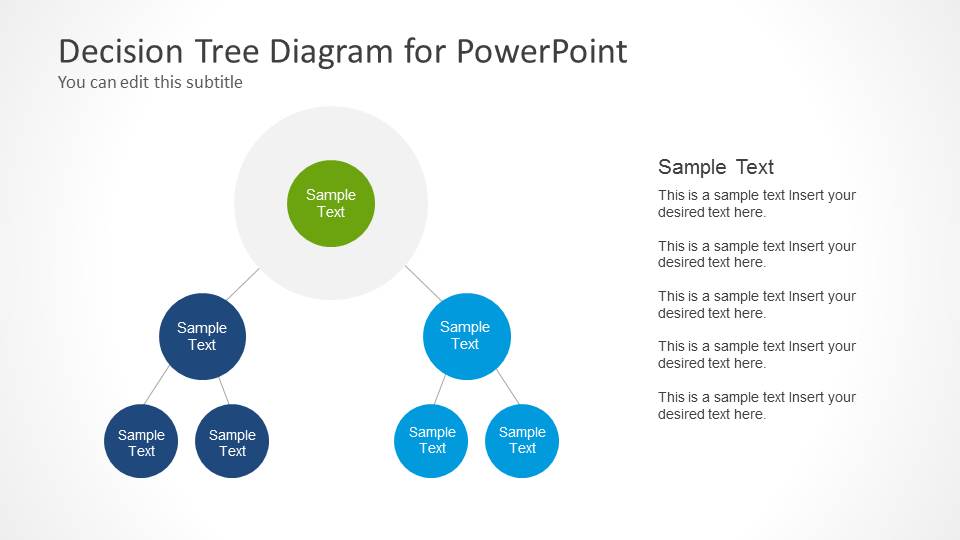
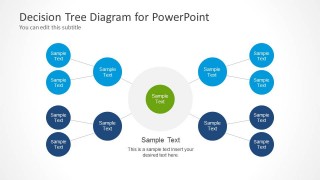
- An HR or operations presenter can map reporting relationships or role dependencies with the downward hierarchy tree and the mirrored branch layout.
Features
- 100% editable presentation template
- Compatible with Microsoft PowerPoint
- 16:9 aspect ratio slides
- Scalable vector shapes, icons and illustrations
- AI-Ready for Microsoft Copilot and Claude
- Instant access and download
Frequently asked questions
Q: How should I present a decision tree so the audience does not get lost?
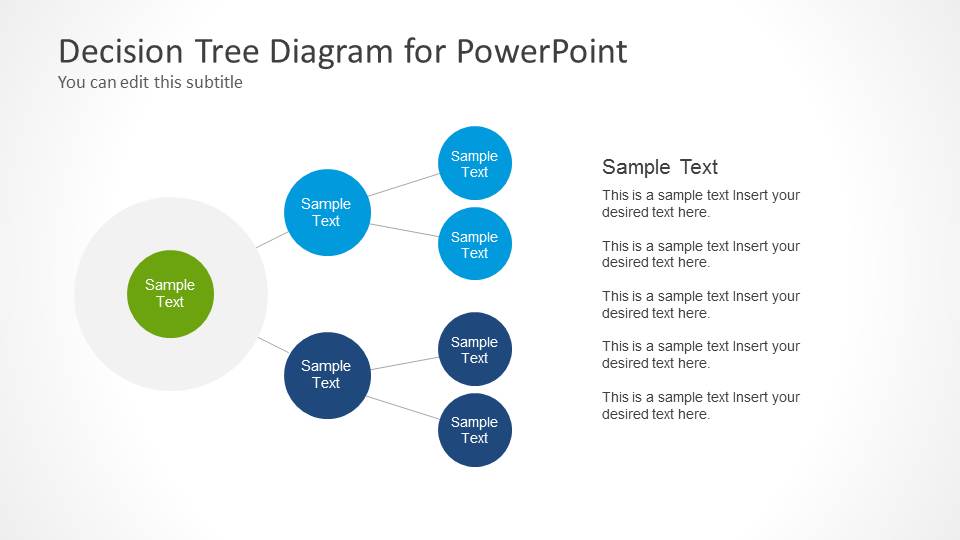
A: Start with the green central node as the primary question or root item, then move through one branch at a time. Use the text column on slides 1, 2, or 4 to translate each branch into plain language. Avoid filling every node with long copy; reserve detail for the explanatory text block.
Q: Who is this template best suited for?
A: This template fits presenters who need to explain branching logic rather than numeric performance. Analysts, consultants, sales managers, educators, and HR teams can use the node diagrams to show choices, qualification paths, family relationships, reporting structures, or scenario outcomes in a compact visual format.
Q: Why do the circular nodes and branching layouts work for decision communication?
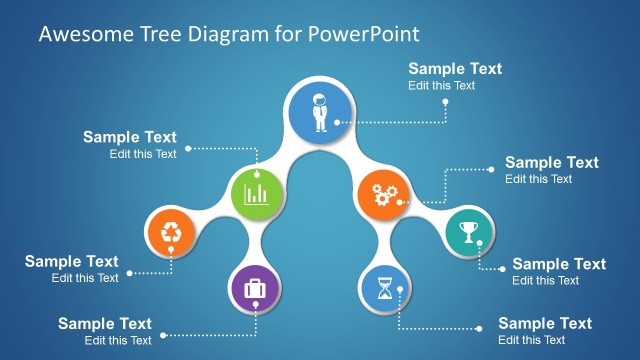
A: The circle-and-connector design creates a clear visual metaphor for a root idea splitting into related choices. The mirrored layout helps compare balanced alternatives, while the dashed group containers on slide 5 separate levels of logic. This makes dependencies easier to scan than a dense paragraph or table.
Decision Tree Diagram for PowerPoint
6-slide PowerPoint presentation template for decision trees, node branches, and hierarchy diagrams.
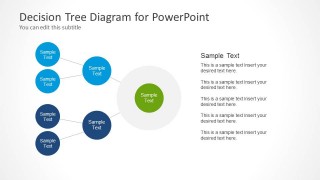
Decision Tree Diagram for PowerPoint is a 6-slide Microsoft PowerPoint template for showing branching choices and hierarchical relationships. Visible layouts include a right-branching decision tree, left-to-right tree, mirrored branching tree, grouped dendrogram, and two-column comparison trees for business decision making, sales paths, genealogy, or organization mapping.
- Category
- Tree Diagrams
- Rating


 Loading...
- Aspect ratio
- 16:9
- Item ID
- 6108-01
- Colors
 Microsoft PowerPoint
  Microsoft Copilot
  Claude for PowerPoint
 Other formats supported
Subscribe today and get immediate
access to download our PowerPoint templates.