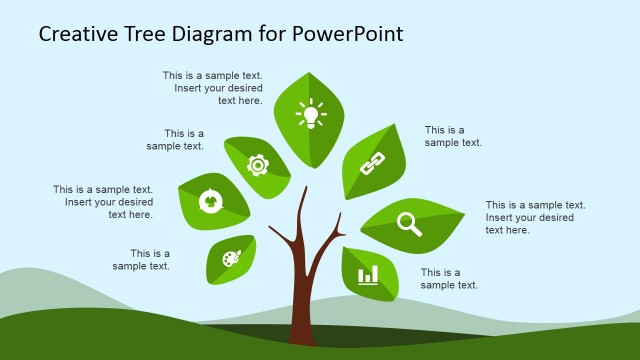
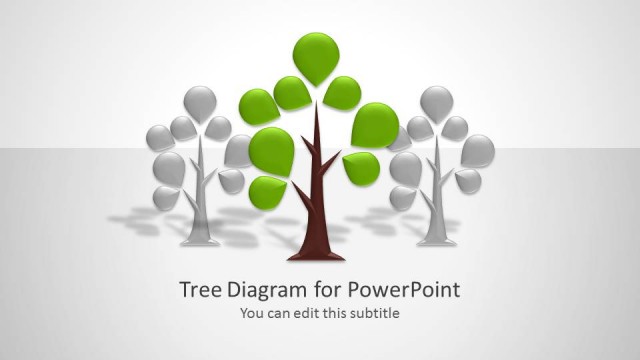
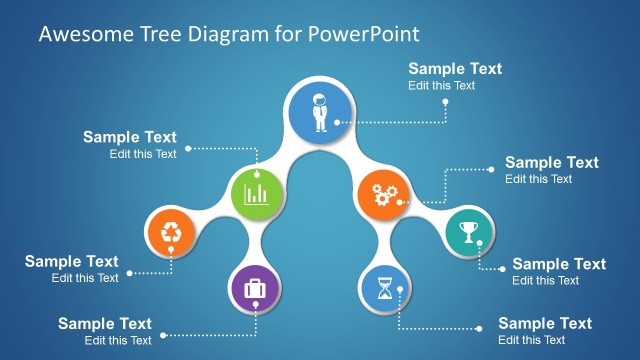
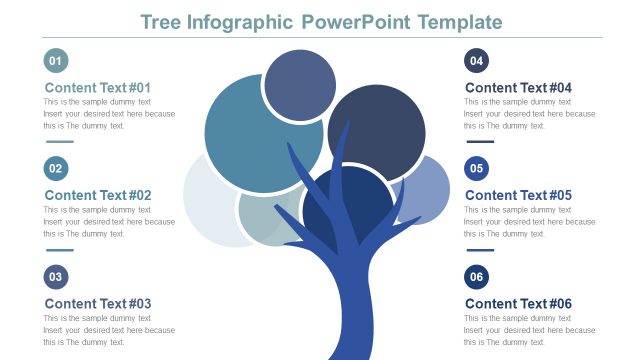
Creative Tree Diagrams for PowerPoint is a set of powerful tree diagram slide designs. The diagrams provide a variation of density and colors that the use can surely find functional. The graphics aim to minimize textual content for easier understanding. It is a wonderful tool for sharing ideas. The goal is to illustrate relationships between relative concepts. Deliver stunning presentations using this PowerPoint template.
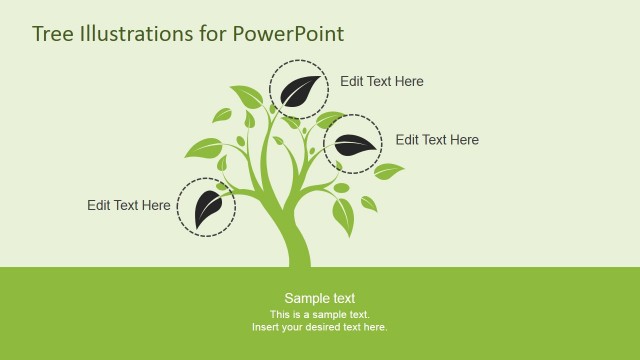
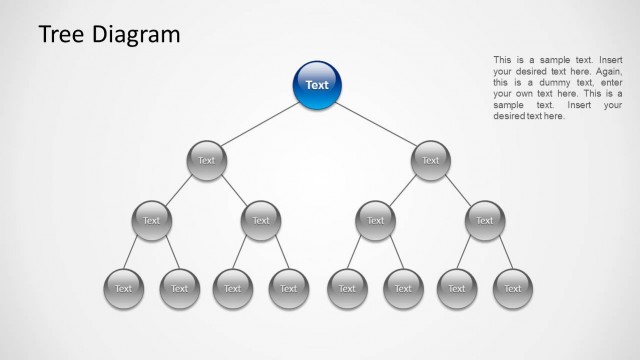
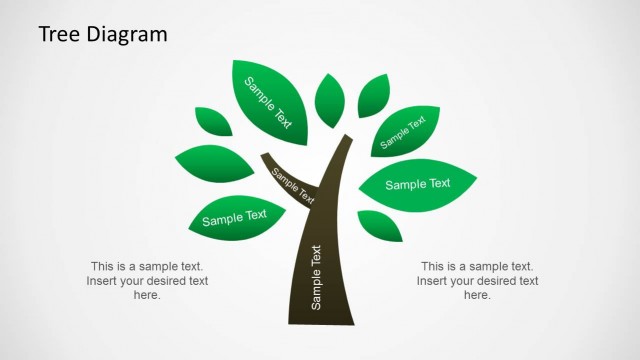
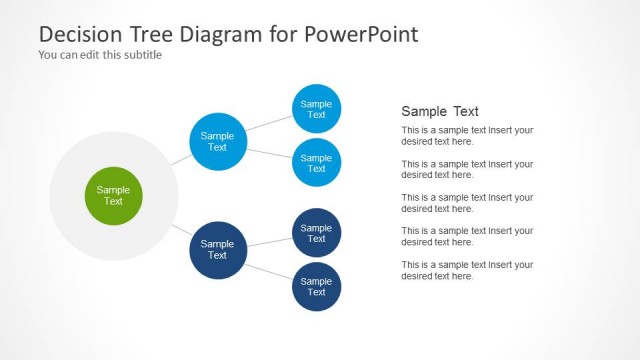
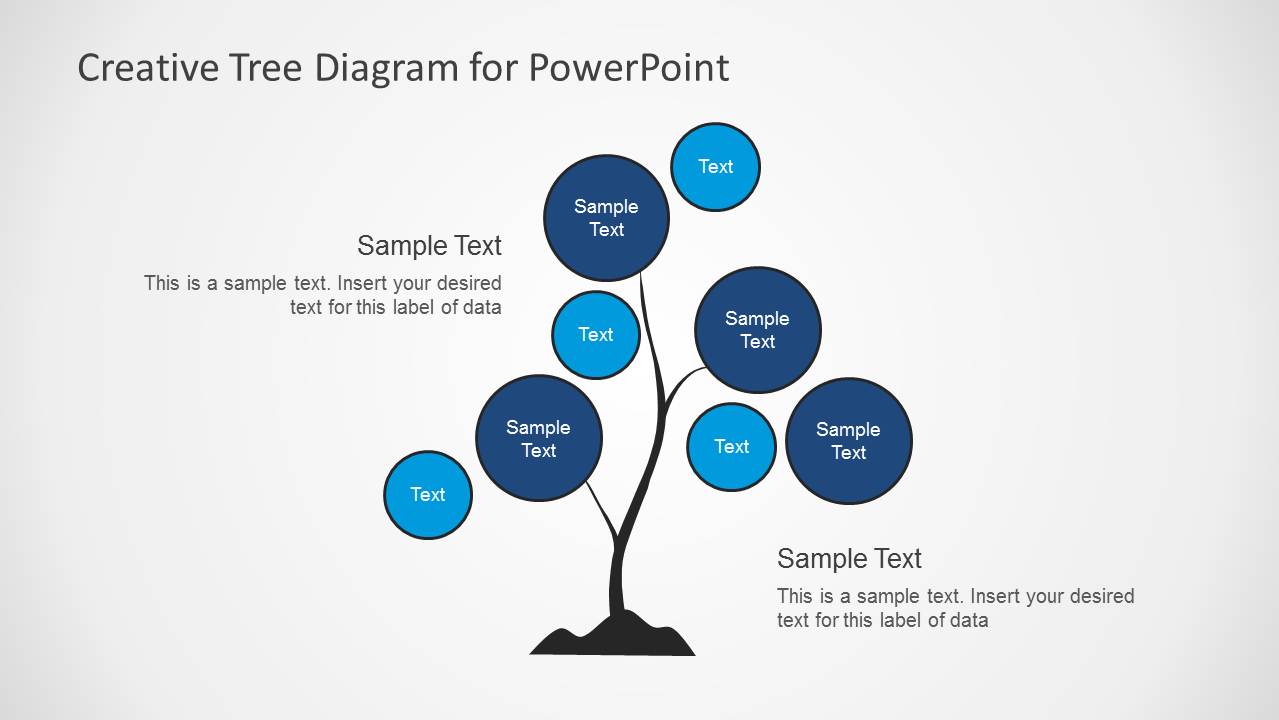
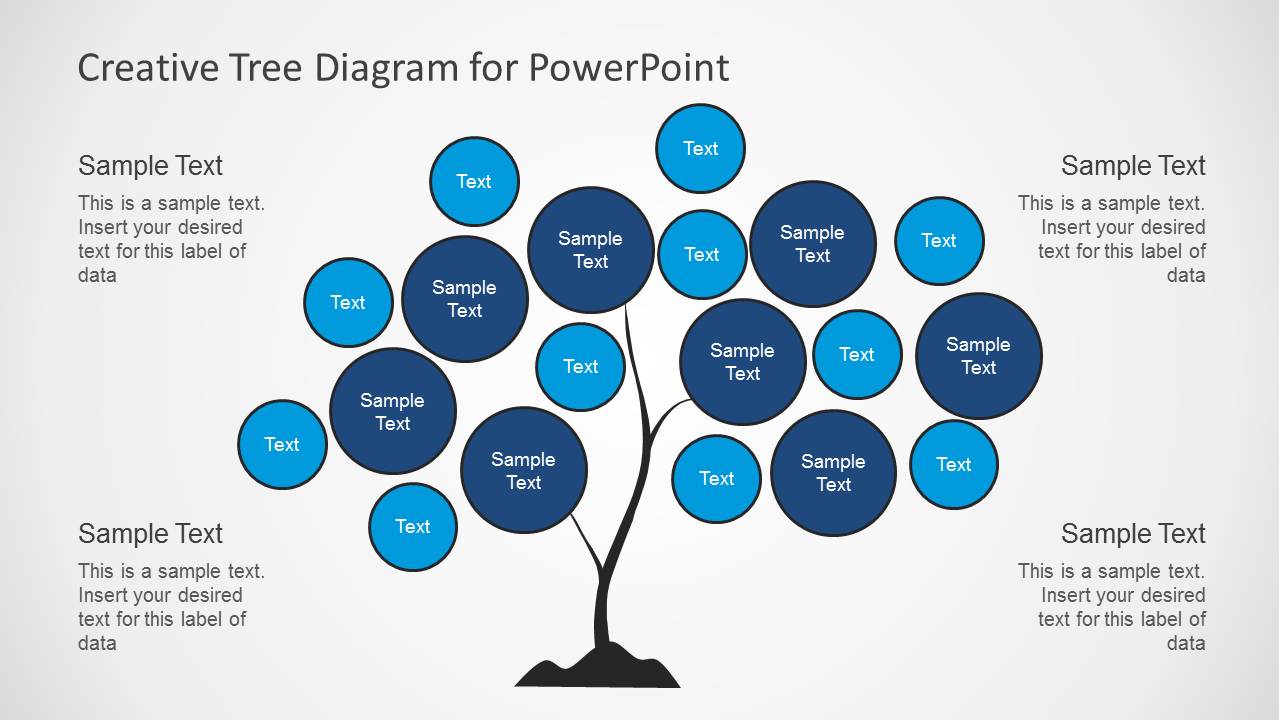
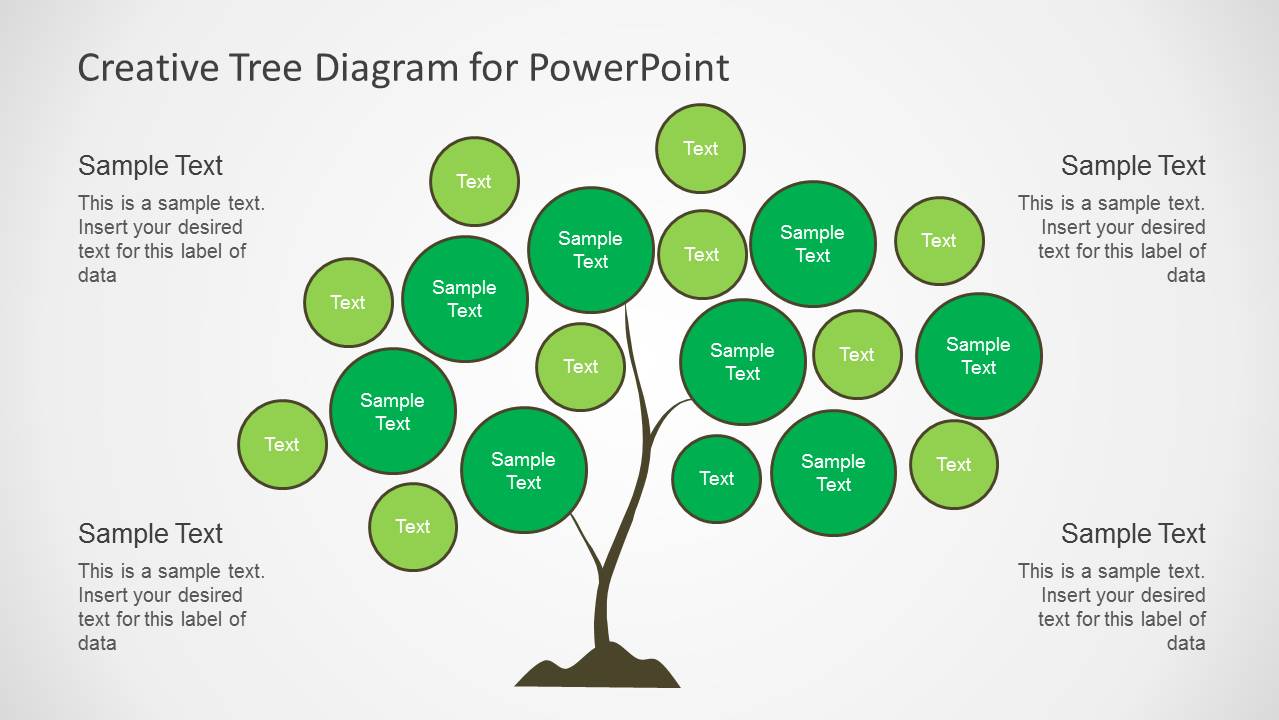
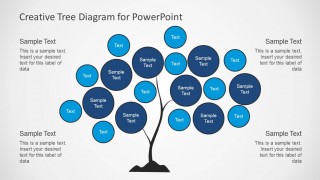
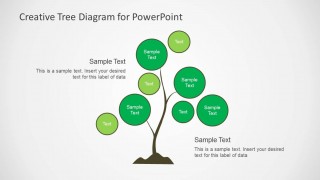
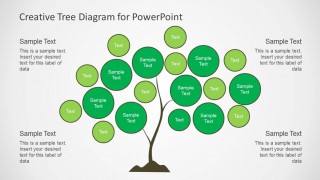
There are 4 slide in the PowerPoint design. The first two slides are in a blue color scheme while the last two is in shades of green. The tree diagrams vary in the number of circles that represent the leaves. In the first slide, there are only few shapes. These can be the most important factors that affect the main concept. The 2nd slide contains a thicker tree. The presenter can utilize this to showcase a detailed explanation of the discussion. Elaborate terms can be written in each leaf. These terms can be connected by the speaker to expound the lecture. The next slide shapes are similar to the initial ones.
This creative PowerPoint template is ideal for decision-making presentations. The user can feature on the effects of every alternative plan using the diagram. It can be used to illustrate relationships between objects. An example is the family tree where a person can trace one’s bloodline and ancestry. It can be used for business planning and project management. The speaker can utilize it for academic or personal uses.
Like a web diagram, a tree diagram emphasize on relationships and connection between entities or ideas. The elements are connected by the branches. The root can symbolize the main theory or subject.
Use Creative Tree Diagrams for PowerPoint for an outstanding output on numerous topics. Creative Tree Diagram PowerPoint Template is downloadable at the SlideModel gallery. Check out the different categories for more quality options.
What’s inside this template
Example presentation scenarios
- A strategy consultant can use the dense tree diagram to show how several initiatives connect to one business growth theme.
- A project manager can use the sparse tree diagram to explain a small set of dependencies, decision options, or risk factors to a team.
- An educator can use the green tree layout to introduce a concept hierarchy and then assign each circular leaf label to a topic or subtopic.
- A business planner can use the side callout text blocks to summarize root causes, assumptions, or expected outcomes while the branches show relationships.
Features
- 100% editable presentation template
- Compatible with Microsoft PowerPoint and Google Slides
- Scalable vector shapes, icons and illustrations
- AI-Ready for Microsoft Copilot and Claude
- Instant access and download
Frequently asked questions
Q: How should I choose between the sparse and dense tree layouts?
A: Use the sparse tree when the audience must remember a few primary drivers, choices, or themes. Use the dense tree when the discussion needs more supporting points, related ideas, or category examples. Keep each circular leaf label short, then use the nearby callout text to explain context rather than crowding the diagram.
Q: Who is this tree diagram template best suited for?
A: This template fits presenters who need to explain relationships without turning the slide into a table. Consultants, educators, team leaders, and project managers can map decision options, growth factors, topic families, or cause-and-effect relationships. The tree metaphor works best when the main idea is a root and the supporting ideas branch outward.
Q: Why does the tree metaphor help communicate relationship-based ideas?
A: The trunk, branches, and circular leaves create a familiar visual hierarchy. The audience can see one central subject, connected subtopics, and supporting labels at the same time. This structure reduces the need for long paragraphs and helps the presenter talk through connections in a natural, spatial way.

Creative Tree Diagrams for PowerPoint
4-slide PowerPoint diagram template with tree metaphor layouts for decision trees and growth relationships
Creative Tree Diagrams for PowerPoint is a 4-slide diagram template for explaining relationships between ideas with a tree metaphor. It includes sparse tree diagrams, dense tree diagrams, circular leaf labels, and side callout text blocks. Business presenters, educators, and project teams can use the editable PowerPoint shapes to map decisions, growth themes, or concept hierarchies.

 Loading...
 Microsoft PowerPoint
  Microsoft Copilot
  Claude for PowerPoint
 Other formats supported
Subscribe today and get immediate
access to download our PowerPoint templates.