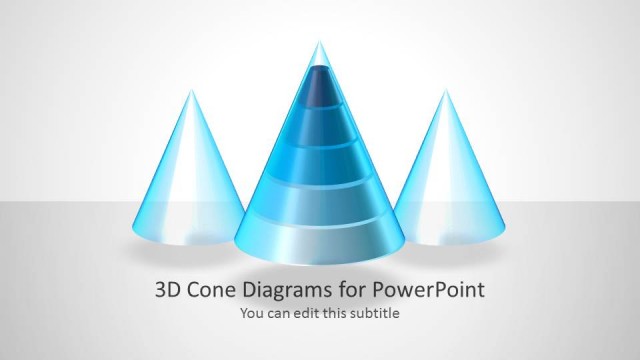
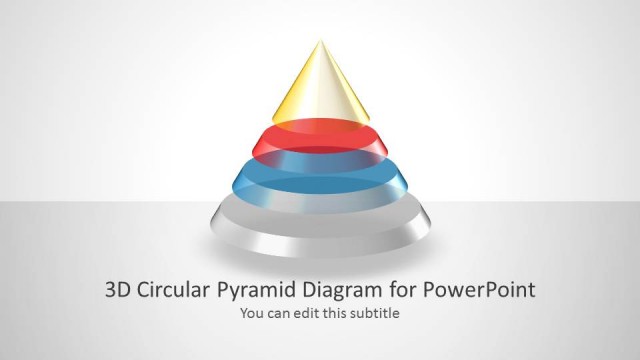
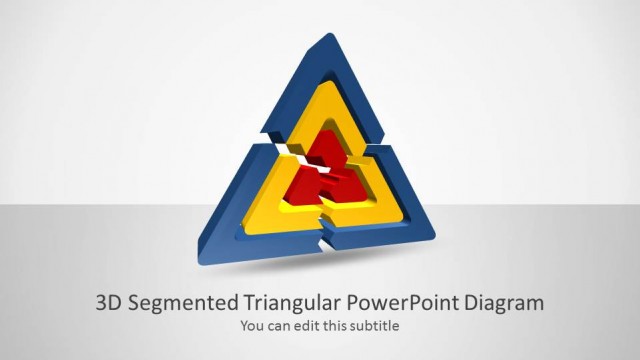
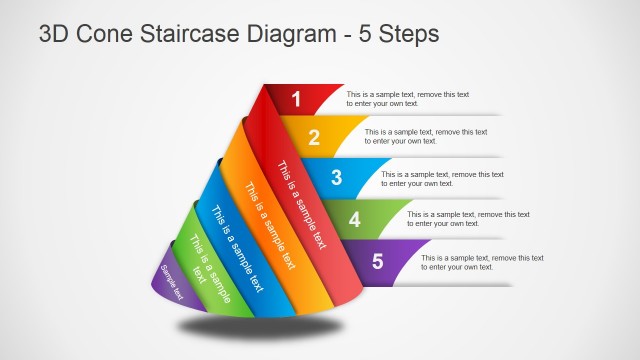
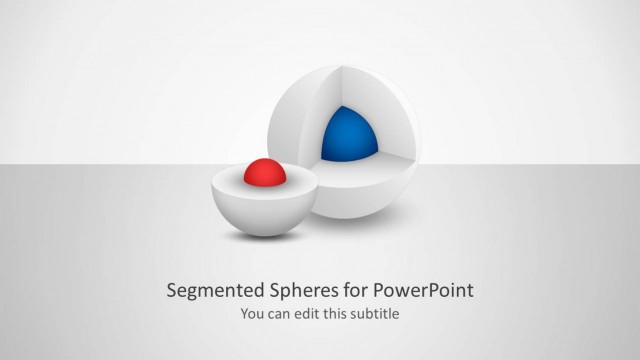
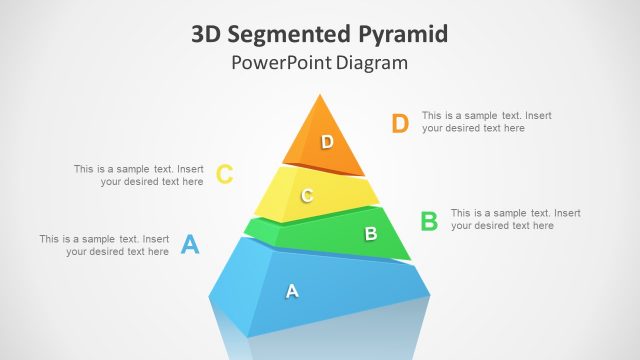
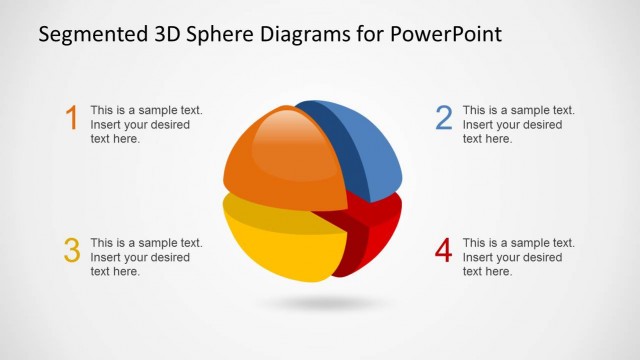
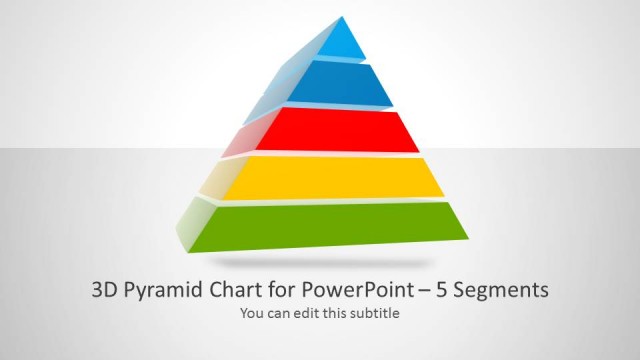
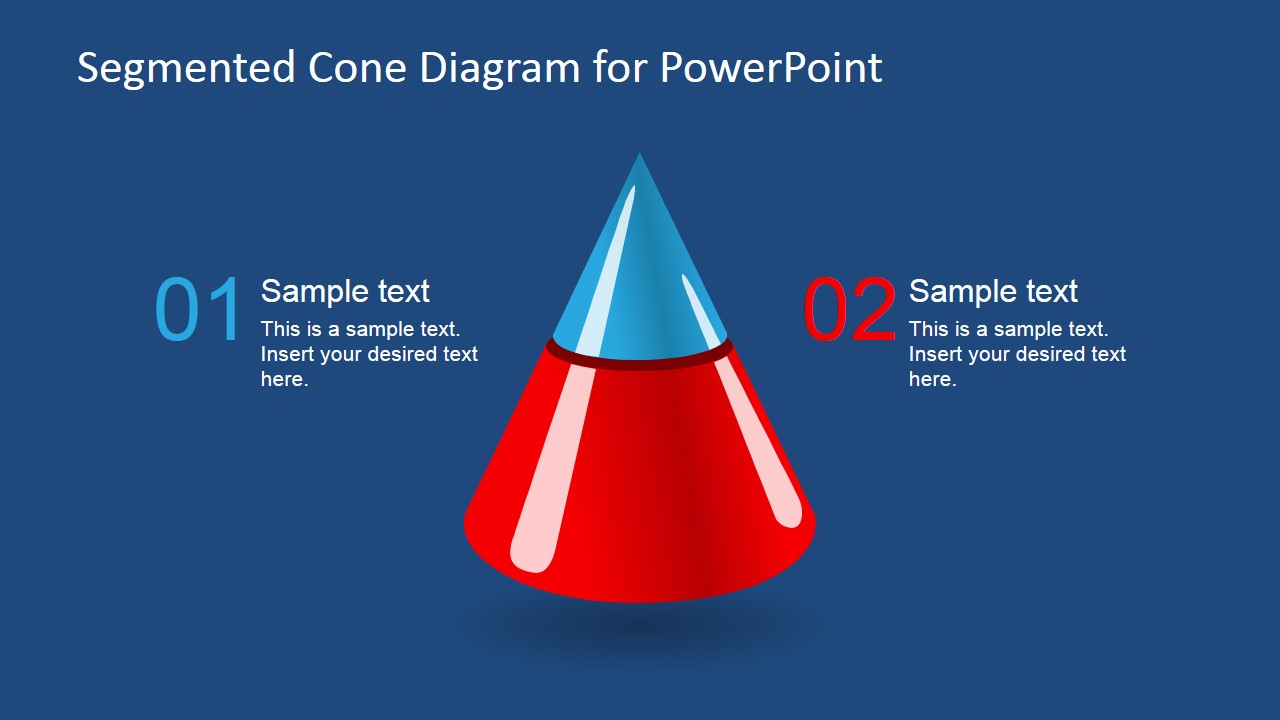
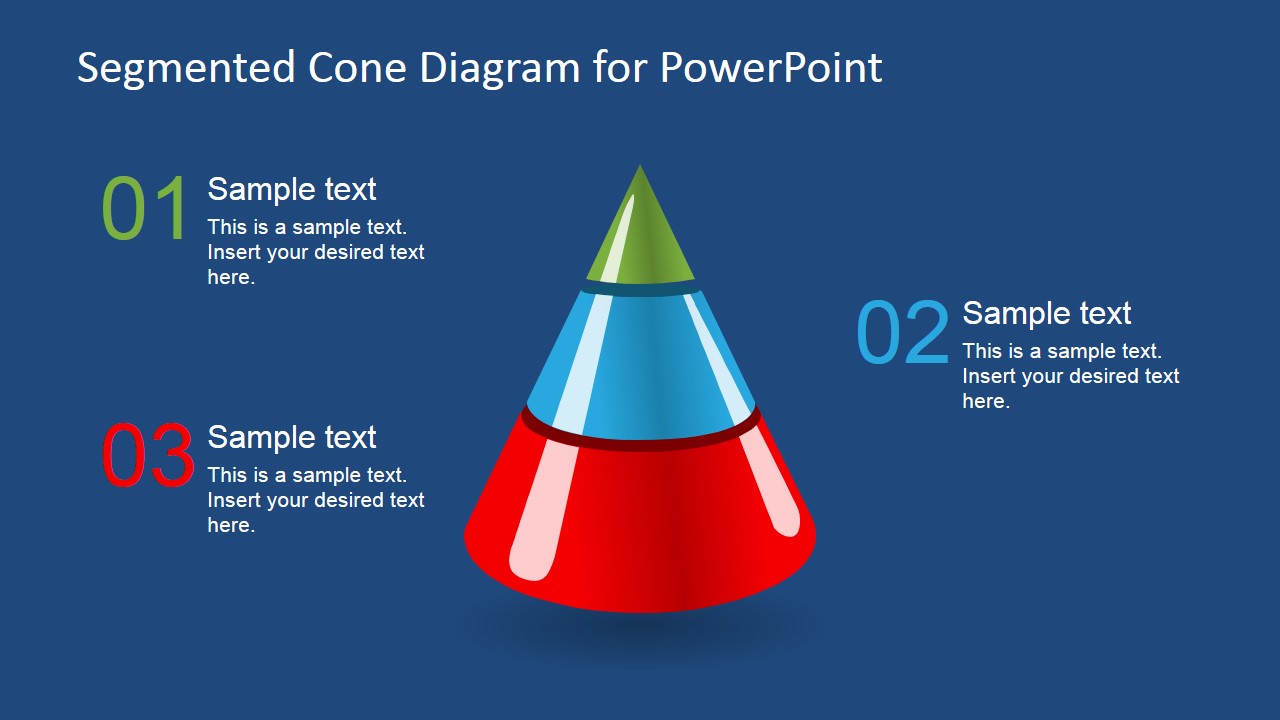
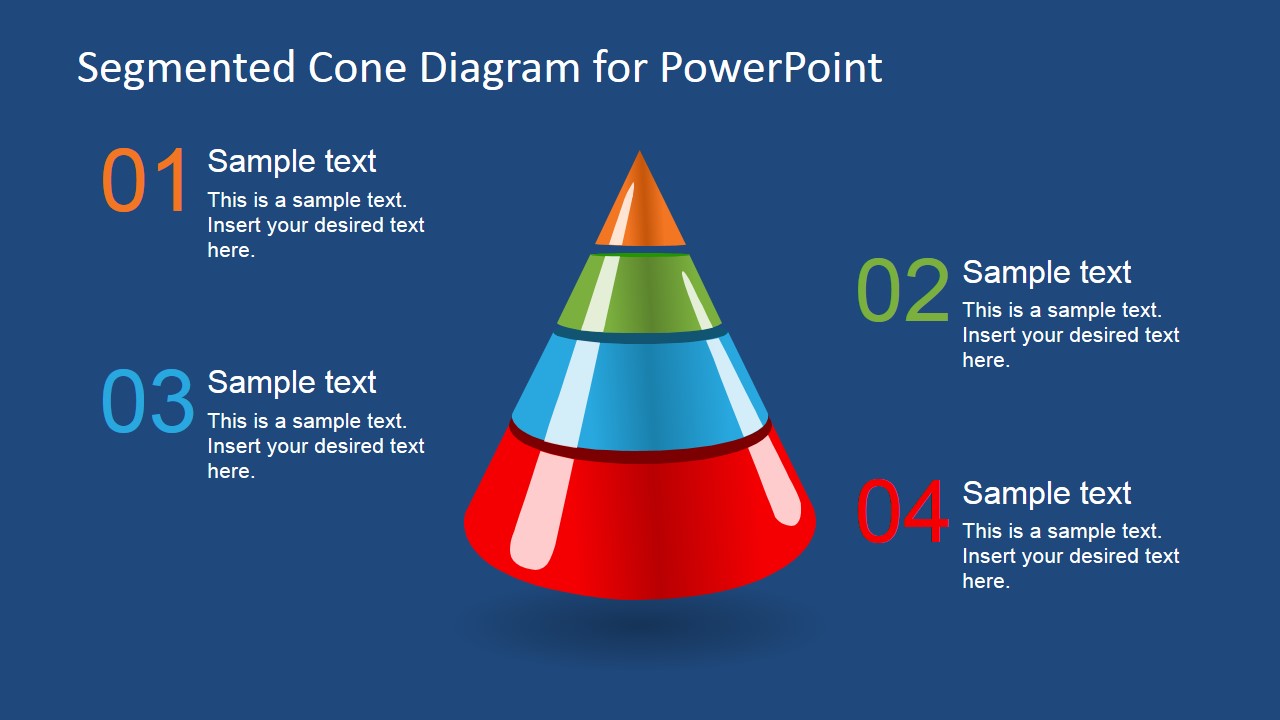
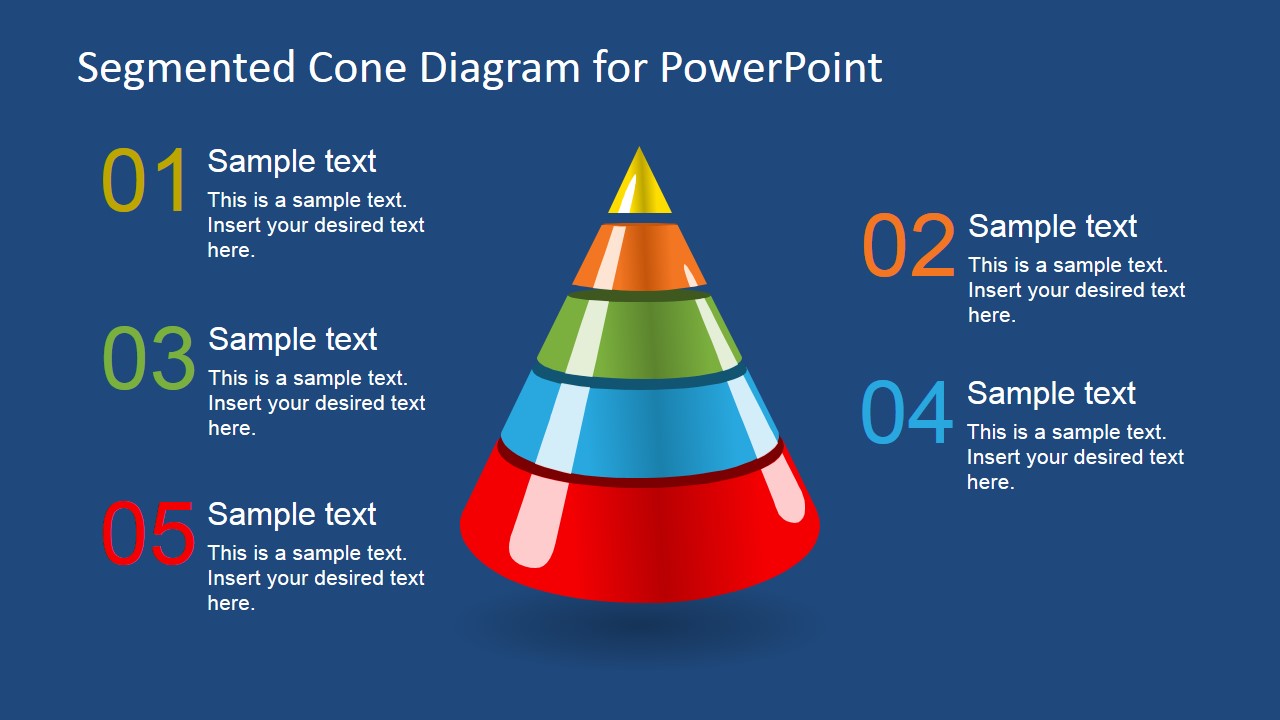
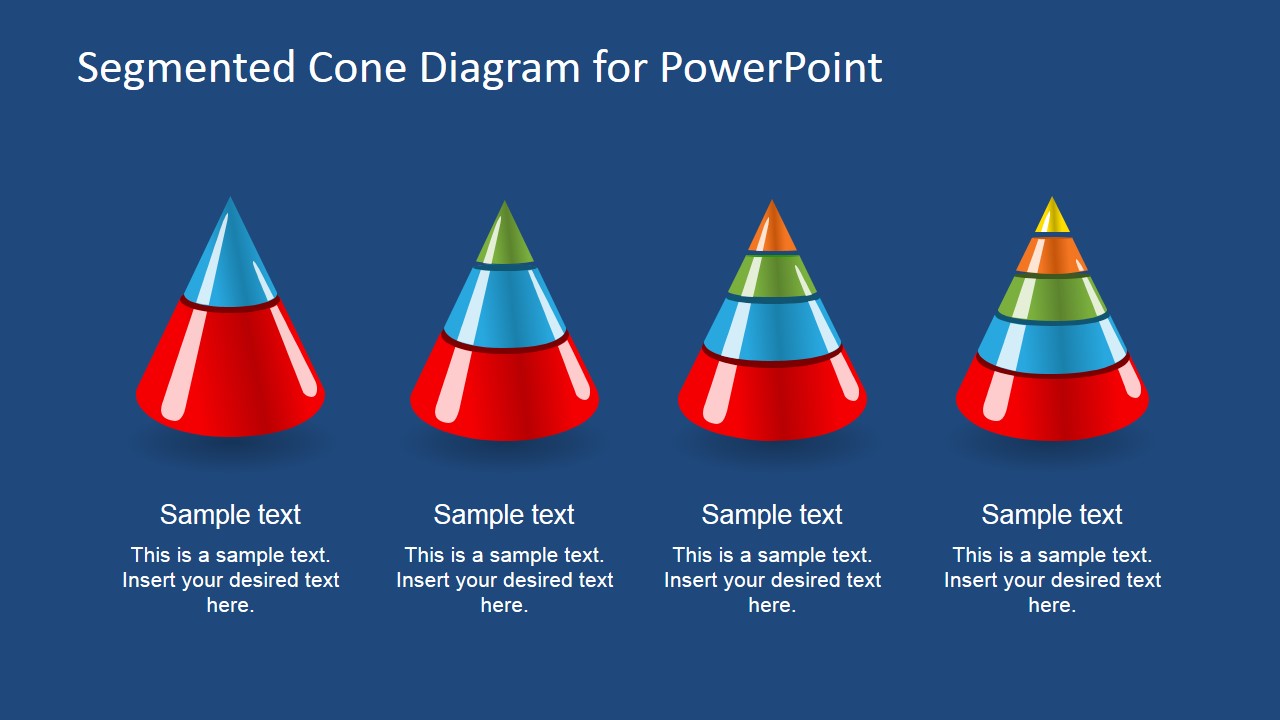
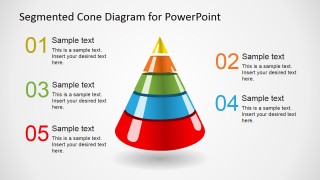
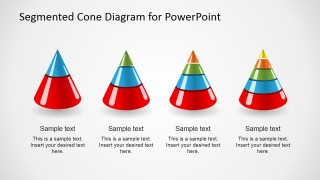
This 3D Cone Set template for Microsoft PowerPoint contains several slide designs with 3D segmented cone diagrams that you can use in your own presentation slides. The cone set diagrams contains different number of layers so you can describe a hierarchical concept or business model.
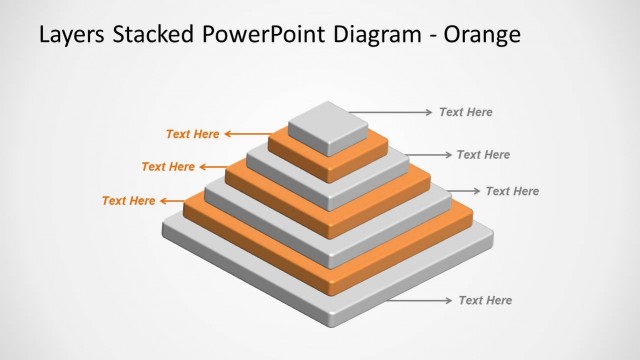
Segmented cone diagrams can be used as an alternative to other segmented diagrams for PowerPoint like the 3D Pyramid diagrams. You can download more slides included in our free PowerPoint bundle to see how we have created these diagrams in a way that are very easy to edit.
What’s inside this template
Example presentation scenarios
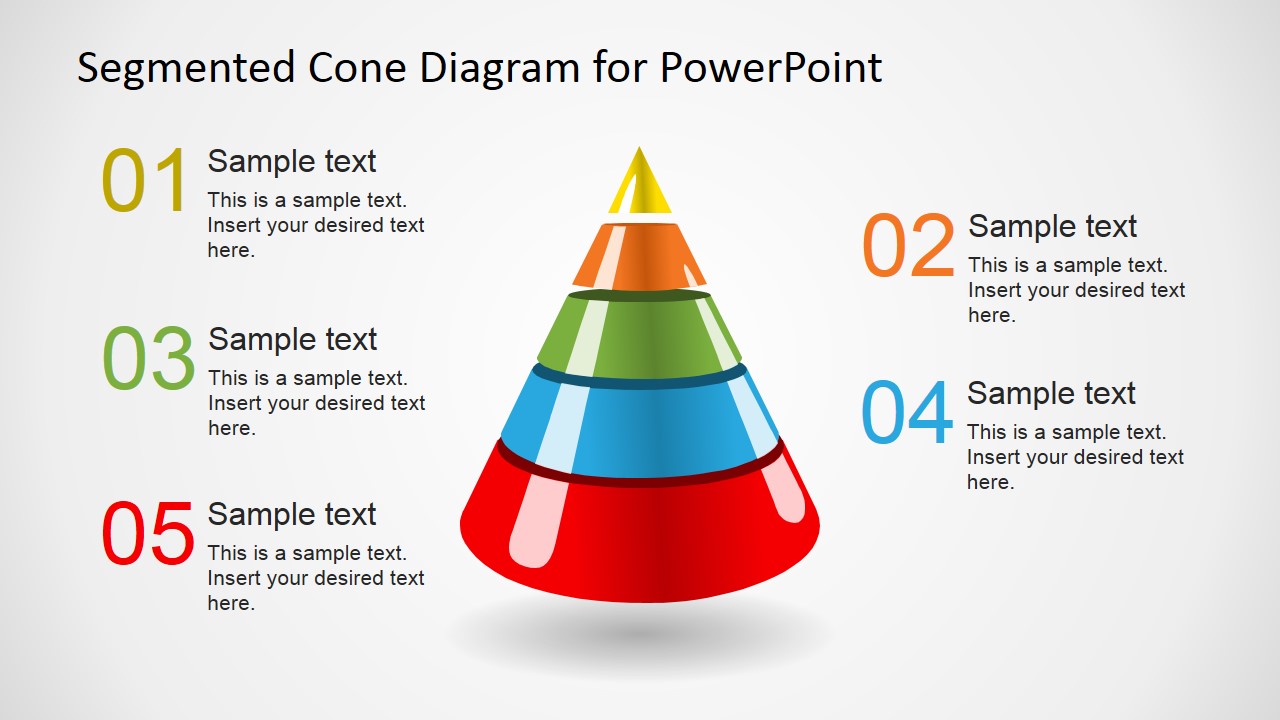
- A strategy consultant can use the five-segment cone to explain how business capabilities build from foundational activities to high-level outcomes.
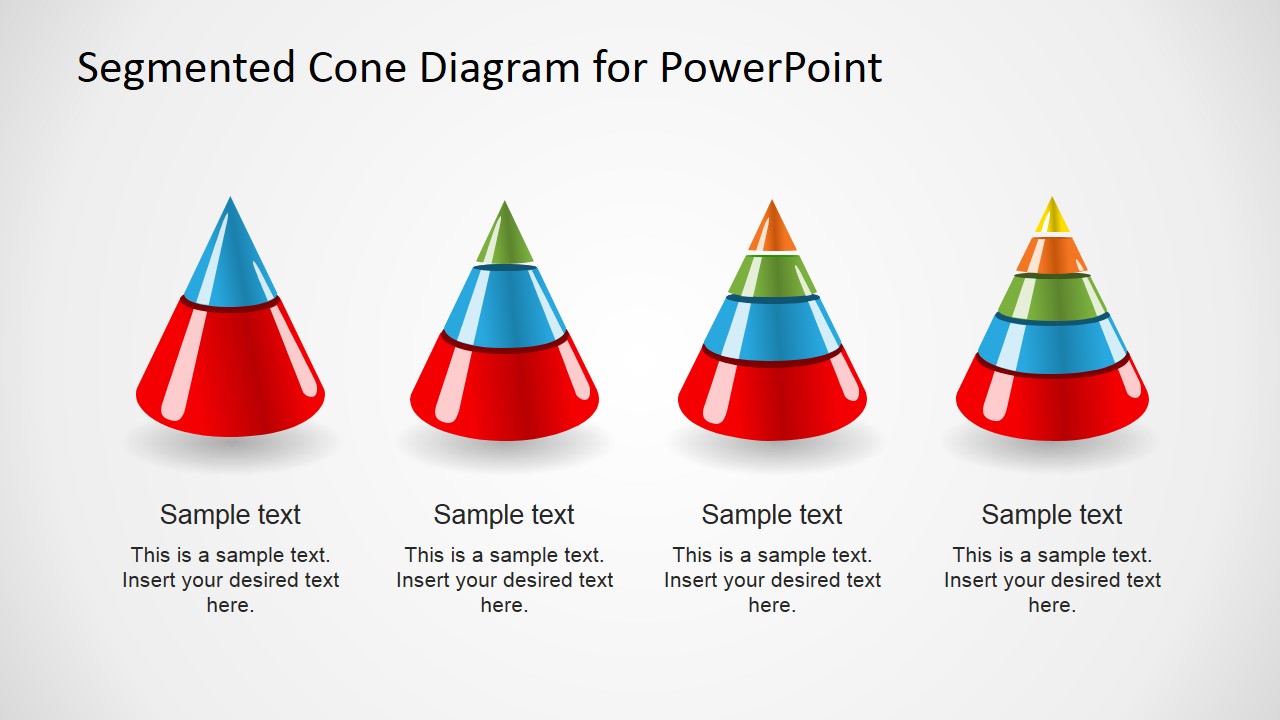
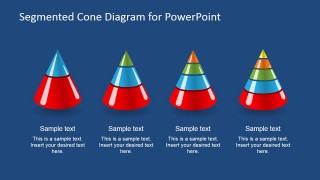
- A product manager can use the side-by-side cone comparison to compare feature tiers, packaging levels, or roadmap maturity across several offerings.
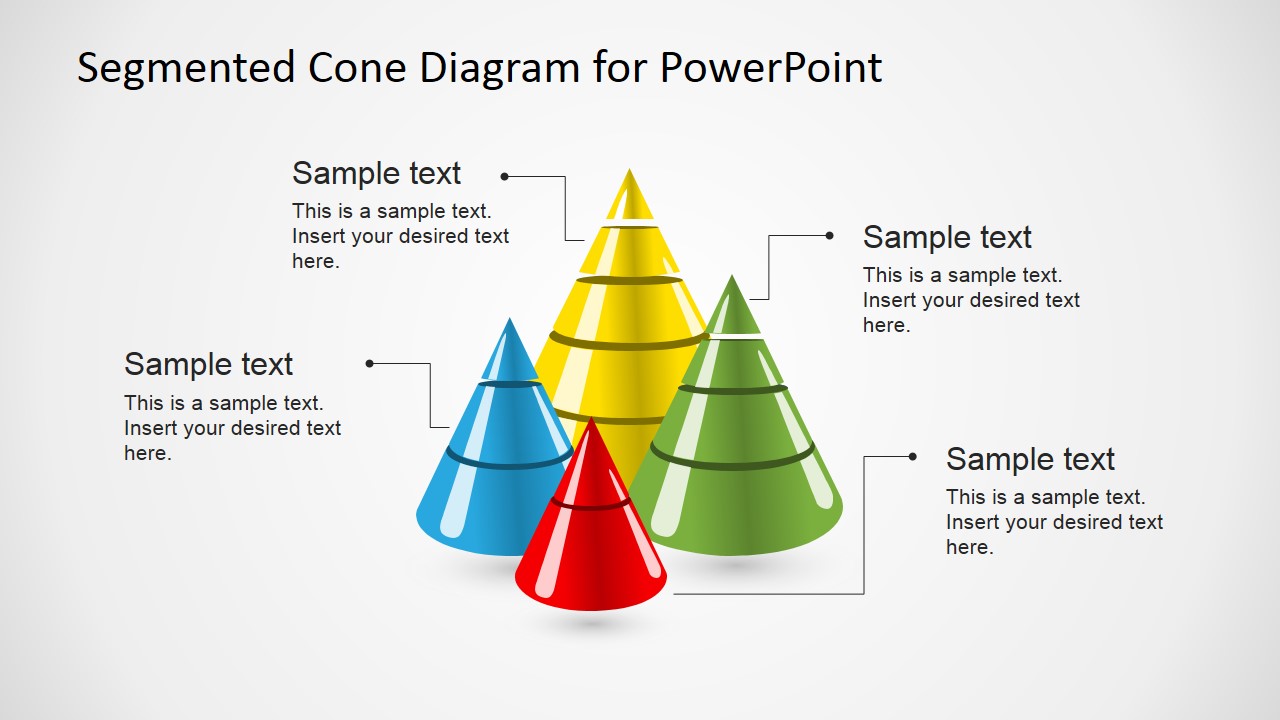
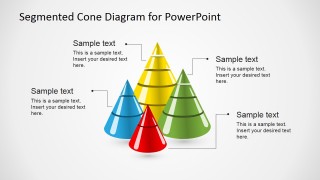
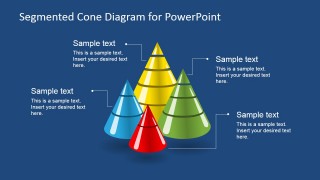
- A training facilitator can use the grouped cone callout slide to teach a layered framework and connect each cone to a short explanatory note.
- A sales presenter can use the dark-background cone layouts to summarize service levels or solution components in a concise executive briefing.
Features
- 100% editable presentation template
- Compatible with Microsoft PowerPoint and Google Slides
- 16:9 aspect ratio slides
- Scalable vector shapes, icons and illustrations
- AI-Ready for Microsoft Copilot and Claude
- Instant access and download
Frequently asked questions
Q: How should a presenter explain a segmented cone without making it feel like decoration?
A: Treat each cone segment as a distinct level in the argument. Start at the base, define what it represents, then move upward only after explaining why the next layer depends on it. Keep the side callouts short and use the largest or lowest segment for the concept that carries the most weight.
Q: Who is this cone diagram template best suited for?
A: It fits presenters who need to explain layered frameworks rather than numeric performance. Consultants, managers, trainers, and product teams can use the two- to five-segment cones for capability models, maturity stages, service tiers, learning levels, or priority structures where vertical order matters.
Q: Why use a 3D cone instead of a pyramid or stacked list?
A: The cone metaphor makes hierarchy feel compact and directional while still showing separate layers. Compared with a simple stacked list, the 3D form draws attention to the center of the idea. The grouped cone slides also make it easier to compare several layered models without filling the slide with text.
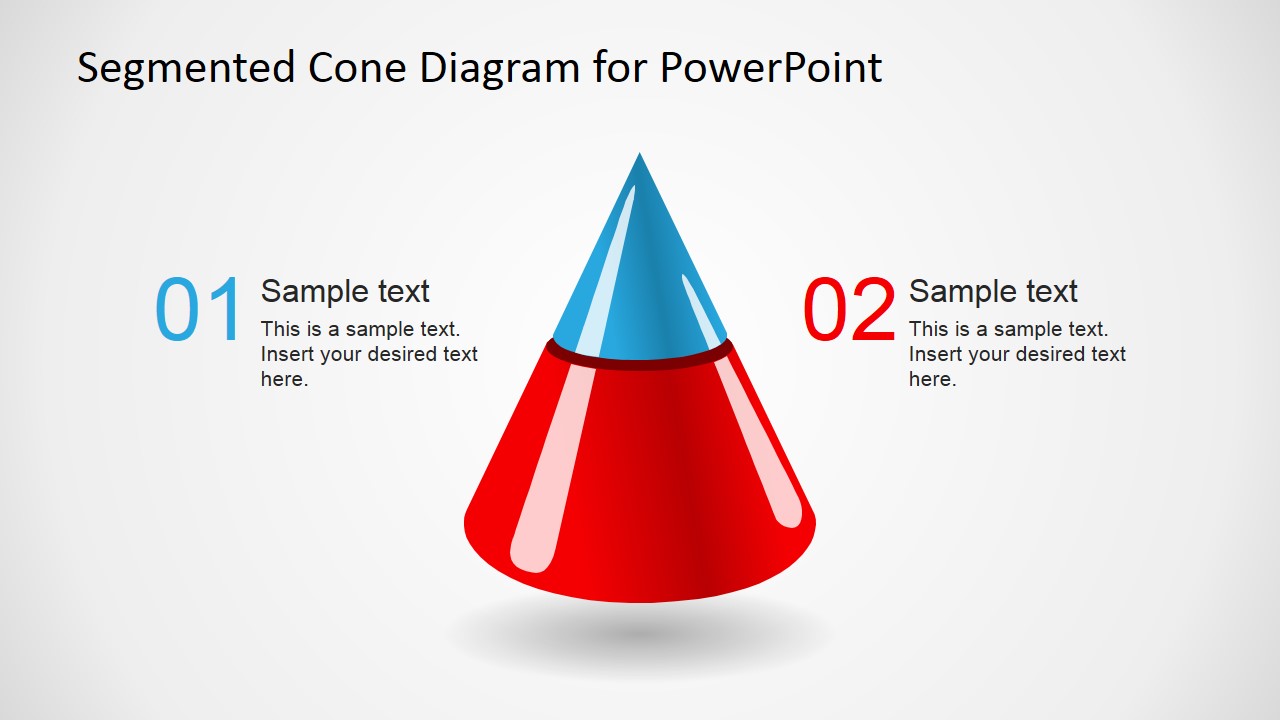
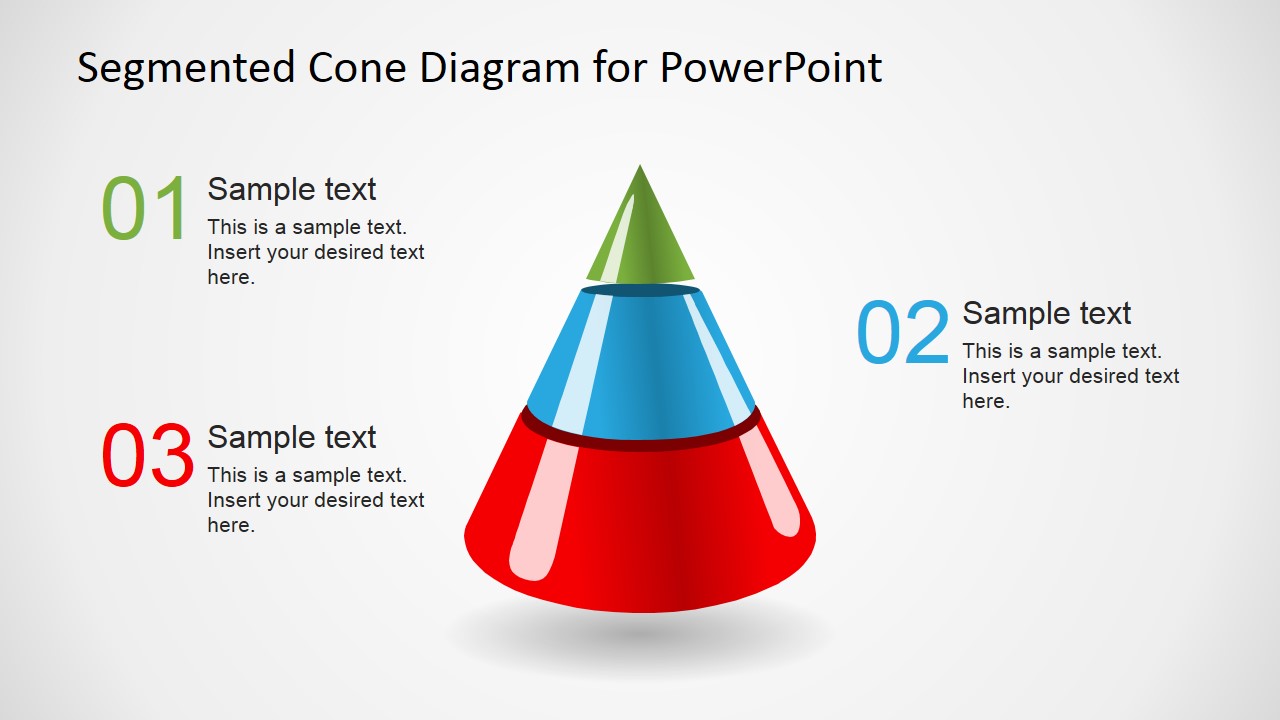
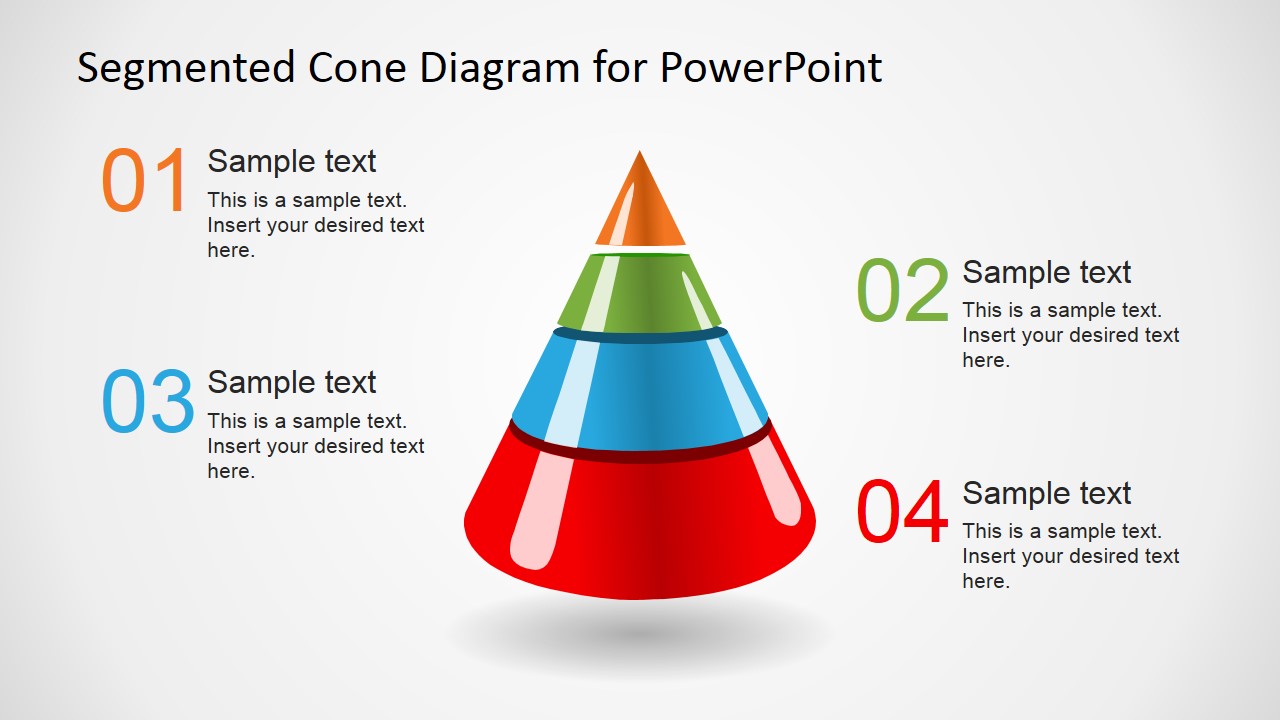


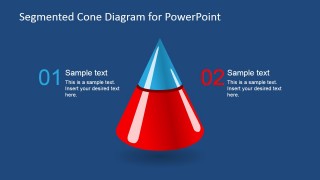
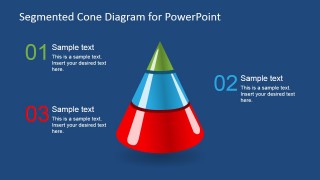
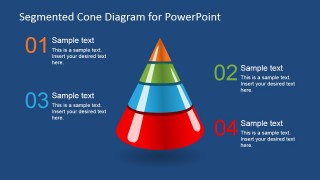
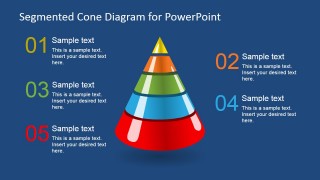
Creative Segmented 3D Cone Diagrams for PowerPoint
14-slide presentation template with segmented 3D cone diagrams for layers, hierarchy, and process levels
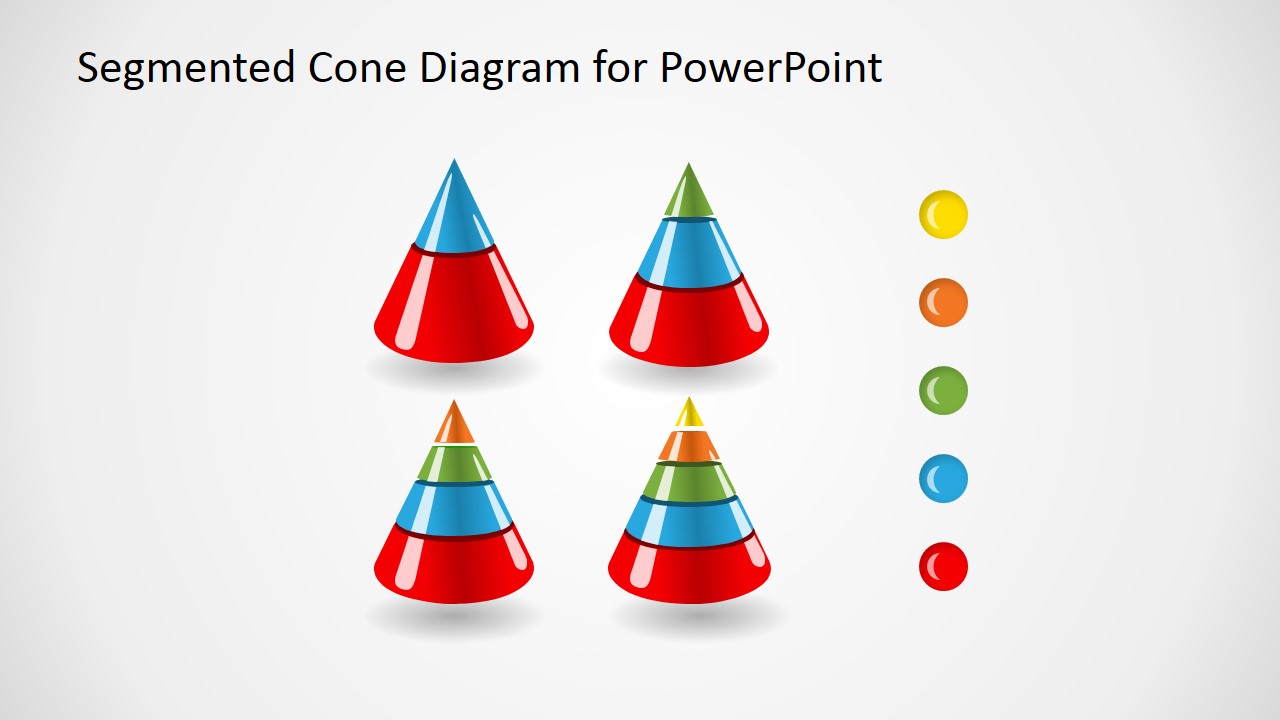
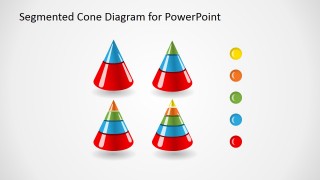
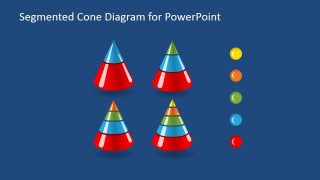
Creative Segmented 3D Cone Diagrams for PowerPoint is a 14-slide diagram template for presenting layered ideas. It includes two-, three-, four-, and five-segment 3D cone layouts, grouped cone comparisons, callout diagrams, and color legend panels for business model, hierarchy, maturity, or process explanations in PowerPoint and Google Slides.
- Category
- Diagrams
- Rating


 Loading...
- Aspect ratio
- 16:9
- Item ID
- 6764-01
- Colors
 Microsoft PowerPoint
  Microsoft Copilot
  Claude for PowerPoint
 Other formats supported
Subscribe today and get immediate
access to download our PowerPoint templates.