Not all presenters work in the same fashion. Industry requirements or comfort practices can shape the outcome of presentation slides. And on this basis, a growing corner of the presentation world runs entirely on plain text. No drag-and-drop interfaces, no animation panels, no right-click menus: just a Markdown file, a terminal, and a set of rendered slides ready to be delivered or shared. For a specific kind of professional, this is not a workaround. It is the preferred workflow.
This guide covers what markdown slides are, which tools power them, who actually uses them, where they perform well, and — equally important — where they fall short. If you are evaluating whether a markdown-based presentation workflow fits your IT work, this guide gives you a grounded picture of what to expect.
What are Markdown Slides?
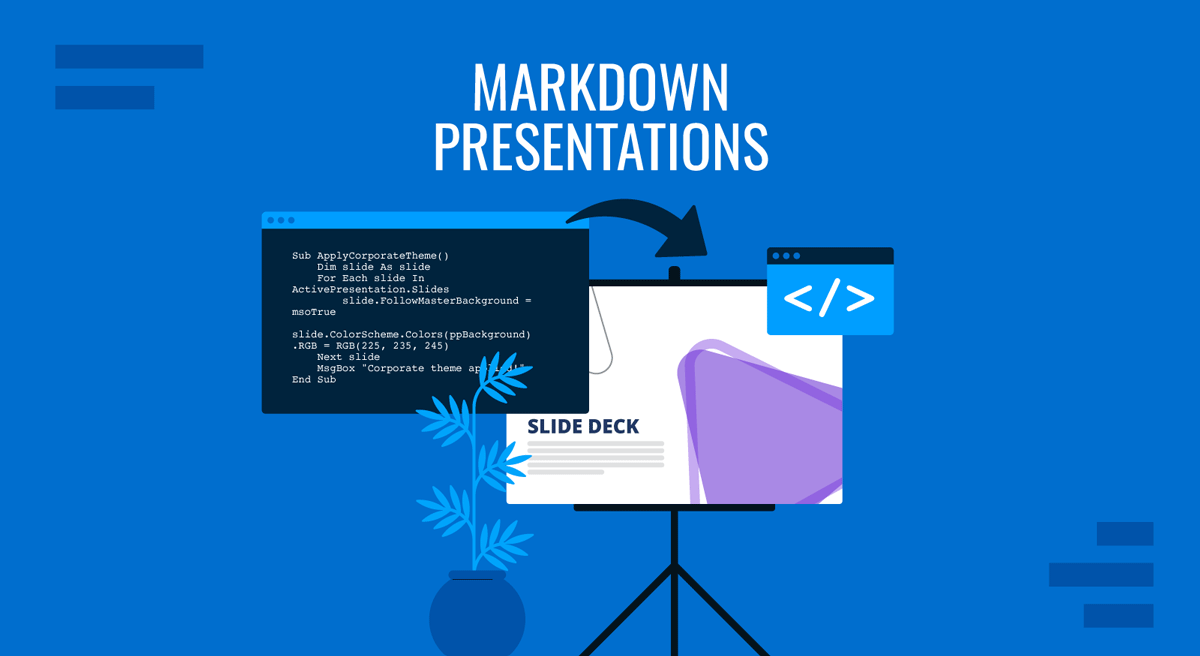
A markdown slide deck is a presentation built entirely from plain text written in Markdown syntax. Rather than using a visual editor to design individual slides, authors write content in a single .md file, and a rendering tool converts that file into a presentable format; typically HTML, PDF, or sometimes PPTX.
The most fundamental concept in a markdown presentation is the slide separator. Each tool uses a different convention to define where one slide ends and the next begins. The most common is the horizontal rule:
---In Marp, the leading tool in this presentation niche, the marp markdown slide separator (- – -) splits the document into individual slides. Some tools use *** or custom section delimiters.
Others support front matter blocks to define global metadata like theme, title, or author:
---
marp: true
theme: default
---

# Slide One
Welcome to this presentation.

---

# Slide Two
Here is the next point.
What distinguishes markdown presentation slides from a conventional deck is that they are fundamentally programmatic presentations. The source file is version-controlled, diffable, and repeatable. You run a command, the output is deterministic, and the slides live in plain text, not a proprietary binary format.
Who Uses Markdown Slides and Why
Markdown-based presentations attract a specific and consistent audience: developers, technical speakers, academic researchers, data scientists, and engineers. The logic is straightforward.
They already write in Markdown. README files, documentation, pull request descriptions, all in .md files. Picking up a Markdown slide tool requires almost no additional learning.
They use Git. A presentation in Markdown can be committed, branched, reviewed, and merged like any code artifact. This contrasts with tools like Google Slides, where version history operates as a black box rather than a transparent, diffable record.
They prefer markup over WYSIWYG. The overhead of navigating visual editors is the friction these users want to eliminate. Part of this is also a deliberate resistance to death by PowerPoint; the over-reliance on dense bullet points that markdown’s minimal structure actively discourages.
It is worth being direct about one boundary: in executive, sales, or investor settings, markdown tools are rarely used as final presentation platforms. Quality business presentation examples set a standard of visual polish that plain-text workflows are not built to meet.
Where Markdown Slides Excel
Text-driven content is where these tools perform best: structured arguments, numbered steps, and technical explanations.
Code blocks and syntax highlighting work better out of the box than in any traditional presentation software.
Math and LaTeX expressions render natively via KaTeX or MathJax, a key advantage for anyone building a research presentation where mathematical notation is frequent.
Reproducible builds matter when presentations are generated from live data. A data scientist who updates a chart’s underlying dataset can rebuild the deck from a script. This is the premise behind automating presentations with dynamic values and interactive charts, a workflow that also has a dedicated Python path for those exploring how to create a presentation in Python.
LLM compatibility is an emerging advantage. Plain-text markdown decks can be reviewed, expanded, or rewritten by AI assistants without any conversion step; a useful property for professionals already using ChatGPT for presentations or similar AI workflows.
Where Markdown Slides Fall Short
Visual storytelling is where these tools hit a ceiling. Presentations relying on emotional impact, brand consistency, or motion design are not what markdown tools are built for.
Complex layout composition is a persistent friction point. Most tools default to a constrained grid; heading at the top, content below. Custom layouts require raw HTML/CSS. This limits slides that need to present complex concepts through spatial arrangement and layered visuals.
Data-rich visual slides, such as charts, dashboards, and infographics, require workarounds. Purpose-built data presentation tools handle this more elegantly.
How Markdown Slides are Rendered
The rendering pipeline follows three steps: the author writes Markdown, a converter parses the file and applies a theme, and the output is delivered as HTML, PDF, or PPTX.
HTML is the most common output for live presentations. The presenter opens a browser and navigates through slides using the arrow keys.
PDF is the dominant export format for distribution; shareable, printable, and font-safe. The article on how to present a PDF like a PowerPoint covers practical delivery techniques that apply regardless of how the PDF was created.
PPTX is supported, but with important caveats. When you use marp cli export pptx, the default output is image-based; each slide is rendered as a raster image embedded inside a PowerPoint file, not as editable content. Understanding how a PPTX file is actually structured helps explain why: it is a ZIP archive of XML documents, and markdown tools write slide visuals as images rather than constructing that XML natively. This is a fundamental tension in the markdown-to-PowerPoint space that AI-assisted tools have begun to close more effectively.
Formatting Your Markdown File
Before choosing a tool, it helps to understand how the markdown file itself should be structured. While the syntax is standard Markdown, each tool has its own conventions for slide breaks, front matter, and metadata.
Marp
Marp requires a marp: true directive in the YAML front matter to activate the presentation engine. Slides are separated by — on their own line. Global options such as theme, background color, and pagination are also declared in the front matter.
---
marp: true
theme: default
paginate: true
backgroundColor: #ffffff
---

# Slide Title
Content goes here.

---

# Next Slide
More content.
Each heading level is treated as content within the slide, not as a slide break. The only slide break is —. Speaker notes are added using HTML comment syntax:
<!-- Notes here -->.Pandoc
Pandoc uses heading levels to define slide breaks. By default, a level-2 heading (##) starts a new slide, and a level-1 heading (#) acts as a section title slide. You can also use horizontal rules (—) as slide separators. There is no special front matter required for basic use.
## Slide Title

Content goes here.

## Next Slide

More content.
To use a YAML front matter with Pandoc, wrap it with — delimiters at the top of the file. The title, author, and date fields are automatically recognized and rendered on a title slide.
Python-PPTX
When building slides programmatically with python-pptx, there is no markdown file involved in the final output; you write a Python script that constructs slides directly. However, you can use a markdown file as a content source for your script to read and parse, mapping headings to slide titles, bullet points to text boxes, and code blocks to formatted text areas. In this case, the structure of the markdown file follows standard conventions; the parsing logic lives in the script itself.
Popular Markdown Slide Tools
Marp: The Low-Friction Default
Marp (Markdown Presentation Ecosystem) is the most widely adopted markdown slide tool, and its appeal comes down to one thing: it gets out of the way. Drop a marp: true directive in the front matter of any Markdown file, and the presentation engine activates. No framework. No bundler. No configuration file.
Installing Prerequisites: Node.js
Marp CLI requires Node.js to be installed on your machine before you can run any commands. Node.js is a JavaScript runtime that npm (the package manager) ships with. Without it, the npm command will not be recognized by your terminal.
To install Node.js, go to https://nodejs.org and download the LTS (Long Term Support) version for your operating system. Run the installer and make sure the option to add Node.js to your PATH is checked. On Windows, you can also install it from the terminal (Admin mode) using:
winget install OpenJS.NodeJS.LTSAfter installation, close and reopen your terminal, then verify the install:
node --version
npm --version
Both commands should return version numbers. If they do, Node.js is correctly installed, and you are ready to proceed.
Install once with the Marp CLI:
npm install -g @marp-team/marp-cliThen run:
marp slides.md -o slides.html	# HTML for live presenting
marp slides.md -o slides.pdf 	# PDF for distribution
marp slides.md -o slides.pptx # PPTX (image-based — see note below)Important: when Marp exports to PPTX, each slide is rendered as a flat raster image and embedded inside the PowerPoint file. This means the output is not editable in PowerPoint: you cannot select text, change colors globally, reformat bullet points, or apply a new theme after export. The PPTX file is visually identical to the HTML/PDF output. Still, functionally, it is a container of images rather than a true PowerPoint deck (much like some online AI presentation tools). If editability in PowerPoint is a requirement, Marp’s PPTX export is not the right output format. Consider Pandoc or a programmatic approach like python-pptx instead.
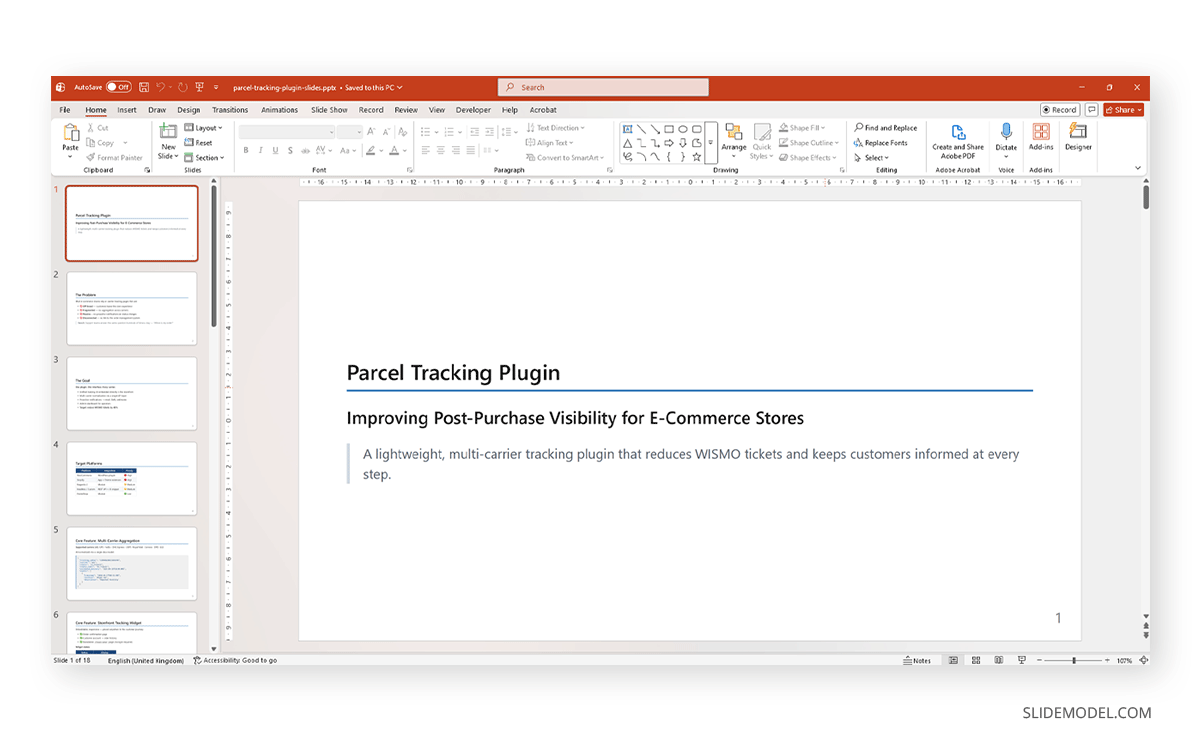
That is the entire workflow for most users. No JSX, no special components, no custom slide structure logic. The marp markdown slide separator is simply — three dashes on a line by themselves. Very predictable mental model.
Marp also integrates with Visual Studio Code via the Marp for VS Code extension, offering live preview as you write. It ships with three built-in themes and allows custom CSS themes. Speaker notes are supported through HTML comment syntax: <!– Speaker note here –>. Watch mode (–watch) recompiles output whenever the source file changes, keeping the iteration loop tight.
Applying a Custom CSS Theme in Marp
Marp supports custom CSS themes, which is the recommended way to apply consistent branding across a deck. A theme is a plain .css file that begins with a /* @theme your-theme-name */ comment. Inside it, you define CSS rules for sections (each slide), h1, h2, tables, code blocks, and special slide classes like title or closing slides. Using CSS custom properties (variables) at the top of the file means the entire color palette can be changed in one place:
/* @theme branded */
@import 'default';

:root {
  --primary:  #1F497D;
  --accent:   #2E74B5;
  --bg:       #ffffff;
  --text:     #1a1a1a;
  --muted:    #64748B;
  --code-bg:  #f0f0f0;
  --row-alt:  #F5F8FF;
}

section { background: var(--bg); }
h1  	{ color: var(--primary); }
h2  	{ color: var(--accent);  }
To apply the theme at export, pass it via the CLI:
marp --theme-set branded-theme.css --theme-branded-slides.md -o slides.pptxThe –theme-set flag tells Marp where to find the CSS file, and –theme-branded activates it by matching the name in the /* @theme */ comment. The front matter of the markdown file should reference the same name:
---
marp: true
theme: branded
paginate: true
---
The result is a slide deck that, although not editable, includes a color scheme for headings and other elements, making it more visually pleasing.
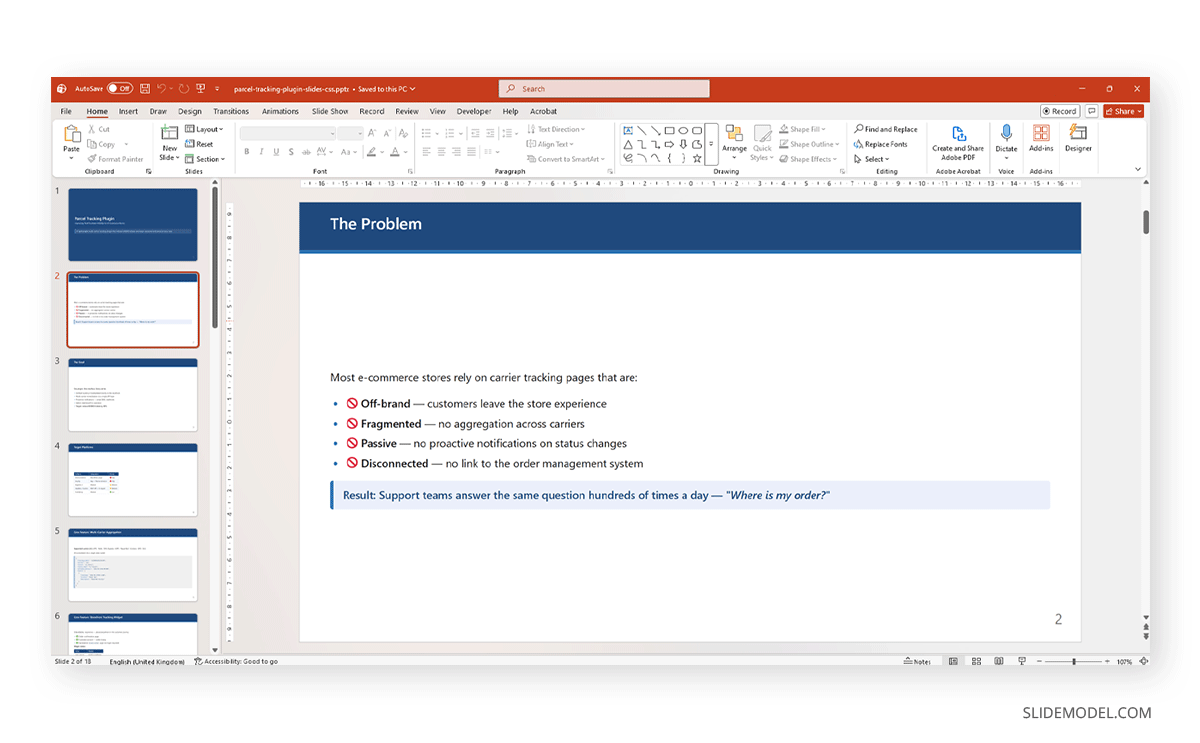
Custom slide classes can be assigned per slide using the <!– _class: title –> directive immediately after the — separator, enabling distinct styling for title and closing slides without affecting the rest of the deck.
Why Marp Generates Less Friction Than Other Tools
Compared to other options in the markdown presentation ecosystem, Marp has a meaningful setup advantage worth spelling out.
Sli.dev requires familiarity with the Vue ecosystem. Mdx-deck requires React knowledge. Both introduce framework dependencies, build tooling, and configuration overhead for a developer who just wants to write markdown for presentations quickly; that friction adds up. Marp avoids it entirely; there is no framework lock-in, no mental model beyond standard Markdown, and no build pipeline to maintain.
Pandoc is powerful but introduces its own friction: live preview requires extra tooling, theme customization is less intuitive, and the CLI can feel verbose for presentation-native workflows. It is excellent for exporting to PPTX or PDF as part of a larger document pipeline, but less suited for day-to-day presentation authoring. Also, overpopulated slides are common with Pandoc, meaning the presenter has to manually tweak each slide to fit all the content.
For a JavaScript or backend conference presentation where developers need code blocks, syntax highlighting, a simple theme, and fast iteration, Marp handles it all without requiring CSS gymnastics, unless advanced customization is specifically desired.
Slidev for Going Beyond Static Slides
Slidev, available at sli.dev, is the right tool when the presentation needs to go beyond static slides. It brings Vue 3 and Vite into the authoring context, allowing Vue components to be embedded directly, enabling live code execution, interactive animations, and real-time data binding. If the goal is a genuinely interactive presentation where the audience engages with working UI elements, Slidev is the strongest markdown-based option available.
The trade-off is real, though. For many developers, Slidev is closer to building a mini web application than writing a presentation. For a 30-minute conference talk, that is often overkill.
Pandoc for Editable Decks
Pandoc converts Markdown to reveal.js, Slidy, DZSlides, S5, or Beamer (LaTeX) output, with slide breaks controlled by heading levels. It integrates naturally into academic workflows, including pipelines that convert a document into a presentation as a final step. If your writing already passes through Pandoc for paper or report generation, adding slide export costs almost nothing.
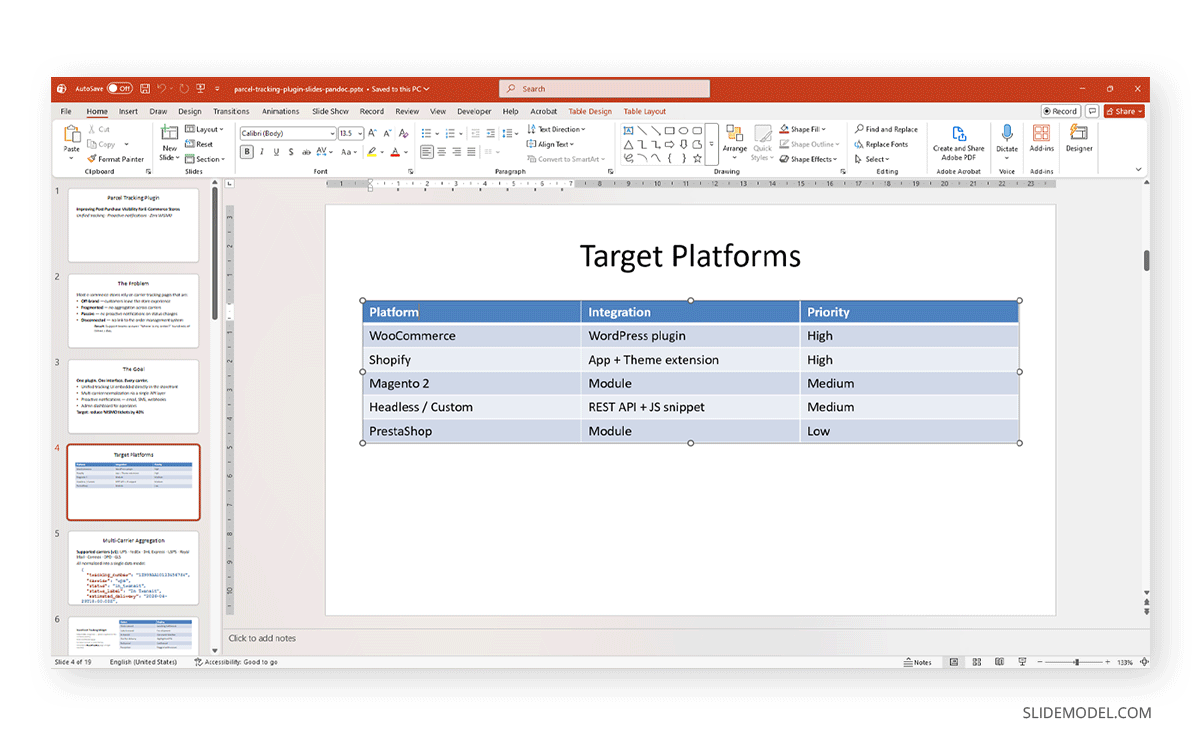
Unlike Marp, Pandoc exports to PPTX, a native PowerPoint file format with real, editable shapes, text boxes, and slide layouts. This means the output can be opened in PowerPoint and edited normally: text is selectable, layouts can be changed, and a branded template can be applied globally using the –reference-doc flag.
Installing Pandoc
Pandoc is a standalone binary with no runtime dependency. On Windows, the easiest installation method is the official installer:
winget install JohnMacFarlane.PandocAlternatively, download the .msi installer directly from Pandoc’s website. After installation, close and reopen your terminal, then verify:
pandoc --versionOn macOS, Pandoc is available via Homebrew:
brew install pandocOn Linux (Debian/Ubuntu):
sudo apt-get install pandocExporting Slides with Pandoc
With a properly formatted markdown file (using ## headings as slide breaks), the export command is:
pandoc slides.md -o slides.pptxTo apply a branded PowerPoint template and have Pandoc inherit its Slide Master, theme colors, and fonts, pass a reference document:
pandoc slides.md --reference-doc=template.pptx -o slides.pptxThe reference document must be a .pptx file whose Slide Master defines the colors and fonts you want. Pandoc reads the master layouts from it and applies them to each generated slide. This is the most practical way to produce a branded, editable deck from a markdown source.
What to Expect from the Output
The resulting PPTX file contains real PowerPoint content, not images. Each slide is built from the native slide layouts in the reference template. Text is fully editable, formatting can be adjusted, and the file behaves like any other PowerPoint document.
Tables render as PowerPoint tables. Code blocks are rendered as text boxes with monospace formatting. Math expressions are not rendered natively in PPTX output; for math-heavy presentations, the HTML or PDF output paths are more reliable.
One practical limitation: Pandoc’s layout engine is constrained by the layouts available in the reference template. If the template does not include a two-column layout, Pandoc cannot produce one. The visual output is functional rather than polished, which is why many teams use Pandoc as an authoring and export layer, then apply final visual refinements in PowerPoint. In other words, it helps to replicate the style of a pre-existing deck without worrying about how to build that in PowerPoint. If no reference file is passed, the results are blank slides populated with text or tables as applicable.
Common Styling Errors with Pandoc
If you pass a PPTX file as reference, you have to be certain it follows the same structure you’re aiming to create, otherwise you can find terminal errors such as:
[WARNING] Powerpoint template warning: Couldn't find layout named "Section Header" in provided reference doc. Falling back to the default included with pandoc.
[WARNING] Powerpoint template warning: Couldn't find layout named "Two Content" in provided reference doc. Falling back to the default included with pandoc.
[WARNING] Powerpoint template warning: Couldn't find layout named "Comparison" in provided reference doc. Falling back to the default included with pandoc.
[WARNING] Powerpoint template warning: Couldn't find layout named "Content with Caption" in provided reference doc. Falling back to the default included with pandoc.
[WARNING] Powerpoint template warning: Couldn't find layout named "Blank" in provided reference doc. Falling back to the default included with pandoc.
The warning above means that the reference template is missing several slide layouts that Pandoc expects. This can either generate the template or kill the process with the following error code:
Could not find a 0th placeholder of type obj (or nothing)In such a case, no PowerPoint file is created. Another common error is encountering layout issues, such as misplaced elements or overlapping text, because the template file isn’t compatible with your markdown file.
The python-pptx Alternative: Fully Editable Programmatic Slides
This method emerged from personal research, driven by a desire to go beyond the limits imposed by common markdown slide tools. And yes, it’s more taxing than the other methods, but it can be optimized as well.
For teams that need fully editable PowerPoint output with complete layout control and are comfortable with Python, python-pptx is the most capable option. Unlike Marp (which renders images) or Pandoc (which is constrained by template layouts), python-pptx writes native PowerPoint XML directly, giving complete control over every shape, color, font, and position on the slide.
Install the library with:
pip install python-pptxNote: If your PC doesn’t have a Python installation, the command above won’t work. Be sure to check the Python version available on your PC before continuing.
The core logic for building a slide deck with python-pptx follows this pattern:
Define a global palette at the top of the script as named color constants. Every shape and text element in the deck references these variables, changing the brand color in one place recolors the entire deck on the next run.
from pptx import Presentation
from pptx.util import Inches, Pt, Emu
from pptx.dml.color import RGBColor
from pptx.enum.text import PP_ALIGN
from pptx.util import Inches, Pt
import copy

# Colors
NAVY = RGBColor(0x1F, 0x49, 0x7D)
BLUE = RGBColor(0x2E, 0x74, 0xB5)
WHITE = RGBColor(0xFF, 0xFF, 0xFF)
DARK = RGBColor(0x1a, 0x1a, 0x1a)
LIGHT_BG = RGBColor(0xF5, 0xF8, 0xFF)
ACCENT = RGBColor(0xE8, 0xF0, 0xFE)
MUTED = RGBColor(0x64, 0x74, 0x8B)
SUCCESS = RGBColor(0x16, 0xA3, 0x4A)
WARNING = RGBColor(0xCA, 0x8A, 0x04)
DANGER = RGBColor(0xDC, 0x26, 0x26)
CODE_BG = RGBColor(0xF0, 0xF0, 0xF0)
Create a Presentation object and set the slide dimensions (the standard 16:9 size is 10 by 5.625 inches). Add a blank slide layout for each slide to retain full positional control.
For each slide, add shapes using add_shape() for filled rectangles and accent bars, add_textbox() for titles and body content, and add_table() for structured data. Each element is positioned using Inches() coordinates from the top-left corner of the slide. Here’s a sample of how it should be done.
W = Inches(10)
H = Inches(5.625)

prs = Presentation()
prs.slide_width = W
prs.slide_height = H

def blank_slide(prs):
    layout = prs.slide_layouts[6]  # blank
    return prs.slides.add_slide(layout)

def add_rect(slide, x, y, w, h, fill_color, line_color=None, line_width=0):
    from pptx.util import Pt
    shape = slide.shapes.add_shape(1, x, y, w, h)  # MSO_SHAPE_TYPE.RECTANGLE = 1
    shape.fill.solid()
    shape.fill.fore_color.rgb = fill_color
    if line_color:
        shape.line.color.rgb = line_color
        shape.line.width = Pt(line_width)
    else:
        shape.line.fill.background()
    return shape

def add_text(slide, text, x, y, w, h, size=16, bold=False, color=DARK,
             align=PP_ALIGN.LEFT, wrap=True, italic=False):
    txBox = slide.shapes.add_textbox(x, y, w, h)
    txBox.word_wrap = wrap
    tf = txBox.text_frame
    tf.word_wrap = wrap
    p = tf.paragraphs[0]
    p.alignment = align
    run = p.add_run()
    run.text = text
    run.font.size = Pt(size)
    run.font.bold = bold
    run.font.italic = italic
    run.font.color.rgb = color
    return txBox
For text formatting, create text frame runs and assign font size, bold, color, and alignment at the run level. For hyperlinks, insert the link relationship directly into the paragraph XML using OxmlElement, setting color and underline in the run’s rPr block.
def add_textbox_multiline(slide, lines, x, y, w, h, default_size=14,
                           default_color=DARK, default_align=PP_ALIGN.LEFT):
    txBox = slide.shapes.add_textbox(x, y, w, h)
    txBox.word_wrap = True
    tf = txBox.text_frame
    tf.word_wrap = True
    first = True
    for line in lines:
        if first:
            p = tf.paragraphs[0]
            first = False
        else:
            p = tf.add_paragraph()
        size = line.get('size', default_size)
        bold = line.get('bold', False)
        italic = line.get('italic', False)
        color = line.get('color', default_color)
        align = line.get('align', default_align)
        space_before = line.get('space_before', 0)
        space_after = line.get('space_after', 0)
        p.alignment = align
        if space_before:
            p.space_before = Pt(space_before)
        if space_after:
            p.space_after = Pt(space_after)
        run = p.add_run()
        run.text = line.get('text', '')
        run.font.size = Pt(size)
        run.font.bold = bold
        run.font.italic = italic
        run.font.color.rgb = color
    return txBox
Save the file with prs.save(“output.pptx”) and run the script from the terminal:
python_build_deck.pyThe result is a fully editable PPTX file. Shapes are selectable, text is editable, and the global palette change described above works as expected. The trade-off is build time; a 15-slide deck requires a script of several hundred lines. For presentations that are generated repeatedly from changing data, or where brand consistency across many decks is critical, the investment pays off, as you just swap the markdown file for populating it. For a one-off talk, Marp or Pandoc is the faster path.
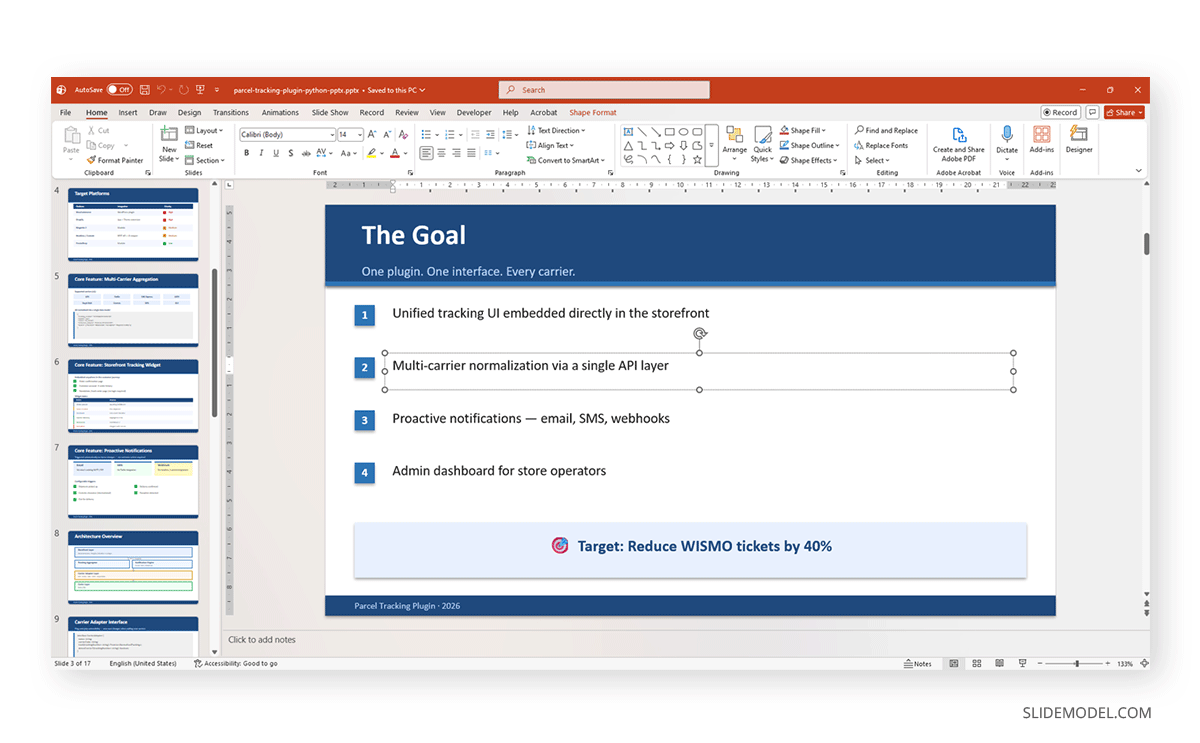
Still, it’s worth noting that PowerPoint won’t allow you to change the color palette from its Design tab. You have to change the colors manually by selecting each element.
Google Slides Support for Markdown
Google Slides does not natively render Markdown. However, it does offer a Markdown input mode that can be enabled manually. Navigate to Tools > Preferences and toggle on Automatically detect Markdown. Once active, Google Slides will interpret basic syntax: bold (**text**), italic (*text*), and inline code (`code`) as you type within text boxes. This is a formatting convenience, not a full rendering pipeline.
Teams looking to extend Google Slides’ native capabilities should explore the available Google Slides add-ons, some of which offer import functionality that partially bridges this gap. One area where Google Slides continues to lag behind markdown tools is equation rendering; the workarounds described in the article on how to insert an equation in Google Slides illustrate why academic users gravitate toward markdown tools for math-heavy content. For a broader comparison of the two platforms, Google Slides vs. PowerPoint covers the practical differences across collaboration, export, and design capability.
The Design Limitation Problem
Strong criticism around markdown tools consistently returns to layout flexibility. Slides are too grid-based, custom layouts require CSS gymnastics, and the result feels trapped in a bullet-point aesthetic.
Slides also look visually similar across decks: a real limitation, though not unique to Markdown. AI-assisted generators like Gamma draw the same critique. PowerPoint sets the upper bound with thoughtful PowerPoint design ideas. Understanding the rules of PowerPoint presentations: one idea per slide, visual-to-text balance, and consistent typography offers a useful contrast that applies to any slide format. Tools like Gamma and Canva for PowerPoint-style presentations produce polished-looking output but share the same homogeneity problem. PowerPoint with real creative intent still exceeds all of them in design ceiling.
Math and LaTeX Support: Filling the Beamer Gap
A significant part of markdown slide usage is replacing LaTeX Beamer, the traditional academic slide format. Beamer requires complex LaTeX preambles and produces output that many academics find difficult to customize. PowerPoint and Google Slides, meanwhile, offer poor equation support. Markdown tools with KaTeX or MathJax fill this gap cleanly: an academic can write $\nabla_\theta J(\theta)$ inline and have it render correctly without leaving their text editor. For journal club presentations and seminar talks where equations appear on nearly every slide, this alone justifies the workflow.
The Documentation and Discoverability Gap
Markdown slide tools have generated genuine enthusiasm in developer communities, but a persistent friction point remains: the documentation gap. New users encounter a lack of real demo decks, missing explanations of core concepts like theming and speaker notes, and documentation that is technically accurate but omits the context needed to decide whether the tool fits a given workflow.
Developers are comfortable experimenting with source code: they do not always produce the introductory guides that adjacent audiences need. Better documentation and a library of real-world example decks would do more to drive adoption than almost any feature addition.
Export and Interoperability Concerns
The biggest practical friction is interoperability with existing assets. Most organizations have slide libraries: corporate templates, branded decks, departmental presentations built over the years in PowerPoint or Keynote. A markdown workflow does not inherit any of that. Professionals converting Keynote to PowerPoint already encounter compatibility friction within the traditional tool ecosystem; adding a markdown layer compounds this.
And although PDF export is generally more reliable in terms of what’s being rendered, PDF decks have limits: you cannot hand a PDF to a colleague and ask them to add two slides before a client meeting. Say you were working with the python-pptx method, that’s completely fixable if you modify the markdown file and export via console again – preserving a legacy version of the deck that already worked.
Recommended PPT Templates for Markdown Presentations
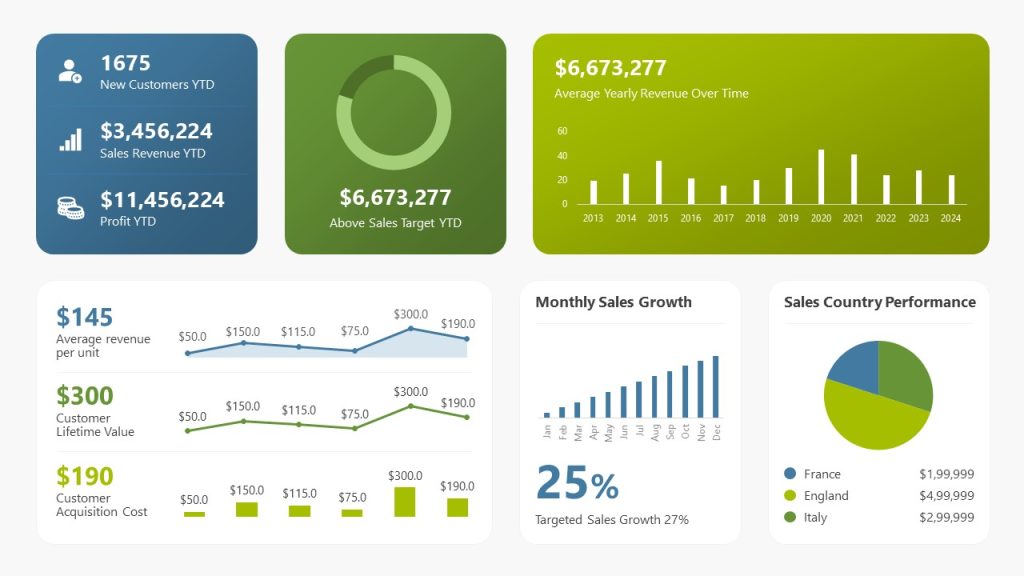
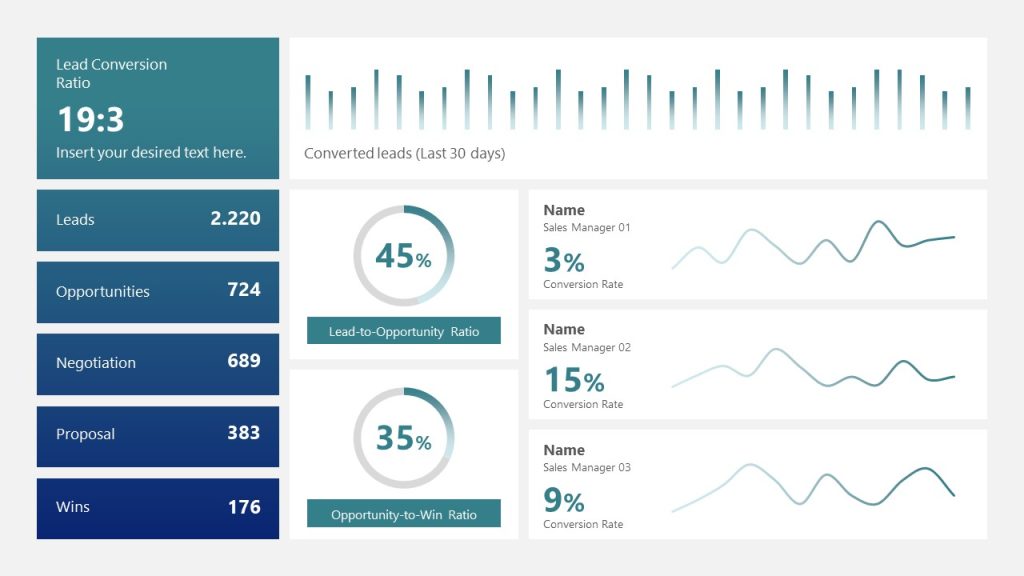
If you consider that the generated slide deck doesn’t meet your design criteria, or you require mixing and matching elements from other PowerPoint templates, in particular, dashboard slides to talk about KPIs, here’s a tailored selection intended for IT presentations.










FAQs
Can I split a large presentation across multiple markdown files?
Marp does not natively support multi-file presentations; the entire deck must live in a single .md file. The recommended workaround is to maintain separate .md files per section and concatenate them before export.
This is easy to automate in a shell script or Makefile and keeps individual sections manageable without losing the single-file export requirement. Pandoc offers more flexibility here. You can pass multiple markdown files to a single export command, and Pandoc will process them in order as one continuous document.
How do I handle a code block that is too long to fit on one slide?
Marp does not handle overflow automatically; content that exceeds the slide height is clipped. The practical solutions are:
1) Split the code block across two slides, with a comment like “# continued” on the second slide to signal continuity.
2) Reduce the font size on that specific slide using a scoped CSS directive.
3) Use the fit keyword for text scaling.
Can I add images to a Marp slide, and what formats are supported?
Yes. Marp supports standard markdown image syntax, and images can be local files or remote URLs. The bg keyword turns the image into a slide background. bg left splits the slide into a half-image, half-content layout; one of the few built-in two-column approaches Marp offers.
Supported formats are PNG, JPEG, GIF, SVG, and WebP. For PPTX export, SVGs are rasterized. For HTML export, all formats render natively in the browser.
Can I use custom fonts in a Marp theme?
Yes, via CSS @import or @font-face in your theme file. The simplest approach is importing from Google Fonts. Note that custom fonts render correctly in HTML output only when the machine running the browser has internet access or when the font is embedded. For PDF and PPTX export, Marp uses a headless Chromium instance: fonts must be available on that system or loaded via a URL that Chromium can reach during rendering.
How do I add a logo to every slide without repeating it in the markdown?
In Marp, the cleanest way is to use the CSS ::after pseudo-element on a section to inject a background image positioned in a corner. This places the logo in the bottom-right of every slide at a fixed size. For the title or closing slide, where you may not want the logo, suppress it with a scoped class.
In Pandoc, there is no equivalent CSS mechanism for PPTX output. The reference template approach is more appropriate: embed the logo in the Slide Master of your .pptx template, and Pandoc-generated slides will inherit it automatically.
Can multiple people collaborate on a markdown presentation at the same time?
Not in real time natively; markdown files do not have a built-in co-authoring protocol like Google Slides. The standard collaboration model is Git-based: each contributor works on a branch, changes are reviewed via pull request, and the deck is rebuilt from the merged source.
For real-time collaboration, the practical workarounds are: editing the .md file together in a shared editor like VS Code Live Share, or temporarily moving the content into a Google Doc or HackMD (which supports Markdown and real-time editing) and converting back to a .md file before export.
Can I embed videos or animated GIFs in markdown slides?
Animated GIFs work in Marp’s HTML output; they render and animate in the browser. In PPTX export they are flattened to a static image of the first frame.
Video embedding is not natively supported in Marp’s markdown syntax. The workaround for HTML output is to use an HTML block (requires –html flag) with a standard <video> tag:
For PPTX output there is no clean solution; video embedding in PPTX requires native PowerPoint XML that Marp does not generate. If the video is essential to the PPTX version, the slide containing the video is best handled manually in PowerPoint after the rest of the deck has been exported.
Final Words
Markdown slides occupy a useful but narrow position in the presentation landscape. They solve real problems for developers, researchers, and engineers who want to write presentations the same way they write documentation: in version control, from a terminal command, with code and math as first-class elements. The developer conference case study makes this concrete: when code clarity matters more than visual sophistication, the markdown workflow is not a compromise. It is the right tool.
The limitations are equally real. Layout flexibility is constrained, visual storytelling is hard, and interoperability with corporate slide libraries remains an unsolved friction point.
The most grounded way to think about markdown slides is as a specialized tool for specialized work. They are an excellent fit for a developer conference keynote, a graduate seminar, or a data science team’s internal technical review. For a board presentation, a sales deck, or a client-facing pitch, they are the wrong tool. Knowing the difference and knowing how to make a presentation that works for each context is the most practical thing this guide can offer. When the stakes are high and the audience demands polish, using AI to generate a PowerPoint presentation remains a faster path to professional output than any markdown workflow currently provides.