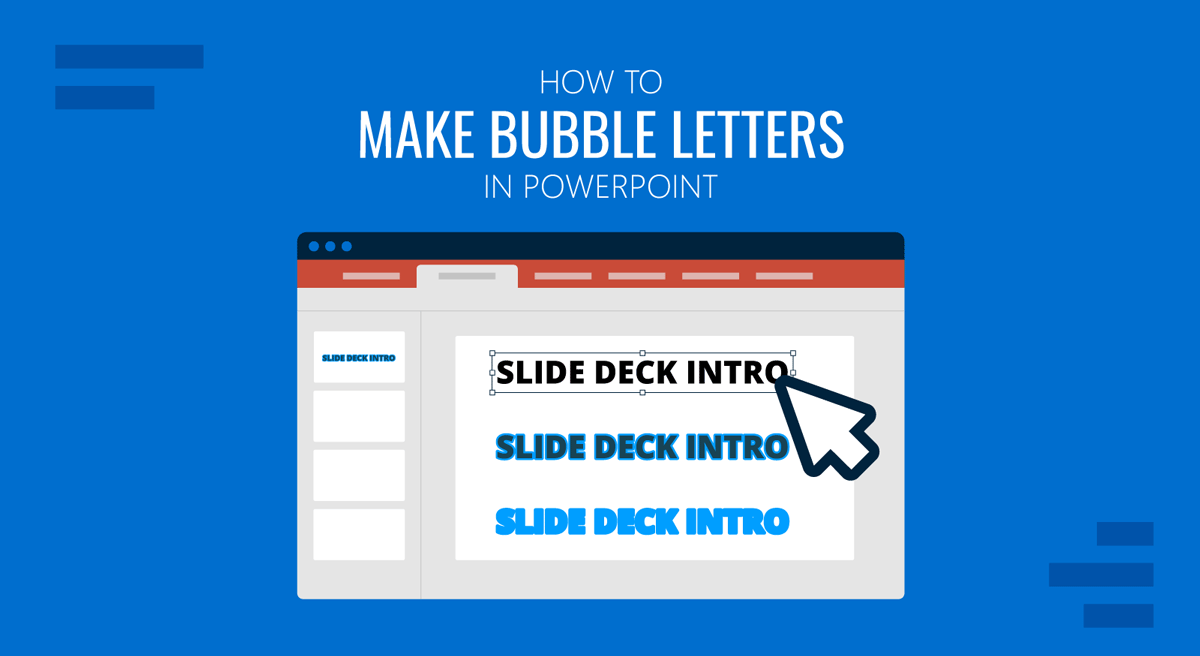
Bubble-style text is especially popular for cover slides, section headers, educational presentations, or in slides where you want typography to feel bold and informal. Adding bubble letters to PowerPoint can make title slides more interesting and memorable. PowerPoint’s built-in text formatting, shape styles, and effects are enough to produce bubble letters PPT with just a few steps.
This guide will walk you through the step-by-step process of creating bubble letters in PowerPoint, using techniques that are easy to adjust and reuse.
What Are Bubble Letters
Bubble letters are thick, rounded letterforms that appear inflated or soft, often enhanced with outlines, shadows, or highlights. In PowerPoint, the effect is created by combining rounded or bold fonts, shape-based text containers, along with Fill, Outline, Glow, and Shadow effects.
How to Create Bubble Letters in PowerPoint
Method 1: Create Bubble Letters Using Text Effects
This is a quick way to create a bubble-letter effect in PowerPoint, ideal for titles and short phrases.
Step 1: Go to Insert -> Text Box, click on the slide, and type your title text.
Step 2: Select a font with soft edges and thicker strokes, e,g. Arial Rounded, Calibri (Bold), Comic Sans, or Amasis MT Pro Black. Increase the font size so the effect is clearly visible.
Step 3: highlight and select the text and copy it using CTRL+C (Windows) or Command+C (Mac) or via the right-click context menu.
Step 4: Select the text, go to Shape Format, and choose a bright or light color for Text Fill.
Step 5: Add a thicker Text Outline in a darker shade of the same color. This combination creates the core bubble appearance. To do this, go to Format Shape -> Text Options -> Text Outline.
Step 6: Open Text Effects, add a subtle Shadow or Glow. Avoid harsh drop shadows, as bubble text looks best with soft edges. This adds depth without making the text feel heavy.
Step 7: Paste the text via CTRL+V (Windows) or Command+V (Mac) or use the right-click context menu. Select a contrasting text color for the second layer of text and drag it over the first layer to create the bubble text effect.
Method 2: Create Bubble Letters Using WordArt
If you want more flexibility and a stronger bubble look, you can use WordArt.
Step 1: Go to Insert -> WordArt, choose a simple WordArt style (flat Fill with no Gradient).
Step 2: Select the WordArt, use Shape Fill to apply a solid color, and use Shape Outline to increase the outline weight via the Shape Format tab.
Step 3: Set the outline to a slightly darker or contrasting color.
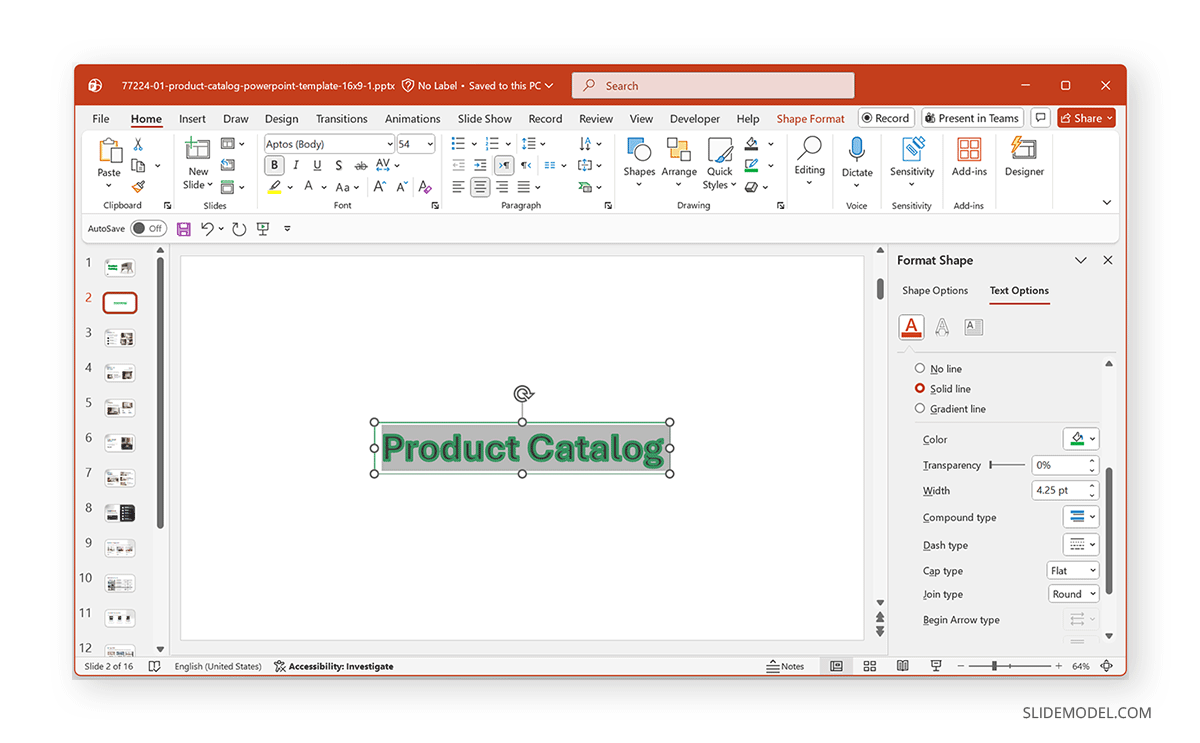
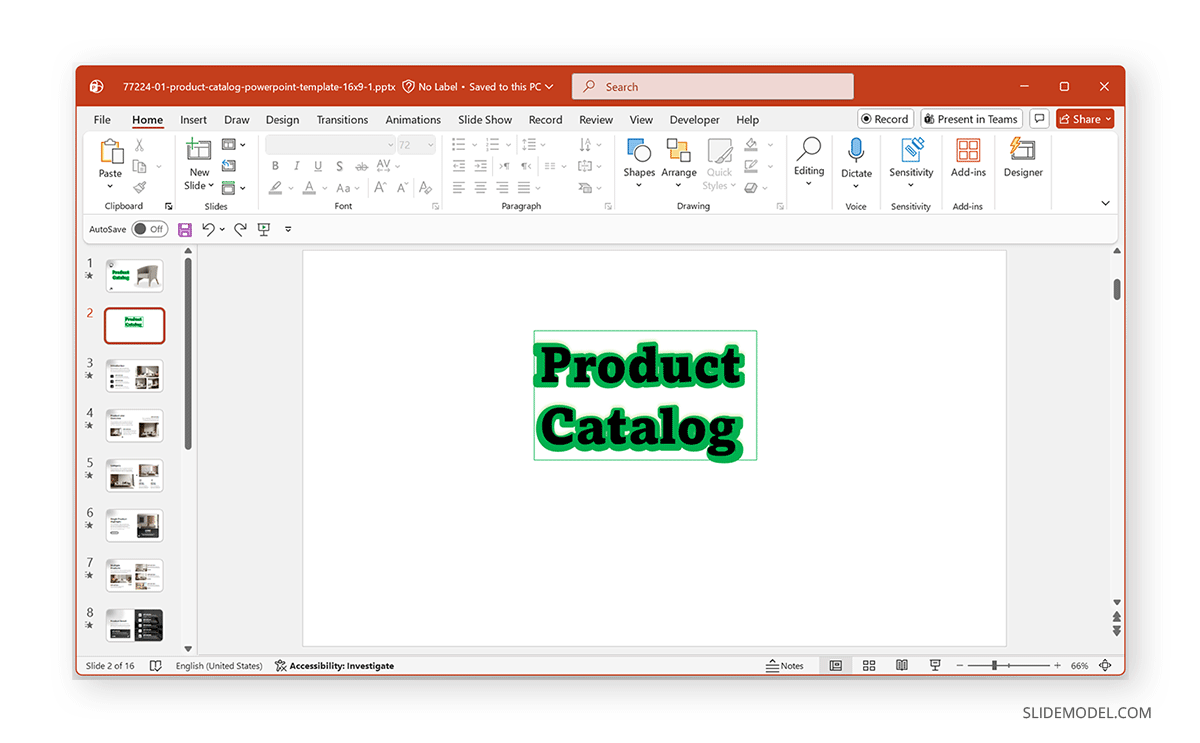
Round the edges visually. Avoid sharp outlines or thin strokes. The thicker the outline and the smoother the fill, the more inflated the letters will appear. The example below shows bubble text created using WordArt.
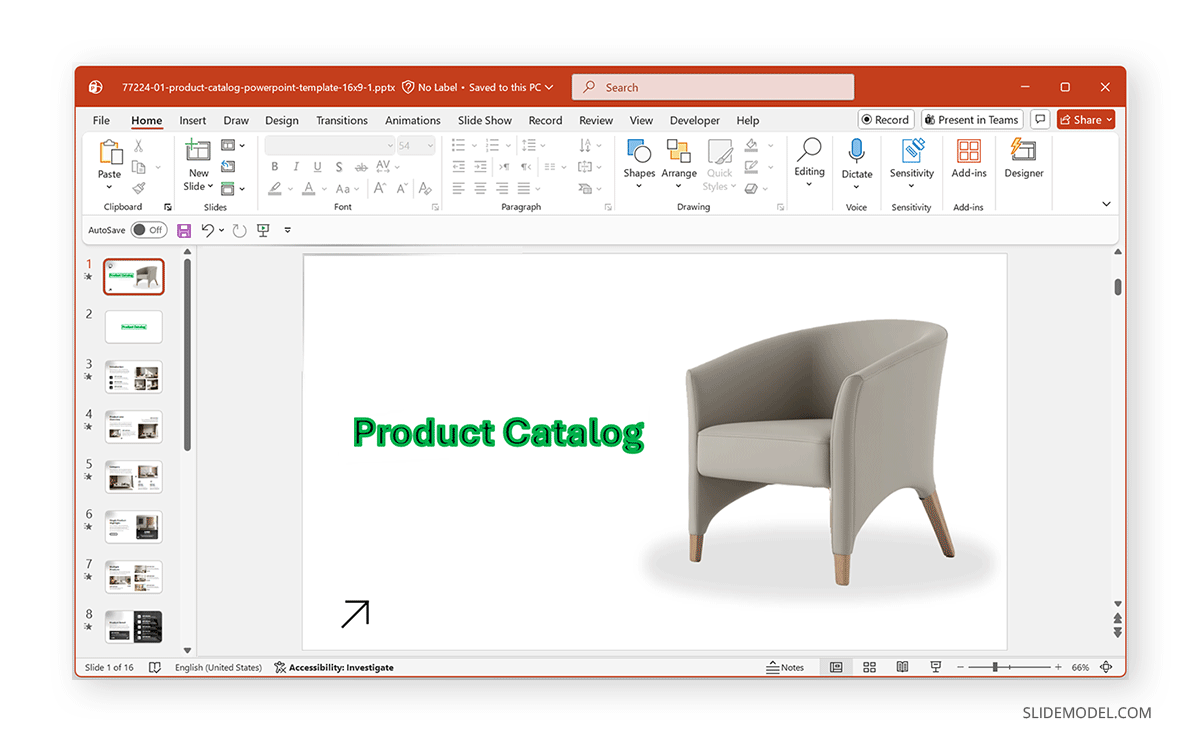
Enhancing the Bubble Effect
Here are a few tips to enhance the overall look of the bubble text effect.
Add a Highlight Effect: Duplicate the text, make the top copy slightly smaller, and change its color to a lighter shade. Offset it slightly upward to simulate a glossy highlight.
Use Gradients Sparingly: A very subtle gradient (light top, darker bottom) can add depth, but strong gradients may break the clean bubble look.
Keep Backgrounds Simple: Bubble letters stand out best on plain or lightly textured backgrounds. Busy images can reduce readability.
Shadows and Glow Effect: Using Shadow or Glow effects can enhance the look of your bubble text. While you can also create bubble text without using either of the two, using at least one of the two effects will help make the edges look smoother.
Common Mistakes to Avoid
While bubble text can add visual appeal, a few common missteps can quickly make slides feel cluttered or unprofessional. Being mindful of these issues helps ensure the effect supports your message rather than competing with it.
Using Thin or Narrow Fonts
Bubble letters rely on thickness and rounded edges to create their signature look. Fonts with thin strokes or sharp angles don’t translate well into a bubble style and often look uneven or fragile once outlines and effects are applied.
Overusing Shadows or Heavy 3D Effects
It’s tempting to stack shadows, glows, and 3D formatting to enhance the effect, but too much depth can make text look blurry or cartoonish. Subtle shadows or soft highlights work better and keep the text readable.
Applying Bubble Text to Long Paragraphs
Bubble lettering is designed to grab attention, not convey detailed information. Using it for full sentences or body text overwhelms the slide and makes reading harder. It works best for short titles, headings, or single words.
Mixing Too Many Bright or Contrasting Colors
Bright colors can enhance the playful nature of bubble letters, but using too many at once creates clutter. Limiting your palette to one or two complementary colors can keep the title cohesive and easy on the eyes.
Final Words
Bubble letters offer a simple way to add visual impact to slides, as long as they’re used thoughtfully and in moderation. Creating bubble letters in PowerPoint doesn’t require special fonts or external design tools. By combining rounded typography, thick outlines, and subtle effects, you can create a bubble letter effect in PowerPoint slides directly, resulting in playful, professional-looking bubble text.