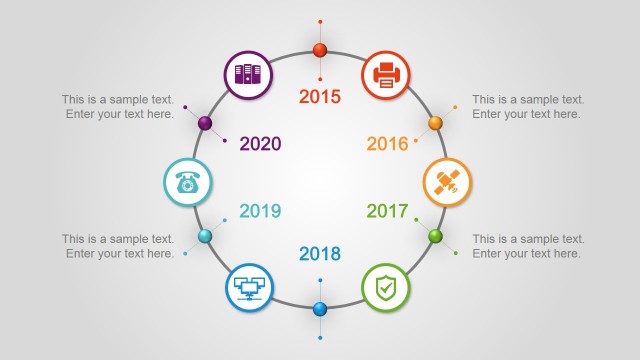
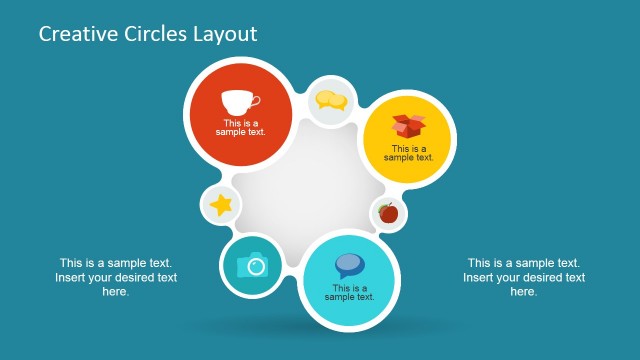
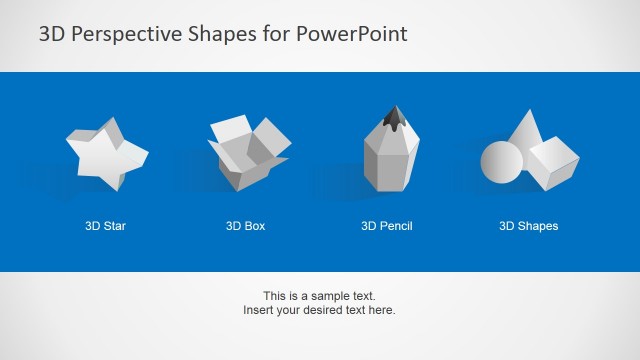
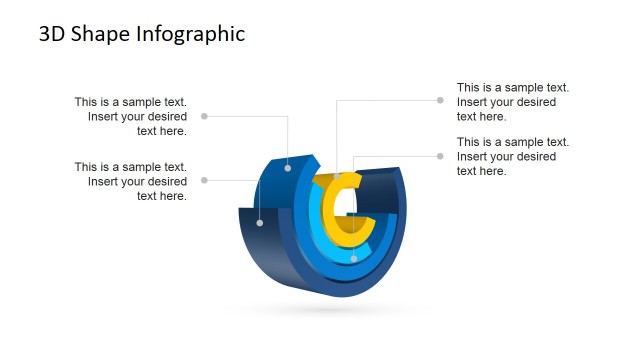
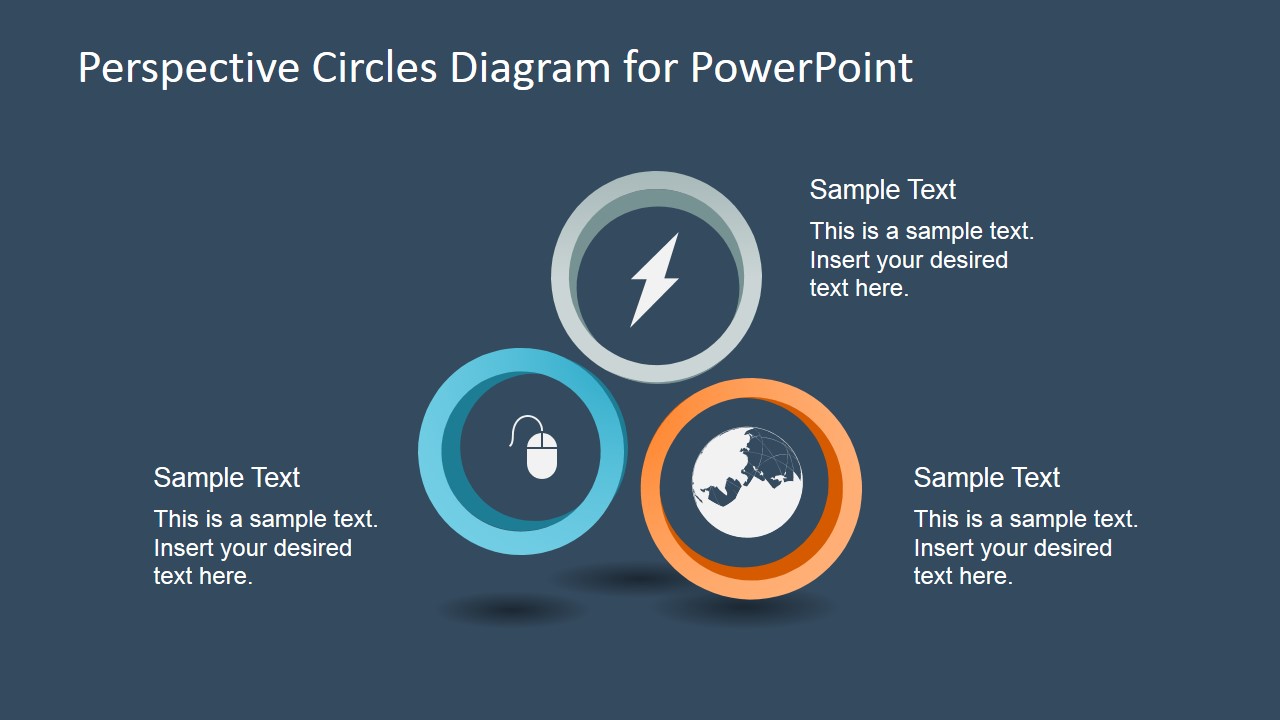
Perspective Circles Diagram for PowerPoint is a selection of modern and creative perspective circle effects. Generate outstanding outputs with the PowerPoint template. It has a generic design for a wide array of subject matters. The visuals are styled with a modern look and shadows for a realistic feel. This way, the audience can feel engaged.
The PowerPoint template is ideal for Science and Technology reports. It can cater a huge variation of subject matters such as global economy, business development, innovation and statistics. The icons can be related to either personal or professional concepts. The PowerPoint template can be used to represent 3 to 6 elements. The user can opt to copy and paste the shapes to different slides. They can be edited using PowerPoint shapes menu. Options for modification of color scheme, text style and size are available for the presenter.
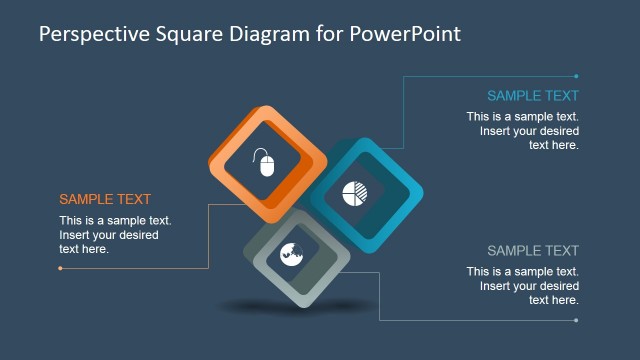
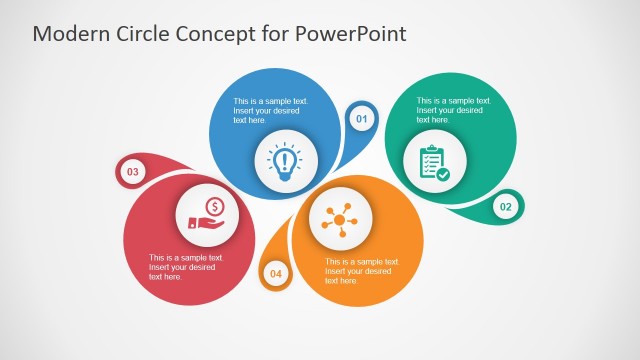
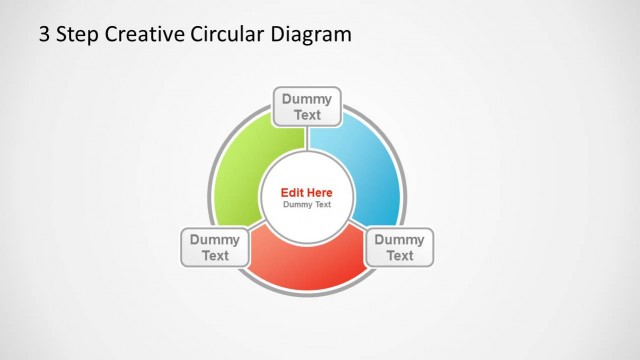
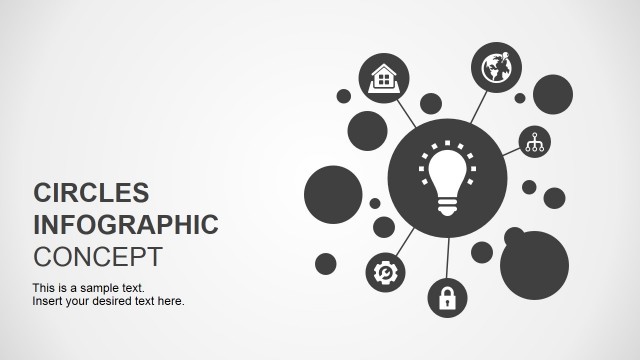
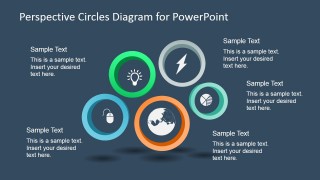
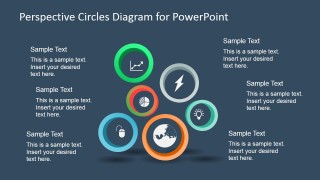
In the Office template, there are four slides with a unique set of icons. Each icon is enclosed by a circular shape in 2D perspective. It creates a realistic and artistic look to the simple object. The different icons are mouse, lightning bolt, arrow graph, pie chart, bulb with rays and globe outline. The first slide design show 3 circular shapes with their corresponding icons. They are colored grey, orange and blue. The shapes have associated text boxes so the user can mark important key points. In the second slide, there are 4 circles. The 5th one five and the six goes with 6 powerful icons in circular frames.
The collection of circles is in 2D style. They have 2 plenary dimensions featuring height, depth and width. It gives an impression on how the actual figure will look like if seen on a particular angle or lighting. It is generally known as point of view.
Appeal to global audiences and deliver stunning presentations using Perspective Circles Diagram for PowerPoint. Download Shapes for PowerPoint from the SlideModel gallery.
What’s inside this template
Example presentation scenarios
- A product manager can use the six-circle diagram to present six product capabilities, assigning each capability to an icon and supporting it with a short callout.
- A technology consultant can use the five-circle diagram to explain an innovation framework, with the light bulb, chart, globe, and lightning icons marking distinct themes.
- A business analyst can use the four-circle layout to compare drivers in a market or operations report while keeping each point to a concise text block.
- An educator or trainer can use the three-circle layout to introduce a simple concept model before moving to denser five- or six-item explanations.
Features
- 100% editable presentation template
- Compatible with Microsoft PowerPoint and Google Slides
- 16:9 aspect ratio slides
- Scalable vector shapes, icons and illustrations
- AI-Ready for Microsoft Copilot and Claude
- Instant access and download
Frequently asked questions
Q: How should I organize content across the circle diagrams?
A: Start with the slide count that matches the number of ideas you need to explain: three, four, five, or six. Keep each callout to one short headline and one supporting sentence. Assign the strongest or most central concept to the largest or most visually prominent circle, then use surrounding circles for supporting factors.
Q: Who is this diagram template best suited for?
A: This template works best for presenters who need a visual alternative to a bullet list. Consultants, analysts, product managers, and educators can use it to explain business drivers, technology themes, research dimensions, product features, or innovation areas when the relationships are connected but not strictly sequential.
Q: Why use perspective circles instead of a standard list or grid?
A: The circular markers create a point-of-view metaphor: each icon represents a different angle on the same topic. Shadows, overlapping positions, and varied circle sizes help the audience see a group of related ideas as one system, while the text callouts preserve enough space for concise explanation.


Perspective Circles Diagram for PowerPoint
4-slide PowerPoint and Google Slides presentation template with perspective circle diagrams, icons, and text callouts
Perspective Circles Diagram for PowerPoint is a 4-slide diagram template for Microsoft PowerPoint and Google Slides. It contains three-circle, four-circle, five-circle, and six-circle perspective icon clusters with editable text callouts. The layouts fit business, technology, science, innovation, and report presentations that compare related elements.
- Category
- Diagrams
- Rating

 Loading...
- Aspect ratio
- 16:9
- Item ID
- 6780-01
- Colors
 Microsoft PowerPoint
  Microsoft Copilot
  Claude for PowerPoint
 Other formats supported
Subscribe today and get immediate
access to download our PowerPoint templates.