Construct a minimalist template using the Circles Infographic Concept for PowerPoint. The PowerPoint graphics are specially designed to enhance the data without overpowering them. The template contains generic PowerPoint icons that can be used in any type of situation. These minimalist icons are shown in white to be easily seen.
The PowerPoint graphics are shown in an overview in the last slide in the template. These include symbols from business, like a stack of coins, to computers, such as Cloud data. The black & white PowerPoint icons are shown against a black presentation background, and create a pixel perfect look and feel.
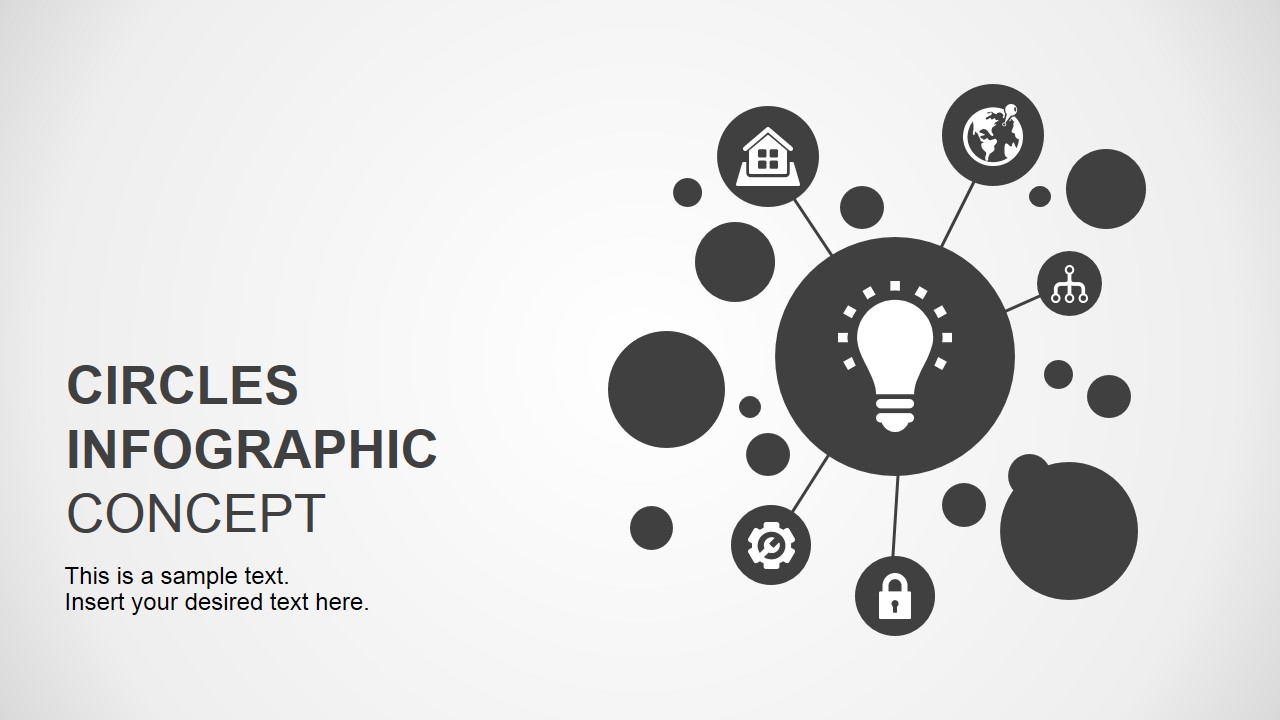
The first slide in the template may represent a section header or splash page. It includes placeholders for the title and a flat network diagram. The latter includes a black radial diagram. Some of these contain icons and are connected to a center circle.
One of the slides contain the same circle diagram. This PowerPoint slide can be treated as a venue for the speech summary, as it contains two text placeholders. The user can also use this slide as a continuation of the title slide.
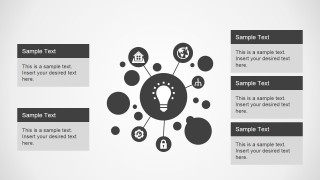
Another slide contains five text placeholders. These placeholders have black headers with white text. It contains the same diagram as the one in the title slide.
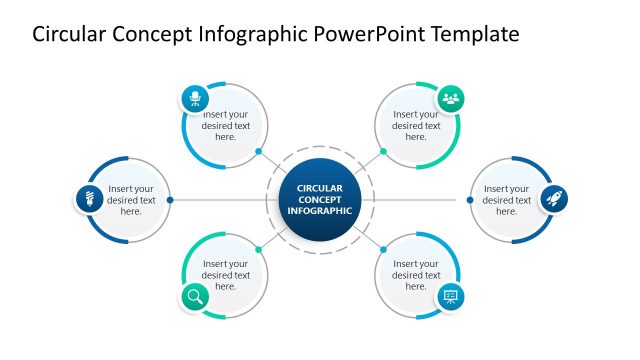
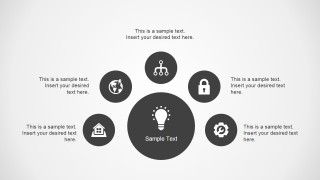
The two remaining PowerPoint slides feature the same circles and icons. However, the diagram is presented differently in both slides. In the first, five icons are connected to a larger circle containing a lightbulb. Text placeholders accompany each icon. The second slide contains a neater version of the first. The icons are arranged near the edges of the center circle. The circles are unconnected, although the relationship is implied.
Circles Infographic Concept for PowerPoint is ideal for visual mind maps. Circles and symbols may represent decision analysis. The connection between them signify related business concepts. The user may edit the objects in the slide design to fit the presentation needs.
The user may download other PowerPoint templates, like Brainstorming Idea PowerPoint Template Slide with Human Head, from our Gallery.
What’s inside this template
Example presentation scenarios
- A consultant can use the radial circle map to explain how business capabilities, risks, or decision factors relate to one central recommendation.
- A product manager can use the five callout layout to summarize feature groups, customer needs, or roadmap themes around a main product idea.
- A trainer can use the hub-and-spoke diagram to introduce a lesson topic and connect it to five supporting principles or learning objectives.
- A strategy team can use the useful icons slide to select symbols that match planning, finance, cloud, security, and team communication topics.
Features
- 100% editable presentation template
- Compatible with Microsoft PowerPoint and Google Slides
- 16:9 aspect ratio slides
- Scalable vector shapes, icons and illustrations
- AI-Ready for Microsoft Copilot and Claude
- Instant access and download
Frequently asked questions
Q: How should a presenter organize the message with these circle infographic slides?
A: Start with the title slide to name the central concept, then use the radial circle map to show the main related ideas. Move to the five callout layout when each idea needs a short explanation. Use the hub-and-spoke slide for a tighter summary, and reserve the icon library for replacing symbols with topic-specific visual cues.
Q: Who is this template best suited for in a business presentation?
A: This template is best for presenters who need to explain relationships rather than timelines or numeric results. Consultants, product managers, trainers, and strategy teams can use it to group capabilities, decision factors, risks, or learning topics. The layouts work well when the audience needs a quick conceptual map before discussing details.
Q: Why does the circle metaphor help communicate the concept?
A: The circle layouts place the lightbulb or main idea at the visual center, so the audience immediately sees what everything connects to. Smaller surrounding circles imply related but separate topics. This metaphor is useful for brainstorming, concept mapping, and decision framing because it shows association without forcing a strict order.






Circles Infographic Concept for PowerPoint
6-slide presentation template with circle infographics, radial concept maps, and editable icon layouts
Circles Infographic Concept for PowerPoint is a 6-slide infographic template for showing connected ideas around a central concept. It includes a title slide, radial circle map, text callout layout, hub-and-spoke diagram, separated circle concept map, and icon library for business, technology, security, and planning topics in Microsoft PowerPoint and Google Slides.
- Category
- Shapes
- Rating


 Loading...
- Aspect ratio
- 16:9, 4:3
- Item ID
- 6951-01
- Colors
 Microsoft PowerPoint
  Microsoft Copilot
  Claude for PowerPoint
 Other formats supported
Subscribe today and get immediate
access to download our PowerPoint templates.