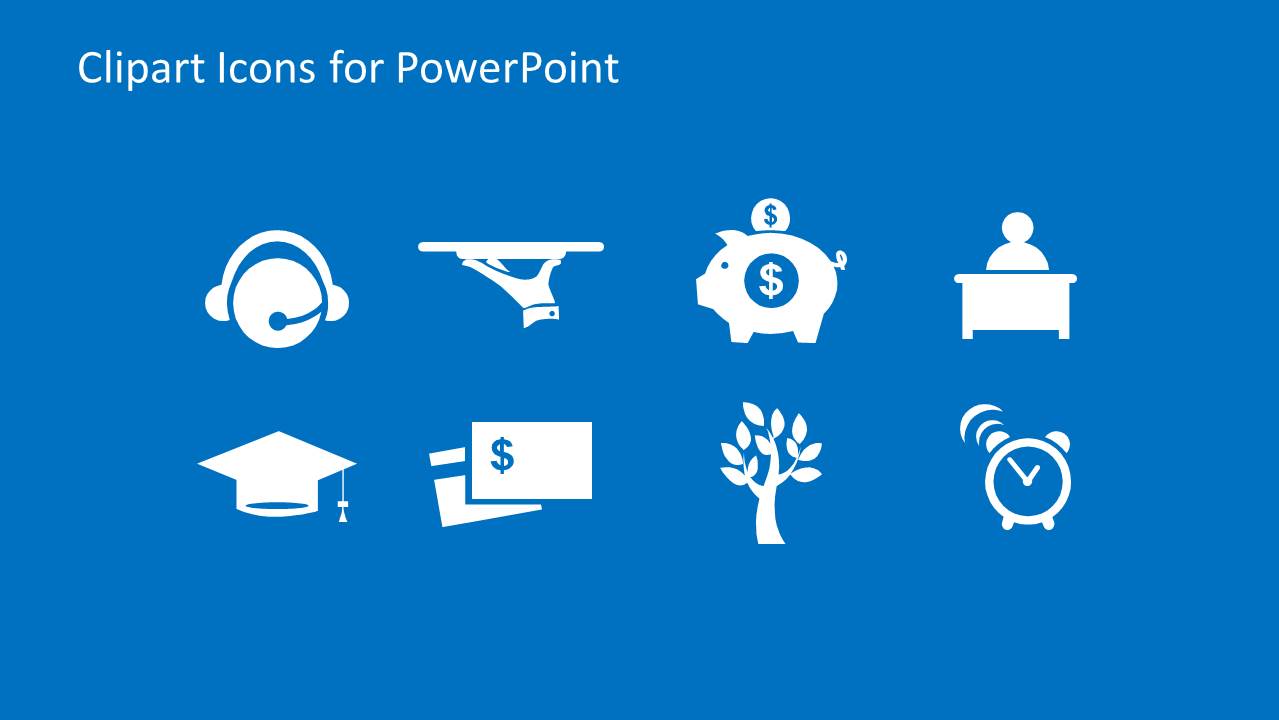
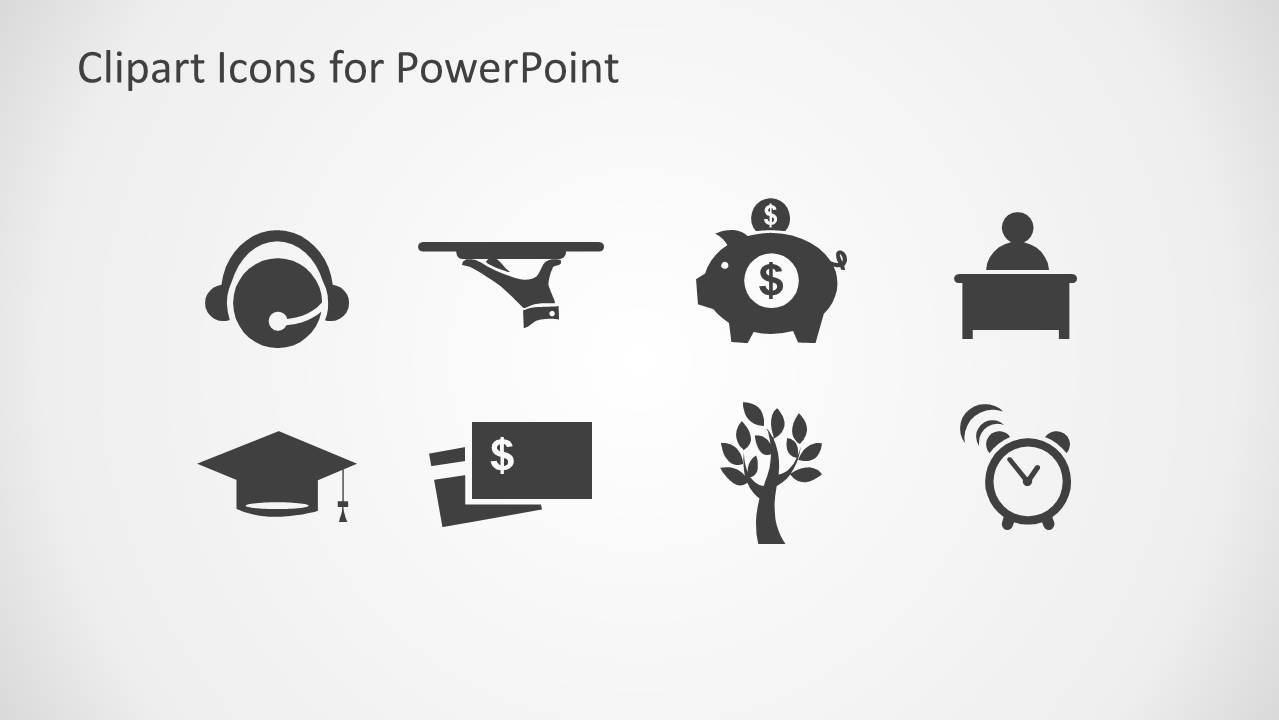
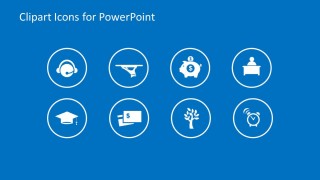
Clipart Icons for PowerPoint is a presentation design containing useful PowerPoint icons created with shapes so you can easily use the icons in any desired presentation and resize the shapes without affecting the picture quality.
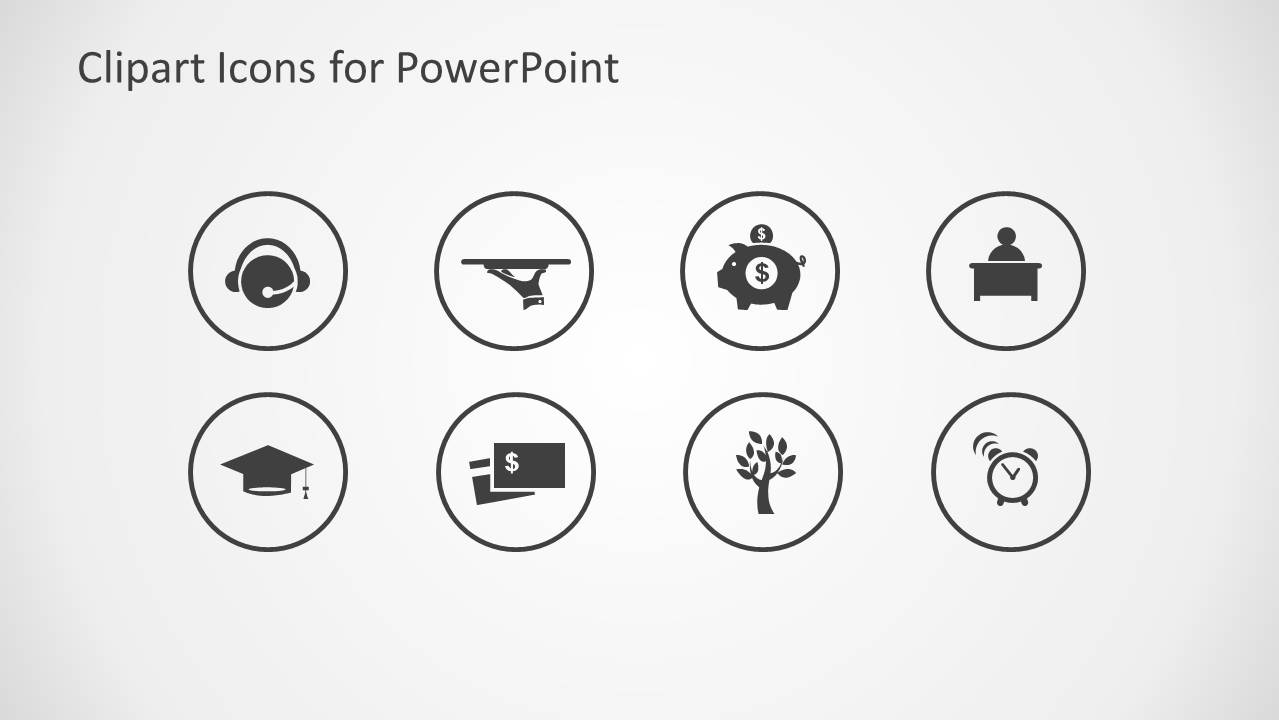
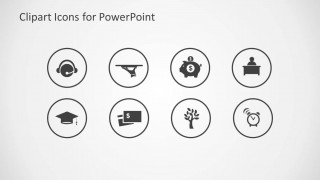
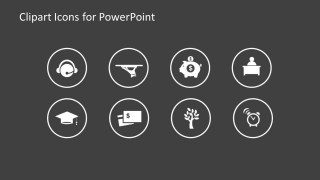
- Call Center icon for PowerPoint presentations with Agent illustration & Headset
- Restaurant Menu icon for PowerPoint with waiter hand & tray illustration
- Piggy Bank icon
- Employee in a Desk icon for PowerPoint presentations
- Two credit card icons for PowerPoint
- Growing tree icon for PowerPoint on personal growth & success
- Analog clock icon & alarm effect
You can easily edit the shapes and copy and paste the clipart icons into any PowerPoint presentation. The presentation design comes with different PowerPoint background colors and editable shapes.
What’s inside this template
Example presentation scenarios
- A customer service manager can use the headset agent icon and circular badge grid to introduce support channels or call center responsibilities in a training deck.
- A sales or finance presenter can use the piggy bank and credit card icons to mark pricing, payment, savings, or transaction topics in a proposal.
- An education or HR presenter can use the graduation cap and growth tree icons to explain learning paths, employee development, or personal growth programs.
- A hospitality or operations presenter can use the serving tray callout slide to give one service concept extra emphasis while keeping supporting text beside the icon.
Features
- 100% editable presentation template
- Compatible with Microsoft PowerPoint and Google Slides
- 16:9 aspect ratio slides
- Scalable vector shapes, icons and illustrations
- AI-Ready for Microsoft Copilot and Claude
- Instant access and download
Frequently asked questions
Q: How should a presenter use these icons without making the slide feel decorative?
A: Tie each icon to one specific message before placing it on a slide. For example, use the headset only for support, the piggy bank only for savings, and the clock only for timing. The single-icon callout layouts work best when one idea needs emphasis, while the icon grids work well as menus or topic indexes.
Q: Who is this icon set best suited for?
A: This set fits presenters who need quick visual labels across business, training, support, finance, and education topics. It is useful for consultants, trainers, managers, and marketers who already have core content but need consistent pictograms for sections, feature lists, service explanations, or short topic summaries.
Q: Why do the circular badge layouts help communication?
A: The circles turn unrelated clipart images into a consistent visual system. That framing helps the audience compare eight topics as equal choices instead of reading them as random decorations. The large callout versions then shift attention from comparison to focus, making one selected topic feel more important.



Clipart Icons for PowerPoint
8-slide presentation template with editable clipart icons, circular badges, and business callout layouts
Clipart Icons for PowerPoint is an 8-slide 16:9 icon slide template for business presenters using Microsoft PowerPoint and Google Slides. It includes editable icon grids, circular badge layouts, and single-icon callout slides with text areas. The set covers headset support, service tray, piggy bank, desk employee, graduation cap, credit cards, growth tree, and alarm clock visuals.
- Category
- Shapes
- Rating


 Loading...
- Aspect ratio
- 16:9
- Item ID
- 6669-01
- Colors
 Microsoft PowerPoint
  Microsoft Copilot
  Claude for PowerPoint
 Other formats supported
Subscribe today and get immediate
access to download our PowerPoint templates.