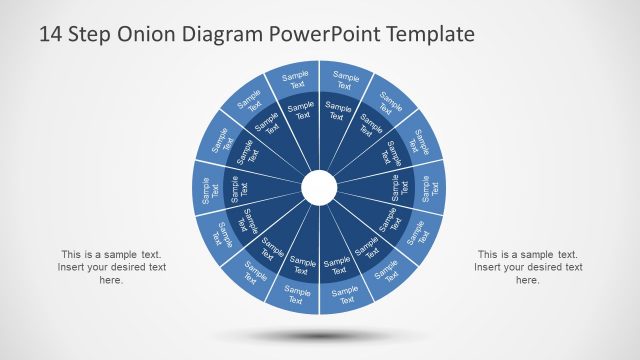
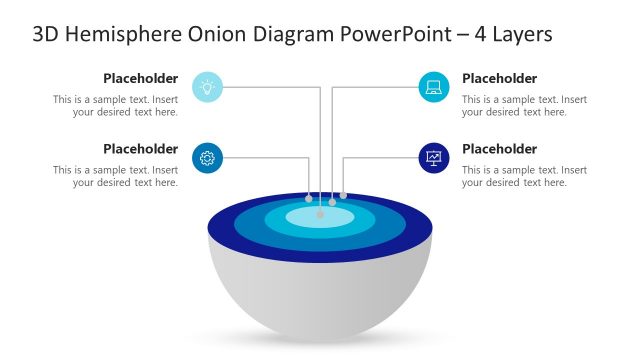
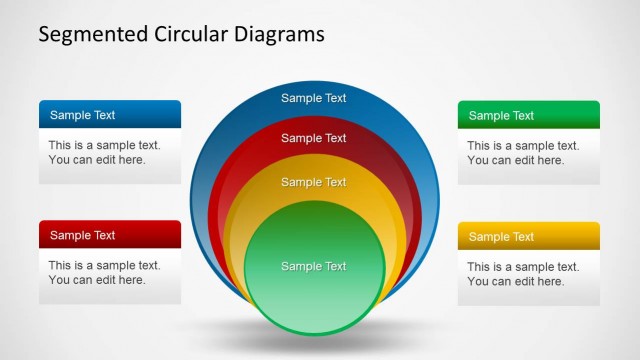
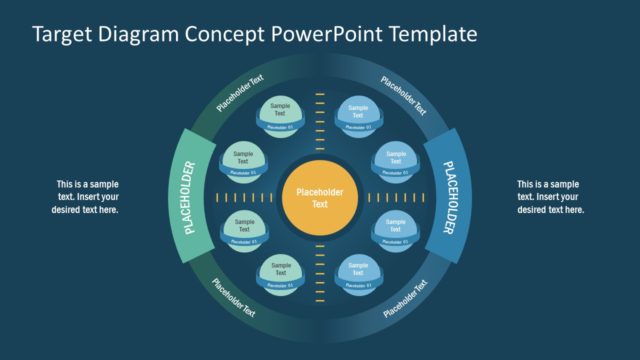
Create professional onion diagrams with Target Onion Diagram for PowerPoint. This customizable Diagram Template for PowerPoint can help you easily create complex core and onion diagram designs by simply labeling the given sample slides.
You can also change the look of the diagram elements by changing their size, shape and color from within PowerPoint.
Also see our complete collection of Onion Diagram Templates for PowerPoint.
What’s inside this template
Example presentation scenarios
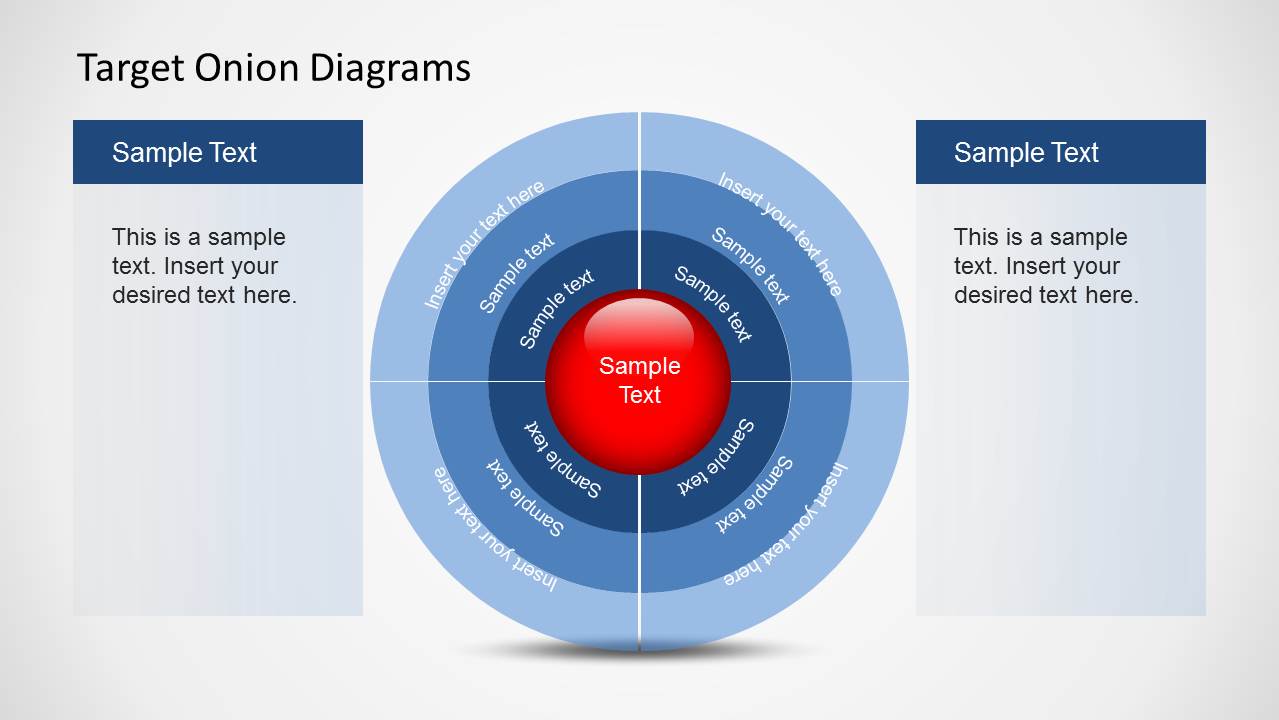
- A marketing manager can explain audience tiers by placing the highest-value segment in the red center and broader segments in the outer rings of the full onion target.
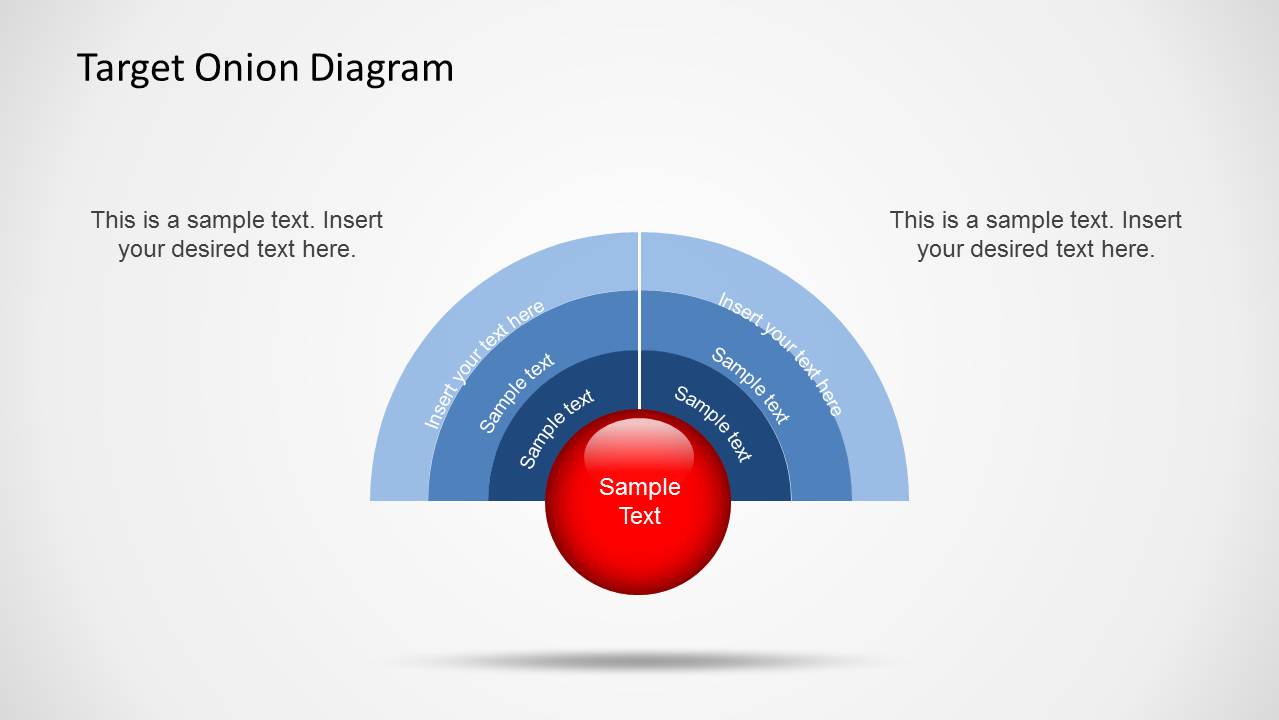
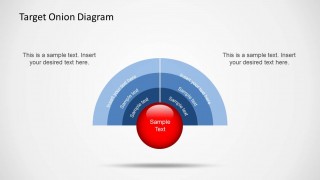
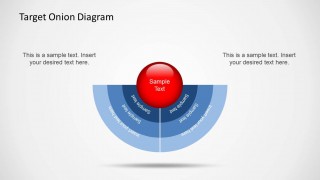
- A strategy consultant can use the upper or lower semicircle target to show how an objective expands into supporting layers without filling the slide with text.
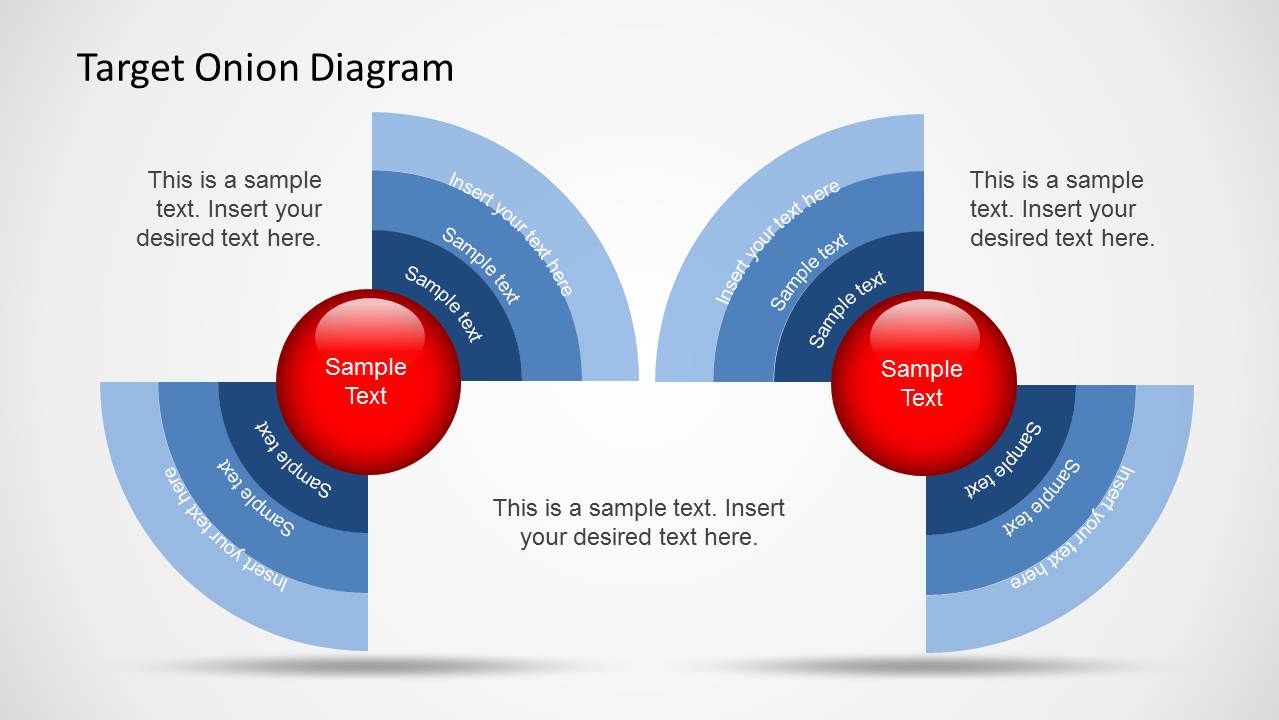
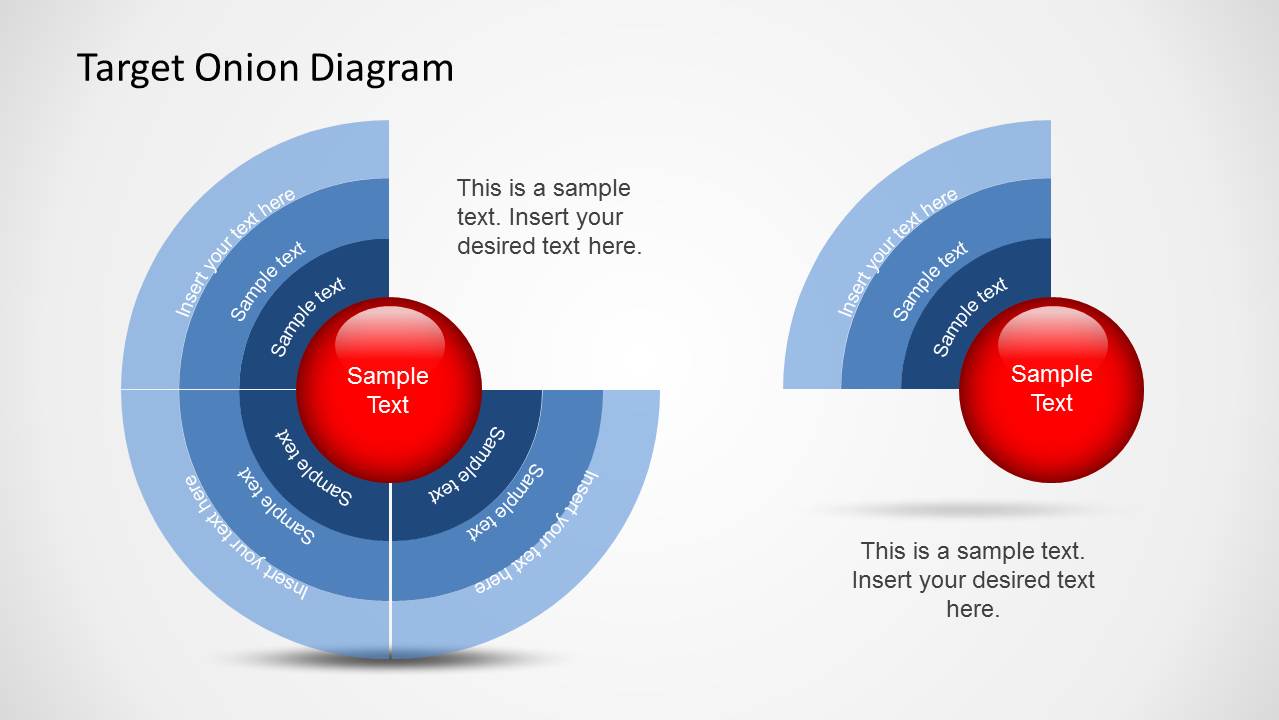
- A product manager can compare two customer groups or solution areas with the paired half-target layout and add short explanations around each diagram.
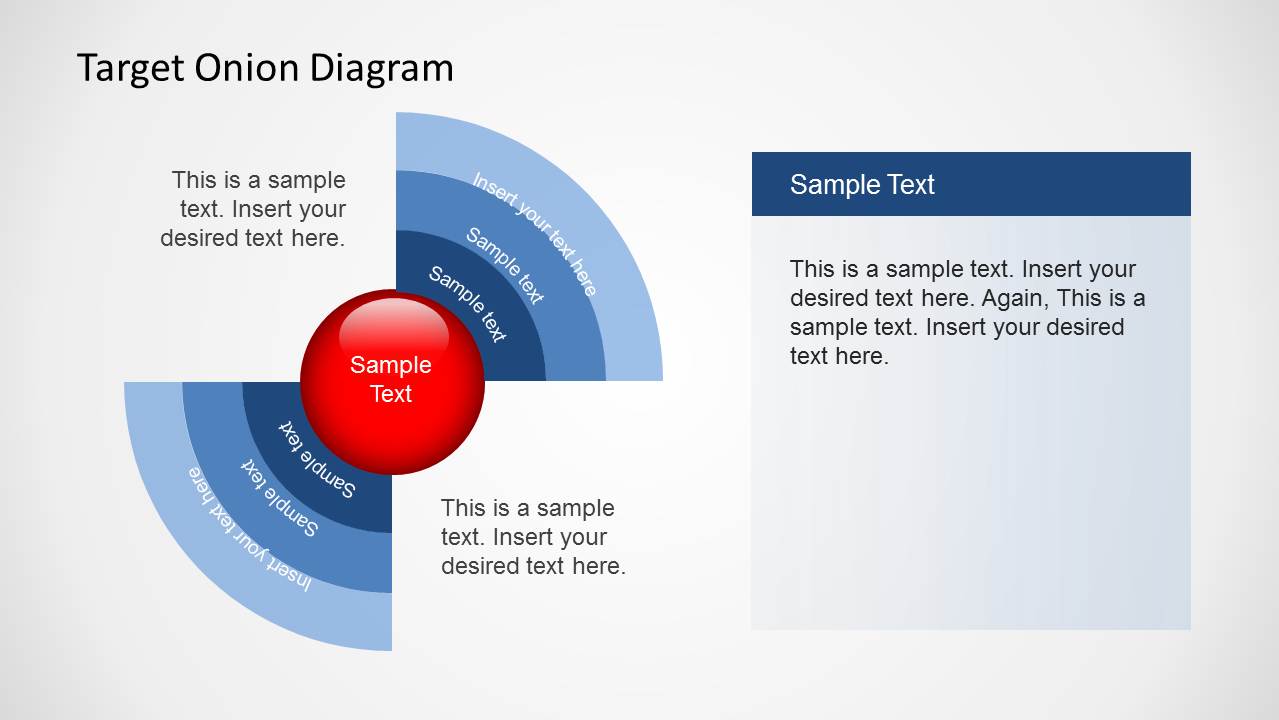
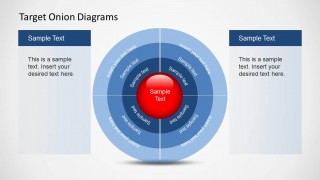
- A business analyst can use the side-panel layout to pair a layered model with notes, assumptions, or definitions for a planning workshop.
Features
- 100% editable presentation template
- Compatible with Microsoft PowerPoint and Google Slides
- Scalable vector shapes, icons and illustrations
- AI-Ready for Microsoft Copilot and Claude
- Instant access and download
Frequently asked questions
Q: How should a presenter explain layered priorities with this template?
A: Start with the red center as the most important idea, customer group, or goal, then move outward ring by ring. Keep each layer label short and use the side text panels for explanation. This order helps the audience understand priority before detail and prevents the circular diagram from becoming a decorated bullet list.
Q: Who is this target onion diagram set best suited for?
A: It works best for presenters who need to explain segmentation, focus, or levels of importance rather than numerical performance. Consultants, marketers, product teams, and managers can use the full target, semicircle, and paired half-target slides to organize a planning conversation around what sits at the core and what belongs at the perimeter.
Q: Why use the onion or target metaphor for this message?
A: The onion metaphor shows layers around a core, while the target metaphor signals focus and priority. In these slides, the red center draws attention first and the blue rings guide the eye outward. That visual hierarchy makes abstract strategy, audience tiers, or capability layers easier to explain than a flat list.

Target Onion Diagram for PowerPoint
6-slide PowerPoint diagram template for target onion diagrams, core layers, and audience segmentation
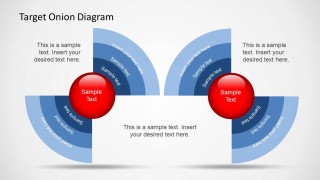
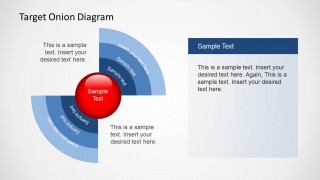
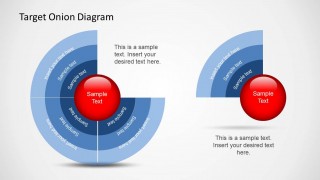
This 6-slide PowerPoint diagram template presents target onion visuals for showing layered priorities, market segments, core concepts, or strategic focus. Visible layouts include a full onion target with side panels, upper and lower semicircle targets, paired half targets, and a side-panel version for explanatory notes.
- Rating

 Loading...
- Item ID
- 6264-01
- Colors
 Microsoft PowerPoint
  Microsoft Copilot
  Claude for PowerPoint
 Other formats supported
Subscribe today and get immediate
access to download our PowerPoint templates.