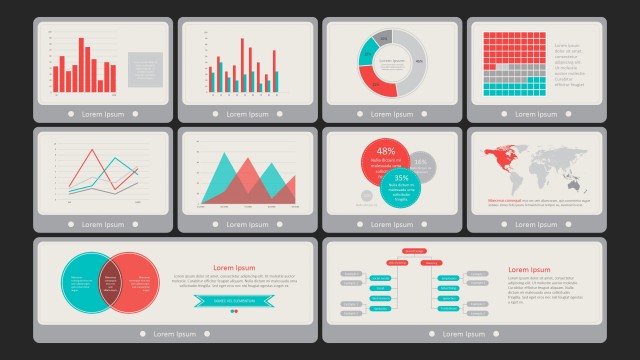
Flat Infographic Charting Elements for PowerPoint provides an 8-slide infographic for presentation. This professional PowerPoint template is a gallery of flat infographic data elements and charts ideal for creating infographics and data presentations.
The PowerPoint slides are simultaneously visually appealing and interactive. It effectively highlights money-saving techniques and tools to keep an eye. By merely looking at the data elements, you can easily analyze the financial trends. This is not only effective for commercial, but for personal use.
Look at how the PowerPoint Slides are effectively interconnected with these focus areas:
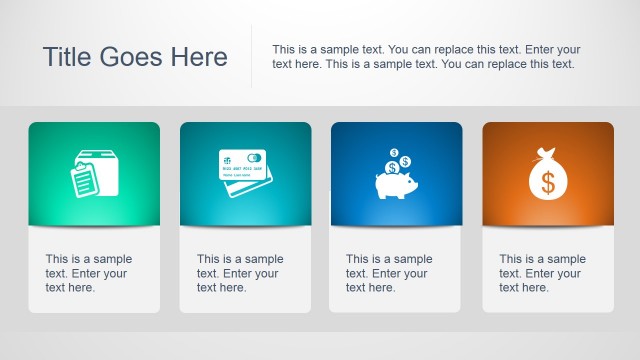
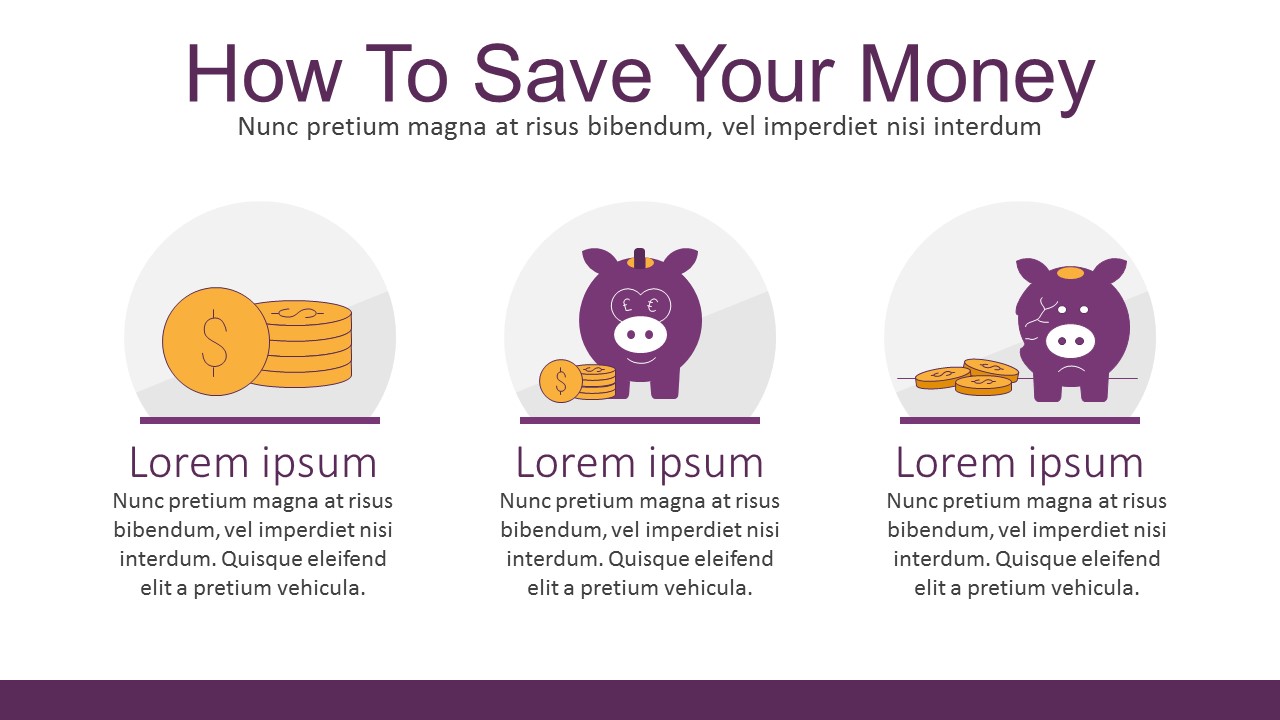
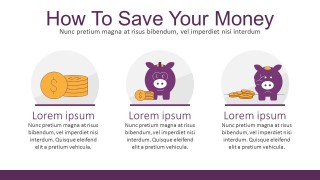
- How to Save Your Money
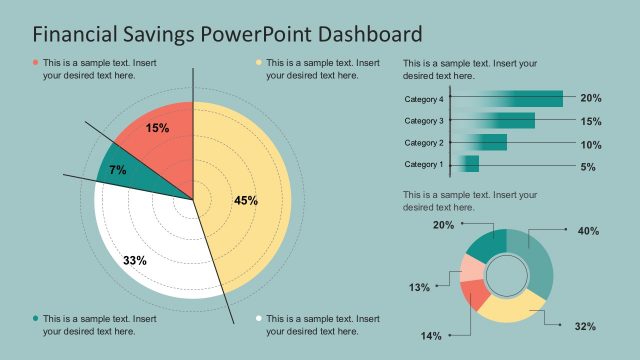
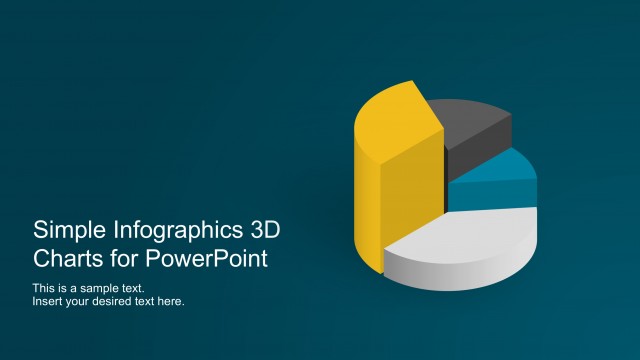
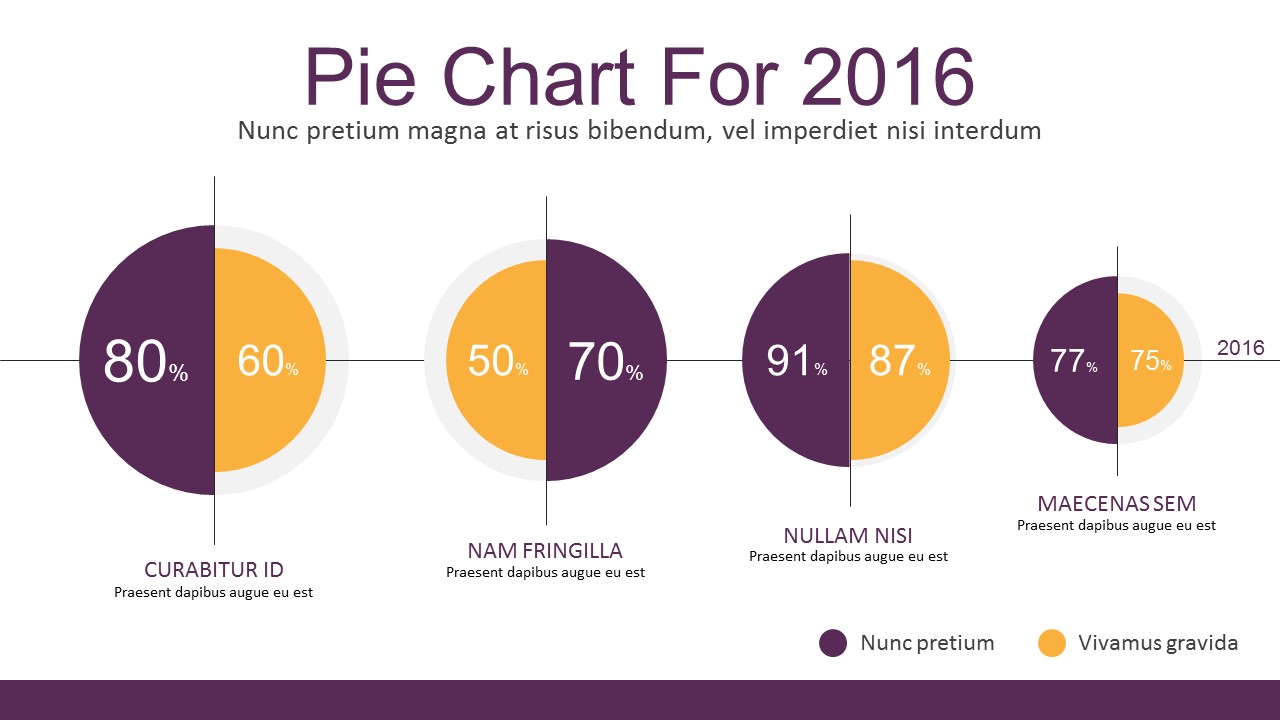
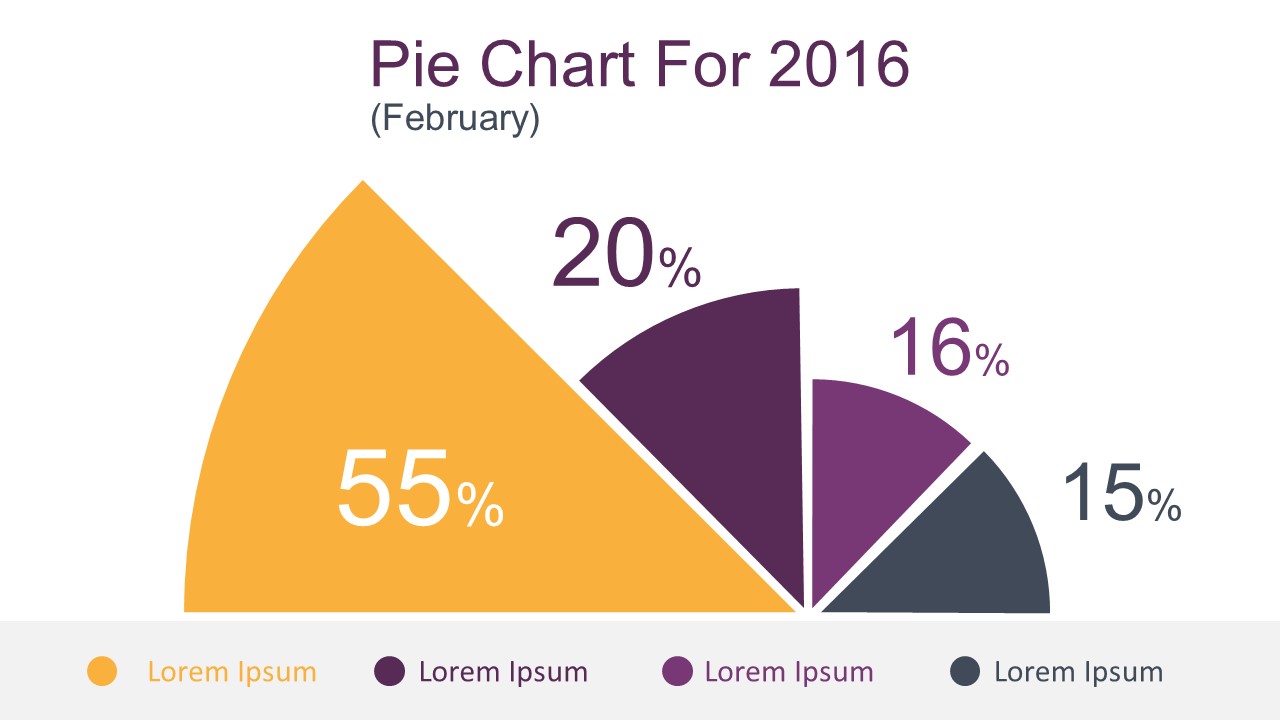
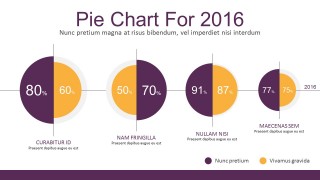
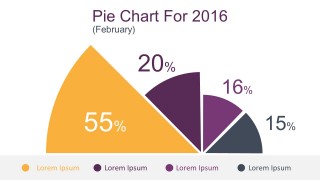
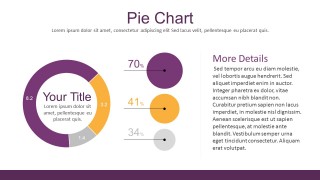
- Pie Chart with data comparisons
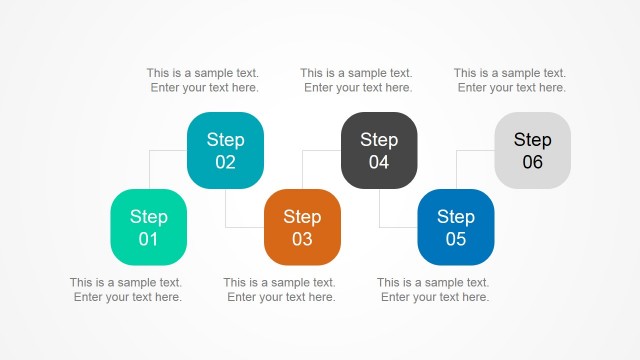
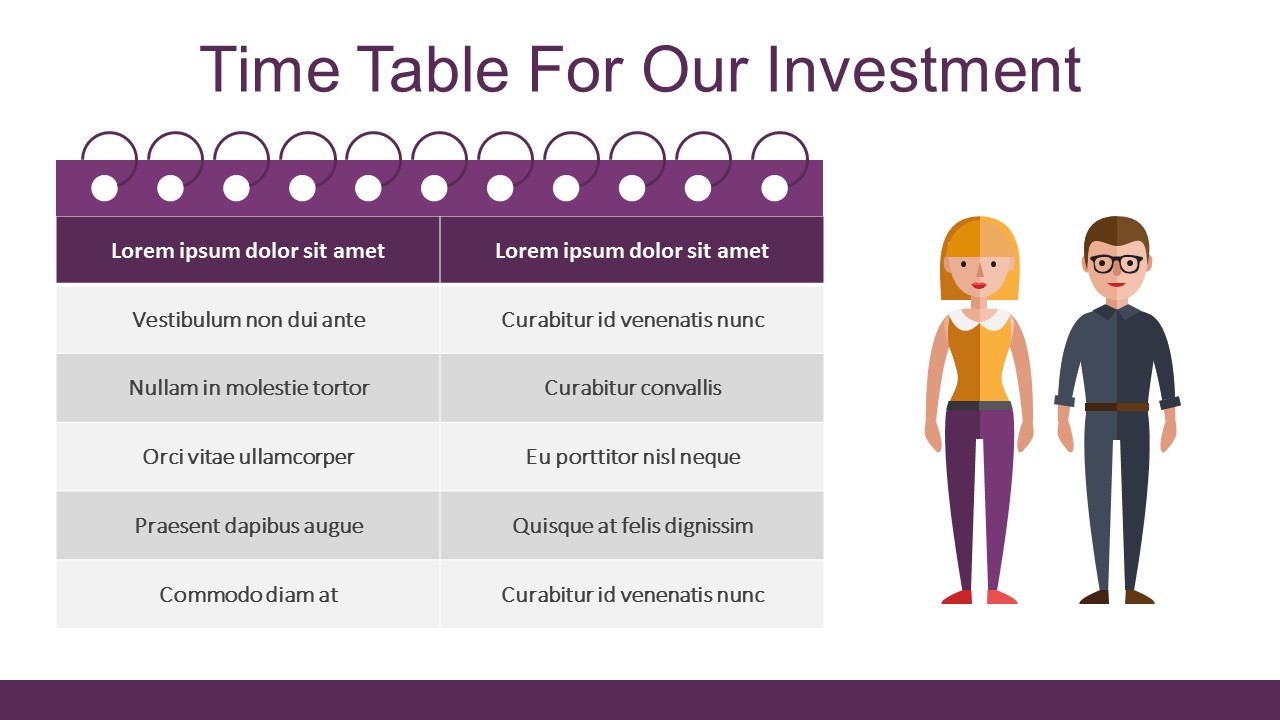
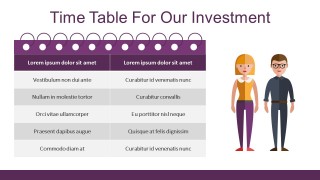
- Timetable for Business Investments
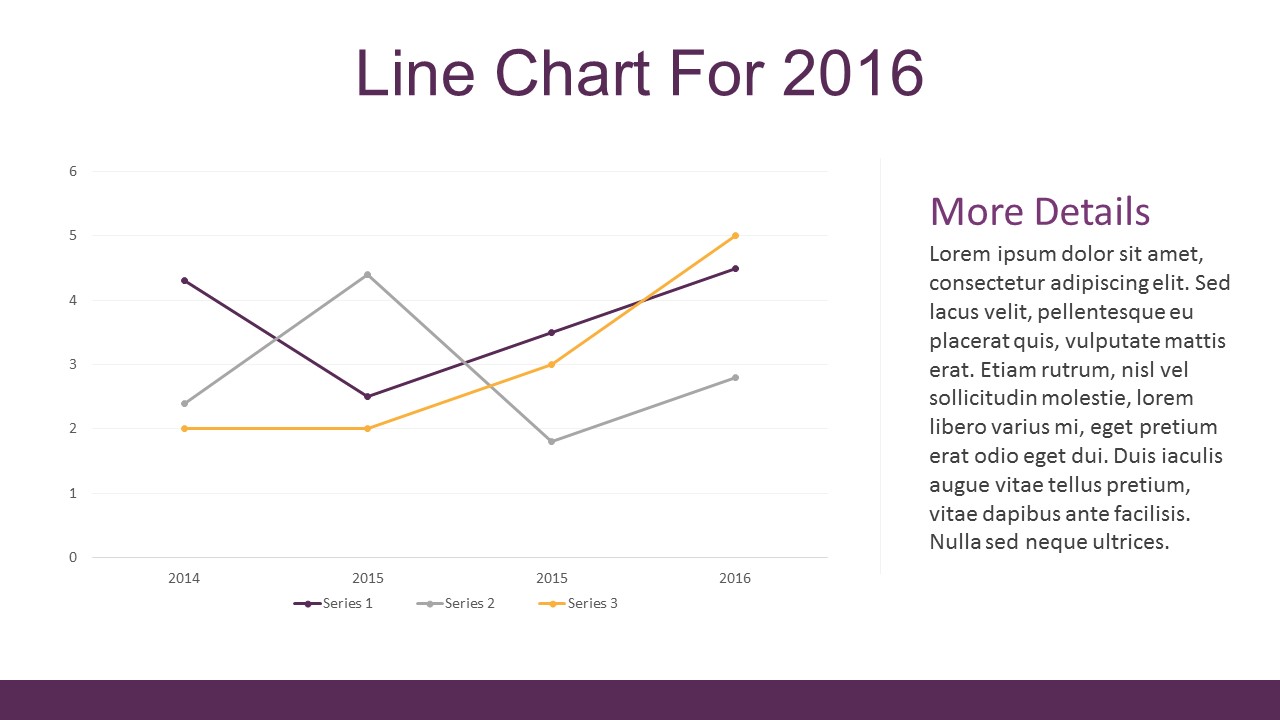
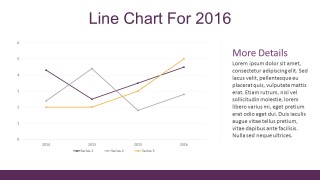
- Annual Investment Line Chart
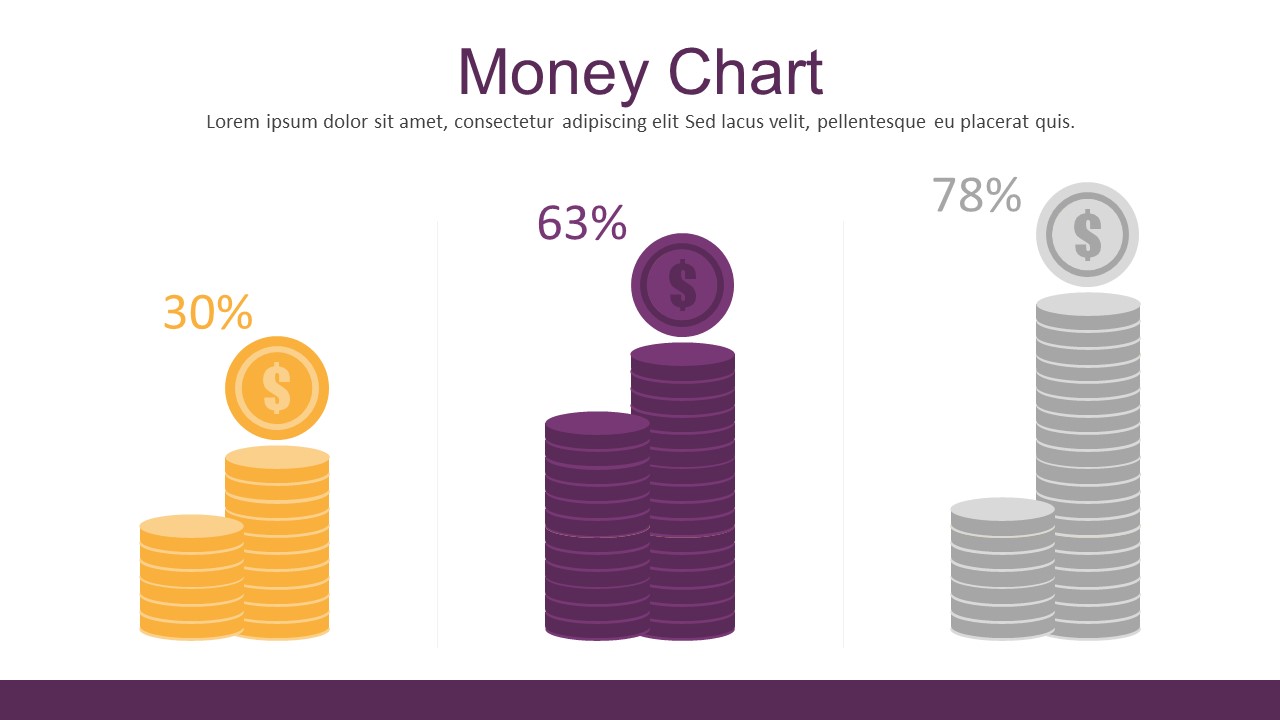
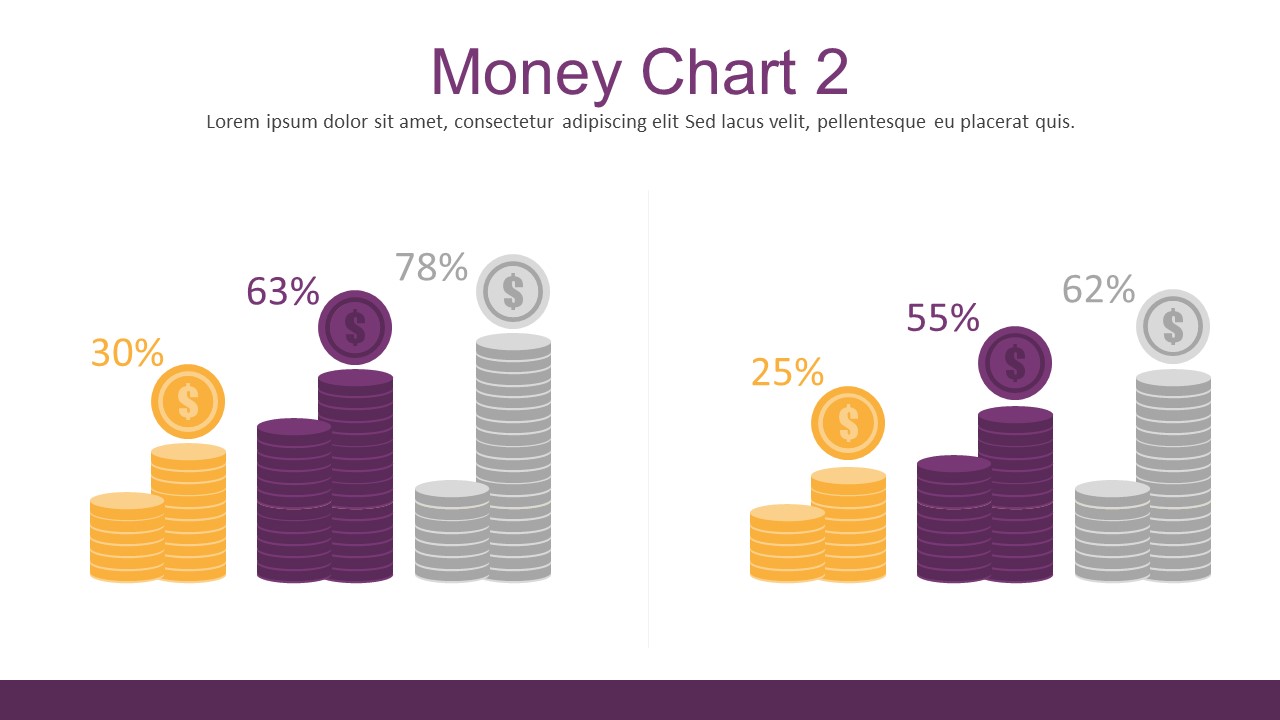
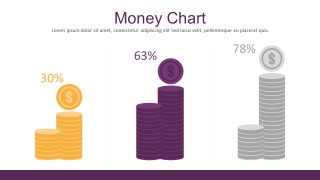
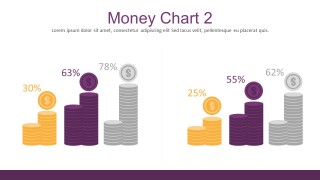
- Money Chart and Cash Flow Statistics
Specifications:
- Flat Infographic Charting Elements for PowerPoint
- Color Scheme: Violet and Gold tones on white background
- Graphics: Flat Designs, Shapes, Infographics, Characters, Charts and Graphs
- Features: Editable PowerPoint Vectors: colors, text, shapes
This infographic for PowerPoint will help you visualize financial information that needs to be quickly understood for decision making or optimization. Additionally, the PowerPoint slides are often utilized in creating complex conclusions over data for information in a simpler manner. Alternatively, you can download other professional PowerPoint templates for presentations combining different infographic elements and creative slide layouts.
This Flat Infographic Charting Elements for PowerPoint will help you visualize business figures and make your business PowerPoint presentation compelling with little to no effort.
What’s inside this template
Example presentation scenarios
- A financial advisor can use the savings blocks and coin-stack money charts to explain practical saving categories to clients in a budgeting session.
- A business analyst can use the line chart and pie chart slides to summarize annual investment trends and category comparisons for managers.
- A startup founder can use the investment timetable slide to explain planned funding activities, timing, and related responsibilities to stakeholders.
- An educator can use the large pie chart and donut chart slides to teach students how to interpret percentages, proportions, and financial distribution.
Features
- 100% editable presentation template
- Compatible with Microsoft PowerPoint and Google Slides
- 16:9 aspect ratio slides
- Scalable vector shapes, icons and illustrations
- AI-Ready for Microsoft Copilot and Claude
- Instant access and download
Frequently asked questions
Q: How should a presenter explain financial data clearly with this template?
A: Start with the savings concept slide to define the financial message before showing numbers. Then use the pie charts for proportional comparisons, the line chart for movement over time, and the money chart slides for relative scale. Keep each chart tied to one takeaway so the audience does not have to interpret every visual at once.
Q: Who is this template best suited for?
A: This template fits finance analysts, advisors, educators, and small business presenters who need to explain savings, investment timing, or money distribution without building a full dashboard. The layouts work best for brief presentations where percentages, timetable rows, and coin-stack visuals support a simple financial story.
Q: Why do the coin stacks, piggy banks, and flat charts help the message?
A: The template uses familiar money metaphors to make abstract percentages easier to scan. Coin stacks communicate relative amount, piggy banks suggest saving behavior, and circular charts show parts of a whole. This reduces explanation time and helps nonfinancial audiences understand the difference between proportion, growth, and timing.

Flat Infographic Charting Elements for PowerPoint
8-slide presentation template with flat money charts, pie charts, and finance infographic elements
Flat Infographic Charting Elements for PowerPoint is an 8-slide finance infographic template for showing savings, investment, and cash flow concepts. Visible layouts include pie charts, a line chart, an investment timetable, and coin-stack money charts. It is built for business, finance, and personal budgeting presentations in Microsoft PowerPoint and Google Slides.
- Category
- Shapes
- Rating


 Loading...
- Aspect ratio
- 16:9, 4:3
- Item ID
- 0052-01
- Colors
 Microsoft PowerPoint
  Microsoft Copilot
  Claude for PowerPoint
 Other formats supported
Subscribe today and get immediate
access to download our PowerPoint templates.