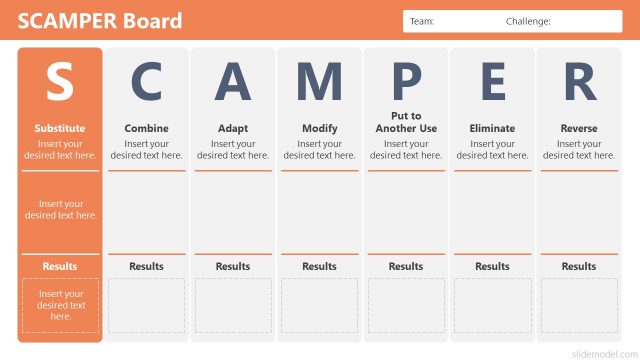
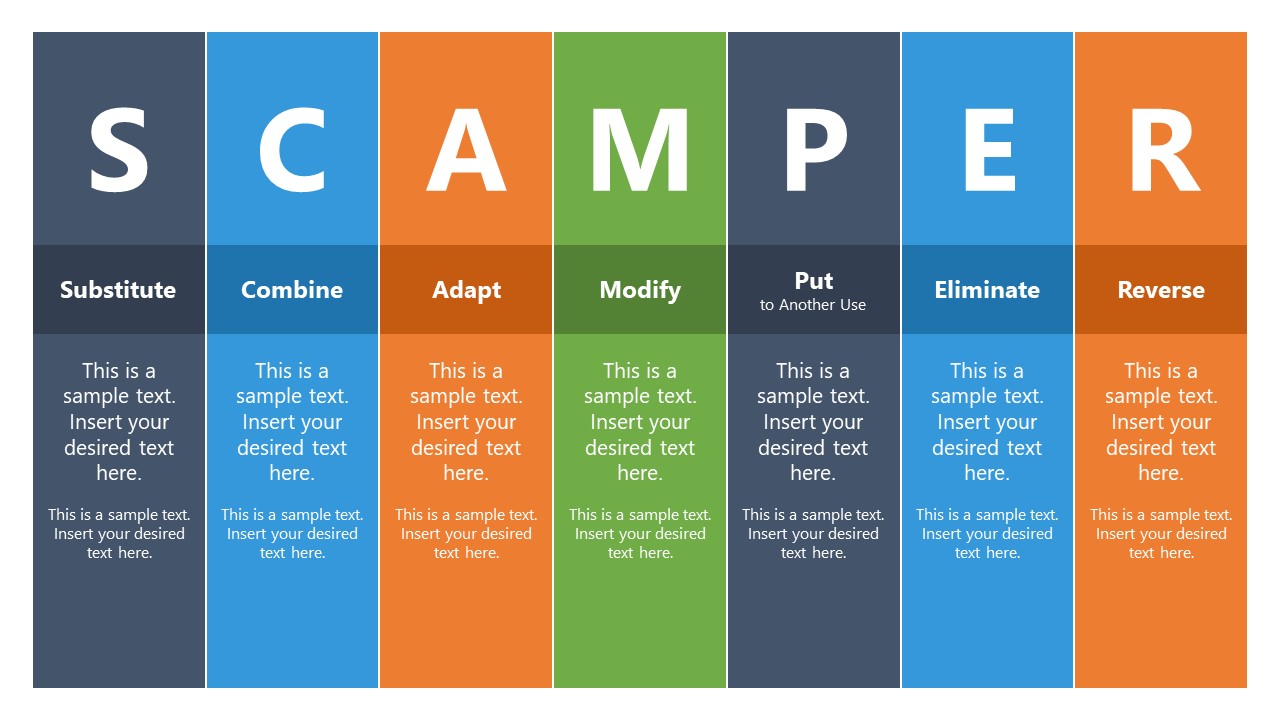
SCAMPER PowerPoint Template presents seven columns to discuss ideas through the SCAMPER method. The SCAMPER is a tool that assists in generating ideas for new products or services. By using SCAMPER in brainstorming sessions or planning meetings, you can get maximum results. SCAMPER helps gather innovative suggestions on how to improve or develop new products, services, or solve problems. It does so by asking thought-provoking questions from seven different perspectives. Users can take advantage of 7 column slides to present these questions that encourage audience interaction.
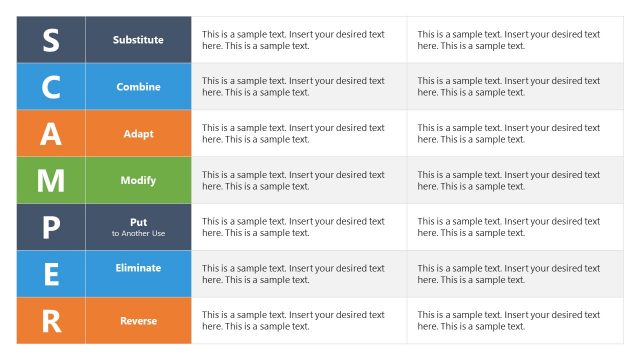
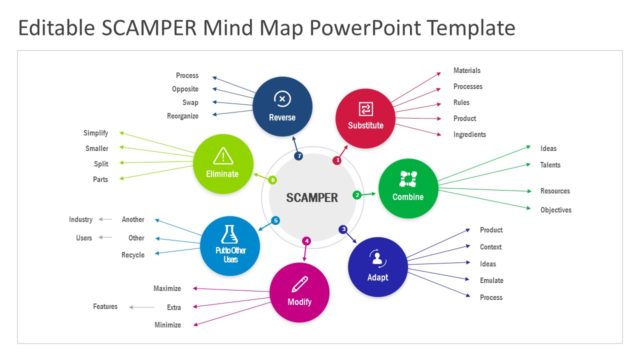
SCAMPER is an acronym for seven thoughts that help innovate an existing situation by looking through different lenses. These seven lenses are: Substitute, Combine, Adapt, Modify, Put to another use, Eliminate, and Reverse. SCAMPER encourages creative thinking, i.e. looking at the problem and goal from a different point of view.
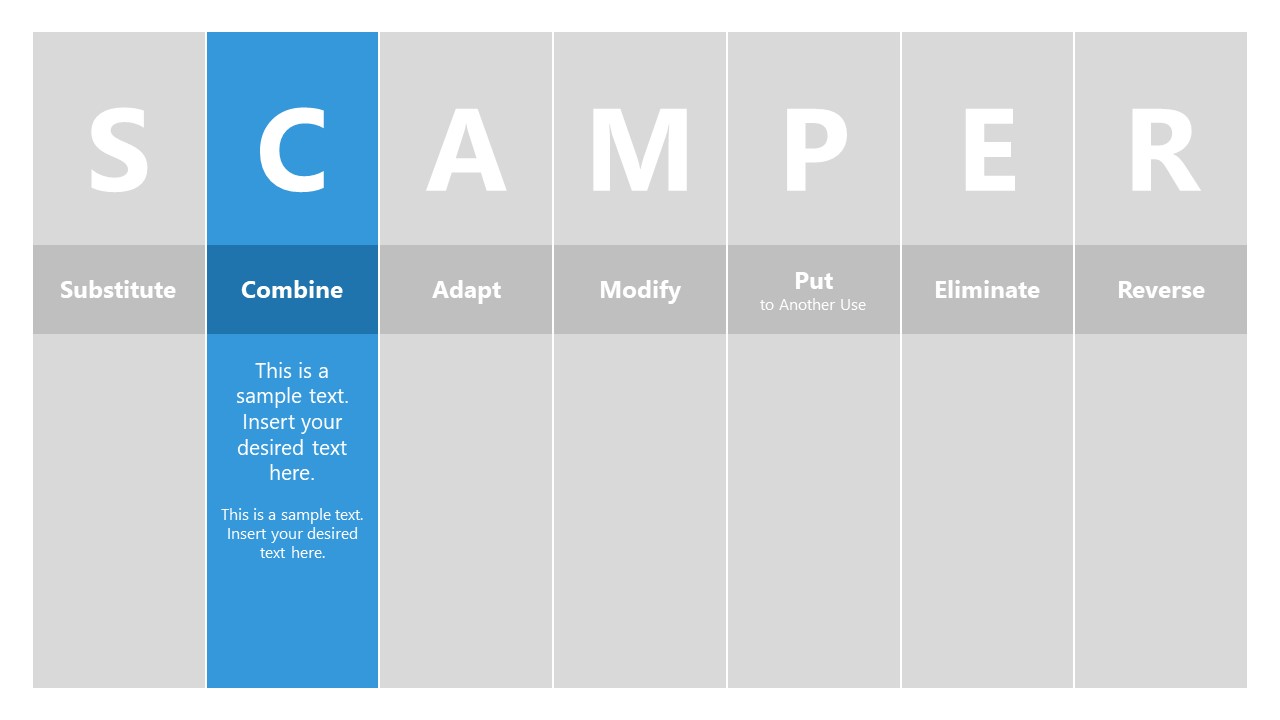
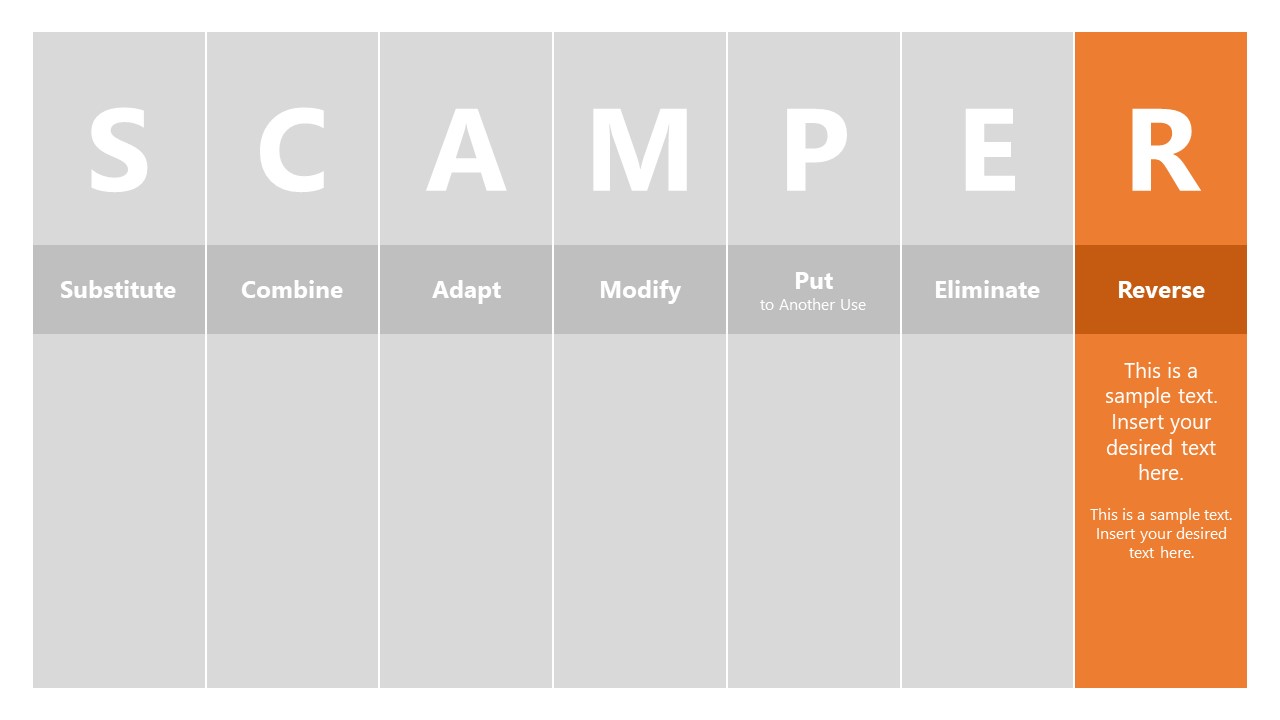
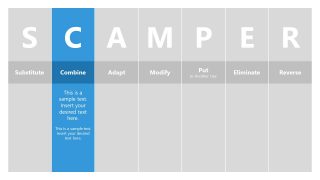
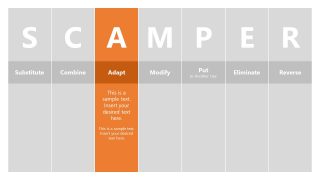
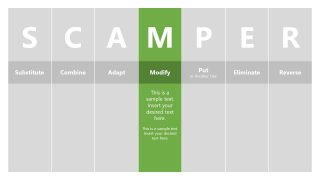
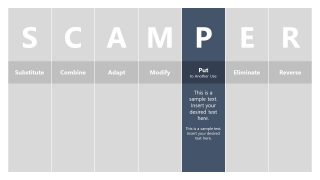
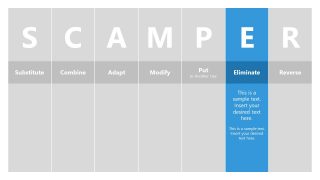
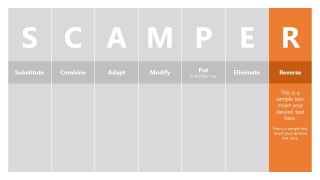
The SCAMPER PowerPoint Template contains slides of multi-color columns that represent each section of the method. There are seven slides to highlight the sections for further discussion during the presentation. The templates of the SCAMPER method are easy to customize by using formatting features of PowerPoint. It is easy to change colors and add graphics related to SCAMPER elements for the product. You can add the slides of SCAMPER templates for PowerPoint in all types of planning and strategy ideation sessions. It is easy to understand and follow for efficient and innovative problem solving.
In the presentation of product quality improvement, the SCAMPER method gives a great starting point for further developments and plans. It helps lay the foundation of what is required and what is an effective long-term solution to get it.
What’s inside this template
Example presentation scenarios
- A product manager can use the seven-column SCAMPER overview to frame a product improvement workshop before asking the team to work through each method lens.
- A strategy consultant can use the highlighted focus-column slides to lead a client through Substitute, Combine, Adapt, and Modify options during a service redesign meeting.
- A business trainer can use the acronym matrix to teach creative thinking methods, then assign groups to develop ideas using the Eliminate and Reverse slides.
- An innovation team lead can use the muted gray background columns and one active color column to keep brainstorming attention on one question category at a time.
Features
- 100% editable presentation template
- Compatible with Microsoft PowerPoint and Google Slides
- 16:9 aspect ratio slides
- Scalable vector shapes, icons and illustrations
- AI-Ready for Microsoft Copilot and Claude
- Instant access and download
Frequently asked questions
Q: How should a facilitator present the SCAMPER method with this template?
A: Start with the full seven-column SCAMPER matrix to define the method and show the complete thinking path. Then move through the focus-column slides one at a time. Ask participants to generate ideas only for the highlighted lens before advancing, so the session stays structured and avoids mixing unrelated suggestions too early.
Q: Who is this template best suited for in a business setting?
A: This template fits product managers, consultants, trainers, and innovation leads who need to guide a group through idea generation for an existing product, service, process, or problem. The layout is especially useful when the audience needs a repeatable method rather than an open-ended brainstorming slide with no prompts.
Q: Why does the design use one highlighted column against muted gray columns?
A: The highlighted-column design turns the SCAMPER acronym into a clear attention cue. Participants still see the full method context, but the active color signals which thinking lens is being discussed. This supports workshop pacing because each slide narrows the audience's focus without hiding the overall sequence.




SCAMPER PowerPoint Template
8-slide SCAMPER presentation template with seven-column method diagrams for ideation and problem solving
The SCAMPER PowerPoint Template is an 8-slide strategy slide template for guided ideation sessions. It includes a full seven-column SCAMPER matrix plus individual focus-column slides for Substitute, Combine, Adapt, Modify, Put to Another Use, Eliminate, and Reverse. It is built for facilitators, product teams, and consultants using Microsoft PowerPoint or Google Slides.
- Category
- Strategy
- Rating

 Loading...
- Aspect ratio
- 16:9
- Item ID
- 21048-01
- Colors
 Microsoft PowerPoint
 Microsoft Copilot
 Claude for PowerPoint
Other formats supported
Subscribe today and get immediate
access to download our PowerPoint templates.