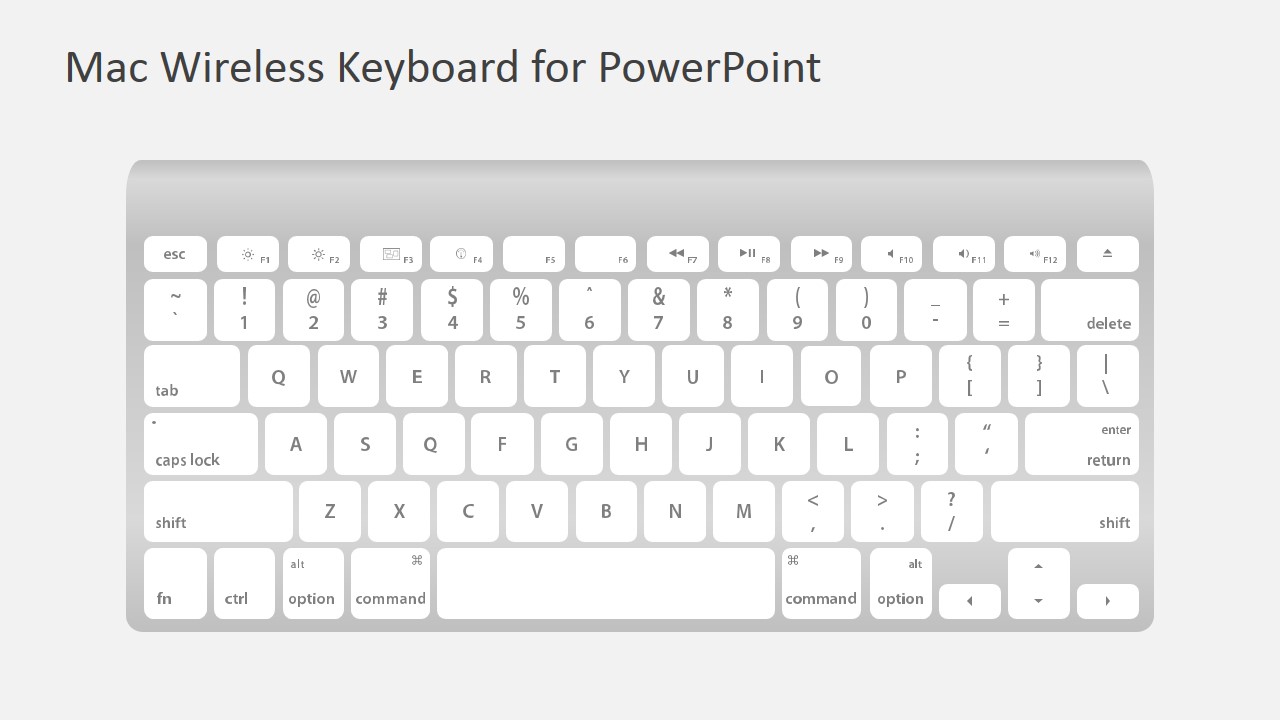
This presentation template contains a Mac Wireless Keyboard created entirely with PowerPoint shapes. The Mac keyboard illustration in PowerPoint can be used to make online tutorials or training material in Microsoft PowerPoint.
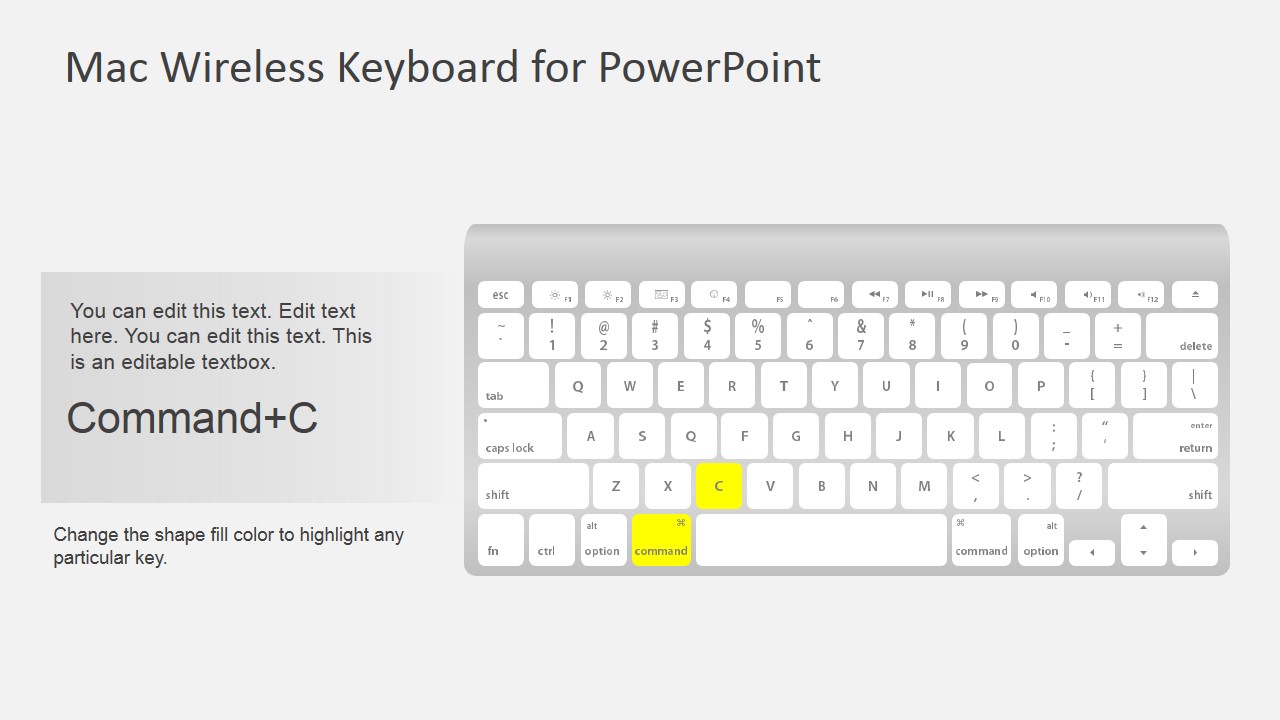
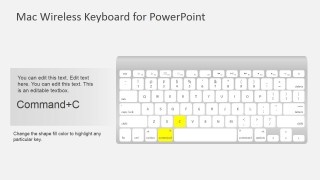
Using the editable Mac keyboard you can easily highlight any desired key by changing the shape fill color and this can be used to describe a program functionality or make compelling tutorials about application features.
What’s inside this template
Example presentation scenarios
- A software trainer can teach keyboard shortcuts by using the highlighted shortcut callout to show the exact keys learners should press.
- A technical writer can create help documentation slides by placing instructions beside the editable keyboard and recoloring the relevant keys.
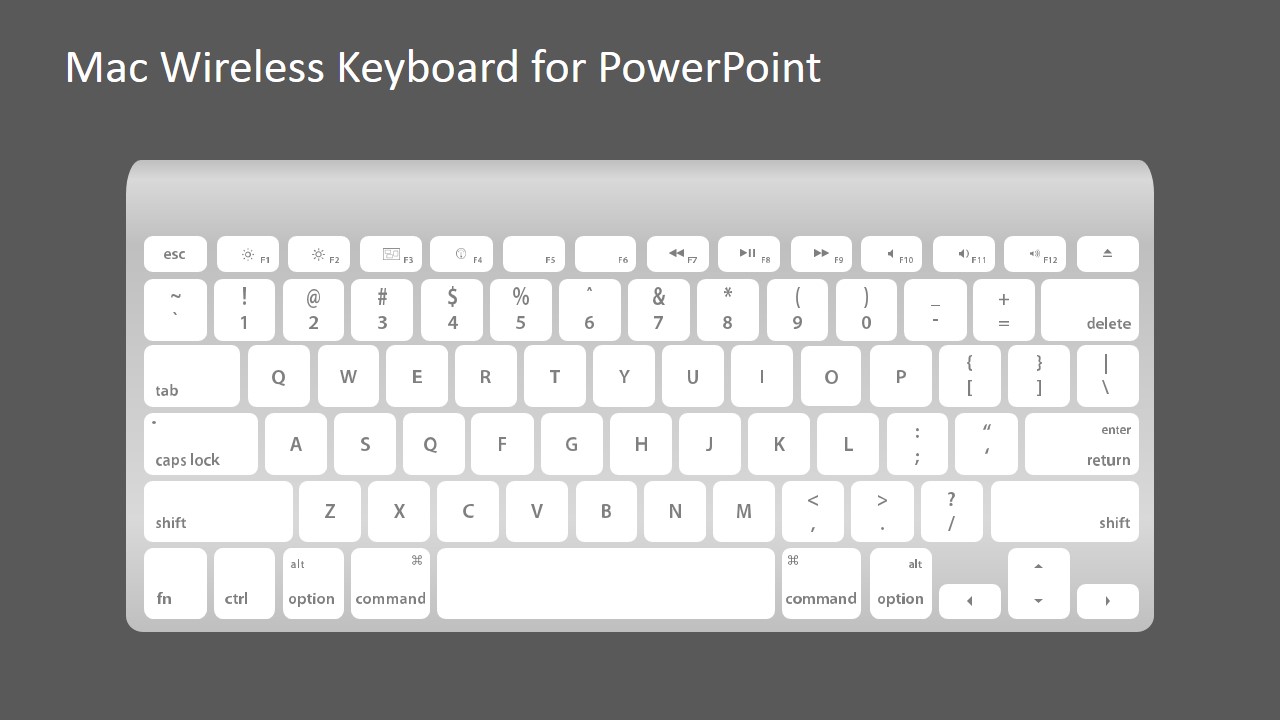
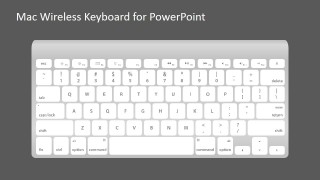
- An IT onboarding presenter can explain common Mac commands by using the full keyboard layout as a visual reference during live instruction.
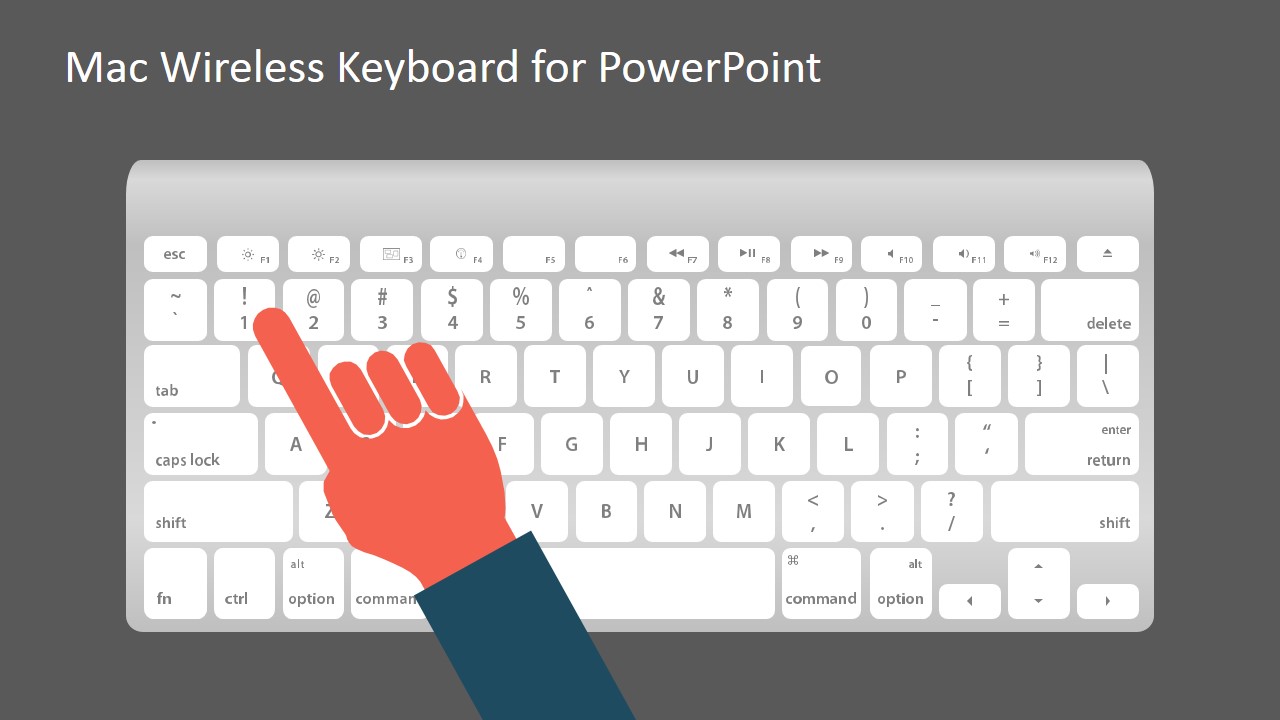
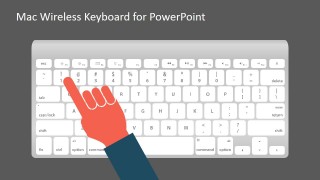
- A product educator can demonstrate application controls by using the hand pointer slide to show the physical action behind a shortcut or command.
Features
- 100% editable presentation template
- Compatible with Microsoft PowerPoint and Google Slides
- 16:9 aspect ratio slides
- Scalable vector shapes, icons and illustrations
- AI-Ready for Microsoft Copilot and Claude
- Instant access and download
Frequently asked questions
Q: How should I structure a shortcut lesson with this keyboard template?
A: Start with the full keyboard slide to orient the audience, then move to the shortcut callout slide and highlight only the keys required for one action. Keep the explanatory text short and action-focused, such as 'Copy selected text.' Use the hand pointer slide when the audience needs to connect the shortcut to a physical key press.
Q: Who is this template best suited for?
A: This template is best for trainers, technical writers, IT support teams, and product educators who need to explain Mac keyboard behavior without relying on screenshots. It works well for onboarding, software tutorials, help center visuals, and customer education where the key combination is more important than the surrounding application interface.
Q: Why does the keyboard visual help communicate software instructions?
A: The keyboard acts as a direct visual metaphor for user action. Instead of asking learners to decode a text-only shortcut, the presenter can color the exact keys and show where the fingers go. The large device illustration reduces ambiguity, while the callout layout separates the command name from the step explanation.
Mac Wireless Keyboard Shapes for PowerPoint
4-slide presentation template with editable Mac keyboard shapes and key highlighting for tutorials
Mac Wireless Keyboard Shapes for PowerPoint is a 4-slide shape template for building keyboard-based instructions. It includes a full Mac wireless keyboard illustration, a shortcut tutorial callout with highlighted keys, a hand pointer overlay, and light or dark keyboard display slides for trainers, technical writers, and product educators in PowerPoint or Google Slides.
- Category
- Shapes
- Rating


 Loading...
- Aspect ratio
- 16:9
- Item ID
- 7169-01
- Colors
 Microsoft PowerPoint
  Microsoft Copilot
  Claude for PowerPoint
 Other formats supported
Subscribe today and get immediate
access to download our PowerPoint templates.