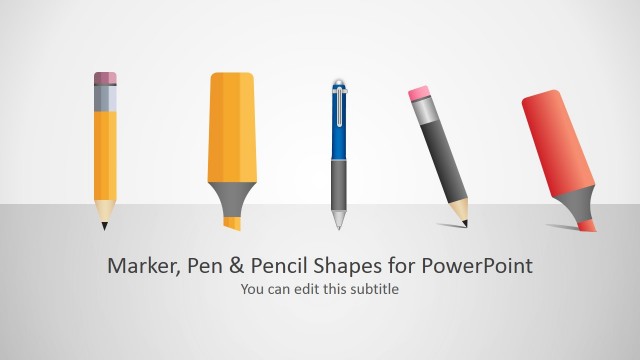
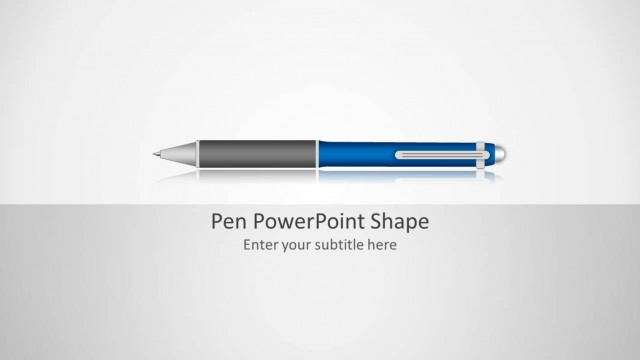
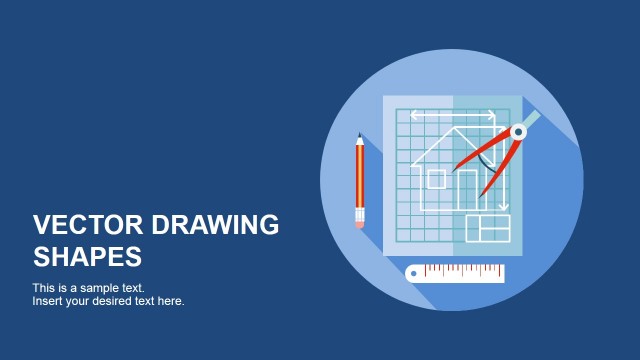
Pencil shapes for PowerPoint can be used in any presentation design as a metaphor of drawing or taking notes. This presentation design contains editable pencil shapes in PowerPoint. Pencil shapes can be ungrouped and customized with any desired colors and styles.
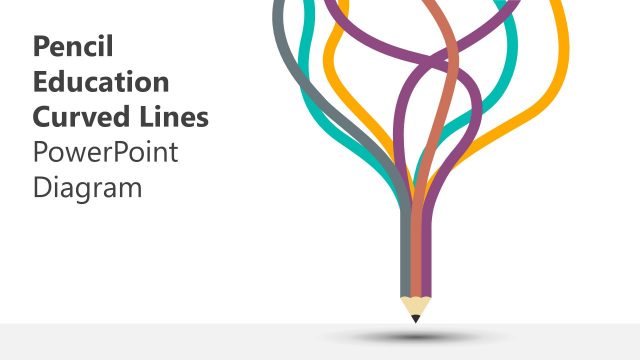
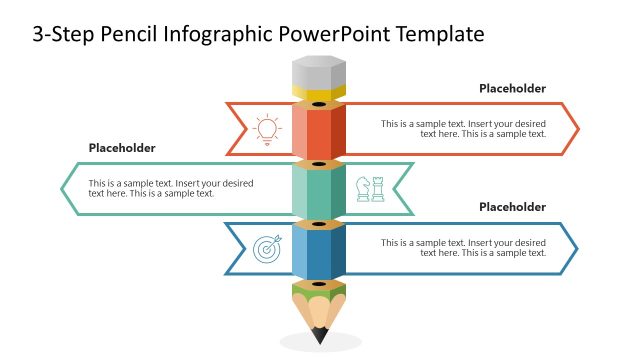
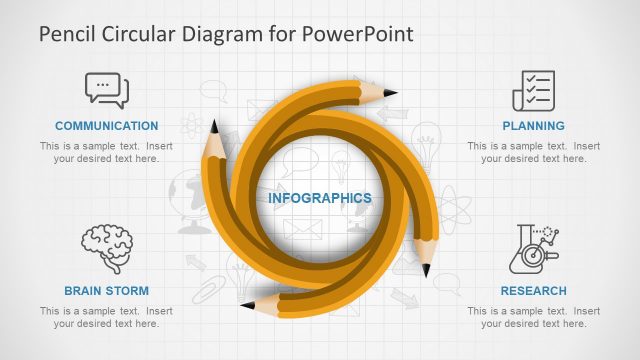
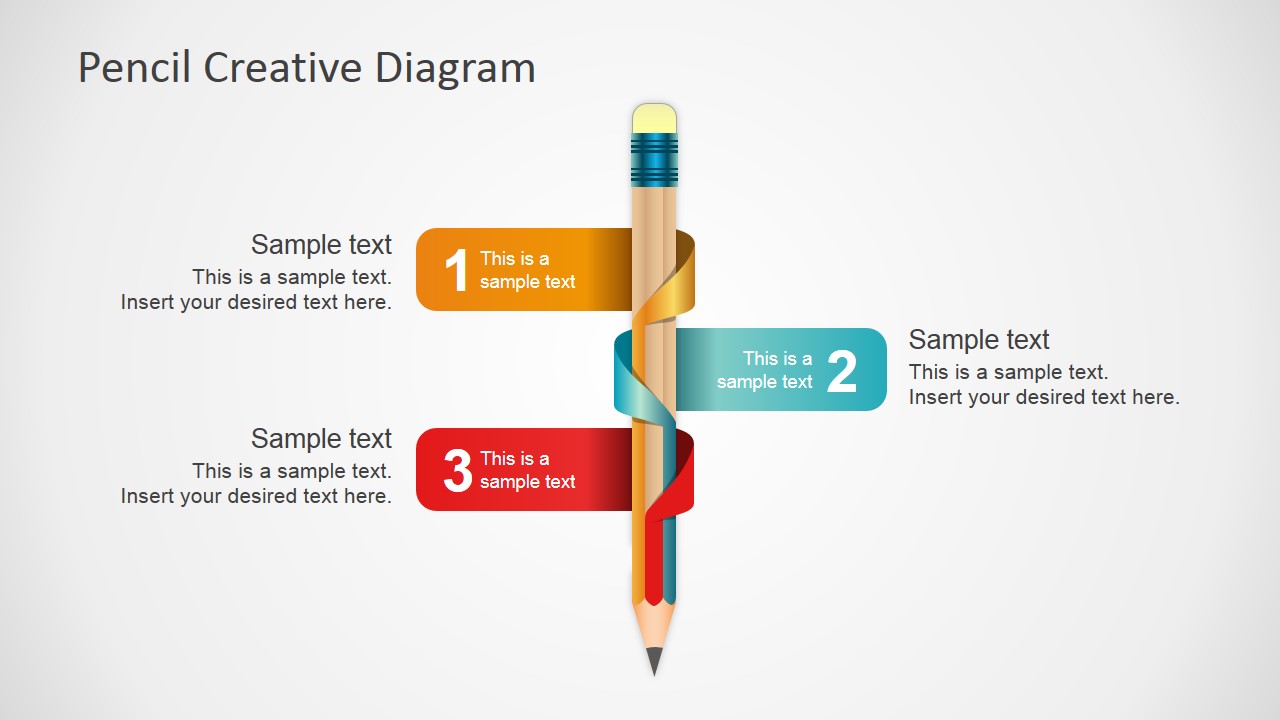
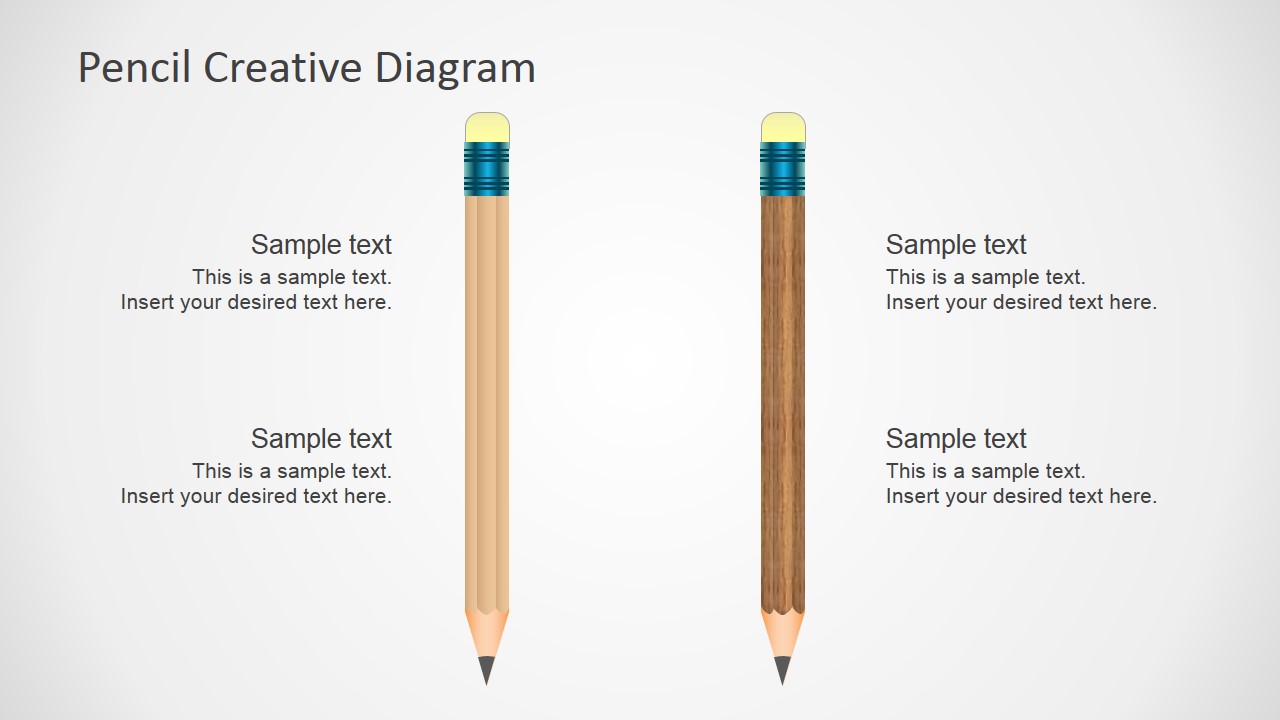
The first slide includes a pencil diagram concept for PowerPoint with three text components that can be edited. The second slide includes two pencil styles.
What’s inside this template
Example presentation scenarios
- A corporate trainer can use the three numbered ribbon callouts to explain note-taking rules, worksheet steps, or writing prompts during a workshop.
- A consultant can place the pencil callout diagram inside a planning deck to label three draft recommendations before showing a final proposal.
- An educator can use the two pencil style slide to introduce classroom writing activities, comparing a standard pencil look with a wood-textured option.
- A creative team lead can use the pencil metaphor to present brainstorming inputs, sketch phases, or review notes while keeping the slide visually simple.
Features
- 100% editable presentation template
- Compatible with Microsoft PowerPoint and Google Slides
- 16:9 aspect ratio slides
- Scalable vector shapes, icons and illustrations
- AI-Ready for Microsoft Copilot and Claude
- Instant access and download
Frequently asked questions
Q: How should I present the pencil callout diagram without making it feel like decoration?
A: Start with the three numbered ribbon labels as the main message structure. Give each label a short action phrase, then use the surrounding text blocks for evidence, instructions, or examples. The pencil should signal drafting, note-taking, or creation, while the numbered callouts keep the audience focused on sequence and priority.
Q: When is this template a better choice than a standard bullet slide?
A: This template works best when the topic benefits from a writing or drafting cue, such as training notes, classroom instructions, brainstorming inputs, or early proposal ideas. The pencil graphic gives the audience an immediate context for work in progress, while the three callouts reduce a list to the most important points.
Q: Why does the pencil metaphor improve communication in this layout?
A: A pencil suggests creation, revision, and hands-on thinking, so it fits messages about sketches, notes, drafts, or learning activities. The vertical pencil acts as a visual anchor, and the ribbon callouts wrap around it like marked steps. This makes the slide easier to scan than scattered text boxes.
Pencil PowerPoint Shapes
2-slide presentation template with pencil shapes, note-taking callouts, and drawing metaphor layouts
Pencil PowerPoint Shapes is a 2-slide presentation template for Microsoft PowerPoint and Google Slides. It contains an editable pencil callout diagram with three numbered ribbon labels, plus a second slide with two pencil style illustrations and surrounding text blocks. It fits educators, trainers, consultants, and teams explaining notes, drafting, or creative work.
- Category
- Shapes
- Rating


 Loading...
- Aspect ratio
- 16:9
- Item ID
- 2049-01
- Colors
 Microsoft PowerPoint
  Microsoft Copilot
  Claude for PowerPoint
 Other formats supported
Subscribe today and get immediate
access to download our PowerPoint templates.