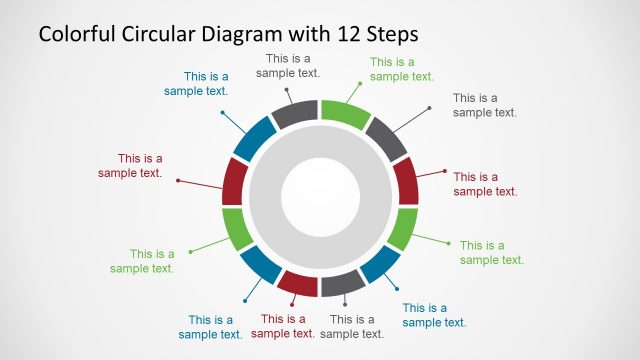
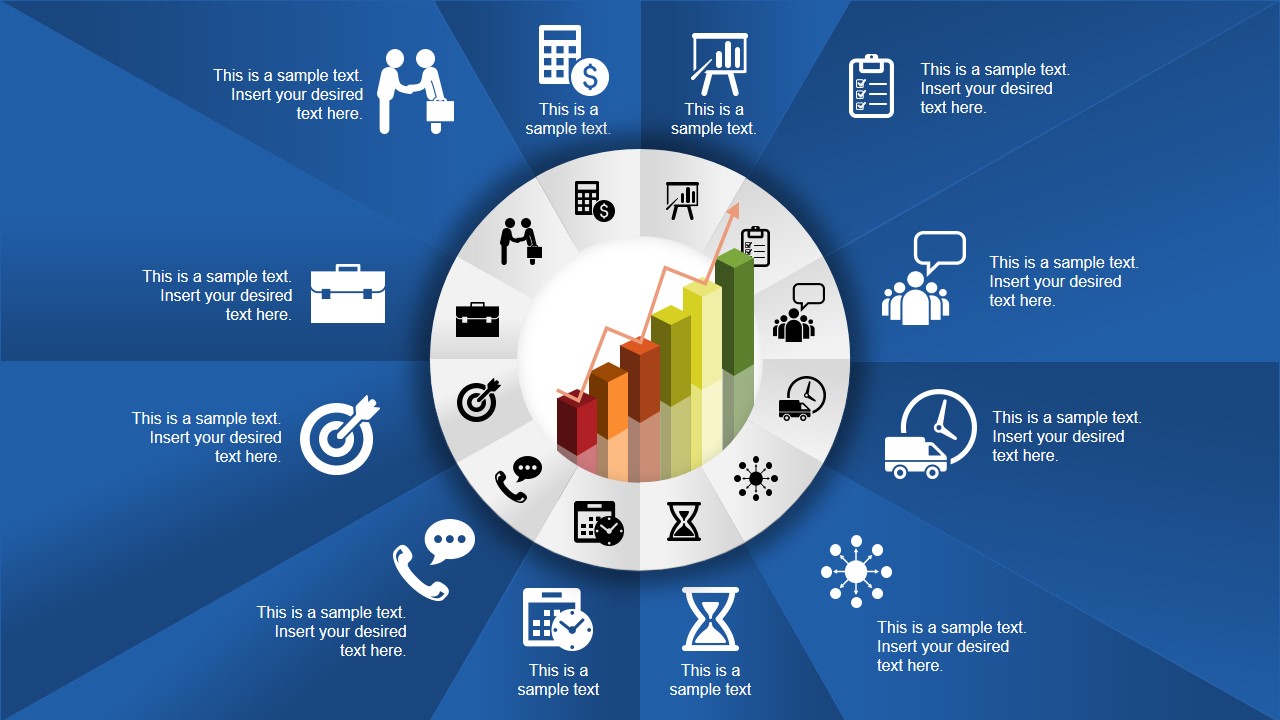
Creative Circular Diagram for PowerPoint with 12 Steps contains a modern business diagram design for Microsoft PowerPoint presentations. This circular diagram was created with shapes and includes presentation icons that you can easily customize to match your presentation needs. Alternatively, check our collection of 12 steps PowerPoint templates.
What’s inside this template
Example presentation scenarios
- A project manager can present a 12-stage delivery workflow by opening with the overview circle and then using the single-step highlight slides to explain each project phase.
- A consultant can describe a business transformation framework by assigning each icon to a workstream and using the green wedge to keep attention on the current topic.
- A trainer can introduce a multi-module learning path by treating the circular icon ring as the course map and the individual spotlight slides as module introductions.
- A sales presenter can explain a service engagement model by replacing the sample text with client-facing actions and using the central growth bar illustration to reinforce progress.
Features
- 100% editable presentation template
- Compatible with Microsoft PowerPoint and Google Slides
- 16:9 aspect ratio slides
- Scalable vector shapes, icons and illustrations
- AI-Ready for Microsoft Copilot and Claude
- Instant access and download
Frequently asked questions
Q: How should a presenter walk through the 12-step circular diagram without overwhelming the audience?
A: Start with slide 1 as the map, naming only the overall framework and the categories of icons. Then move through the single-step highlight slides, giving one idea per slide. Keep the central bar illustration consistent as the visual anchor, and use the green wedge to show exactly where the audience is in the process.
Q: What kind of business message fits this template best?
A: This template fits presenters who need to explain a structured model with many parts, such as a 12-step operating process, service roadmap, training path, or consulting framework. It works best when the steps are related around a shared goal rather than when they need a strict time scale or detailed numeric comparison.
Q: Why use a circular diagram and rotating highlight wedge for a 12-step process?
A: The circular form shows that all steps belong to one system, while the green wedge creates focus on one point in the ring. This prevents the audience from reading all 12 labels at once. The repeated layout also lowers cognitive load because only the highlighted icon and text change from slide to slide.














Creative Circular Diagram for PowerPoint with 12 Steps
13-slide presentation template for 12-step circular process diagrams with icons and growth chart visuals
Creative Circular Diagram for PowerPoint with 12 Steps is a 13-slide diagram template for presenting a 12-step cycle or process. It includes an overview circular icon ring, a central growth bar illustration, and 12 single-step highlight slides. It is intended for managers, consultants, and trainers using Microsoft PowerPoint or Google Slides.
- Category
- Diagrams
- Rating


 Loading...
- Aspect ratio
- 16:9, 4:3
- Item ID
- 7002-01
- Colors
 Microsoft PowerPoint
  Microsoft Copilot
  Claude for PowerPoint
 Other formats supported
Subscribe today and get immediate
access to download our PowerPoint templates.