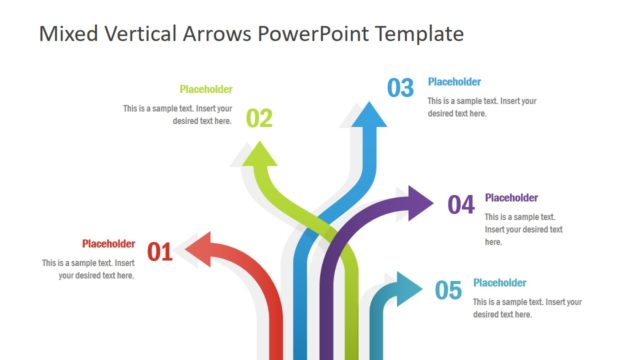
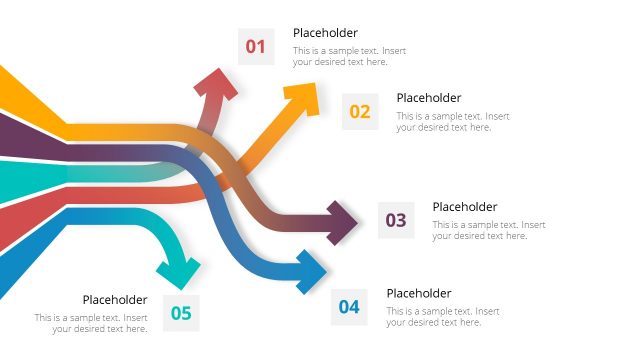
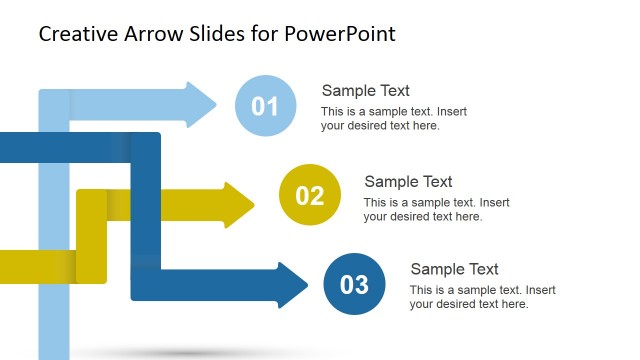
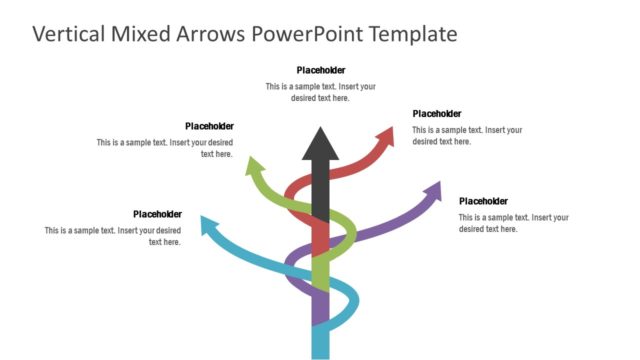
Five Colorful Arrows Template for PowerPoint is a presentation template containing useful arrow diagrams that you can use in your PowerPoint slides.
The arrow themed layouts have been professionally crafted to provide the utility to drag the slide elements to create custom diagrams. You can also change the color of the arrows and use sample layouts for making sequential slides such as project timelines or comparison slides.
What’s inside this template
Example presentation scenarios
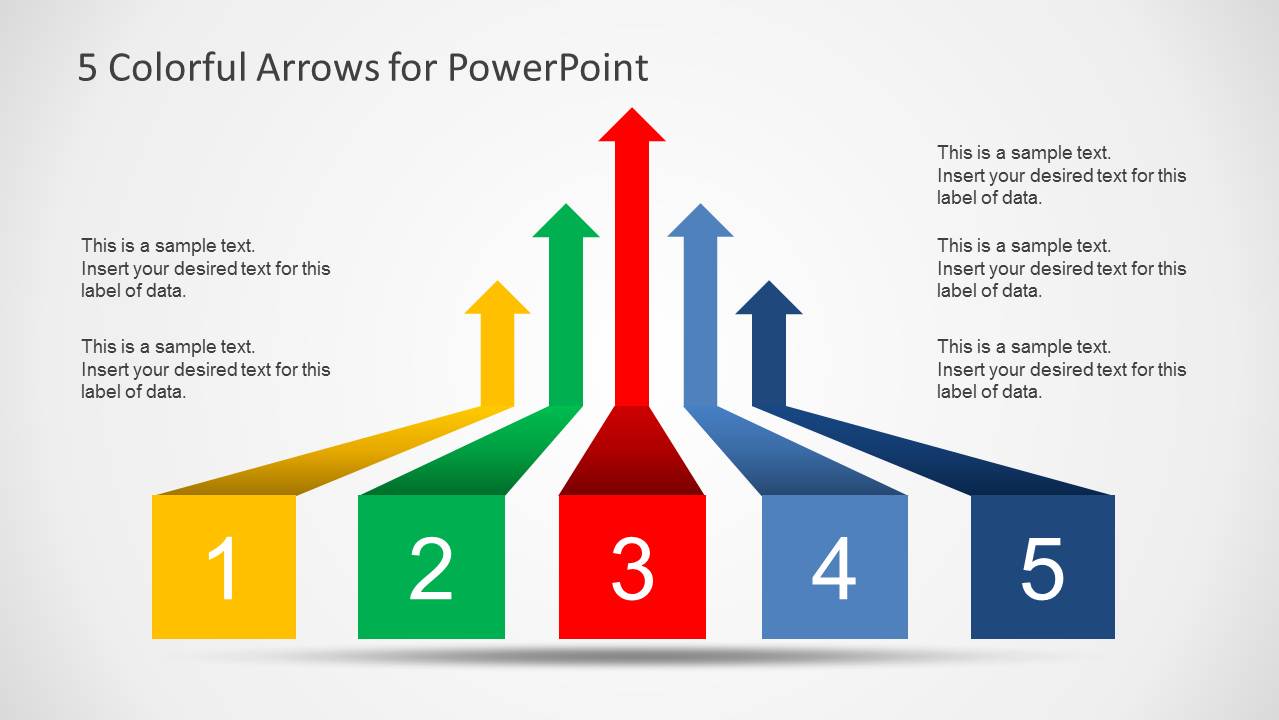
- A project manager can present a five-phase delivery plan using the central process arrow diagram to show how each phase moves toward a shared outcome.
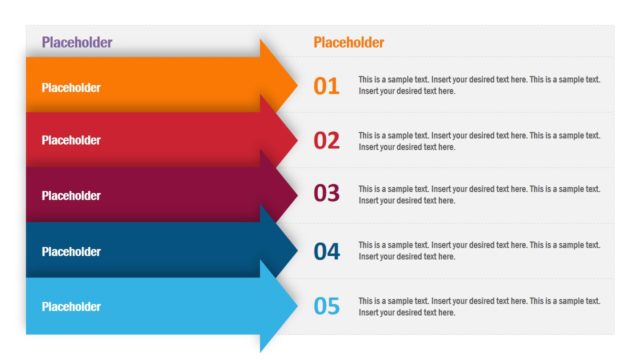
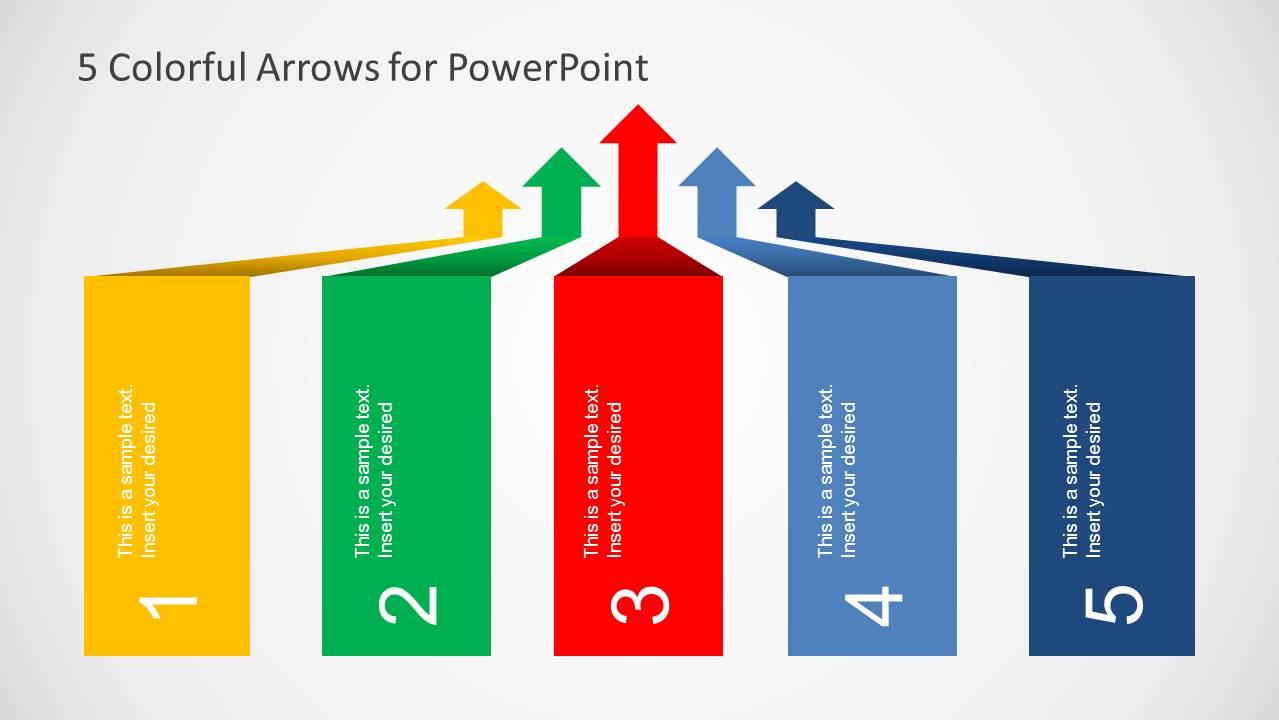
- A consultant can compare five strategic options with the vertical column layout, assigning one option to each color-coded column and using the height and arrow direction to imply progress.
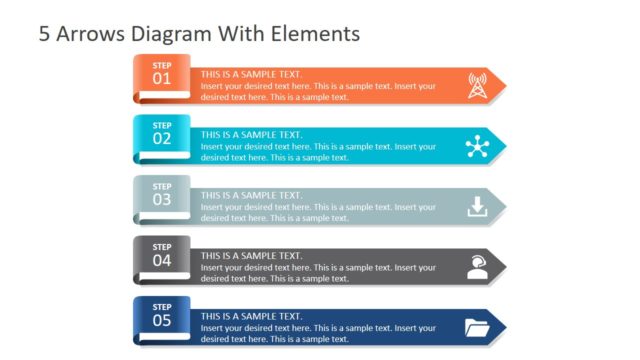
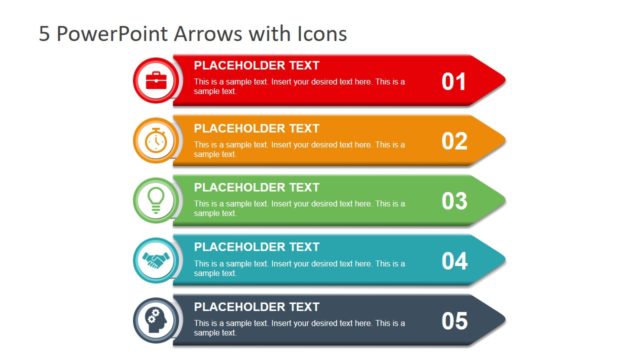
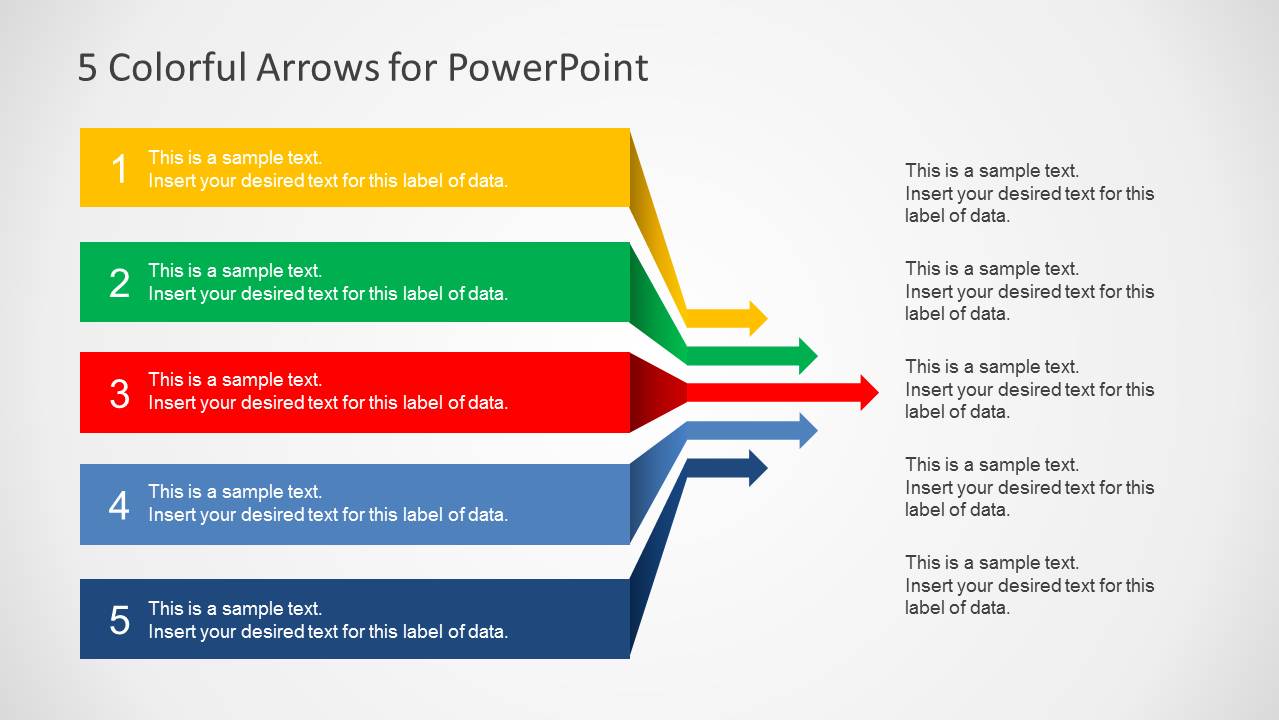
- An operations leader can explain a workflow handoff with the horizontal arrow list, placing each department or action step in a numbered band and adding notes at the side.
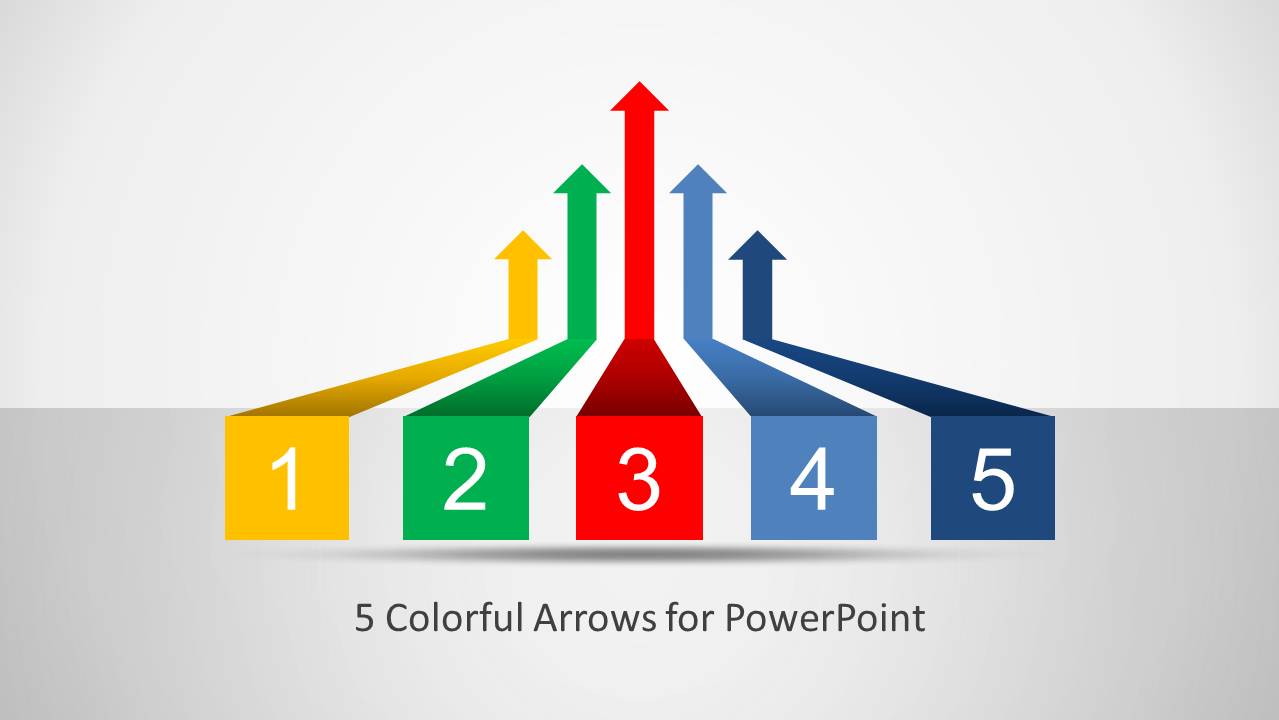
- A trainer can introduce a five-part lesson structure with the cover slide, then use the process and column variations to repeat the same sequence in different levels of detail.
Features
- 100% editable presentation template
- Compatible with Microsoft PowerPoint and Google Slides
- Scalable vector shapes, icons and illustrations
- AI-Ready for Microsoft Copilot and Claude
- Instant access and download
Frequently asked questions
Q: How should I present a message clearly with these five arrows?
A: Assign one idea to each arrow and keep the labels parallel, such as five phases, five priorities, or five options. Use Slide 2 when the audience needs a central process view, then move to Slide 3 or Slide 4 when each step needs more explanation. Avoid mixing sequence, ranking, and categories in the same slide.
Q: Who is this template best suited for in a business presentation?
A: This template works best for presenters who need to organize a short, five-part business message without building a full report deck. Project managers, consultants, trainers, and operations leads can use it to frame phases, decisions, workstreams, or improvement steps where the audience should remember the order and relationship between items.
Q: Why use arrow shapes instead of simple boxes or bullets?
A: The arrow metaphor signals direction, movement, and progression, so it helps the audience understand that the five items are connected rather than isolated. The shared baseline and upward arrowheads create a visual path, while the distinct colors make each step easier to identify during discussion and Q&A.
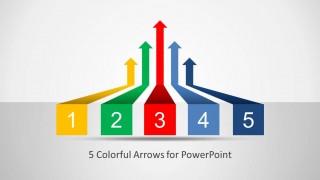
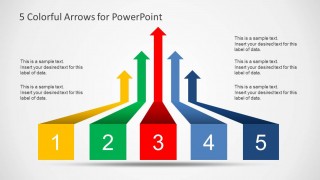
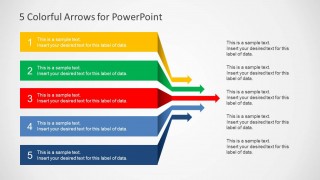
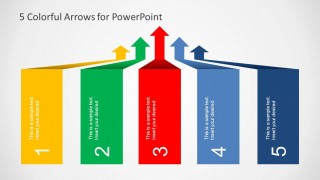
5 Colorful Arrows Template for PowerPoint
4-slide PowerPoint presentation template with five-step arrow diagrams for processes and comparisons
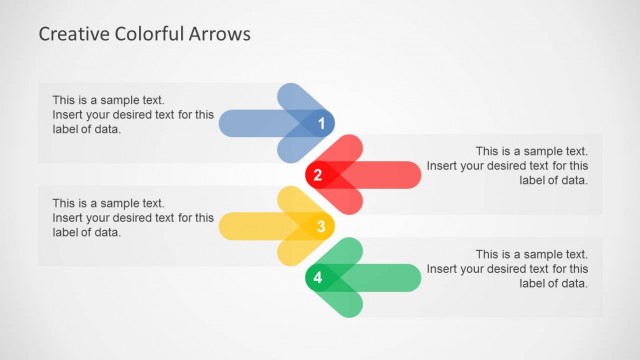
The 5 Colorful Arrows Template for PowerPoint is a 4-slide diagram template for showing five-step sequences. It includes a numbered arrow cover, a central five-arrow process diagram with side notes, a horizontal arrow list, and a vertical five-column comparison layout. It fits presenters explaining priorities, stages, options, or workflow paths in PowerPoint.


 Loading...
 Microsoft PowerPoint
  Microsoft Copilot
  Claude for PowerPoint
 Other formats supported
Subscribe today and get immediate
access to download our PowerPoint templates.