Building a presentation from a blank slide used to mean two separate jobs: writing the content and designing the layout. Copilot in PowerPoint is designed to close the gap on the first job, turning a rough outline into slide text. Pairing it with a professional template handles the second job, giving that content a consistent, polished structure to land in.
The steps below walk through how to combine the two with the fewest surprises, followed by a closer look at how Copilot’s underlying models work and how to choose the one that best fits your deck.
What PowerPoint Copilot Does Well, and Where a Template Fills the Gap
PowerPoint Copilot works by reading a prompt, an uploaded document, a screenshot, or even a PDF file, and generating slide content that follows a rough narrative order. Ask it to build a five-slide project update from a Word document, and it will extract headings, condense paragraphs into bullet points, and suggest a title for each slide. This is a genuinely useful approach that LLMs have improved over the past few months, and it’s a striking contrast to staring at a blank canvas and not knowing what to do.
The area where Copilot, like most LLMs, struggles is visual consistency. Auto-generated designs are pulled from a small set of built-in themes, so two decks built from different prompts can end up looking nearly identical, or we can see shifts in style from one slide to the next if restrictions in prompting aren’t set. Font sizes can vary from one slide to another, and icon styles aren’t always paired in the same aesthetic. This is the reason why so many professionals opt to use Copilot as a writing assistant, a content and productivity aid, and design considered a different entity. A PowerPoint template supplies exactly what’s missing: fixed grids, coordinated color palettes, and a designer’s vision, held together by PowerPoint Slide Master. This keeps every section looking like it belongs to the same document, no matter how much content Copilot pours into it.
Now the question is: how does Copilot interact with the template? In our experience, Copilot primarily looks at the sample slides in a template and only falls back to the Slide Master when a template doesn’t include enough. It reads the position and size of placeholder text, which helps decide what content belongs where, but doesn’t trigger instructions if it encounters “Insert text here” on a slide.
Where Copilot Falls Short in Practice
Copilot in PowerPoint has earned real enthusiasm for its promise to boost productivity, and much of that is well deserved. That said, it’s worth flagging an area where the experience doesn’t always meet expectations. There are documented cases where Copilot appears to complete a slide generation request without producing usable content, sometimes returning nothing at all or a layout that doesn’t quite come together as intended. Microsoft points to factors like service outages or network conditions as possible causes, but compared to other providers in this space, such as Anthropic Claude, there’s currently less visibility into what actually happened when it does.
Layout compliance is the second recurring problem, and the one most directly tied to combining Copilot with a template. Since Copilot generates the content independently of the Slide Master, it applies its own default layout logic, then attempts, and often fails, to fit that content inside your template’s placeholders. In practice, this shows up as text overlapping a chart, text looking far too big for the placeholder area, or a logo nudged out of position.
Accuracy is a third concern worth flagging directly, especially for a data-heavy deck like a financial report. Copilot is a language model, and when it needs a specific figure, it generates one that reads as plausible in context rather than retrieving or verifying it from your source material. Any number or claim that appears on a Copilot-drafted slide should be checked in full against your actual data before it goes near a client or a board, since a quick spot check is unlikely to catch a fabricated figure that otherwise reads fine. Microsoft has acknowledged this pattern in its own guidance, describing some AI-generated output as “usefully wrong,” and has since added a second model that reviews the first model’s output before it reaches the user, specifically to catch this kind of error. That review step is also one of the more plausible reasons generation has felt slower for many users since its rollout, which the next section covers in more detail.
Finally, Copilot starts from zero context on every run. It has no memory of your organization, last quarter’s deck, or the tone your business actually uses, and the roughly 2,000-character prompt limit makes it difficult to supply enough of that context in a single request. This is manageable for a single slide or a short deck, which is what the workflow in this article is built around, but it is a real constraint worth knowing about going in rather than discovering midway through a deadline.
Why Copilot in PowerPoint Can Be Slow
This topic deserves its own explanation because users often get frustrated or blame a slow internet connection (even though a poor connection tends to make things worse). A few structural reasons stand out.
Copilot’s conversation is effectively stateless behind the scenes. The full history of your session, every prompt and every piece of slide content already generated, gets passed back to the model again with each new request, rather than the model simply remembering what came before on its own. As a deck grows longer or a session runs longer, each additional request carries more accumulated context with it, and processing time grows along with it. A quick edit on slide two of a fresh presentation and the same kind of request made an hour into a long editing session are not actually the same amount of work for the system, even though they look identical from where you’re sitting.
Since Q2 2026, some Copilot actions also run through a second model that reviews the first model’s draft before showing it to you, specifically to catch the fabricated statistics and unsupported claims described in the previous section. Running two models in sequence for a single request is inherently slower than running one, and this review pass is one of the more plausible reasons generation has felt slower for many users since that change rolled out, even though it should also mean fewer outright wrong numbers reaching the slide.
Design generation adds its own overhead on top of text generation. When Copilot suggests a layout or visual treatment for a slide, it isn’t simply picking one option. It generates and internally compares multiple candidate designs before presenting the one it settles on, which takes measurably longer than a plain-text response. Add ordinary factors on top of that: an outdated PowerPoint build, a large uploaded source file, a congested network, or heavy demand across Microsoft’s servers at a given moment, and a single slide can reasonably take anywhere from a few seconds to several minutes. Ten minutes for one slide sits at the far end of that range, but it is a documented experience reported by other users, not an isolated glitch.
Choosing a Model: Auto, ChatGPT, or Claude
As part of a worldwide rollout completed in May 2026, Copilot’s editing pane in PowerPoint added a model switcher, so Auto is no longer the only option. Opening the Copilot pane and checking the model switcher in the chat box, or the Settings menu if it has moved there, shows a dropdown with three choices: Auto, ChatGPT, and Claude (Anthropic’s model).
This is not a free upgrade available to every Copilot user. Microsoft’s own documentation states that using the model switcher requires a commercial Microsoft 365 Copilot subscription, and the feature was rolled out specifically under Microsoft 365 Copilot Premium licensing, which sits above the standard Copilot add-on many organizations already have. Claude adds a second condition: a tenant administrator must explicitly enable Anthropic as a subprocessor in the Microsoft 365 admin center before Claude appears as an option at all, so an individual user cannot simply select it if their organization hasn’t enabled that setting.
Auto is Microsoft’s own routing choice. It picks whichever model it judges best for a given request without asking you, and it is what Copilot reverts to automatically every time you close and reopen PowerPoint, since a manual model choice only holds for the active session. Microsoft’s own guidance is candid that different models can produce different results from an identical prompt, and it recommends trying a different model if one is not giving you what you need, rather than treating Auto’s pick as final.
Microsoft has not published task-specific guidance for when ChatGPT or Claude suits a PowerPoint edit better than the other. The more detailed model-selection advice available elsewhere in Microsoft 365 Copilot focuses on reasoning depth for chat and research tasks, not on slide generation specifically. Treat this as a starting point worth testing against your own deck rather than a settled rule, since Microsoft’s own position is that results vary by prompt and by model.
How to Create a Presentation with Copilot and SlideModel Templates Step-by-Step
Step 1: Pick a Template That Matches Your Presentation’s Purpose
Start with the template, not the prompt. Copilot will adapt to almost any layout you give it, but it can’t invent a structure that doesn’t exist. Before opening Copilot, decide what kind of presentation you’re building: a sales pitch, a quarterly business review, a training deck, or an academic defense; each calls for different slide types, from comparison tables to process diagrams to timelines.
Once you know the presentation’s purpose, you can browse a curated set of PowerPoint templates rather than what PowerPoint’s gallery or Designer may suggest. Look for a template that includes more slide types than you think you’ll need. Copilot works by mapping content into existing placeholders, so a template with only title-and-bullet slides will force every idea into that same shape, even when a chart or a two-column comparison would communicate it better.
Step 2: Draft Your Outline and Talking Points
With the template’s structure in mind, you can start from several points:
- Talk through the points with Copilot, describing in detail what you need.
- Feed Copilot a document file, in Word or PDF format, that you will reference to create your presentation.
- Curate information from an existing document, and feed it to Copilot as text slide by slide.
Copilot performs noticeably better when it has something concrete to work with rather than a vague topic. Uploading a report, a set of meeting notes, or even a previous version of the deck gives it real material to condense instead of generic filler. Yet, it’s worth flagging that a PDF document tends to behave worse than a Word file, as Copilot fails to read documents with multi-column layouts, scanned pages, or password protection. A plain text file works, but it strips out the headings and formatting cues Copilot otherwise uses to sense where one section ends and the next begins, so it suits a document you’ve already condensed into a clear outline better than a long, unstructured report. For table slides and charts or graphs based on written information, it’s best to use screenshots to preserve the structure.
Step 3: Ask for One Section at a Time Instead of the Whole Deck
It’s tempting to hand Copilot a single instruction covering the entire presentation and expect a finished deck back. In practice, that request tends to produce a thinner version of every section rather than a strong one. Copilot’s prompt box has a character limit of roughly 2,000, which leaves little room for the context a real business presentation needs once you’re describing an audience, a tone, several data points, and a desired structure all in the same message. Source material has a ceiling, too: Copilot can reliably summarize or draw from documents up to about 40,000 words, and results become noticeably less predictable beyond that point.
A steadier approach treats the deck as a series of smaller, supported actions rather than one large transformation. Review the entire template to see what works and what may not. Then, ask Copilot to curate the template based on this prompt:
I need to create [topic] for my company, [company name]. Check this presentation template and suggest which slides I should keep.
This will force Copilot to analyze the deck and suggest a leaner structure. The cut can be made Conservatively (meaning only the extra slides will be cut) or Aggressively (it wipes everything that doesn’t consider relevant to your presentation topic). This is a point at which we ought to be EXTREMELY CAUTIOUS, as deleted slides aren’t as easy to recover, and it would imply starting all over.
If your branding doesn’t meet the color palette used by the template, ask Copilot to replace it by using this prompt:
Change the color palette used in this template to match the following colors: [color 1 in hex] as main, [color 2 in hex] as secondary, [color 3 in hex] as accent. Use [color in hex] as background color.
Step 4: Working Slide By Slide
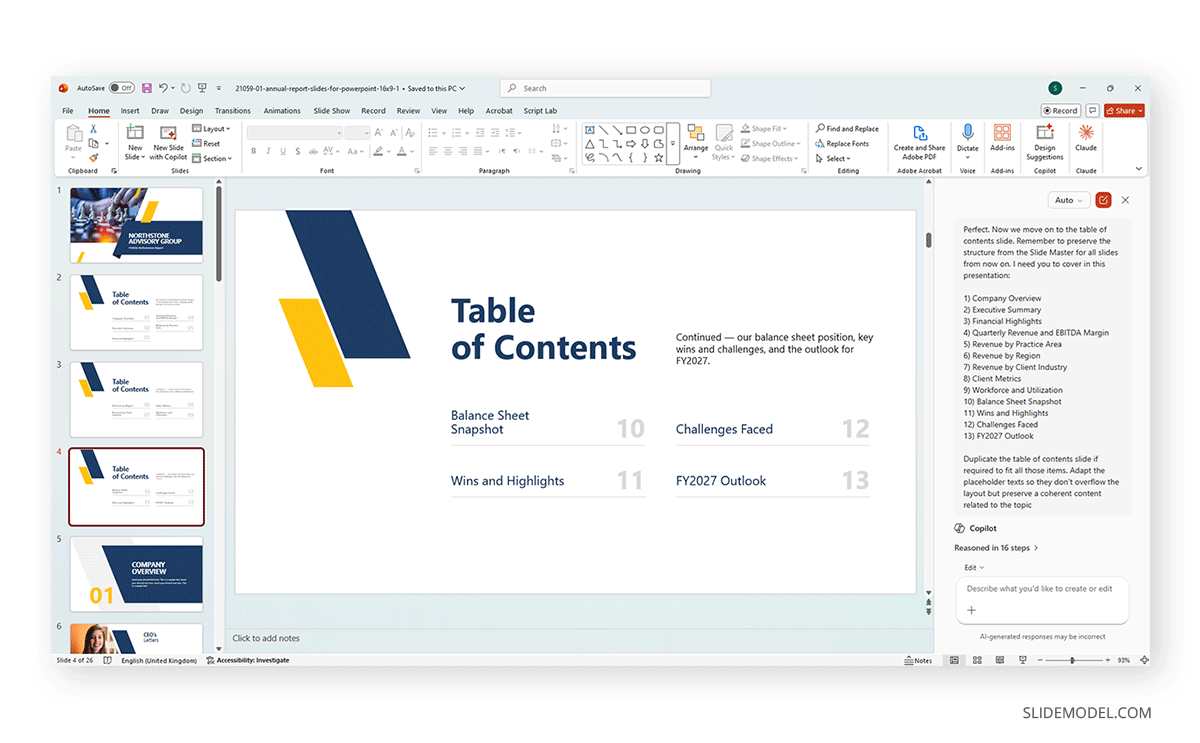
After trimming the presentation template, start to ask Copilot to populate the content slide by slide. For instance, a Table of Contents slide can be easily edited by providing the full list of contents the talk needs to cover based on the presentation outline, then instructing Copilot to duplicate the slide as many times as required if the placeholder areas aren’t sufficient to cover it all. The prompt looks like this:
Populate the Table of Contents slide. Remember to preserve the structure from the Slide Master. I need you to cover in this presentation: [list of slides to cover]. Duplicate the table of contents slide if required to fit all those elements. Adapt the placeholder text so it doesn’t overflow the layout but remains coherent with the topic.
And the result is, after a few minutes, a fully populated table of contents slide that spans three slides in this presentation example.
Step 5: Harnessing Slide Master
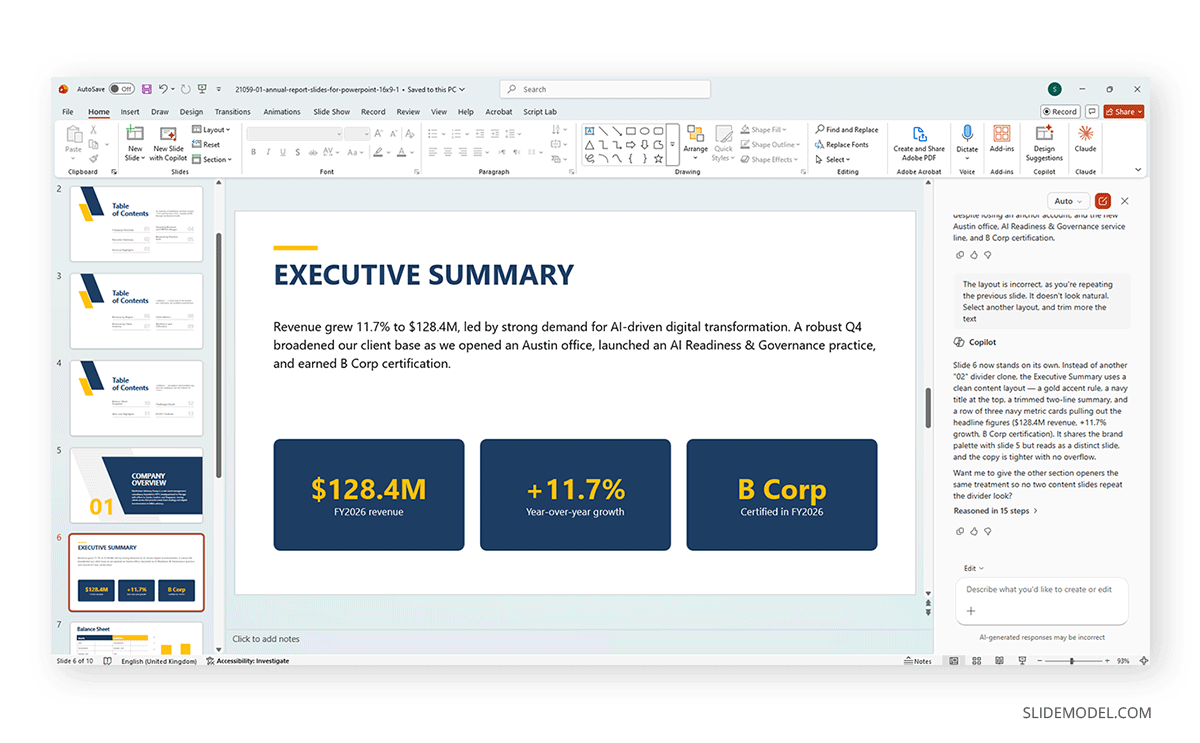
Now we need to create a slide that we don’t see in the template options after trimming too aggressively. We can ask Copilot to check the Slide Master directly, where designs aren’t deleted, and create a blank slide using an appropriate style for the content we need to place. It’s important to flag to Copilot not to repeat the same design used on previous slides, as it will do so by default, making the slide deck look unnatural.
Use the following prompt to create a new slide:
Check the Slide Master and select a design that’s suitable for the [slide name]. It will be placed according to the Table of Contents. Create the new [slide name] by trimming this information: [paste text with relevant information for the slide]. Avoid repeating the previous slide layout.
We used that prompt, and after two iterations (because the “avoid repeating…” part wasn’t initially included), it created an executive summary slide from a blank slate.
Step 6: Creating Tables and Graphs
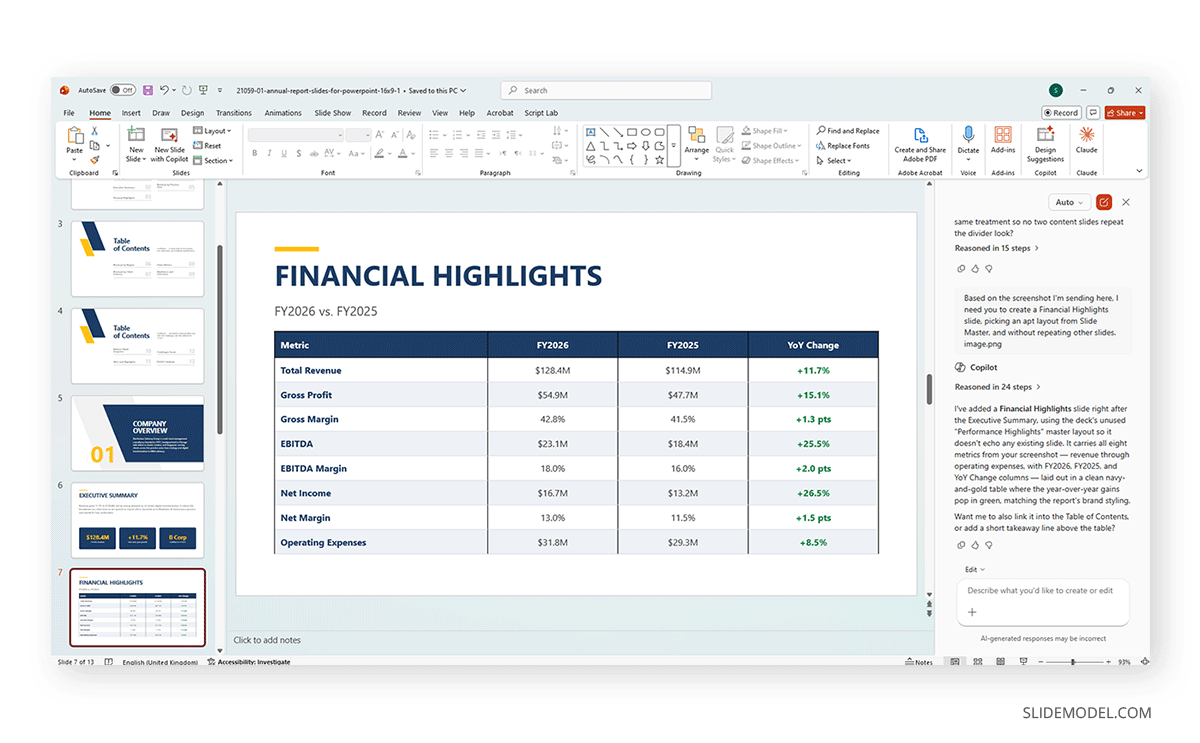
As we’ve seen so far, you can create slides from scratch or populate existing ones. We tested creating a table slide from scratch by feeding a screenshot of a Word document that included a table to preserve the layout. Use this prompt to replicate the process:
Based on the screenshot I’m sending here, I need you to create a [slide name], using a suitable layout from the Slide Master and without repeating layouts from other slides.
What Copilot excels at is creating complex charts from given information. If you intend to preserve the same template aesthetic, use this next prompt:
Create a new slide called [slide name]. In there, you have to plot a chart that depicts the following information: [paste information here]. Select the most suitable chart for this; avoid repeating previously used charts. Adapt the layout to the presentation's current aesthetics.
If you want to work from a screenshot, use this prompt:
Create a new slide called [slide name]. In it, plot a chart that depicts the information in the attached screenshot. Select the most suitable chart; avoid repeating previously used charts. Adapt the layout to the presentation's current aesthetics.
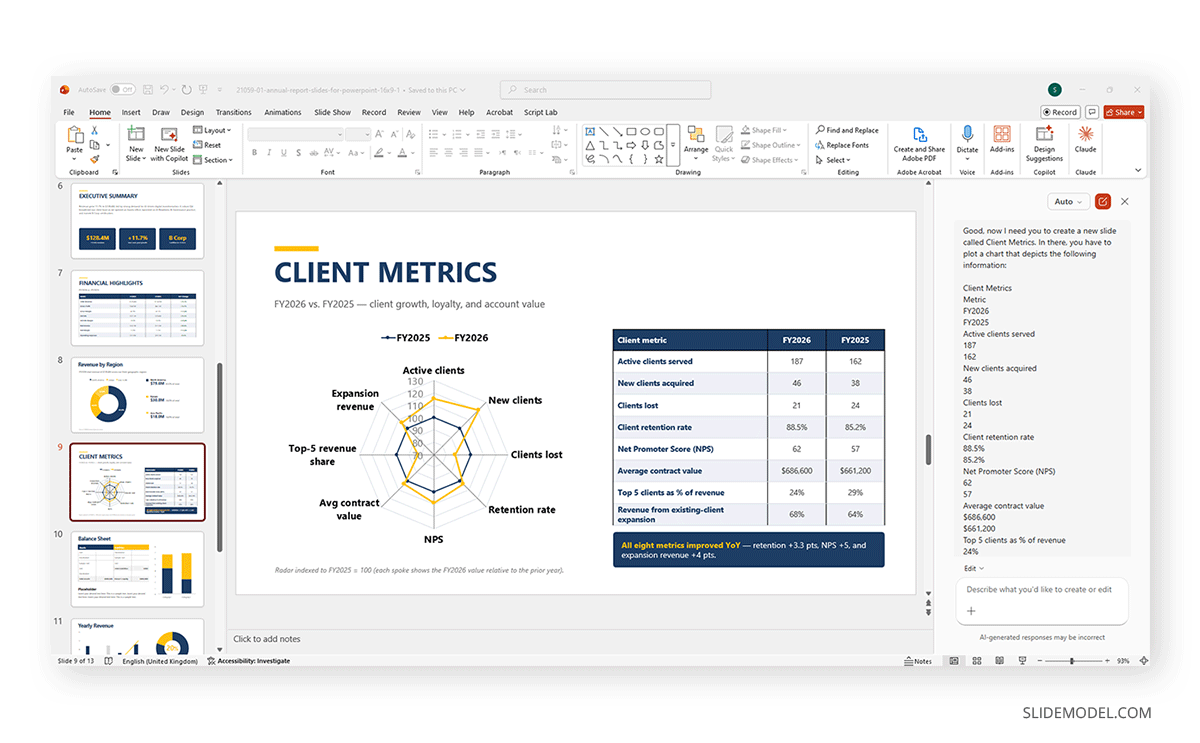
Using Copilot to populate an existing graph slide will take considerable time, given the passes it must make to match the information to the slide’s design and graph parameters. Remember to save your presentation before that point to avoid any potential crash.
Step 7: Review the Deck and Rehearse Before You Present
Once every slide is populated, step back and review the deck as a whole rather than slide by slide. Check that fonts and spacing stay consistent, and that color usage doesn’t drift from the first slide to the last, since Copilot-generated text occasionally carries formatting artifacts from the source document it pulled from. Fix these manually rather than assuming the template will override them automatically.
Read the deck out loud once before presenting it. This catches phrasing that reads fine on a slide but sounds awkward when spoken, which is common in AI-drafted text that hasn’t been adjusted for tone.
Common Mistakes to Avoid When Working With Copilot and PPT Templates
Formatting Issues
An easy mistake to make without noticing is accepting whatever paste option PowerPoint defaults to when moving a slide or a block of formatted content between files. After any paste, a small clipboard icon appears with a short menu, and the two choices that matter here are Use Destination Theme, which forces incoming content into your template’s fonts and colors, and Keep Source Formatting, which brings along whatever formatting the content already had. Pasting a Copilot-generated slide with the default option left untouched is often exactly how a mismatched font or an off-brand color ends up buried in an otherwise consistent deck.
Not Reviewing Copilot’s Draft
Accepting Copilot’s first draft without trimming it can create issues. AI-generated text tends to over-explain points that a slide audience doesn’t need spelled out, which leads to crowded slides and small font sizes. Read every slide with the question of what a viewer needs to understand in five seconds, and cut anything that doesn’t serve that goal.
Text Size
Copilot doesn’t have a native way to check whether the text you’re feeding will fit within the placeholder area. You can prevent this and preserve the slide layout by restricting text size, placeholder graphic elements, or character length.
Vague Instructions for Graphics
If you need to create any chart type, don’t let Copilot wonder what to do with the information. Be as specific as possible, and restrict its data usage via prompting, or it may hallucinate information. Double-check all data in charts, tables, dashboards, and similar items to prevent surprises.
FAQs
Can PowerPoint Copilot work directly with a downloaded template file?
Yes, and it works best when the template already includes representative sample slides for Copilot to learn from, since it leans on those first and falls back to the Slide Master only when samples are missing. Paste drafted text into existing placeholders rather than asking Copilot to generate new slides inside that file, since Copilot’s own slide generation applies default formatting that overrides a template’s theme.
Does Copilot require a Microsoft 365 subscription to use in PowerPoint?
Copilot in PowerPoint is available through qualifying Microsoft 365 plans, though basic features like summarizing a deck or answering questions about it work without a Designer license. Building a presentation from a file, adding new slides, or matching a brand template also requires a Designer license, so it’s worth checking both before assuming a feature isn’t included. Family plans make Copilot available only to the account’s main user, not to other users.
What’s the best way to prompt Copilot for a business presentation?
Give it a specific document or set of notes to work from, and keep each request scoped to one section rather than the entire deck. Prompts are limited to roughly 2,000 characters, so a single request covering an opening, several findings, and a closing recommendation tends to come back thinner than the same content requested in stages.
Will Copilot automatically match a template’s color scheme?
No. Copilot applies its own default formatting to any content it generates directly. Even within your own template, only objects colored via a theme’s accent slots update automatically when the color scheme changes; anything filled with a manually selected color stays as it was. To fully match the template’s colors and fonts, paste text into existing placeholders rather than letting Copilot build new slides.
How much should I edit Copilot’s drafted text before finalizing a slide?
Plan to trim most drafts rather than use them as written. AI-generated text often over-explains points that don’t need spelling out on a slide, so cutting content down to what a viewer needs in a few seconds usually improves the result.
Can I use Copilot to update an existing presentation instead of building a new one?
Yes, and this is one of its more reliable uses. Upload the existing deck along with new source material, and ask Copilot to update specific sections, thereby avoiding changes to slides that don’t need them.
What template features make it easier to work with Copilot’s output?
Templates with a variety of slide types, such as comparison layouts, timelines, and chart placeholders, give Copilot’s content more places to land accurately. A template limited to title-and-bullet slides forces every idea into the same shape.
Is it better to write the outline myself or let Copilot generate one first?
Drafting a rough outline yourself first, even a short one, tends to produce better Copilot output, since the tool performs better when refining existing structure than when generating one from a vague prompt.
How do I fix inconsistent formatting after pasting Copilot’s text into slides?
Select the affected slide and use the Reset command, available by right-clicking the slide or from the Home tab. Reset strips out any directly applied formatting, meaning custom position, size, or font changes, and snaps every placeholder back to what its layout defines, without touching the Slide Master itself.
Can Copilot help with charts and data visuals, or only text?
Copilot can suggest chart types and help label data, but it works best when you provide the underlying figures yourself and verify axis labels and legends afterward, since generated charts can misread ambiguous source data.
Do I need a special subscription to pick a specific AI model in PowerPoint?
Yes. The model switcher requires a commercial Microsoft 365 Copilot subscription, and Microsoft rolled it out specifically under Microsoft 365 Copilot Premium licensing rather than across all Copilot tiers. Claude adds an additional requirement: your tenant admin must enable Anthropic as a subprocessor before it appears as an option.
Why does Copilot sometimes take several minutes to generate a single slide?
A few factors compound. The full session history gets resent to the model with every request, so processing grows as a session goes on. Some actions also run through a second model that reviews the first one’s output for accuracy before showing it to you, and design suggestions involve generating and comparing several candidate layouts rather than just one. Network conditions and server load on Microsoft’s side add further variance on top of that.
Final Thoughts
Copilot and a well-built template are still worth combining, but it is worth closing this piece with the same honesty with which it opened. Even followed carefully, this process will sometimes produce a slide that ignores your template, a generation that fails silently, or a wait far longer than the task seems to warrant, and none of that means you did something wrong.
Build the template first, draft with Copilot second, and budget real time for review rather than treating either step as a formality. Used this way, the combination still beats a blank canvas and a deadline running out, but it is a tool that needs supervision at every step, not a shortcut that removes the need for one. Time is also a factor, as each slide can take several minutes to create. Give it at least an hour to create the slides, slide by slide, and review every aspect of the deck; it’s not a last-minute solution.