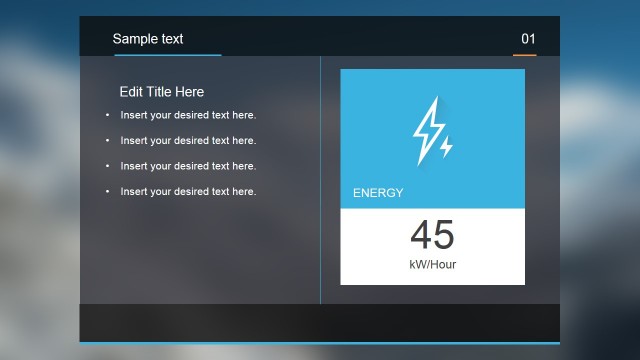
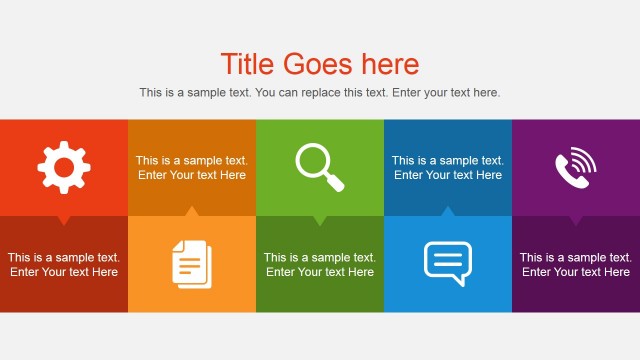
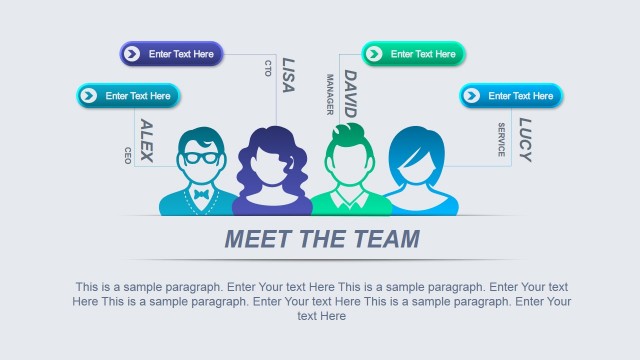
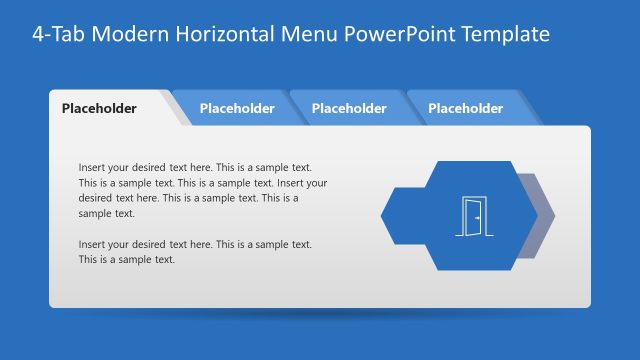
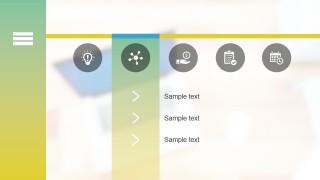
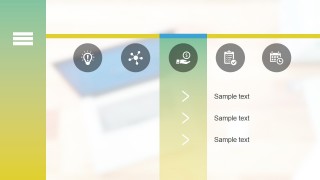
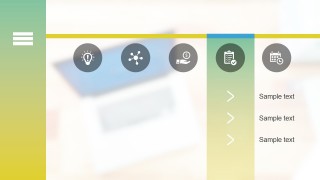
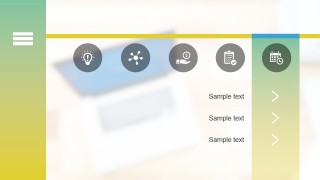
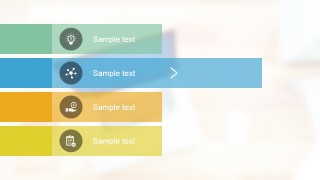
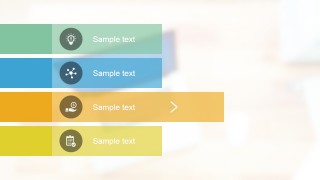
This Blur PowerPoint Template for presentations is a modern menu design created in PowerPoint. You can use this presentation template to create a kiosk in PowerPoint or make presentations with tabbed menus. This blur PPT template has a blur background design with a computer photo and multiple tabs created with PowerPoint shapes. There are placeholders so you can enter your own text and easily you can change the shape colors.
Alternatively, you can download other creative PowerPoint backgrounds and professional PowerPoint templates for your presentations.
What’s inside this template
Example presentation scenarios
- A UX designer can present an interface navigation concept by using the horizontal icon tabs to show how each section becomes active on selection.
- A product manager can introduce feature areas in a demo deck by mapping each feature to a circular icon tab and short text list.
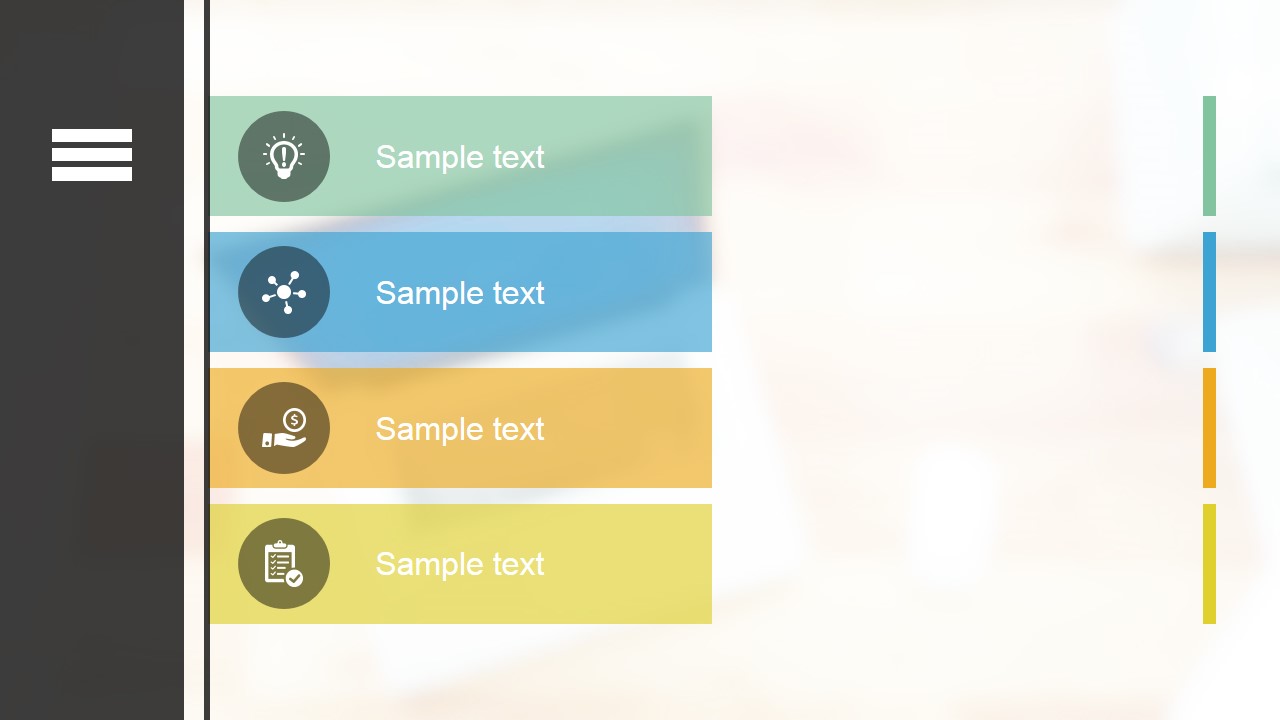
- A corporate trainer can build a self-guided course menu by using the stacked menu bars to show lesson options and highlight the current module.
- An event planner can mock up a kiosk start screen by using the hamburger sidebar, blurred background, and colored tab panels to organize visitor choices.
Features
- 100% editable presentation template
- Compatible with Microsoft PowerPoint and Google Slides
- 16:9 aspect ratio slides
- Scalable vector shapes, icons and illustrations
- AI-Ready for Microsoft Copilot and Claude
- Instant access and download
Frequently asked questions
Q: How should a presenter make the menu concept clear without overloading the screen?
A: Treat each tab or bar as one audience choice, not as a paragraph container. Use short labels in the visible sample text areas, keep the circular icons tied to distinct topics, and let the highlighted active panel carry only the key three points. This preserves the interface metaphor and keeps attention on navigation.
Q: Who is this template best suited for?
A: It is best for presenters explaining a menu-driven experience, such as UX designers, product managers, trainers, or kiosk planners. The template works when the audience needs to understand categories, paths, or selectable sections rather than a linear report. The tabbed screens and stacked menu bars make topic switching easy to visualize.
Q: Why does the blurred background and tabbed interface design help communication?
A: The blurred background lowers visual noise, while the tabs, hamburger sidebar, and active color panels create a familiar app-like metaphor. Viewers can quickly see which option is selected and which options remain inactive. That structure supports orientation, especially when a presenter is simulating a UI, kiosk, or section menu.


Professional Blur PowerPoint Template
8-slide presentation template with blurred UI backgrounds, tabbed menu navigation, and kiosk-style icon panels
Professional Blur PowerPoint Template is an 8-slide 16:9 presentation template for interactive menu-style decks, kiosk screens, and tabbed navigation. It includes a vertical hamburger menu, horizontal icon tab screens, active-tab panels, and stacked menu bars with arrow cues. Built for Microsoft PowerPoint and Google Slides.
- Category
- Template Backgrounds
- Rating


 Loading...
- Aspect ratio
- 16:9
- Item ID
- 7076-01
- Colors
 Microsoft PowerPoint
  Microsoft Copilot
  Claude for PowerPoint
 Other formats supported
Subscribe today and get immediate
access to download our PowerPoint templates.