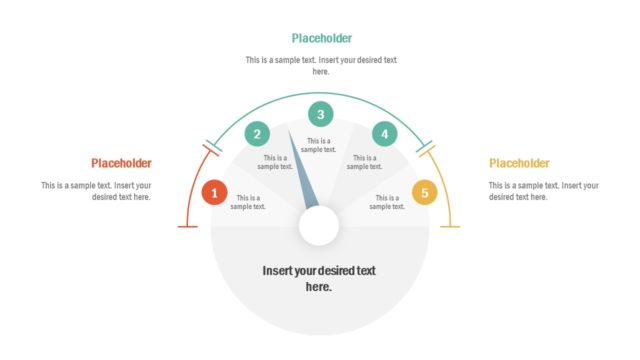
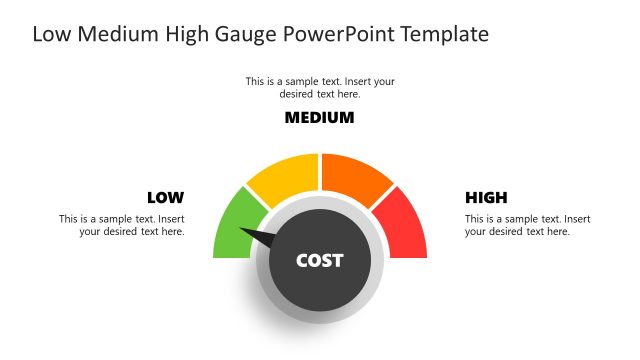
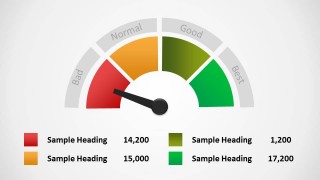
The level meter gauge template for PowerPoint and Google Slides presentation is a simple but creative gauge presentation template that consists of 5 slides that include a variety of four-section meters that can be used in many different applications. This meter PPT template features green, yellow, and red colors which represent good, neutral, and bad indications. Main content themes include four different meters with the arrow indicating a different colored section in each.
This meter presentation template can be added to both PowerPoint presentations and Google Slides presentations. All text, image, graphics, and diagrams can be moved around and edited according to the needs of your presentation. The template can be customized to demonstrate key indicators and sections of the meter. You can change colors according to your branding and message.
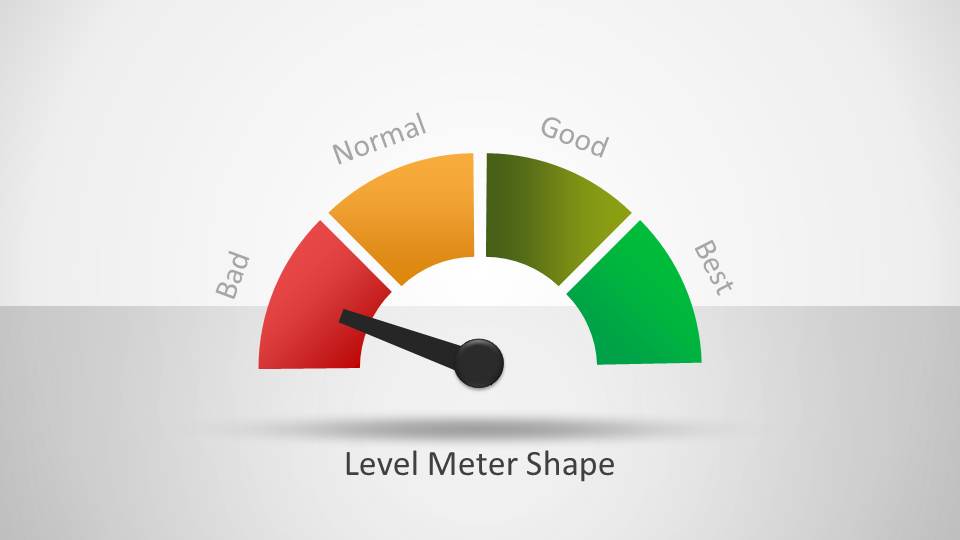
This level meter PPT template can be used by professionals of any industry, field, and department to indicate a spectrum of categories. When used as-is, you can use it to show bad, normal, good, and best outcomes of a situation. It can be edited to show different levels of danger, such as when used for a fire danger rating meter.
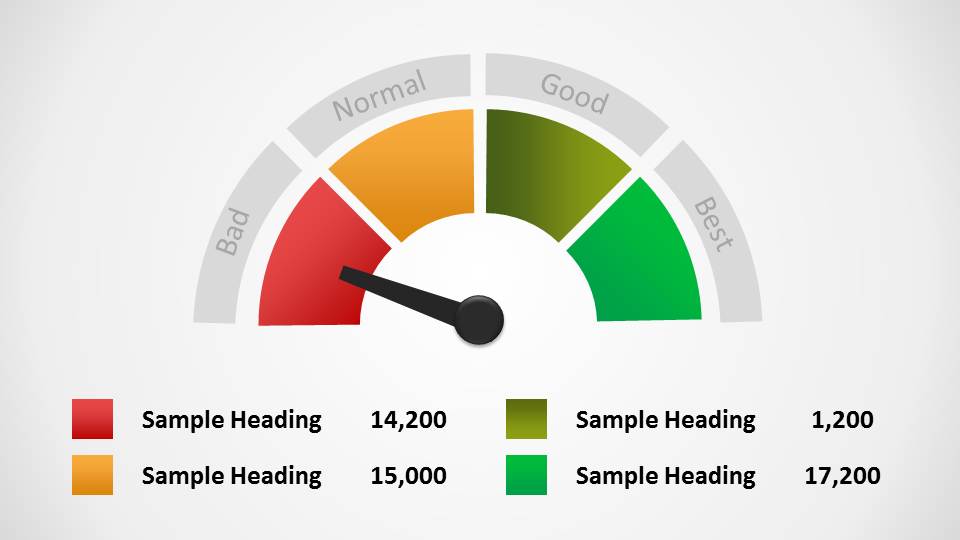
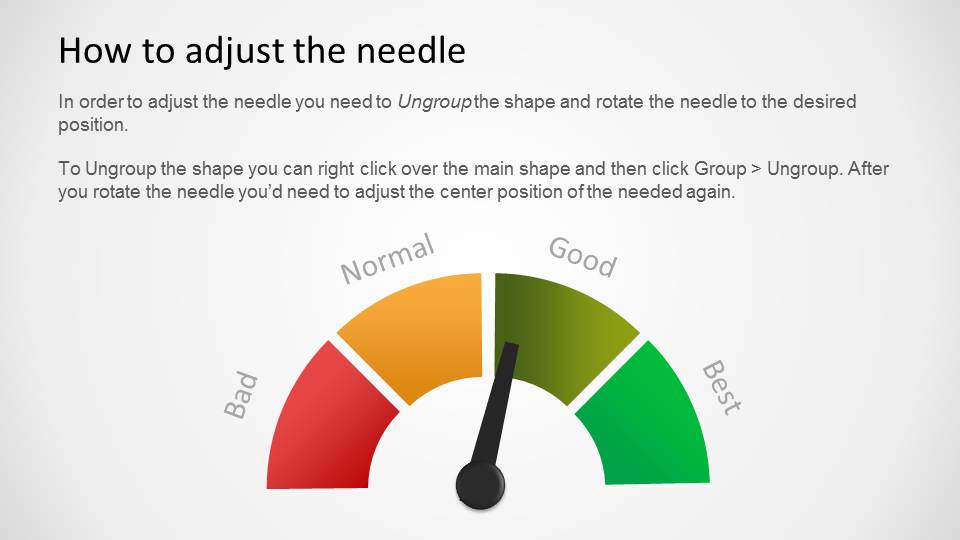
The rating system presentation features a four-section meter. This diagram consists of four sections arranged in a half arc with an arrow pointing to a specific section. You can find variations of this diagram where the arrow points to a different section each time. The main colors are red, yellow, and green. You can use the Level Meter Shape for PowerPoint presentations to make awesome dashboards in PowerPoint or show a percentage in the slide design.
Alternatively, download other gauge presentation templates for PowerPoint & Google Slides, with 100% editable placeholders and graphics, or other PowerPoint diagrams for your slide presentations.
What’s inside this template
Example presentation scenarios
- An operations manager can use the four-section gauge to show whether a process is in a bad, normal, good, or best operating range during a weekly status meeting.
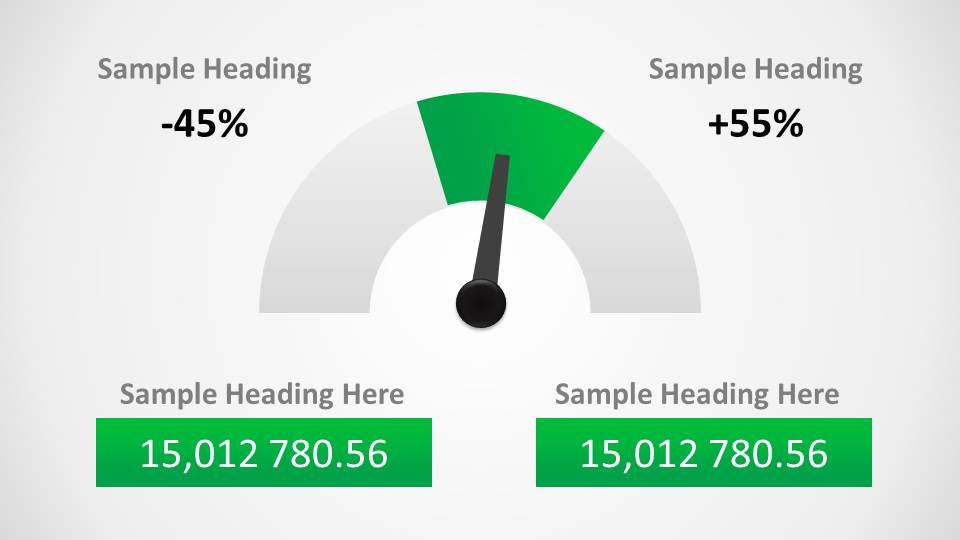
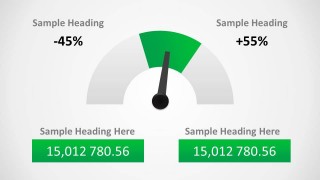
- A business analyst can use the KPI comparison slide to contrast two performance figures with a central gauge and supporting value boxes.
- A safety or compliance presenter can adapt the colored level meter to explain risk severity, hazard levels, or readiness categories to a mixed audience.
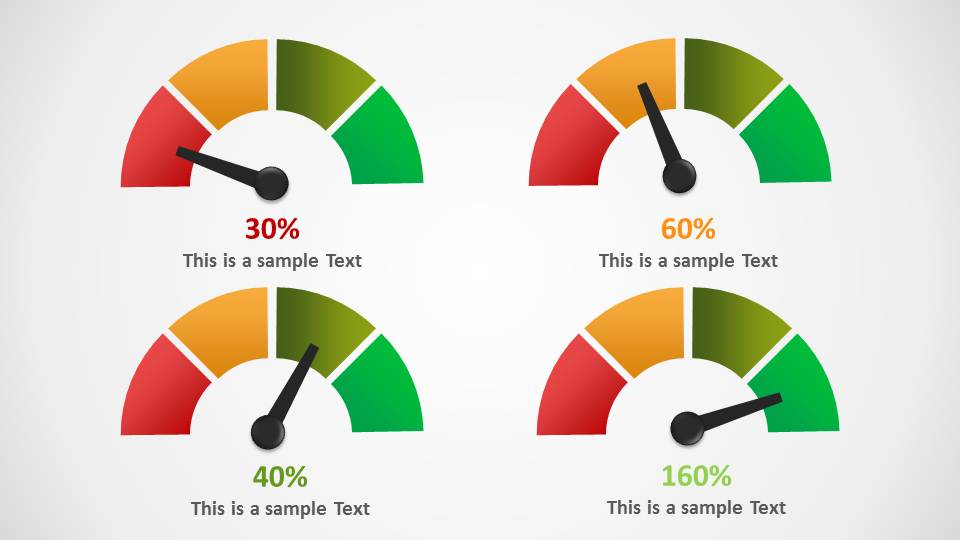
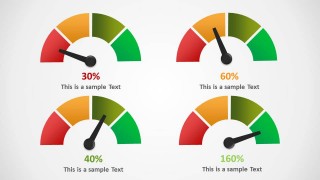
- A project manager can use the four-gauge percentage grid to summarize several workstreams and show which areas need attention.
Features
- 100% editable presentation template
- Compatible with Microsoft PowerPoint and Google Slides
- 16:9 aspect ratio slides
- Scalable vector shapes, icons and illustrations
- AI-Ready for Microsoft Copilot and Claude
- Instant access and download
Frequently asked questions
Q: How should a presenter explain the gauge scale so the audience interprets it correctly?
A: Start by defining what each colored segment means before showing the needle position. Use the Bad, Normal, Good, and Best labels as categories, then connect the needle to one business implication. This keeps the gauge from becoming decoration and helps the audience understand the decision or status behind the score.
Q: Who is this template best suited for in a business presentation?
A: This template fits managers, analysts, and team leads who need to report a status quickly rather than explain a full data model. The gauge, KPI comparison, and percentage grid are strongest for executive updates, operations reviews, safety briefings, and scorecard-style presentations where the main message is level or readiness.
Q: Why use a meter metaphor instead of a standard bar chart or table?
A: A meter metaphor works well when the audience needs to judge position on a scale, such as low to high risk or poor to best performance. The needle creates an immediate focal point, while the colored arc gives context. It is less suited for comparing many values in detail.
Level Meter Shape for PowerPoint
5-slide gauge presentation template with level meters, KPI status indicators, and dashboard-style percentage visuals
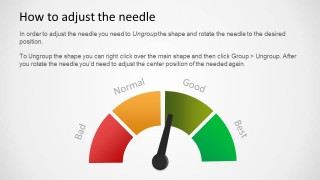
Level Meter Shape for PowerPoint is a 5-slide gauge diagram template for showing status, risk, grade, or performance levels. It includes a title gauge, four-section meter with legend, KPI comparison gauge, percentage meter grid, and needle adjustment instruction slide for Microsoft PowerPoint and Google Slides.
- Category
- Shapes
- Rating


 Loading...
- Aspect ratio
- 16:9
- Item ID
- 9056
 Microsoft PowerPoint
  Microsoft Copilot
  Claude for PowerPoint
 Other formats supported
Subscribe today and get immediate
access to download our PowerPoint templates.