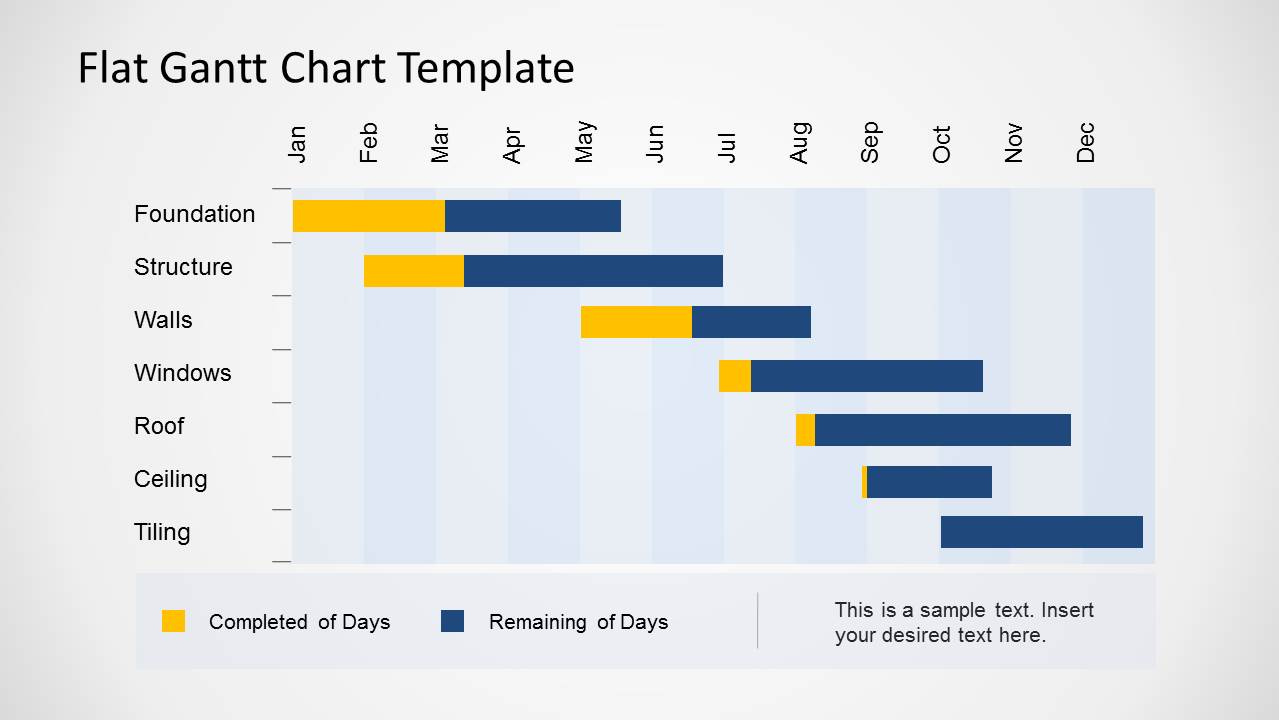
Flat Gantt Chart Template for PowerPoint is a one dimensional Gantt chart design for Microsoft PowerPoint presentations. Designed with striking color schemes, it is catchy to the eyes. The functional features can aid the user in developing quality planning reports. Use Flat Gantt Chart Template for PowerPoint for good and easy comprehension.
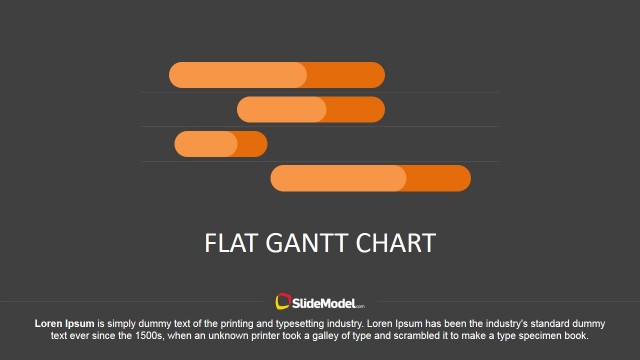
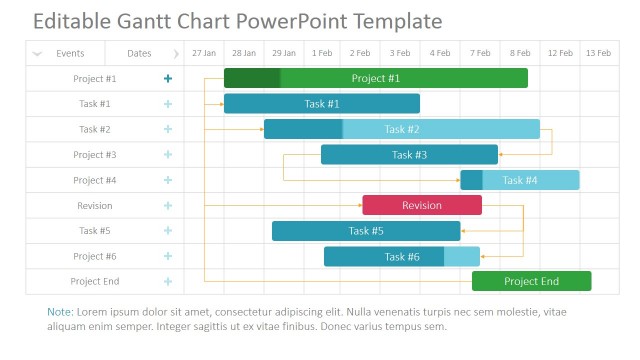
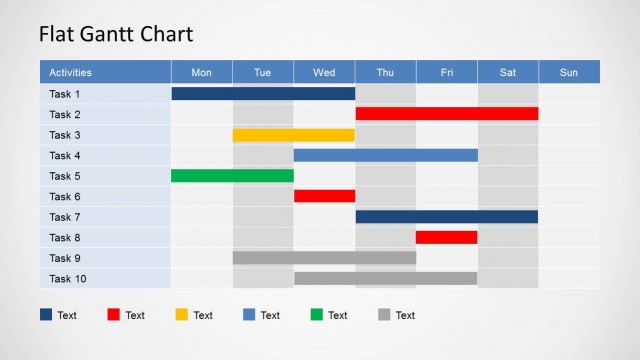
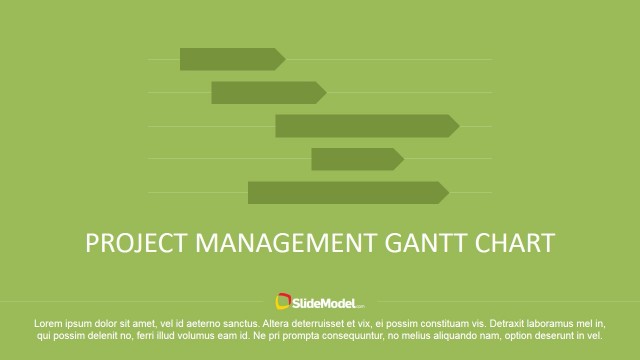
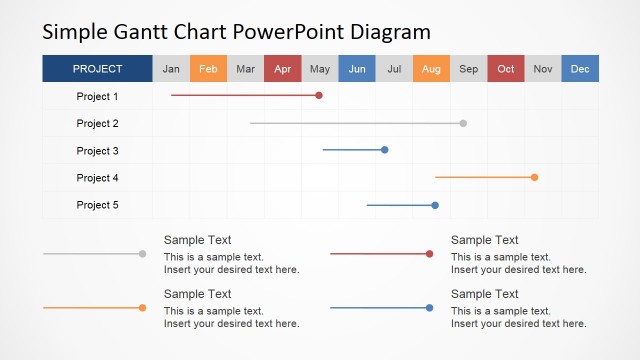
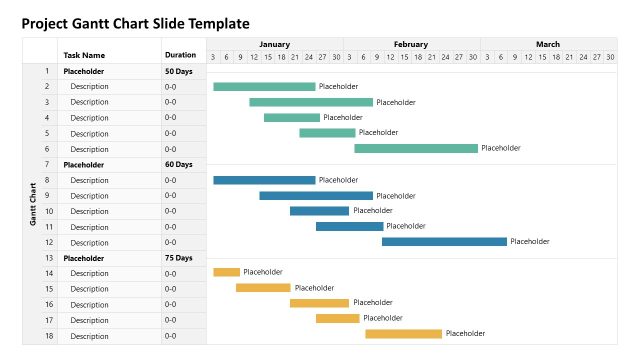
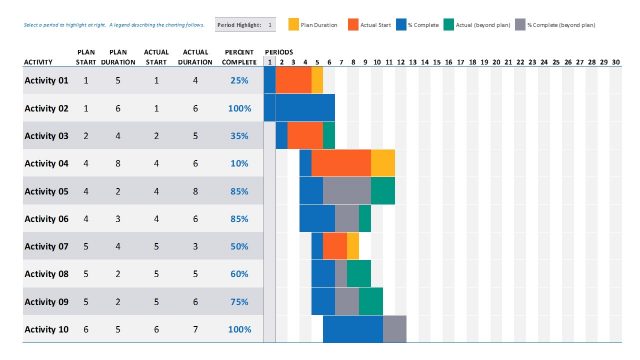
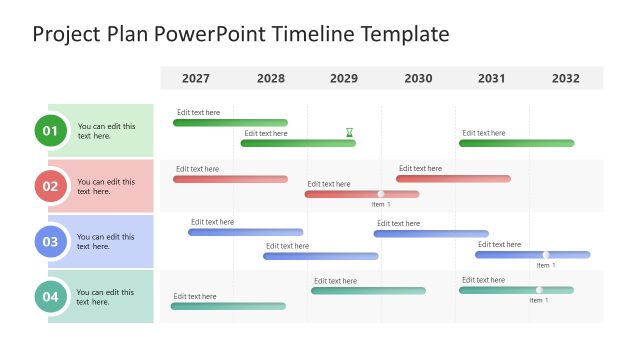
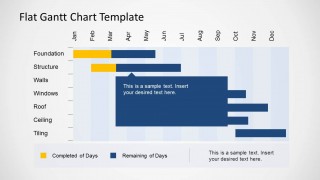
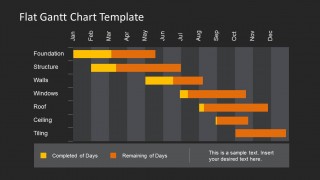
The PowerPoint template contains 4 awesome slide designs. The first 3 slides appear in a full white background while the fourth slide is in a soft black shade. The first slide illustrates the overall look of the calendar chart. Shaded bars are displayed inside the graphical grid. The upper part of the chart is labeled with months. The right side contain construction tasks such as Foundation, Structure, Walls, Windows, Roof, Ceiling and Tiling. On the bottom part, a color legend is found. It shows that the yellow bars stand for Completed of Days and the blue ones stand for Remaining of Days. The next 2 slides highlight on the description for the bars. The last slide, finally, display a color scheme option- that the user can change the colors of the design.
Gantt charts are ideal for project planning, project management and personal planning. The slide designs are perfect for making sure that tasks are completed. The calendar concept allows a clear picture of the events to take place. It is used to schedule projects. It can track or create a time frame that the team or business can follow.
A Gantt chart is widely used in project managements. They are especially designed to pattern a schedule in a graphical manner. This way, the user can determine the needed resources and the time constraint for each activity. The relationship between tasks can be pictured using the particular chart as well.
Impress professional with significant designs using Flat Gantt Chart Template for PowerPoint. Project Management Gantt Chart PowerPoint Template is downloadable at the SlideModel gallery.
What’s inside this template
Example presentation scenarios
- A project manager can use the full Gantt chart to brief stakeholders on construction phases, showing each task row against the month-by-month schedule.
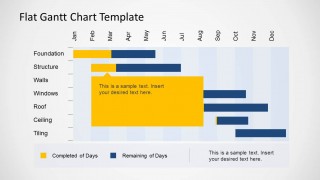
- A program lead can use the annotated Gantt chart with the yellow callout to explain a schedule risk, task dependency, or mid-project change during a status meeting.
- An operations manager can use the dark theme Gantt chart to present an internal timeline where completed and remaining day bars need strong contrast on screen.
- A consultant can use the legend and task bars to translate a client project plan into a simple visual schedule for an executive update.
Features
- 100% editable presentation template
- Compatible with Microsoft PowerPoint
- 16:9 aspect ratio slides
- Scalable vector shapes, icons and illustrations
- AI-Ready for Microsoft Copilot and Claude
- Instant access and download
Frequently asked questions
Q: How should a presenter explain the Gantt chart without making the slide feel overloaded?
A: Start with the horizontal month scale, then move down the task list so the audience understands the reading order. Explain the legend before discussing status: yellow indicates completed days and the second color indicates remaining days. Use the callout layouts only for the task or time period that needs interpretation, not for every bar.
Q: Who is this template best suited for in a business presentation?
A: This template fits project managers, construction leads, operations teams, and consultants who need to report schedule status rather than teach project management theory. It works best when the central message is timing: what work has started, what remains, and how tasks line up across months in one clear Gantt view.
Q: Why does the completed-versus-remaining bar design work well for schedule communication?
A: The split bars turn progress into a simple visual comparison, so the audience can judge status without reading long task descriptions. The calendar grid provides the time reference, while the color legend gives meaning to each segment. The callout slides add focus by treating one bar group as the main discussion point.


Flat Gantt Chart Template for PowerPoint
3-slide PowerPoint presentation template for Gantt schedules, task bars, and project planning
Flat Gantt Chart Template for PowerPoint is a 3-slide Microsoft PowerPoint template for project scheduling in 16:9. It shows a month-by-month Gantt grid with task rows, completed and remaining bar segments, a legend, callout annotations, and a dark color variant for planners, project managers, and operations teams.
- Category
- Timelines & Planning
- Rating


 Loading...
- Aspect ratio
- 16:9
- Item ID
- 6538-01
- Colors
 Microsoft PowerPoint
  Microsoft Copilot
  Claude for PowerPoint
 Other formats supported
Subscribe today and get immediate
access to download our PowerPoint templates.