Slide 7 of 8 from 7 Steps Arrows Bars PowerPoint Diagram
7 Steps Waterfall Diagram 6 Segment
Arrow Options Diagram for PowerPoint
- Diagram
- Arrow Sequence
- Process Slide
- 16:9
- 100% Editable
The Arrow Options Diagram slide from the 7 Steps Arrows Bars PowerPoint Diagram template offers a clear, sequential process visualization ideal for business presentations and strategic planning. This slide layout features editable shapes and vector icons arranged in a horizontal arrow sequence, emphasizing a key step with a highlighted segment. It supports project updates and action item lists within a professional slide deck, enhancing communication through well-structured PowerPoint templates.
What’s on This Slide
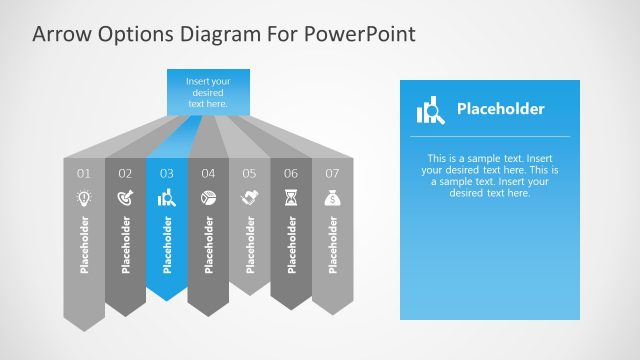
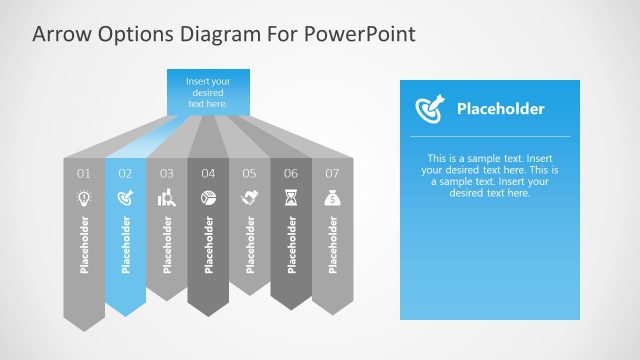
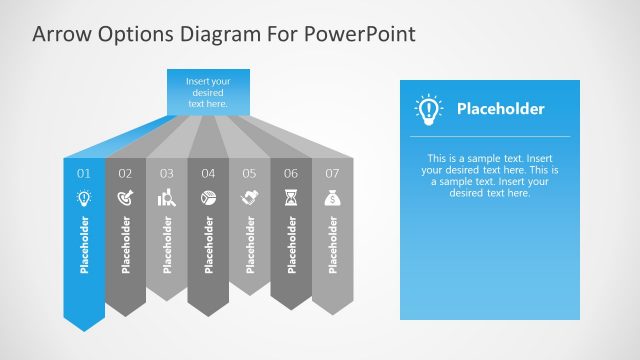
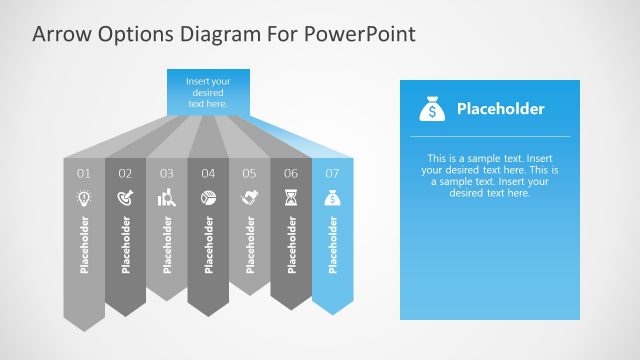
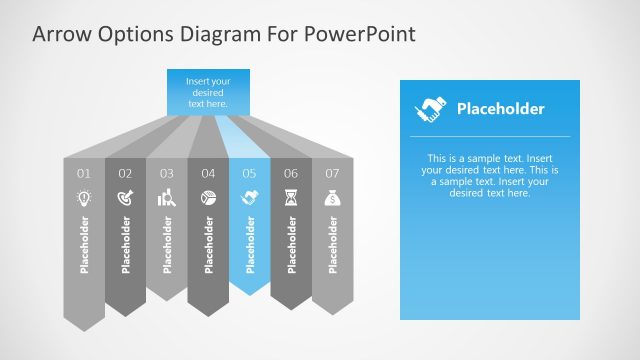
The layout features a central arrow diagram with seven segments arranged horizontally. Each segment has a unique icon and a placeholder for text, with the sixth segment highlighted in blue. The segments are positioned in a staggered manner, creating a visual flow from left to right. To the right, there is a large blue text box containing a placeholder for additional text. The background is light with a subtle gradient, enhancing the visibility of the elements. The overall composition emphasizes the highlighted segment while maintaining a clear hierarchy.
How to Use It
This layout serves as a sequential diagram to illustrate a process or steps in a project. It fits well in presentations discussing progress, next steps, or action items. The highlighted segment can denote a focal point or a critical stage in a workflow. This structure is suitable for business meetings, project updates, or strategic planning sessions where clarity and emphasis on specific steps are essential.
Text Placeholders & Capacity
Keep your copy within these limits so it fits without resizing. Node body slots can hold about 15-20 words each.
| Placeholder | Count | Max characters (approx.) |
|---|---|---|
| Item heading | 7 | 20 |
| Item body | 7 | 100 |
| Body paragraph | 1 | 250 |
Slide Keywords
Download unlimited PowerPoint templates, charts and graphics for your presentations with our annual plan.
DOWNLOADReturn to 7 Steps Arrows Bars PowerPoint Diagram.