Slide 2 of 8 from 7 Steps Arrows Bars PowerPoint Diagram
7 Steps Waterfall Diagram 1 Segment
Arrow Options Diagram for PowerPoint
- Diagram
- Arrow Sequence
- Process Slide
- 16:9
- 100% Editable
What’s on This Slide
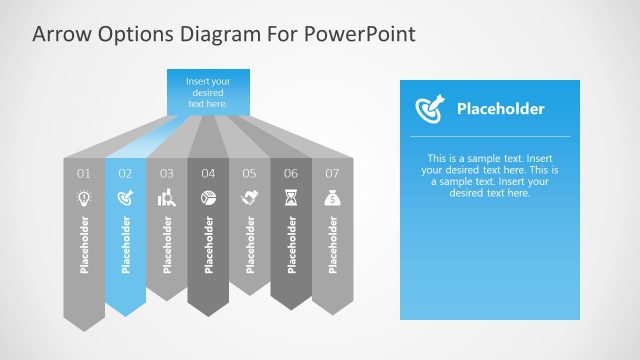
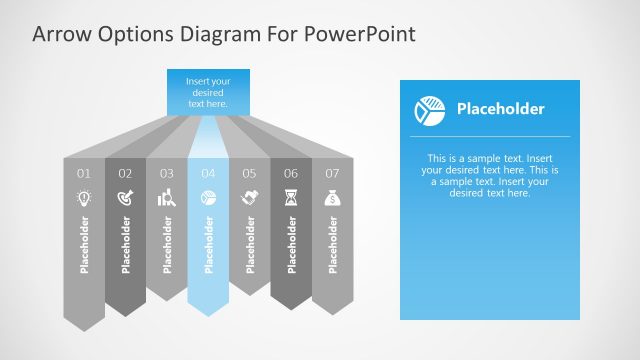
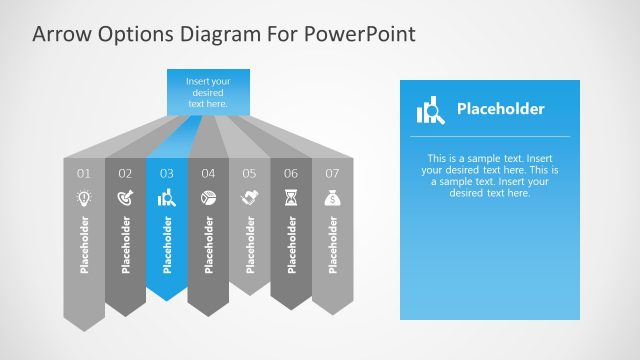
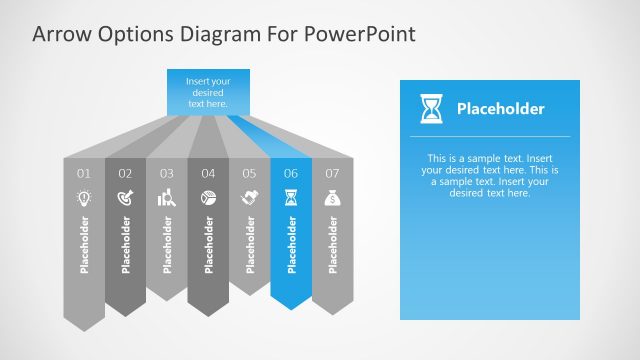
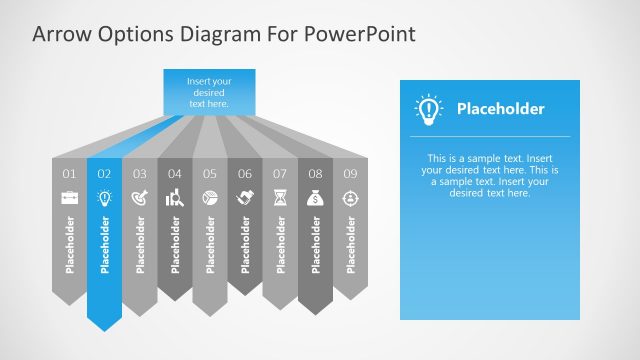
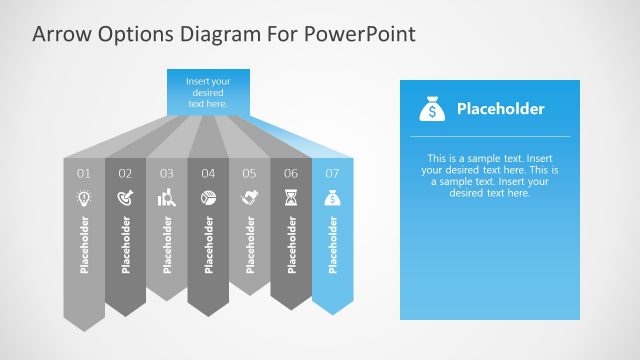
The layout features a central blue rectangular shape at the top, labeled for text input. Below, seven vertical arrow shapes are arranged in a staggered manner, each containing a placeholder for text. The arrows are colored in shades of gray, with the first arrow in blue, indicating a distinct category. Each arrow has an associated icon representing different concepts. To the right, a larger blue rectangle contains additional text placeholders, aligned vertically. The overall composition emphasizes a hierarchical flow from the top to the bottom.
How to Use It
This layout serves as a structured diagram to present sequential steps or options in a process. It is suitable for business presentations, project planning, or strategic discussions. The arrangement allows for clear communication of ideas, making it effective for summarizing key points or outlining next steps. This slide fits well after introductory content and before detailed analysis, helping to transition into a more in-depth discussion.
Text Placeholders & Capacity
Keep your copy within these limits so it fits without resizing. Body slots can hold roughly 20-30 words each.
| Placeholder | Count | Max characters (approx.) |
|---|---|---|
| Item heading | 7 | 20 |
| Item body | 7 | 100 |
| Body paragraph | 1 | 200 |
| Slide title | 1 | 50 |
Slide Keywords
Download unlimited PowerPoint templates, charts and graphics for your presentations with our annual plan.
DOWNLOADReturn to 7 Steps Arrows Bars PowerPoint Diagram.