Slide 5 of 8 from 7 Steps Arrows Bars PowerPoint Diagram
7 Steps Waterfall Diagram 4 Segment
Arrow Options Diagram for PowerPoint
- Diagram
- Arrow Sequence
- Process Slide
- 16:9
- 100% Editable
The Arrow Options Diagram slide from the 7 Steps Arrows Bars PowerPoint Diagram template provides a clear visual for illustrating sequential processes in business presentations. This slide layout uses editable shapes and vector icons to highlight specific steps, making it ideal for project planning and strategic initiatives within corporate presentation slide decks.
What’s on This Slide
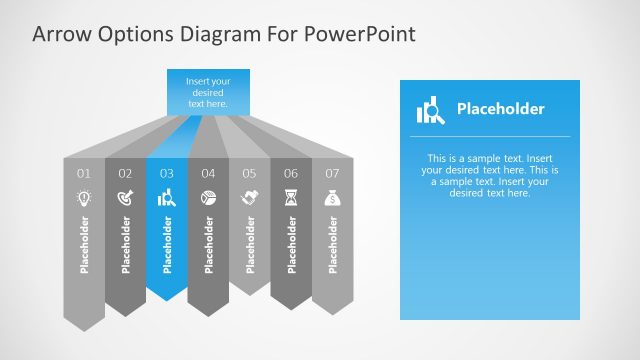
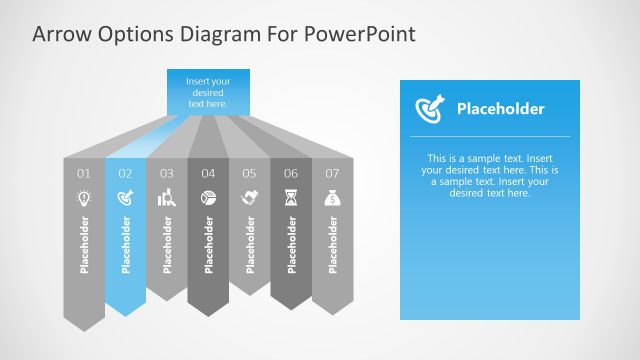
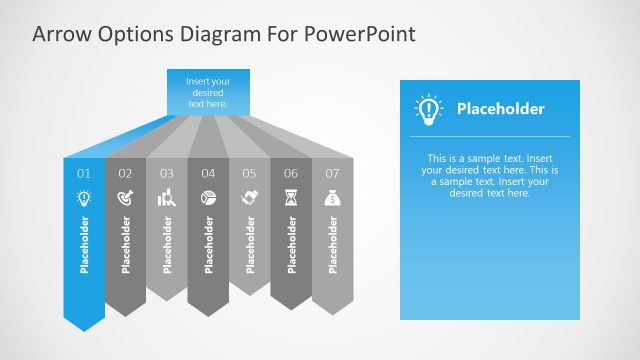
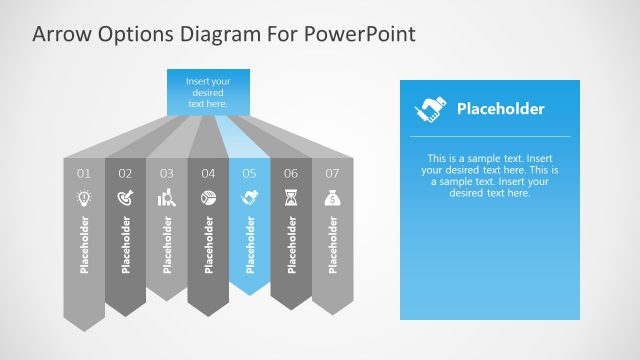
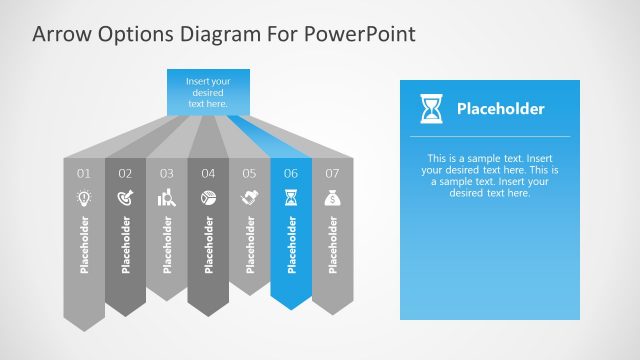
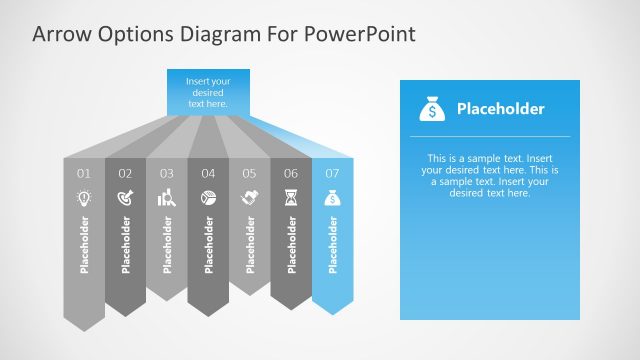
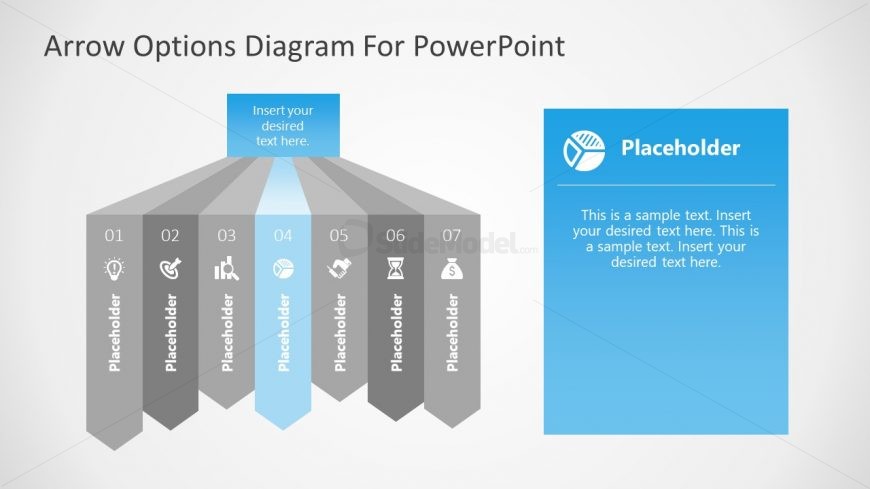
The layout features a central arrow pointing downward, flanked by seven bars arranged horizontally. Each bar is labeled with a number from one to seven, with the fourth bar highlighted in blue. The bars are colored in shades of gray, while the highlighted bar has a light blue background. To the right, there is a large text placeholder with a blue background, which includes a circular icon above the text. The overall composition is structured to guide the viewer's attention from the central arrow to the highlighted bar and the accompanying text placeholder.
How to Use It
This layout serves as a sequential diagram, illustrating a step-by-step process or options available. It fits well in presentations that outline a series of actions or decisions, such as project planning or strategic initiatives. It is particularly useful for business scenarios where clarity in progression is essential, such as in training sessions or project updates. The highlighted bar allows for emphasis on a specific step or option, making it suitable for discussions on priorities or next steps.
Text Placeholders & Capacity
Keep your copy within these limits so it fits without resizing. Node body slots can hold around 15-20 words each, while the body paragraph slot is tighter, roughly 30 words.
| Placeholder | Count | Max characters (approx.) |
|---|---|---|
| Item heading | 7 | 20 |
| Item body | 7 | 100 |
| Body paragraph | 1 | 200 |
Slide Keywords
Download unlimited PowerPoint templates, charts and graphics for your presentations with our annual plan.
DOWNLOADReturn to 7 Steps Arrows Bars PowerPoint Diagram.