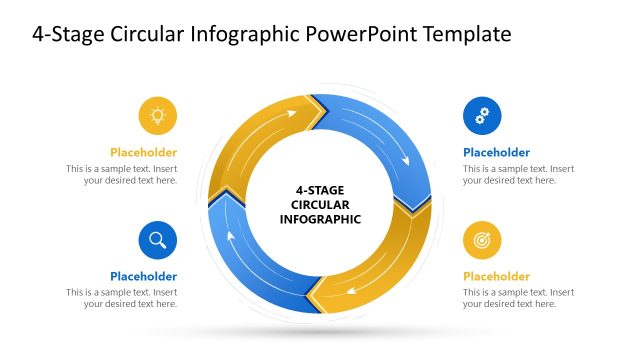
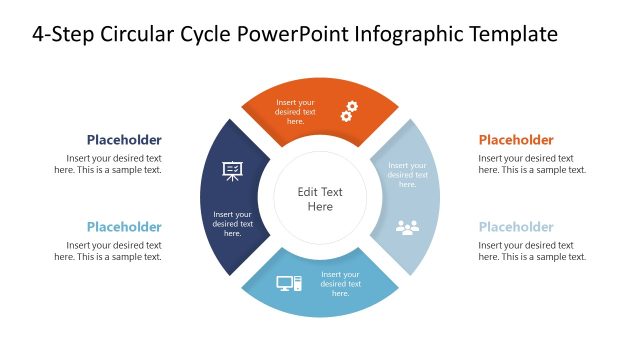
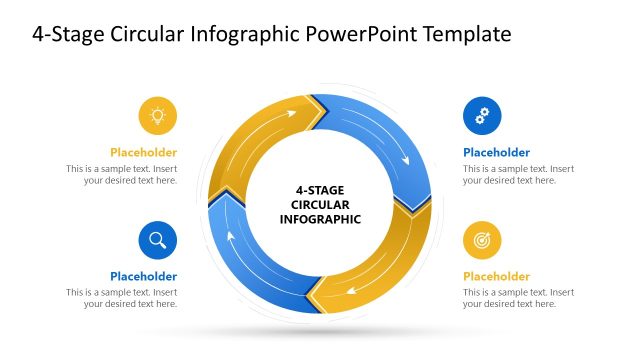
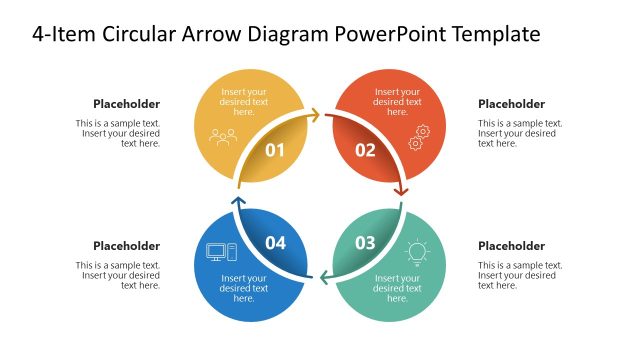
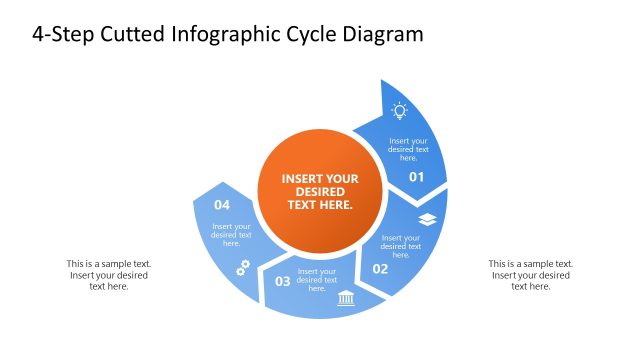
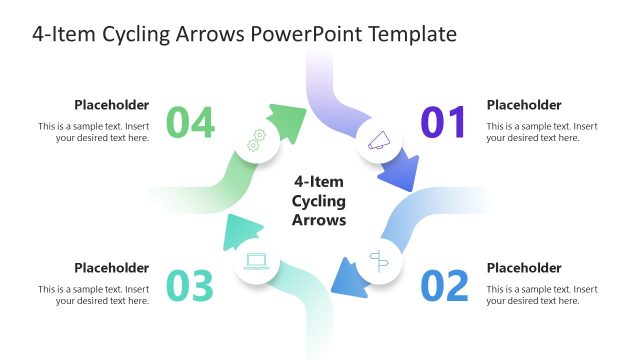
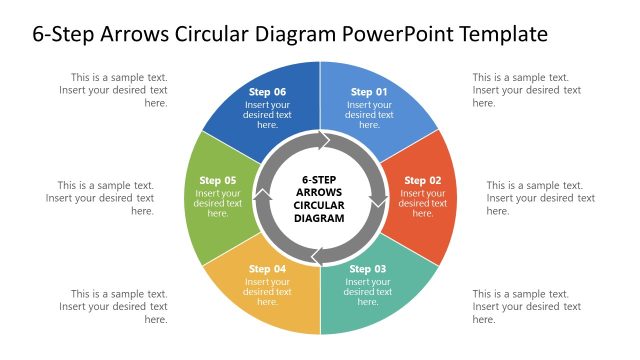
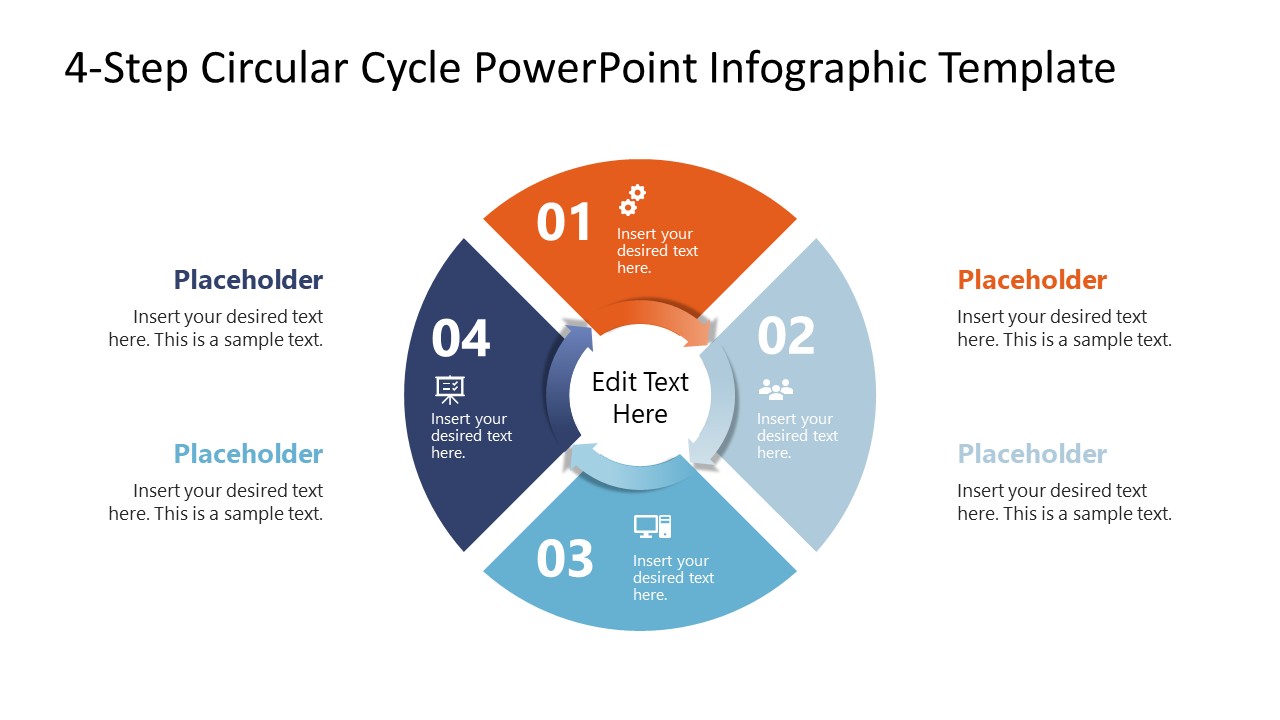
Present the recurring product testing cycle in team presentations with this 4-Step Circular Cycle Arrows PowerPoint Infographic Template. Four arrows curve around a central hub, each marking a distinct stage and looping back to the start, so the diagram itself signals a process that repeats rather than one that ends.
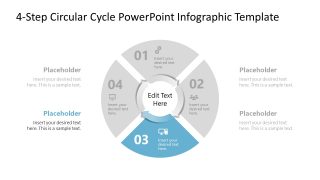
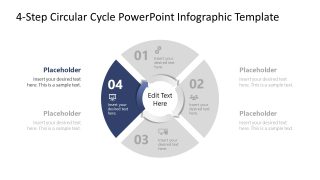
This PPT template opens with a cover slide built around the segmented circular diagram, followed by four dedicated highlight slides that isolate one stage at a time so audiences can follow the cycle step by step instead of absorbing all four at once. Every segment includes icon and text placeholders for stage names, owners, or metrics, and the number of sections can be adjusted, so a four-stage cycle expands to five or six without rebuilding the diagram. Colors, fonts, and icons are fully editable to match brand guidelines. Our 4-Step Circular Cycle Arrows PowerPoint Infographic Template works natively in both PowerPoint and Google Slides.
Quality assurance managers map a PDCA cycle for stakeholder review, using the four segments to walk through plan, do, check, and act without redrawing the loop each quarter. Customer success managers trace the customer onboarding journey stage by stage, giving new team members a single slide showing how a customer moves from signup to retention. HR managing partners present an employee efficiency improvement plan to leadership, using the continuous arrow structure to argue the initiative is ongoing rather than a one-time fix. Project managers report on milestone checklists in client meetings, pairing each arrow segment with a completed, in-progress, or upcoming phase of the project.
A straight-line process diagram shows a sequence with an endpoint. This one shows a cycle: because the arrows connect back to the starting segment, the slide argues for continuous improvement rather than a completed checklist, which matters when the message is “we do this every quarter,” not “we did this once.” Download it for executive presentations, quality reviews, or client reporting, and adjust the section count, colors, and icons to fit the specific process being mapped. Alternatively, you can check our collection of arrow diagram templates that cover related process and timeline slides for the same deck.
What’s inside this template
Example presentation scenarios
- A quality assurance manager can explain a continuous improvement cycle to leadership by using the full circular arrows overview and the four highlighted stage slides.
- A customer success lead can train new team members on an onboarding workflow by assigning each arrow segment to one customer journey phase and supporting it with side callouts.
- A project manager can report milestone status to a client by using the four numbered segments as completed, current, next, and follow-up phases.
- An HR manager can present an employee performance improvement process by showing the full loop first and then discussing each highlighted step in order.
Features
- 100% editable presentation template
- Compatible with Microsoft PowerPoint and Google Slides
- 16:9 aspect ratio slides
- Scalable vector shapes, icons and illustrations
- AI-Ready for Microsoft Copilot and Claude
- Instant access and download
Frequently asked questions
Q: How should a presenter explain the cycle without making the audience process all four stages at once?
A: Start with the full circular arrows overview to show that the process repeats. Then use the four highlight slides to focus attention on one segment at a time. Keep the side callouts short, using them for owners, actions, or decision criteria, so the audience understands each stage before returning mentally to the complete loop.
Q: Who benefits most from using this four-step cycle diagram?
A: This template fits managers and consultants who need to make a recurring workflow easy to follow. Quality, operations, customer success, HR, and project teams can map processes such as testing, onboarding, reviews, or milestone follow-up. It is strongest when the message is continuous improvement rather than a one-time checklist.
Q: Why use circular arrows instead of a straight process diagram?
A: The connected arrow ring communicates repetition before the presenter says a word. A straight line implies completion, while this circular form shows that step 04 feeds back into step 01. The dimmed highlight slides also create visual contrast, helping the audience concentrate on the active stage without losing the overall process context.


4-Step Circular Cycle Arrows PowerPoint Infographic Template
5-slide presentation template for circular process cycles and four-step arrows in 16:9 format
The 4-Step Circular Cycle Arrows PowerPoint Infographic Template is a 5-slide process diagram set for showing recurring workflows. It includes a full four-segment circular arrows diagram, four stage-highlight slides, center text, icons, and side text placeholders for teams presenting improvement cycles, onboarding flows, or project phases in PowerPoint and Google Slides.
- Category
- Process Diagrams
- Rating

 Loading...
- Aspect ratio
- 16:9
- Item ID
- 23778-02
- Colors
 Microsoft PowerPoint
  Microsoft Copilot
  Claude for PowerPoint
 Other formats supported
Subscribe today and get immediate
access to download our PowerPoint templates.