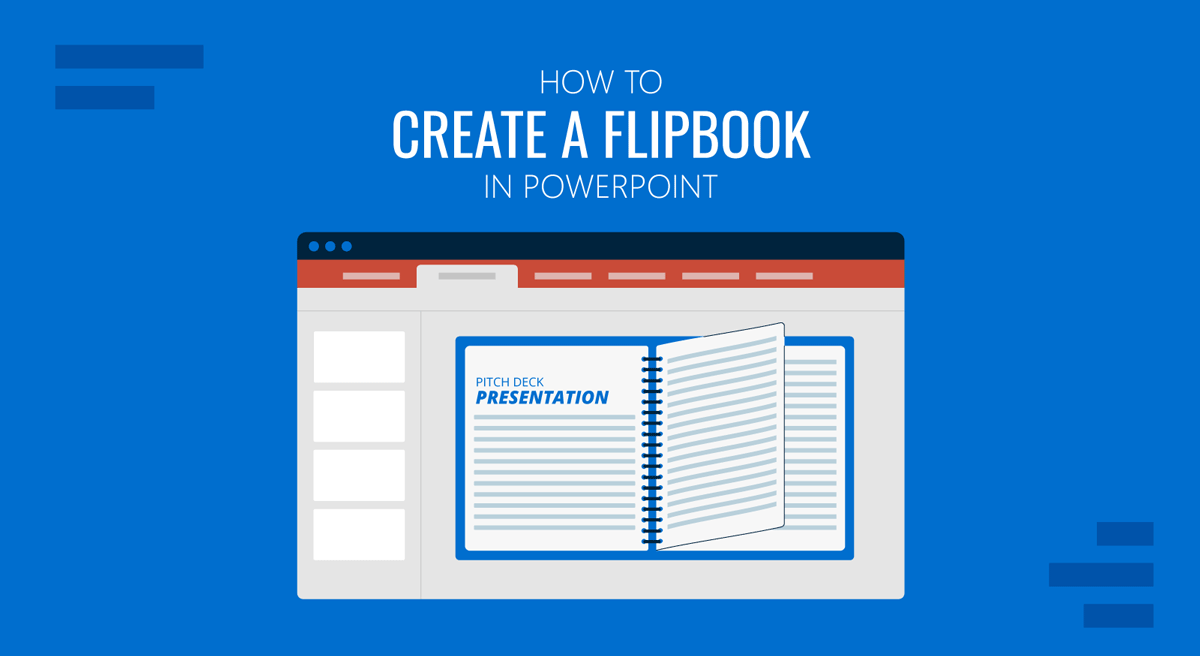
A flipbook is a sequence of pages where each one displays a slightly different image or layout, creating the impression of motion or progression as you move through them. The concept predates digital media by more than a century. Still, the digital version serves the same purpose: presenting content in a page-by-page format that feels more like reading a publication than scrolling through a static file.
PowerPoint can replicate this effect using its built-in transitions, particularly the Flip, Peel Off, and Morph transition options available in recent versions. Whether you are building a product catalog, a digital annual report, a photo album, or an employee handbook, the process stays within a tool most professionals already have without requiring additional software or subscriptions.
How to Create a Flipbook in PowerPoint
The process breaks down into content setup, animation, and delivery. Each stage builds on the previous one, so working through them in order gives you the most consistent result.
Step 1: Build Your Slides
The first thing to get right is content structure. A flipbook works best when each slide has a single, focused purpose: one product per page, one section heading per spread, one photograph with a supporting caption. Slides packed with competing elements break the rhythm that the format depends on. Viewers move through a flipbook quickly, so the visual hierarchy needs to communicate immediately.
Before opening PowerPoint, think through the sequence. What appears on each page, and in what order? For anything with more than eight to ten slides, creating a storyboard first helps you map out the flow before committing to slide design. Once you have a clear structure, open PowerPoint and set your slide dimensions. The default 16:9 widescreen format works for digital viewing, but a portrait orientation (8.5 x 11 inches) gives a more traditional booklike feel. To change it, go to Design > Slide Size > Custom Slide Size and enter the dimensions manually.
Apply your layout through the Slide Master (View > Slide Master) rather than formatting each slide individually. Consistent margins, font choices, and background colors across all slides are what make the flipbook read as a single publication rather than a set of unrelated pages. Once the master is set, add your content and review the full sequence in Slide Sorter View to catch any inconsistencies before moving to the next step.
Step 2: Apply the Flipbook Animation
This step converts a standard presentation into an animated flipbook. PowerPoint’s Transitions tab includes several options that simulate a physical page turn. The Flip transition, found under the Exciting category, rotates slides with a 3D effect that reads clearly as turning a page.
In some versions of PowerPoint, a Page Curl transition is also available in the same category, which more literally mimics the corner-peel of a physical book. Either one works well, depending on the visual style you are going for.
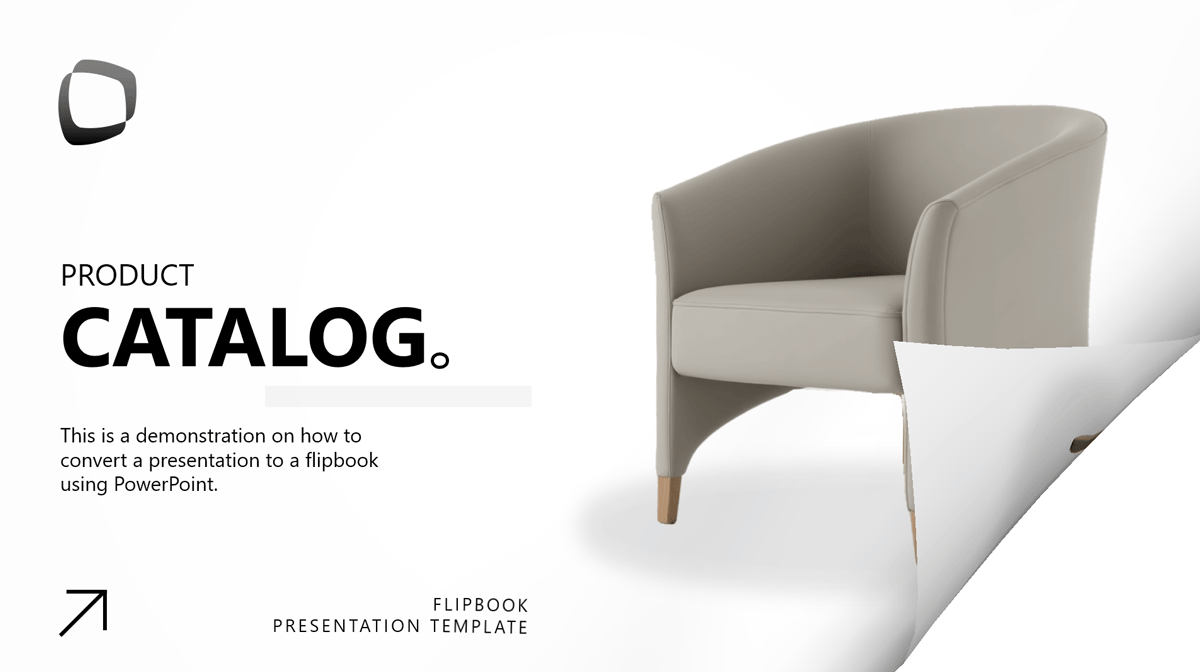
Another option worth considering is the Peel Off transition, also found under the Exciting category. Rather than rotating the slide like Flip or curling a corner like Page Curl, Peel Off lifts the current slide from one of its corners and peels it back to reveal the next one underneath, closely replicating the physical action of turning a page in a magazine or photo book. The effect works particularly well for visual-heavy flipbooks — product catalogs, lookbooks, photo albums — where the page-reveal adds a tactile quality that reinforces the publication feel.
If your content is more text-driven or corporate in tone, Flip tends to read as cleaner and more neutral. For anything where the browsing experience itself is part of the presentation, Peel Off is worth testing before settling on a final choice.
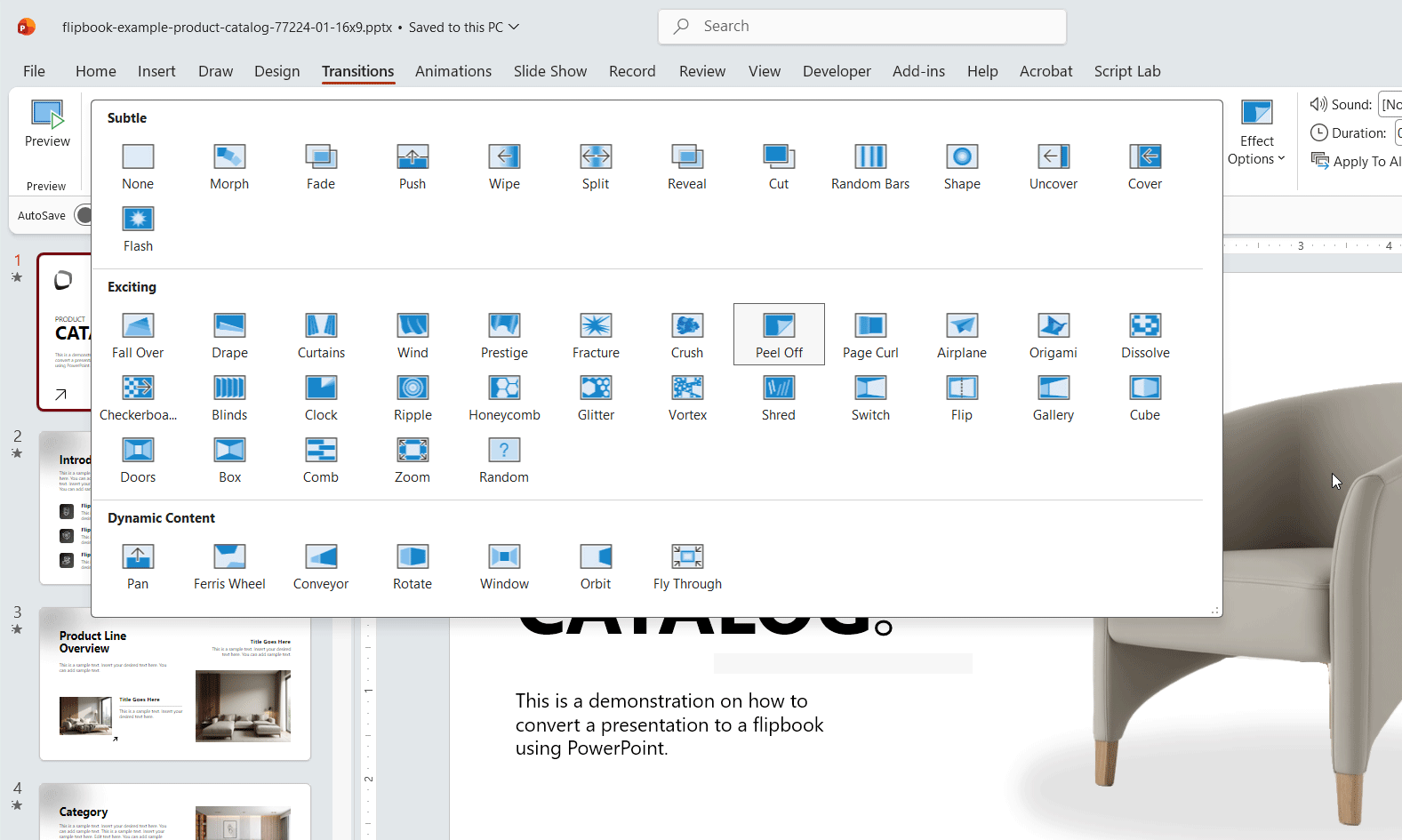
To apply a transition across all slides at once, select any slide, choose your transition from the Transitions tab, then click “Apply To All” in the Timing group. This keeps the animation consistent. After applying the transition, adjust the Duration setting. A value between 0.5 and 0.75 seconds tends to feel natural; below that threshold, the effect reads as abrupt, and above it the pacing drags.
For a more custom approach, the Morph transition is worth exploring. Morph creates smooth interpolation between slides when objects share the same name across consecutive slides. You can use this to simulate pages rotating, images sliding in, or text fading as the page settles. It takes more setup than a one-click transition, but the result can be significantly more polished for client-facing materials.
Under Transitions > Timing, you can also configure how slides advance. Unchecking “On Mouse Click” and enabling “After” with a set interval makes the presentation play automatically, suitable for kiosk displays or self-running digital publications.
Step 3: Export or Present Your Flipbook
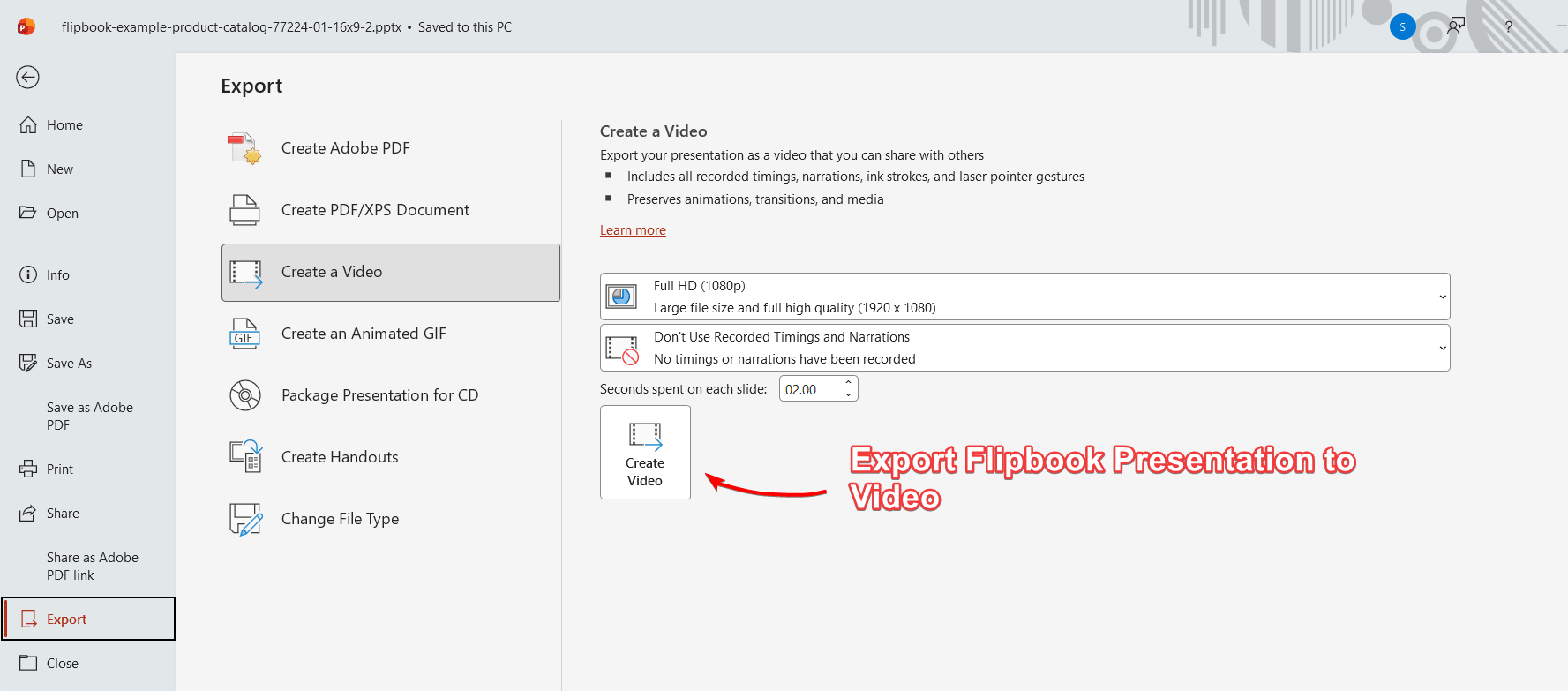
Once the animation is in place, you have two practical delivery options. The first is to export the presentation as an MP4 video. Go to File > Export > Create a Video, select your resolution (1080p works for most digital contexts), and let PowerPoint render the flipbook presentation as a video.
The exported video captures all transitions and object animations exactly as they appear in the slideshow, making it straightforward to share via email, embed on a website, or host on a video platform such as YouTube or Vimeo.
The second option is to run the file as a live slideshow, either in person or over a screen-sharing call. For a fully autonomous display, such as a lobby screen or trade show kiosk, go to Slide Show > Set Up Slide Show > Browsed at a kiosk (full screen). This automatically loops the presentation using the timing you configured in the Transitions panel.
For video-based presentations that need to reach audiences asynchronously, the MP4 export is generally the more reliable choice, since it removes any dependency on the recipient having a compatible version of PowerPoint.
While PowerPoint also lets you export a flipbook presentation as a GIF instead of a Video, exporting to GIF feels quite outdated today, so it is not recommended unless you strictly need to use this format. Although the GIF format can autoplay easily, loop, and is widely supported, a GIF exported from PowerPoint has serious technical limitations (limited to 256 colors per frame, large file sizes, and no real video compression).
Use Cases for a PowerPoint Flipbook
The flipbook format suits any situation where content benefits from a deliberate, page-by-page browsing experience. PowerPoint is superior for flipbooks when the flipbook is not just a publication but a highly visual, editable, presentation-oriented asset.
Sales teams building a product catalog in PowerPoint can give each item its own page with clean photography, pricing, and key specifications, producing something that reads more like a curated publication than a standard slide deck.
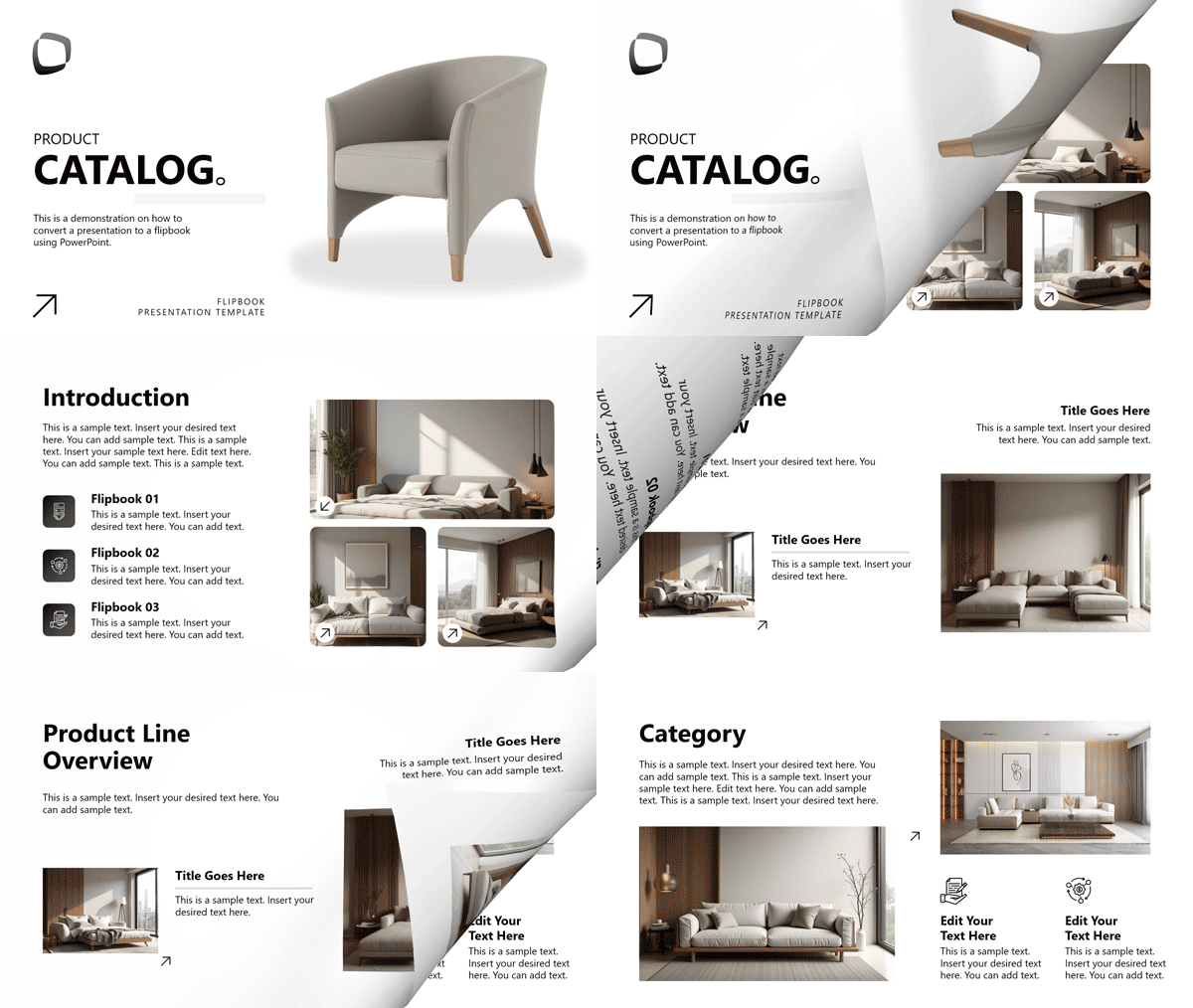
Clients tend to engage more carefully with a format that signals intentional curation. In fact, the example we have used to demonstrate the flipbook conversion in PowerPoint uses a Product Catalog template.
HR and operations teams use the format for handbooks and onboarding materials. A well-structured employee handbook built as a flipbook gives new hires something they can navigate section by section at their own pace, rather than a flat PDF they are unlikely to read in full. The sequential format naturally encourages reading slides in order, which matters when the content builds on itself.
Other applications include annual reports (where the page-oriented structure mirrors the traditional format of the document), pitch decks designed for investor walkthroughs that need to move at a controlled pace, real estate lookbooks presenting individual property listings, creative portfolios, digital magazines for internal communications, and photo albums for events like conferences or product launches. In each case, the format works because it imposes a clear sequence on the material and gives viewers the sense of moving through something with a beginning and an end.
PowerPoint vs. Adobe InDesign for Flipbooks
Adobe InDesign is the professional standard for multi-page layout work, particularly anything intended for print. It handles complex typographic grids with precision, supports CMYK color management for commercial printing, and produces print-ready PDFs that meet production specifications. For a formal publication where print fidelity matters, InDesign has a clear advantage over anything in the Microsoft ecosystem.
PowerPoint handles the entire process within a single application. The page-turn transition is directly in the PowerPoint Transitions panel, the export function is under File > Export, and the output is a self-contained video, GIF, or presentation file that any recipient can open or play. For teams already on Microsoft 365, there is no additional cost. The tradeoff is that PowerPoint’s typographic tools and color management are calibrated for screen output. For anything distributed digitally, that distinction rarely matters. For anything that goes to a commercial printer or requires precise color profiles, InDesign remains the appropriate tool.
Here is a direct comparison of the two options:
| Feature | PowerPoint | Adobe InDesign |
| Built-in page-turn effect | Yes | No (requires export or plugin) |
| Third-party tool required | No | Typically yes |
| Cost | Included in Microsoft 365 | Separate Adobe subscription |
| Typography for screen | Good | Excellent |
| Typography for print | Limited | Superior |
| Learning curve | Low | Moderate to high |
| Export formats | PPTX, PDF, MP4 | PDF, IDML, EPUB |
| Best suited for | Internal docs, catalogs, screen materials | Print publications, formal reports |
PowerPoint vs. Online Flipbook Platforms
The practical limitation of creating flipbooks in InDesign is that it lacks a native page-turn animation. To achieve that effect and generate an interactive flipbook, designers typically export to PDF and run it through a third-party service.
Modern online flipbook platforms such as Flipsnack, Issuu, FlippingBook, and FlipHTML5 focus primarily on browser-based publishing and digital distribution. These platforms typically convert PDF files into interactive HTML5 flipbooks with page-turn animations, responsive layouts, touch interactions, and mobile-friendly viewing experiences optimized for online sharing.
PowerPoint takes a different approach. Instead of serving mainly as a publishing platform, Microsoft PowerPoint functions as a content-authoring environment for creating and editing slides, diagrams, animations, timelines, and layouts. This becomes especially valuable for business materials such as product catalogs, sales presentations, onboarding manuals, investor decks, and annual reports that require frequent updates and fully editable content.
In practice, many modern workflows combine both approaches: PowerPoint is used to design and structure the content, while the final PDF is uploaded to a flipbook platform for online viewing and web distribution.
AI-assisted development tools such as Claude Code have introduced another emerging approach: generating fully custom HTML5 flipbook applications directly from prompts. These workflows often combine libraries such as PDF.js for browser-based PDF rendering, StPageFlip for realistic page-turn animations, and HTML5 Canvas rendering techniques to create responsive online flipbook experiences optimized for desktop and mobile devices.
SlideModel is unveiling a new PDF Presenter tool that transforms PDF presentations into interactive online flipbook experiences with ease, via a browser-based interface optimized for modern web and mobile viewing.
FAQs
Does PowerPoint have a flipbook template?
PowerPoint does not ship with a dedicated flipbook PPT template by default. SlideModel offers ready-made flipbook PowerPoint templates that replicate the page-turn aesthetic, saving time on building layouts and slide masters from scratch. A pre-built template also ensures dimensions, spacing, and font scaling are already calibrated for the format.
Which PowerPoint transition best replicates a physical page turn?
The Flip transition, available under the Exciting category in the Transitions tab, most closely mimics the motion of turning a physical page. In some versions of PowerPoint, Page Curl and Peel-Off transitions are also available and more literally mimic the corner-peel of a book page. For users with Microsoft 365, the Morph transition is worth considering for more customized motion between slides.
Can I print a flipbook made in PowerPoint?
Yes. Go to File > Print and select Full Page Slides to print one slide per page. For a booklet layout, use the two-slides-per-page handout option and bind the pages so they can be physically flipped. The page-turn effect only exists in the digital version, so the printed flipbook relies on physical binding to replicate the browsing experience.
How do I turn an existing PowerPoint presentation into a flipbook?
Select all slides using Ctrl+A in the slide panel, then apply a Flip or Page Curl transition from the Transitions tab and click “Apply To All.” Adjust the duration under Timing, configure whether slides advance on click or automatically, and export as a video or run as a slideshow. The content itself does not need to change; the transition determines how viewers move between slides.
Final Words
PowerPoint covers most of what professionals need to produce a functional, well-designed flipbook without additional tools. The transitions panel handles the page-turn effect, the export function produces a shareable video, and the whole process runs within software that most teams already use. Start with a clear content plan, apply your transitions consistently, and choose your export format based on how the final piece will actually reach its audience.