Bullet points help break down complex ideas into readable sections, making slides easier for the audience to follow. Structuring content with bullet points can improve readability across different presentation platforms, including Canva. If you’re wondering how to add bullet points in Canva, the platform provides several ways to create and customize bulleted lists for presentations and other designs. Let’s take a look at different methods to add bullet points in Canva.
Why Use Bullet Points in Canva
Bullet points help simplify content and make slides easier to scan. Instead of displaying long paragraphs, bullet lists allow presenters to communicate information in smaller sections. Using bullet points in Canva presentations can improve readability and highlight key ideas. They also help structure information clearly and reduce clutter. Furthermore, bullet lists can support audience focus during presentations. Since Canva is more than just a presentation platform, you can use bullet lists for ease of readability when making flyers, documents, social media posts, etc.
How to Insert Bullet Points in Canva
You can add bullet lists by selecting existing text or add bullets using keyboard shortcuts to create them as you add text. Additionally, you can also use symbols to generate lists.
Method 1: Use Canva’s Built-In Bullet List Option
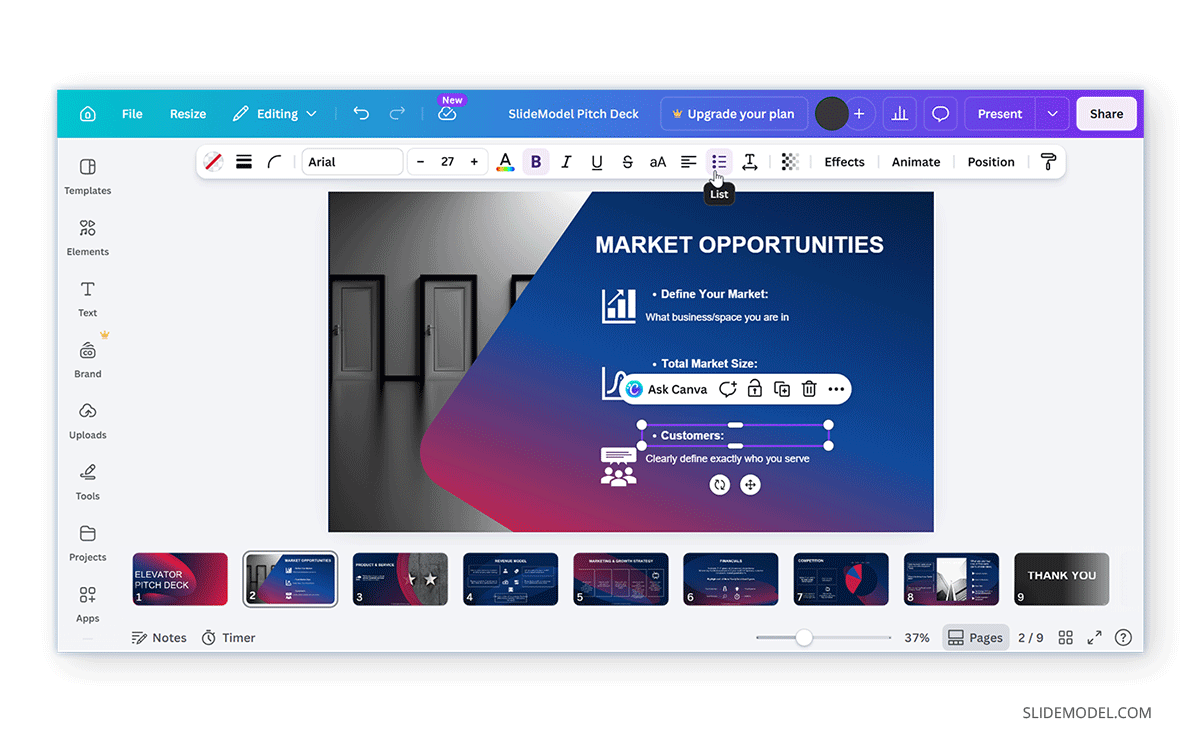
Canva includes a built-in list formatting option to quickly create bullet and number lists. Using this simple option can help keep spacing consistent, speed up formatting for existing text, and make edits easier.
Step 1: Click inside the text box containing your content.
Step 2: Click the bullet list option to convert selected text into a bulleted list automatically.
Step 3: Use spacing and alignment controls to improve readability. You can modify line spacing, indentation, and text alignment to refine your lists in Canva.
Method 2: How to Add Bullet Points in Canva Using Keyboard Shortcuts
Another quick way to create bullet points in Canva is by using keyboard shortcuts while editing text. This approach works best when creating short lists manually, adding custom bullet styles, or when working with simple presentations.
Step 1: Open your Canva presentation and add a text box by selecting Text -> Add a text box. You can then type your content normally.
Step 2: Use the Bullet Point Shortcut to insert bullets.
- Windows: Press Alt+0149 (numeric keypad)
- Mac: Press Option+8
Using these shortcuts will insert a bullet point into the text box.
Step 3: Press Enter after each line and repeat the shortcut to create additional bullets.
Method 3: How to Make a Bullet Point in Canva Using Symbols
Another option for lists in Canva is to insert bullet symbols manually. You can copy and paste symbols such as a standard bullet, a hollow bullet, a square bullet, or an arrow bullet. This method is useful when you want decorative bullets or wish to create infographic-style slides.
Step 1: Copy the required symbol using the right-click menu or CTRL/Command+C.
Step 2: Paste the symbol into your Canva text box using the right-click menu or CTRL/Command+V.
Step 3: Add text after the symbol. Repeat the process to complete your list.
Method 4: Create Custom Bullet Points with Icons
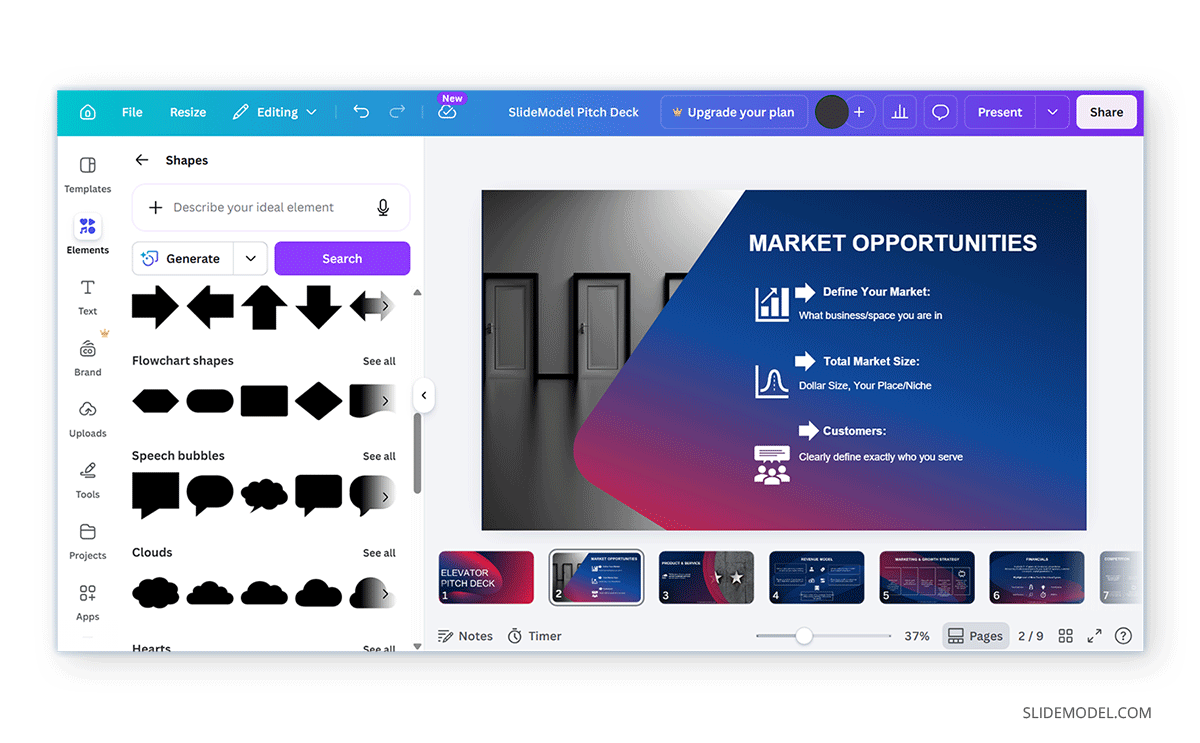
Canva allows you to replace standard bullets with elements such as Shapes.
Step 1: Go to Elements -> Shapes and search for icons like circles, arrows, abstract shapes, etc.
Step 2: Place the icon beside your text line.
Step 3: Duplicate for additional items by copying the icon for each list item to maintain consistency.
How to Change Bullet Point Color in Canva
If you want to customize your list appearance, you may need to adjust bullet colors.
Method 1: Create Canva Bullet Lists with the Same Color as the Text
In many Canva text lists, bullet points follow the same color as the text. Here is how to do this:
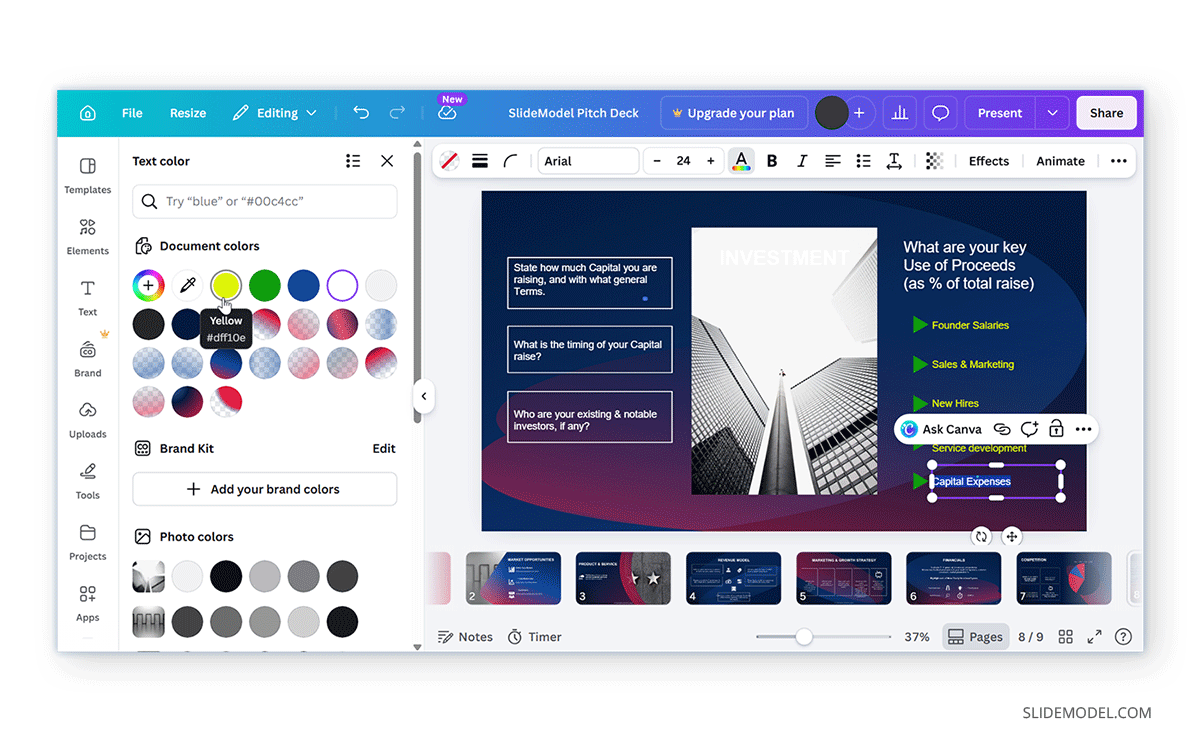
Step 1: Select the text box and click the Text Color button.
Step 2: Choose a new color to change the text and bullet colors.
Method 2: Create Canva Bullet Lists with Different Colors for Bullet and Text
To use custom symbol bullets in a different color, follow this method to change bullet point color and text separately in Canva:
Step 1: Insert custom bullet symbols manually before your text.
Step 2: Highlight only the bullet and change its color separately.
How to Animate Bullet Points in Canva
Animations can help reveal bullet points progressively during a presentation. Below are a few simple methods that you can use in Canva to animate bullet points.
Step 1: Click the text containing bullet points.
Step 2: Open Animations and click Animate.
Step 3: Choose an Animation (e.g., Fade, Pan, Wipe).
Step 4: Run the presentation to test the effect.
Note: Unlike PowerPoint, the Canva animate bullet points option currently does not support true “bullet-by-bullet” animations to the same extent. As a workaround, you can also place each bullet point in a separate text box to animate them individually for better timing and control.
Best Practices for Bullet Points in Canva
Using bullet points effectively is just as important as knowing how to add them. Well-structured bullet lists can improve readability and organize information more clearly. Lists can also help your audience focus on the most important points during a presentation or when scanning a flyer, document, or social media post made using platforms like Canva.
Keep Bullet Points Short and Focused
Bullet points work best when they communicate information quickly. Instead of writing long sentences or paragraphs, try summarizing ideas in short phrases or concise statements. The audience generally scans presentation slides rather than reads them word for word, so keeping bullet points brief helps maintain attention and improve clarity. A good approach is to use bullet points as prompts that support your spoken explanation rather than replacing it entirely.
Use Consistent Formatting Across Slides
Consistency plays a major role in professional slide design. Keep font styles, sizes, indentation, and spacing uniform throughout your presentation so that all slides feel visually connected. Even small inconsistencies, such as different bullet spacing or font sizes, can make a presentation appear unpolished. Using templates or predefined text styles in Canva can help maintain a consistent structure across all slides.
Avoid Overloading Slides with Bullet Lists
Too many bullet points on a single slide can overwhelm your audience and reduce readability. If a slide contains excessive information, viewers may struggle to identify the key message. Instead of listing everything at once, focus on the most relevant points and consider splitting content across multiple slides when necessary.
Use Visual Hierarchy to Improve Readability
Not all bullet points carry the same level of importance. You can improve clarity by creating a visual hierarchy using bold text, indentation, spacing, or different font weights. Main points should stand out clearly, while subpoints can appear slightly smaller or indented beneath them.
This structure helps guide the audience naturally through the content and makes complex information easier to understand.
Match Bullet Styles to the Presentation Theme
The style of your bullet points should complement the overall design of your presentation. Formal presentations often work best with simple, clean bullets, while less formal, creative presentations may benefit from custom icons, shapes, or branded design elements. Matching bullet styles to the presentation theme helps create a more cohesive and visually appealing design.
Use Spacing to Improve Slide Balance
Spacing is often overlooked when formatting bullet lists. Adding enough space between bullet points prevents slides from feeling crowded and improves readability, especially on larger screens. Proper spacing also helps separate ideas visually, making the content easier to scan during live presentations.
Consider Mobile and Screen Viewing
If your Canva presentation will be viewed on smaller screens, readability becomes even more important. Use sufficiently large text sizes and avoid tightly packed bullet lists, which can be difficult to read on tablets or mobile devices.
Common Issues and Fixes
Even though bullet points are relatively simple formatting elements, they can still create design and alignment issues in Canva presentations. Small inconsistencies in spacing, styling, or animations can make slides look unpolished and harder to read. Here are a few common issues and fixes related to bullet lists in Canva.
Bullet Points Not Aligning Properly
Misaligned bullet points are one of the most common formatting issues in Canva. Uneven spacing between bullets or inconsistent indentation can make slides appear disorganized and visually distracting. This often happens when bullet points are created manually instead of using Canva’s built-in list formatting tools.
Fix: Adjust indentation, line spacing, and text alignment manually to ensure all bullet points line up consistently. If possible, use the same text box and formatting settings throughout the slide to maintain uniform spacing.
Inconsistent Bullet Styles Across Slides
Using multiple bullet styles in the same presentation, such as mixing dots, arrows, icons, and checkmarks, can reduce visual consistency. While different bullet designs may seem creative, excessive variation can make presentations feel cluttered or unstructured.
Fix: Choose one bullet style and use it consistently throughout the presentation. If you are using custom icons or symbols, keep their size, spacing, and color uniform across all slides.
Bullet Colors Not Changing Separately
In Canva, standard bullet points usually inherit the same color as the text. This can be limiting when you want to highlight bullet points in a different color while keeping the text unchanged.
Fix: Use manually inserted symbols or icons instead of default bullets. This allows you to customize the bullet point color independently while keeping the text formatting separate.
Animations Not Working as Expected
When animating bullet lists in Canva, all bullet points inside the same text box may animate simultaneously. This can reduce the effectiveness of progressive content reveals during presentations.
Fix: Create separate text boxes for each bullet point and animate them individually. While this requires slightly more setup, it provides much better control over timing and the flow of the presentation.
Spacing Looks Uneven After Resizing Slides
Changing slide dimensions or resizing text boxes can sometimes disrupt bullet spacing and alignment. This is especially common when converting presentations between different layouts.
Fix: Review bullet spacing after resizing slides and manually readjust text boxes if necessary. Using Canva templates with predefined layouts or PowerPoint templates with Canva can also help minimize spacing issues.
Custom Icons Shift Out of Position
If you use icons or shapes as custom bullet points, they may move slightly when text is edited or resized. This can cause lists to look uneven.
Fix: Group icons with their corresponding text elements whenever possible. This helps maintain alignment when moving or resizing content.
Text Appears Too Dense
Long bullet lists with minimal spacing can make slides difficult to read, especially during live presentations.
Fix: Increase line spacing and reduce the amount of text per bullet. Breaking content into multiple slides can also improve readability and audience engagement.
Bullet Lists Look Different on Other Devices
Fonts, spacing, or alignment may appear slightly different when presentations are opened on another device or exported to another format.
Fix: Use widely supported fonts and preview the presentation before sharing or presenting. Exporting slides as PDF files can also help preserve formatting consistency. Since Canva can often change fonts in uploaded templates, you will need to manually update the text (e.g., for PowerPoint templates uploaded to Canva).
Final Words
Bullet lists help create cleaner, more organized, and easier-to-read presentations and designs in Canva. Whether you use keyboard shortcuts, Canva’s built-in list tools, custom symbols, or animated text boxes, there are several ways to structure presentation content with lists.
Beyond simply adding bullets, understanding how to customize colors, spacing, and animations allows you to create presentations that feel more polished and engaging. While Canva’s bullet-point features are not as advanced as PowerPoint’s, the platform still offers enough options to design professional presentation slides and other designs, with handy tools to create lists.