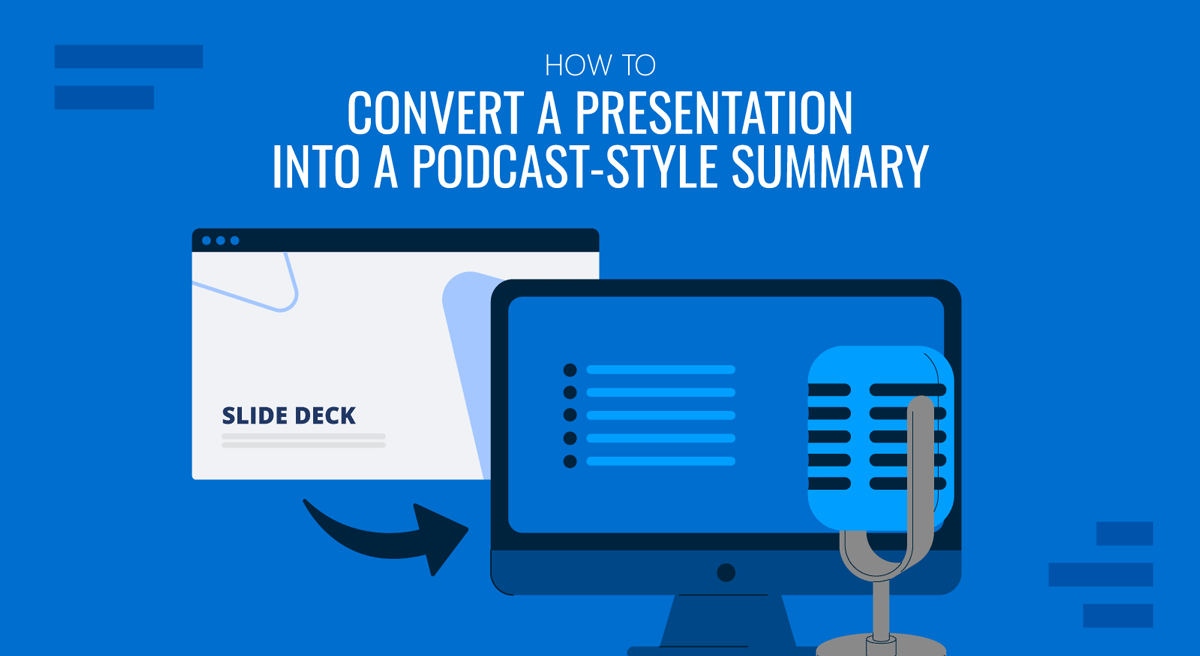
Most decks get opened once. They are presented for twenty minutes, saved to a shared drive, and never touched again. Anyone who missed the meeting skims a few slides, misses the argument that held them together, and moves on. Audio closes part of that gap. A ten-minute conversation about your deck can be consumed on a commute or between meetings, and a short written memo covers everyone who would rather read than listen. Google’s NotebookLM produces both from a single upload, at no cost. This guide covers the full process, from exporting your slides to sending the finished audio and memo to the people who need them.
Why a deck needs an audio version
A slide deck is visual support for a live speaker. Stripped of that speaker, it loses most of its meaning. Bullet fragments that made sense while someone was talking around them become ambiguous on their own, and the connective reasoning that justified the conclusion disappears entirely. An audio summary restores the narration that would otherwise be lost, in a format people already know how to consume.
It also reaches audiences a deck cannot. Executives reviewing board material the night before a meeting will listen to something they would never open as a forty-slide file, and sales reps absorb product updates between calls rather than never. The same is true of new hires working through onboarding material at their own pace.
There is a second argument, which is the return on work you have already done. Turning one deck into an audio episode and a written memo is the core idea behind repurposing presentation content, and audio is the format most teams skip because they assume it requires recording equipment, editing time, and someone willing to hear their own voice played back. None of that is true anymore. The production step that used to cost a day now costs about four minutes of waiting.
Export your slides and build the notebook
NotebookLM, or Gemini Notebook as it’s known now, does not accept .pptx files. Its uploader handles PDF, plain text, Markdown, ePub, and audio files, so PowerPoint decks need one conversion first. In PowerPoint, go to File, then Export, then Create PDF/XPS. For the full set of options, including image quality and which slides to include, see this walkthrough on saving a PowerPoint presentation as a PDF.
One detail decides how good the output will be: your speaker notes. A standard slides-only export drops them, and on a well-designed deck the notes hold most of the actual argument while the slides hold the headlines. Export using the Notes Pages layout, or paste the notes into a separate text document and upload that alongside the PDF.
Then go to notebook.google.com, sign in with a Google account, and click Create new notebook. Upload your PDF. You can add more than one source, and you usually should. A notebook holding the deck plus the underlying report will produce a far richer conversation than one holding forty sparse slides. Besides file uploads, NotebookLM accepts Google Docs and Google Slides, pasted text, website URLs, and YouTube links, so a deck that already lives in Google Slides can connect directly with no conversion.
Customize, generate, and check the audio
Open the Studio panel on the right side of the notebook and find Audio Overview. Before clicking Generate, click Customize. This is the step most people skip, and it separates a generic summary from something you would actually send to a colleague.
The customization box accepts plain language. Useful instructions include “focus on the financial projections in section three,” “explain this for an audience with no technical background,” “address this to investors evaluating a Series B,” or “skip the company history and start with the market opportunity.” You can also pick a format. Deep Dive is the default two-host conversation, while Brief, Critique, and Debate produce shorter, more evaluative, or more adversarial treatments of the same material. You can set the length to Shorter, Default, or Longer. Gemini Notebook generates audio in more than eighty languages, although the length presets currently apply to English only.
Click Generate and wait a few minutes. When the audio is ready, you can play it in the browser or download it from the player menu. Listen to the whole thing before sharing it. The hosts sound confident regardless of whether they are right, which is exactly why errors pass unchallenged. Check the figures and dates against your source, and confirm the emphasis matches your intent. If a section is wrong or thin, adjust the customization prompt and regenerate rather than patching it afterward.
Turn it into a memo and send both out
Audio alone is not enough. Nobody can skim it or quote it in an email, which is why the written summary of your presentation still matters. In the same Studio panel, generate a Report. The Briefing Document format produces a one-to-three-page executive summary of your sources, and NotebookLM also offers study guides, FAQs, timelines, and suggested formats based on what it finds in your material. The suggestions are often better than the defaults, because they are built from your actual content rather than a template.
Export the report to Google Docs and edit it in your own voice. Tighten the opening and add the decision you want the reader to make, since NotebookLM summarizes but will not tell anyone what to do next.
Send the memo and the audio in the same message, and share the original slide deck alongside them for anyone who wants the visuals. A short framing line helps: what it covers and what you need from the reader. Internally, the pairing works well in Slack or Teams. Externally, you can host the audio and embed it in a follow-up email, or publish it as a proper podcast episode. If the deck also needs a visual version for social or YouTube, converting it to video gives you another format from the same source. Say plainly that the voices are AI-generated whenever the audience sits outside your organization.
FAQs
Is Gemini Notebook free to use?
Yes. The free tier caps how many Audio Overviews and chat queries you can generate per day. Paid Google AI plans raise those caps substantially and allow more sources per notebook, which matters if you process decks weekly rather than occasionally.
Why can’t I upload my .pptx file directly?
The uploader supports PDF, text, Markdown, ePub, and audio formats, but not PowerPoint. Export your deck to PDF first. If the file already lives in Google Slides, connect it as a Google Slides source and skip the conversion entirely.
How long is the generated audio?
A Deep Dive usually runs between eight and fifteen minutes, depending on how much source material you provide. Use the Shorter or Longer setting, or add an instruction such as “keep it under five minutes.” Treat the result as approximate, because the length controls steer rather than enforce.
Will it read my speaker notes?
Only if they appear in the file you upload. A slides-only PDF export leaves them out completely. Export using the Notes Pages layout, or paste the notes into a separate text source, so the hosts can discuss what you actually intended to say rather than the headlines alone.
Can I control the hosts’ tone or target a specific audience?
Yes. The Customize box takes plain-language instructions about focus and audience. You can request a formal register for a board audience or a beginner-friendly explanation for people outside the field, and the Debate format will argue both sides of a proposal rather than summarizing it.
Is the output accurate enough to send to clients?
It is grounded in the sources you upload, which makes it more reliable than a general chatbot, but it still paraphrases and occasionally misplaces emphasis. Review the full audio and edit the memo before anything leaves your organization. The review takes ten minutes, and skipping it carries real risk.
Final Words
The workflow is short: export to PDF, upload, customize, generate the audio, generate the briefing document, and edit before sending. Fifteen minutes of work turns a deck that would have been read once into two formats people will actually use. Start with something that already has an audience waiting, such as a quarterly review or a proposal under consideration, and compare the response against the last version you sent as slides alone.