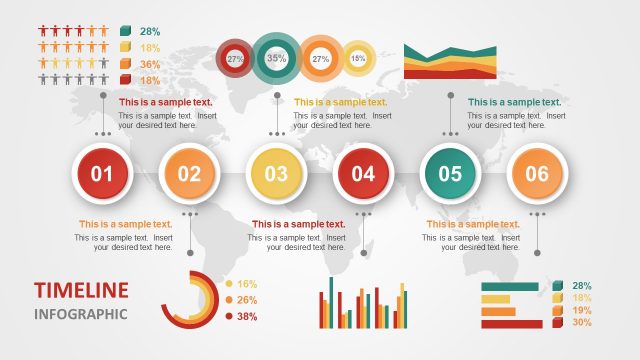
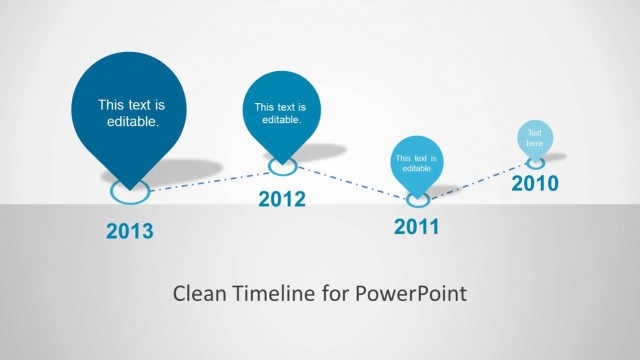
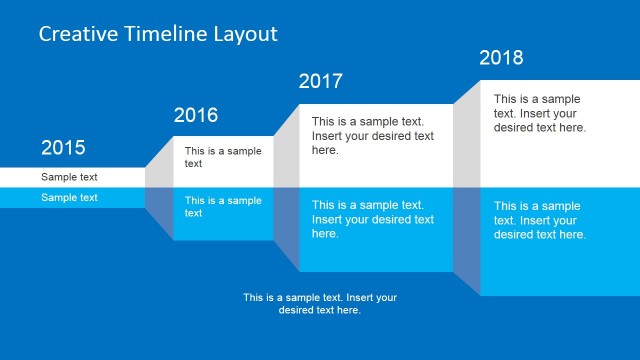
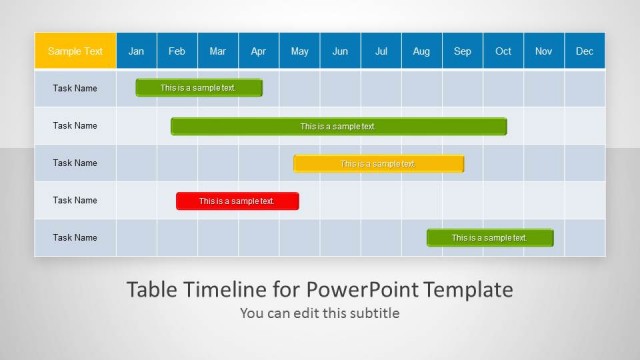
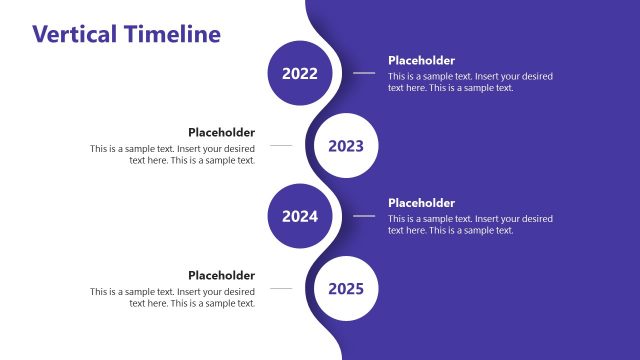
Timeline Template for PowerPoint provides numerous editable timelines slides to help you easily create custom timelines in PowerPoint.
The slide designs come with blue and white background variants, which provide a nice clean layout to help you make timelines that are both visually appealing and easy to understand for your audience.
Discover our step-by-step guide on how to create a timeline in PowerPoint and Google Slides.
What’s inside this template
Example presentation scenarios
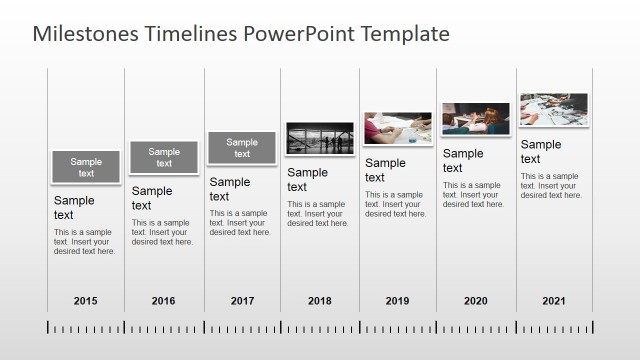
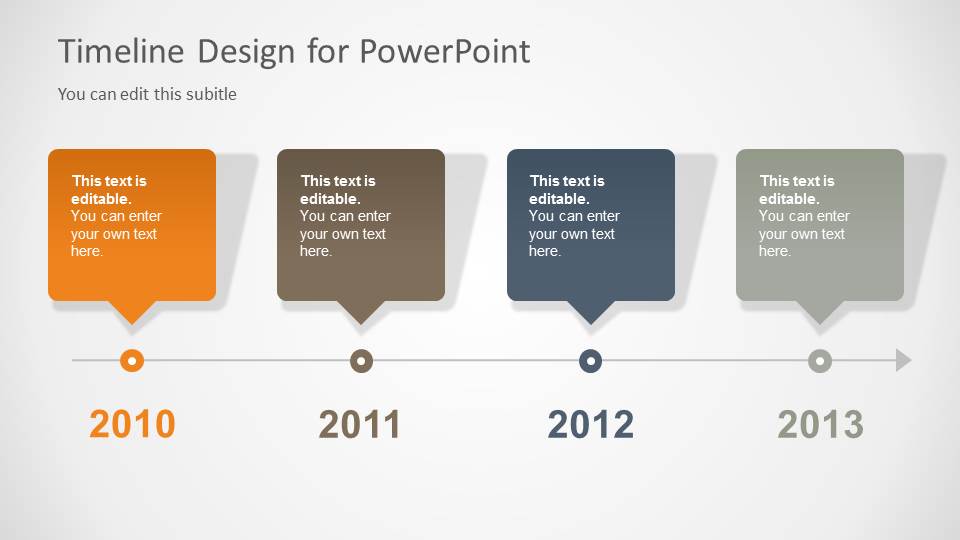
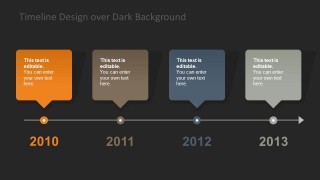
- A project manager can present a yearly delivery plan by using the horizontal milestone timeline to show dates, key phases, and the order of upcoming work.
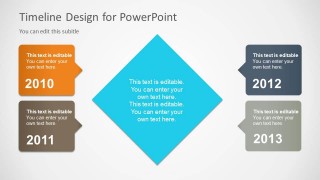
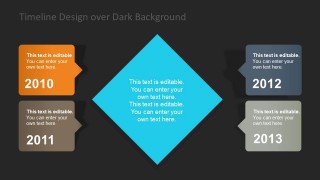
- A consultant can summarize a client transformation roadmap by using the central diamond layout to place the main initiative in the center and connect surrounding years to specific actions.
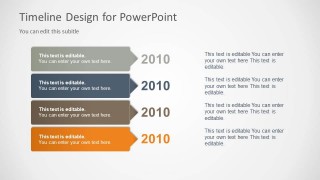
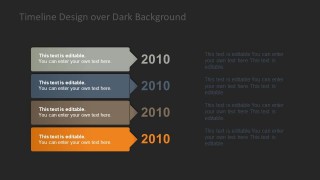
- An operations leader can brief executives on schedule changes by using the stacked arrow timeline to pair each year marker with a short explanation and supporting note.
- A planning team can compare light and dark visual treatments when preparing internal and external roadmap versions with the same timeline structure.
Features
- 100% editable presentation template
- Compatible with Microsoft PowerPoint and Google Slides
- 16:9 aspect ratio slides
- Scalable vector shapes, icons and illustrations
- AI-Ready for Microsoft Copilot and Claude
- Instant access and download
Frequently asked questions
Q: How should I present a project plan with these timeline layouts?
A: Start with the horizontal milestone slide when the audience needs the full sequence at a glance. Use the central diamond slide to frame the main objective or turning point, then use the stacked arrow slide for detail. Keep each milestone label short and move supporting explanation into the adjacent text blocks.
Q: Who is this timeline template best suited for?
A: This template fits presenters who need to explain timing without overwhelming the audience with scheduling detail. Project managers, consultants, planners, and operations teams can use it for annual roadmaps, kickoff meetings, client updates, and phase reviews where dates, milestones, and next steps matter more than task-level tracking.
Q: Why do the callout, arrow, and diamond shapes help communicate a timeline?
A: The callout boxes tie each note directly to a date, which reduces ambiguity in milestone discussions. Arrow ribbons suggest forward movement, making the sequence feel directional. The diamond works as a focal-point metaphor, helping the presenter position a goal, decision, or summary idea at the center of the schedule.


Timeline Template for PowerPoint
6-slide timeline presentation template with milestone roadmap layouts and yearly schedule callouts
Timeline Template for PowerPoint is a 6-slide timeline presentation template with light and dark background variants. It includes a horizontal milestone timeline, a central diamond layout with year callouts, and stacked arrow labels with text blocks. It is built for project managers, consultants, and planners working in Microsoft PowerPoint or Google Slides.
- Category
- Timelines & Planning
- Rating


 Loading...
- Aspect ratio
- 16:9
- Item ID
- 6002-01
- Colors
 Microsoft PowerPoint
  Microsoft Copilot
  Claude for PowerPoint
 Other formats supported
Subscribe today and get immediate
access to download our PowerPoint templates.