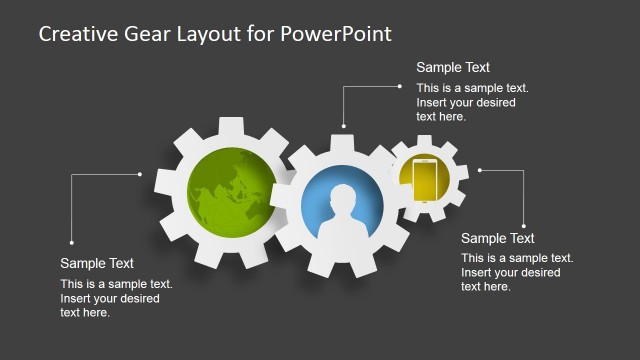
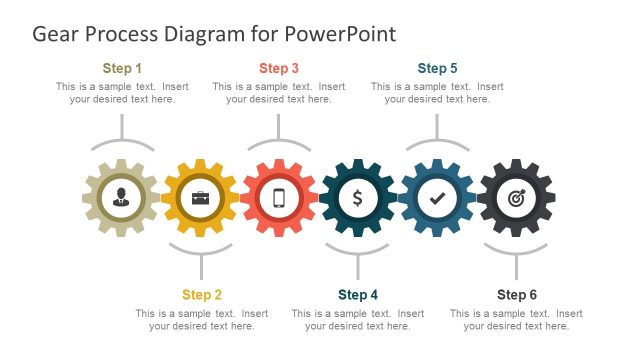
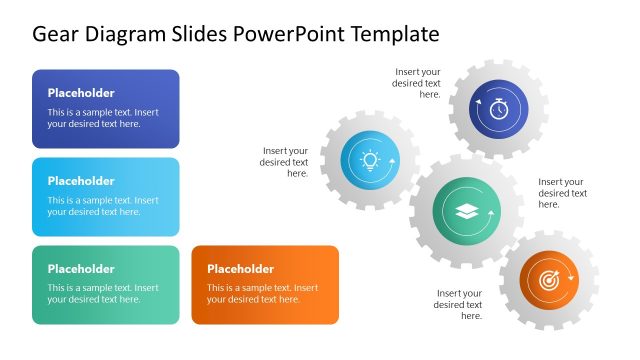
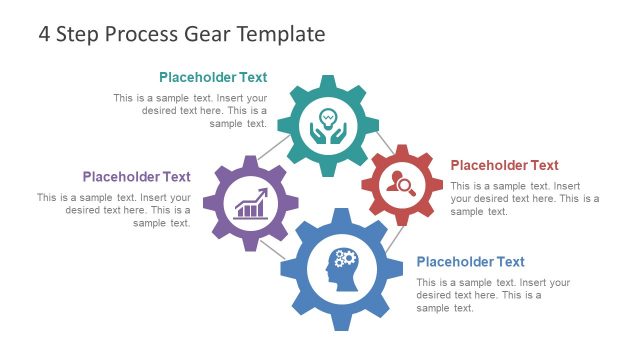
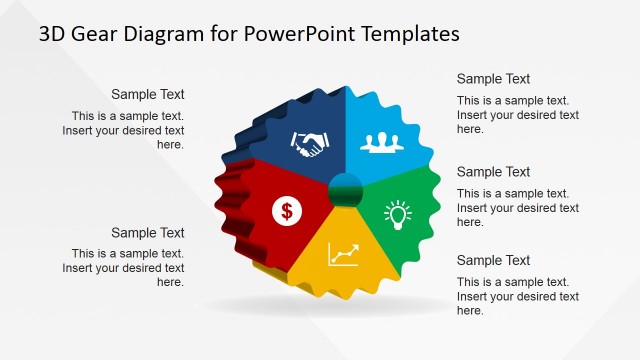
Gears Layout Template for PowerPoint– Gears are parts of a particular mechanism designed for a specific task. In general, they move in a relationship to make a vehicle or machine work. The template is creative and has refreshing conceptual design. It can serve as an infographic which can make any process flow presentation understandable.
Gears have toothed edges and circular outlines. The picture, however, can metaphor numerous ideas like system flows. There are 2-step and 3-step method slide layouts. The PowerPoint shapes highlight on the dependency of every process to the other. The relationship between steps is showcased. This template can capture the beginning, implementation and completion of every task in the flow. The audience, then, can grasp the notion even without a long textual content.
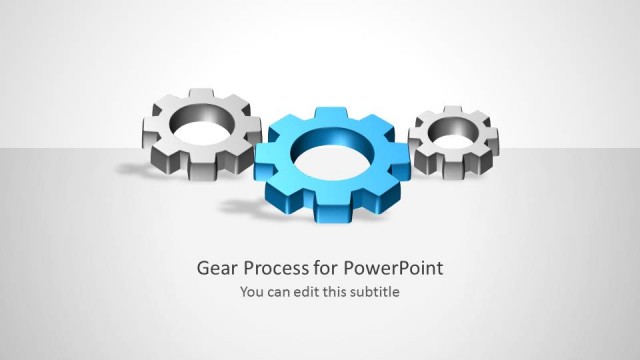
The PowerPoint template contains 6 slides. The first, second and fourth slides can illustrate 3-step processes. The 3rd slide can shoulder 2-step presentations. The last 2 slides can serve as a legend of the factors included in the procedure. The shapes are in blue and gray color schemes. The 3D styles make the report interesting and entertaining. These, later on, can become efficient tools in relaying the information to the audience.
These slide designs are ideal for displaying mechanisms. It can metaphor business planning and strategies. It is perfect in showing relationships between elements. This can be applied to ideas of teamwork where each member is dependent to the other. It is good for organizational reports. It can represent independent processes that require an initial step to finish before the next one can work.
Generate creative and compelling process presentations through the Gears Layout Template for PowerPoint. Choose from the 4 Steps PowerPoint Templates of the SlideModel gallery. The wide array of options can surely help in developing quality reports on a variation of concepts.
What’s inside this template
Example presentation scenarios
- An operations manager can use the three-gear layout to explain how staff skills, equipment capacity, and processes work together in an operations review.
- A project manager can use the two-gear dependency slide to show how one workstream affects another before discussing risks or handoffs.
- A consultant can use the single-gear callout slide to isolate one critical success factor and explain its role in a client process.
- A team lead can use the diagonal two-gear callout layout to present coordination points between two departments or roles.
Features
- 100% editable presentation template
- Compatible with Microsoft PowerPoint and Google Slides
- Scalable vector shapes, icons and illustrations
- AI-Ready for Microsoft Copilot and Claude
- Instant access and download
Frequently asked questions
Q: How should a presenter use the gear metaphor without making the message feel too mechanical?
A: Use each gear as a specific business factor, not as decoration. Start with the largest or most central gear as the driver, then explain how the surrounding gears depend on it. Keep labels short inside the gears and move explanatory detail to speaker notes or nearby callouts so the diagram stays easy to read.
Q: Who is this template best suited for in a business presentation?
A: This template fits presenters who need to explain connected work rather than isolated topics. Operations leaders, project managers, consultants, and team leads can use the three-gear and two-gear diagrams to show how people, capacity, process, or departments must move together for a plan to work.
Q: Why do gear layouts help communicate process dependencies?
A: Gears imply motion, contact, and dependency, so the audience quickly understands that one factor affects another. The large blue gear creates visual priority, while gray supporting gears show related components. This makes the layout useful for explaining systems, coordination, and cause-and-effect relationships with fewer words.


Gears Layout Template for PowerPoint
6-slide gear diagram presentation template for process flow, dependencies, and key factors
Gears Layout Template for PowerPoint is a 6-slide diagram template built around editable gear illustrations. It includes three-gear process layouts, a two-gear dependency layout, a single-gear callout slide, and an operations management example. It is suited for business process, teamwork, systems, and operations presentations in PowerPoint.


 Loading...
 Microsoft PowerPoint
 Microsoft Copilot
 Claude for PowerPoint
Other formats supported
Subscribe today and get immediate
access to download our PowerPoint templates.