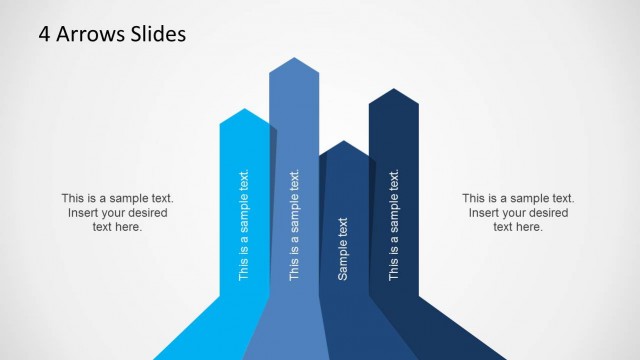
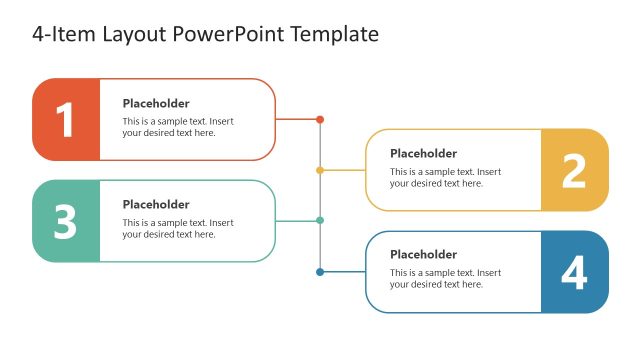
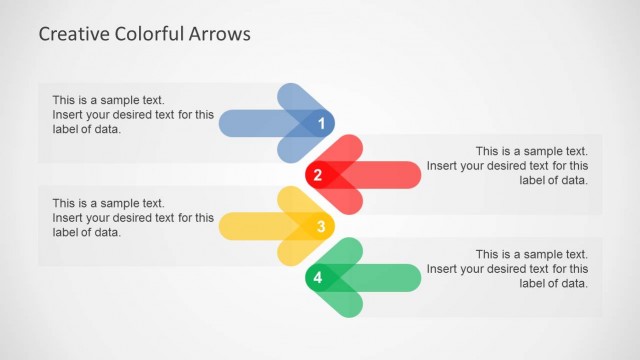
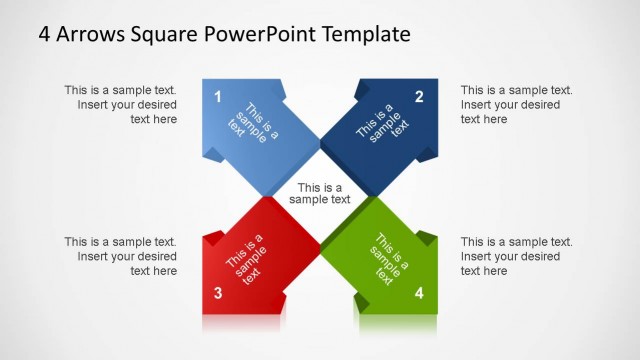
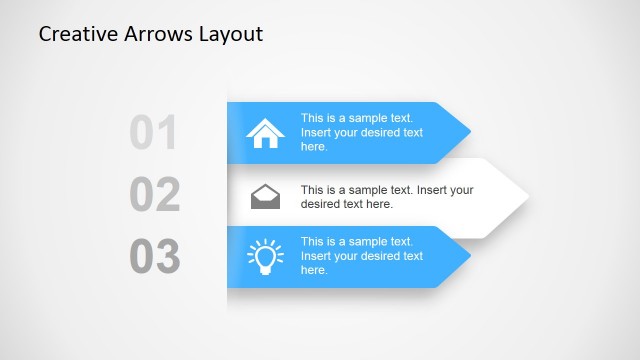
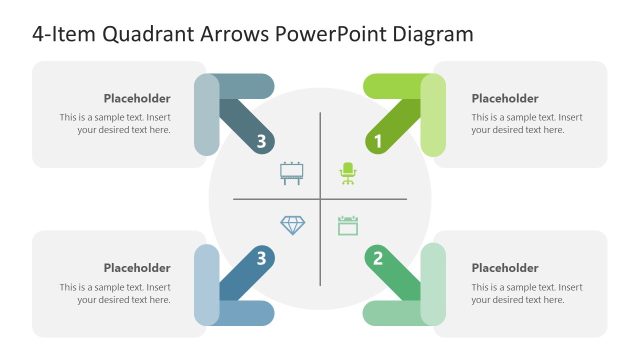
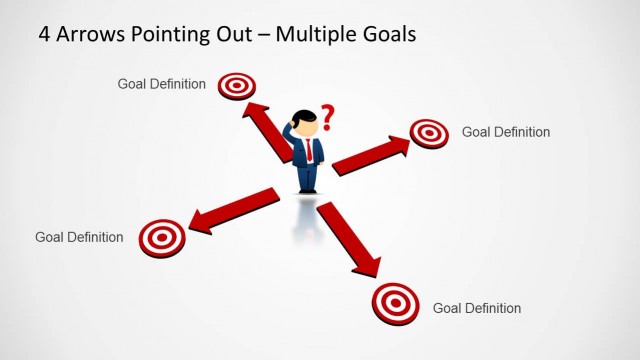
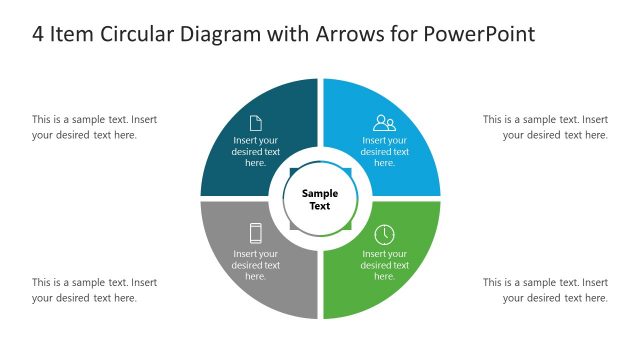
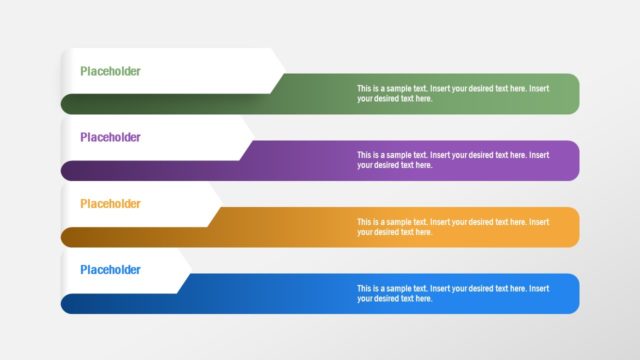
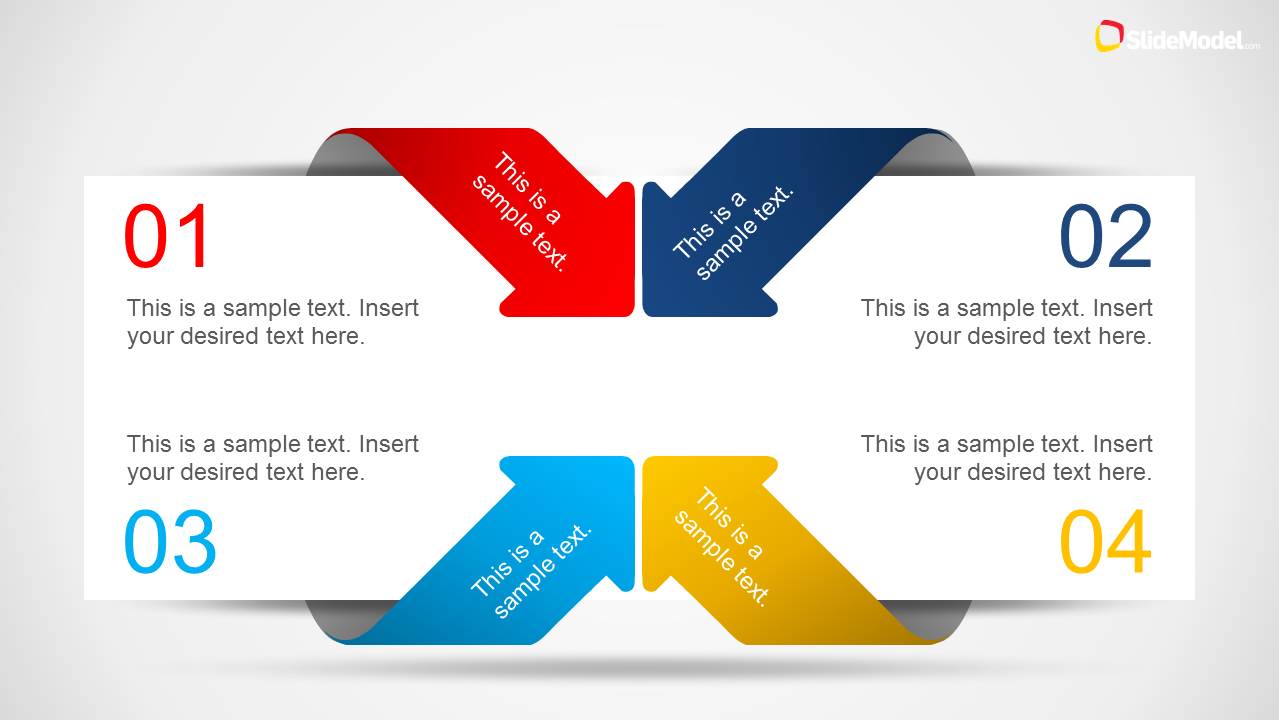
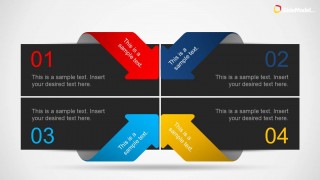
Creative 4 Item Layout Template for PowerPoint with Arrows is a presentation design for Microsoft PowerPoint containing a creative layout that you can use as a template to prepare presentations out of the ordinary. You can use this creative layout template for PowerPoint to present up to four topics or concepts. The layout uses colorful arrows in PowerPoint.
The 4 item layout template for PowerPoint can be used as an alternative to traditional bullet lists in PowerPoint. Alternatively you can download other text & table layouts for PowerPoint.
What’s inside this template
Example presentation scenarios
- A consultant can use the four-item arrow matrix to explain four strategic options and add a short implication statement beside each numbered item.
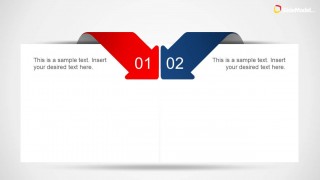
- A project manager can use the two-item arrow comparison slides to show paired priorities, risks, or workstreams during a planning meeting.
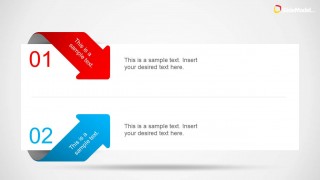
- A trainer can use the stacked two-step panel to introduce two key behaviors, then expand each point with brief text on the right.
- A sales presenter can use the dark quadrant layout to summarize four product benefits or buying criteria in a more visual format than a bullet list.
Features
- 100% editable presentation template
- Compatible with Microsoft PowerPoint and Google Slides
- Scalable vector shapes, icons and illustrations
- AI-Ready for Microsoft Copilot and Claude
- Instant access and download
Frequently asked questions
Q: How should I turn a bullet list into a clear message with these arrow layouts?
A: Start by grouping the list into two or four parallel ideas, then give each arrow a short label or keyword. Use the nearby text area for one concise explanation, not a paragraph. The large numbers create a reading order, so introduce the points in sequence and keep each item similar in length.
Q: Who is this template best suited for in a business presentation?
A: It works best for presenters who need to explain compact ideas without building a full process diagram. Consultants, project managers, trainers, and sales teams can use the four-item and two-item layouts to frame choices, principles, takeaways, or concept groups during meetings, workshops, and proposal discussions.
Q: Why do the folded arrows communicate better than standard text boxes?
A: The folded arrows act as visual signposts, making each numbered item feel active and directional instead of static. On the four-item slides, the arrows pull attention toward the center, which helps the audience see the points as part of one concept. The dark quadrant version adds stronger separation when the ideas need contrast.



Creative 4 Item Layout Template for PowerPoint with Arrows
6-slide PowerPoint presentation template for arrow layouts, bullet lists, and four-step concepts
This is a 6-slide PowerPoint template for replacing bullet lists with arrow-based text layouts. It includes a four-item arrow matrix, a dark quadrant version, two-item comparison slides, and stacked step panels. Business presenters can use it to explain concepts, categories, choices, or short processes.


 Loading...
 Microsoft PowerPoint
  Microsoft Copilot
  Claude for PowerPoint
 Other formats supported
Subscribe today and get immediate
access to download our PowerPoint templates.