Download 6 Step Cycle Diagram Template with Triangles for PowerPoint.
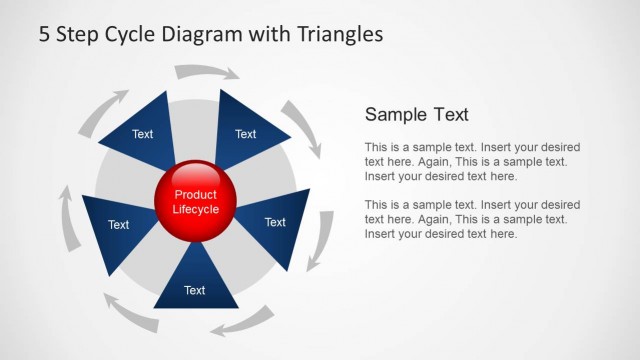
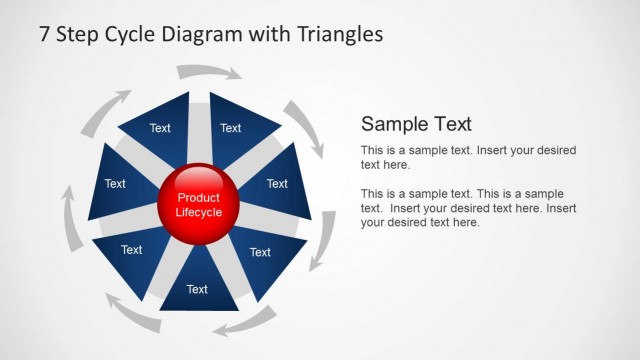
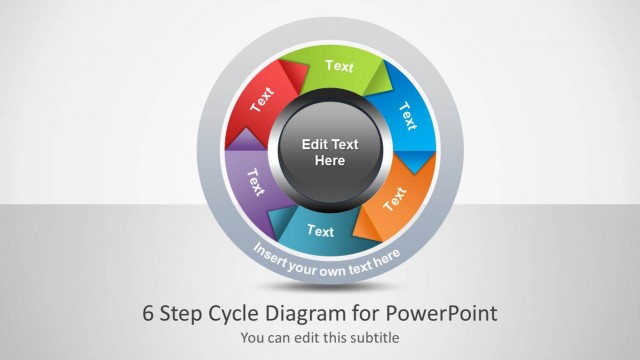
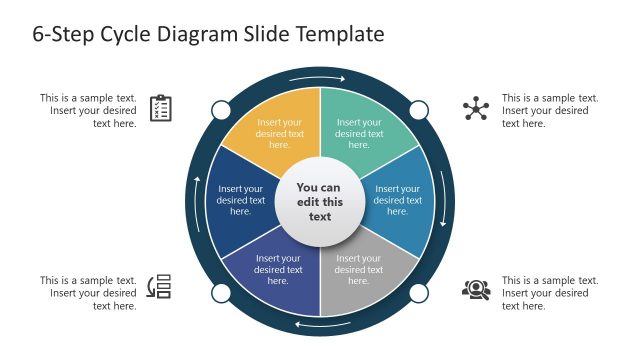
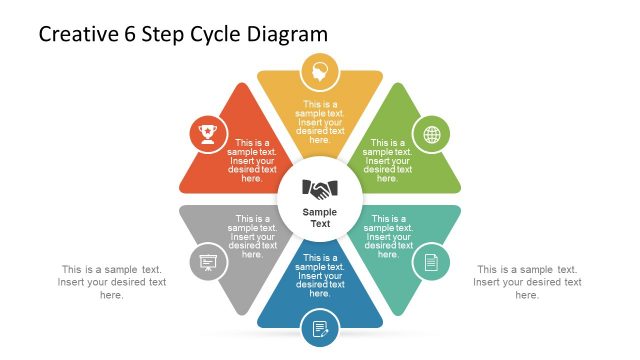
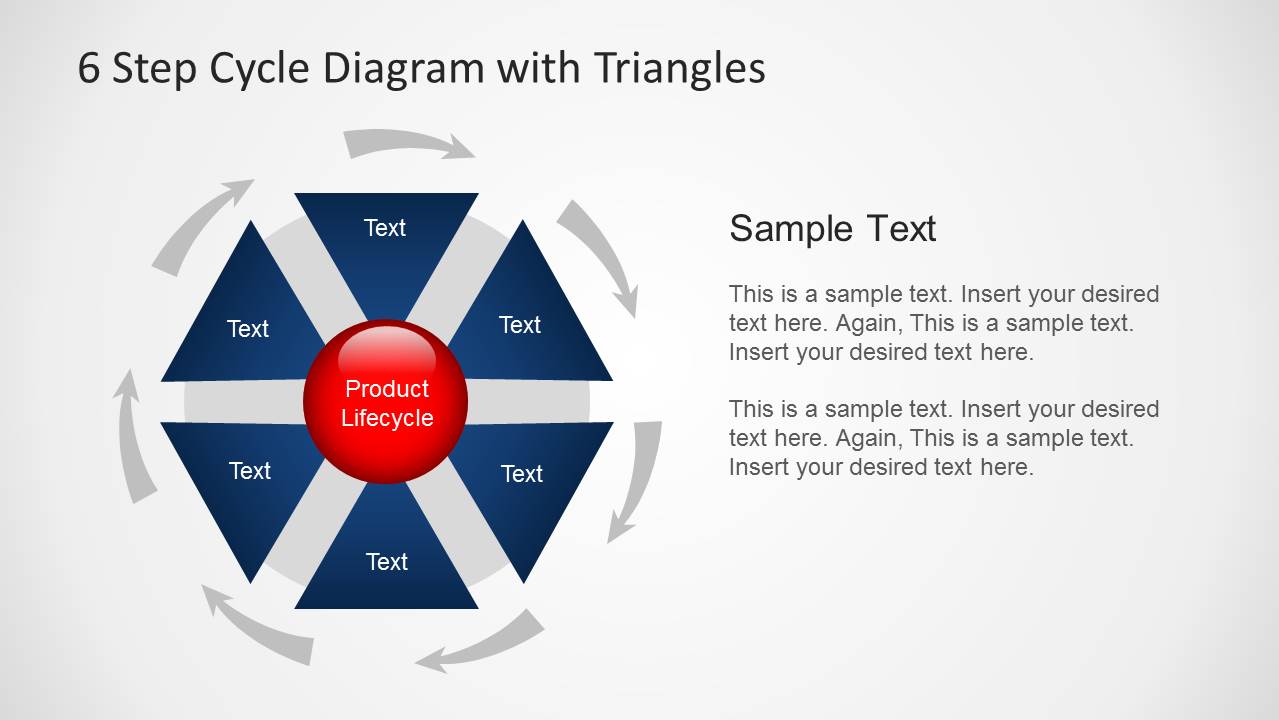
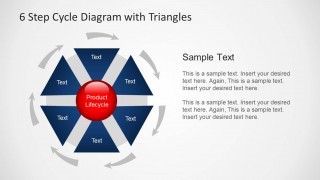
Create 6 step diagrams with this cycle diagram template. You can not only quickly create 6 step diagrams by adding your own text but even customize the elements within sample slides to create a custom diagram using your preferred colors.
To make diagrams for three, four, five, six and seven step processes, see our complete collection of PowerPoint Diagram Templates.
What’s inside this template
Example presentation scenarios
- A product manager can present lifecycle stages to executives by using the central product lifecycle label and the six triangle segments to keep the discussion tied to a repeating product process.
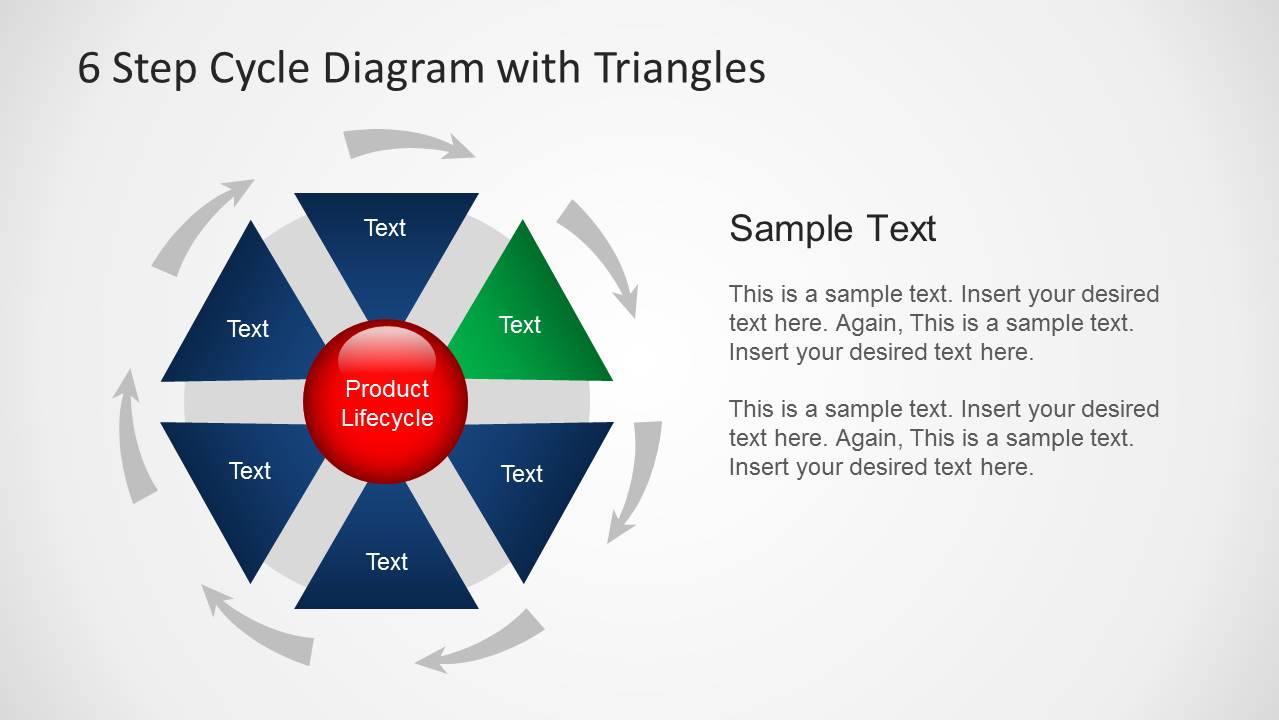
- An operations leader can explain a continuous improvement workflow to department heads by moving through the highlighted-step variants and discussing one stage per slide.
- A consultant can map a client process during a discovery workshop by replacing the segment labels and using the gray circular arrows to show that the steps repeat.
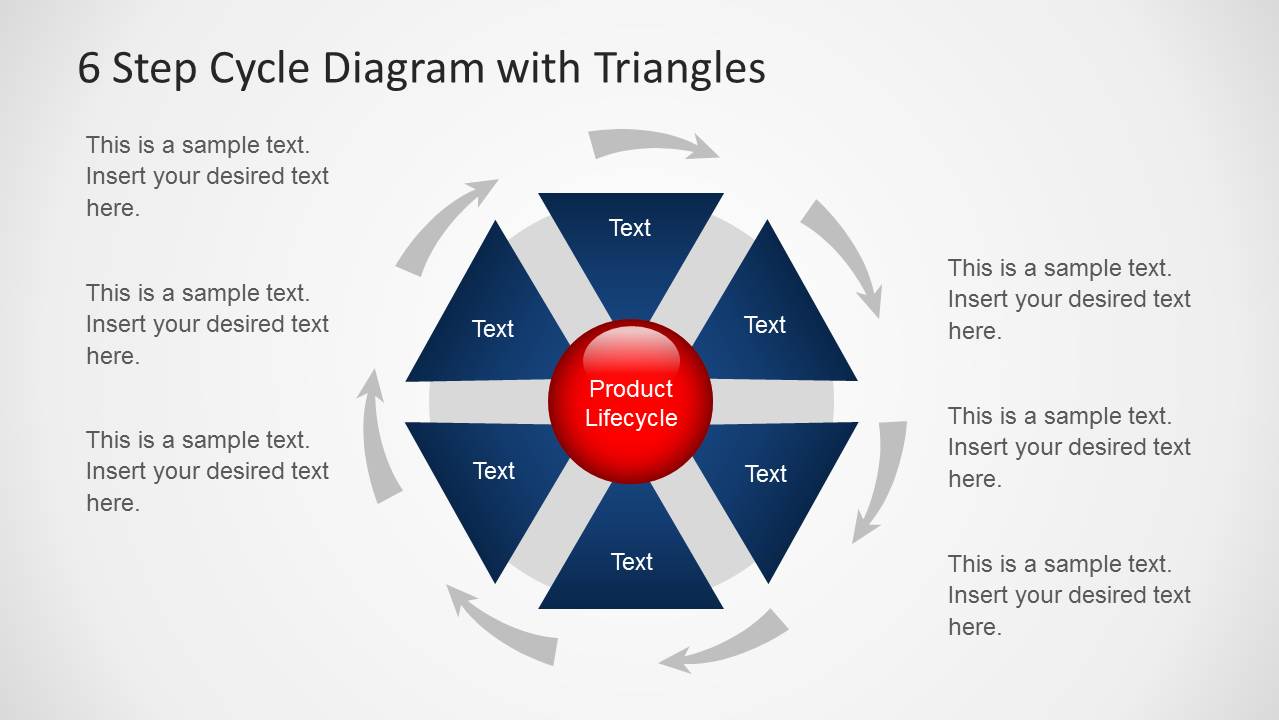
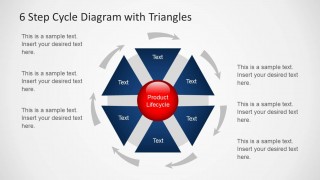
- A training facilitator can teach a standard operating procedure by using the final callout layout to place short instructions around the cycle diagram.
Features
- 100% editable presentation template
- Compatible with Microsoft PowerPoint and Google Slides
- Scalable vector shapes, icons and illustrations
- AI-Ready for Microsoft Copilot and Claude
- Instant access and download
Frequently asked questions
Q: How should a presenter explain the six-step cycle without making the diagram feel repetitive?
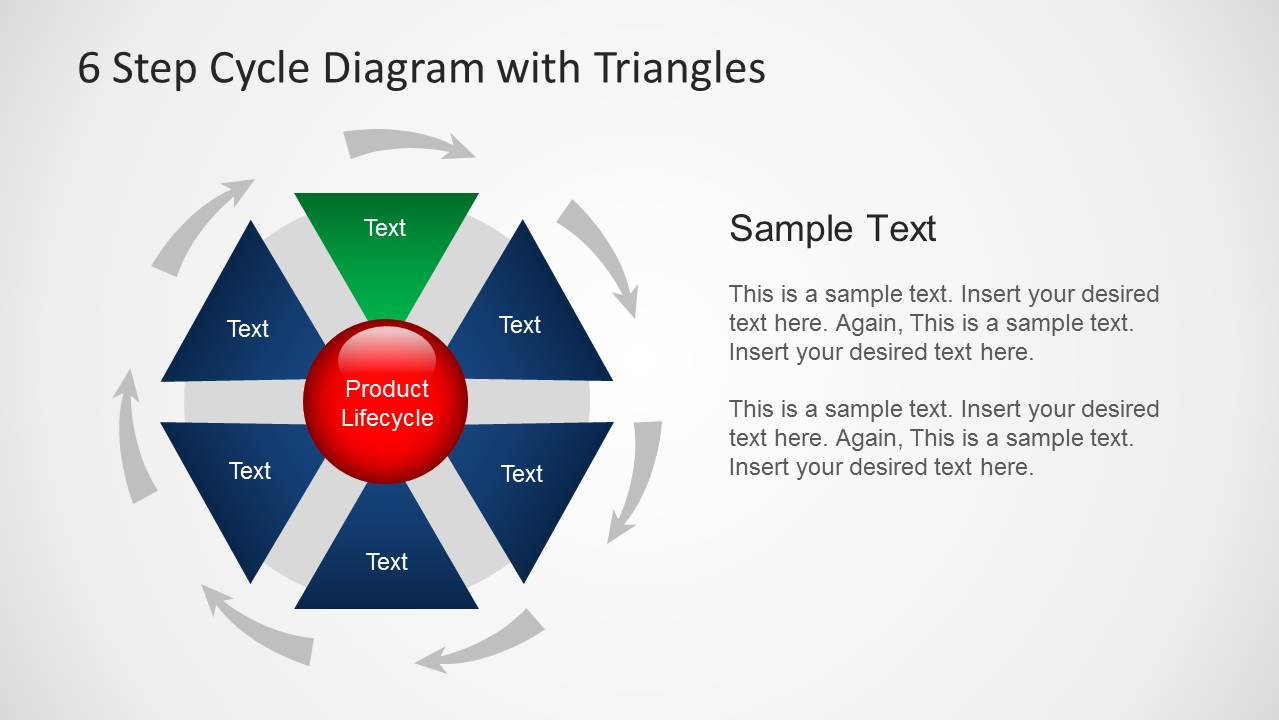
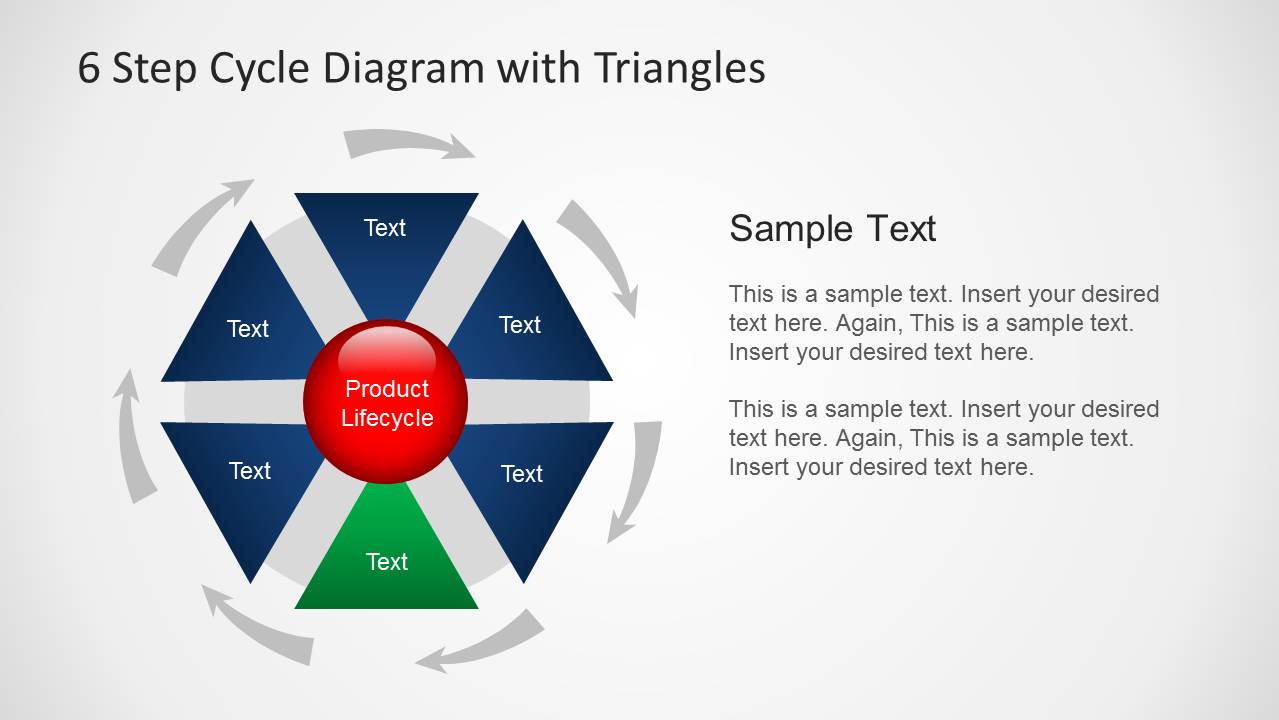
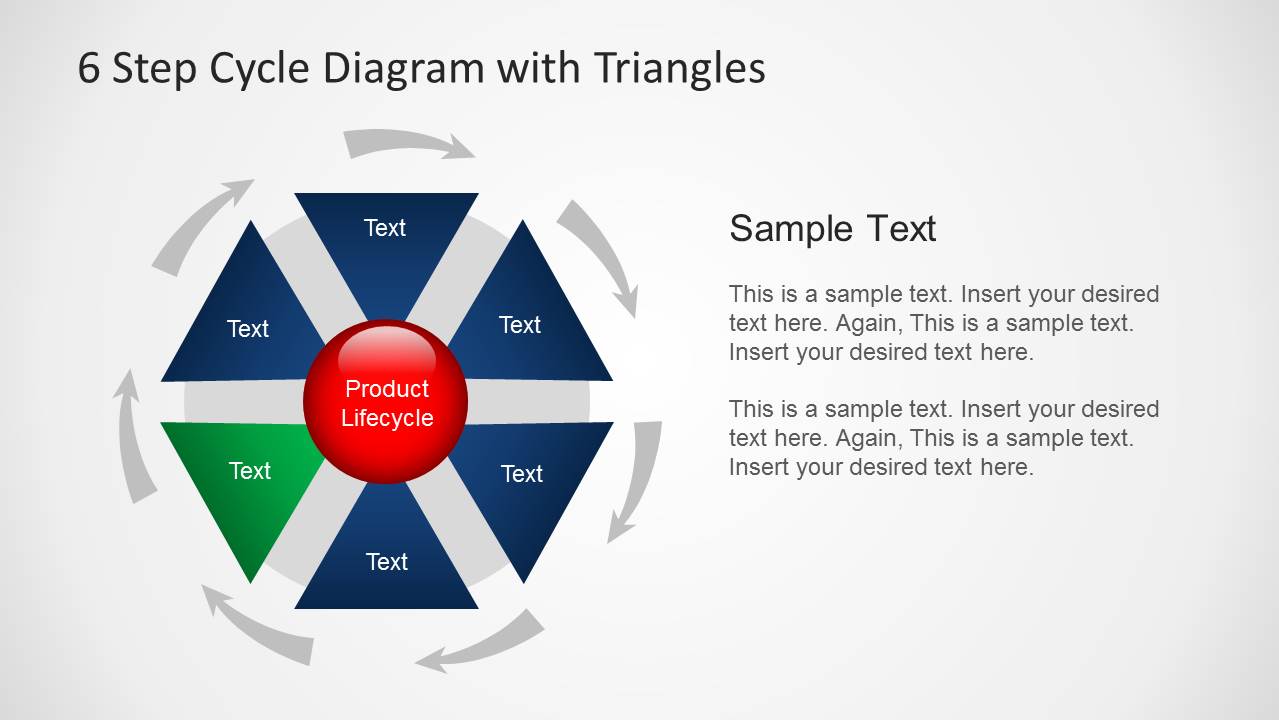
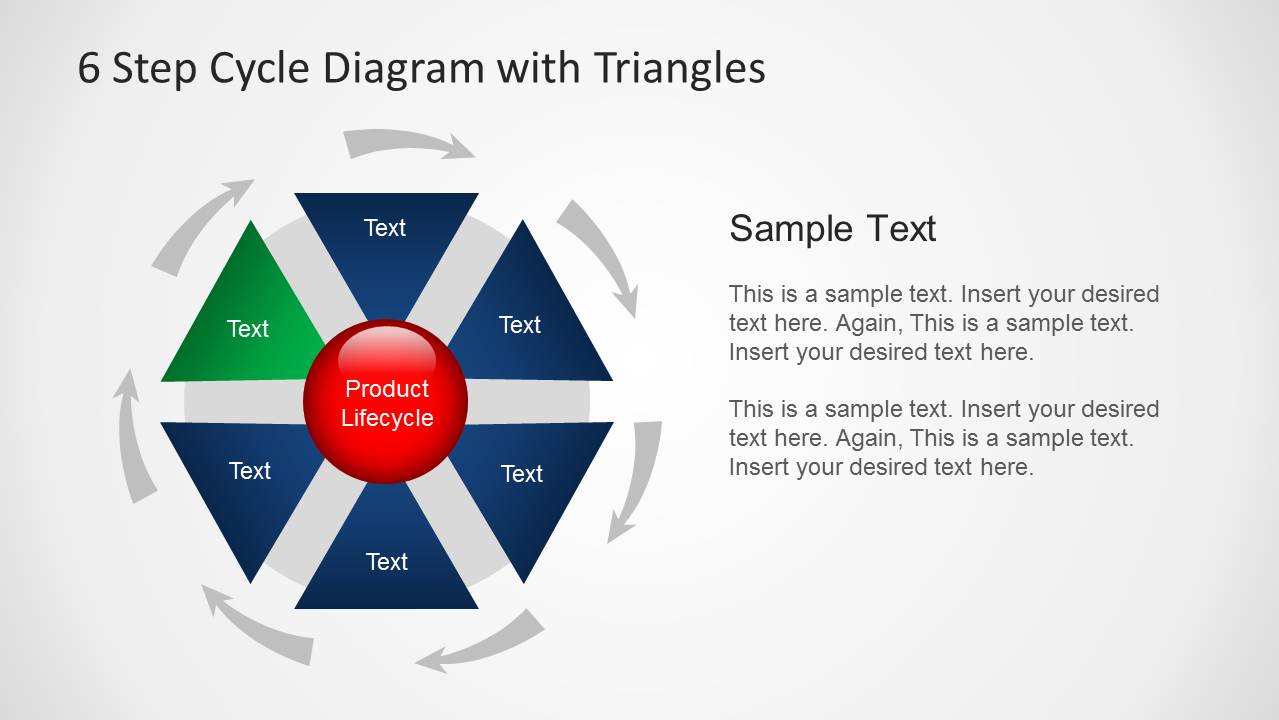
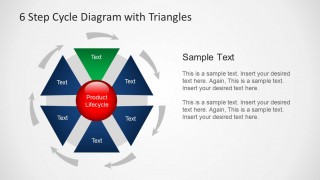
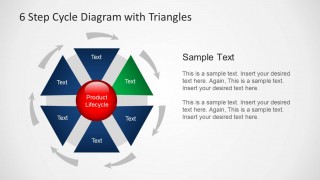
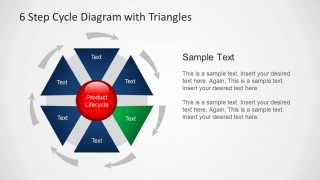
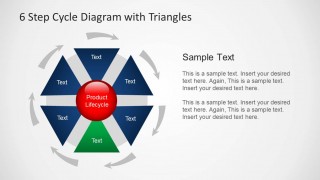
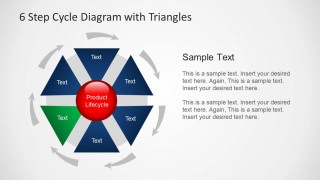
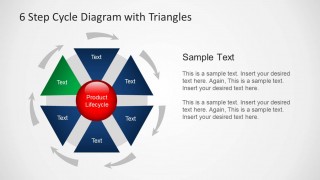
A: Start with Slide 1 to show the full cycle and name the logic behind the six stages. Then use Slides 2 through 7 as a step-by-step walkthrough, with the green triangle acting as the speaking focus. Keep each stage label short and use the right-side text area for implications, owners, or next actions.
Q: Who is this template best suited for in a business presentation?
A: This template is a strong fit for product managers, operations leaders, consultants, and trainers who need to explain a repeatable process rather than a one-time plan. The product lifecycle center label, circular arrows, and six equal triangle segments work well for lifecycle, governance, quality, onboarding, or continuous improvement discussions.
Q: Why use triangles and circular arrows for a six-step process?
A: The triangles create six visually equal process stages around a central idea, which helps the audience see balance and interdependence. The circular arrows make the repeat pattern explicit, so the metaphor is not a checklist but a cycle. The green highlight adds visual hierarchy when one stage needs attention.

6 Step Cycle Diagram Template with Triangles for PowerPoint
8-slide PowerPoint diagram template for 6-step cycle processes with triangle segments and callouts
The 6 Step Cycle Diagram Template with Triangles for PowerPoint is an 8-slide diagram set for explaining circular processes. It includes a six-segment triangle cycle, highlighted-step variants, a central product lifecycle label, curved direction arrows, and text callout layouts for presenters describing recurring business workflows.


 Loading...
 Microsoft PowerPoint
  Microsoft Copilot
  Claude for PowerPoint
 Other formats supported
Subscribe today and get immediate
access to download our PowerPoint templates.