Fonts play an important role in the appearance and readability of a presentation. When working with pre-designed templates or starting from scratch, replacing presentation fonts can be cumbersome. While editing text boxes one by one is easy enough, it can become quite time-consuming. PowerPoint includes a built-in Replace Font feature that allows you to replace a specific font throughout an entire presentation.
Why Replace Fonts in PowerPoint
There are many situations where you may need to replace fonts in a PowerPoint presentation. For example, you might receive a presentation that uses a font not installed on your computer. In other cases, your organization may have updated its branding and require a different typeface across all presentation materials. You may also want to improve readability by replacing fonts with cleaner alternatives or standardized slides created by multiple contributors. Below are a few reasons why replacing fonts might be necessary when making a slide deck:
Updating Corporate Branding
Organizations sometimes update brand guidelines, including approved fonts. In such a case, replacing the default fonts with the new ones might be needed as per policy.
Standardizing Team Presentations
When multiple authors contribute to the same presentation, font inconsistencies can appear. Replacing fonts helps create a uniform appearance and improves professionalism.
Preparing New Presentation Templates
Template designers often use Replace Font when adapting presentations for different clients, departments, or branding requirements.
Improving Readability
Some presentations contain decorative or outdated fonts that may be difficult to read. Replacing them with cleaner fonts can improve audience comprehension.
Customizing Third-Party PowerPoint Templates
Many third-party PowerPoint templates come with compelling designs crafted by professional presentation designers. However, there might be a need to replace the font to comply with official brand guidelines.
How to Replace Fonts in a PowerPoint Presentation
While it is possible to select individual text boxes and change their fonts manually, this approach becomes impractical in large presentations. A presentation with dozens of slides may contain hundreds of text elements, increasing the likelihood of missing some during editing. This is where PowerPoint’s Replace Font feature becomes useful. Below are simple steps that you can use to replace fonts in PowerPoint. The process below is demonstrated using the Buyer’s Journey PowerPoint Template.
Step 1: Open the PowerPoint presentation containing the font you want to replace. Before making any changes, it can be helpful to save a backup copy of the presentation, particularly if it contains custom layouts, branding elements, or complex formatting.
Step 2: In PowerPoint, go to Home -> Replace Fonts. Depending on your version of PowerPoint, the Replace option is usually located in the Editing group on the Home tab.
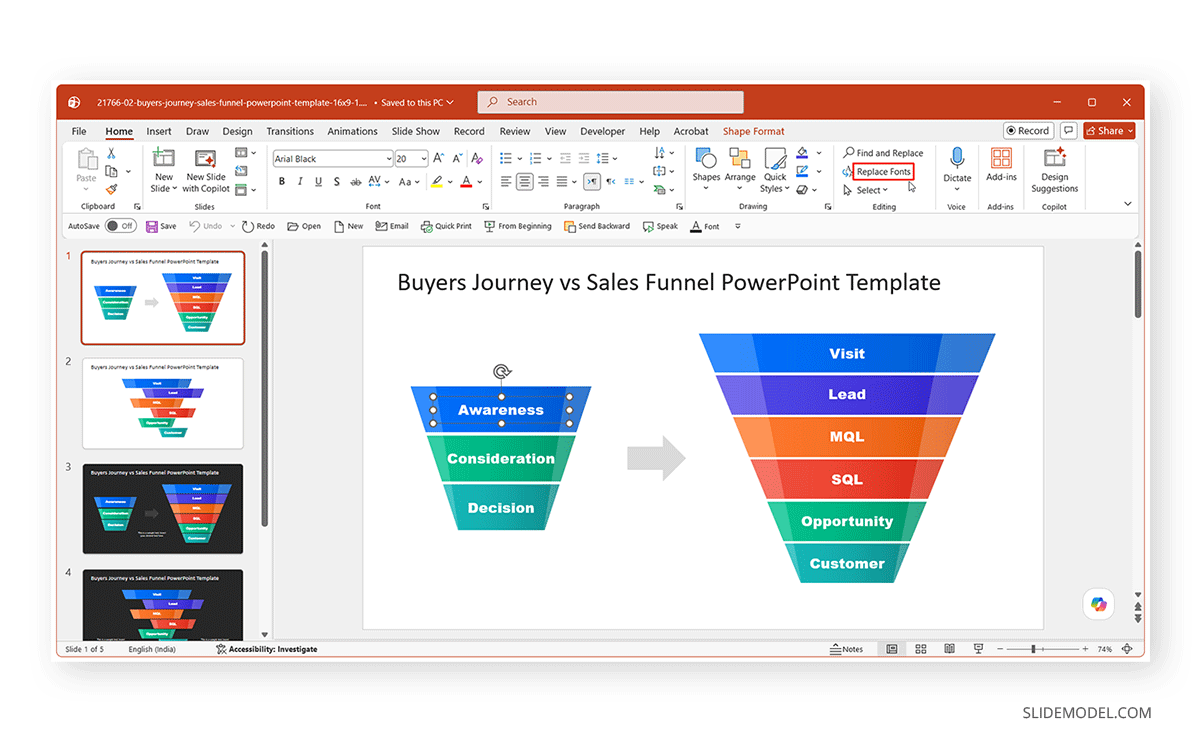
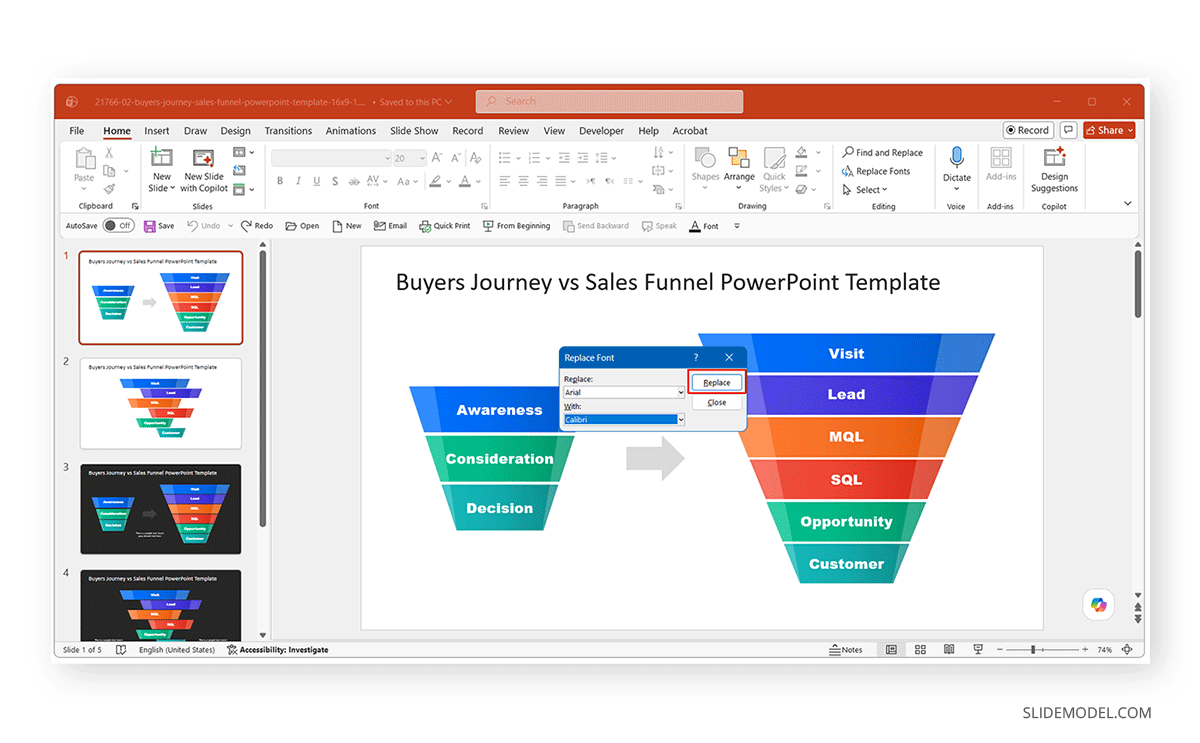
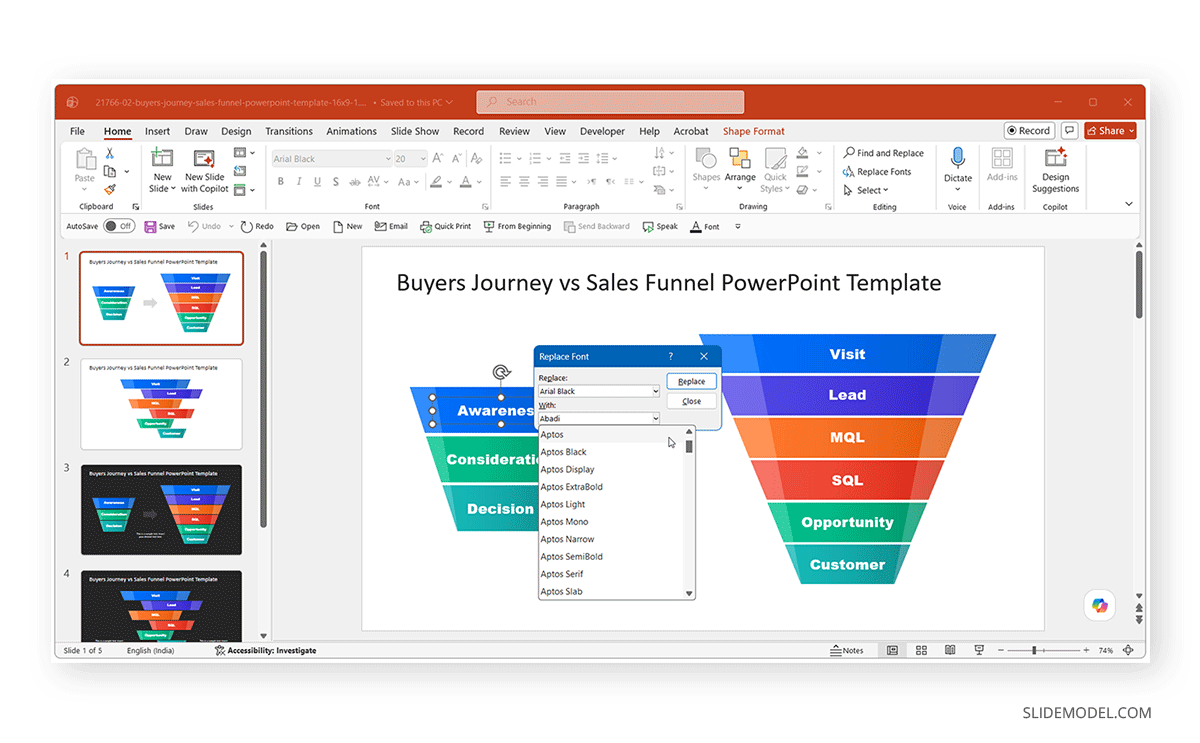
Step 3: Selecting Replace Fonts opens a dialog box showing the fonts currently used in the presentation. Under Replace, choose the font you want to remove from the presentation. The dropdown list displays only fonts currently used in the presentation.
Step 4: Under With, choose the font you want to use instead. PowerPoint will update all occurrences of the selected font throughout the presentation.
Step 5: Click Replace, and PowerPoint immediately updates the presentation, replacing the selected font wherever it appears. This process can save considerable time compared to manually editing text boxes slide by slide.
Process for Replacing All Fonts in PowerPoint Presentation
Many users search for information on replacing all fonts in PowerPoint because presentations often use multiple fonts across different slides. The Replace Font feature works on one font family at a time. If your presentation contains several fonts, you can repeat the process for each font until all text uses the desired typeface. After completing these replacements, the presentation will use a consistent font throughout the slide deck. This approach is much faster than manually reviewing every slide.
Replace Font vs. Replace Text in PowerPoint
It is important not to confuse the Replace Font feature with PowerPoint’s Find and Replace functionality. The Replace Font feature changes typography throughout the presentation, whereas Replace Text changes specific words or phrases.
For example:
- Replace Font: Change Arial to Aptos
- Replace Text: Change “2025 Report” to “2026 Report”
If you need to update text content rather than fonts, see our guide on how to replace text in PowerPoint.
Alternative Method: Change Fonts Using the Slide Master
While the Replace Font feature is the fastest way to replace a specific font throughout a presentation, another option is to update fonts through the Slide Master in PowerPoint. This method is particularly useful when working with presentation templates or when you want future slides to use a different font automatically.
Changing fonts through the Slide Master updates the fonts associated with the presentation theme and can affect multiple layouts simultaneously. However, text that has been manually formatted with a different font may not always update automatically. For presentations that contain several unrelated fonts, the Replace Font feature is usually the more reliable option.
Slide Master Font Replacement on Windows
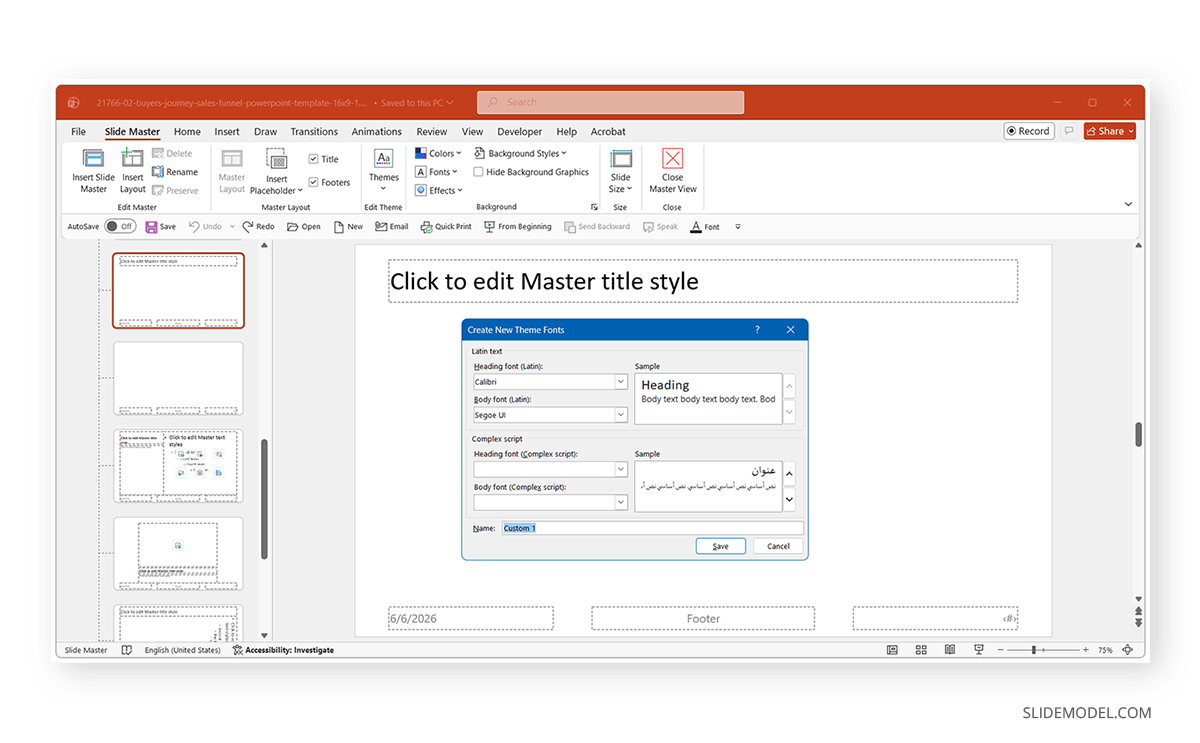
Step 1: Go to View -> Slide Master.
Step 2: On the Slide Master tab, select Fonts.
Step 3: Choose a different font pair from the gallery or select Customize Fonts, apply the changes, and close Slide Master view.
Slide Master Font Replacement on Mac
Step 1: Go to View -> Master -> Slide Master.
Step 2: Select the master slide and use the font options available in the Slide Master to choose a new heading and body font.
Step 3: Close the Slide Master view to apply the changes.
Final Words
Understanding how to replace fonts in PPT can save significant time when updating presentations. Rather than changing text boxes individually, PowerPoint’s built-in Replace Font feature allows you to update fonts across an entire presentation quickly. This makes it especially useful for branding updates, template customization, and improving visual consistency across slides. For presentations that rely on theme fonts, you can also use Slide Master to update the default heading and body fonts throughout the presentation.