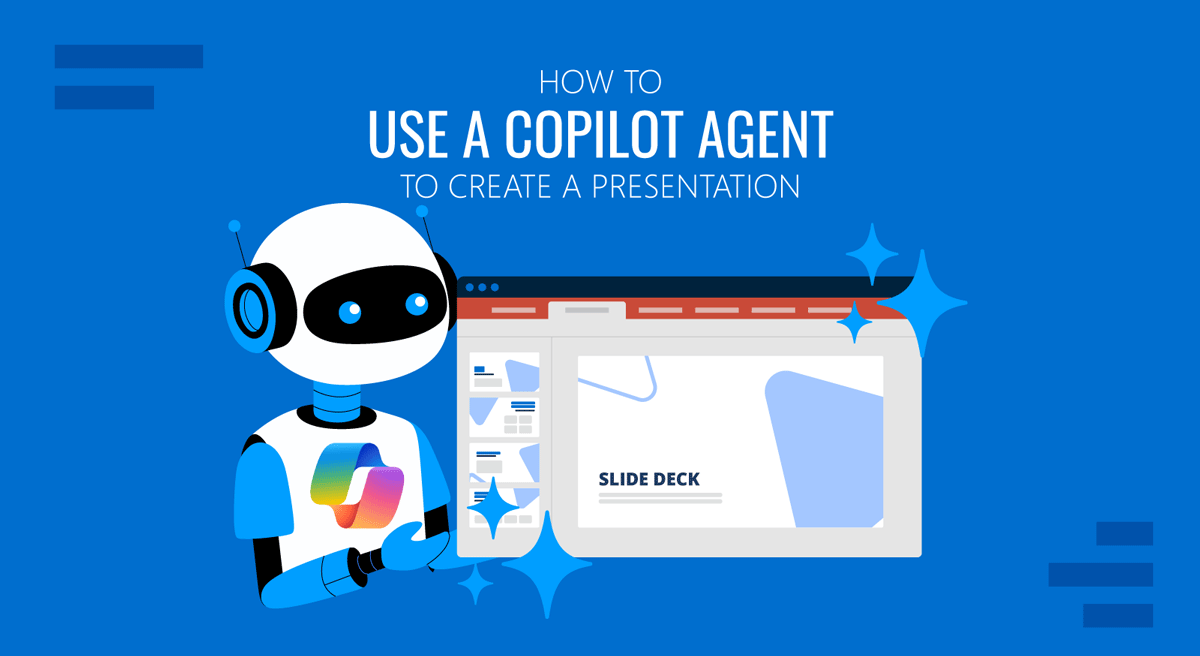
Most teams already have an approved deck template in a SharePoint folder, but most of it goes unused because rebuilding a presentation from it takes longer than starting from whatever file was sent around last quarter. A Copilot agent closes that gap by acting as a configured assistant that knows which template to open, which layouts belong to which kind of content, and which internal documents to pull facts from. You describe the presentation you need, and the agent assembles a draft inside your organization’s design system instead of a generic Microsoft theme.
Building one takes an afternoon, not a development cycle. What takes longer is getting the inputs right, because output quality depends far more on the PPT template and the instructions you feed the agent than on the prompt you type at the end. This guide covers the full build, from choosing the right kind of agent through publishing it to your team, plus prompts for the initial draft and the slide-level edits that follow.
Which Copilot Agent Fits the Job
Two different tools carry the word “agent” in the Microsoft ecosystem, and picking the wrong one costs time. Agent Builder lives inside the Microsoft 365 Copilot app and Teams, and produces what Microsoft calls a declarative agent: a named assistant with custom instructions, attached knowledge, and starter prompts, built through a configuration form with no code or environment setup. For a presentation builder that reads your templates and internal documents, this is almost always the right starting point.
Copilot Studio is the heavier option. It adds topics, variables, and the ability to call Power Automate flows, which matters when you want the agent to write an actual .pptx file to SharePoint rather than generate slide content for a person to assemble. Teams that need a download link at the end of the conversation build there and connect a flow that populates a stored template and saves the result.
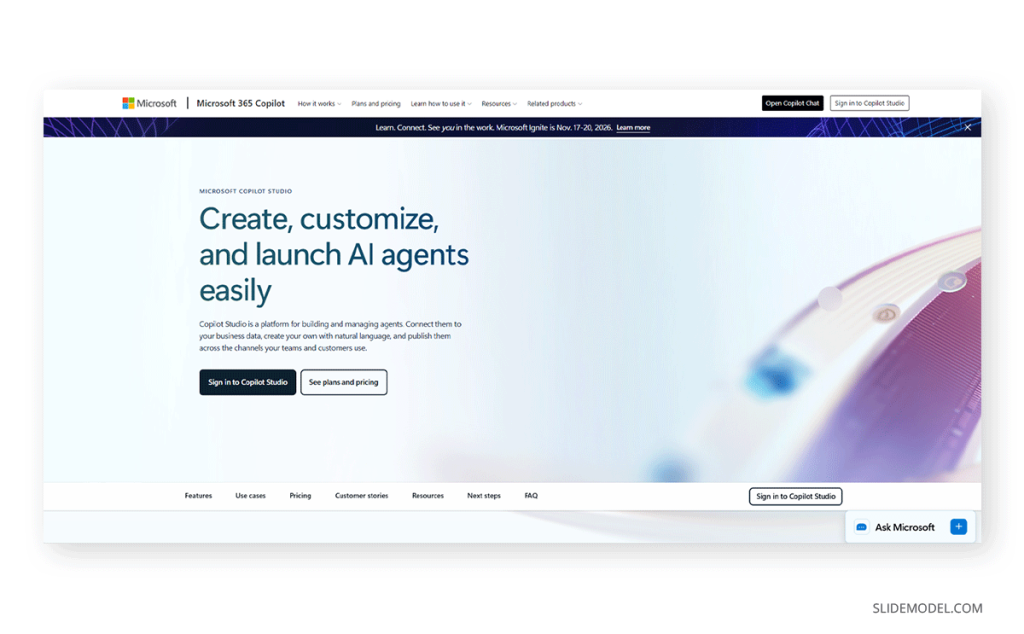
Licensing gates both paths. Generating slides against your organization’s branding requires a Microsoft 365 Copilot license, and Brand kit features in PowerPoint are available to licensed users on Windows, Mac, and the web. Agent Builder itself is available with a standard Microsoft 365 subscription, but the knowledge sources that make a presentation agent useful, such as Outlook, Teams, and Copilot connectors, need the Copilot add-on.
Preparing the Template Files the Agent Builds From
Copilot reads your template the way a designer would, looking at the sample slides first and the underlying structure second. Microsoft’s documentation is direct about this: Copilot analyzes the slide types and layouts in your brand template, the objects inside those sample slides, and your prompt, then synthesizes all three. If the template contains too few sample slides, it falls back to the slide master and the output gets noticeably more generic.
So collect your approved .pptx or .potx files and check what they actually demonstrate. A usable template shows a cover, a title slide, an agenda slide, section dividers, content layouts at several densities, at least one data visualization layout, and a closing slide. Include light slides with generous whitespace alongside heavy multicolumn ones, because that range teaches Copilot how your brand handles both.
Two structural details matter more than they sound. Use real placeholders inserted through Slide Master view rather than free-floating text boxes, since Copilot reads placeholder type, position, and size to decide what goes where. And keep text placeholders from overlapping other objects, which interferes with how the layout is parsed. Copilot ignores the wording inside placeholder text entirely, so writing instructions into a placeholder achieves nothing.
Upload the finished file to a secure OneDrive for Business or SharePoint folder, something like /Presentation Templates/Brand. If your tenant has Brand kits enabled, add it there through the Copilot app under Create, then Brand kits, then Templates, so anyone selecting that brand in PowerPoint inherits the same approved assets and brand identity rules.
Creating the Agent and Writing Its Instructions
In the Microsoft 365 Copilot app, select New agent. You can choose one of three paths: describe what you want in plain language, configure the fields manually, or start from a template. The natural language path is fine for a first pass and will write serviceable instructions, but production agents get hardened in the Configure tab afterward.
Give the agent a name people will recognize when scanning a list, such as Presentation Builder Agent. Then spend real effort on the Description field, which has a 1,000-character limit and is the text Copilot’s router uses to decide when to invoke your agent at all. A vague description means nobody’s requests reach it. Something specific works better: an agent that builds PowerPoint decks from the approved corporate template using content the user supplies or pulls from connected SharePoint documents.
Instructions have an 8,000-character ceiling, and practitioners consistently report that useful agents land between 800 and 3,000 characters, not at the limit. Verbose instruction sets cause latency and inconsistent handling. Structure them in Markdown with headers and short bullets, name the knowledge sources explicitly, and specify tone, verbosity, and output format outright, because a model left to infer those will drift between versions. Include a grounding line telling the agent to answer only from configured sources and to say when information is missing rather than filling the gap from training data. A short self-check step at the end, confirming every requested section appears before responding, measurably improves completeness.
Connecting the Data Sources
Knowledge sources are what separate an agent from a clever prompt. You can attach up to 20, covering SharePoint sites, document libraries, individual files, public websites, and uploaded documents. With a Copilot add-on license, you can also use Outlook mail, Teams chats, and connectors to systems such as ServiceNow or Salesforce. SharePoint and connector sources accept files up to 512 MB when they carry a .pptx, .docx, or .pdf extension, which comfortably covers template files and source reports.
Curation beats volume here. An agent grounded in twenty well-organized documents outperforms one pointed at two hundred loosely filed ones, and response times climb as sources accumulate. Teams that attach every library they can find often end up doing a content cleanup project before the agent behaves.
Permissions inherit from the source, which produces a common surprise: the agent returns different answers to different people, and it works perfectly for whoever built it because that person can see everything. Test with an ordinary user account before any wider rollout.
One practice to avoid outright. Don’t park your agent’s instructions in a SharePoint document to dodge the 8,000-character limit. Microsoft flags this explicitly, since knowledge content passes through cross-prompt injection classifiers that can truncate or sanitize directive language, and anyone with edit access to that file could change how your agent behaves.
Testing and Publishing to Your Team
Test against requests that resemble what colleagues will actually type, not the tidy example you had in mind while configuring. Ask for a deck on a topic your connected documents cover, ask for one they do not, and check that the second case produces an honest admission rather than invented content. Compare the output against what plain Microsoft Copilot returns for the same request. If your agent isn’t visibly better, the instructions or knowledge sources need work, not the prompt. Verify the starter prompts lead somewhere useful, since those are what most first-time users click, then check template adherence directly: open the generated deck, confirm the layouts came from your file rather than a default theme, and look for text overflowing its placeholders.
Publishing makes the agent available to others, either to SharePoint or through the Copilot experience and Microsoft Teams, depending on your tenant configuration and licensing. Expect to iterate afterward. Microsoft updates the underlying models periodically, and behavior shifts with them, so instructions that worked cleanly one quarter may need adjustment the next, particularly for anything step-by-step.
Prompts That Get Better Slides
The prompt you give a configured agent should carry the specifics the instructions cannot know in advance: the topic, the audience, the argument, and the structural shape you want.
A Build Prompt to Start From
“Build a deck for a quarterly operations review using our corporate template. The audience is the regional leadership team; it’s roughly forty minutes and decision-oriented rather than informational. Open with a one-slide summary of where we landed against target, then three sections covering throughput, cost per unit, and the staffing gap. Pull the figures from the Q3 Operations Report in SharePoint and cite the source table for each number. Use a chart layout wherever a comparison is involved, and keep body text to four lines per slide so nothing overflows the placeholder. Close with the two decisions I need from this group. Add speaker notes for every content slide.”
That prompt names the audience, running time, section structure, source document, formatting constraint, and required output elements. Vague prompts produce vague decks regardless of how well the agent is configured, a pattern familiar to anyone who has worked through prompt structures for slide generation.
Follow-Up Prompts for Refining the Draft
Treat the first draft as a starting point. These requests work well as second-pass edits, and here’s a selection of prompts you can tweak to match your desired outcome.
“Rewrite slide [slide number] for an audience that has not seen the underlying data before, and move the technical detail into the speaker notes.”
“Slide [slide number] has too much text for the placeholder. Cut it to three supporting points and suggest a visual that carries the rest.”
“Convert the table on slide [slide number] into a chart that shows the trend rather than the individual values, using the template’s data visualization layout.”
“Apply a more direct tone across the whole deck. Lead each slide title with the finding instead of the topic.”
“Add a section divider before slide [slide number] and retitle the section to match the decision it supports.”
“Generate three alternative titles for the opening slide, each stating a conclusion rather than describing the contents.”
Where These Copilot Agents Break Down
Honest expectations prevent most of the frustration. The failure modes below are documented or widely reported, and each has a recognizable cause.
Text overflows placeholders and stays that way
Microsoft states plainly that Copilot does not resize fonts or placeholders when generated text needs more room. It may add design elements to compensate, which often looks worse than the original problem. Constrain length in the prompt instead of fixing it afterward.
Generation is slower than the demos suggest
Populating slides can take several minutes rather than seconds, and latency climbs as knowledge sources accumulate. Agents that answered in a few seconds during testing have been reported slowing to fifteen once teams attached more content.
The agent never gets invoked
Copilot’s router relies on the Description field to decide when your agent is relevant. A generic description sends requests to plain Copilot instead, and the team concludes the agent does not work.
The deck ignores your template
This usually traces back to the template rather than the agent: too few sample slides, decorative text boxes standing in for placeholders, or manual formatting applied on top of layouts instead of defined in the theme.
It works for the builder and fails for everyone else
Permission trimming means each user retrieves only what they already have access to, so the person with the broadest access sees the best results.
Content arrives confidently wrong
Agents present figures without verifying them, particularly when a source is outdated. Every generated deck needs a fact check before it reaches an audience, which holds for every current approach to using AI to generate a PowerPoint presentation.
FAQs
Why build an agent instead of prompting Copilot in PowerPoint each time?
Repetition is the argument. A one-off deck does not justify the setup, but a format your team produces monthly does, because the agent carries the template choice, source documents, and tone rules between sessions. Without it, every person rebuilds that context from scratch and gets a different result.
Do I need a Microsoft 365 Copilot license to build one?
Agent Builder is available with a standard Microsoft 365 subscription, but the features that make a presentation agent worthwhile, including organizational branding and knowledge from Outlook, Teams, and Copilot connectors, require the Copilot license.
Can the agent hand me a finished .pptx file?
Not through Agent Builder alone. A downloadable file requires Copilot Studio with a Power Automate flow that retrieves the template from SharePoint or OneDrive, populates it, and returns a link.
What file formats can I use as a template?
Both .pptx and .potx work as Brand kit template files. Templates must be authored in PowerPoint for Windows or Mac, though you can use one created there to build presentations on any platform.
How many sample slides does the template need?
There is no fixed minimum, but coverage across your common slide intents matters. Cover, title, agenda, section divider, several content densities, a data visualization layout, and a closing slide give Copilot enough to work from. Sparse templates push it back to the slide master.
Will Copilot follow instructions I write into placeholder text?
No. Placeholder text is read as styling information only, never as guidance. Behavioral instructions belong in the agent’s Instructions field.
How long should the instructions be?
The limit is 8,000 characters, but reliability tends to peak well below it. Aim for thoroughness without padding, and cut anything the agent does not visibly act on. Overlong instruction sets cause latency and inconsistent handling.
Can I attach our entire SharePoint site collection?
You can attach up to 20 knowledge sources, so large document estates need consolidation first. Organizations with dozens of libraries usually restructure content into fewer curated sources so the agent performs well.
Does the agent respect document permissions?
Yes. SharePoint sources honor existing permissions and sensitivity labels, so each user retrieves only content they are already entitled to see. This is why testing with a standard account matters.
How much review does a generated deck still need?
Full review. Check figures against their sources, confirm the layouts match your standards, and read the deck as your audience will. This matters most for executive presentations, where a single unverified number undermines the rest of the argument.
Final Words
A Copilot agent shifts presentation work rather than removing it. The mechanical parts, applying the right layout, filling placeholders, pulling figures out of a report nobody wants to reopen, get handled reasonably well once the template and instructions are in good shape. What stays with you is the part that was always hard: deciding what the deck should argue, whether the evidence supports it, and what you want the room to do afterward.
The agents that earn their setup time follow a recurring format with a clear owner who maintains the template and prunes the knowledge sources. Abandoned ones are built once, attached to everything, and never revised after the first disappointing draft. Treat the build as the start of a short iteration cycle rather than a finished product, and the second version will be considerably better than the first.