Horizontal Shelves PowerPoint Infographics provides a 6-slide template with 3D effects. This PowerPoint template suits business presentations, sales and marketing reports, or any corporate strategy PowerPoint needs.
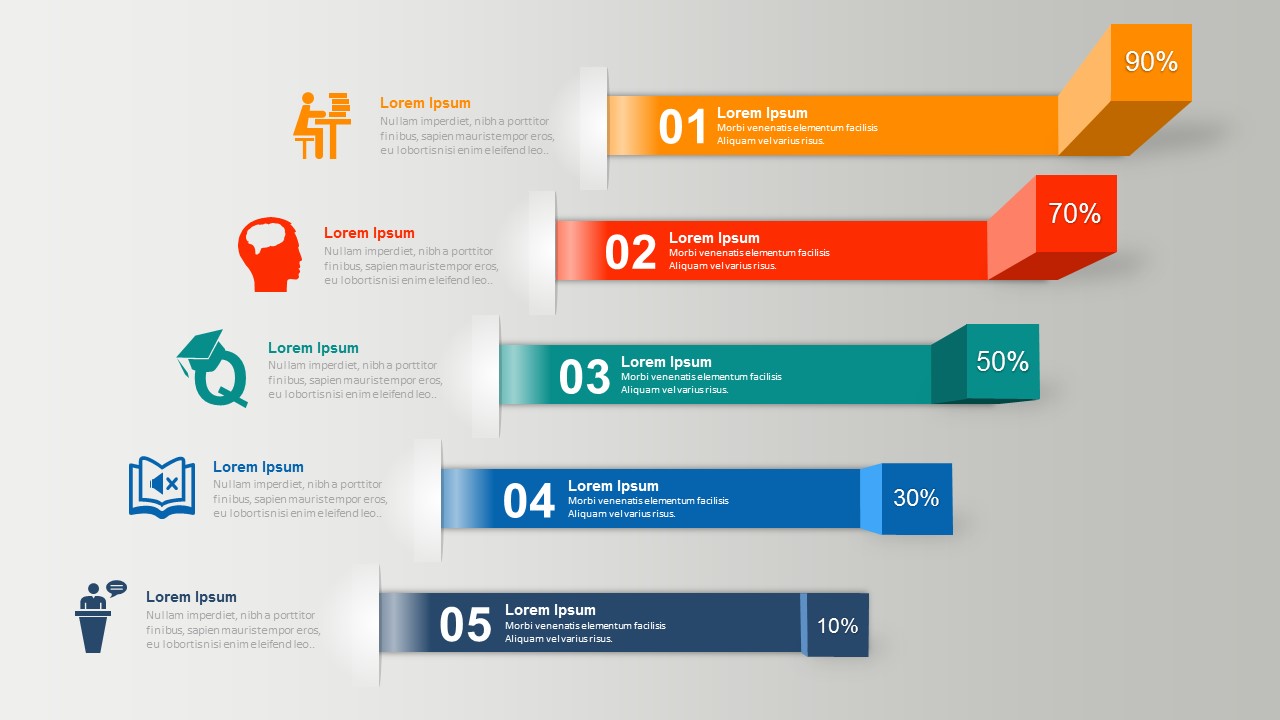
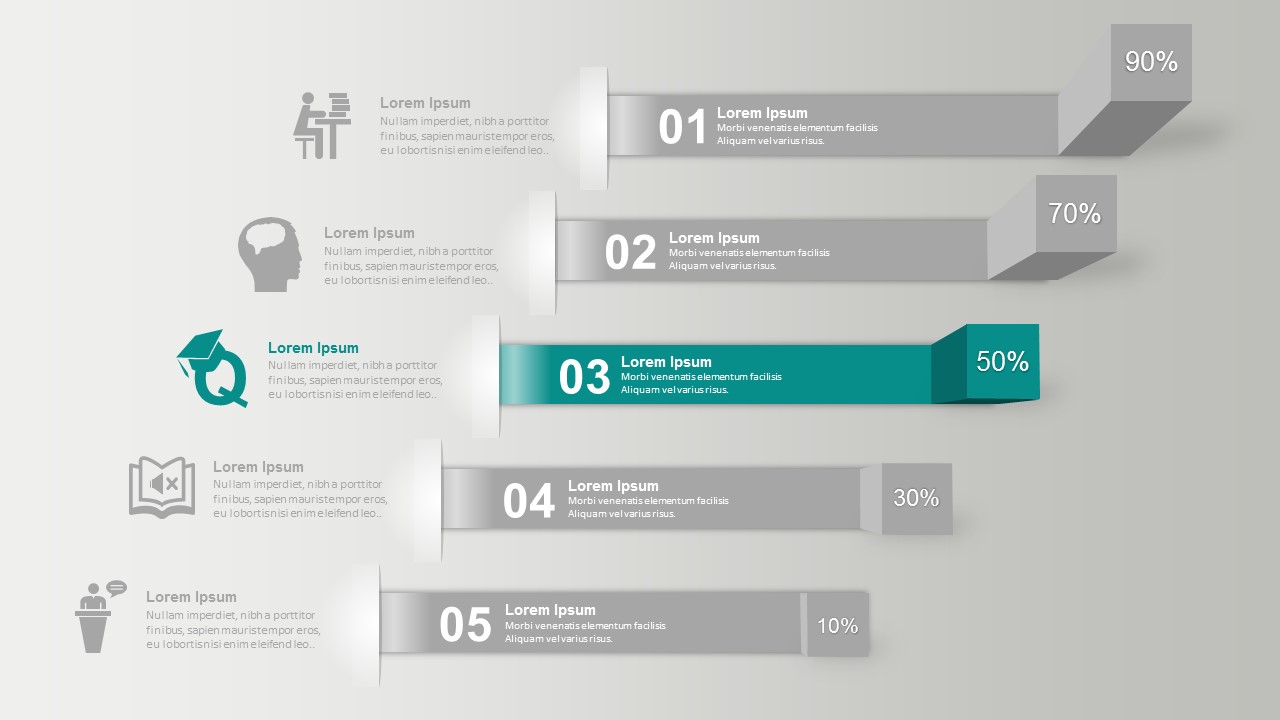
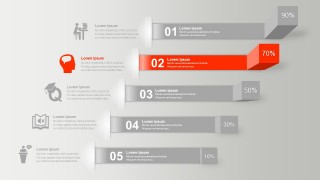
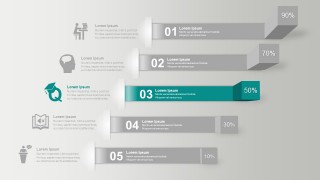
The horizontal chart demonstrates chronological data, such as growth over specific periods, and for comparing data across categories. Each horizontal bar is based on a different color scheme to keep the audience clued in to which you are referencing. At a glance, you can see that orange bar has the highest percentage channel with 90%, red with 70%, green with 50%, and two other colored bars with 30% and 10%.
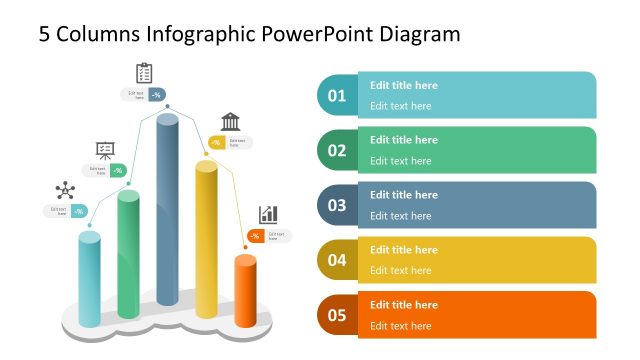
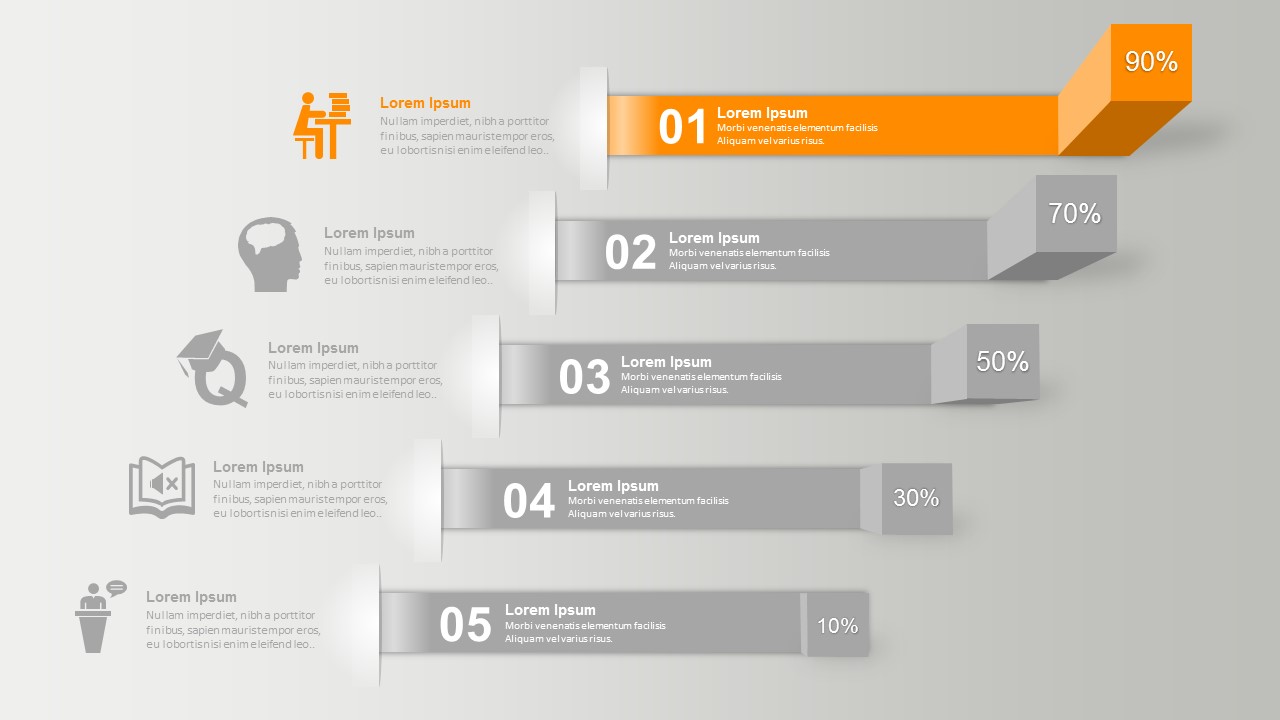
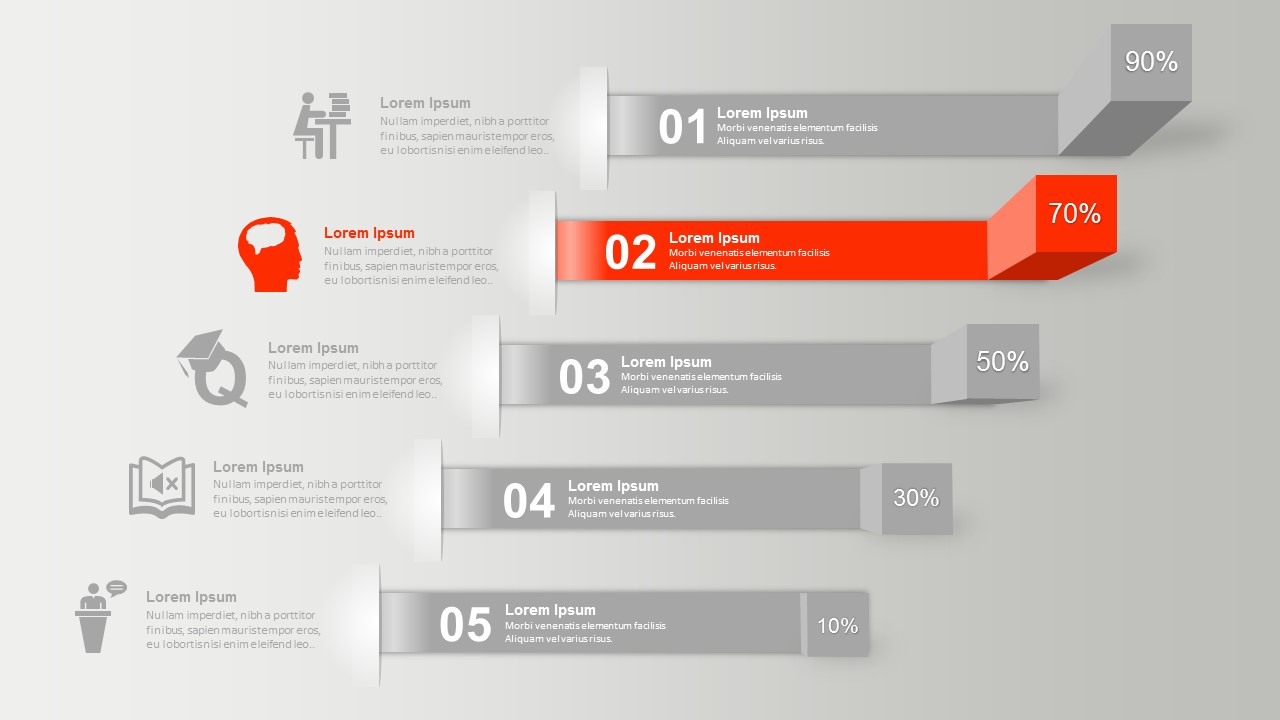
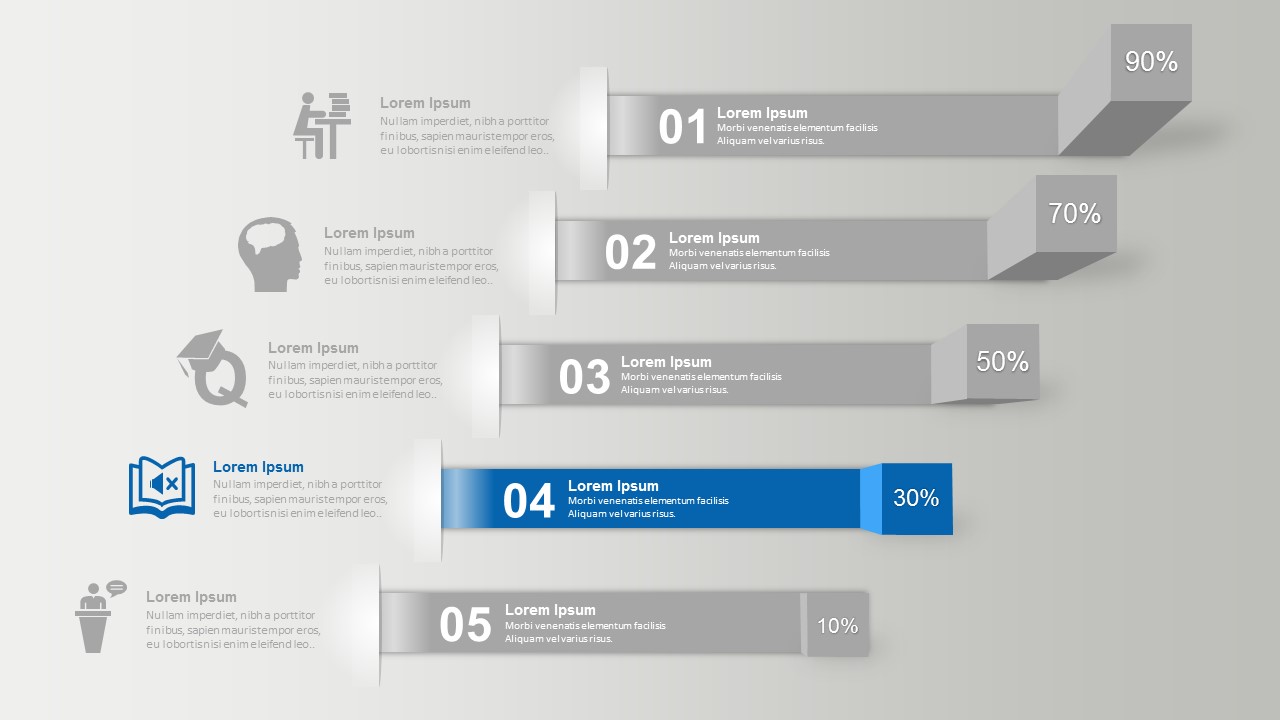
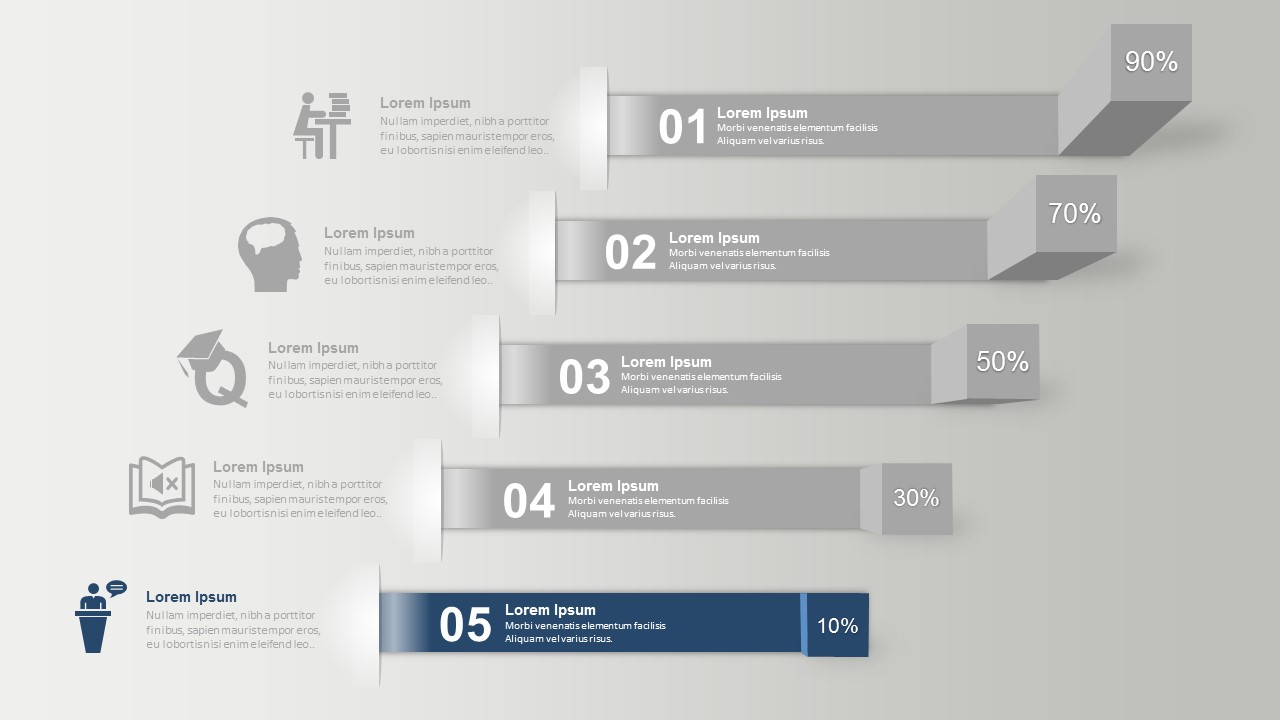
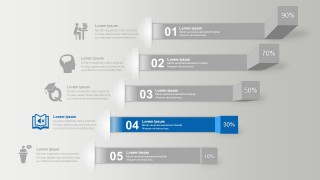
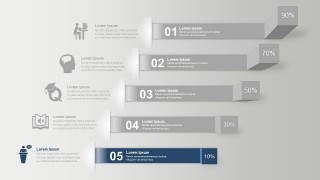
The master slide well represents a 5-step 3D infographic marked with numbered process. You can highlight every process in every succeeding slide with its text placeholder and title boxes . This allows the presenter to discuss thoroughly the process steps. Alongside are PowerPoint icons that represent each category or process.
This Horizontal Shelves PowerPoint Infographics is a game changer for your PowerPoint presentation. It delivers your message in an organise and comprehensive manner. While it is easy to understand, the template is substantial and data-driven. Also, all 3D effects, vectors, Powerpoint icons are made editable and easy to maneuvers. You may also look at this Flat Bar Chart Diagram for PowerPoint or browse our data and charts gallery to enhance your PowerPoint presentations.
What’s inside this template
Example presentation scenarios
- A sales manager can use the full-color overview and percentage bars to compare five channels before discussing the strongest and weakest contributors.
- A marketing analyst can use the segment focus slides to explain campaign performance by category, highlighting one shelf while the rest remain gray for context.
- A strategy consultant can present five ranked priorities with the numbered process list, then use each highlight slide to explain actions and ownership.
- A training facilitator can turn the five shelves into module sections, using the icon callouts and text placeholders to introduce learning topics one by one.
Features
- 100% editable presentation template
- Compatible with Microsoft PowerPoint and Google Slides
- 16:9 aspect ratio slides
- Scalable vector shapes, icons and illustrations
- AI-Ready for Microsoft Copilot and Claude
- Instant access and download
Frequently asked questions
Q: How should a presenter structure the explanation with this template?
A: Start with Slide 1 to set the full five-part picture and define what each percentage represents. Then move through the focus slides in order, using the highlighted shelf as the speaking point and the gray shelves as context. Keep each row title action-oriented so the audience remembers the comparison, not only the number.
Q: For which presentation situations is this shelf diagram the best fit?
A: This template works best when a business presenter needs to compare five ranked items or explain a five-step process without building a dense dashboard. Sales leaders, marketers, consultants, and trainers can use the percentage shelves to show relative weight, progress, priority, or contribution while keeping the discussion easy to follow.
Q: Why does the horizontal shelf metaphor help communication?
A: The shelf metaphor turns abstract percentages into stacked visual weight. Longer bars feel more prominent, while the 3D end caps make each item look like a distinct level. The focus slides add a presentation rhythm: show the complete set first, then isolate one shelf so the audience can process details in smaller steps.


Horizontal Shelves PowerPoint Infographics
6-slide presentation template for 5-step percentage shelves, process comparisons, and segment highlights
Horizontal Shelves PowerPoint Infographics is a 6-slide infographic presentation template built around a 5-segment horizontal shelf diagram. It includes percentage bars, a numbered process list, icon callouts, and five focus slides that gray out nonselected segments. It suits business, sales, marketing, and strategy presenters using Microsoft PowerPoint or Google Slides.
- Category
- Diagrams
- Rating


 Loading...
- Aspect ratio
- 16:9, 4:3
- Item ID
- 0054
- Colors
 Microsoft PowerPoint
  Microsoft Copilot
  Claude for PowerPoint
 Other formats supported
Subscribe today and get immediate
access to download our PowerPoint templates.