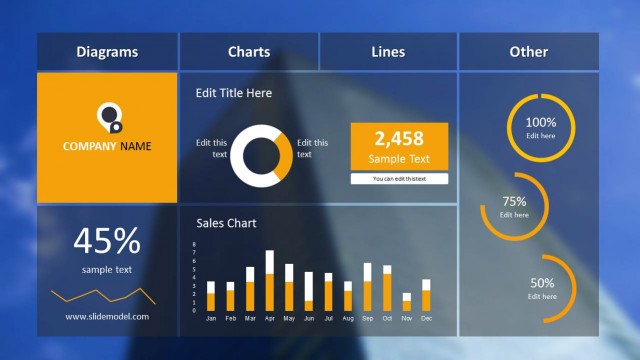
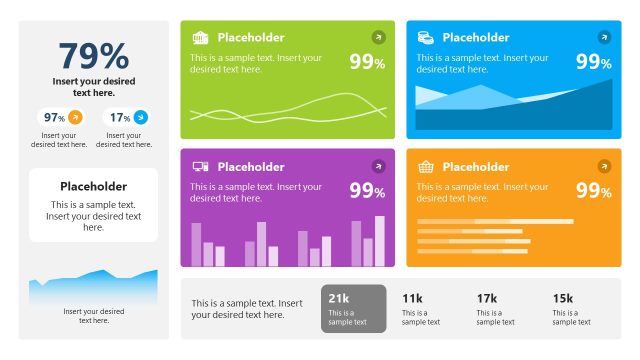
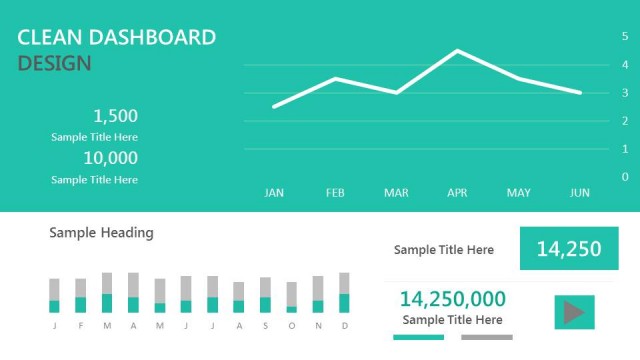
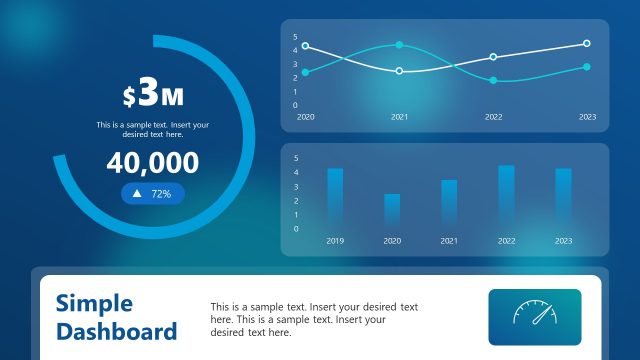
The Blue Dashboard for PowerPoint is a clean and professional dashboard that can be used to provide business performance data using visual elements such as data charts and dashboard gauges, as well as summarize a larger presentation into smaller, data-driven bits of information.
Dashboard templates are a great tool in any professional’s repertoire as they can be added to any PowerPoint presentation to provide an overview or summary of the entire presentation. Or, a dashboard presentation slide can be used in meetings and conferences to list down important talking points, with relevant datasets and statistics to drive conversations.
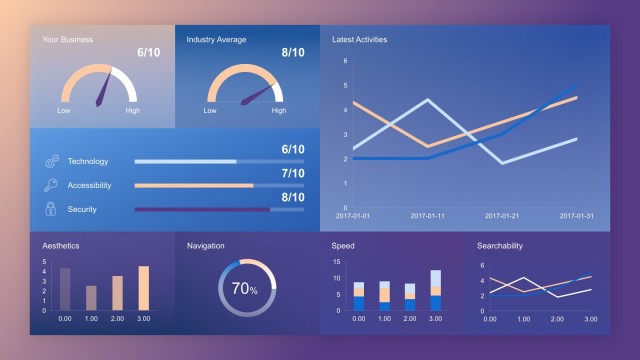
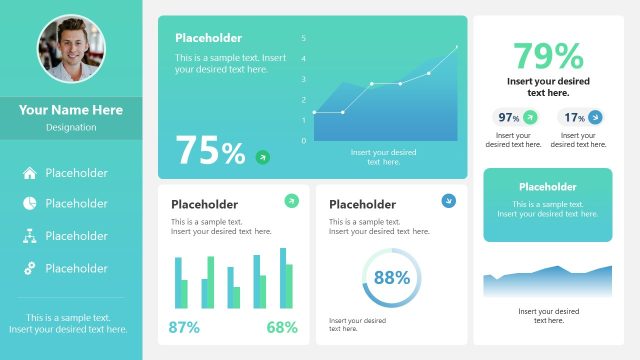
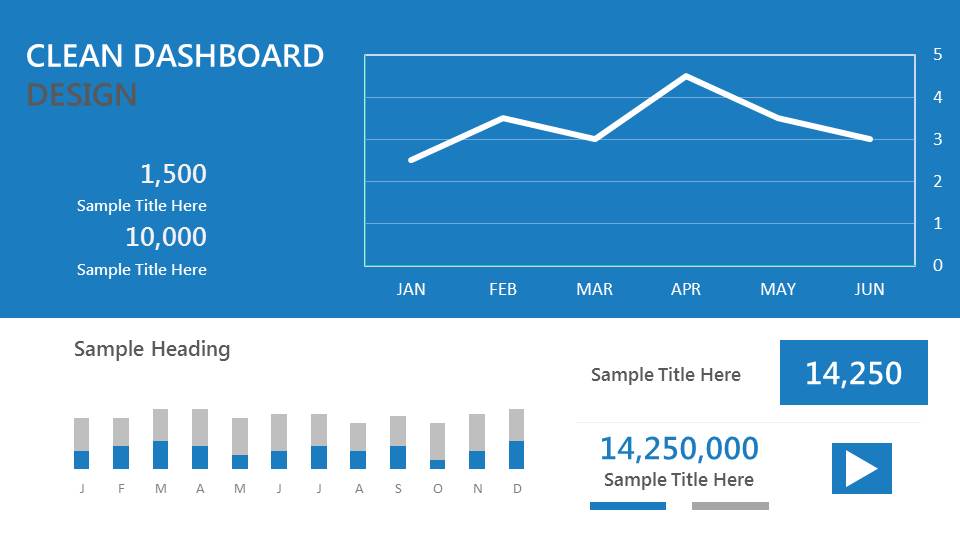
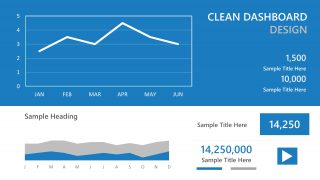
The Blue Dashboard template for PowerPoint is available in four variants, each offering a differentiating factor and can be chosen according to your priorities and information. The first dashboard contains a line graph on the right, with information on the left, whereas the second template has the information on the right with the line chart on the left. Thus, this dashboard template can be used by even the most perfectionist of professionals, for whom it is the smaller details that make a huge difference.
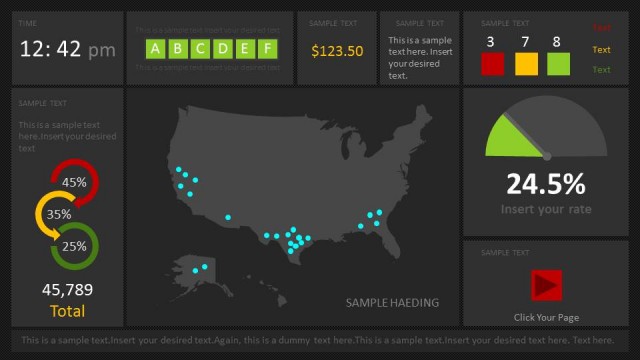
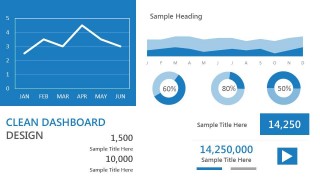
The fourth dashboard template also provides an alternate layout, wherein multiple types of data-driven charts in PowerPoint (bar chart, pie chart, area chart, etc.) can be utilised to showcase various markers of business performance, including KPIs and related indicators. Additionally, once downloaded, these presentation templates are fully editable, and can support additional charts, text and visuals in order to better cater to your specific requirements.
Each dashboard follows a professional and clean colour palette, consisting of blues and whites. The styles of the data charts can be switched out to better reflect your information. Moreover, each element can be individually edited, including their colours, style, font etc, to represent any theme you need to follow in accordance to your presentation or company standards.
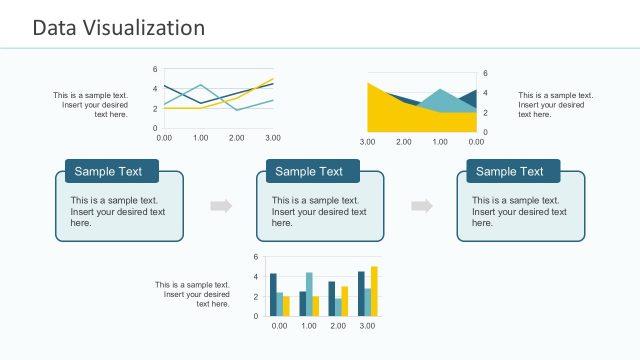
Inside this blue dashboard PowerPoint template you can find four slide designs with a clean dashboard style containing different components where you can place dashboard gauges, data-driven charts in PowerPoint (bar chart, pie chart, area chart, etc.) as well as other dashboard elements like KPI or indicators.
This dashboard template is supported on all versions of PowerPoint and Google Slides, and all the edits can be made from within your larger presentation, or this individual template, on PowerPoint itself. Dashboards can be some of the most useful ways of concluding your presentation or kickstarting your meetings, and using these dashboard templates can make that process much smoother and faster.
What’s inside this template
Example presentation scenarios
- A business analyst can use the line chart and KPI cards to brief executives on monthly performance trends and headline numbers.
- A sales manager can present a quarterly review using the monthly bar chart, progress bars, and large value callouts to compare targets against results.
- An operations leader can use the area chart and circular gauge indicators to show activity levels, capacity, or status percentages in a meeting recap.
- A project manager can add one dashboard slide to a larger report to summarize schedule, budget, and performance indicators before discussing next actions.
Features
- 100% editable presentation template
- Compatible with Microsoft PowerPoint and Google Slides
- 16:9 aspect ratio slides
- Scalable vector shapes, icons and illustrations
- AI-Ready for Microsoft Copilot and Claude
- Instant access and download
Frequently asked questions
Q: How should a presenter explain a dashboard slide without overwhelming the audience?
A: Start with the single message the dashboard should prove, such as growth, decline, or target progress. Point first to the headline KPI card, then use the line or area chart to show the trend behind it. Treat the smaller bar chart, progress bars, and gauges as supporting evidence rather than reading every data point.
Q: Who is this dashboard template best suited for?
A: This template is best for managers, analysts, and team leads who need a concise performance snapshot rather than a full report. The layouts work well for executive check-ins, sales reviews, operations updates, and project dashboards where KPI numbers, month-by-month trends, and percentage indicators must be understood quickly.
Q: Why does the template repeat similar blue dashboard structures across the four slides?
A: The repeated structure creates visual consistency while offering different emphasis choices. One slide favors a right-side line chart, another mirrors the chart and text, another introduces an area chart, and the fourth adds circular gauges. This lets a presenter match the layout to the metric hierarchy without changing the overall dashboard language.


Blue Dashboard Template for PowerPoint
4-slide dashboard presentation template with KPI cards, line charts, and gauge indicators
Blue Dashboard Template for PowerPoint is a 4-slide data dashboard presentation template for business performance reporting. It includes line charts, monthly bar charts, area charts, KPI cards, progress bars, and circular gauge indicators. It is designed for managers, analysts, and executives using Microsoft PowerPoint or Google Slides.
- Category
- Data & Charts
- Rating


 Loading...
- Aspect ratio
- 16:9
- Item ID
- 9057-cl
- Colors
 Microsoft PowerPoint
  Microsoft Copilot
  Claude for PowerPoint
 Other formats supported
Subscribe today and get immediate
access to download our PowerPoint templates.