Slide 4 of 5 from 3D Arrows for PowerPoint
2 Arrows Opposite Directions for PowerPoint
3D Arrows - Opposite Directions Slide
- Diagram
- Arrow Sequence
- Comparison Slide
- 16:9
- 100% Editable
The 3D Arrows - Opposite Directions slide from the 3D Arrows for PowerPoint template offers a clear visual tool for contrasting options and strategic comparisons. Ideal for business presentations and pitch deck templates, this layout uses editable shapes and vector icons to highlight decision-making processes effectively within a corporate presentation or slide deck.
About This Slide
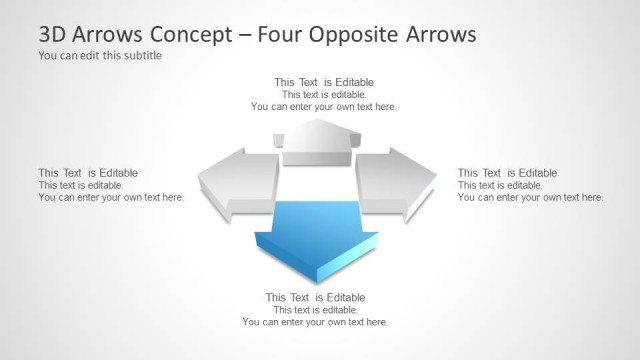
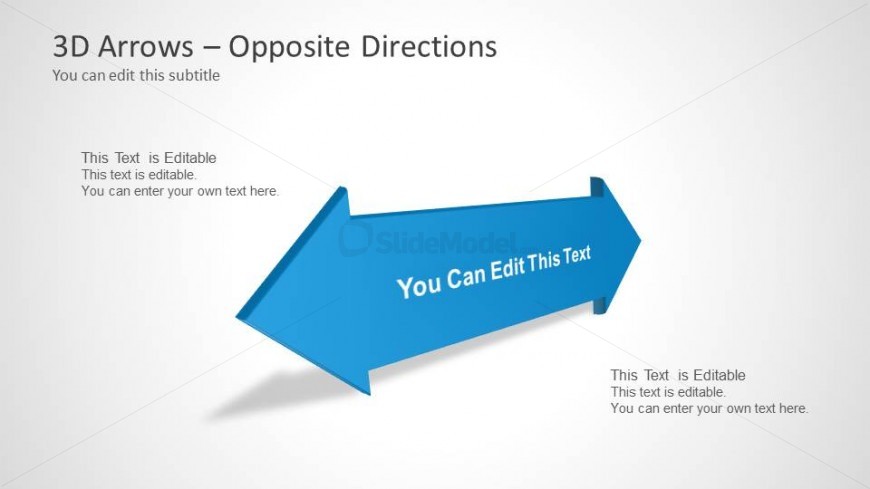
This is a 3D Arrow design with opposite direction in PowerPoint. You can use this opposite arrow direction design to prepare presentations on diverging ideas or two opposite concepts.
What’s on This Slide
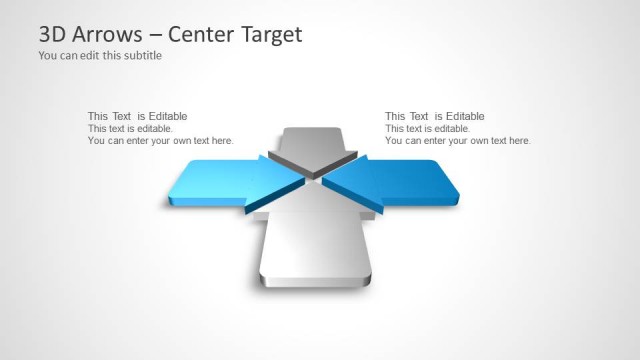
The layout features two large, 3D arrows pointing in opposite directions, centrally positioned. The left arrow is colored blue with a slight gradient, while the right arrow is a lighter shade of blue. Above the arrows, there is a title placeholder aligned left, and a subtitle placeholder directly below it. Below the arrows, there are two editable text placeholders, one on each side of the arrows, aligned to the left and right respectively. The overall background is a light gradient, enhancing the visual impact of the arrows.
How to Use It
This slide serves as a visual representation of opposing concepts or directions, suitable for discussions on contrasts, comparisons, or choices. It fits well after a problem statement and before a solution or roadmap, helping to clarify options. This layout is useful in business contexts where decisions or divergent paths are being analyzed, such as strategic planning or project management discussions.
Text Placeholders & Capacity
Keep your copy within these limits so it fits without resizing. Node body slots can accommodate roughly 10 words each.
| Placeholder | Count | Max characters (approx.) |
|---|---|---|
| Slide title | 1 | 30 |
| Subtitle | 1 | 40 |
| Item body | 2 | 50 |
Slide Keywords
Download unlimited PowerPoint templates, charts and graphics for your presentations with our annual plan.
DOWNLOADReturn to 3D Arrows for PowerPoint.