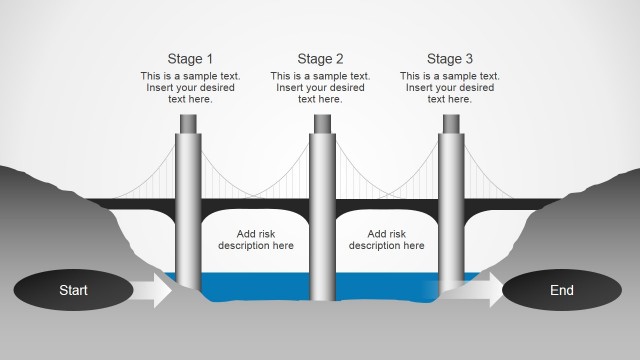
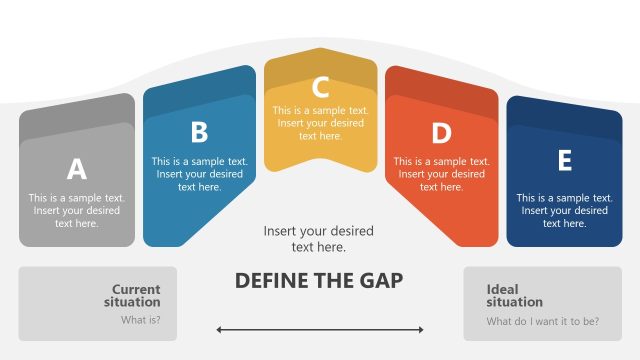
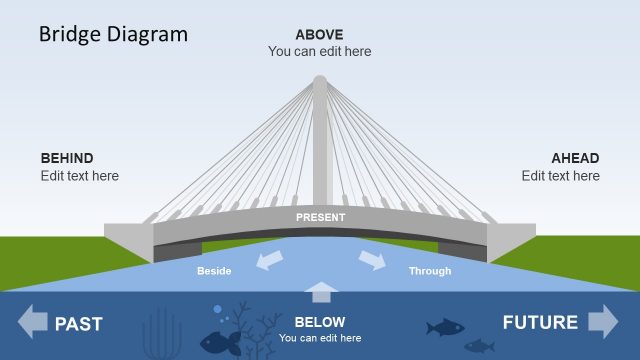
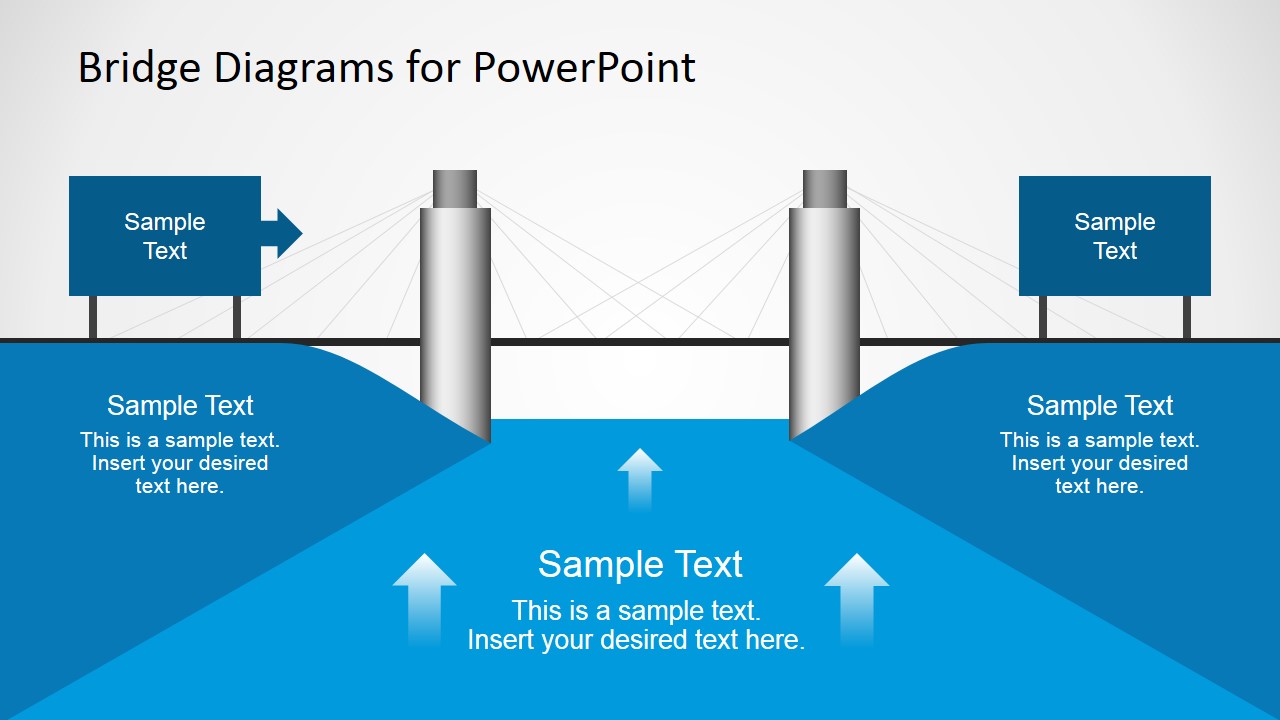
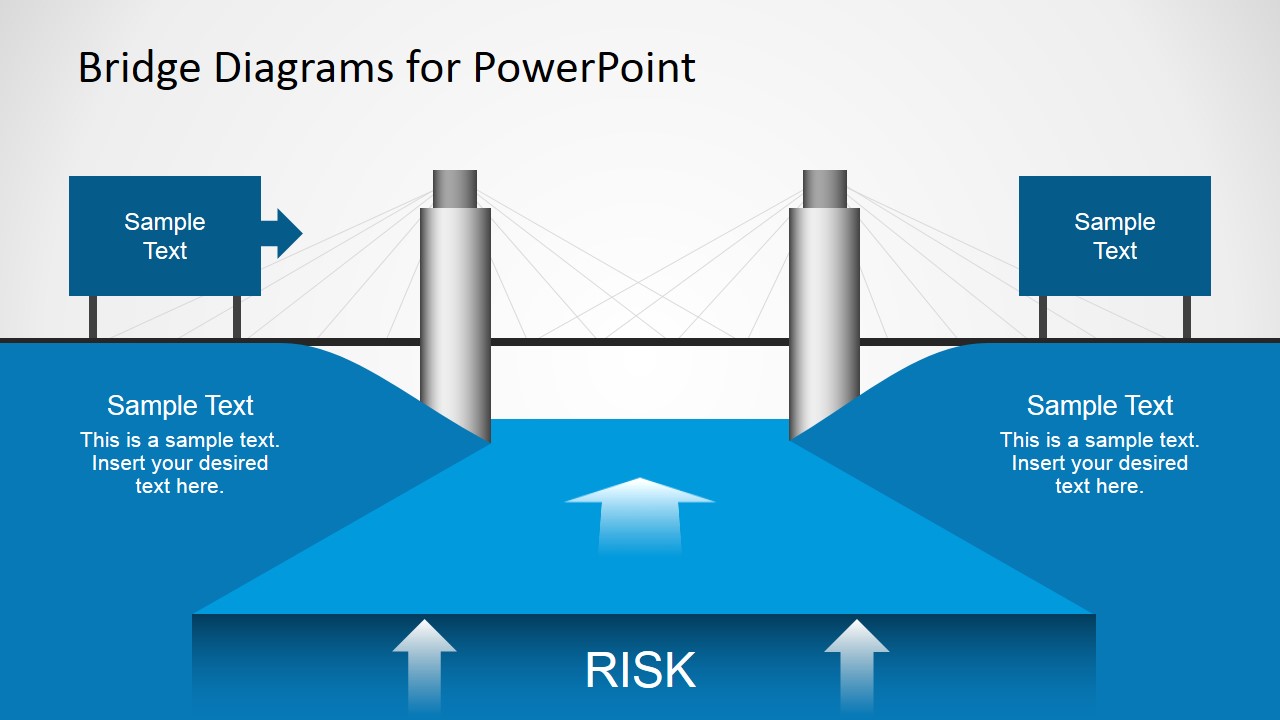
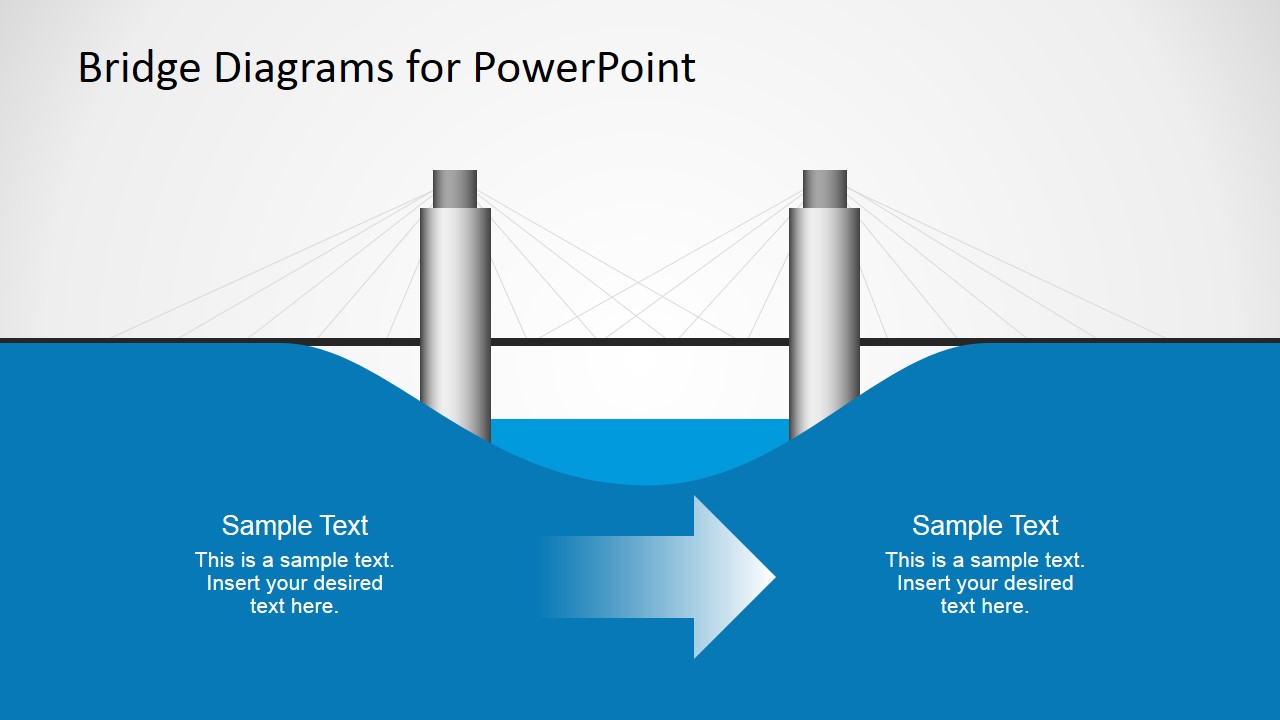
2D Bridge Diagrams Template for PowerPoint is a presentation design for Microsoft PowerPoint containing several bridge illustrations that you can use in PowerPoint to represent a connection of detached ideas, describe a plan with associated risks or a multi-steps concept. The bridge template can also be used to describe a Before & After situation or as a Before After Bridge metaphor.
As a member of SlideModel.com you can download this PowerPoint template or other thousands of graphics and PowerPoint slide designs ready for Microsoft Office.
What’s inside this template
Example presentation scenarios
- A strategy consultant can use the before-after bridge layout to show how a client moves from a current operating model to a desired future state.
- A risk manager can use the risk barrier diagram to explain what sits beneath a project path and how specific controls reduce exposure.
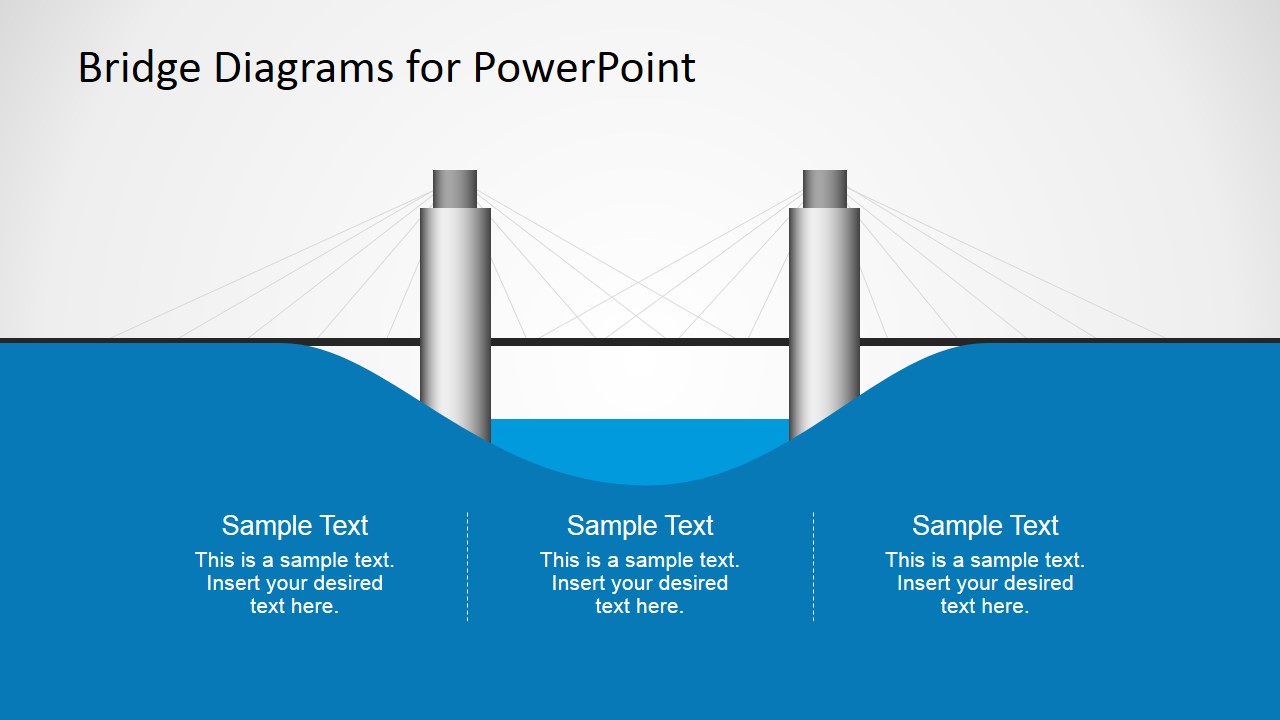
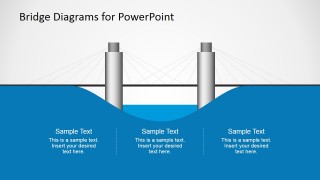
- A project manager can use the three-section bridge slide to organize stages, dependencies, or workstreams under one transition plan.
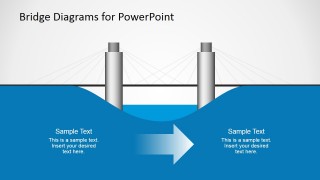
- A change management presenter can use the right-pointing arrow slide to explain the direction of movement from disruption to adoption.
Features
- 100% editable presentation template
- Compatible with Microsoft PowerPoint and Google Slides
- 16:9 aspect ratio slides
- Scalable vector shapes, icons and illustrations
- AI-Ready for Microsoft Copilot and Claude
- Instant access and download
Frequently asked questions
Q: How should a presenter build a clear message with these bridge diagrams?
A: Start by naming the two sides of the bridge: current state and target state, problem and solution, or disconnected groups. Then use the lower area for the forces that affect the crossing, such as risks, actions, or stages. Keep each label short so the metaphor carries the explanation instead of competing with dense text.
Q: Who is this template best suited for?
A: This template works best for consultants, project leaders, and risk managers who need to explain movement across a gap rather than display detailed data. The bridge metaphor is useful in strategy updates, transformation plans, stakeholder alignment sessions, and risk conversations where the audience must understand the connection between two separated conditions.
Q: Why does the bridge metaphor help communicate this type of business idea?
A: A bridge instantly signals connection, passage, and the need for a safe path. The visible water or gap under the structure makes risk feel concrete without requiring a complex diagram. Arrows then direct attention to movement, pressure, or obstacles, helping the audience understand both the destination and what must be managed along the way.
2D Bridge Diagrams Template for PowerPoint
5-slide bridge diagram presentation template for before-after, risk, and connection metaphors
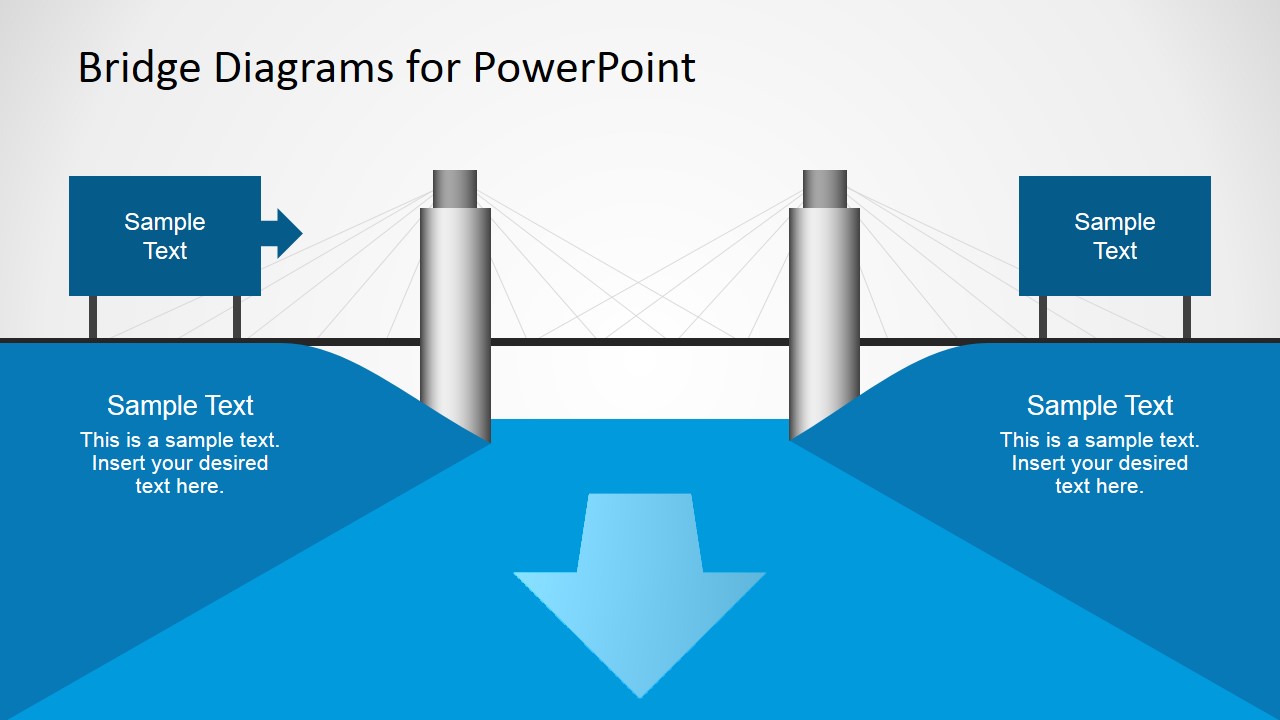
The 2D Bridge Diagrams Template for PowerPoint is a 5-slide diagram set for showing connections, gaps, transition paths, and risk areas. It includes a before-after bridge layout, risk barrier diagram, downward impact arrow, three-part comparison, and horizontal movement arrow for business presenters using Microsoft PowerPoint or Google Slides.
- Category
- Diagrams
- Rating


 Loading...
- Aspect ratio
- 16:9
- Item ID
- 6917-02
- Colors
 Microsoft PowerPoint
  Microsoft Copilot
  Claude for PowerPoint
 Other formats supported
Subscribe today and get immediate
access to download our PowerPoint templates.