
Presenting to a global audience often means speaking to people with different language backgrounds. In the past, organizations relied on interpreters, translated handouts, or separate subtitle systems to overcome language barriers during presentations. Today, PowerPoint includes built-in live captioning and translation capabilities that can make presentations more accessible to multilingual audiences.
In this guide, we explain how to translate live captions in PowerPoint, how the feature works, and what presenters should know before using it in front of a live audience.
What Are Live Captions in PowerPoint
Live captions in PowerPoint are automatically generated subtitles that appear on-screen during a presentation. As the presenter speaks, PowerPoint uses speech recognition technology to convert spoken words into text in real time. The captions can be displayed in the same language being spoken or translated into another supported language for multilingual audiences.
Originally introduced as an accessibility feature, live captions have become useful in a variety of presentation scenarios. They can help audience members follow presentations in noisy environments, support attendees who are deaf or hard of hearing, and assist non-native speakers in understanding spoken content more easily.
By generating captions from spoken words and translating them in real time, PowerPoint enables audiences to engage with presentation content even when they are not fluent in the presenter’s language. Live translated captions are particularly useful for international meetings, multilingual training sessions, webinars, and conferences. For example, a presenter speaking English can deliver a presentation while audience members read captions translated into Spanish, French, German, or another supported language.
Supported Languages and Translation Availability
PowerPoint supports a broad range of languages for both live speech recognition and translated captions. At the time of writing, PowerPoint can recognize approximately 23 spoken languages for live caption generation and display captions or translated subtitles in more than 60 languages. Supported spoken languages include multiple variants of English, such as U.S., U.K., and Canadian English, as well as Chinese, French, German, Italian, Spanish, Japanese, Korean, Portuguese, and Russian.
Language availability can vary depending on the Microsoft 365 version, operating system, and region. Microsoft also updates its language support periodically, adding new languages and improving recognition accuracy for existing ones.
Before presenting to an international audience, it is a good idea to verify that both the spoken language and the desired subtitle language are supported. If a required language is unavailable, presenters may need to consider alternative solutions such as third-party translation services, human interpreters, or pre-translated presentation handouts. For multilingual presentations involving specialized terminology, testing the translation feature in advance can also help identify potential accuracy issues before the live event.
How to Translate Captions in Live PowerPoint Presentation
PowerPoint includes built-in settings that allow presenters to select both the spoken and caption languages in just a few steps.
Step 1: Open Presentation and Connect to the Internet
Open the PowerPoint presentation you plan to deliver. Before starting the slideshow, ensure that your device is connected to a stable internet connection. This is because PowerPoint’s live captioning and translation features rely on Microsoft’s cloud-based speech services.
Step 2: Open Caption Settings
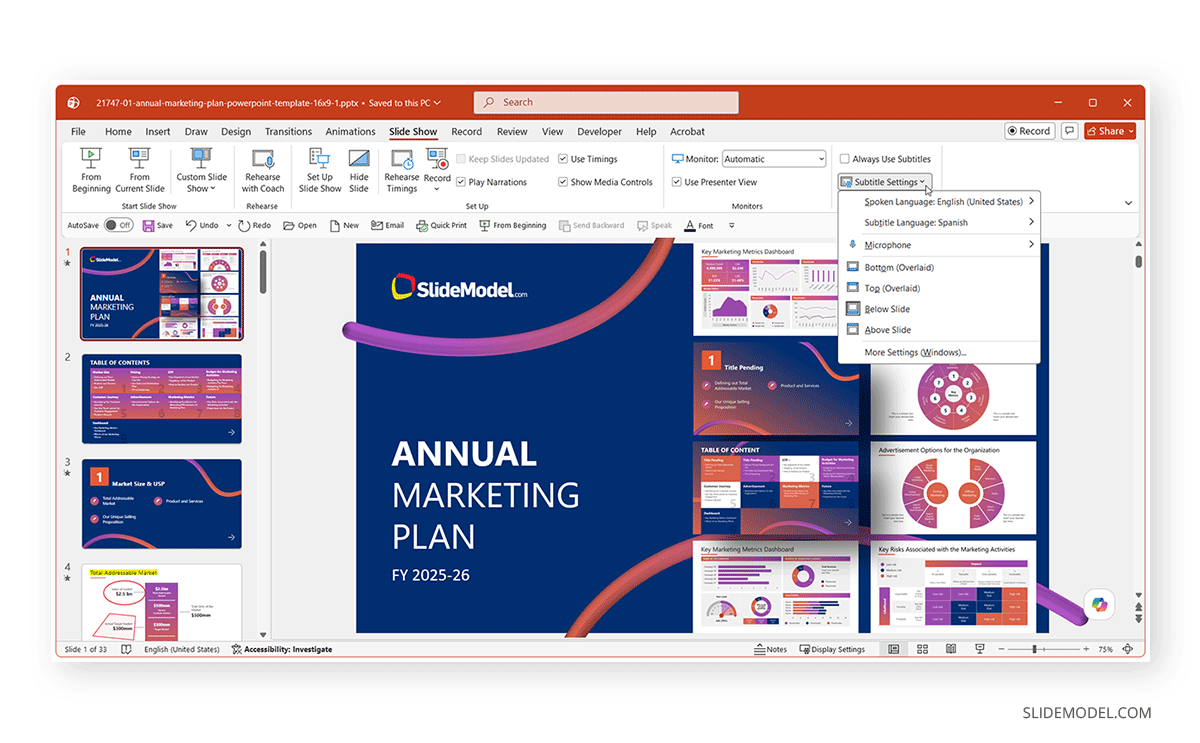
Navigate to Slide Show -> Subtitle Settings. This menu contains the controls for live captions and translated subtitles.
Step 3: Select the Spoken Language and Subtitle Language
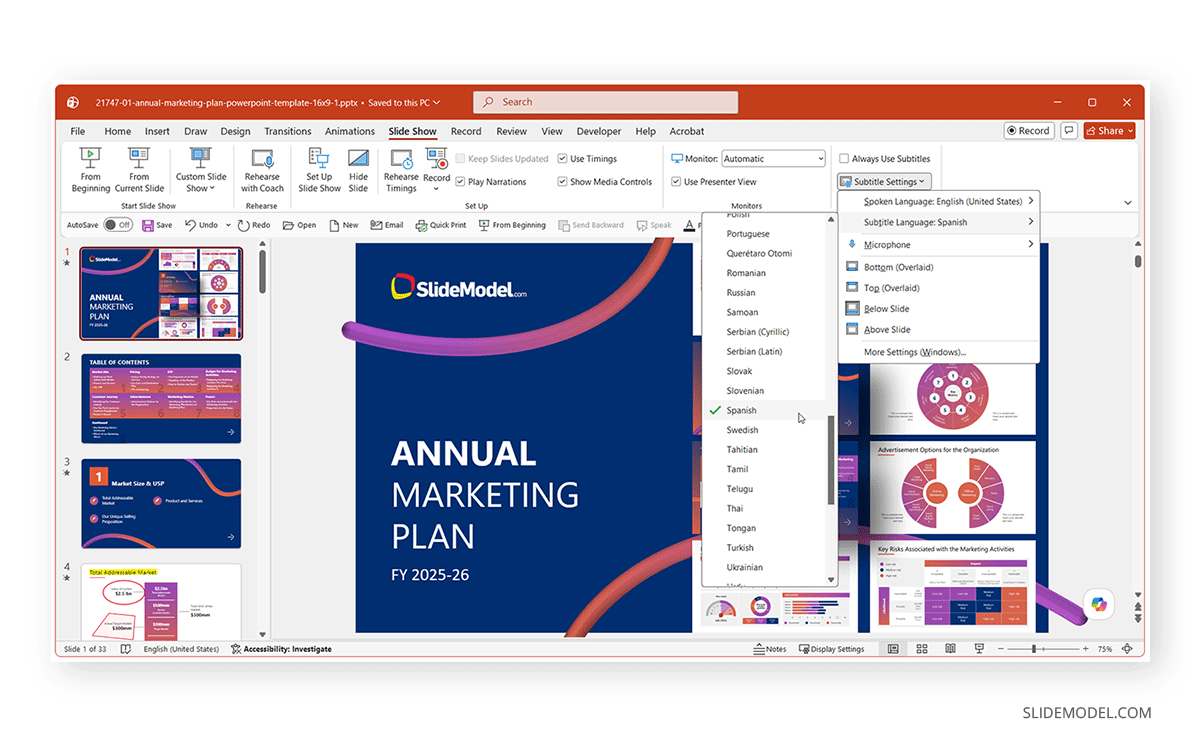
Choose the language you will be speaking during the presentation. PowerPoint uses this setting to interpret speech accurately and generate captions. In the next step, select the language in which captions should be displayed.
Example:
- Spoken language: English
- Subtitle language: Spanish
If multiple microphones are connected to your device, use the Microphone option within Subtitle Settings to select the microphone that PowerPoint should use for speech recognition. Using a headset microphone often improves caption accuracy compared to a built-in laptop microphone.
Note: To display live captions in the same language as the presenter, select the same language for both Spoken Language and Subtitle Language. PowerPoint will generate real-time captions without translating the content.
Step 4: Enable Live Captions
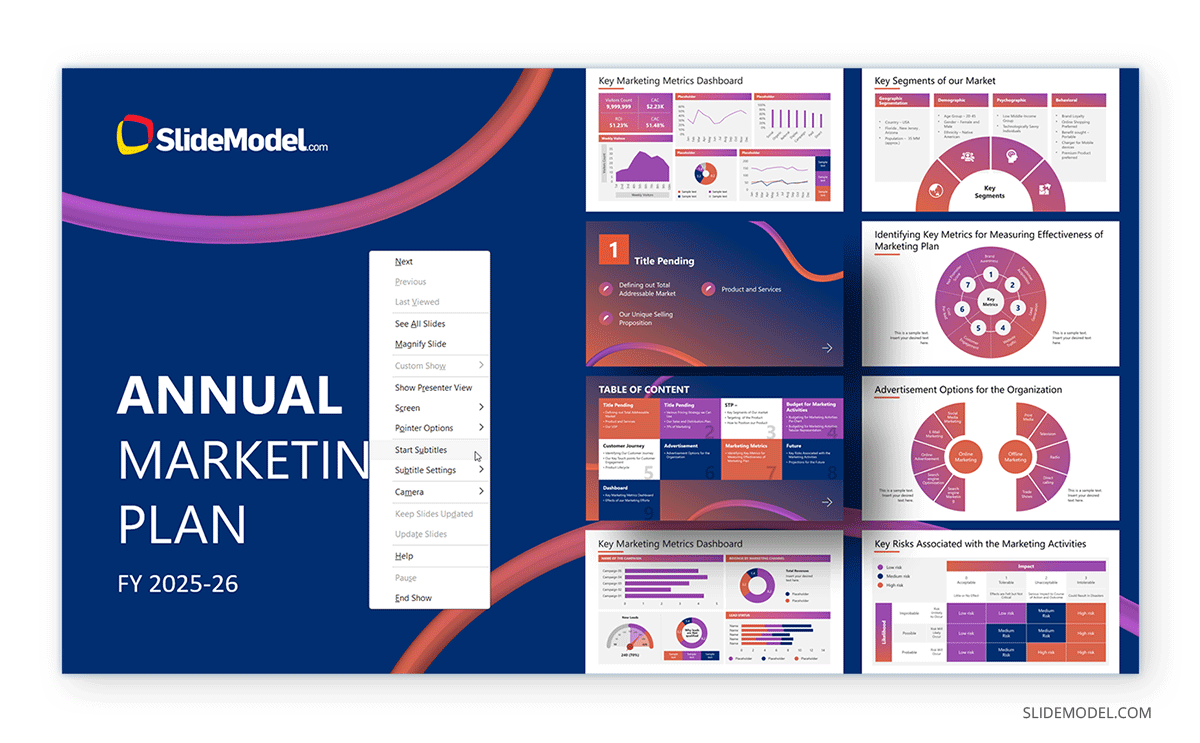
Start the slideshow and click Start Subtitles, or use the Toggle Subtitles option from the slideshow controls to turn captions on or off. Once enabled, PowerPoint will use speech recognition to generate captions from your spoken words and, if a different subtitle language is selected, automatically translate them in real time.
If you want subtitles to appear automatically whenever you present, select Always Use Subtitles from the Slide Show tab. You can also adjust subtitle settings during Slide Show mode via the right-click menu or the three-dot menu in the lower-left corner of the slideshow window. Depending on your preferences, you can choose where captions appear on the screen and select a preferred microphone to improve speech recognition accuracy.
Step 5: Present with Live Captions
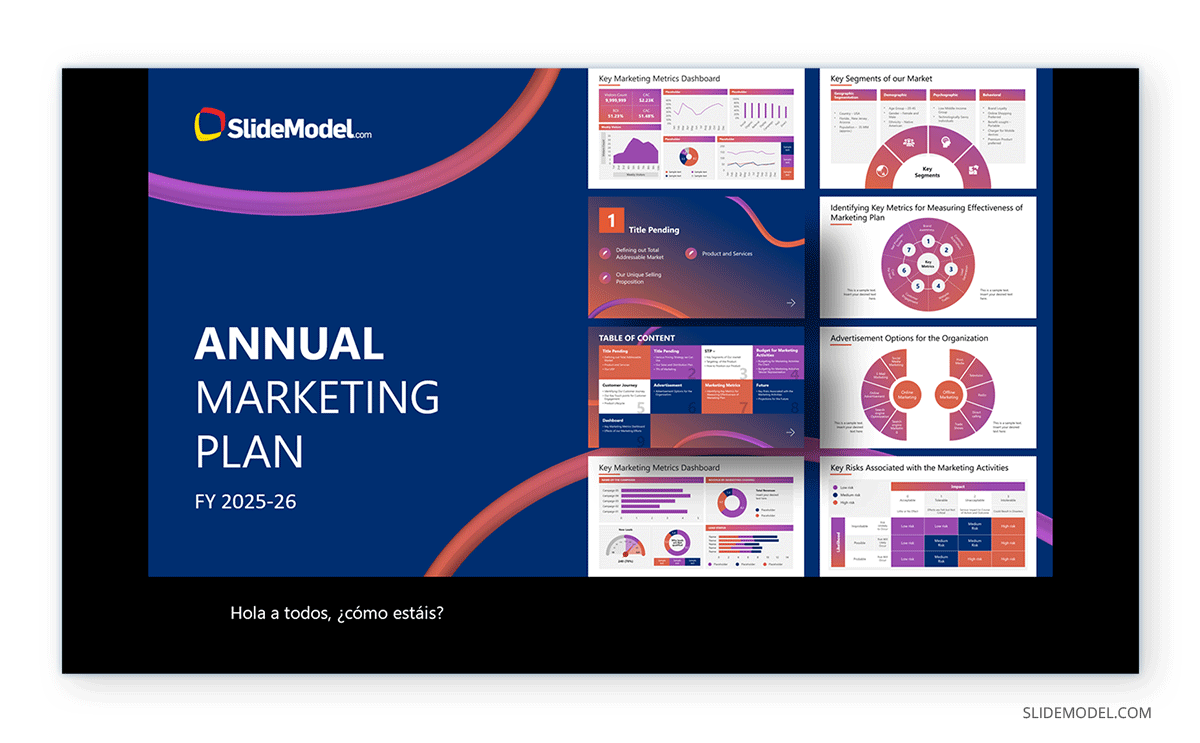
Begin presenting normally. As you speak, captions appear automatically and update in real time. Audience members can follow the translated text while listening to the presentation.
Note: During Slide Show mode, subtitles can also be turned on or off using the J keyboard shortcut.
Common Mistakes When Using Live Captions
The translation feature for live captions in PowerPoint isn’t without flaws. Below are a few common mistakes to avoid when using the feature.
1. Not Testing Translation Accuracy: Context, technical language, and cultural expressions can sometimes produce inaccurate translations. Caption and translation settings should always be tested before the presentation begins. This can help avoid translation issues or enable you to provide the audience with alternative handouts if the translation cannot be relied upon due to persistent problems.
2. Speaking Too Quickly: Rapid speech can reduce both caption accuracy and translation quality. Try to speak slowly and clearly to avoid issues with translation. This will also give time to the audience to read the live captions.
3. Ignoring Audio Quality: Poor microphone quality often causes more problems than language settings. Background noise, echo, and low-volume speech can affect recognition accuracy.
4. Using Jargon Without Context: Technical terms, abbreviations, and company-specific language may not translate effectively. Consider explaining specialized terminology when presenting to international audiences.
5. Unstable Internet Connection: Live captions and translated subtitles rely on Microsoft’s cloud-based speech services. A weak or unreliable internet connection can interrupt caption generation or reduce translation accuracy. Test the network connection before presenting and use a reliable wired or high-speed wireless connection whenever possible.
Limitations of Live Translation
While PowerPoint’s live translation feature is impressive, it should be viewed as an aid rather than a substitute for professional interpretation. Translation accuracy can vary depending on language pairs, speaking style, audio quality, and subject matter. Presentations involving legal, medical, regulatory, or highly technical information may still require human translators to ensure accuracy. In addition, live translation generally works best when presenters use clear and structured language.
Final Words
Using translation for live captions in PowerPoint can make presentations more accessible and inclusive for multilingual audiences. By combining live speech recognition with real-time translation, PowerPoint enables presenters to communicate more effectively with global teams, international clients, and diverse audiences.
Industry-specific acronyms, product names, and specialized vocabulary may not always translate correctly. When presenting to a multilingual audience, testing the translation feature beforehand can reveal potential issues before the live event. Furthermore, speaking clearly and at a moderate pace helps the speech recognition engine identify words accurately. Fast speech, heavy accents, and overlapping conversations can reduce caption quality.
While automated translation is not a replacement for professional interpretation, it can significantly improve understanding when used appropriately, making presentations more accessible to multilingual audiences.