PowerPoint presentations don’t always have to be presented as a linear slide deck. Letting presenters jump between slides creates a more engaging, interactive experience. This way, presenters can move directly to relevant topics during meetings, learners can explore training materials at their own pace, and audiences can choose the information they want to view or discuss.
If you want to link slides in PowerPoint, it offers several built-in options for creating internal navigation links. You can hyperlink text, shapes, or images to another slide, use Action buttons to create navigation controls, or insert clickable Slide Zoom thumbnails. Each method serves a different purpose, depending on how interactive you want your presentation to be.
Why Link Slides in PowerPoint
Internal links allow users to move through a presentation without following the default slide order. Instead of advancing one slide at a time, presenters can jump directly to relevant sections based on audience questions or presentation flow.
Common uses include interactive table-of-contents slides, training presentations with multiple learning paths, shareable product catalogs, sales presentations, interactive quizzes made in PowerPoint, self-guided kiosks, and choose-your-own-path presentations. In other cases, an interactive slide deck might be available at a touchscreen kiosk, or the presentation might be shared with a client to walk through a list of products and services as an interactive slideshow. In that case, an interactive PowerPoint presentation can be more economical than a mobile app or web interface.
Understanding PowerPoint Internal Links
Before diving into the technical steps, it’s important to understand a fundamental characteristic of PowerPoint links. They are directly clickable only during Slide Show mode or Reading View in PowerPoint. This distinction matters because you might create a perfectly functioning link that doesn’t appear to work when you’re designing your presentation in Normal mode. This design choice prevents accidental navigation while you’re working on your content. However, you can edit and open the link in Normal mode via the right-click context menu.
How to Add a Hyperlink in PowerPoint
Below is an overview of three common methods for linking to a specific slide in PowerPoint. The methods listed include using the Insert Link option, Action buttons, and Slide Zoom. To demonstrate all three processes, we will be using the Product Catalog PowerPoint Template.
Method 1: How to Hyperlink to Another Slide in PowerPoint
You can attach hyperlinks to text, images, icons, shapes, SmartArt, or other objects within the presentation. This method works well for creating clickable menus, navigation buttons, or references that let viewers move between different sections of a presentation. If you’re wondering how to link text to a slide in PowerPoint, this is the most common method to do it, though you can also use Action buttons explained later in the post.
Step 1: Select the text or object that will act as the link. PowerPoint lets you add hyperlinks to text, shapes, images, icons, and SmartArt. Choose an object that clearly indicates it is interactive, especially if others will use the presentation.
Step 2: With the object selected, open the hyperlink dialog. Depending on your version of PowerPoint, you can access it from the Insert tab by selecting Link or by right-clicking the selected object and choosing Link. The Insert Hyperlink dialog appears with multiple linking options.
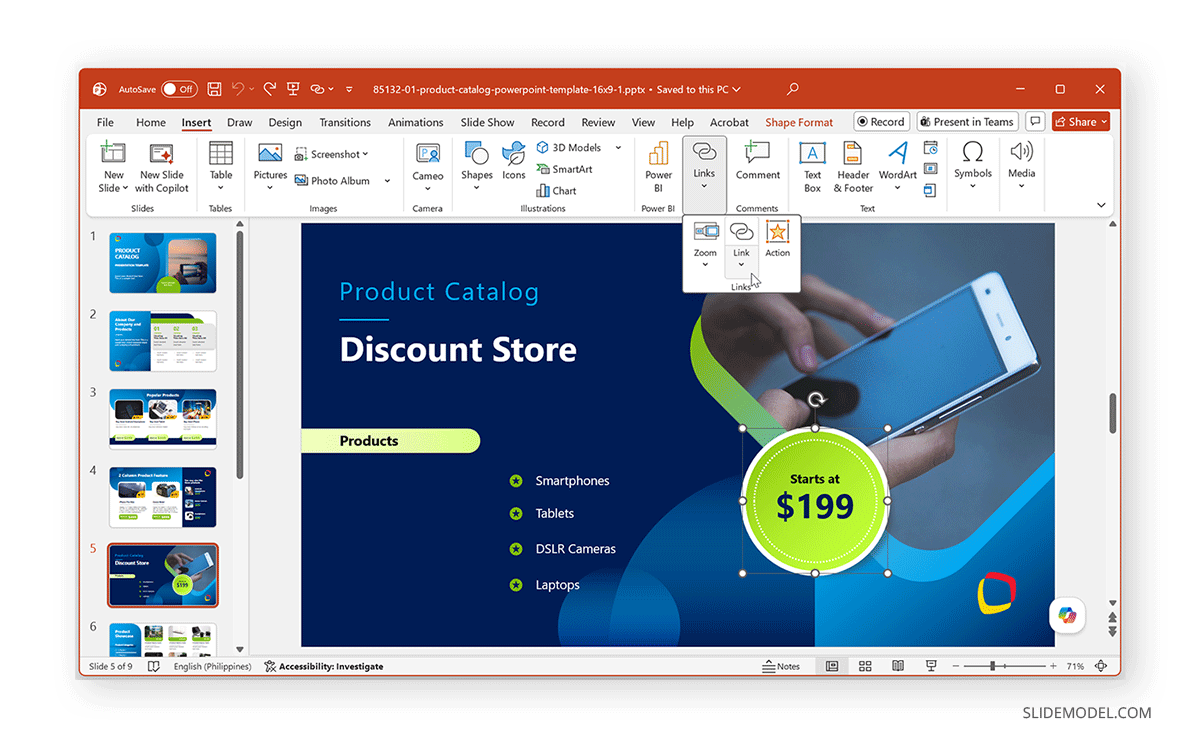
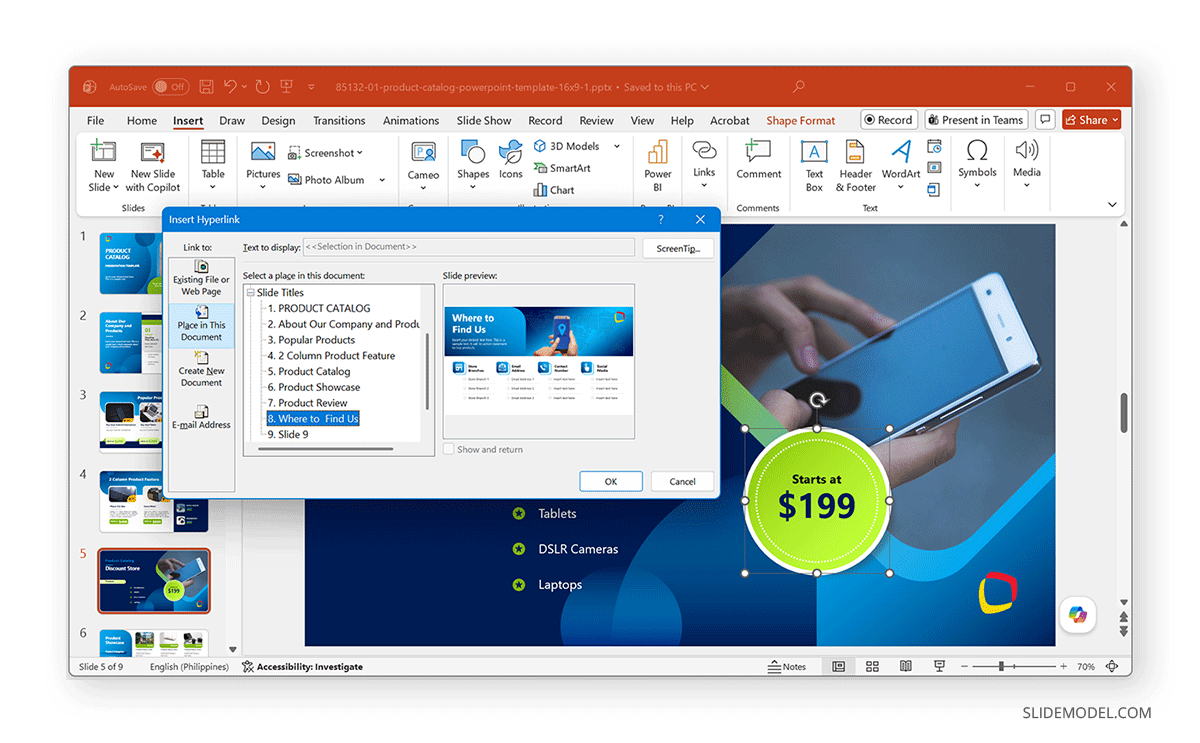
Step 3: Select Place in This Document menu from the dialog box that appears. In this menu, PowerPoint displays a list of all slides in the presentation, allowing you to create an internal hyperlink. Choose the slide you want users to navigate to. The list displays slide titles, making it easier to identify the correct destination in larger presentations. After selecting the slide, confirm the hyperlink. The selected object is now linked to that specific slide.
Step 4: Internal hyperlinks become active only during Slide Show mode or in Reading View. In the normal editing view (Normal mode), clicking the object selects it rather than activating the link, unless you open it via the right-click context menu. Before sharing or presenting your file, start the presentation slideshow and verify that each hyperlink opens the intended slide.

Method 2: How to Link Slides with PowerPoint Action Buttons
While hyperlinks work well for individual objects, PowerPoint Action Buttons provide dedicated navigation controls that resemble buttons found in software applications. They are particularly useful for self-running presentations, training modules, interactive kiosks, and educational content where viewers navigate the presentation independently. Unlike standard hyperlinks, Action Buttons include predefined navigation commands in addition to custom slide links.
Step 1: Select an object to link, then go to Insert -> Link -> Action.
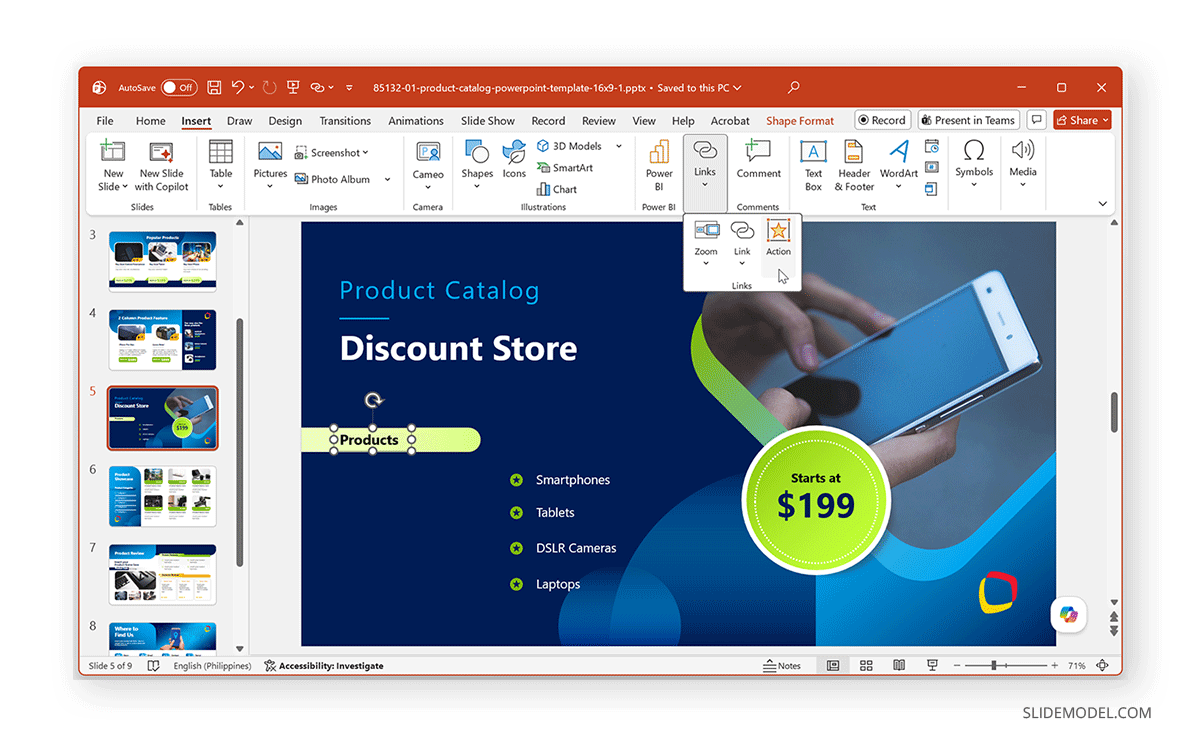
Step 2: Select the Mouse Click or Mouse Over tab and go to Hyperlink to pick an action. You can link to a slide (next, previous, first, last, last viewed, or custom slide), add a website URL, file link, or Custom Show using either tab.
Step 3: Adjust the hyperlinked object on the slide (e.g., a shape with text such as Next Slide). Many presenters position navigation buttons consistently in the same place. In the example below, we linked the Products button on one slide to a slide featuring products. You can make buttons like these using ready-made templates, inserting text over shapes, or using button images. You can link these to create Action buttons.
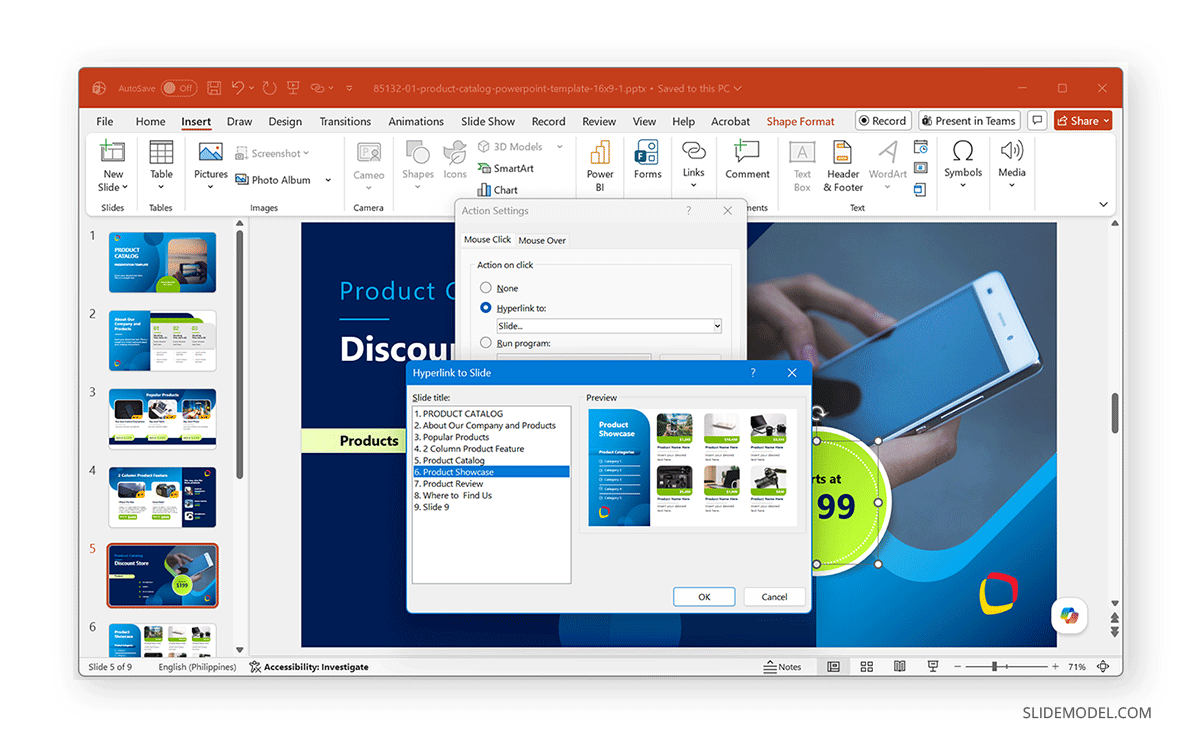
Step 4: Like standard hyperlinks, Action buttons perform their assigned actions only in Slide Show mode. Run the presentation and verify that each button performs the correct navigation before presenting to your audience.
Note: You can also use Action buttons for other purposes, such as running a program or macro, or playing a sound. Selecting the Mouse Click or Mouse Over tab determines how the action is performed, i.e., either by clicking the button or by hovering the mouse.

Method 3: How to Use Slide Zoom for Interactive Navigation
PowerPoint’s Slide Zoom feature provides a more prominent method to navigate between slides. Instead of linking text or buttons, Slide Zoom inserts a clickable thumbnail of another slide that users can select during the presentation. This approach works particularly well for presentations that resemble dashboards or menus, allowing audiences to choose where they want to go next.
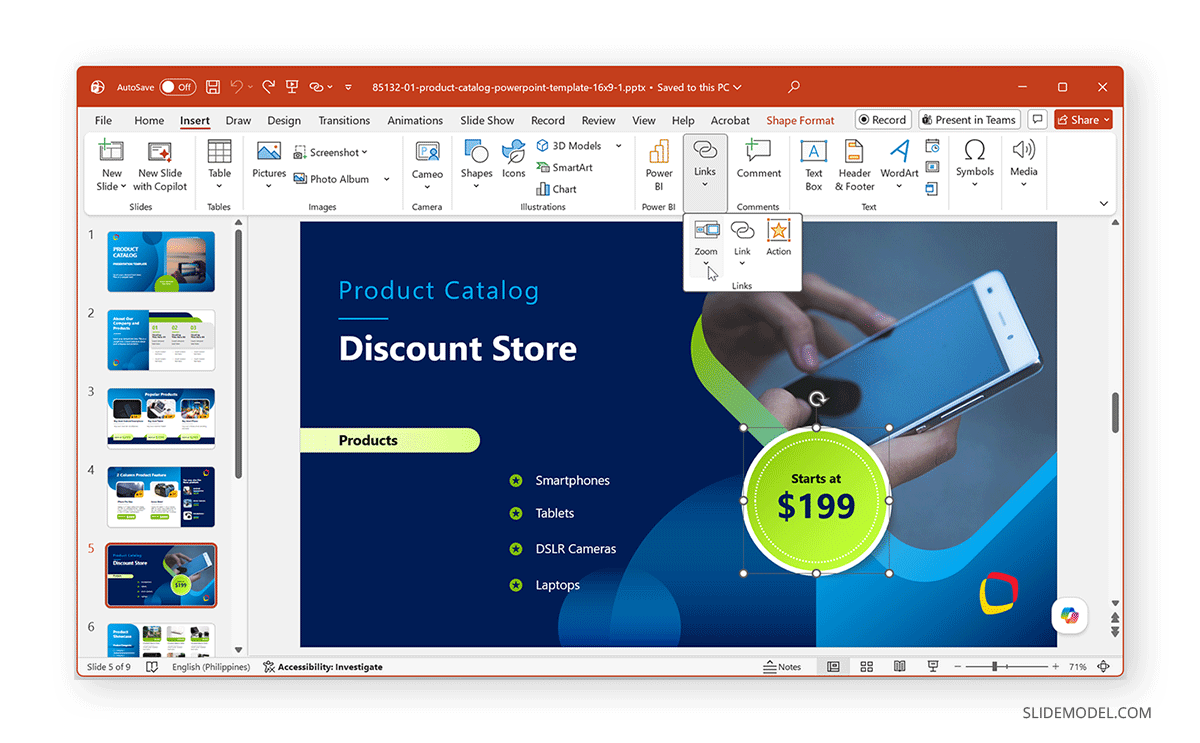
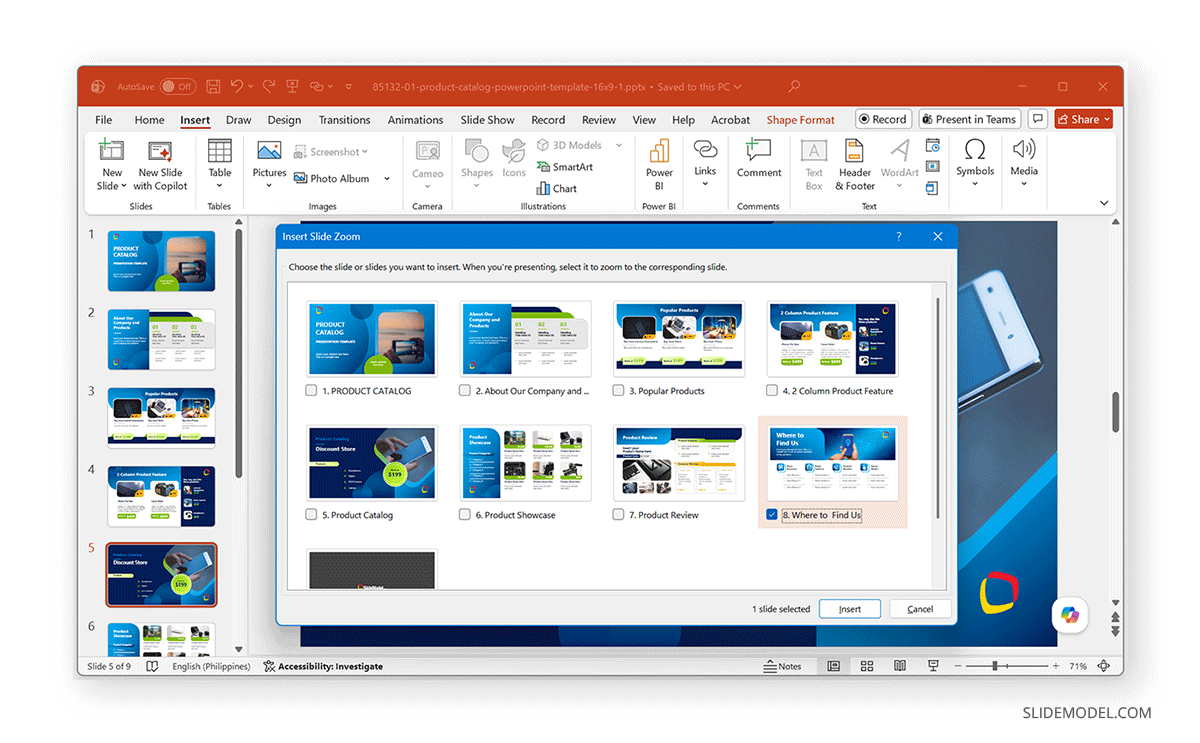
Step 1: Go to Insert -> Links -> Zoom -> Slide Zoom. A window appears showing all slides in the presentation. This is because we are linking to a single linked thumbnail. To create a table of contents with thumbnails, use Summary Zoom.
Step 2: Choose the slide you want to link to and click Insert. PowerPoint automatically places a thumbnail of the selected slide onto the current slide. Unlike a standard hyperlink, the thumbnail provides viewers with a visual preview of the destination.
Step 3: The inserted thumbnail behaves like other PowerPoint objects. You can resize it, move it anywhere on the slide, apply borders or picture styles, and combine multiple Slide Zoom objects to create an interactive menu.
Step 4: PowerPoint Slide Zoom links work only in Slide Show mode. Once clicked, PowerPoint jumps to the linked slide and, depending on your Zoom settings, it can automatically return to the originating slide after that section has been viewed.

How to Link to a Specific Slide in PowerPoint using PowerPoint for the Web
In PowerPoint for the web, you can use two methods to link specific slides.
Method 1: Link a Slide from the Current Presentation
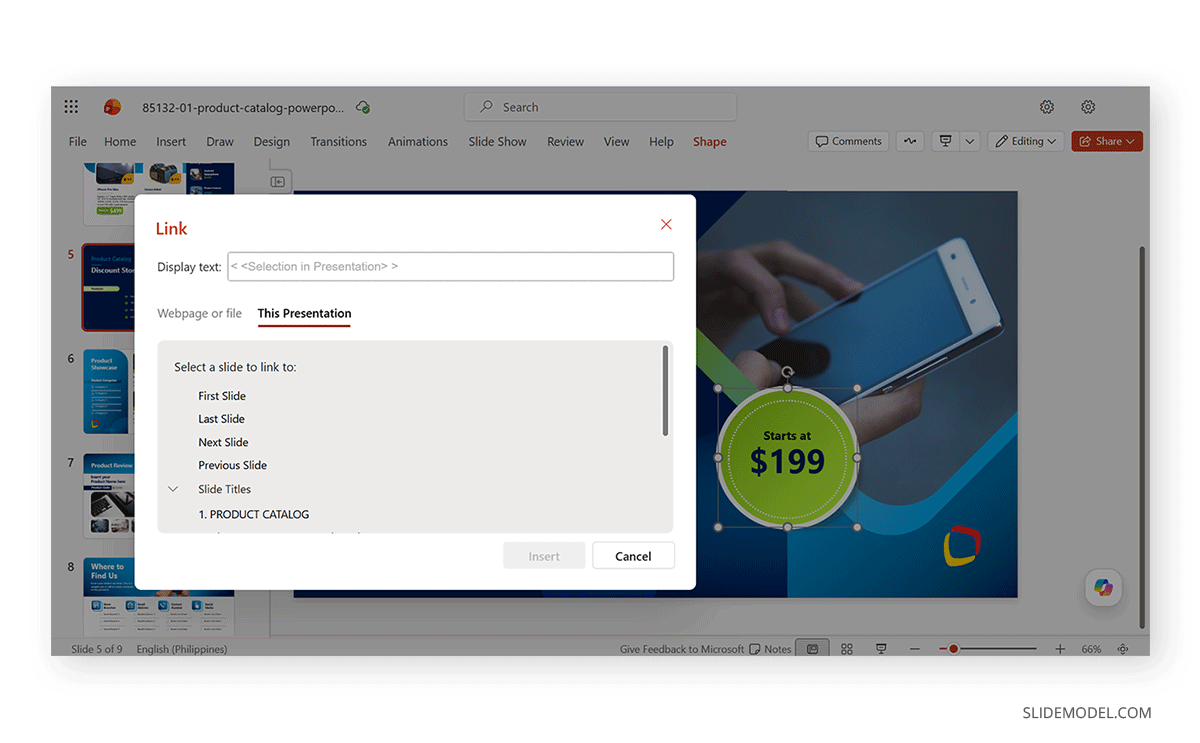
Step 1: To link a slide from the current presentation, select an object to link and go to Insert -> Link, or select Insert Link via the right-click menu.
Step 2: Head over to the This Presentation menu and select the slide to link to.
Step 3: Pick a slide number, or go to the first, last, next, or previous slide, or select a slide number to link the selected object.
Method 2: Link a Slide by URL
You can link a slide via URL to a selected object. This might include a URL to a slide in the same presentation or in another.
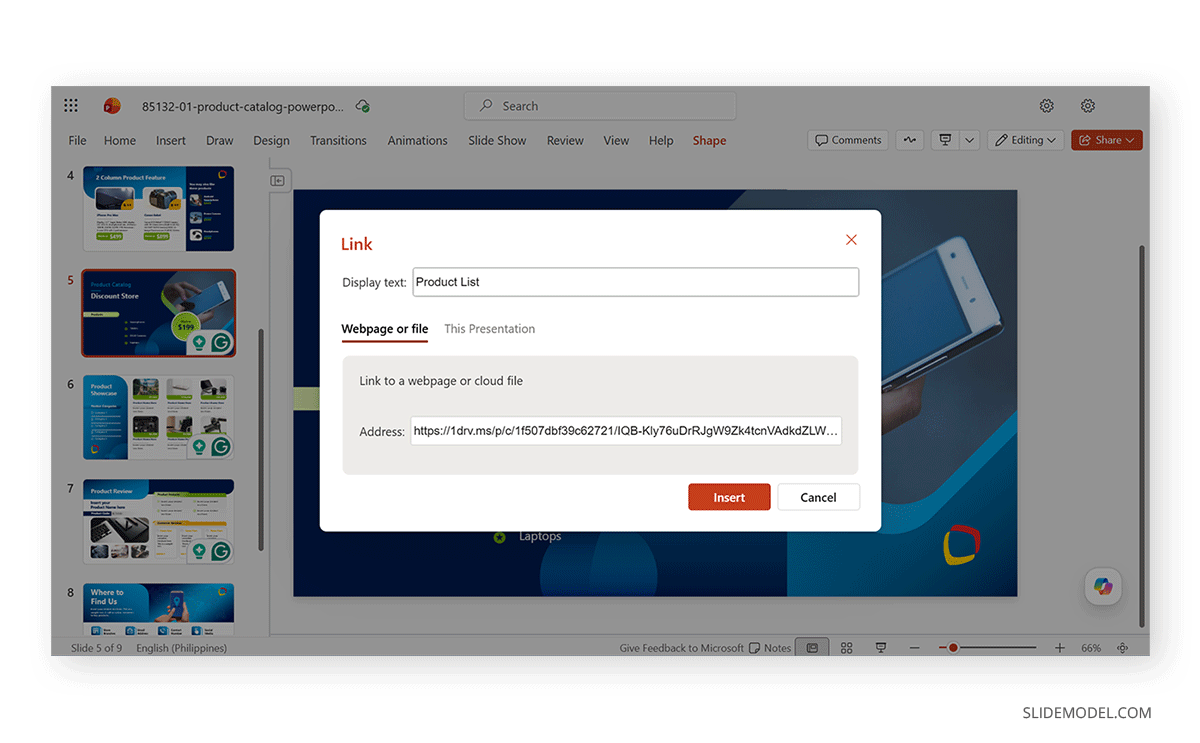
Step 1: Right-click the slide and select Link to this Slide.
Step 2: Either copy the slide link or go to Settings to configure sharing settings before generating and copying the link. The latter is important if you want to share the slide in another presentation file, where you may need to adjust sharing settings.
Step 3: Open the destination slide, select an object, and go to Insert -> Link.
Step 4: Select the Webpage or File option and share the link to the specific PowerPoint slide.
Note: This method can link slides, website URLs, and files.
Using PowerPoint vs. Canva for Making Interactive Presentations
Both PowerPoint and Canva allow users to create interactive presentations, but their approaches differ.
PowerPoint offers multiple navigation methods, including hyperlinks, Action buttons, and Slide Zoom, giving presenters considerable flexibility when designing non-linear presentations. These features make it well suited to training courses, interactive menus, educational content, and presentations where audiences may choose different navigation paths. For users building highly interactive presentations, PowerPoint offers a broader set of tools to create flexible navigation experiences.
Canva also lets you add links between pages in supported presentation formats, enabling basic navigation menus. However, its interactive features are generally more limited than PowerPoint’s, particularly for presentations that rely on complex internal navigation or multiple navigation controls. For example, PowerPoint supports features such as Slide Zoom, Summary Zoom, Action Buttons, and Custom Slide Shows, allowing presenters to create richer navigation experiences that Canva does not currently offer.
Final Words
Learning how to create an interactive PowerPoint presentation by linking slides can significantly transform a traditional slide deck. Whether you use hyperlinks, Action buttons, or Slide Zoom, each method provides a different way to help audiences navigate or view content more efficiently.
The best option depends on how you’ll use the presentation. Hyperlinks are ideal for linking text, images, and shapes to specific slides; Action buttons provide consistent navigation controls for self-guided presentations; and Slide Zoom offers a more prominent way to move between sections. Allowing you to create presentations that are easier to navigate than a standard linear slide deck.