Excel is useful for organizing numerical data, creating charts, and maintaining structured information, but you may want to move that content into Canva for a more focused presentation or design. Canva provides several ways to bring spreadsheet information into a design, depending on whether you need a chart, a set of values, or data that will populate multiple slides.
If you are learning how to insert Excel Data in Canva slides, you can import an Excel or CSV file, copy a chart directly from Excel, or export the chart as an SVG before adding it to Canva. Canva also offers a Bulk Create option that uses spreadsheet data to generate multiple versions of a design.
How to Add and Import Excel to Canva
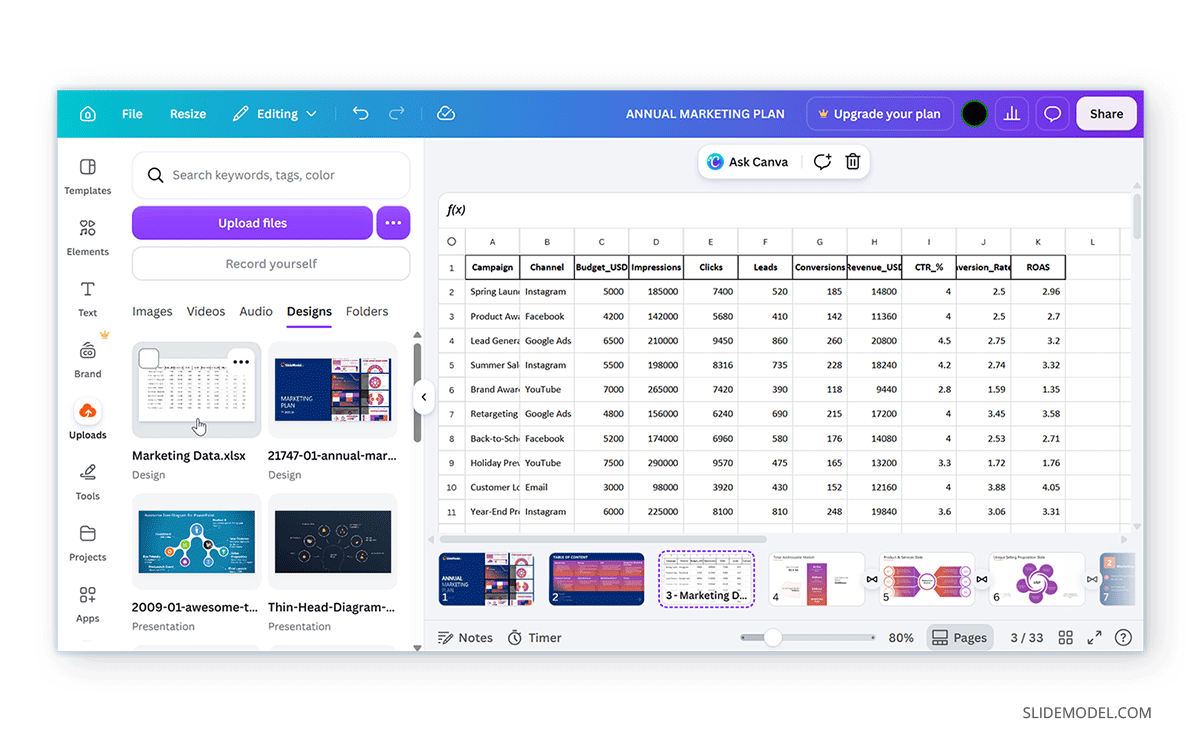
One of the most direct ways to bring spreadsheet data into Canva is to upload the Excel file itself. Canva supports spreadsheet formats such as XLSX, XLS, and CSV, letting you bring workbook data into Canva for use with supported design and data features. This is useful when the spreadsheet contains information you want to use as the basis for charts or other visual content, rather than simply placing a screenshot of the Excel worksheet on a slide.
How to Upload an Excel File to Canva
Before uploading the file, check its size and structure. The file size limit for this workflow is 100 MB, so you may need to reduce or split larger workbooks before importing them. It also has a limit of 500 rows and 52 columns.
Step 1: Open the Canva presentation where you want to use the spreadsheet data and upload the Excel file. From the Canva editor, use the available upload or data import option and select the Excel or CSV file from your computer.
Step 2: Canva will then process the spreadsheet data for use within supported features. The exact options available after importing depend on how you intend to use the data and the Canva tools available to your account.
Step 3: Click on the spreadsheet to add it to a Canva page. Canva doesn’t provide a native table editor with the same depth of data management and formatting capabilities as Excel. However, once you connect Excel to Canva data using a spreadsheet, you can edit it further and use it to create tables and charts.
How to Insert an Excel Table in Canva
Now that you know how to add spreadsheet data to Canva slides, let’s take a look at the method for adding a table from an uploaded Excel sheet. Canva is designed primarily as a visual design platform, so working with spreadsheet tables is different from working with tables in Excel.
1. Create a Table Design: For simple tables, you can recreate the required structure using Canva’s table or design elements and then enter the information manually. This works well when the table has only a few rows and columns.
2. Upload Spreadsheet to Canva: For larger or more complex datasets, manually rebuilding the table can become time-consuming. In those cases, consider whether the information would be easier to communicate as a chart, or prepare the table in Excel and bring it into Canva as a finished visual. This limitation is important when deciding whether Canva is the right tool for a data-heavy presentation.
3: Copy and Paste Excel Data
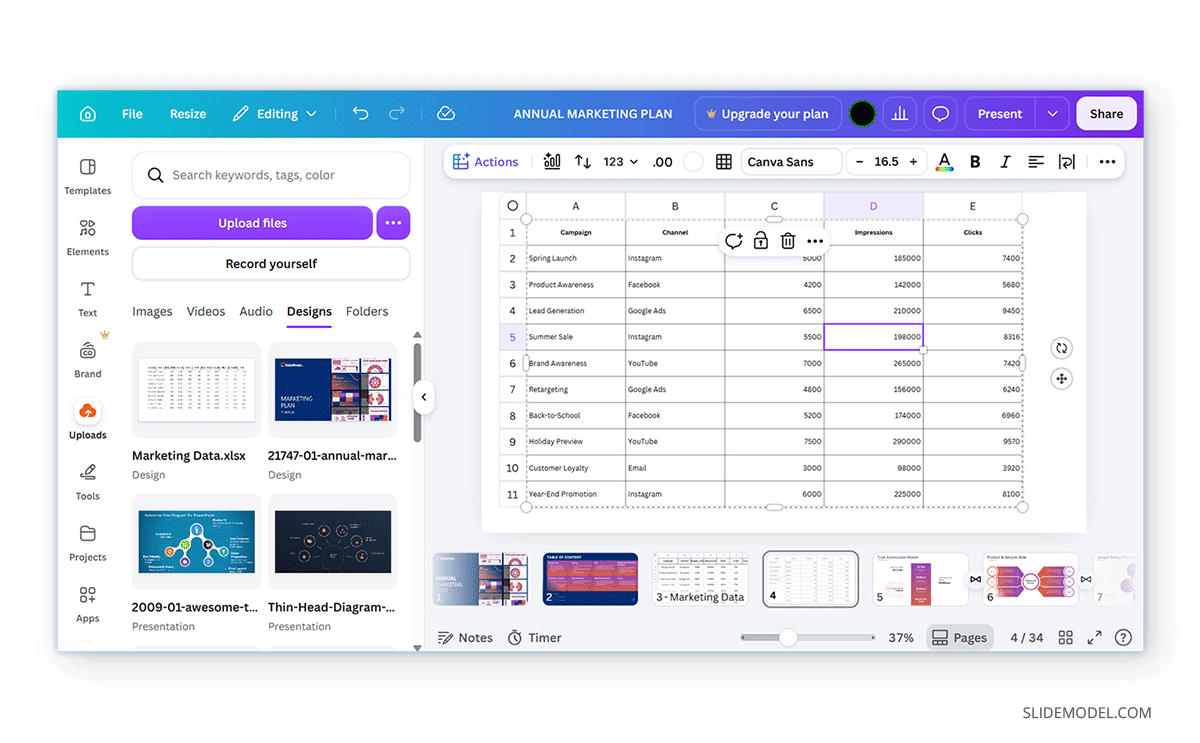
You can also select and copy data to the clipboard from an Excel spreadsheet and paste it directly into Canva. The image below shows data copied from Excel and pasted directly into Canva. For this purpose, you can either use the cursor or the keyboard shortcut CTRL+C (Windows) or Command+C (Mac) to copy, and CTRL+V (Windows) or Command+V (Mac) to paste the data.
How to Import an Excel Chart into Canva
If you have already created a chart in Excel, you do not necessarily need to rebuild it from scratch in Canva. Quick options include copying the chart from Excel and pasting it into your Canva design, importing it from Excel, or recreating it manually.
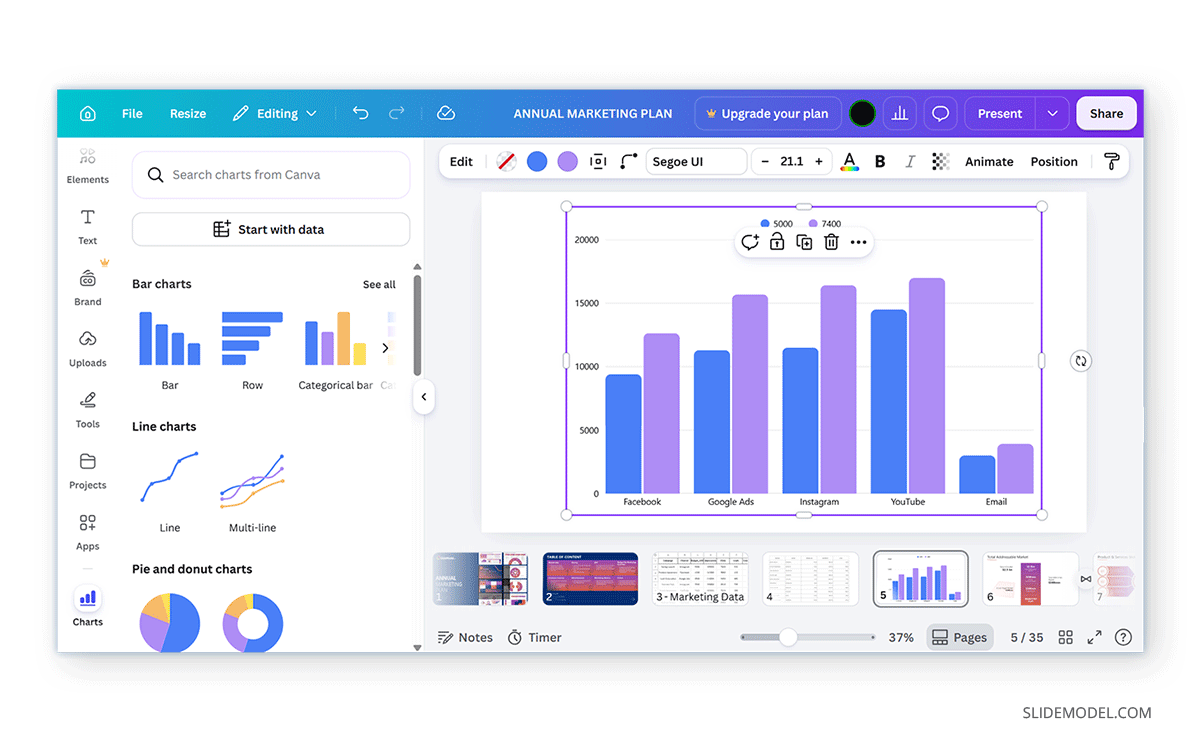
Manually Create a Chart in Canva: By using the Chart tools in Canva, you can manually create the chart by entering data and converting it to a chart.
Upload a Spreadsheet with a Chart: You can also upload an Excel spreadsheet with data and a chart to create a chart in Canva. The spreadsheet should include both the data and the chart. Without the data, Canva might not populate the chart.
Copy and Paste Chart as an Image: You can also copy a chart in Excel to the clipboard and paste it in Canva. Once pasted, you can further format it as an image to make it ready for your Canva design. If you use keyboard shortcuts instead of the cursor, the same shortcuts apply: CTRL+C and CTRL+V (Windows) or Command+C and Command+V (Mac) to copy and paste the data.
Create a Chart from a Table: You can also select a table in Canva and instantly turn it into a chart. Simply select the data you want to convert to a chart and use the Magic Charts option from the top toolbar. In the next step, select the chart type to generate your chart from a table.
Handling a White Background
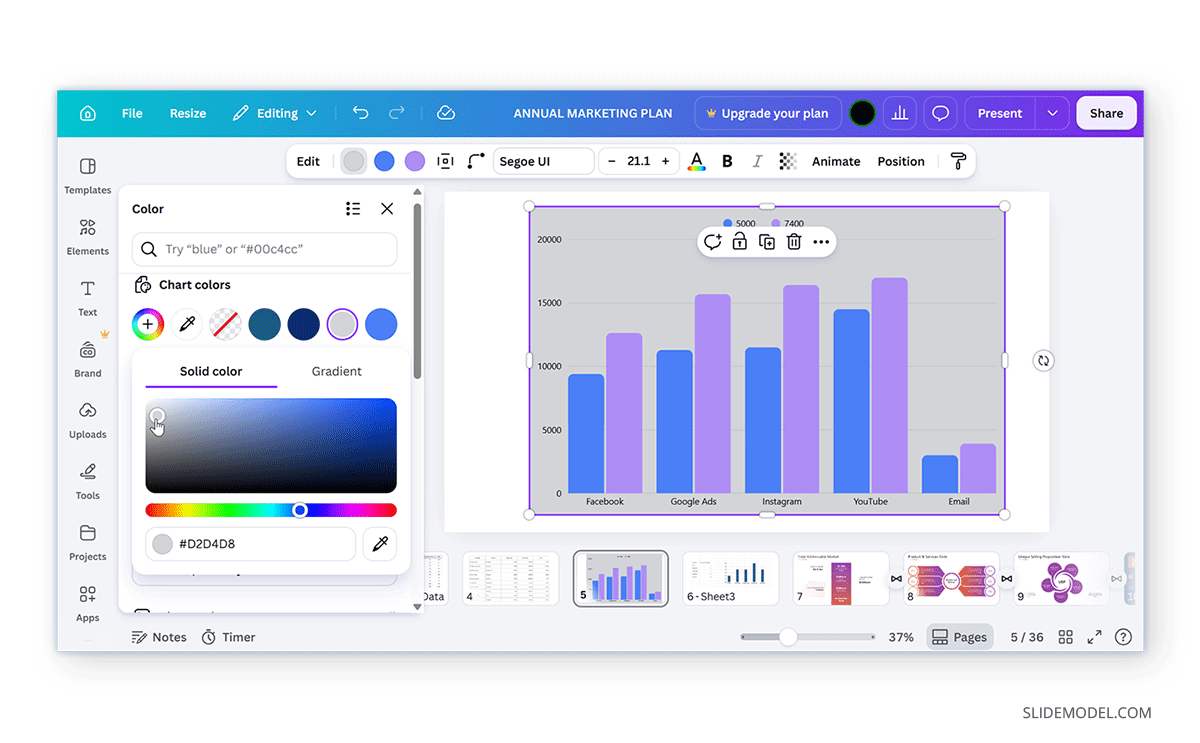
A white background may be perfectly acceptable if the presentation uses a white canvas, but it can look out of place against a darker or more decorative design. One option is to adjust the chart before copying it from Excel so its background and other visual properties more closely match the look you want in Canva. Another approach is to export the chart as a graphic format that gives you more control over its appearance. For charts that need to stay sharp when resized, exporting them as SVG for use in Canva can be a useful alternative.
You can also use the Chart Colors option in Canva to select the background color as needed. To use this feature, select the chart and click a color in the top toolbar to change the background color.
How to Export Charts as SVG
SVG is a vector format, which means graphics can be resized without the same loss of sharpness associated with raster images. This makes SVG particularly useful for charts that need to be enlarged or positioned prominently on a presentation slide. This workflow is useful when the chart’s appearance is already finalized in Excel, and you want to preserve its visual quality in Canva. It can also offer more flexibility than taking a screenshot, especially when the graphic needs to be resized. However, an exported SVG is still a graphic, not a live Excel chart. Changes made later to the original spreadsheet will not automatically update the graphic in Canva. If the underlying data changes, you will need to update the chart in Excel and replace the version used in the Canva presentation.
How to Export Excel Charts as SVG
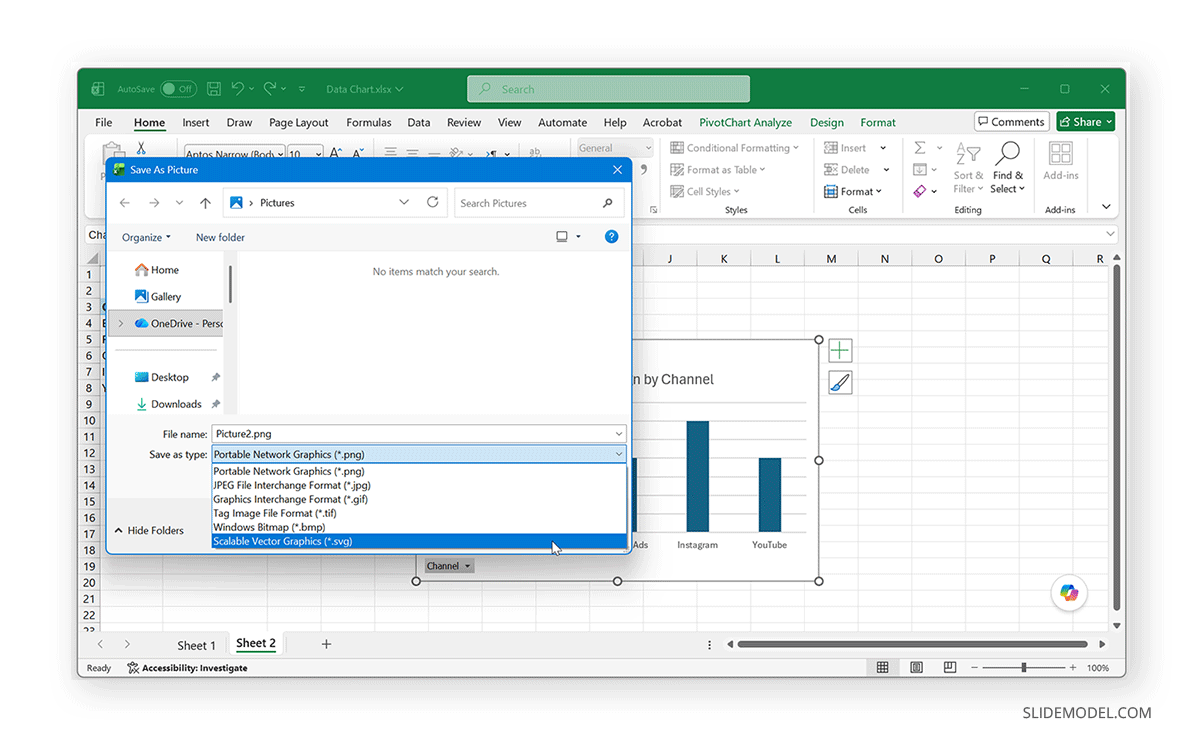
To use this method, prepare the chart in Excel, then save it as an SVG from the right-click menu. Then upload the SVG file to Canva and place it on the slide like other uploaded graphics.
How to Export Canva Charts as SVG
To export Canva charts as SVG, you can go to Share -> Download and select SVG from the file type. Saving files in SVG format in Canva is available only to premium users.

Choosing the Right Excel-to-Canva Method
The method you choose should depend on what you need to do with the spreadsheet information after it reaches Canva. Importing an XLSX or CSV file is useful when you want Canva to work with the spreadsheet data through its supported data features. Copying and pasting is convenient when you already have a finished Excel chart and need to move it quickly into a presentation. Similarly, exporting the chart as an SVG is useful when preserving a crisp, scalable chart is the priority.
If the presentation contains many repeated slides that need to use different rows of spreadsheet information, Canva’s Bulk Create feature offers another workflow. Instead of preparing every slide individually, you can use structured spreadsheet data to populate multiple designs.
How to Use Canva Bulk Create With Excel Data
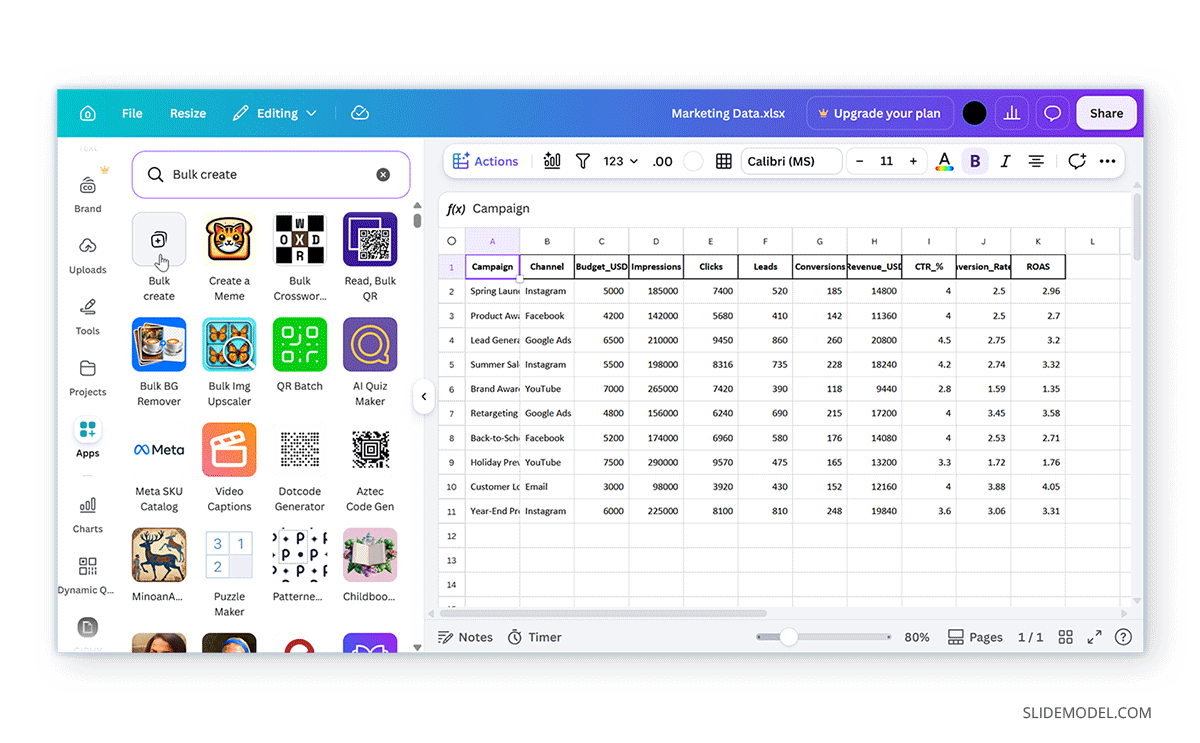
If you need to create several slides that follow the same layout but use different spreadsheet data, Canva’s Bulk Create feature can reduce repetitive work. Instead of entering each value manually, you can connect the fields in a Canva design to columns in a spreadsheet and generate multiple versions of the design.
Prepare Your Spreadsheet
Start by organizing the Excel data you want to use for the presentation. Each column should represent a field that will appear in the Canva design, while each row should contain the information for one version of the design. For example, a presentation about regional sales could have columns for Region, Sales, Growth, and Target. Each row would then provide the values for one region. Keep the column names short and descriptive. Consistent formatting also makes the data easier to work with once you import it into Canva.
Connect the Spreadsheet to Your Design
Open the Canva presentation and access Bulk Create via Apps. Upload the spreadsheet containing the data, then connect the columns to the corresponding text or design elements in your presentation. Once the fields are connected, Canva can use each row of the imported data to create a separate version of the design. Review the generated slides before using them as a finished presentation, particularly if the spreadsheet contains long text or values that may not fit the original layout.
Bulk Create is especially useful for presentations with a repeated structure. For example, you could create individual slides for different products, branches, employees, or regions without manually replacing every value.
Live Data and Canva Excel Integration
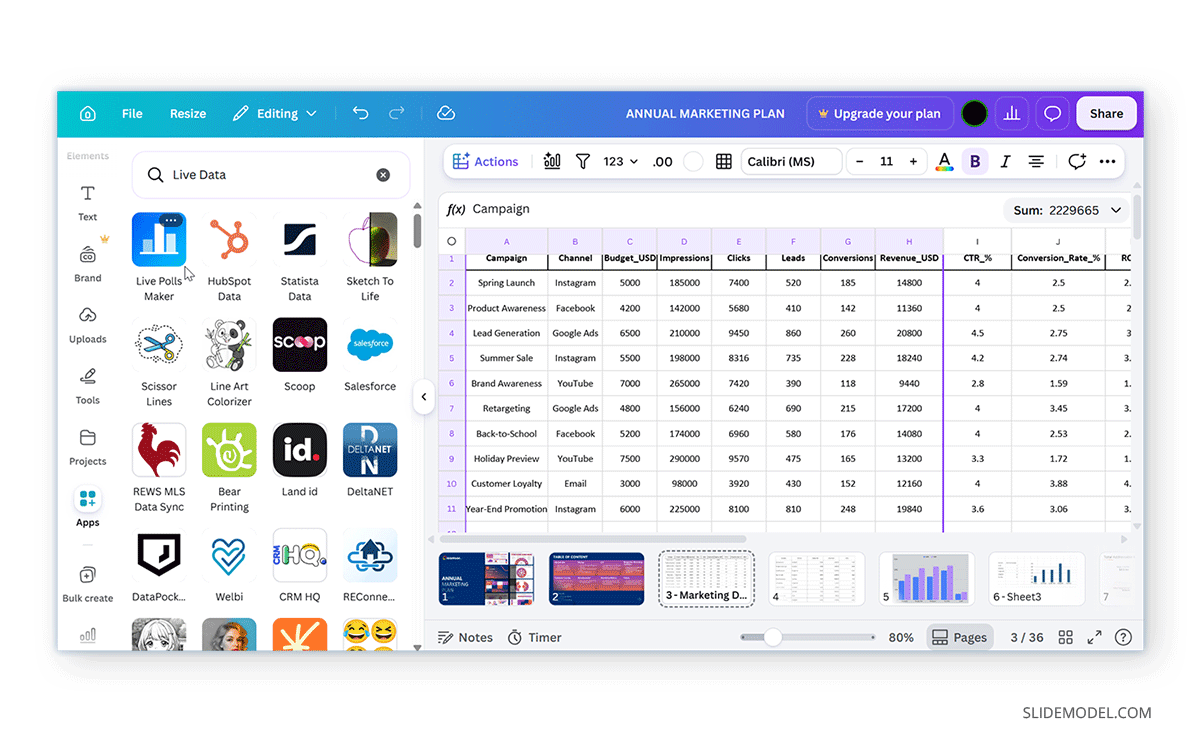
Importing a spreadsheet into Canva and connecting Canva to a live data source are not necessarily the same thing. An imported Excel file provides data Canva can use within supported features, but it doesn’t mean the Canva presentation automatically stays synchronized with the original workbook. For organizations that need data to update automatically, Canva offers live data connector capabilities on premium plans and supported apps. If you need to work with live spreadsheet data, you can use supported connectors to connect services such as Google Sheets, depending on your Canva plan and the available integration options. Canva Sheets is another option for working with spreadsheet data within Canva, which may be useful for live data management and visualization.
Canva Excel Integration vs. PowerPoint
Canva and PowerPoint take different approaches to working with Excel data. Canva is primarily a design platform, so its spreadsheet workflows focus on turning data into visual presentation content. You can import Excel data, use it for supported charts or bulk creation, or transfer it as a finished graphic.
PowerPoint, by comparison, has a more direct relationship with Microsoft Excel. It supports inserting Excel content into a presentation and can use OLE (Object Linking and Embedding) to embed or link spreadsheet objects. This can be handy when a presentation needs to stay closely connected to the original Excel workbook.
For data-heavy presentations, PowerPoint may be a better fit when users need spreadsheet objects, calculations, or linked Excel content within the presentation itself. Canva can be a better fit when the priority is turning spreadsheet information into a simple design.
Final Words
There is more than one way to add spreadsheet data to Canva slides, and the best option depends on how you plan to use the information. Uploading an XLSX, XLS, or CSV file brings spreadsheet data into Canva’s supported workflows, while copying a finished Excel table or chart is convenient when you need to move existing data into a presentation quickly.
For charts that need to stay sharp when resized, an SVG export can deliver better results than a screenshot. When a presentation contains many repeated slides, Canva Bulk Create Excel data integration can use spreadsheet rows to populate a consistent design at scale.
While Canva isn’t as feature-rich as Microsoft Excel or PowerPoint for tables and charts, it offers enough options to integrate and design data using spreadsheets. You can import data, recreate tables and charts, as well as generate designs from imported data to suit your presentation and design needs.