Changing presentation colors in Canva can be as simple as recoloring a single element, or you can make a broader overhaul and replace the visual palette across an entire slide deck. The best method depends on whether you want a quick redesign, a precise brand update, or a presentation-wide color replacement. Canva offers several ways to approach this. You can use Edit -> Styles to apply a different color and font combination, recolor individual elements manually, or work with a Brand Kit color palette for more consistent brand styling.
Color Palettes vs Color Themes in Canva
Before changing presentation colors, it helps to distinguish between a color palette and a color theme. A color palette is simply a set of colors intended to work together. For example, a corporate palette might include a dark blue, a lighter blue, white, gray, and an accent color. By contrast, a color theme describes how those colors are actually distributed throughout the design. For example, you might use dark blue for backgrounds, white for headings, gray for supporting text, and orange for charts or emphasis.
This distinction matters because changing the Canva color palette doesn’t always ensure every element adopts the new colors exactly as you expect. Canva can substitute colors across a design, but the final distribution still depends on the objects, templates, and existing formatting used on each slide. That is why Canva color theme customization often involves a combination of automated palette changes and manual adjustments.
Method 1: Change Theme Colors Using Styles Menu
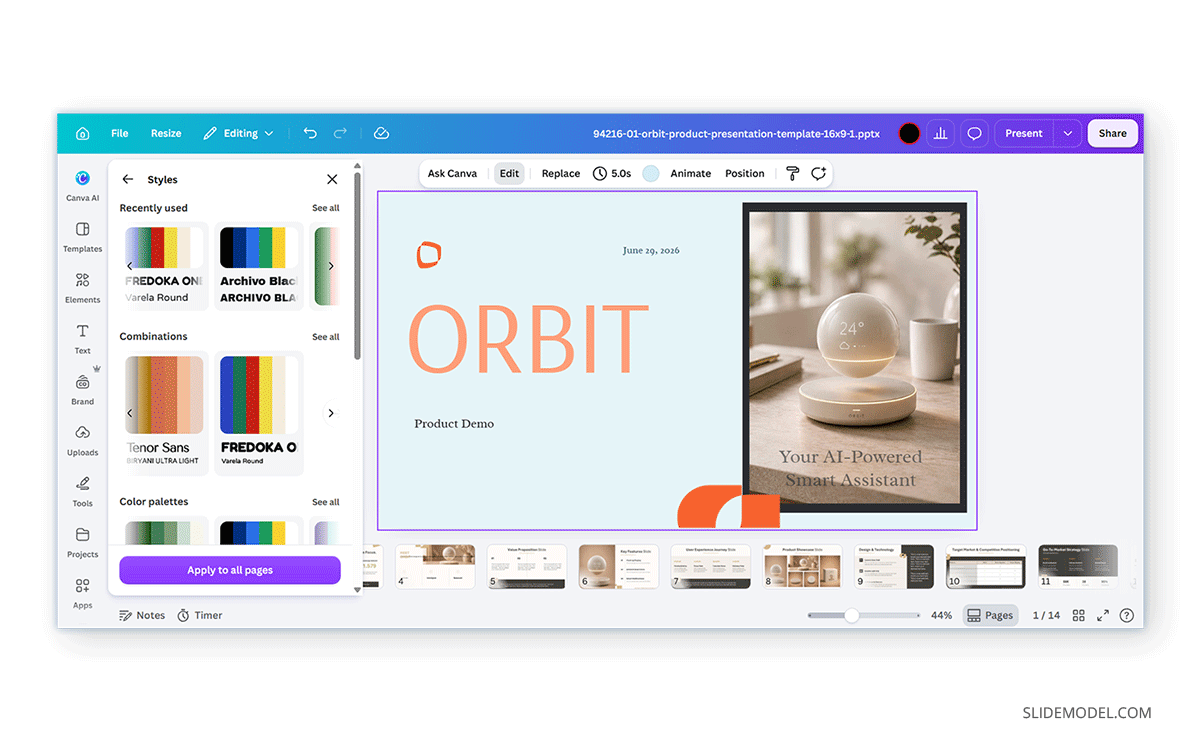
The quickest way to give an entire Canva presentation a different visual direction is through the Styles menu.
Step 1: Open the presentation, select a slide, and go to Edit.
Step 2: Go to the Styles menu and choose a color palette.
Step 3: Apply the style to the presentation. Canva may redistribute the selected palette across backgrounds, text, shapes, and other supported elements when applying Canva design style colors.
Depending on the design and interface, you can also cycle through different applications of the same palette to see alternative color arrangements. This is essentially how to change the color scheme in Canva without manually selecting dozens of objects. It works particularly well for presentation templates created with consistent elements and reusable colors. More complicated decks may still need adjustments after you apply the style.
Method 2: Change Individual Element Colors and Use “Change All”
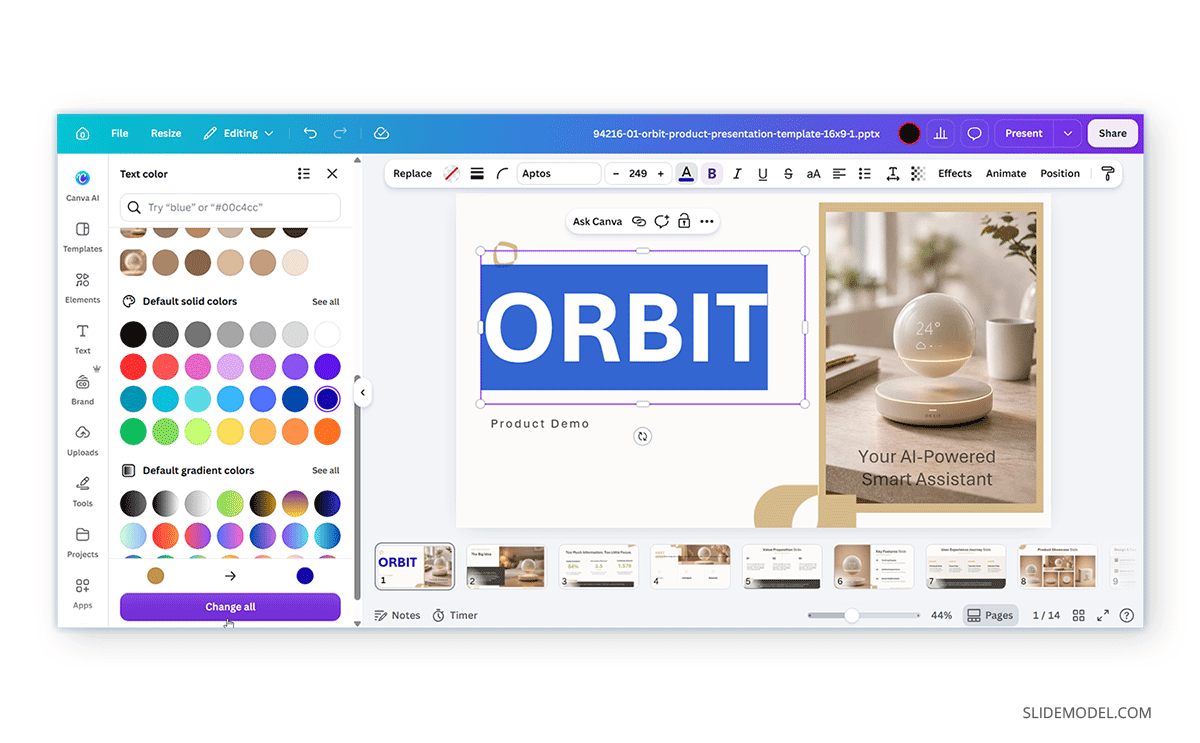
For more control, you can change colors directly on individual objects and use Change All to replace repeated colors across multiple slides.
Step 1: Select the element you want to recolor. If the object supports editable colors, the relevant color controls will appear in the toolbar.
Step 2: Select the existing color to open the color menu.
Step 3: Choose the replacement color. The selected element will update immediately. If Canva detects that the same editable color is used elsewhere in the presentation, it may also display a Change All option. Selecting it replaces matching instances of the original color across the design. Text, shapes, backgrounds, and other elements may need separate updates when they use different color values.
This method is the most precise when learning to edit colors in Canva template designs because you decide exactly which objects receive each color. For example, you might keep a template’s white background and dark text while replacing only its blue accent shapes with your organization’s green color scheme. The disadvantage is scale: manually changing individual elements becomes inefficient in a presentation with many slides, which is where Change All can reduce repetitive editing.
Method 3: Use Brand Kit Colors
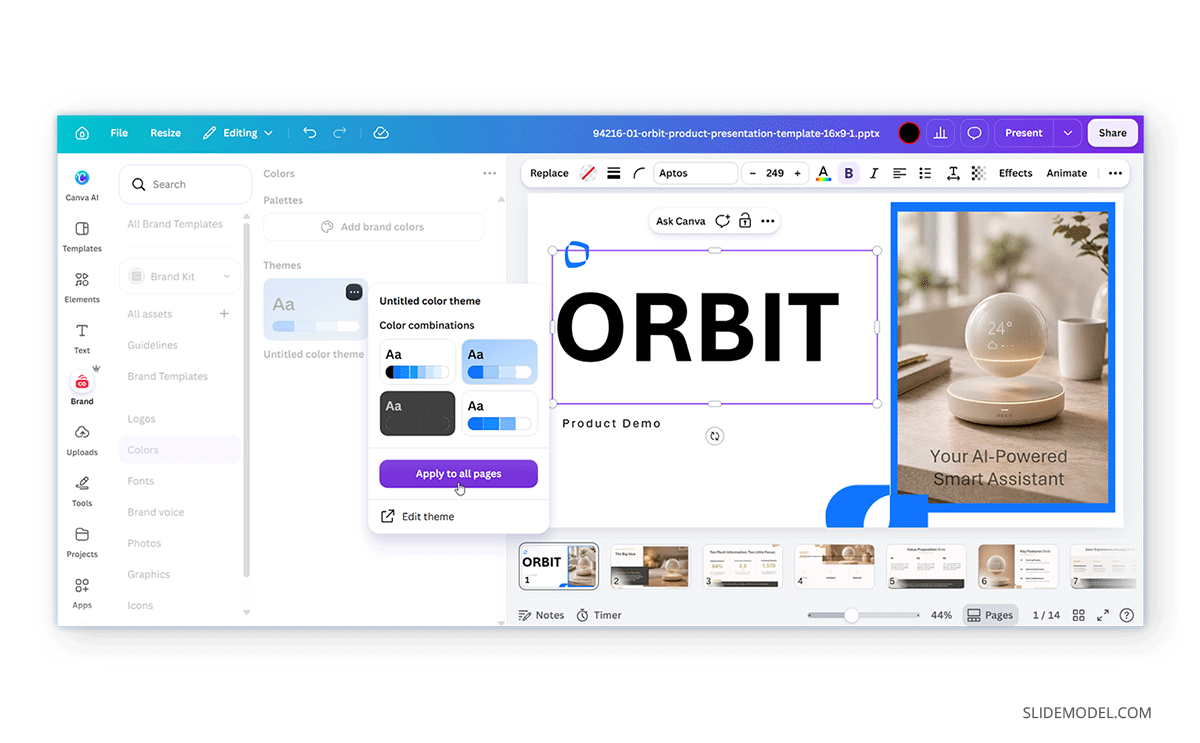
A Brand Kit stores approved brand colors so you can select the correct colors without manually entering HEX values. Before you use this method, go to the Brand menu and set up your brand colors. This premium Canva feature helps you set up a complete brand identity, including designated logos, colors, photos, graphics, icons, and chart styles.
Step 1: Select an element or slide to replace with your brand colors.
Step 2: Go to the Brand -> Colors menu.
Step 3: Select a palette from your Brand Kit.
The Canva Brand Kit is especially effective for adapting an existing presentation to a corporate identity using your predefined color palette. It can replace generic template colors with approved brand colors, update repeated accents, and align backgrounds and other editable elements with the same palette. However, Brand Kit does not automatically recolor every object in a presentation. Photographs, screenshots, flattened graphics, and elements using different color values may still need manual adjustment, so review the deck after applying the new palette. For example, brand guidelines that are strict and precise about colors might not be easy to follow by simply selecting a color palette and may require additional manual adjustments.
Change the Background Color Across All Slides
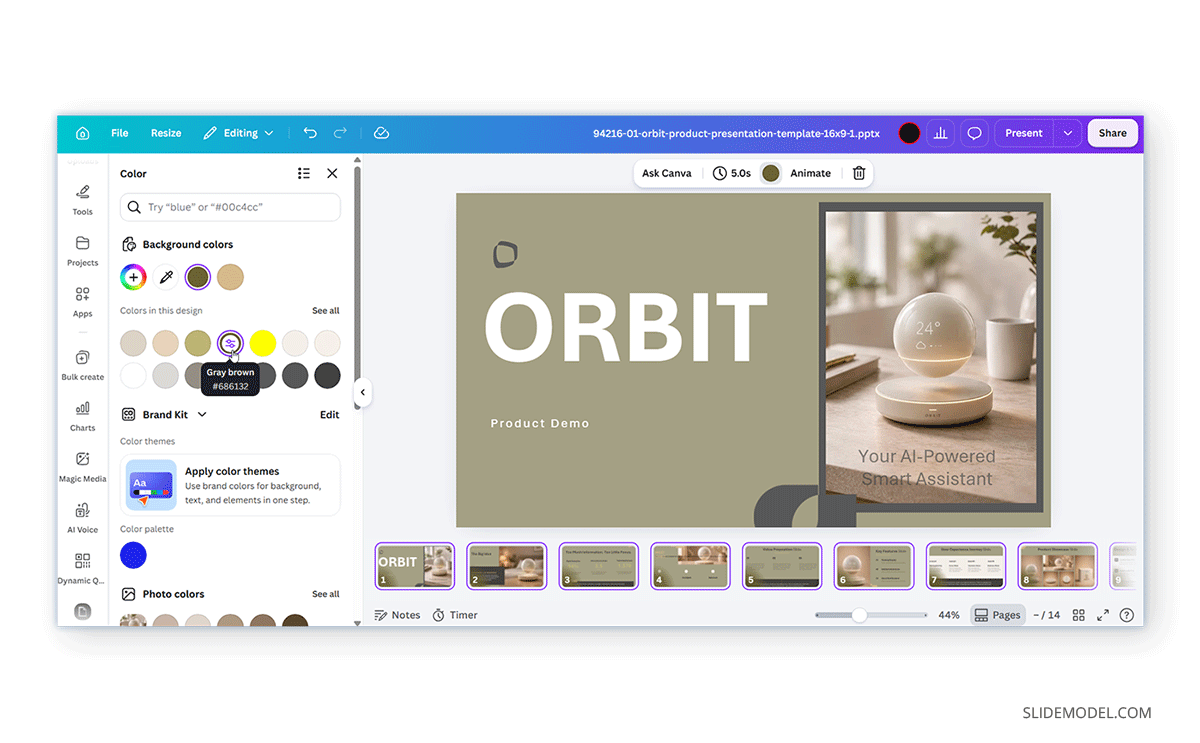
Step 1: If you need to change the background color for all slides in Canva, start by selecting a slide that uses the background color you want to replace. You can do this by clicking and holding SHIFT, or by using CTRL/Command+A to select all slides at once.
Step 2: Open the Background color control.
Step 3: Select the new background color to apply it across all slides. This will replace the matching background color across the entire presentation deck. With this method, you can select all slides or specific ones, depending on which slides you want to apply a specific color to.
Canva vs PowerPoint Theme Colors
Canva and PowerPoint approach presentation colors differently. Canva focuses on fast visual restyling through Styles, Brand Kit colors, and individual element editing, while PowerPoint uses a more structured theme system built around Theme Colors and Slide Master. Canva is better suited to quick restyling, while PowerPoint offers more structured control when colors need to function as part of a consistent presentation theme.
When Canva Works Better for Presentation Colors
Canva works better when speed and easy adaptation of an existing design are the priority. Its Edit -> Styles options can quickly apply a new palette across a presentation, while Brand Kit colors make approved corporate colors and other types of branding readily available. If you need to replace a repeated color throughout the deck, Change All can update matching editable elements. This method suits marketing presentations, campaign decks, internal communications, and smaller corporate presentations where the visual treatment may change frequently. It is also easier for users who want to restyle a deck without managing a formal theme structure.
The main limitation is that Canva doesn’t use a true presentation theme mechanism like PowerPoint. There is no direct equivalent to PowerPoint’s Slide Master and Theme Colors for centrally defining every presentation color. As a result, some Canva color changes are global, while others depend on how the original template was built. Some elements may still need manual adjustment, especially when a presentation contains custom graphics, images, or objects with different color values.
When PowerPoint Theme Colors Work Better
PowerPoint is better suited to presentations that need brand consistency across large, complex, or frequently reused decks. Its Theme Colors feature allows designers to define a structured set of text, background, accent, and hyperlink colors. When shapes, charts, SmartArt, and other objects use those theme colors, changing the theme palette updates them consistently throughout the presentation.
PowerPoint also works with Slide Master, which provides centralized control over layouts, fonts, backgrounds, placeholders, and other recurring design elements. For official brand templates, annual reports, sales decks, consulting presentations, and other materials teams may reuse, PowerPoint generally provides stronger control over presentation-wide branding.
Final Words
Learning how to change theme color in Canva slides involves more than selecting a new color. Canva offers several ways to modify a presentation, from applying palettes through Edit -> Styles to recoloring individual objects, replacing repeated colors with Change All, and working with Brand Kit colors.
The main limitation is that Canva lacks a true theme editor equivalent to PowerPoint’s Slide Master and Theme Colors. As a result, changing the color scheme of a complex presentation may require a combination of global changes and manual adjustments. For straightforward decks, Canva’s palette and Styles menu provide a fast way to refresh the overall look. For brand-sensitive presentations, combining Brand Kit colors, Change All, and a final slide-by-slide review gives you much more control.
Also check contrast, readability, and consistency after broad color changes, especially when a presentation includes charts, icons, text overlays, or custom graphics. A palette that works well on one slide may not produce the same result across every layout.
If your objective is simply to change the background for one or more slides, select the required slides and choose a new color from the Background color menu. For more in-depth color changes, you can opt for Styles, manual editing, Change All, or a Brand Kit palette.