Concept maps are useful for organizing ideas, showing relationships, and simplifying complex topics. If you’re wondering how to create a concept map in PowerPoint, there are different methods that you can use to design your slides. This might include using SmartArt, PowerPoint Shapes, and Concept Map PowerPoint Templates. In this guide, we’ll explain what concept maps are, how they differ from mind maps, and the various methods that you can use to build them in PowerPoint.
What is a Concept Map?
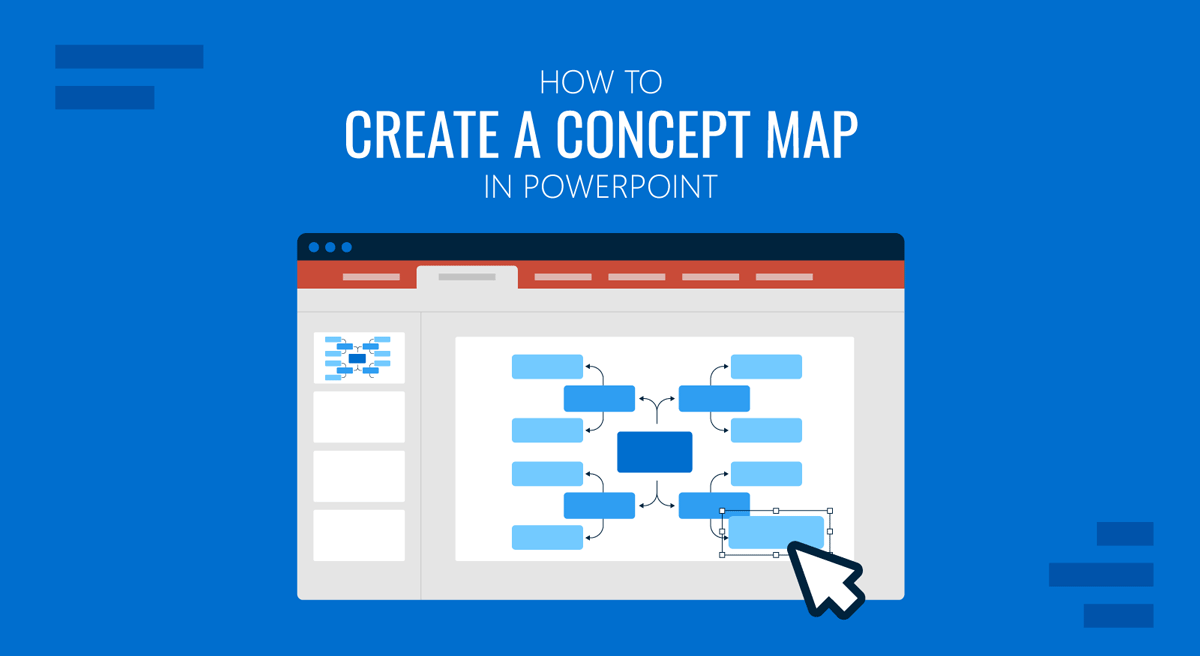
A concept map is a diagram that represents relationships between ideas. It starts with a main concept at the center or top, followed by related subtopics. Unlike simple lists or bullet points, concept maps show how ideas are linked, making them especially useful for explaining complex topics. Concept maps are also useful for structuring presentations, brainstorming ideas, teaching concepts, and supporting learning processes. Furthermore, concept maps can be used to plan projects or strategies. Each connection in a concept map often includes linking words that explain the relationship between concepts.
Advantages of Concept Maps as a Visual Aid in Learning Processes
Concept maps are widely used in learning environments because they make complex information easier to understand. Instead of presenting ideas as isolated points, they show how different concepts are connected. This helps learners build a deeper understanding of a topic through clear, easy-to-follow visual aids.
Improved Understanding of Complex Topics
Concept maps break down large or complicated subjects into smaller, connected parts. By visualizing relationships between ideas, learners can see the bigger picture while still focusing on individual components. This makes it easier to grasp abstract or multi-layered concepts.
Enhanced Memory Retention
Concept maps can make information easier to remember compared to plain paragraphs or bullet points. Seeing how ideas link together helps reinforce understanding and improve long-term memory retention. Such a layout, when designed cleanly, can help people remember key concepts conveniently. This makes concept maps quite handy for presenters designing slides to enhance audience memory retention.
Active Learning
Creating a concept map requires learners to think critically about how ideas relate to each other. Instead of passively reading or listening, they actively organize information, identify connections, and structure knowledge in a meaningful way. This process promotes deeper engagement with the material.
Supports Logical Thinking
Concept maps help develop logical and analytical thinking skills. By organizing ideas into hierarchies or networks, learners learn to identify cause-and-effect relationships, categorize information, and structure their thoughts more clearly.
Makes Information Easier to Communicate
Concept maps are not only useful for learning but also for explaining ideas to others. In presentations or group discussions, they provide a clear visual framework that helps audiences quickly understand relationships between concepts without needing lengthy explanations.
Useful Across Different Learning Contexts
Concept maps can be used to summarize lessons, plan projects, brainstorm ideas, or present strategies in a structured way. For example, in business presentations, concept maps are useful for explaining workflows, strategies, and relationships between departments or processes.
Mind Map vs Concept Map
Before learning how to make a concept map in PowerPoint, it’s helpful to understand how concept maps differ from mind maps. While both are used to organize ideas, they are designed for slightly different purposes.
Mind Map
A mind map typically starts with a central idea and expands outward into branches. It is mainly used for brainstorming and quickly capturing ideas. The structure is usually radial and free-flowing, allowing thoughts to develop without strict rules. Mind maps often do not include labeled relationships, as the connections between ideas are implied through their placement.
Concept Map
A concept map can also begin with a central idea or main topic, but it focuses more on illustrating relationships among concepts. It uses connecting lines along with linking words or phrases (such as “leads to,” “includes,” or “affects”) to explain how ideas are related. Concept maps can include multiple connections between nodes and are often organized in a hierarchical or network-like structure. While mind maps are best suited for generating and organizing ideas, concept maps are better for explaining how those ideas are connected.
Method 1: How to Make Concept Map Using PowerPoint SmartArt
One of the easiest ways to start creating a concept map in PowerPoint is to use SmartArt, which offers hierarchical, radial, and relationship diagram styles.
Step 1: Go to Insert -> SmartArt to open the SmartArt gallery.
Step 2: Choose a suitable diagram by selecting a layout that supports relationships, such as Relationship, Hierarchy, or Radial diagrams.
Step 3: Add your main concept by clicking the central shape and typing your main topic.
Step 4: Add related concepts by using the SmartArt Text Pane to insert subtopics. Press Enter to add new elements.
Step 5: Customize the layout using the SmartArt Design tab to adjust the colors, layout styles, shape sizes, and alignment.
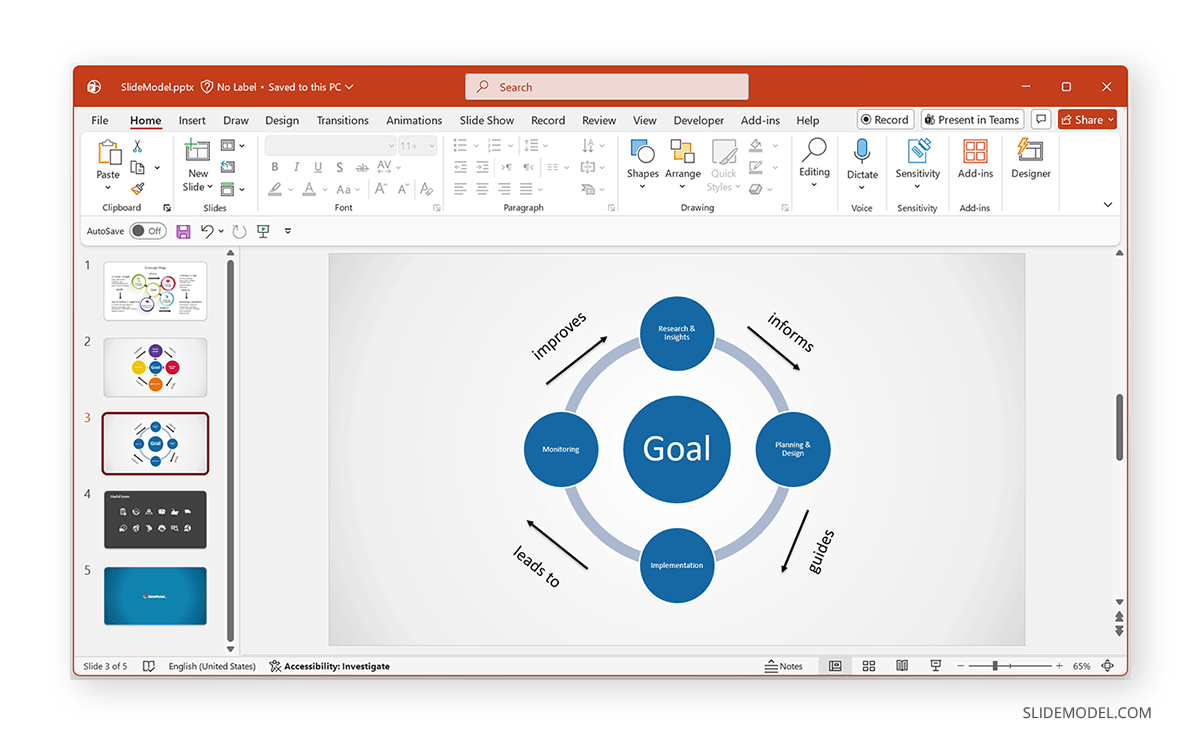
Method 2: How to Make a Concept Map in PowerPoint Using Shapes
For more flexibility, you can build a concept map manually, using shapes and connectors. If you are wondering how to make a concept map using shapes, below are detailed instructions to guide you through the process.
Step 1: Insert the main concept by going to Insert -> Shapes. Choose a shape (such as an oval or rectangle) and place it in the center or at the top of the slide. Add your main concept inside it.
Step 2: Add related information around the main concept. These represent subtopics or related ideas.
Step 3: Connect the shapes using Insert -> Shapes -> Connector lines. Drag connectors between shapes to show relationships.
Step 4: Add linking words to make it a true concept map, and add short phrases on the connecting lines, such as “leads to,” “includes,” “affects,” or “results in.”
Step 5: Format the design using the Shape Format tab to adjust the colors, borders, fonts, and alignment. This method gives you full control over the layout and structure.
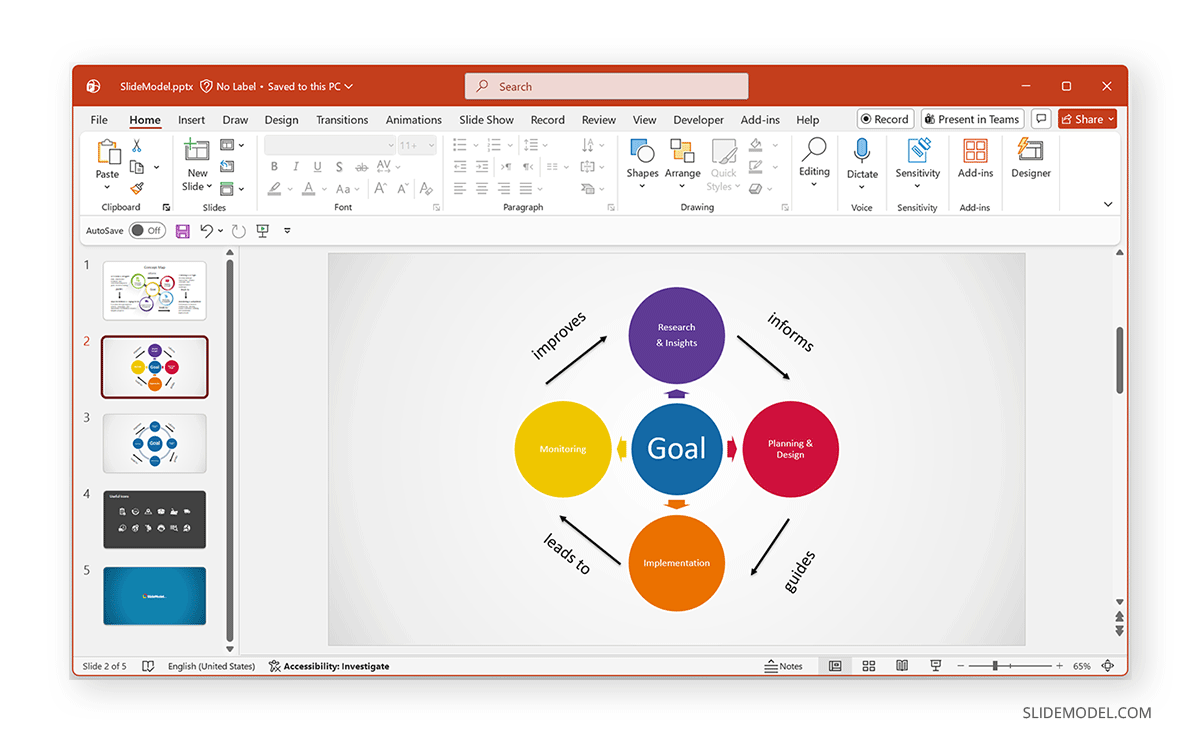
Method 3: How to Make a Concept Map on PowerPoint with a PowerPoint Template
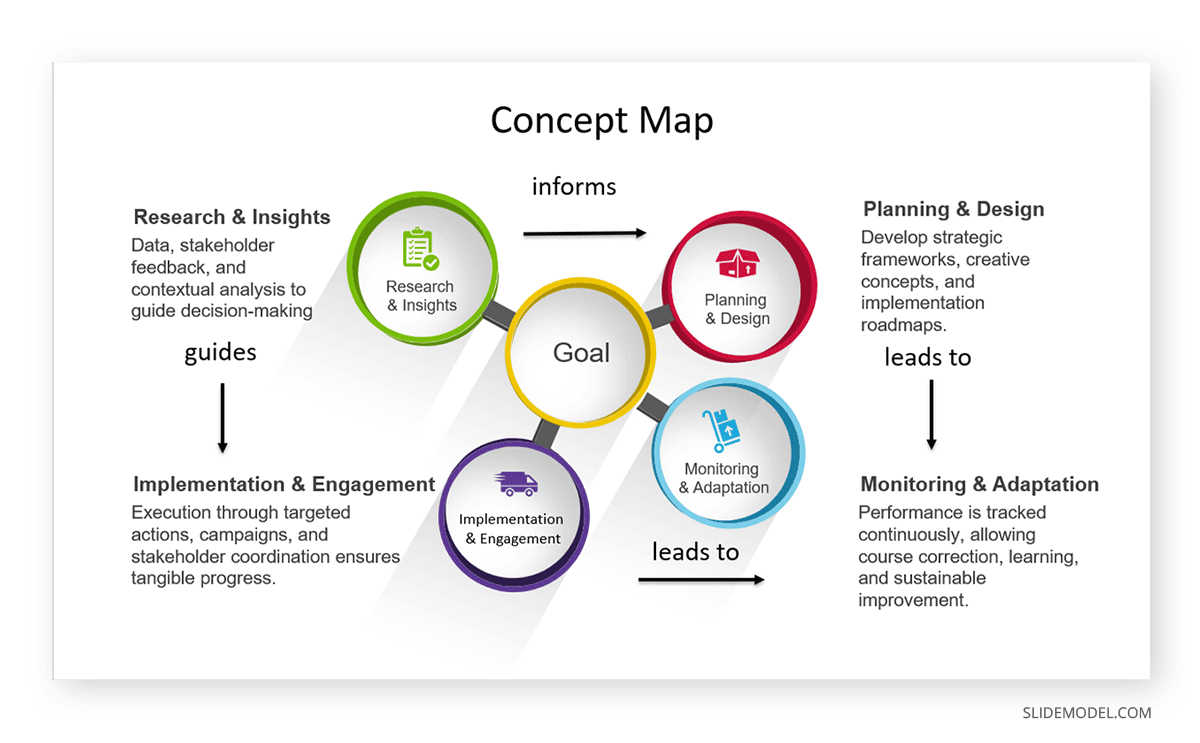
PowerPoint concept map templates typically include pre-arranged layouts, editable shapes and connectors, professional color schemes, and consistent formatting. You can use a circle diagram in PowerPoint or other types of PowerPoint templates for creating concept maps with professional designs for this purpose.
Final Words
Learning how to create a concept map in PowerPoint can make a noticeable difference in how you present ideas. Instead of relying on text-heavy slides, you can organize information visually and show how different concepts connect. Whether you’re using SmartArt, shapes, or templates, PowerPoint can enable you to design concept maps that suit your needs.
By understanding the difference between a mind map vs concept map, and applying the right design techniques, you can create diagrams that clearly communicate relationships and improve audience understanding. With a well-designed concept map, your presentations can become more organized, visually appealing, and easier for the audience to follow.