A business card is one of the most compact yet powerful communication tools you can hand over. Its format may be small, but the impression it leaves can be significant. A card conveys who you are, what you do, and how to reach you in just a few square inches. The challenge lies in using the limited space wisely, with a layout that is both legible and memorable. PowerPoint, although often associated with slideshows, is more than capable of handling professional print design.
With precise sizing, access to vector tools, and export to print-ready formats, PowerPoint becomes a practical option for anyone who needs a custom business card without investing in advanced design software.
What a Business Card Should Contain
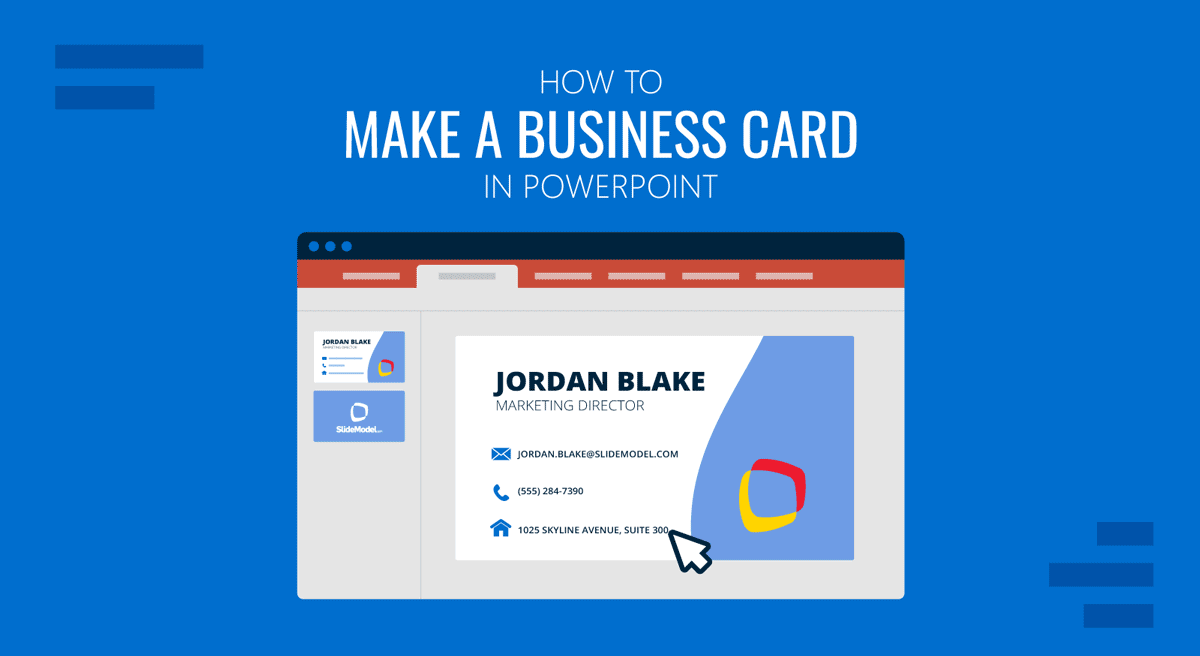
The core purpose of a business card is clarity. A recipient should not have to search for your details or guess your role. The most effective cards keep content lean while emphasizing hierarchy: the name comes first, the role second, and the contact channels follow. A company name or logo reinforces brand identity, while an optional website or QR code points to further information.
- Name and professional role are the central identity.
- Company brand or logo for recognition.
- A website or QR code supports one primary contact method (phone or email).
- Optional social handle or address only if essential.
The rule of thumb is to strip away anything that does not support the card’s function. Space is limited, and every extra line compromises readability.
Format and Size
Business cards follow standardized formats to fit easily into wallets and card holders. In North America, the standard is 3.5 × 2 inches, while in Europe and many other regions, the size is 85 × 55 millimeters. Beyond these trim dimensions, designers add “bleed”, extra margin outside the final cut, to prevent white slivers at the edges. Equally important is the safe area, an inner boundary ensuring text is not cut off during trimming.
- US/Canada: 3.5 × 2 in with 0.125 in bleed.
- EU/International: 85 × 55 mm with 3 mm bleed.
- Maintain a safe margin around text and logos within the trim.
Respecting these invisible frames ensures your design looks clean when printed, whether with square or rounded corners.
PowerPoint Tools for Business Cards
PowerPoint may not be marketed as a layout program, but it provides all the tools needed to design at a professional level. The slide size feature allows you to define exact card dimensions, while guides and gridlines help align elements with precision. Text boxes allow flexible placement, icons provide visual shorthand for contact details, and shape merging lets you create custom accents. With the eyedropper and themes, you can lock in brand colors, and the export-to-PDF function ensures crisp print results.
- Custom Slide Size for precise dimensions.
- Guides and gridlines to mark bleed and safe areas.
- Text boxes, icons, and shape tools to build hierarchy and structure.
- Export to PDF for sharp, print-ready output.
Used carefully, these features make PowerPoint far more versatile than most expect.
Why Use a SlideModel Template
PowerPoint templates streamline the process by embedding professional design decisions into ready-to-edit layouts. They save time by including correct sizes, margins, and pre-balanced grids. Fonts and spacing are optimized for readability, and color systems are already tested for contrast. For teams, templates also secure brand consistency across employees. Instead of debating whether to use nine or ten points of type or how wide the margins should be, you start with a structure that is already reliable.
- Templates include the correct card dimensions and bleed.
- Grids and spacing systems are built in.
- Typography and color decisions are pre-tested.
- Consistency is easier to maintain across multiple users.
This efficiency lets you focus on tailoring the design to your brand rather than reinventing the foundation.
How to Create a Business Card in PowerPoint Step-by-Step
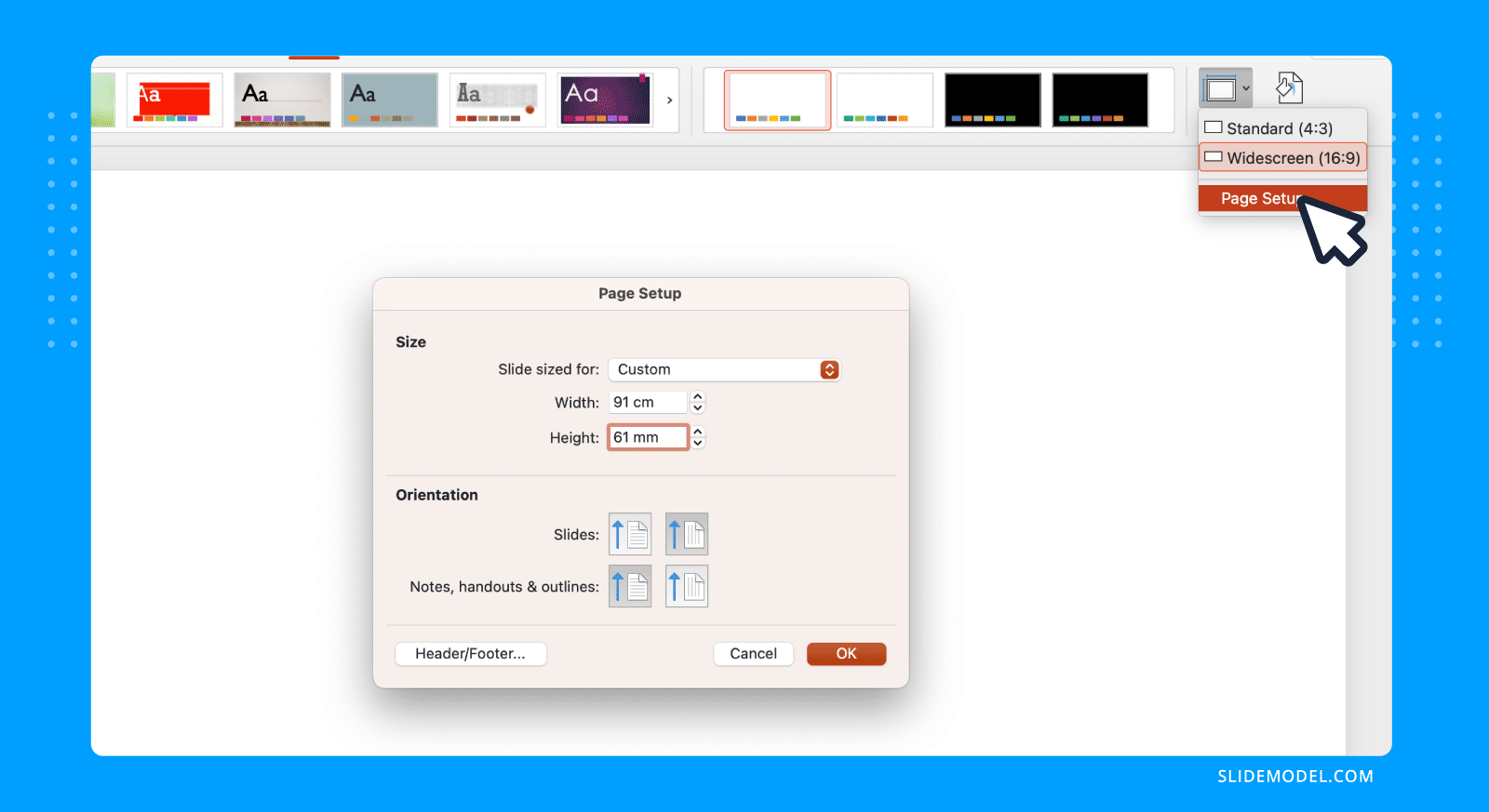
Step 1: Set the canvas. Go to Design > Slide Size > Custom Slide Size. For US cards, set 3.75 × 2.25 inches to include bleed; for EU cards, set 91 × 61 mm.
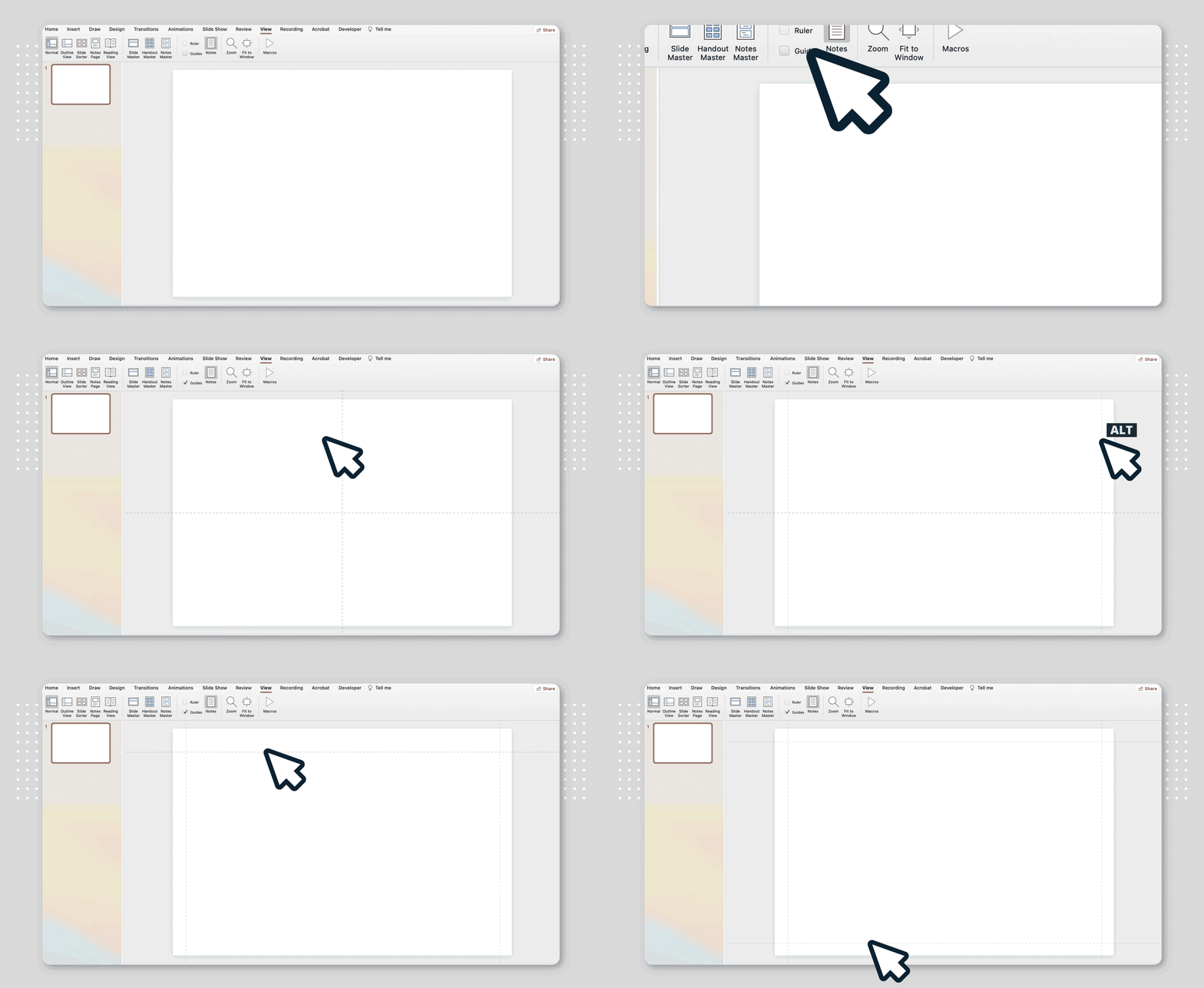
Turn on guides and draw lines marking the trim and safe areas.
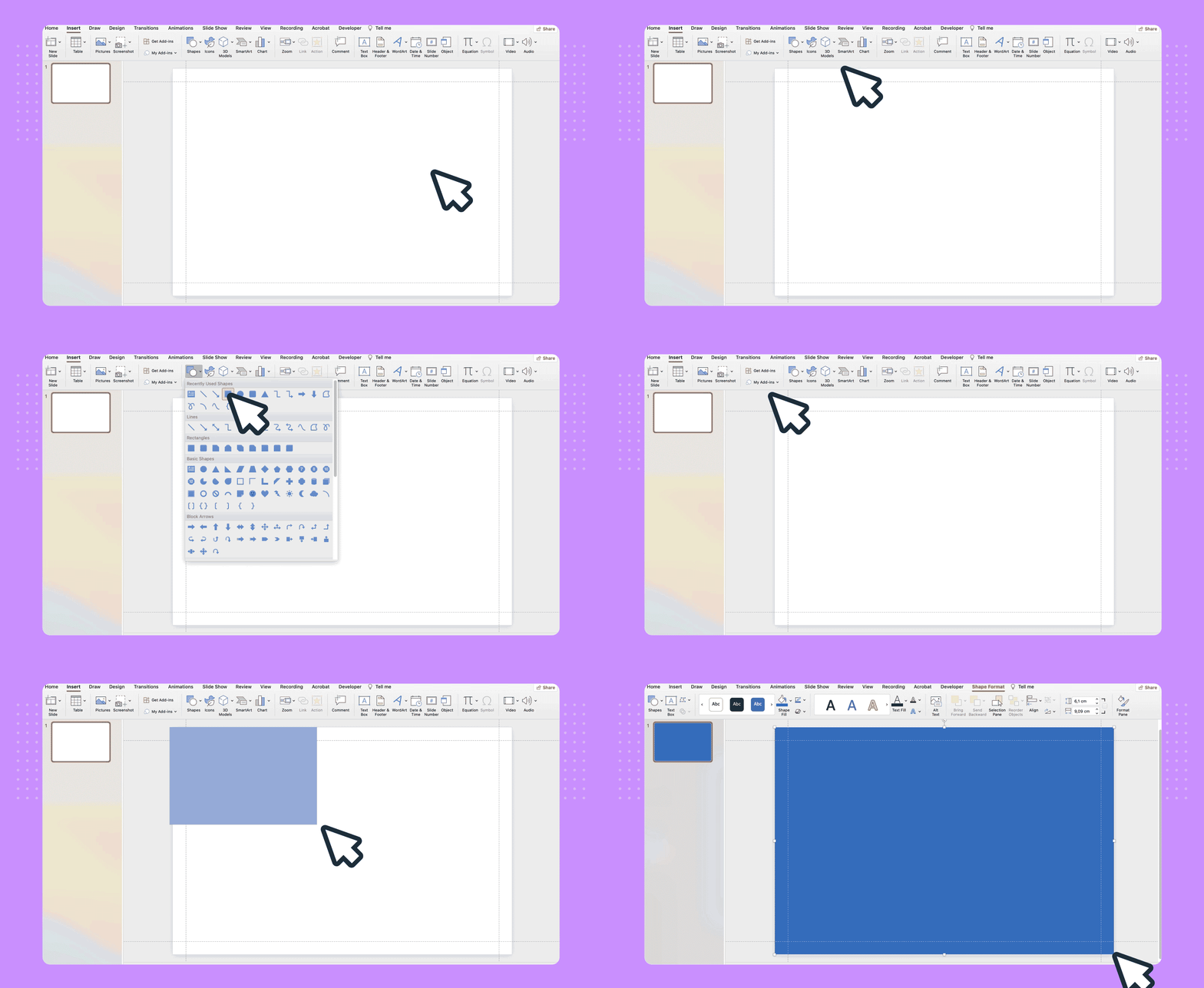
Step 2: Add a background. Apply a solid fill or insert a rectangle spanning the bleed. This becomes your base color or pattern.
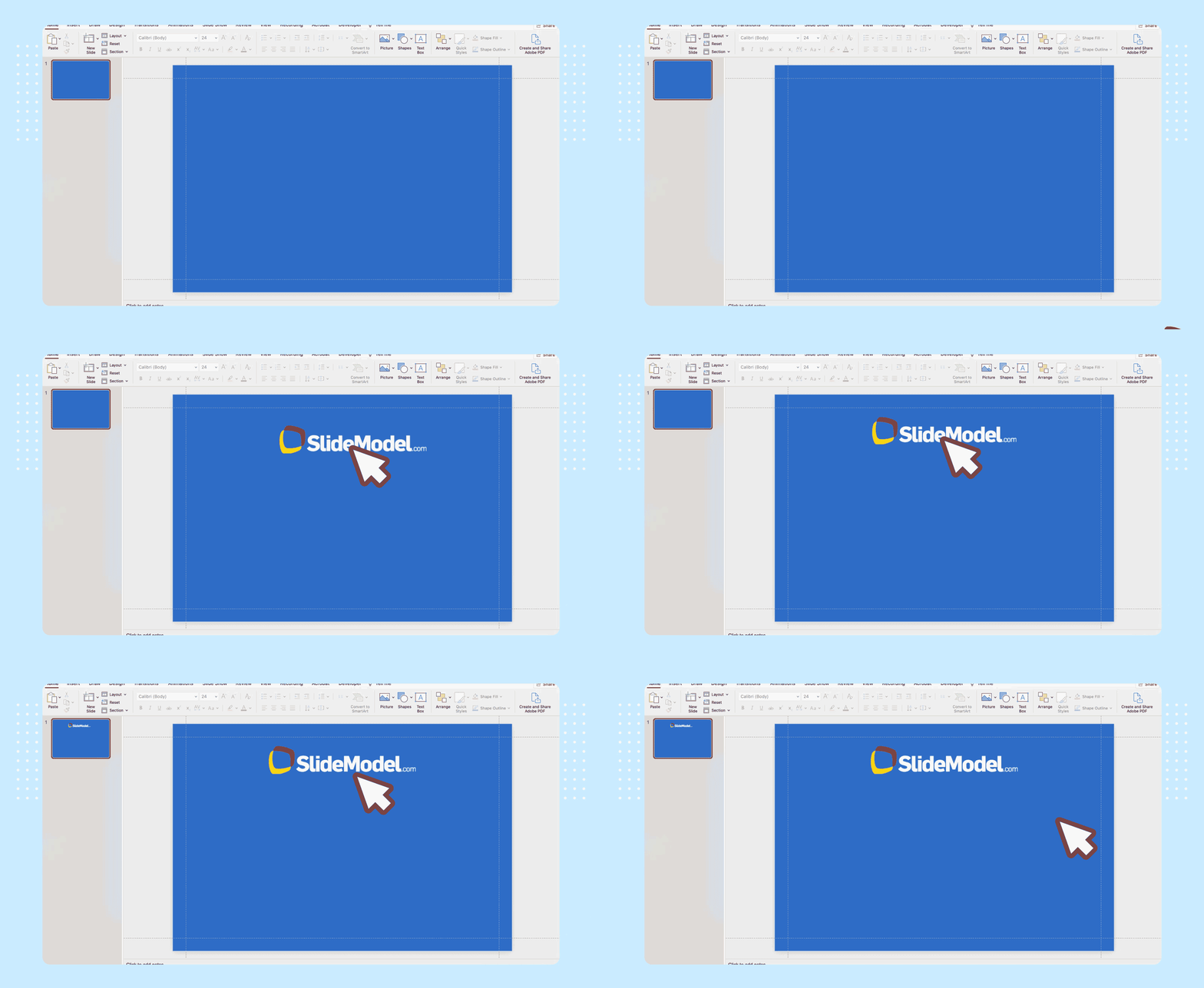
Step 3: Insert the logo. Use an SVG version if possible for crispness. Place it with enough surrounding white space, scaled modestly to support but not overshadow your name.
Step 4: Add text hierarchy. Insert the name in a larger font, the role in smaller type, and a compact block with phone, email, and website. Icons can be used sparingly for quick recognition.
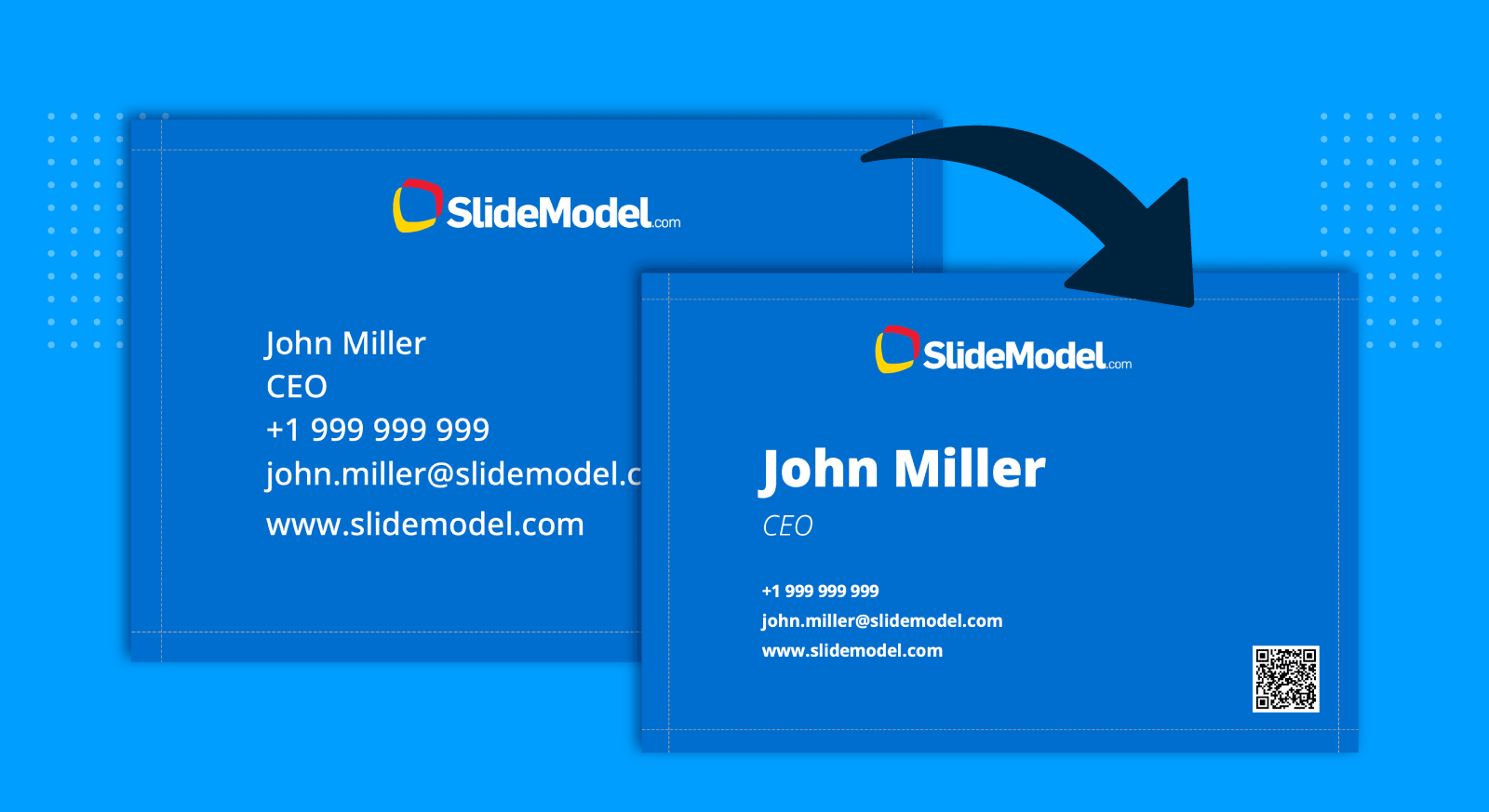
Step 5: Optional QR code. Insert a high-resolution QR pointing to your digital profile or contact card. Keep it small but scannable, and remove redundant URLs.
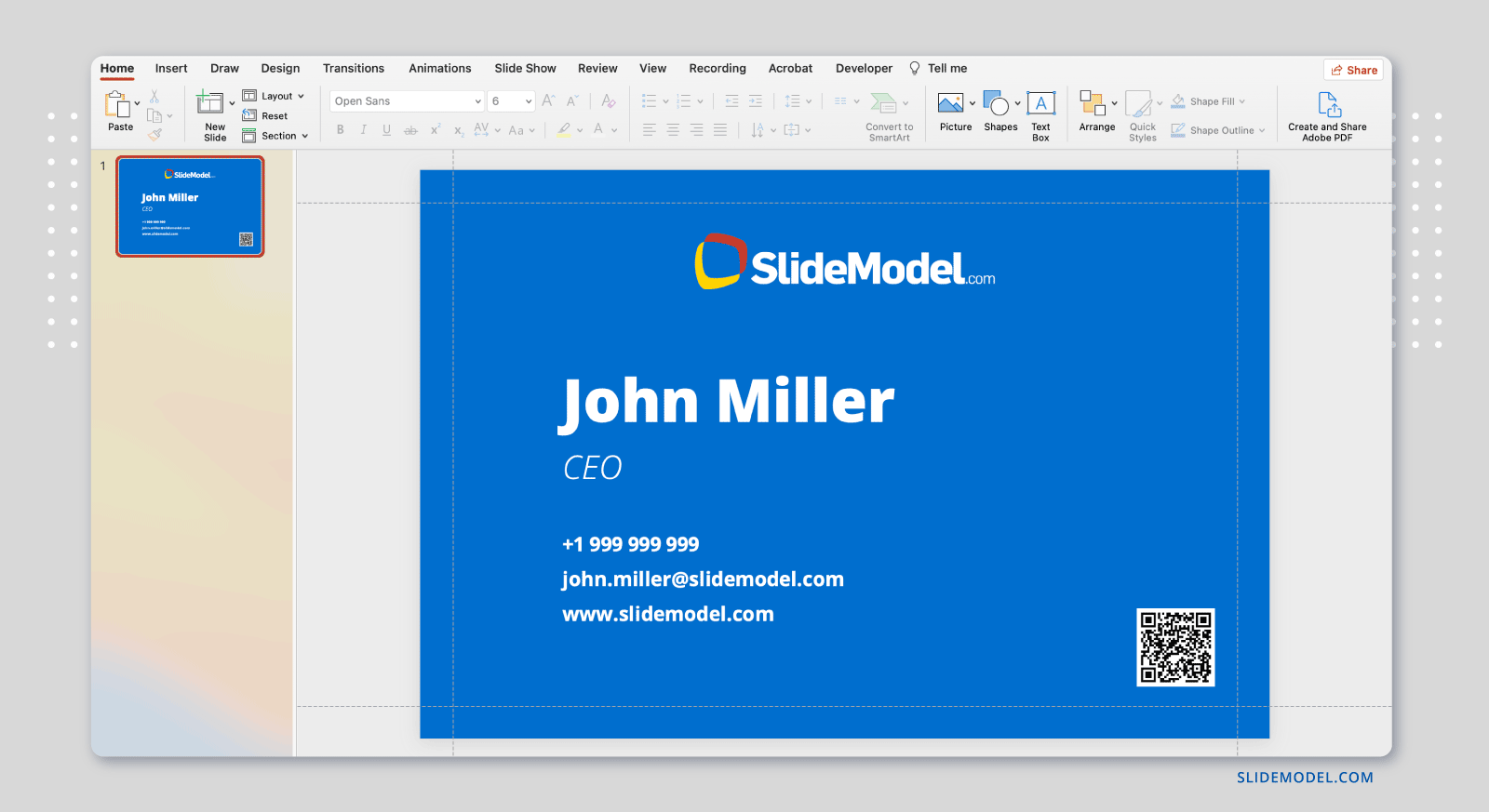
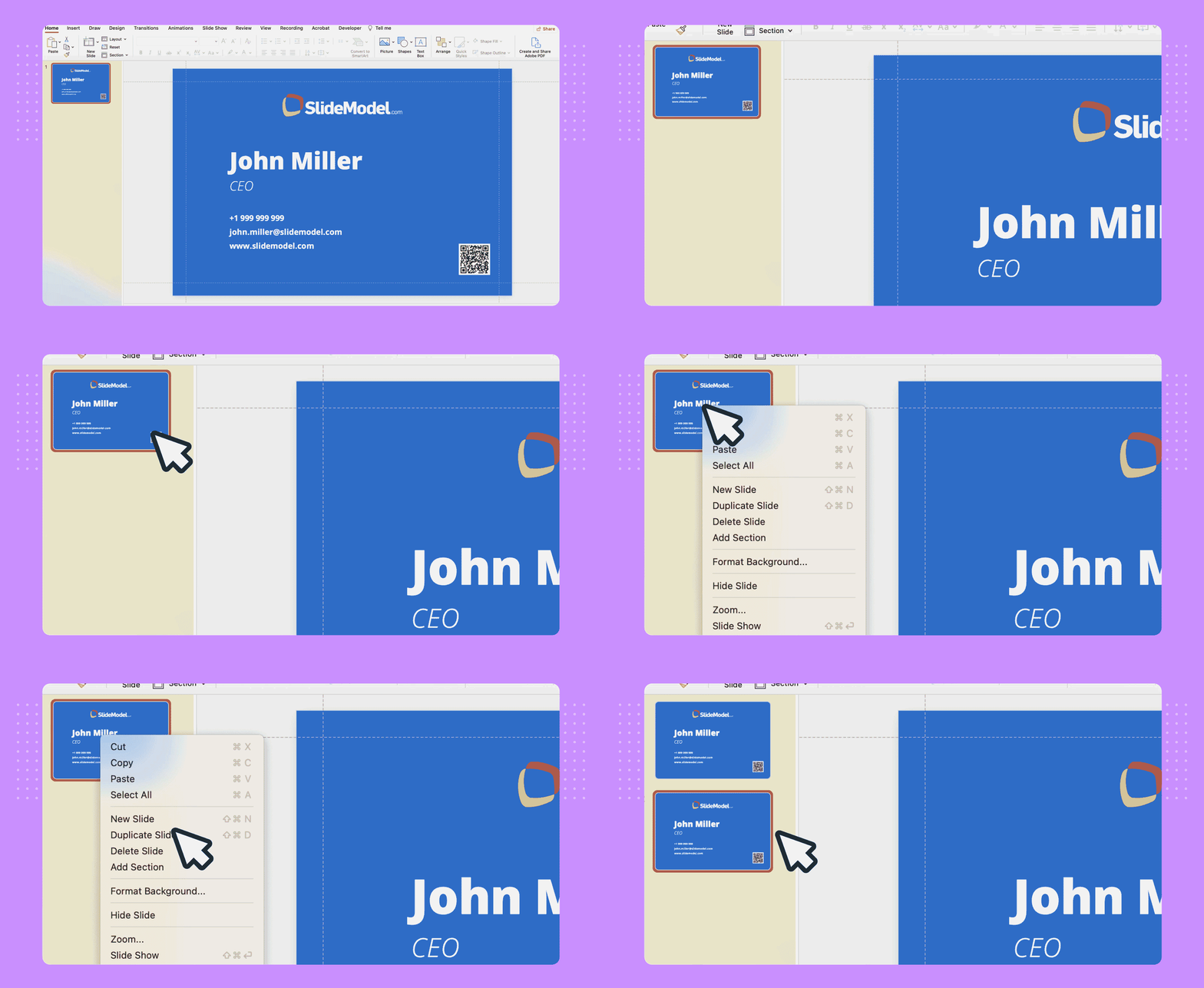
Step 6: Design the back. Duplicate the slide and transform it into a bold visual space, a color field with the logo reversed out, or a short tagline. Keep it uncluttered.
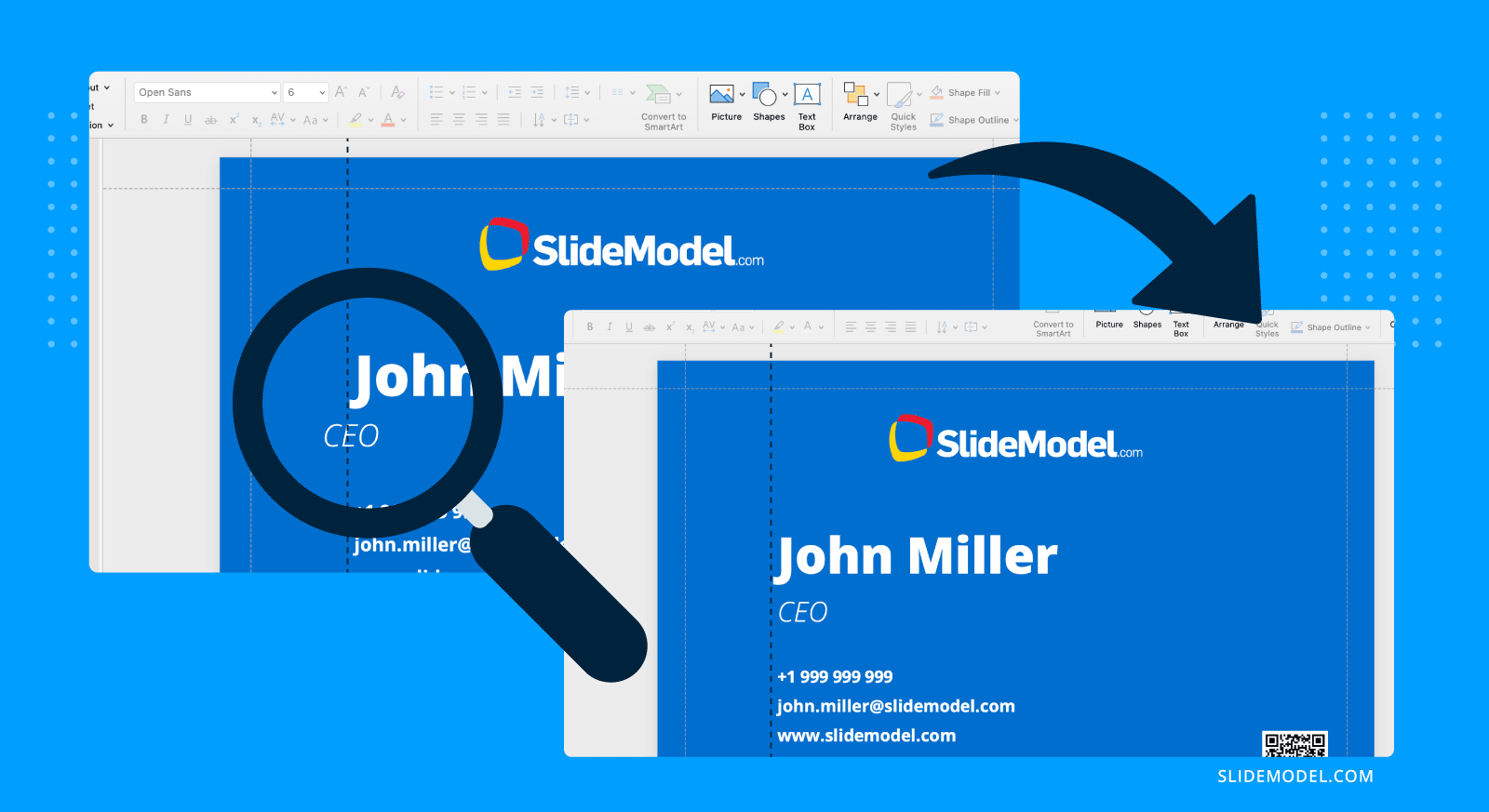
Step 7: Align and check. Use the align and distribute commands to balance everything. Verify safe area margins, text contrast, and font legibility at small sizes.
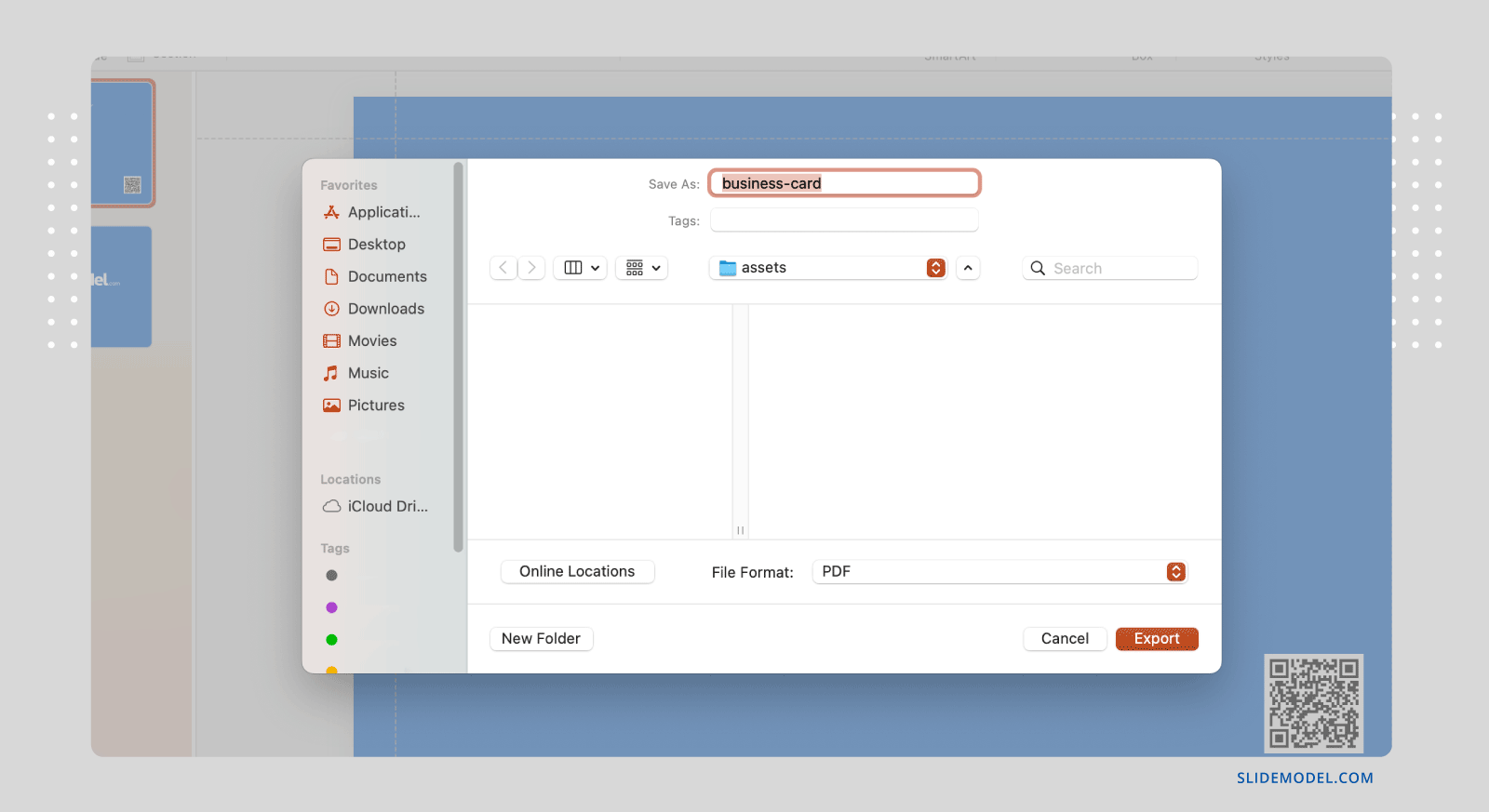
Step 8: Export. Save as PDF, ensuring high-quality settings are enabled. Provide the printer with instructions about bleed and trim.
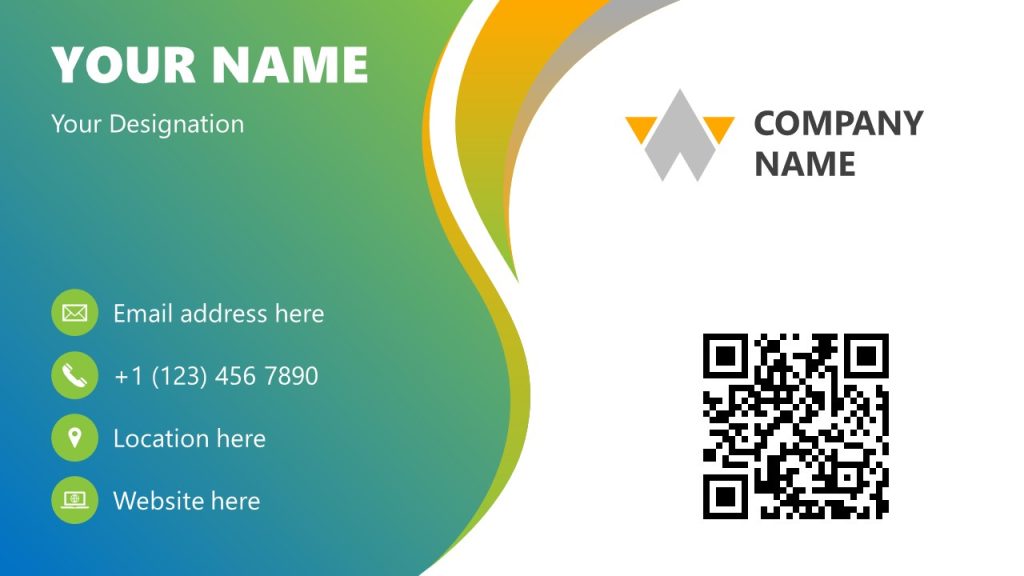
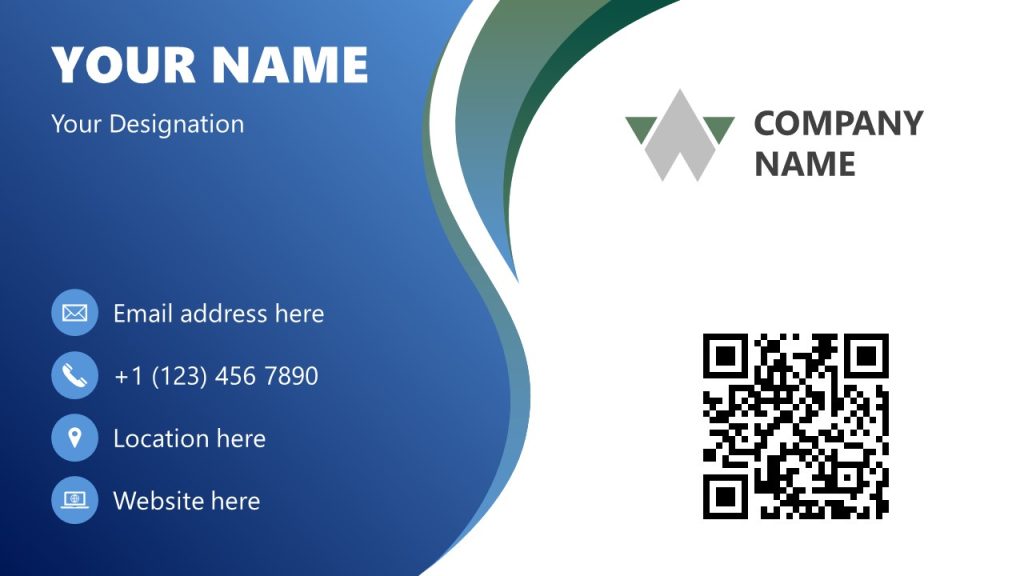
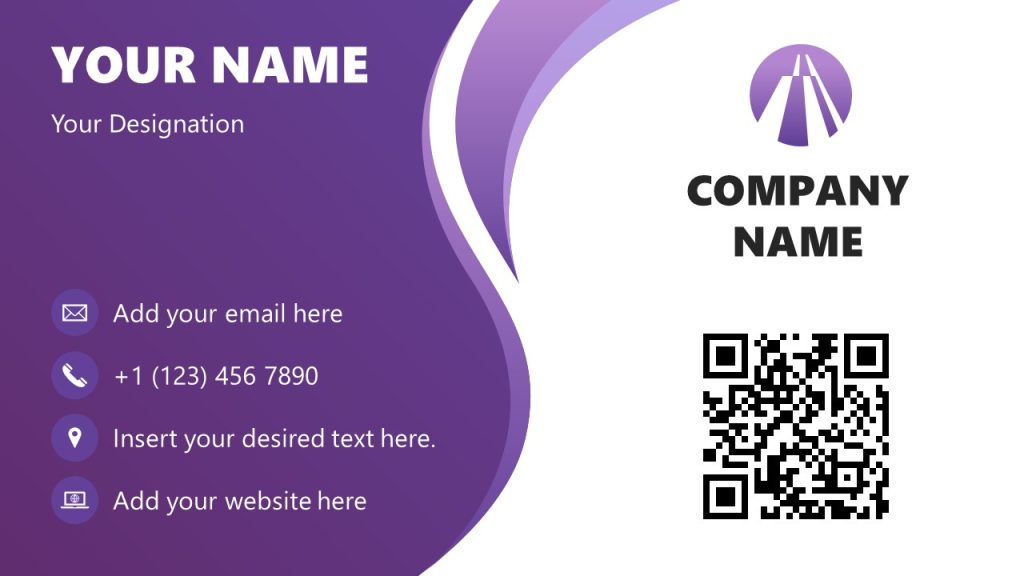
Recommended Business Card PPT Templates
FAQs
What is the best business card size to set in PowerPoint?
For the US and Canada, use 3.75 × 2.25 inches with bleed included. For European cards, use 91 × 61 mm. The trim will be slightly smaller.
Can I print directly from PowerPoint?
It is better to export as a PDF and give that file to the printer, as it preserves vector quality and prevents scaling issues.
Should I include every social media handle?
No. Select one or two channels where you are active. Too many details make the card look crowded.
Does a QR code replace a website URL?
It can. If you include a QR code, there is no need to print long web addresses as well. Keep redundancy low.
Final Words
A strong business card blends simplicity with deliberate design choices. It should look effortless, yet every element, from the safe margins to the font size, must be intentional. PowerPoint provides all the tools you need to achieve this without specialized software.
With proper sizing, careful layout, and the support of a template, you can produce a professional business card that is ready for print and capable of leaving a lasting impression. Instead of being an afterthought, your card becomes a precise extension of your identity.