Canva is commonly used to quickly design presentations, but many professionals still rely on Google Slides for collaboration, sharing, and online presentations. If you’ve created your slides in Canva and are wondering how to export Canva to Google Slides without starting from scratch, there are easy methods to make the switch. In this guide, we will show you how to export a Canva file as Google Slides presentation. Additionally, we will explain the best workflow to avoid formatting issues and show how using SlideModel templates in Canva can help maintain cross-platform consistency.
Why Export Canva to Google Slides
Google Slides is widely used for real-time collaboration, easy sharing via links, cloud-based access (no downloads required), and integration with Google Workspace. On the other hand, Canva is excellent for design. Since both Google Slides and Canva offer feature-rich free versions, they provide good presentation-making features.
While many presenters find Google Slides lacking in design features, Canva has its own limitations for presenters. It’s not as widely used as Google Slides, contains many features reserved for premium users, and isn’t specifically designed as a presentation-only tool. This is because Canva offers design features for a range of use cases, including social media graphics, flyers, reports, and presentations. By exporting your Canva slides to Google Slides, you get the best of both worlds: strong visuals and flexible collaboration.
How to Export Canva Presentation to Google Slides
While Canva doesn’t offer a direct export to Google Slides button, there are simple and effective ways to convert your Canva presentation into a fully usable Google Slides deck, as explained in the sections below.
Method 1: Export Canva to Google Slides via PowerPoint
The most reliable way to export from Canva to Google Slides is to use PowerPoint (PPTX) as an intermediate format.
Step 1: Open your Canva presentation. Make sure your slides are finalized and ready for export.
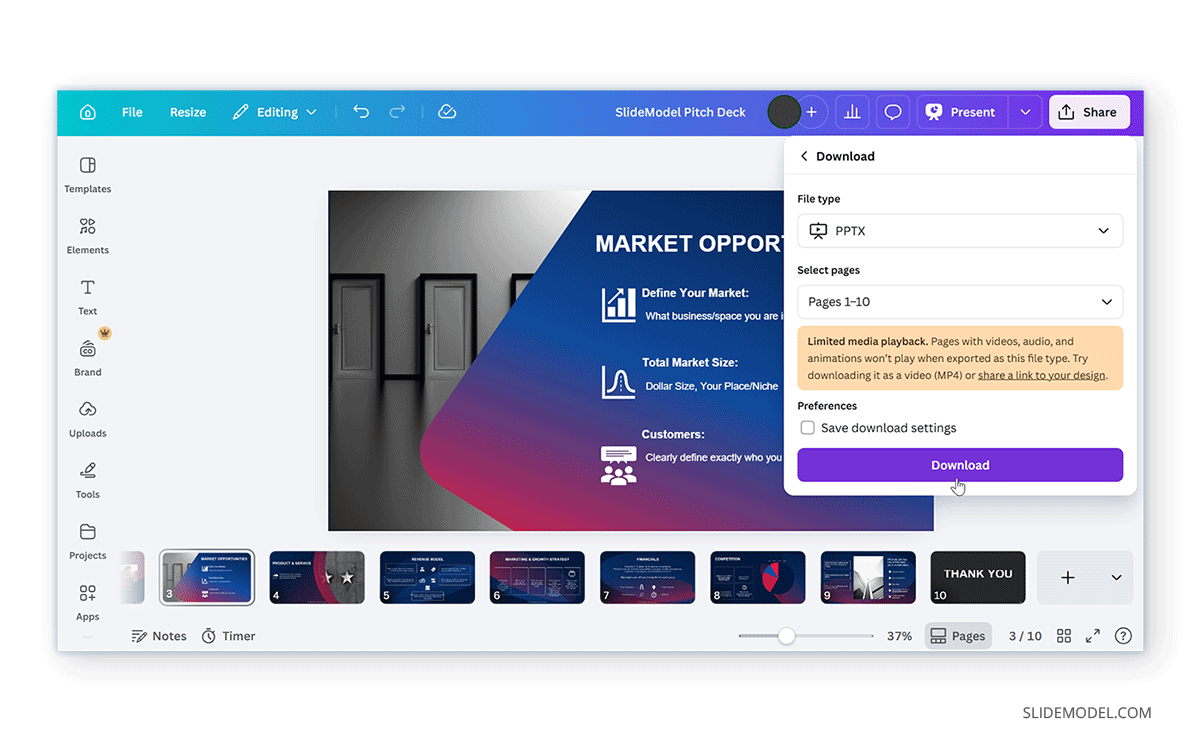
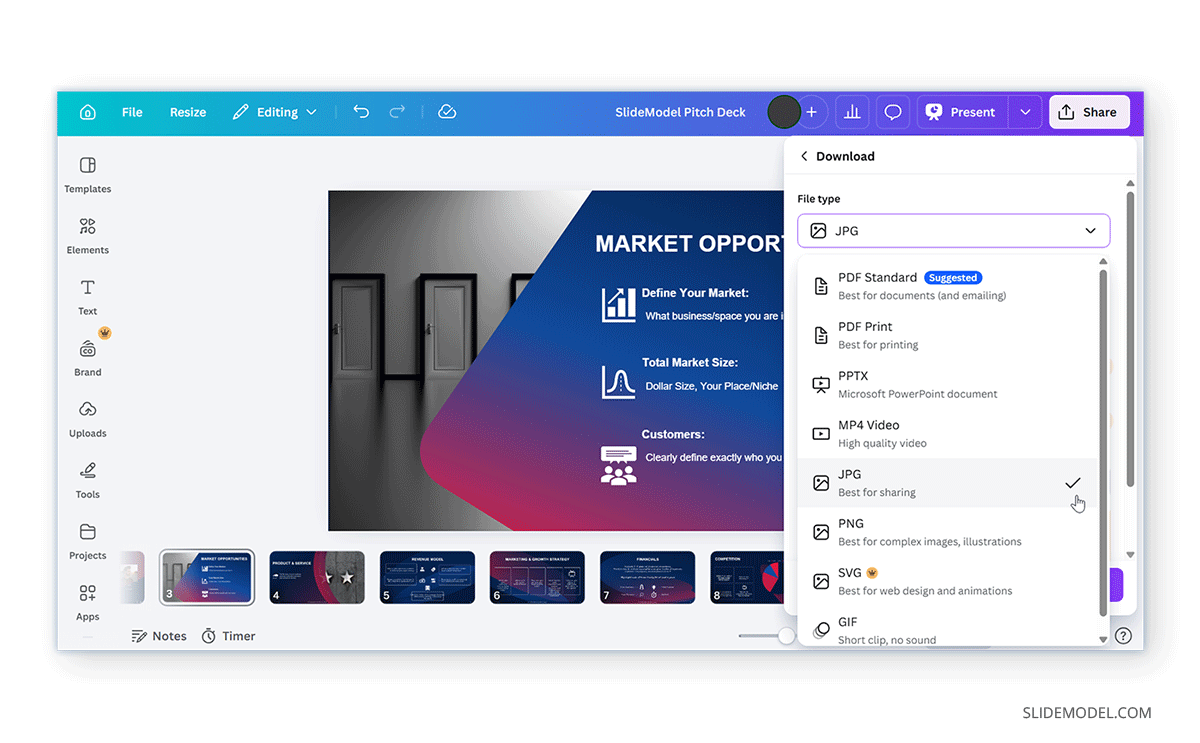
Step 2: Click Share (top-right corner), select Download, choose Microsoft PowerPoint (pptx), and click Download. This will export your Canva file as a PowerPoint presentation.
Step 3: Open Google Drive, click New -> File Upload, and upload the PPTX file you just downloaded.
Step 4: Right-click the uploaded file and select Open with -> Google Slides. Google Slides will automatically convert the file into an editable Google Slides presentation.
Note: This method also answers a common question: how to export Google Slides to PowerPoint without losing formatting. However, if you run into formatting issues after downloading slides in PowerPoint, see Method 2 below as an alternative.
Method 2: Import Canva Slides as Images
If maintaining visual design is more important than editability, and a PowerPoint export in an editable format isn’t doing the job, exporting slides as images might work for you.
Step 1: Download your Canva presentation as PNG or JPG via Share -> Download.
Step 2: Open a blank Google Slides presentation and insert images into slides.
Step 3: Adjust layout as needed to suit your needs.
How to Export Canva to Google Slides Without Losing Formatting
Converting a Canva presentation to Google Slides can sometimes lead to minor formatting issues. While no method guarantees a perfect transfer, a few simple practices can help preserve your layout and design as much as possible.
Use Compatible Fonts
Custom Canva fonts may not be available in Google Slides, which can lead to unexpected substitutions. To avoid this, stick to widely supported fonts such as Arial, Calibri, or Open Sans, which are more likely to display correctly after conversion.
Keep Layouts Clean and Structured
Complex designs don’t always result in cross-platform compatibility for slides. Avoid excessive layering, overlapping elements, or uneven spacing. Simple, well-aligned layouts are more likely to remain intact after export.
Limit Canva-Specific Features
Certain Canva features are not supported in Google Slides. Elements such as animations, stickers, or embedded media may be lost or altered during conversion. If compatibility is important, keep these elements to a minimum.
Use High-Quality Images
Images that are low resolution or heavily resized may appear blurred or distorted after export. Using high-quality visuals from the start helps maintain clarity in your slides.
Review and Adjust After Import
After importing your presentation into Google Slides, take a few moments to review each slide. Check for alignment issues, font consistency, and image placement, and make small adjustments where needed to refine the final result.
Using SlideModel Templates Inside Canva for Better Export
If your goal is to maintain professional quality after export, starting with structured layouts makes a big difference. Instead of designing freely in Canva, you can use SlideModel templates to keep your slides organized and consistent.
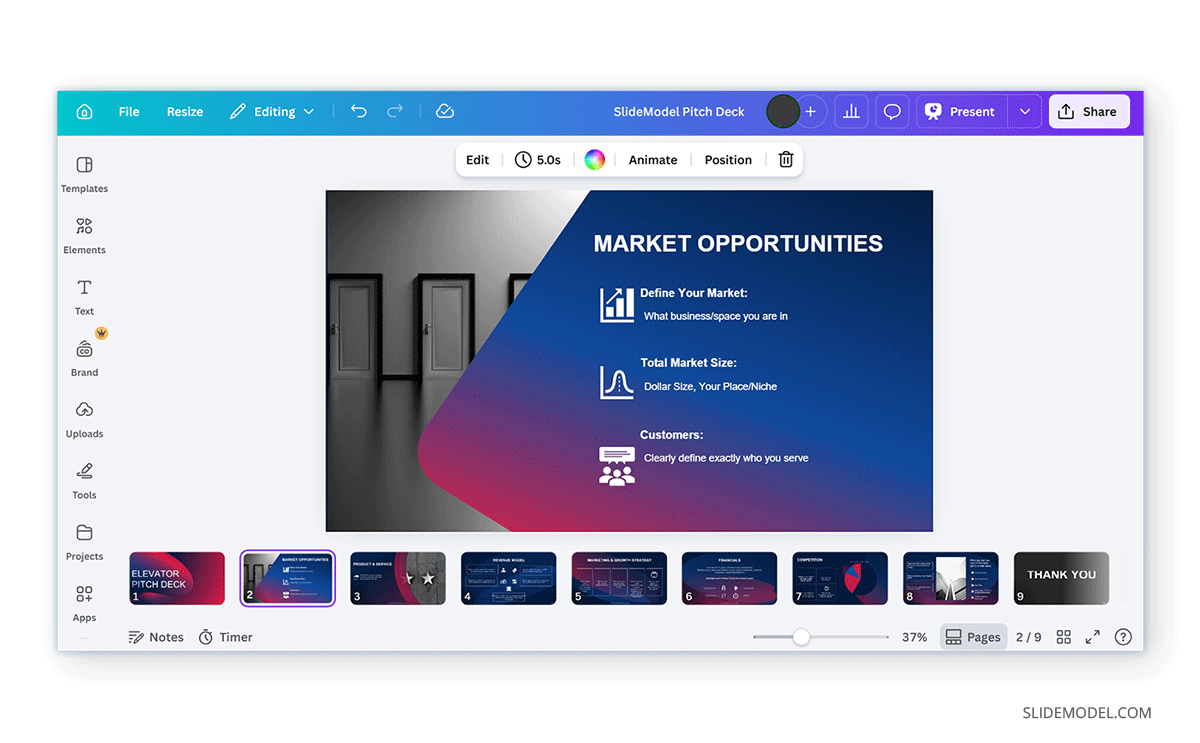
The example below shows the Creative Elevator Pitch Deck PowerPoint Template in Canva with customized slides. Using SlideModel templates with structured slide layouts in Canva, with a focus on template types that match your presentation topic. Make sure you keep the design consistent across slides, including text, images, and data. After exporting to Google Slides, only minor adjustments should be needed.
Final Words
Once you learn how to export from Canva to Google Slides, you’ll have more flexibility. While Canva excels at design, Google Slides offers better collaboration and accessibility. By exporting your Canva presentation as a PPTX file and importing it into Google Slides, you can maintain most of your design while gaining full editing capabilities. Furthermore, using structured layouts, such as SlideModel templates, can help improve compatibility and reduce potential formatting issues.