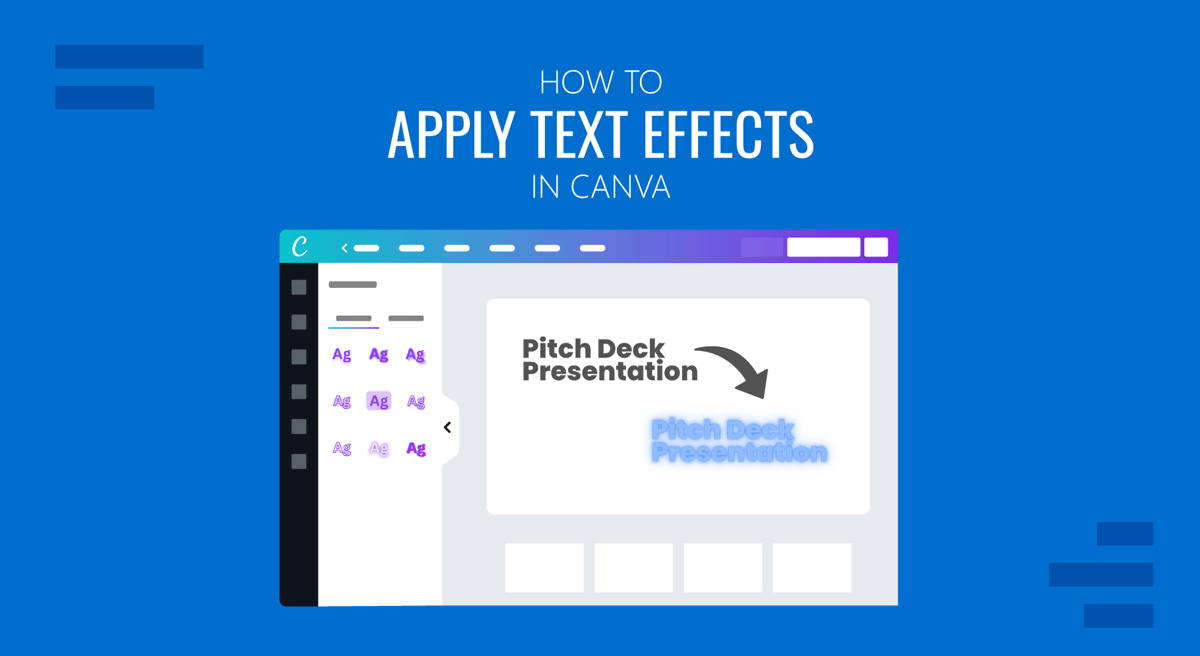
Text plays an important role in how information appears in a slide deck. While font selection, size, and color set the basic look of text, Canva also offers text effects that can make headings more prominent, improve readability, and help text stand out against different backgrounds. Using text effects in Canva can make presentation titles, section headings, callouts, and other text more prominent. You can add shadows, outlines, backgrounds, and other styles, or combine these options with Canva’s animation tools to create dynamic slide decks. This guide explains how to add, edit, and customize text effects in Canva, with handy tips on using them effectively.
How to Apply Text Effects in Canva
How to Use the Effects Menu in Canva
Canva provides a dedicated Effects menu for changing the appearance of selected text. This menu contains effects and associated customization options to tweak them.
Step 1: To begin, select the text box you want to customize and open Effects from the text controls. Canva displays the effects available for the selected text, and you can choose one before adjusting its settings.
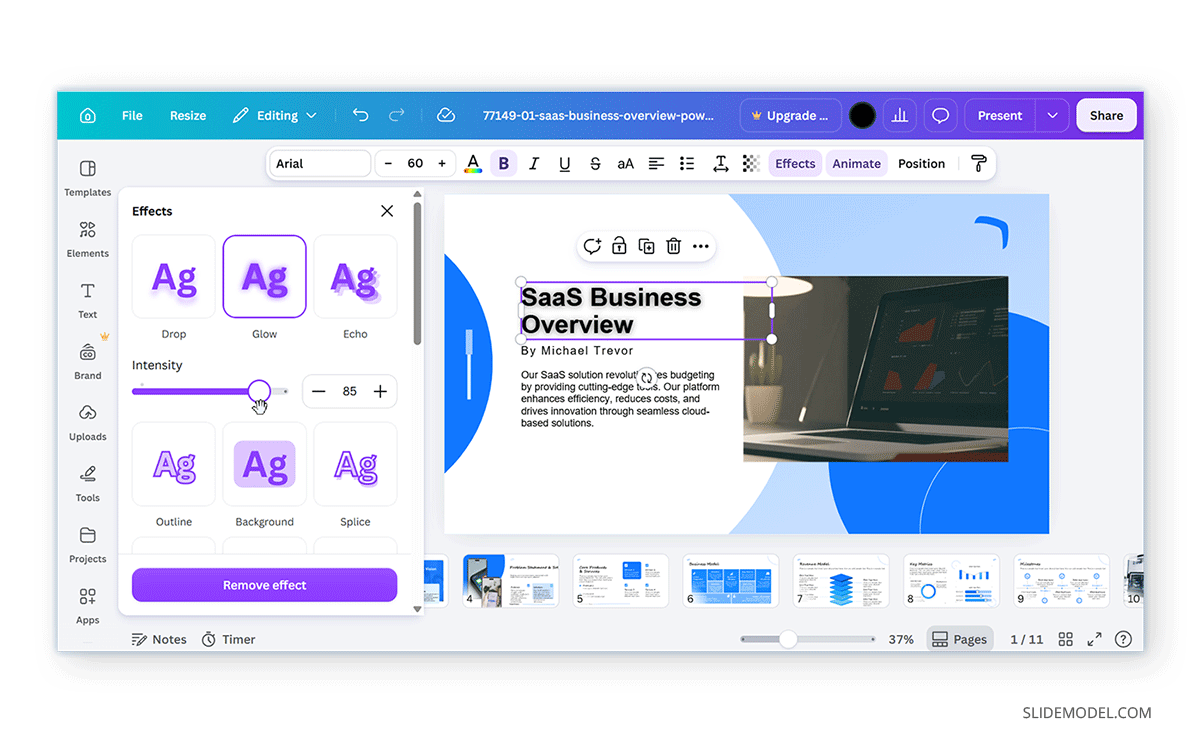
Step 2: The Effects menu includes styles such as Drop, Glow, Echo, Background, Outline, Splice, Hollow, Neon, and Glitch. Use these to add depth, emphasis, or a more distinctive visual treatment to headings and other prominent text. You can also use the Curve effect from the Shape section in the menu to create curved text blocks.
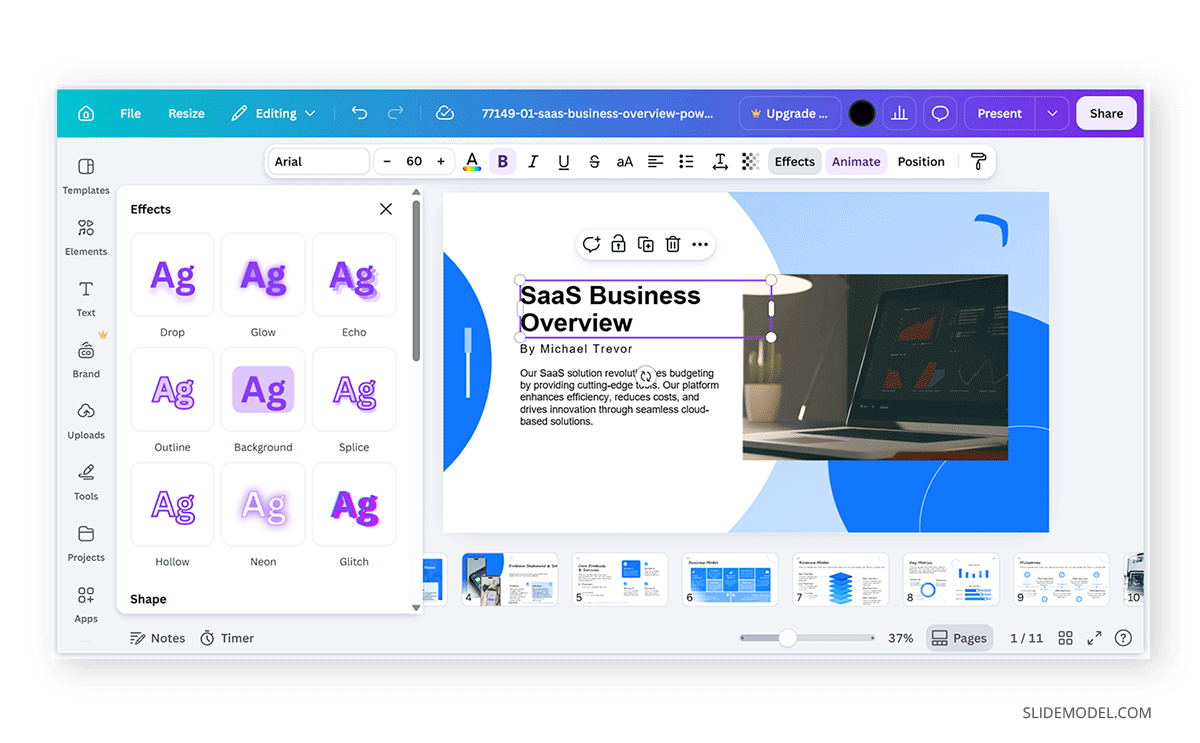
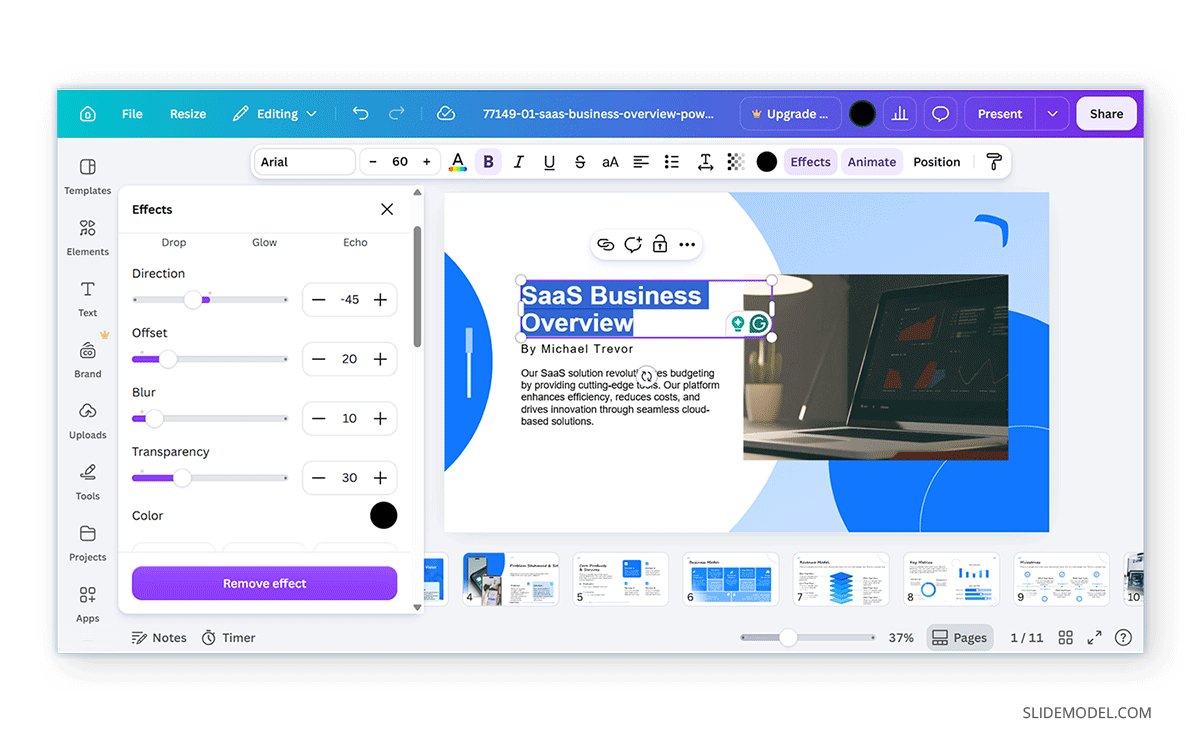
Step 3: After you select an effect, Canva will provide additional controls, depending on the style you choose. These may include intensity, direction, offset, roundness, blur, transparency, and color settings, allowing you to fine-tune the selected effect’s appearance.
How to Work with Advanced Effects in Canva
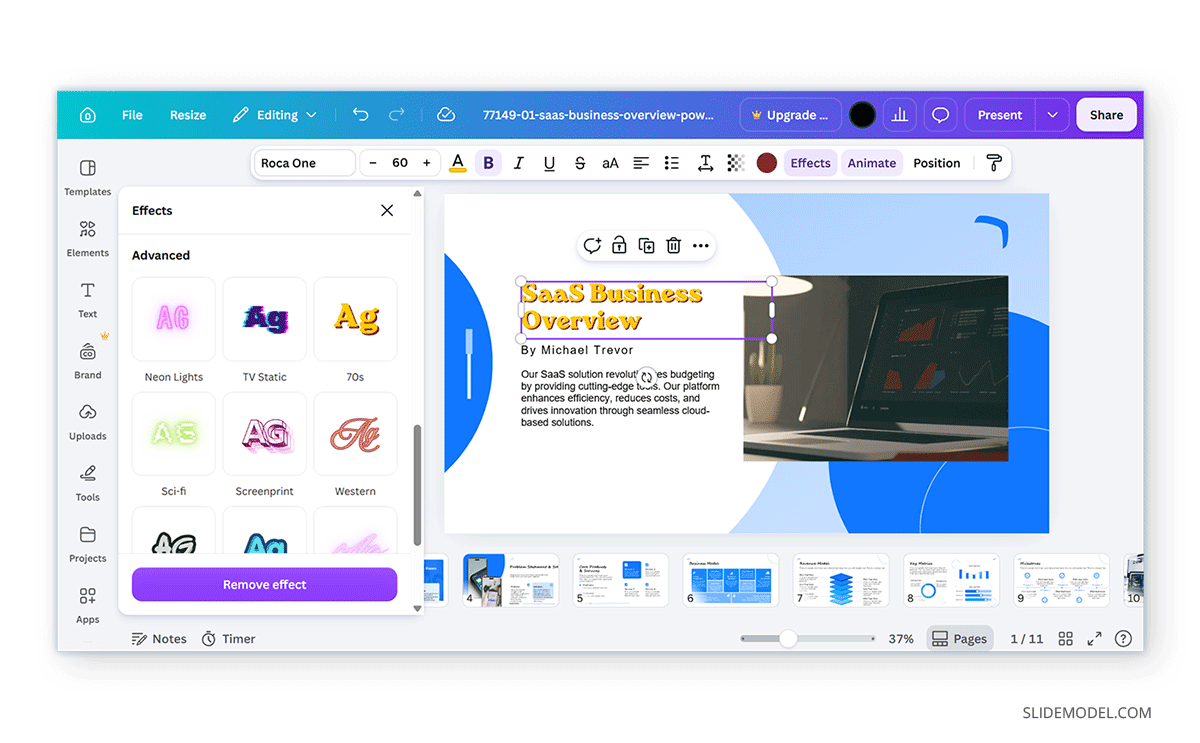
In the Effects menu, you will also see an Advanced section, which contains additional effects. These work much like preset text styles, providing ready-made combinations of visual treatments that can quickly change the appearance of a heading or other prominent text. These effects include Neon Light, TV Static, the 70s font style look, as well as Sci-fi, Screenprint, Western, Graffiti Bubble, Arcade, Pixel, Cosmic, and the Aerobics style, which looks similar to what you are likely to find on aerobics adverts of the past.
How to Use Text Shadow in Canva
A text shadow Canva effect adds depth to headings and improves contrast against busy backgrounds. To apply a text shadow in Canva, select the text, open Effects, and choose a shadow-based style. You can then adjust the available controls, such as direction, offset, blur, or intensity, depending on the selected effect. For example, Drop and Echo effects can create offset, shadow-like treatments, while Glow and Outline can help separate text from its background so it stands out.
How to Remove an Effect in Canva
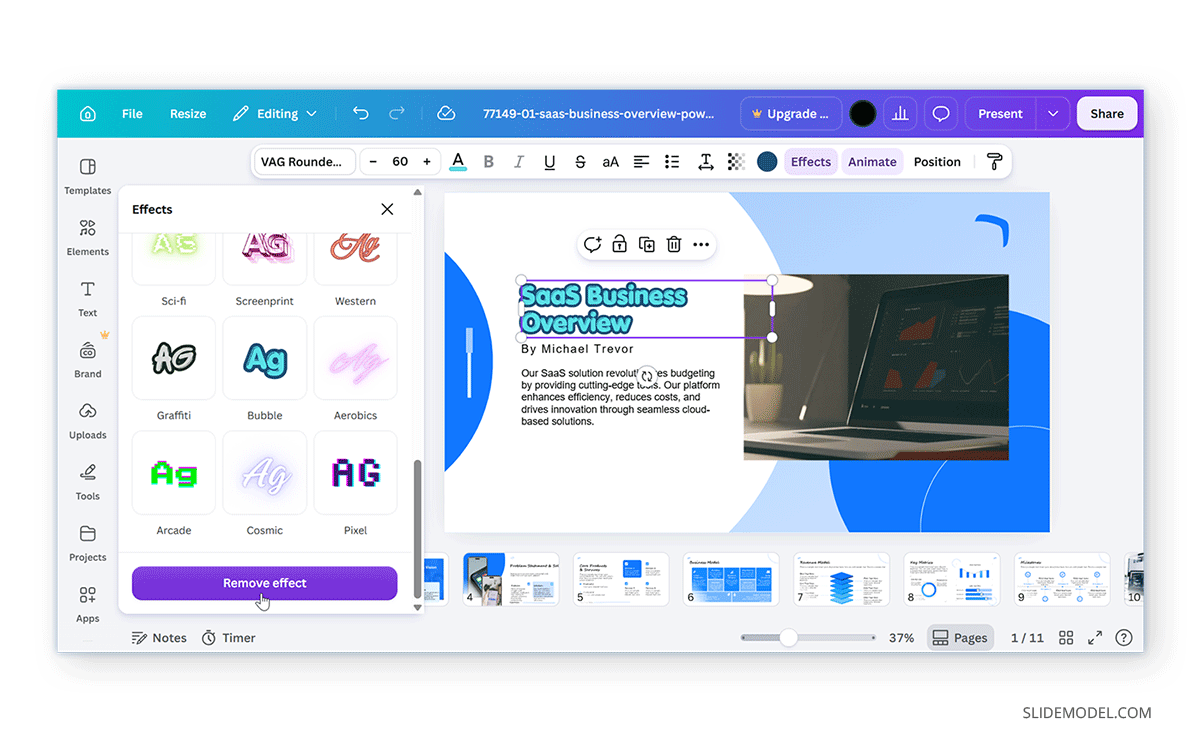
If you want to start over or go back to the old text style anytime, select the text that contains the effect, go to the Effects menu, and select Remove effect.
Choosing Text Effects for Presentation Slides
The best text effect depends on the text’s role and the slide background. Headings placed over photographs may benefit from shadows, outlines, or glow effects, while titles on plain backgrounds may need little more than strong typography and color.
Start With Basic Text Formatting
Before adding effects, set the basic text appearance using Canva’s standard formatting tools. Select an existing text box or add a new one, then adjust properties such as font, size, color, alignment, weight, and spacing. For body text, these adjustments are often sufficient. Headings and other prominent elements may benefit from additional styling, but add effects only after the basic typography works well. In other words, when deciding how to edit text in Canva, start with the font, size, color, and placement, then assess whether an effect adds anything useful.
Use Text Effects to Improve Contrast
Text effects can improve readability when a heading is placed over a photograph, gradient, or detailed background. In these cases, the effect separates the text from the content behind it. A shadow, glow, or outline can help when the text color matches parts of the background. For example, white text may become difficult to read over light areas of a photograph. A darker shadow or outline can improve contrast without changing the text color. Effects work best when they reinforce readability rather than compensate for a weak text-and-background combination.
Keep Heading Styles Consistent
Headings are a natural place to use text effects because they already occupy an important position in the slide hierarchy. For effective heading styling in Canva, begin with size, weight, color, and spacing before adding a shadow, glow, outline, or another treatment. If section headings use a particular effect, applying the same treatment to equivalent headings on other slides can help create a more cohesive deck. Body text, captions, and supporting information generally need simpler formatting so that headings remain distinct.
Combine Animations with Text Effects
Canva also allows you to animate text in presentations. Treat text animations separately from text effects. Effects change how the text looks, while animations control how it enters, moves, or behaves during playback. To animate text in Canva, select the text box, open Animate, and choose an animation style. Adjust the settings based on how you want the text to appear during the presentation. Animations are most useful when they support the flow of information. They can introduce a section heading, reveal content in sequence, or highlight a key statement.
Final Words
Text effects in Canva can enhance headings, improve contrast, and give presentation slides a more distinctive style. The Effects menu provides both subtle treatments, such as shadows and glows, and more decorative options for creative designs using retro effects. For most presentations, the best results come from establishing clear typography first, then using effects where they serve a specific purpose. Combined with consistent heading styling and carefully selected text animations, these tools can help create slides that are easier to read and more engaging for the audience.